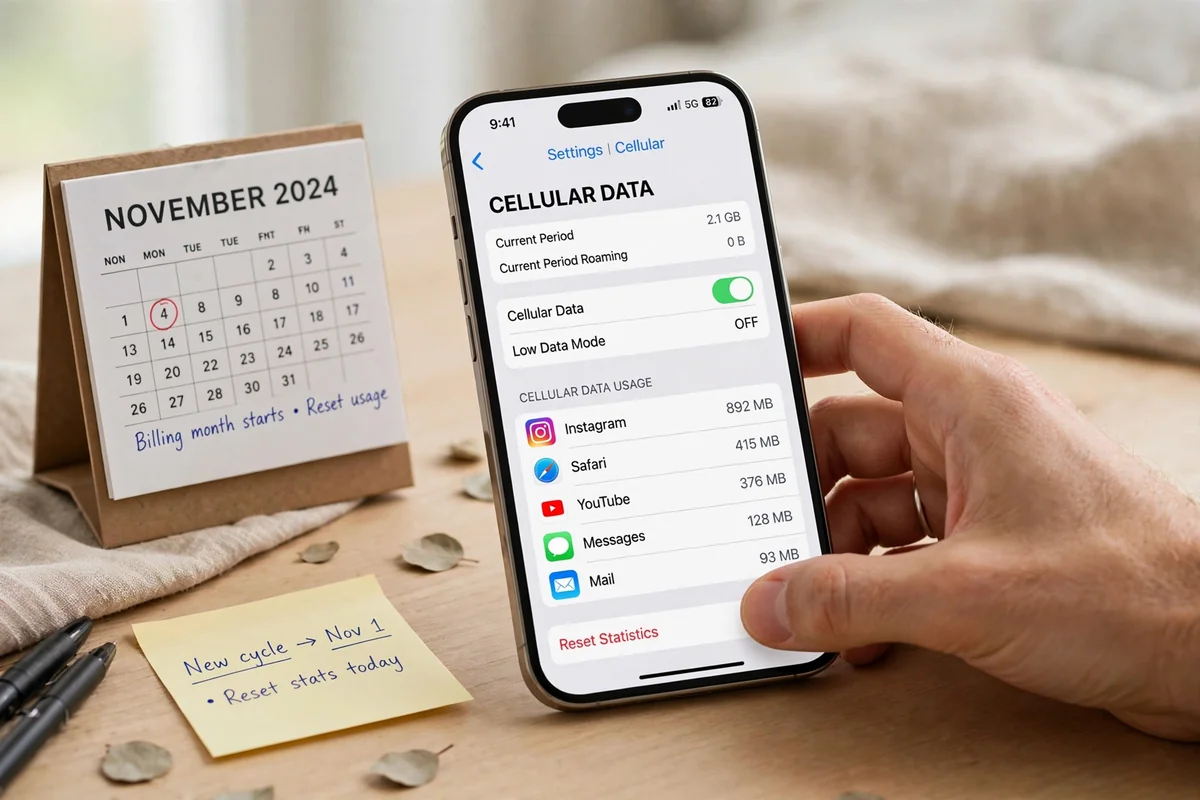
Quick answer: On an iPhone, go to Settings, then Cellular (called Mobile Service on some iPhones), and scroll down. You will see total usage for the current period, a per-app breakdown, and System Services. Tap Reset Statistics at the bottom on the first day of your billing month, and from then on the number means something.
Related reading: Android backup steps
Why this number confuses everyone
Ask an iPhone owner how much data they used last month and you will usually get a shrug, or a number that is obviously wrong. That is not their fault. The iPhone’s data counter is honest, but it is not automatic in the way people assume. It counts from the last time someone reset it, which might have been months ago, or never. A total that covers seven months looks terrifying until you realise it is seven months of data, not one.
The fix is simple, but it has two parts, and most guides only give you one. First, find the counter. Second, reset it on a schedule that matches your billing month. Without the second part, the first part is just a scary number with no context. With both parts, you get a monthly total you can compare with your plan, and a per-app list that tells you exactly where the data went.
This guide covers both parts, plus the two other places data hides: System Services and your carrier’s own count. It also covers what to do when the phone’s number and the carrier’s number disagree, because they often do, and the disagreement has a boring explanation that is worth knowing.
Related reading: clearing Android cache
Step one: open the right screen
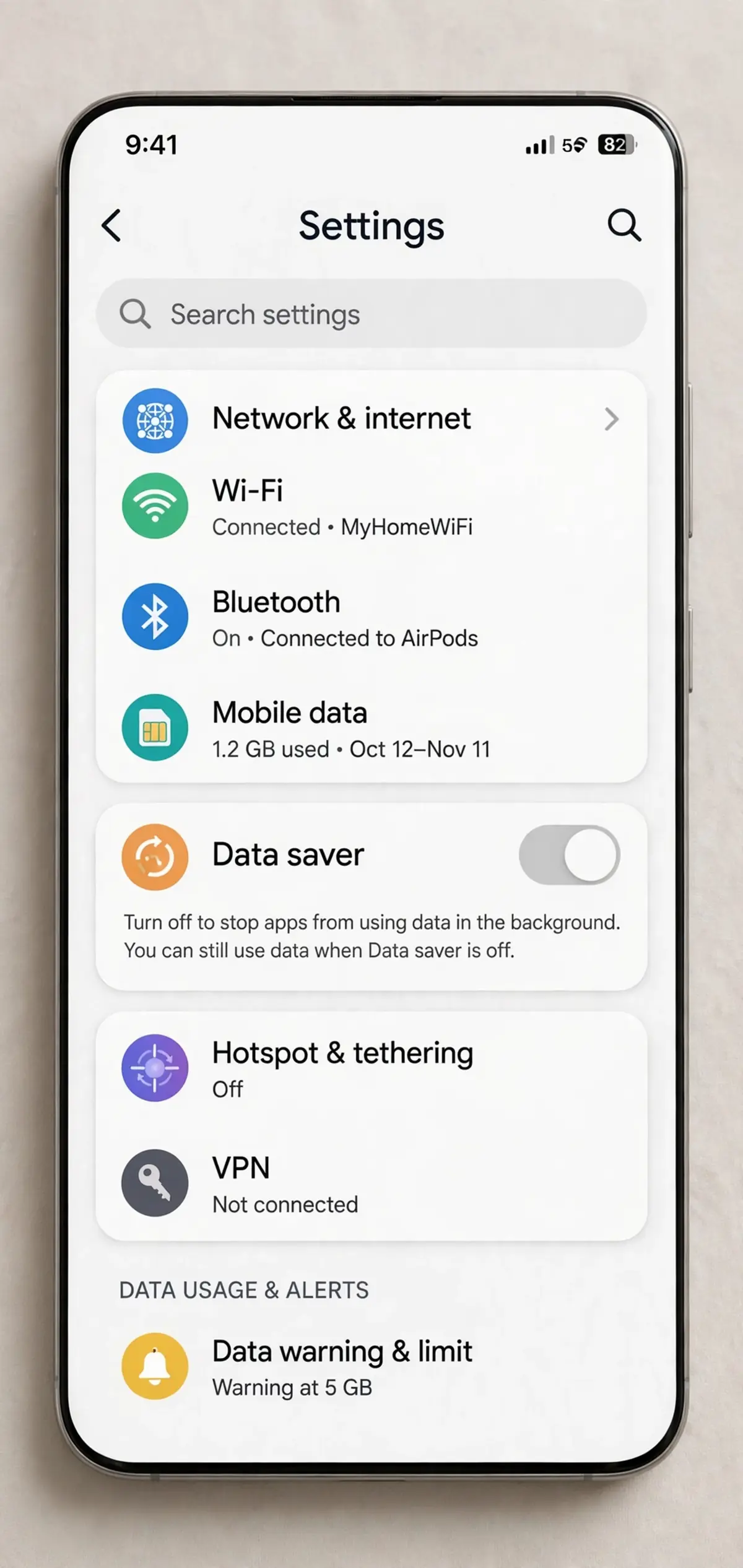
Open Settings, then tap Cellular. On some iPhones, especially outside the United States, the same menu is called Mobile Service instead. It is the same screen, with the same contents, under a regional name. If you have two SIMs or eSIMs, tap the line you want to check first, because usage is tracked per line.
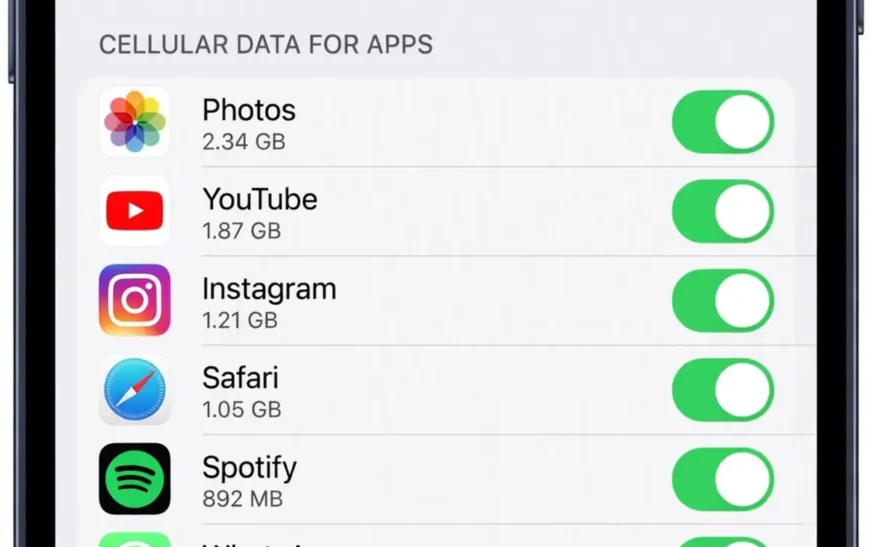
At the top you will see the Cellular Data switch. Below it, depending on your phone, you will see options for data mode and roaming. Scroll down past those and you reach the usage section. The headline figure is labelled Current Period, and it is a running total since the last reset. Below it, each app is listed with the amount of mobile data it has used in that same period.
That per-app list is the most useful part of the whole screen. It ranks your apps by data use, and the top two or three usually explain most of the total. If a video or social app sits at the top with a number in gigabytes, you have found your answer. If a maps or mail app sits at the top, something subtler is going on, and we will get to that.
Scroll further and you will find System Services. This is the phone’s own data use: things like messaging, push notifications, software updates, Siri, and the catch-all category that covers features like Wi-Fi Assist. You cannot switch off cellular data for individual system services the way you can for apps, but you can see the total, and that total sometimes explains a gap between what your apps used and what your carrier charged you for.
At the very bottom of the screen is Reset Statistics. That button is the key to the whole exercise, and we will come back to it in detail. For now, just notice where it is, and do not tap it yet. Tapping it before you have recorded the current numbers throws away the only evidence you have.
Related reading: overheating phone fixes
Step two: read the per-app list like a detective
Start at the top of the app list. The apps are listed in order of data used, largest first, which makes the detective work fast. A streaming or social app at the top is normal and expected. A surprise is an app you barely use sitting near the top, or an app you thought was Wi-Fi only showing a large mobile total.
For each app in the top five, ask three questions. Did I actually use this app on mobile data, or did it use data in the background? Does this app have a setting to limit mobile use, like a data saver mode or a Wi-Fi-only download option? And do I need this app to have mobile access at all? Messaging and maps usually need it. A game, a shopping app, or a social feed usually does not, and cutting those off is free data.
To cut an app off, turn off its switch on this same screen. When cellular access is off for an app, that app can only use Wi-Fi. It will still work fine at home, in the office, and on any Wi-Fi network. It simply will not burn mobile data when you are out. This is the single most effective control on the iPhone, because it is per-app and it sticks until you change it back.
Pay attention to apps with background use. An app can burn data without you ever opening it, by refreshing its feed, syncing photos, or downloading content for offline use. If an app’s total seems too high for how often you open it, background activity is the likely cause. Turning off Background App Refresh for that app, under Settings then General then Background App Refresh, stops most of that, and Low Data Mode pauses much of the rest.
Related reading: photo storage numbers
Step three: reset on your billing date, every month
Here is the part most people skip. The iPhone does not reset its statistics automatically to match your carrier’s billing cycle. It counts until you tell it to stop. So pick a date — the first day of your billing month — and reset on that date, every month. Put a recurring reminder in your calendar for that date, because you will forget otherwise, and a forgotten reset makes the next month’s number meaningless.
When you reset, do two things first. Write down or screenshot the totals before you reset, so you have a record of the month that just ended. Then tap Reset Statistics at the bottom of the Cellular screen and confirm. From that moment, every number on the screen covers the new month only, and you can compare it directly with your plan allowance and with your carrier’s count.
If you reset mid-month by accident, do not panic. You have lost the running total for the partial month, but your carrier still has its own count, and you can start a fresh period from the reset date and note that the phone’s figure covers only part of the month. The discipline matters more than any single month’s perfection. After two or three months of resetting on schedule, the habit sticks, and the numbers start to tell a clean story.
Some people prefer to reset on the first of the calendar month instead of their billing date. That works too, as long as you are consistent and you remember that the phone’s month and the carrier’s month will not line up exactly. The billing-date reset is better because it lets you compare phone and carrier figures directly, which is the whole point of the exercise.
Related reading: moving contacts to a new phone
What System Services is hiding
System Services is the line that makes people suspicious, because it is a single number covering a dozen different phone functions, and you cannot switch any of them off individually. In practice, the biggest contributors are usually software updates, iCloud sync, push notifications, and Wi-Fi Assist, which is the feature that uses mobile data when Wi-Fi is weak.
Wi-Fi Assist deserves special attention. It is designed to help: when your Wi-Fi signal gets weak, the phone quietly uses mobile data to keep things working. On a home network with a dead spot, that can burn data on days you thought you were entirely on Wi-Fi. If System Services looks high, check whether Wi-Fi Assist is the reason by looking at its individual line inside System Services, and consider turning it off under Settings then Cellular, scrolling to the bottom, if you would rather have a slow connection than a surprise data bill.
Software updates are the other big System Services item. iOS updates are large, and while they usually download on Wi-Fi, they can use mobile data in some situations, especially if automatic updates are on and the phone is not on Wi-Fi when an update arrives. Setting app and system updates to Wi-Fi only, under Settings then App Store, prevents the worst of this. The same goes for iCloud Photos and iCloud Drive sync, which can upload large photo and file batches over mobile data if left unrestricted.
The honest truth about System Services is that it is usually small compared with app data. If your apps used 20 GB and System Services used 1 GB, System Services is not your problem. If System Services used 8 GB and your apps used 5 GB, something in the system list deserves a closer look, and the individual System Services breakdown will point at it.
Related reading: iPhone SOS meaning
Your carrier’s number, and why it disagrees
Your carrier measures data differently from your phone, and the two numbers will rarely match exactly. The carrier counts data at its network equipment, including overhead and retransmissions, and it counts in its own billing period. Your phone counts data at the device, in its own current period. Small differences are normal. Large differences usually have a cause worth finding.
The most common cause of a large difference is a period mismatch. If your phone’s current period started three months ago and your carrier’s month started last week, the phone’s number will be much larger, and comparing them is meaningless. Reset the phone on your billing date and the gap usually shrinks to a small, boring difference.
The second most common cause is a hotspot. Data used by devices connected to your phone’s hotspot counts against your plan, and your carrier sees it, but it may not appear clearly in your phone’s per-app list, because the hotspot traffic belongs to the connected device, not to an app on the phone. If you hotspot regularly, expect the carrier’s number to run higher than the phone’s app list suggests.
The third cause is timing. Carrier counts can lag by a day or two, and roaming or delayed records can land in a later bill. A small gap that resolves itself next month is not a fault. A persistent, large gap in the carrier’s favour, month after month, is worth a call to the carrier, with your phone’s screenshots as evidence. Carriers can and do make errors, but you need clean, dated records to prove one, which is another reason the monthly reset habit matters.
Related reading: wireless charger picks
Checking usage in your carrier’s app
Most carriers offer their own app or web portal with a usage meter, and for plan purposes that meter is the one that counts, because the carrier bills from it, not from your phone. The phone’s screen is for diagnosis. The carrier’s meter is for billing. Use both, and let each do the job it is good at.
Carrier apps usually show your current month’s usage, your remaining allowance, and sometimes a per-day breakdown. Some also show hotspot usage separately, which is useful for the hotspot gap described above. Check the carrier’s figure at the same time each month, ideally on your billing date, and compare it with the phone’s figure from the same date. Over a few months you will learn your normal gap, and a month where the gap suddenly grows will stand out.
If your carrier offers usage alerts, turn them on. An alert at 50 percent, 80 percent, and 100 percent of your allowance turns a surprise bill into a warning you can act on. Some carriers also let you set a hard cap or a data limit that stops mobile data at a threshold. That is worth enabling if you have ever been burned by an overage charge, because it replaces willpower with a switch.
Related reading: next-gen Wi-Fi explained
What to do with the answer
Once you know your real monthly total and your top apps, the decisions get easy. If you consistently use far less than your plan, you are paying for data you do not need, and a smaller plan saves money every month. If you consistently use more, you have three honest options: a bigger plan, less streaming on mobile, or stricter per-app controls. Picking one of those beats paying overage charges and hoping next month is different.
If one app dominates, fix that app first. Set its quality lower, set its downloads to Wi-Fi only, or cut its mobile access entirely. One app fix often saves more than a dozen small tweaks across apps you barely use. If System Services dominates, fix the system settings: Wi-Fi Assist off, updates on Wi-Fi only, iCloud sync on Wi-Fi only.
And if you want to plan ahead rather than just react, plug your habits into a calculator and see what plan size fits them.
The data usage calculator on CripsyWire turns daily habits into a monthly total, which pairs well with the real usage number from your iPhone screen: one tells you what you do, the other tells you what you did.
Related reading: free AI video tools
Mistakes that make the number useless
The biggest mistake is never resetting. A current period that started a year ago is not a usage figure, it is a museum. Reset monthly, on your billing date, and the number becomes a tool.
The second mistake is checking only the headline total and ignoring the per-app list. The headline tells you how much. The per-app list tells you why. Without the why, you cannot fix anything, and you will just buy a bigger plan and watch it fill up the same way.
The third mistake is forgetting dual SIMs. If you have two lines, each line has its own usage, and checking only one line gives you half the picture. Check both, and remember which line your plan actually bills.
The fourth mistake is trusting the phone’s number over the carrier’s number for billing purposes. The phone is for diagnosis. The carrier bills from its own meter. If they disagree by a lot, investigate, but do not assume the phone is right and the carrier is wrong. Both can be right about different things, measured in different places, over different periods.
Related reading: checking a motherboard model
A monthly routine that takes two minutes
On your billing date, open Settings then Cellular, screenshot the totals, and tap Reset Statistics. Glance at the top three apps. If a surprise app appears, deal with it there and then: cut its mobile access, lower its quality, or set its downloads to Wi-Fi only. Then check your carrier’s app and compare the two figures. That is the whole routine. Two minutes, once a month, and you will never again be surprised by a data bill.
Put the reminder in your calendar now, while you are thinking about it. A routine that depends on remembering is a routine that will lapse. A calendar reminder on your billing date turns it into something that just happens, and after three months it will feel as automatic as the bill itself.
Related reading: deleting a Telegram account
FAQ
Where is data usage on iPhone?
Go to Settings, then Cellular (or Mobile Service on some iPhones), and scroll down. The Current Period total, per-app usage, and System Services are all on that screen.
Why does my iPhone data usage look so high?
Because the counter counts since the last reset, which may have been months ago. Reset Statistics on your billing date each month, and the figure will cover one month only.
Does the iPhone reset data usage automatically each month?
No. The iPhone does not reset its statistics to match your carrier’s billing cycle. You must tap Reset Statistics manually, ideally on your billing date.
Why does my carrier show more data than my iPhone?
Period mismatch is the usual cause, followed by hotspot use, which the carrier counts but the phone’s per-app list may not show clearly. Small differences from network overhead are normal.
Can I stop a single app using mobile data?
Yes. On the Cellular screen, turn off that app’s switch. The app will then work on Wi-Fi only and will not use mobile data in the background or foreground.
What is System Services in iPhone data usage?
It is the phone’s own data use, covering messaging, push notifications, software updates, Siri, iCloud sync, and features like Wi-Fi Assist. You cannot switch off individual system services, but you can see their total and adjust the features that cause it.
Related reading: AI chip news
The short version
Settings, then Cellular, then scroll. Read the per-app list, not just the headline. Reset Statistics on your billing date, every month, and screenshot before you reset. Compare with your carrier’s meter, fix the top app, and the mystery disappears. Two minutes a month is all it takes to know exactly where your data goes.
More practical guides live on the CripsyWire blog.
The site itself is at CripsyWire.
For background on who runs it, see the about page.
Turn your usage into a plan size
Enter your daily habits and see your monthly total, so you can compare it with the real number from your iPhone screen.

Continue Reading on CripsyWire
For more practical AI coverage for US buyers, see our full AI tools and agents library. When you are deciding between competing tools, the reviews and comparisons section breaks down head-to-head matchups. AI features that live inside your phone are tracked in smartphones, and AI on your wrist or finger in wearables. All of this is part of CripsyWire's broader Tech coverage — start at the homepage for what is newest.