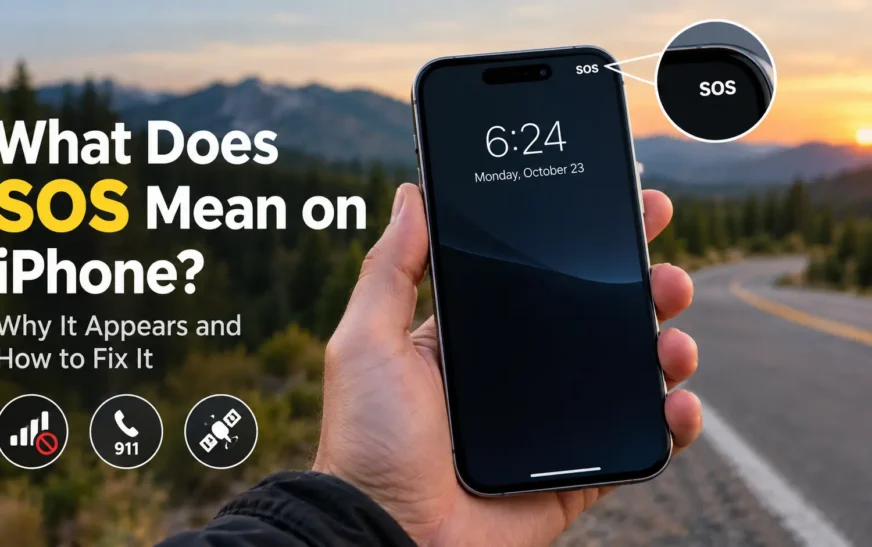
Quick answer: “SOS” or “SOS only” in your iPhone’s status bar means the phone isn’t connected to your carrier’s network, but it can still make emergency calls (Apple Support). It does not mean your iPhone called 911. The SOS label is used on iPhones in the United States, Canada and Australia (AppleInsider).
SOS usually shows up for one of three reasons: you’re outside your carrier’s coverage, your carrier is having an outage, or your SIM or eSIM line isn’t active on the phone. Most of the time it clears on its own when you move or the outage ends. If it sticks around somewhere your iPhone normally has signal, the step-by-step fix below usually restores service in a few minutes.
SOS in the status bar vs. Emergency SOS: two different things
Apple uses “SOS” for three related but separate things, which is why the label causes so much alarm.
- The SOS status indicator is passive. It replaces your signal bars to describe your connection. Nothing has been called or sent.
- Emergency SOS is an action you trigger with a button shortcut. Your iPhone counts down, calls emergency services, then alerts your emergency contacts (Apple Support).
- Emergency SOS via satellite lets iPhone 14 and later models text emergency services when there’s no cellular or Wi-Fi coverage at all (Apple Support).
If “SOS” sits where your signal bars usually are and no call screen opened, you’re looking at the indicator. You didn’t trigger anything.
What still works when your iPhone shows SOS
In SOS, normal calls, texts and cellular data stop, but emergency calls still go through. Apple separates this from “No Service” and “Searching,” which mean the phone isn’t connected to any cellular network (Apple Support).
| What you see | Normal calls and texts | Cellular data | Emergency calls |
|---|---|---|---|
| Signal bars and carrier name | Yes | Yes | Yes |
| SOS or “SOS only” | No | No | Yes, over any available carrier network |
| No Service or Searching | No | No | Not over cellular; iPhone 14 and later can offer satellite texting where supported |
| Connected to satellite (iPhone 14 and later) | Text only, via Messages via satellite where supported | No | Text-based, via Emergency SOS via satellite |
Owning an iPhone 14 or later doesn’t make “No Service” disappear. Satellite isn’t a cellular connection: it works only outdoors with a clear view of the sky and horizon, and the Satellite option shows up in Settings only when you have no cellular or Wi-Fi coverage (Apple Support).
Wi-Fi changes the picture. On Wi-Fi, iMessage and FaceTime keep working. Wi-Fi Calling can also carry regular calls if your carrier supports it and you’ve turned it on, and when cellular service isn’t available, emergency calls might use Wi-Fi Calling (Apple Support).
SOS also has nothing to do with your data allowance. Hitting a plan’s data cap usually slows or pauses data without disconnecting your line. If you’re unsure whether your plan is the real issue, our guide to how much mobile data you actually need each month covers that separately.
Why your iPhone says SOS
You’re outside your carrier’s coverage
This is the most common cause. Rural highways, national parks, basements, parking garages and large concrete buildings can leave your carrier with no usable signal while another carrier’s tower is still in range. Under FCC rules, emergency calls go through even from a phone with no active plan, which is why SOS still lets you reach 911 (TidBITS). The label clears on its own once you’re back in coverage.
Your carrier is having an outage
If SOS appears suddenly where your phone always works, and people on the same carrier have the same problem, a network outage is the likely cause. During AT&T’s nationwide outage in February 2024, customers widely reported their phones dropping into SOS mode (WDIV ClickOnDetroit). Troubleshooting your iPhone won’t help here. Check your carrier’s status page or social accounts, use Wi-Fi if you have it, and wait.
Your SIM or eSIM line isn’t active
A line that isn’t activated, has been suspended or was moved to another device leaves your iPhone in SOS. This often happens right after you set up a new iPhone, transfer an eSIM, port your number, or power up an old spare. When your line moves to a new phone, the old one dropping to SOS is expected, and it can still call 911 (TidBITS). If you’re mid-switch, finish activating the line first, then move everything else; our guide to transferring contacts to a new phone covers the rest of the move.
Your line is switched off or a setting changed
On a Dual SIM iPhone, a line can be turned off in Settings > Cellular. After a new SIM or a carrier change, your iPhone may also need a carrier settings update before it connects (Apple Support). Both checks are in the fix list below.
You’re traveling outside the US
The SOS label is a feature of iPhones in the US, Canada and Australia (AppleInsider), so abroad you may not see it even when emergency calls are possible. If you have no service overseas, Apple recommends turning on Data Roaming in Settings > Cellular > Cellular Data Options (Apple Support). Also confirm your plan covers international use.

How to get rid of SOS on iPhone
You can’t turn the SOS indicator off. It disappears when your iPhone reconnects to your carrier, so the goal is to restore that connection. Work through these steps in order and check the status bar after each one. Most of them come from Apple’s own troubleshooting guide (Apple Support).
- Move, then wait a minute. Step outside, away from concrete and metal, or drive a short distance. If SOS clears, coverage was the cause.
- Toggle Airplane Mode. Turn on Airplane Mode for at least 15 seconds, then turn it off, as Apple suggests. Your iPhone searches for networks again.
- Restart your iPhone. The safest route is Settings > General > Shut Down, then hold the side button to turn it back on. Holding the side and volume buttons also works, but if you keep holding past the sliders, you start the Emergency SOS countdown.
- Confirm your line is on. Go to Settings > Cellular, tap your line, and check that it’s on. If it’s off, tap Turn On This Line. On a Dual SIM iPhone, check each line. If no line appears, your carrier needs to set up an eSIM, or you need to insert a physical SIM.
- Install any carrier settings update. Connect to Wi-Fi, then go to Settings > General > About. If an update exists, you’ll see an option to install it. A newly inserted SIM needs the new carrier’s settings.
- Update iOS. Go to Settings > General > Software Update. The current major version is iOS 27, released September 14, 2026 (Notebookcheck); our roundup of Apple’s iOS 27 changes covers what else arrived with it.
- Reseat the physical SIM, if your iPhone has a tray. Remove the SIM and put it back in. If it’s damaged or came from another device, ask your carrier for a new one. US models of iPhone 14 and later ship without a SIM tray (AppleInsider), so skip this step if yours has none.
- Check Cellular Data Options and run diagnostics. In Settings > Cellular > Cellular Data Options, turn on Data Roaming if you’re traveling. On iOS 18 or later, the Apple Support app can run extra diagnostics.
- Reset network settings. Go to Settings > General > Transfer or Reset iPhone > Reset > Reset Network Settings. This erases saved Wi-Fi passwords and VPN settings, so save it for last.
Still stuck? Contact your carrier and ask them to confirm three things: the line is active, the account isn’t suspended, and the device (IMEI) on the account matches your iPhone. If a friend’s SIM works in your phone but yours doesn’t, the SIM or line is the problem. If no SIM works, contact Apple Support.
Once SOS is gone, a different call problem can surface: calls connect, but people can’t hear you. That’s usually a microphone or audio-routing issue, not signal, and our guide to fixing a phone microphone that stopped working walks through it.
How to call for help when your iPhone shows SOS
Call 911 the usual way
SOS exists for this moment. Dial 911 in the Phone app as you normally would, and your iPhone routes the call over any available network. If your phone has no active service, the 911 center may not be able to call you back if the call drops (WDIV ClickOnDetroit), so give your location first.
Use the Emergency SOS shortcut
Press and hold the side button and either volume button until the sliders appear. Keep holding through the countdown, or drag the Emergency SOS slider, and your iPhone calls emergency services (Apple Support). You can also start Emergency SOS by quickly pressing the side button five times. Both options live in Settings > Emergency SOS as “Call with Hold and Release” and “Call with 5 Button Presses.” After the call ends, your iPhone alerts your emergency contacts and shares your location, if available.
Triggered it by accident? Release the buttons before the countdown ends. If a call does connect, stay on the line and tell the dispatcher it was a mistake. Hanging up usually means a callback, and 911.gov advises simply explaining what happened (NBC New York).
SOS vs. Emergency SOS via satellite
SOS needs at least one cellular network in range. Emergency SOS via satellite is for when there’s none.
- What you need: an iPhone 14 or later, to be outside with a clear view of the sky and horizon, and to be in a supported country (Apple Support). As of October 2026, Apple lists 21 countries, including the US, Canada, Mexico, Japan, Australia, New Zealand, the UK and much of Western Europe.
- How to start it: call 911 first; even without your carrier, the call may connect. If it won’t, tap Emergency Text via Satellite. Off the grid, you can also open Control Center, tap the Cellular button, tap Satellite, and choose Emergency SOS via satellite.
- What it does: you answer a few emergency questions and choose whether to notify your emergency contacts, then follow onscreen prompts to connect. Your iPhone shares your answers, your location including elevation, your battery level, and your Medical ID if you’ve set one up.
- If you start it by accident: don’t quit the session. Apple says to wait for a responder, then explain that you don’t need help.
- Practice first: Apple’s Satellite Connection demo lets you learn the process before a trip, without contacting emergency services.
Apple’s other satellite features cover everyday off-grid needs. Messages via satellite lets you text friends and family on iOS 18 or later in the US, Canada, Mexico and Japan. Apple says it shouldn’t be used for emergencies, and SMS via satellite requires carrier support (Apple Support). Find My via satellite and Roadside Assistance via satellite round out the set.
Is satellite SOS still free?
Yes, for now. Apple says Emergency SOS via satellite is free for two years after you activate an iPhone 14 or later (Apple Support). On September 9, 2026, Apple added another free year for iPhone 14, iPhone 15 and iPhone 16 owners who activated their phones before that day’s cutoff, and it still hasn’t said what it will charge afterward (MacRumors).
If you spend a lot of time off-grid, a phone shouldn’t be your only tool. Apple Watch Ultra 3 and later also support Emergency SOS via satellite (MacRumors), and our Garmin vs Apple Watch comparison covers offline maps and how each watch behaves out of signal range.
Can you rely on SOS? What the AT&T outage showed
SOS is a strong safety net, not a guarantee. AT&T’s February 22, 2024 outage lasted at least 12 hours, affected more than 125 million devices, and blocked more than 25,000 calls to 911, according to the FCC’s report (FCC). The FCC traced it to a misconfigured network change that pushed AT&T’s network into a protective mode, disconnecting every device from it (Urgent Communications).
Three practical takeaways:
- Treat SOS as “should be able to reach 911,” not “definitely can.”
- Turn on Wi-Fi Calling and confirm your emergency address, so Wi-Fi can serve as a backup when cellular isn’t available (Apple Support).
- Know your fallback: someone nearby on a different carrier, a landline, or satellite SOS on iPhone 14 and later when no network is reachable.
Set this up before you need it
- Add emergency contacts and complete your Medical ID in the Health app.
- Review Settings > Emergency SOS and decide whether you want both button shortcuts on.
- Turn on Wi-Fi Calling if your carrier supports it (search “Wi-Fi Calling” in the Settings app), and confirm your emergency address.
- Run Apple’s Satellite Connection demo on iPhone 14 and later.
- Update iOS before heading off the grid; Apple advises installing the latest software before you go (Apple Support).
- Save your carrier’s support number somewhere you can reach without data.
The bottom line
SOS means your iPhone has lost your carrier but can still reach emergency services. Most of the time, moving or waiting out an outage fixes it. If it persists where you normally have signal, work through the fix list in order, then call your carrier. And take five minutes today to set up emergency contacts, Wi-Fi Calling and the satellite demo.
Frequently asked questions about SOS on iPhone
Does SOS on my iPhone mean I called 911?
No. The SOS label in the status bar only describes your connection: no link to your carrier, but emergency calls are possible. Your iPhone calls emergency services only when you dial 911 or trigger the Emergency SOS countdown yourself.
Can I text or use data when my iPhone shows SOS?
Not over cellular. Regular texts, calls and data need your carrier’s network. On Wi-Fi, iMessage, FaceTime and Wi-Fi Calling can still work. With no cellular or Wi-Fi coverage at all, iPhone 14 and later can use Messages via satellite where it’s supported.
Can I turn off SOS on my iPhone?
No. The SOS indicator isn’t a setting; it disappears when your iPhone reconnects to your carrier. What you can change is the Emergency SOS button shortcut, under Settings > Emergency SOS, if accidental presses are the problem.
Why does my iPhone say SOS when my friend’s phone has service?
You’re probably on different carriers, and only theirs has coverage where you are. If you’re on the same carrier and only your phone shows SOS, the cause is likely your line or settings. Work through the fix steps, then call your carrier.
Does SOS mean my SIM card is broken?
Usually not. Coverage gaps and outages cause SOS far more often. If SOS persists in a strong-coverage area after restarting, updating carrier settings and reseating the SIM, ask your carrier to check the line or replace the SIM.
Why does my iPhone say SOS after setting up a new phone?
Your line probably hasn’t finished activating, or it moved and left this phone without service. Check Settings > Cellular for an active line. An old iPhone dropping to SOS after you switch is normal, and it can still dial 911.
What’s the difference between SOS and No Service?
SOS means a cellular network is in range for emergency calls, just not your carrier’s. No Service or Searching means your iPhone isn’t connected to any cellular network. In that case, iPhone 14 and later can try Emergency SOS via satellite.
Is Emergency SOS via satellite free, and which iPhones have it?
It works on iPhone 14 and later and is free for two years after activation. In September 2026, Apple extended free access by another year for iPhone 14, 15 and 16 owners who activated before September 9, 2026. Apple hasn’t announced pricing.
Can I receive calls when my iPhone shows SOS?
Not over cellular. Calls to your number can’t reach the phone until it reconnects to your carrier. If you’re on Wi-Fi and Wi-Fi Calling is turned on, you can make and receive calls over Wi-Fi instead (Apple Support).
Can an unpaid bill or a blocked phone cause SOS?
Yes. Apple advises asking your carrier to confirm that your account is active and in good standing, and that your iPhone isn’t blocked or barred from cellular service (Apple Support). A suspended line looks just like a coverage problem, so call your carrier if SOS persists where your phone normally works.

Continue Reading on CripsyWire
For more practical tutorials and hidden features, see our full how-to guides section. AI workflow guides feed into the broader AI tools and agents coverage, phone tricks live in smartphones, and wearable setup walkthroughs in wearables. When you are deciding what to buy, the reviews and comparisons section helps. All part of CripsyWire Tech, and the homepage shows what is newest.