Quick answer: To clear storage on your phone safely, check Settings then Storage to find the biggest category, back up photos and videos first, offload or delete apps you no longer use, clear bloated app caches, delete downloads, screenshots, duplicates, and old messaging media, and empty the trash. Do not delete system files, and do not clear an app’s data when you only meant to clear its cache.
Start with the storage screen, not the delete button
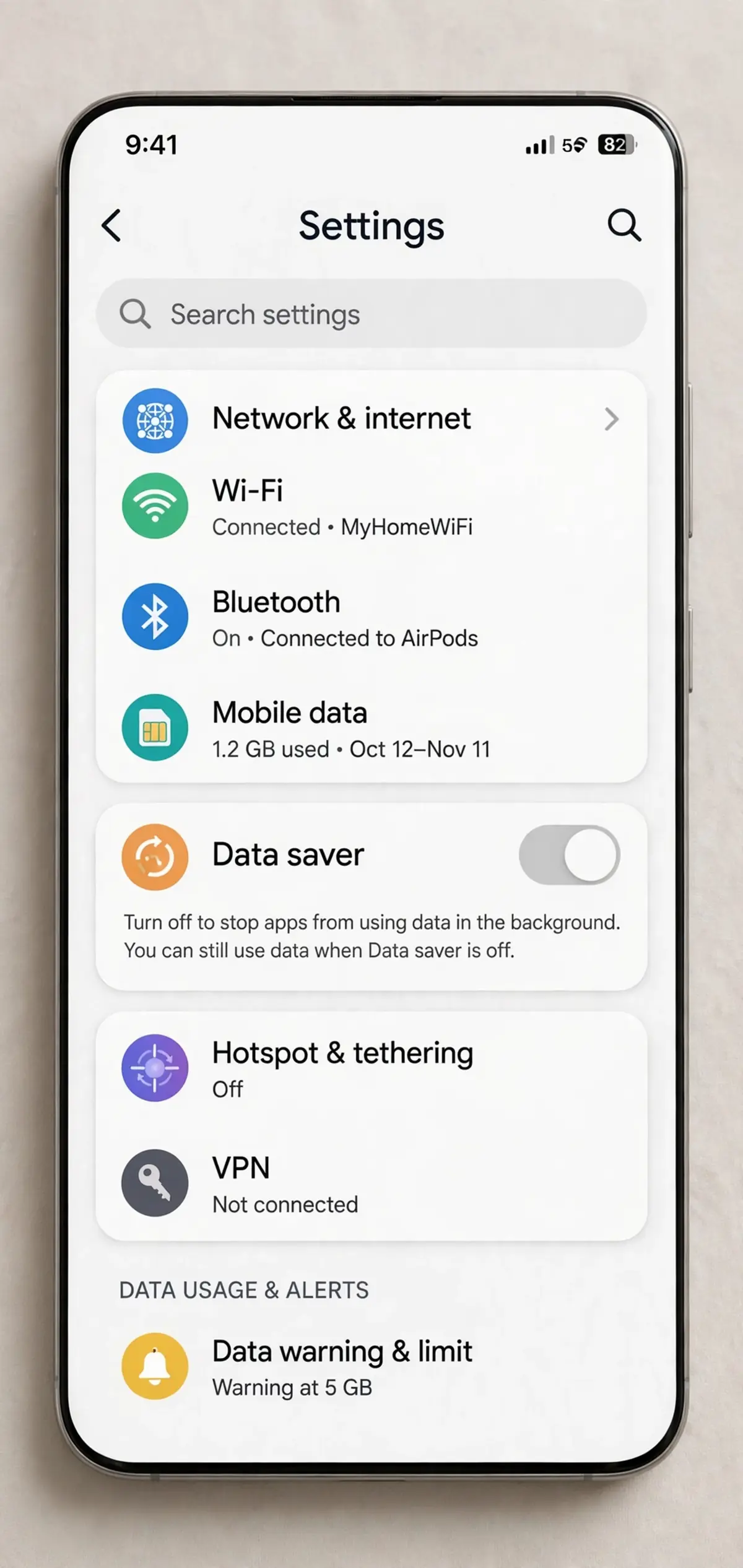
The fastest way to waste an afternoon is to start deleting at random. Open the storage screen first and let it tell you where the space actually went. On iPhone, go to Settings, General, then iPhone Storage, and wait for the coloured bar and the app list to load. On Android, go to Settings, then Storage, and look at the breakdown by category and app. The list is usually sorted largest first, which is a gift: the top three entries often account for more room than everything below them combined.
Give the screen time to finish calculating. Both systems measure in the background, and the numbers shift as they do. If you act on the first numbers you see, you may chase a category that turns out to be small. Once the list settles, write down the top offenders — photos, a streaming app, a game, system data — and work through them in that order. That order is the whole strategy: biggest first, everything else later.
A useful rule for this job: never delete something you cannot get back unless you have already backed it up or you are certain you do not need it. Photos, voice memos, and chat histories fall in that bucket. Downloads, caches, and screenshots almost never do. Keeping that distinction in mind prevents the classic cleanup disaster, where someone frees two gigabytes of photos and loses the only copy of a child’s birthday video.
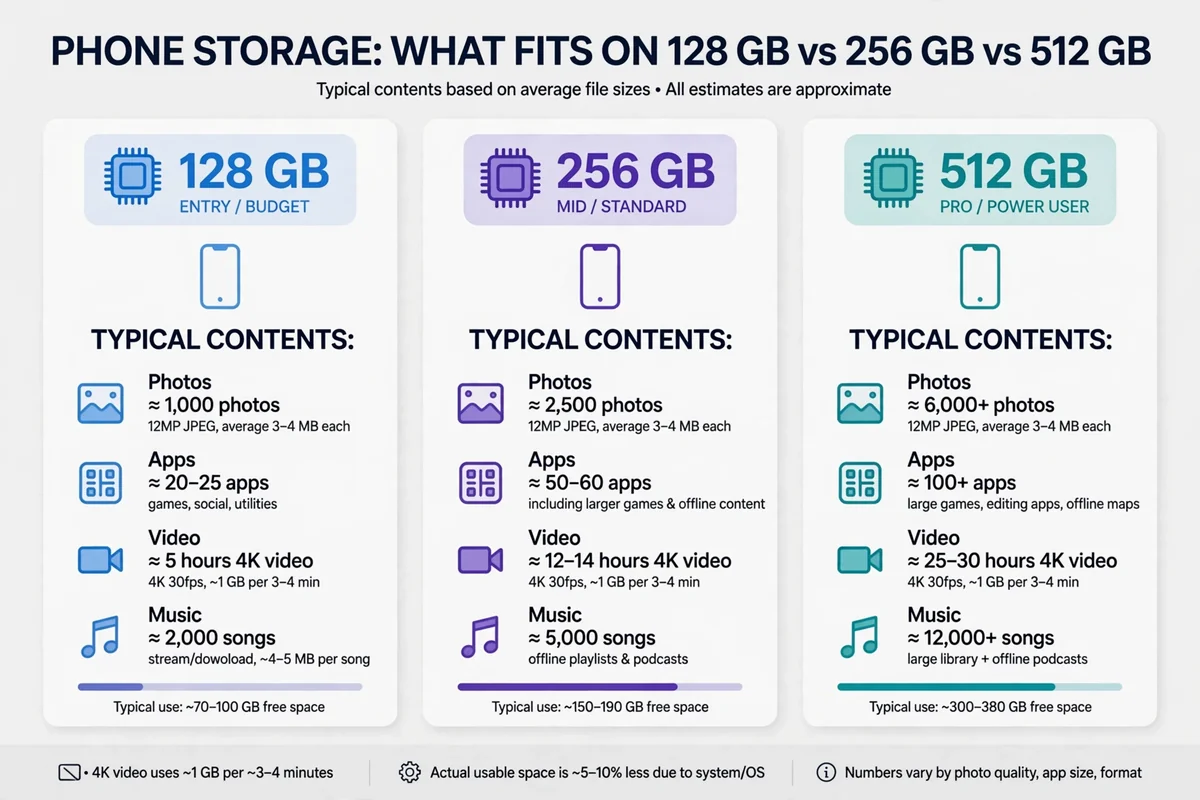
If you are unsure how much room your phone size should give you in the first place, the phone storage calculator lays out usable space for common sizes, so you can tell whether your phone is genuinely full or just badly organised.
Back up before you delete anything precious
This step is boring and it is non-negotiable. Turn on photo backup, wait for it to finish, and spot-check that recent photos appear in the cloud. On iPhone, that means iCloud Photos with optimization turned on. On Android, Google Photos with backup enabled, or another service you actually use. Backing up is not the same as syncing in your head: a photo is backed up when you can see it in the cloud from another device, not when the app says it is “syncing.”
The same applies to chats and documents. Messaging apps can back up to the cloud, and many do so automatically, but check the last backup date before you clear a chat’s media. A backup from three months ago will not save yesterday’s photos. For documents, move anything important to a cloud drive or a computer before touching the Downloads folder, because that folder is where boarding passes live next to files you have not opened since last year, and bulk-deleting it without a look is asking for trouble.
Once backup is confirmed, deletion becomes low-stress. You can remove local copies of backed-up photos, clear media from old chats, and delete local files knowing a copy exists elsewhere. If a backup stalls or crawls, the cause is often the network rather than the phone, and the guide to fixing slow DNS lookups covers the chain of small causes behind slow connections. That confidence is what lets you clean aggressively instead of timidly, and aggressive cleaning is what actually frees space.
The habit matters beyond phones. The same backup-first rule shows up in the Android backup walkthrough, and it applies just as well to iPhone owners: one verified copy elsewhere, then delete locally.
Clear photos and videos the safe way
Photos are usually the largest single category, so they are the first place to look after backup. Start with the easy wins: screenshots, duplicates, bursts, and blurry shots. Your photo app can often surface duplicates and similar shots for you. Delete in batches and review the batch before confirming, especially bursts, where the best frame is rarely the first or the last.
Next, tackle video. Long screen recordings, slow-motion clips, and 4K holiday footage eat room at a shocking rate. CripsyWire’s calculator uses planning figures of about 65 MB per minute for 1080p video and roughly 190 MB per minute for 4K at 30 frames per second, so a ten-minute 4K clip can outweigh hundreds of photos. Keep the clips you will edit or share, back up the rest, and delete the local copies. If you shoot in 4K by default, consider switching everyday clips to 1080p; the quality difference on a phone screen is small, and the storage difference is large.
After deleting, empty the trash. Both iPhone and Android keep deleted photos for around 30 days in a trash or recently deleted album, which means deleting does not free space until that album is emptied or the time expires. This is the single most common reason people say “I deleted everything and nothing changed.” Open the trash, confirm you mean it, and empty it. Only then does the storage bar move.
For a sense of how photo counts translate into gigabytes on different phone sizes, the guide to how many photos a 128 GB phone holds puts real numbers on a camera roll, which helps you decide how ruthless to be.
Offload or delete apps, biggest first
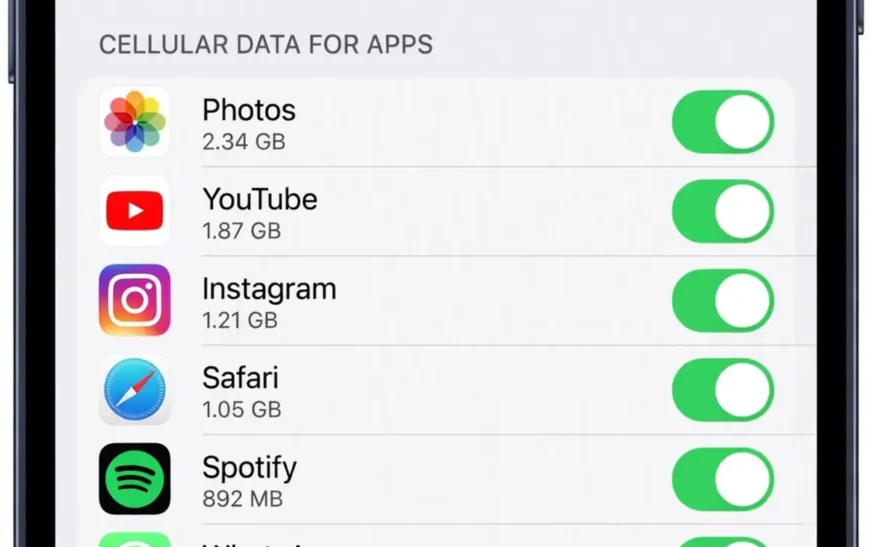
Go back to the storage list and look at apps by size, not by name. A game you have not opened in months can outweigh twenty small utilities combined. A streaming app with offline downloads can be bigger than the app itself. A social app with years of cached media can quietly pass several gigabytes. Size, not guilt, should decide what goes.
On iPhone, tap an app in the storage list and choose Offload App to remove the app while keeping its data, or Delete App to remove both. Offload is the right call for apps you might want back. Delete is right for apps you installed for a single purpose and will never use again. On Android, uninstalling removes the app and its data, while newer versions offer archiving, which removes most of the app but keeps an icon and your data for a quick reinstall.
Keep a short do-not-touch list: banking, authenticator, messaging, health, and maps apps you rely on daily. These are small, and reinstalling them under pressure is miserable. Everything else is fair game. If you cannot remember opening an app in the last month, offload it and see if you miss it. Reinstalling takes less than a minute, and most offloaded apps stay forgotten, which tells you everything you need to know.
One more app category hides in plain sight: pre-installed apps you never asked for, and social apps you stopped using long ago. Some can be deleted, some can only be disabled, and some cannot be touched at all. For a social account you have genuinely abandoned, the steps for deleting an Instagram account remove both the app data and the account behind it. Delete what the system allows, disable what it does not, and do not fight the ones that refuse — the space involved is usually tiny, and forcing the issue risks breaking something else.
Clear caches without clearing your life
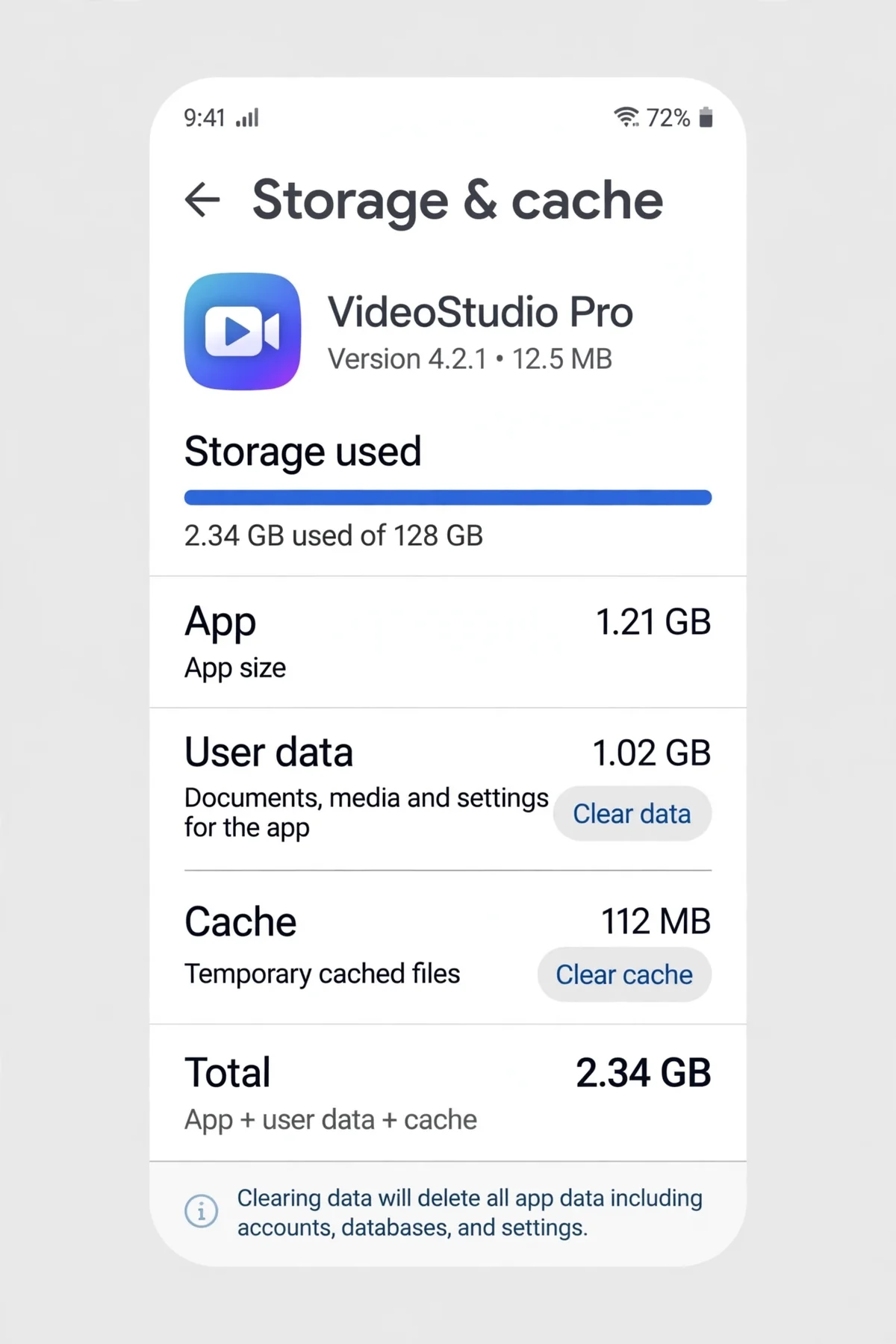
Cache and data are different things, and confusing them causes real damage. Clearing a cache deletes temporary files an app can rebuild: thumbnails, previews, streamed content it kept for speed. Clearing data deletes the app’s actual content: logins, settings, downloaded content, and sometimes messages. On Android, the storage screen for each app shows both buttons separately, and you want the cache button. On iPhone, there is no universal cache button, so you clear caches inside each app where offered, or offload and reinstall the app to reset its cache.
Start with browsers, social apps, and streaming apps, which accumulate the largest caches. A browser cache can be cleared from the browser’s own settings, though it will sign you out of some sites. A streaming app’s cache often comes from offline downloads you forgot about — deleting those downloads inside the app frees more than any cache button. A social app’s cache comes from every photo and video you scrolled past, and reinstalling it is often the fastest reset on iPhone.
Messaging apps need care. Clearing a messaging app’s cache is safe, but clearing its data can delete chats that were not backed up. If an app offers a “manage storage” section, use that instead: it lets you delete media from individual chats, largest first, without touching the chats themselves. Group chats with years of video are usually the jackpot.
Android users get a more detailed version of this job in the guide to clearing the cache on Android, which walks through the exact menus app by app.
Downloads, screenshots, and messaging media
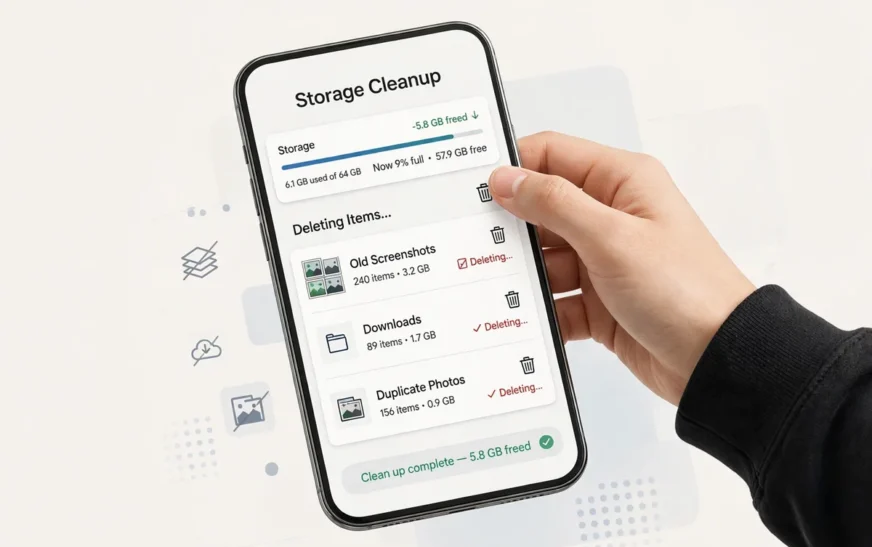
The Downloads folder is where good intentions go to die. Old PDFs, installers, forms, and files from a single occasion sit there for years. Open it, sort by size, and delete anything you can re-download or no longer need. Keep the few files that are genuinely irreplaceable, and move those to a cloud drive so they stop living in a folder you treat as disposable.
Screenshots deserve a dedicated pass. Most people take screenshots constantly and delete them never. Sort by oldest first and delete in bulk, keeping only screenshots you still reference — a receipt you may need, an address, a booking. The rest are digital litter, and they add up to gigabytes on a busy phone.
Messaging media is the third pile. Many phones auto-save every photo and video from every chat, including group chats you barely read. Turn off auto-save for large groups, then go into the biggest chats and delete old media, largest files first. If a chat matters, back it up before you start. If it does not, clearing its media is free space with no downside.
Old accounts add to the pile too. If you have messaging or social accounts you no longer use, closing them removes their local data as well as their cloud footprint. The steps for deleting a messaging account show how an unused account keeps occupying room long after you stopped opening it.
System data and “Other”: what you can and cannot fix
Sooner or later you will meet the category called System Data on iPhone or System on Android, and it will look alarmingly large. Part of it is genuinely the operating system, which you cannot and should not delete. Part of it is caches, logs, and temporary files from the system and its apps, which you can shrink. The distinction matters, because people who try to delete system files directly usually break their phone.
Safe ways to shrink system data include restarting the phone, which clears temporary files; updating the operating system, which often cleans up old update files; clearing browser and app caches as described above; and, on iPhone, offloading unused apps, which also trims associated system caches. If system data stays huge after all that, a backup followed by a factory reset and restore is the heavy-duty fix, and it works — but only do it with a verified backup, and only after the gentler steps have failed.
Do not install “cleaner” apps that promise to delete system files or boost your phone. Most do little, some show ads, and a few are outright harmful. Your phone’s built-in storage tools are safer and usually more effective. If a cleaner app claims it can free gigabytes the system tools cannot find, that claim should make you suspicious, not hopeful.
A phone that stays sluggish after a cleanup may have a different problem. Overheating, for example, makes a phone feel slow in ways storage alone does not explain, and the phone overheating guide helps separate a heat problem from a storage problem.
What never to delete
A short list of things to leave alone will save you from the most common cleanup regrets. Do not delete system files or folders you do not recognise. Do not clear an app’s data when you meant to clear its cache, especially for messaging, banking, and authenticator apps. Do not delete photos before backup is confirmed. Do not delete a chat’s media before checking its backup date. Do not delete files from a work or school account without checking whether they exist anywhere else.
Also, do not delete your only copy of anything. If a file exists only on your phone, it is not backed up, no matter how many times an app says it is “synced.” Syncing can mean many things, and the only test that counts is seeing the file from another device. When in doubt, copy it to a computer or a second cloud service first, then delete.
Finally, do not delete things in anger. Storage warnings are annoying, and the temptation is to select all and confirm. A ten-minute pause to check the trash, the backup status, and the top three categories prevents almost every “I wish I hadn’t deleted that” story. Slow cleaning is still cleaning.
Keep it clean with a five-minute monthly routine
Cleanup works best as a habit, not a crisis response. Once a month, open the storage screen and check the top three categories. Delete screenshots and downloads you no longer need. Offload apps you have not opened. Confirm photo backup is current, then empty the trash. That is five minutes, and it stops the slow creep that leads to the dreaded “storage full” warning at the worst possible moment, usually while recording a video.
Two automatic settings do most of the ongoing work. Turn on automatic offloading of unused apps, and turn on optimized photo storage so full-resolution originals live in the cloud and smaller versions stay on the phone. If video is your main hog, the best free AI video generators guide is a reminder that most clips can be recreated or trimmed rather than hoarded in full resolution forever. With those two on, the monthly pass becomes a quick check rather than a rescue mission.
When you eventually shop for a new phone, use your real numbers instead of guessing. The phone storage calculator lets you test how your photos, videos, apps, and music fit different phone sizes, which is a better guide than a salesperson’s recommendation or a fear of running out.
FAQ
How do I clear storage on my phone without deleting photos?
Back up photos to the cloud first, then use optimized storage so smaller versions stay on the phone while originals live online. After that, free space from caches, downloads, screenshots, and unused apps without touching your photo library.
Is it safe to clear cache on my phone?
Yes, clearing cache is safe: it deletes temporary files apps can rebuild. Do not confuse it with clearing data, which deletes logins, settings, and sometimes content. On Android the two buttons are separate; on iPhone, offloading and reinstalling an app resets its cache.
Why is my storage still full after deleting files?
Usually because deleted photos sit in the trash for around 30 days, so space is not freed until you empty it. Other causes include undeleted caches, offline downloads inside streaming apps, and system data that needs a restart or an update to shrink.
What should I delete first when storage is full?
Work biggest first: backed-up photos and videos, large unused apps and games, bloated app caches, downloads, screenshots, and old messaging media. Check the storage screen’s sorted list rather than guessing.
Can I clear storage without losing my chats?
Yes, if you back up chats first and delete only media inside chats, not the chats themselves. Use each messaging app’s manage-storage section to remove large files chat by chat, and never clear a messaging app’s data unless you have a verified backup.
How often should I clean my phone’s storage?
A five-minute check once a month is enough for most people, with automatic offloading and optimized photo storage handling the daily creep in between.
The short version
Clearing storage is a sequence, not a button: check the storage screen, back up first, work biggest first, clear caches without touching data, delete downloads and old media, empty the trash, and leave system files alone. Do that once, then keep a five-minute monthly routine, and the storage warnings stop coming back.
For more practical phone guides, browse the CripsyWire blog.
Check what your phone size really gives you
See the usable space on your phone and how your photos, videos, apps, and music fit into it before your next cleanup.

Continue Reading on CripsyWire
For more practical AI coverage for US buyers, see our full AI tools and agents library. When you are deciding between competing tools, the reviews and comparisons section breaks down head-to-head matchups. AI features that live inside your phone are tracked in smartphones, and AI on your wrist or finger in wearables. All of this is part of CripsyWire's broader Tech coverage — start at the homepage for what is newest.