Someone I know dropped her Pixel in a lake last summer. Three years of photos, a WhatsApp history with her late father, and about 400 contacts. She figured Google had it all. It had maybe half.
That gap between “I think it’s backed up” and “it’s actually backed up” is where people get hurt. So this guide does two things. It shows you how to backup Android phone data step by step, and it tells you what the default backup quietly leaves behind.
Quick Answer
To backup Android phone data, open Settings, tap Google (or Accounts and backup on Samsung), choose Backup, switch on Backup by Google One and tap Back up now. Then turn on Google Photos backup for photos and videos, and copy important files to a computer or SD card. Use all three layers for full protection.
That’s the short version. The long version is what keeps your data alive, so keep reading.
Why You Should Backup Your Android Phone Before Something Goes Wrong
Phones fail in boring ways. A cracked screen that won’t register touch. A bootloop after an update. A stolen bag on a train. A factory reset that you triggered by accident while trying to fix something else.
None of these send a warning. And a backup made after the problem is not a backup, it’s a wish.
A proper Android data backup protects four things: your personal files (photos, videos, documents), your account data (contacts, calendar), your messages and call history, and your app data and settings. Most people only protect the first one and hope for the rest.
One more thing before we start. A backup needs room. If your phone is already gasping for space, run the phone storage calculator first so you know what you’re actually dealing with.
What Does an Android Backup Actually Include?
Quick Answer
Google’s Android backup typically saves app data, contacts, call history, SMS, device settings and some Wi-Fi details. It does not cover your full photo library, most files in internal storage, or data from apps that opt out of backup. Photos need Google Photos, and files need a manual copy.
Google’s built-in backup is convenient, but it is not a full image of your phone. This is the part most guides skip, so here’s the honest split.
Usually backed up by Google:
- Contacts and calendar (synced to your Google account)
- Call history and SMS
- Device settings and display preferences
- Home screen layout on many devices
- Some app data, only if the developer allows it
Usually NOT backed up:
- Your actual photo and video library (that’s Google Photos, a separate switch)
- Downloads, PDFs, voice recordings and other loose files
- Apps that block backups, which includes plenty of banking and security apps
- Most WhatsApp media, and chat history unless you set up its own backup
- Two-factor codes in many authenticator apps
See the pattern? Google backs up the account side of your life. The file side is on you.
How to Backup Android Phone to Google Account (The Default Method)
This is the easiest route and the one you should switch on today, even if you do nothing else.
Quick Answer
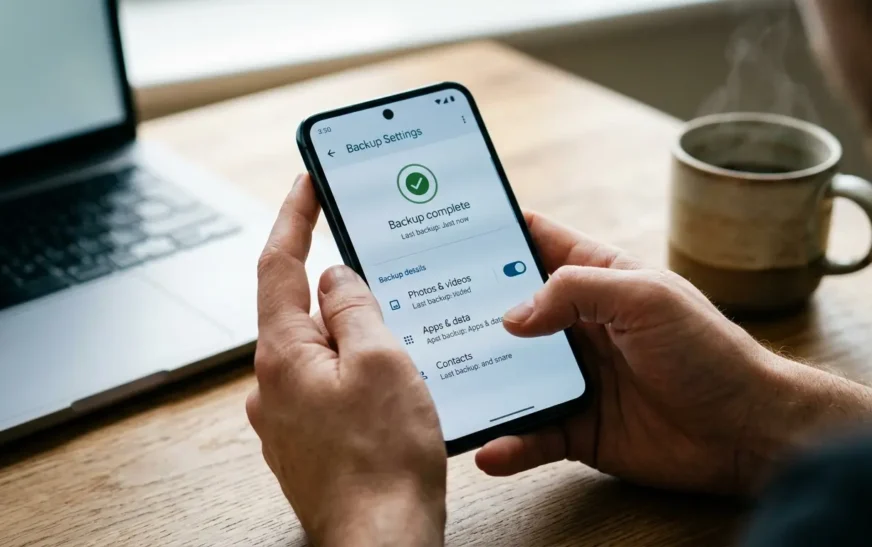
Go to Settings > Google > Backup, turn on Backup by Google One, then tap Back up now. On Samsung, the path is Settings > Accounts and backup. Keep the phone on Wi-Fi and plugged in. The first backup can take several minutes up to an hour.
Step-by-step on a Pixel or stock Android
- Open Settings and tap Google.
- Scroll to Backup (some versions call it All services > Backup).
- Toggle Backup by Google One on.
- Tap Back up now.
- Check the details list. It shows exactly what’s included and the time of the last backup.
That timestamp matters more than anything else on the screen. If it says “last backup: 6 weeks ago,” you don’t have a working backup, you have a stale one.
Step-by-step on a Samsung Galaxy phone
Samsung gives you two doors, which confuses everyone.
- Open Settings > Accounts and backup.
- Under Back up data you’ll see Google’s option and Samsung Cloud’s option.
- Pick one as your primary and make sure it’s switched on. Running both is fine, they don’t fight.
- Tap Back up now and wait for the confirmation.
My take: use Google for everything portable, and use Samsung’s backup if you’re staying inside the Galaxy world. It restores home screen layouts and system settings better on another Samsung phone.
The limits nobody mentions
Google ties backups to your account and device. If you stop using a phone for a long stretch (Google’s own help pages mention roughly two months), the backup can be deleted. Restores also work best onto the same or a newer Android version. And a backup is only as safe as your Google account, so lock that account down with two-step verification.
How to Backup Android Photos and Videos Automatically
Quick Answer
Open the Google Photos app, tap your profile picture, choose Photos settings, then Backup, and switch it on. Pick Original quality if you want zero compression. Photos count against your 15 GB of free Google storage unless you have a paid plan.
Photos are the thing people cry over. Not the contacts, not the settings. The birthday videos and the last picture of a pet.
Google Photos backup is a separate system from the main phone backup, so enabling one does not enable the other. Check that backup is on, then check which folders are included. Screenshots and WhatsApp images often sit in folders that aren’t selected by default.
The free storage maths hits fast. A modern phone shoots 4K video that eats 350 MB or more per minute. If you’re wondering what fits where, how many photos 128GB can hold gives real numbers rather than marketing ones.
Storage saver vs Original quality. Storage saver compresses images slightly to stretch your quota. Original keeps every pixel. For family photos, I’d pay the couple of dollars a month for Google One and keep Original. For memes and screenshots, compression is fine.
A cheap trick that saves your quota
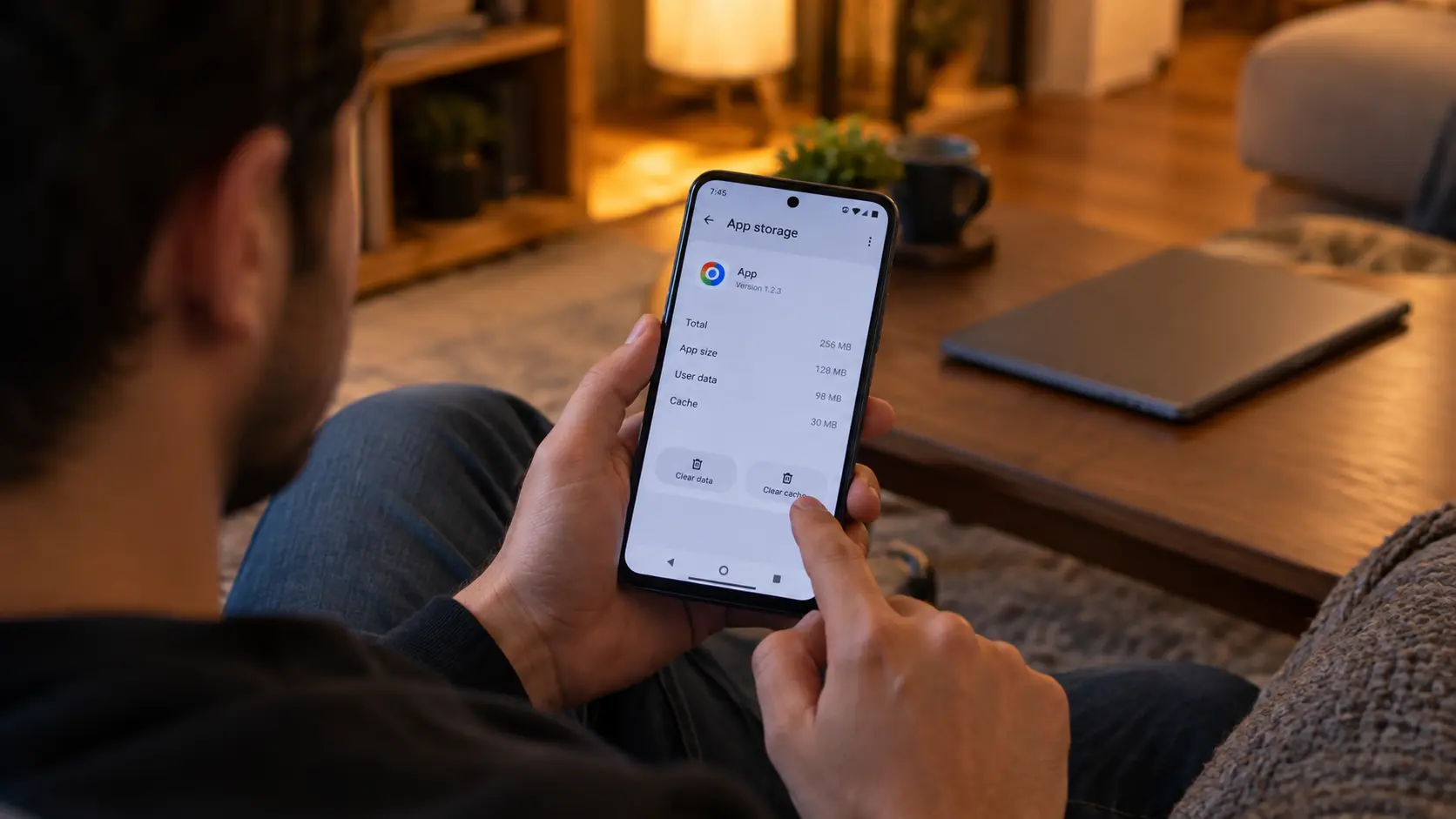
Before a big backup, clear junk. Cached files, leftover downloads, duplicate videos. If you haven’t done it lately, this walkthrough on how to clear cache on Android frees space without deleting anything you care about.
How to Backup Android Phone to Computer (Manual File Backup)
Quick Answer
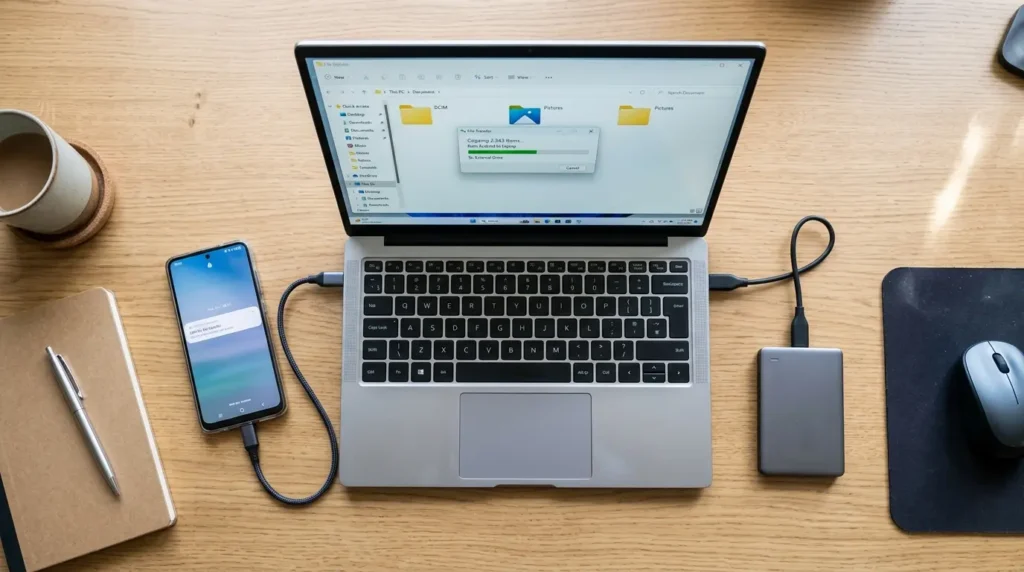
Connect your phone to a PC or Mac with a USB cable, unlock it, and choose File Transfer when prompted. Open the phone’s storage on your computer and copy the DCIM, Pictures, Documents and Download folders to a folder on your hard drive. On a Mac, install Android File Transfer first.
Cloud is great until your account gets locked, your plan lapses or your internet dies. A copy on a physical drive you own removes all three risks.
On Windows
- Plug in a decent USB cable. Cheap charge-only cables are the number one reason nothing shows up.
- Unlock the phone and tap the USB notification. Choose File Transfer.
- Open File Explorer, find your phone under This PC.
- Copy DCIM (camera photos), Pictures, Download, Documents, and Movies.
- Paste into a dated folder like
Phone-Backup-2026-10.
On Mac
Download Google’s Android File Transfer, open it, and drag the same folders across. Newer Android versions on some Macs behave better if you toggle the USB mode a few times, so don’t panic if it fails first go.
Don’t have a PC at home?
An old laptop works fine, and so does a Chromebook if you’re weighing a Chromebook against a laptop for your next purchase. Both can read your phone’s files over USB.
The mistake that ruins manual backups
Copying once and never checking. Open a few of the copied photos and videos on the computer. If they open, the backup works. If they’re 0 KB, you just learned that before it mattered.
How to Backup Android Phone to SD Card or USB Drive
Quick Answer
Open your phone’s Files app, select the folders you want, tap Copy or Move, and choose the SD card or a USB OTG drive as the destination. This works without Wi-Fi or a computer. Remember that an SD card stored in the same phone dies with the phone.
If your phone supports a microSD card or USB-C flash drive, this is the fastest local option. It needs no computer and no data plan.
Here’s the catch, and it’s a big one. A backup on the same device is not a backup. A card inside a lost phone leaves with the phone. Use the SD card to move files out, then physically store the drive somewhere else, like a drawer at a relative’s house.
For cheap USB-C flash drives, buy a known brand. Counterfeit drives that report 256 GB but hold 16 GB are depressingly common, and you only find out on restore day.
How to Backup WhatsApp, SMS and Other Chats on Android
Quick Answer
In WhatsApp, tap the three dots, then Settings > Chats > Chat backup, and choose your Google account and backup frequency. Tap Back up. You can include videos, and you can add end-to-end encryption with a password for extra privacy.
WhatsApp keeps its own backup, separate from Google’s phone backup. Set it to daily if you chat a lot. Pay attention to the Google account listed there. People swap accounts over the years and discover their chats are backing up to an email they no longer use.
Telegram works differently, since messages live on its servers. Still, secret chats don’t sync. Before you do something drastic like deleting an account, read how to delete your Telegram account without losing the things that matter.
For plain SMS and call logs on an older or heavily customised phone, an app such as SMS Backup & Restore can export them to a file you control. Honestly, for most people on a recent phone, Google’s built-in system covers texts well enough.
Best Android Backup Apps and Tools Compared
Quick Answer
For most people, Google One backup plus Google Photos is enough. Samsung users also get Smart Switch and Samsung Cloud. Power users can add SMS Backup & Restore or a file sync tool like Syncthing. Avoid obscure free apps that demand broad permissions.
| Method | Best for | What it saves | Weak spot |
|---|---|---|---|
| Google One backup | Everyone | Settings, contacts, SMS, app data | Skips files and photos |
| Google Photos | Photos and videos | Media library | Uses your 15 GB quota |
| Samsung Cloud / Smart Switch | Galaxy owners | Layouts, settings, local PC copy | Samsung-only benefits |
| USB to computer | Full file control | Any file you copy | Manual, easy to forget |
| SD card / USB OTG | Fast offline copy | Selected folders | Dies with the phone if kept inside |
| SMS Backup & Restore | Messages and call logs | Exports to a file | Needs setup, third-party |
One warning about third-party apps. A backup app sees your messages, photos and contacts. That’s the most sensitive data you own. Stick to apps with clear privacy policies and a long track record, and skip anything that wants more permissions than the job needs.
The 3-2-1 Rule: How to Backup Android Phone Like a Pro
Photographers and IT folks swear by one rule. Keep 3 copies of your data, on 2 different types of storage, with 1 copy somewhere else.
For your phone, that looks like:
- Copy 1: the live data on the phone itself.
- Copy 2: Google backup and Google Photos in the cloud.
- Copy 3: a folder on your computer or external drive, kept at home or elsewhere.
That’s it. Nothing exotic. Two clouds are overkill for most people, but one cloud plus one physical copy covers almost every disaster short of a house fire.
How Long Does an Android Backup Take and How Much Space Do You Need?
Quick Answer
A first Google backup usually takes 5 to 30 minutes, while a full photo library can take hours or even a day on slow Wi-Fi. Later backups are quick because only changes upload. Plan for storage equal to your used phone space, plus headroom.
Time depends on three things: how much you have, how fast your upload speed is, and whether the phone is allowed to work in the background. Upload speed is almost always slower than download speed, so a 60 GB photo library can feel endless.
Use Wi-Fi. Backing up a big library over mobile data is a fast way to burn your monthly allowance. If you’re not sure how close you run to the limit, the data usage calculator and this breakdown of how much data you need per month will tell you.
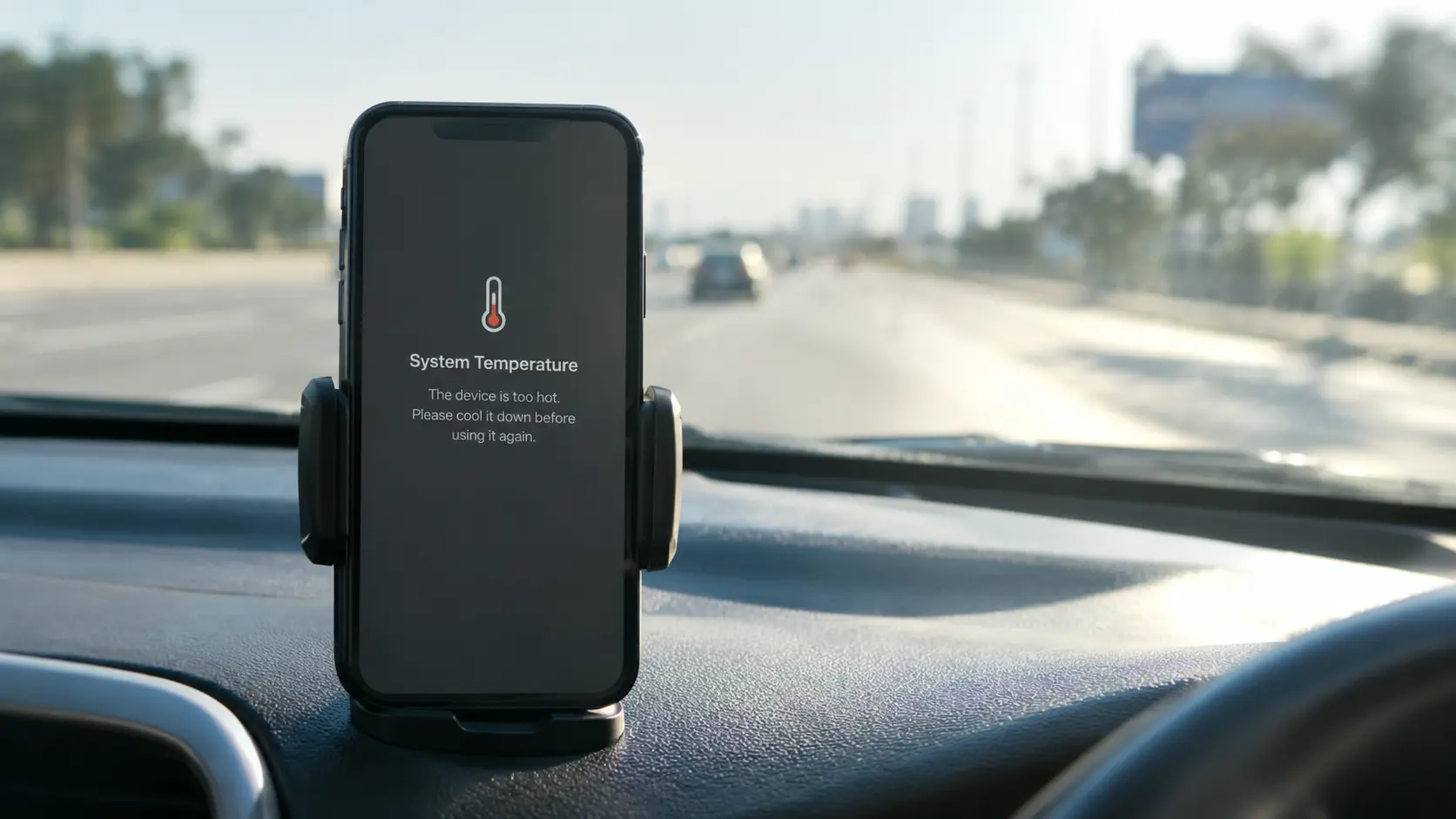
Plug the phone in too. Android only runs the automatic backup when charging and idle, and long uploads can warm the phone up. If yours gets hot, see why a phone overheats and how to fix it before you start a multi-hour sync on a sunny windowsill.
How to Check That Your Android Backup Worked
Quick Answer
Open Settings > Google > Backup and check the last backup date and the data list. In Google Photos, check that the cloud icon shows on recent pictures. For manual copies, open a few files on the destination drive to confirm they play.
Most people stop after toggling the switch. Don’t. A backup you’ve never verified is a rumour.
A quick monthly routine, about two minutes:
- Check the last backup time in Settings.
- Open Google Photos and look at your newest pictures for the backed-up cloud status.
- Confirm your Google storage isn’t full. When storage hits the limit, backups quietly stop.
- Open two or three files from your computer copy.
If you want the real test, do what IT teams do: restore to a spare phone and see what comes back. It’s the only way to find out what’s missing before you need it.
How to Restore Your Android Phone From a Backup
Quick Answer
During setup on a new or reset phone, sign in with the same Google account, then choose Copy your data or Restore from backup and pick the latest backup. Apps, settings and contacts return first. Photos restore through Google Photos, and files come back by copying them over manually.
Restoring is the part people never practice. Here’s the flow:
- Turn on the new phone and begin setup.
- When asked about data, choose to restore from a Google backup.
- Sign in to the same Google account you used to back up.
- Pick the most recent backup for the old device.
- Let apps reinstall. This can take a while and keeps going after the home screen appears.
- Open Google Photos to bring your library back.
- Copy your manual files from the computer or drive.
Expect some apps to ask you to sign in again. Banking apps, authenticators and messaging apps often do. That’s by design, not a failed restore.
Switching brands? Samsung’s Smart Switch handles Android to Samsung well. Moving to an iPhone is a different process entirely, and if that’s on your mind, take a look at the iPhone 18 release date and what that split lineup means before you jump.
Android Backup Mistakes That Cost People Their Data
I’ve seen the same errors repeat for years.
- Trusting the toggle. Switched on once, never verified.
- Full cloud storage. Backups stop silently when your Google quota runs out.
- One copy only. Phone and backup both live in the same bag.
- Forgetting WhatsApp. It has its own backup and its own account setting.
- Wiping before checking. People factory reset, then discover the backup was three months old.
- Ignoring account security. If someone takes over your Google account, they take over your backups too.
And one blunt opinion: if your phone holds anything you’d cry about losing, paying for a bit of extra cloud storage is the cheapest insurance you will ever buy.
Backup Checklist Before You Reset, Sell or Upgrade
Run through this before any big change. It takes ten minutes.
- Tap Back up now in Google settings and confirm the timestamp.
- Confirm Google Photos shows 100% backed up.
- Back up WhatsApp manually and wait for it to finish.
- Copy local files to a computer.
- Note down two-factor codes or move authenticator accounts properly.
- Remove your Google account from the old phone before selling it.
- Only then factory reset.
Have more phone how-to questions? The how-to guides section covers practical fixes like this one, and the wider smartphone guides go deeper on the hardware side.
FAQs About How to Backup Android Phone
How do I backup my Android phone without a computer?
Use Google One backup and Google Photos. Both run entirely from your phone over Wi-Fi. For extra safety, copy files to an SD card or USB OTG drive, then store that drive away from the phone.
Is Google backup enough for my Android phone?
Not completely. It covers contacts, SMS, settings and some app data, but not your full file storage or every app. Add Google Photos for media and a manual copy for documents.
Where are my Android backups stored?
Google backups sit in your Google account and are managed under Google One. They are not listed as normal files in Google Drive. Manual backups live wherever you copied them, such as your computer or SD card.
How often should I backup my Android phone?
Let automatic backup run daily, and do a manual file copy monthly. Do an extra one before updates, repairs, resets or switching phones.
Can I backup an Android phone with a broken screen?
Sometimes. If it’s still on Google backup, you can restore to a new phone. If the screen is dead but the phone powers on, a USB cable and mouse adapter may let you access files. Don’t count on it. Back up before it breaks.
Does backing up Android delete anything?
No. A backup copies data and leaves the originals alone. The exception is when you choose Move instead of Copy in a file manager, so check that button.
How do I backup Android apps and app data?
Google One backup stores app data for apps that allow it. Apps that opt out, like some banking apps, need their own export or cloud sync. Reinstalling apps after restore is automatic, but settings inside them may not return.
How can I backup Android phone contacts only?
Open the Contacts app, go to Fix and manage, and export to a .vcf file, or make sure contacts sync to your Google account. Syncing is better since new contacts save automatically.

Continue Reading on CripsyWire
For more practical tutorials and hidden features, see our full how-to guides section. AI workflow guides feed into the broader AI tools and agents coverage, phone tricks live in smartphones, and wearable setup walkthroughs in wearables. When you are deciding what to buy, the reviews and comparisons section helps. All part of CripsyWire Tech, and the homepage shows what is newest.