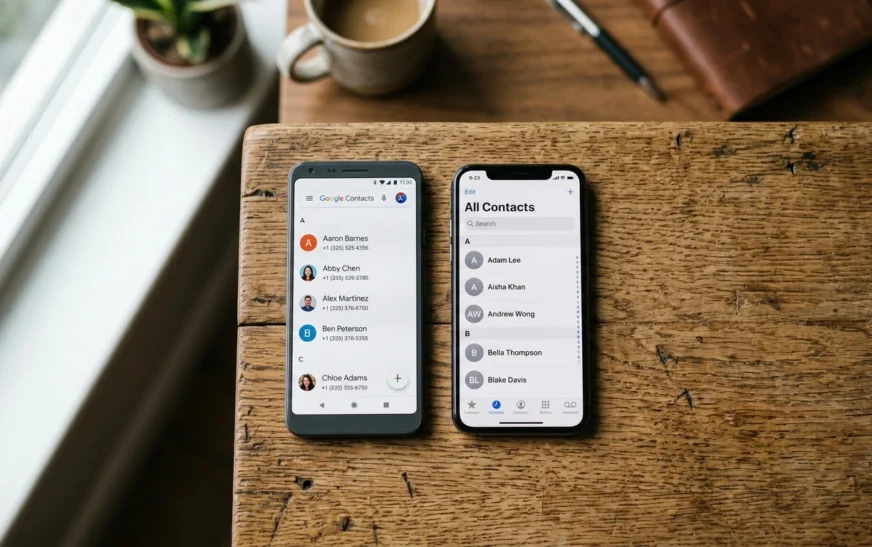
You unbox the new phone, sign in, open the dialer — and your contact list is empty. It’s the most common panic moment of switching devices, and the good news is that it’s almost always fixable in a few minutes.
This guide shows you how to transfer contacts to a new phone using eight free methods, whether you’re going Android to Android, iPhone to iPhone, or switching sides. I’ll also cover how to move contacts without your old phone, what happens if you get a new number, and what to do when your contacts didn’t transfer at all.
⚡ Quick Answer
To transfer contacts to a new phone, turn on contact sync with your Google account (Android) or iCloud (iPhone) on the old phone, then sign into the same account on the new phone. Contacts appear in 1–5 minutes. Switching between Android and iPhone? Use Move to iOS or Switch to Android.
Which Method Should You Use? (Quick Table)
| Your switch | Best method | Old phone needed? |
|---|---|---|
| Android → Android | Google account sync | No (if already synced) |
| Samsung → Samsung | Smart Switch | Yes |
| iPhone → iPhone | iCloud or Quick Start | No (if iCloud is on) |
| Android → iPhone | Move to iOS / Google account | Yes / No |
| iPhone → Android | Switch to Android app / Google account | Yes |
| Any → basic or flip phone | SIM card or Bluetooth | Yes |
| Old phone lost or broken | Google Contacts / iCloud.com | No |
Still choosing a device? See our honest ranking of the best Android phone in 2026 before you make the move.
Before You Transfer: 2-Minute Checklist
Most failed transfers happen because contacts were saved in the wrong place. Before you transfer phone contacts, check this:
- Find where your contacts live. On Android, open Contacts → menu → Settings → Default account for new contacts. If it says Phone or Device, those contacts are not backed up to Google yet.
- Charge both phones above 50% and connect to the same Wi-Fi.
- Update both phones to the latest software.
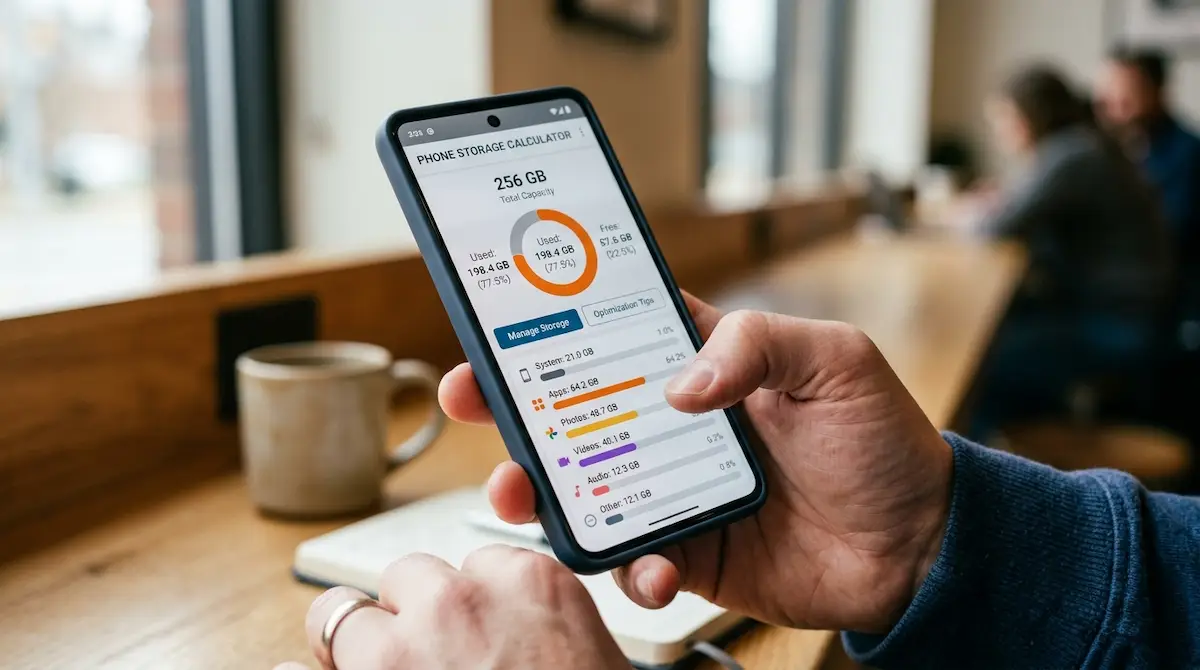
- Check free space on the new phone — our phone storage calculator shows how much space you actually get after the system takes its share.
Method 1: Transfer Contacts to New Phone Using Your Google Account (Android)
This is the easiest way to transfer contacts to a new phone on Android, and it keeps them synced forever after.
On your old phone:
- Open Settings → Google → Settings for Google apps → Google Contacts sync (on some phones: Settings → Accounts → Google → Account sync).
- Turn on Automatically back up & sync device contacts.
- Wait a few minutes, then visit contacts.google.com on any browser to confirm the count matches.
On your new phone:
- Sign in with the same Google account during setup.
- Open the Contacts app — your list fills in automatically within a few minutes.
✅ Best for: Android to Android, and anyone who wants contacts safe even if the phone is lost.
Method 2: Samsung Smart Switch (Samsung to Samsung)
If you’re moving to a Galaxy phone, Smart Switch copies contacts plus messages, photos, and settings in one go.
- Install Smart Switch on both phones (it’s pre-installed on Galaxy devices).
- Open it on both, choose Send data on the old phone and Receive data on the new phone.
- Connect wirelessly or with a USB-C cable, select Contacts (and anything else), then tap Transfer.
Smart Switch also works from an iPhone or another Android brand to a Samsung phone.
Method 3: How to Transfer Contacts from Old Phone to New Phone on iPhone (iCloud)
For iPhone to iPhone, iCloud is the cleanest way to move contacts to a new phone.
On your old iPhone:
- Go to Settings → [your name] → iCloud.
- Make sure Contacts is turned on (on newer iOS versions, tap See All under “Saved to iCloud”).
On your new iPhone:
- Sign in with the same Apple Account.
- Turn on Contacts in iCloud settings — your contacts download automatically.
Alternative — Quick Start: Place the old iPhone next to the new one during setup. Follow the on-screen prompt to transfer everything, including contacts, directly from device to device.
Just got a new iPhone? Once your contacts are in, check out these iPhone 17 Pro hidden features most owners miss.
<!– wp:image {“id”:1240,”sizeSlug”:”large”,”linkDestination”:”none”} –>
<figure class=”wp-block-image size-large”><img src=”https://cripsywire.com/wp-content/uploads/2026/07/Hands_holding_smartphone_cloud_b…_202607172338-1024×572.webp” alt=”How to Transfer Contacts to New Phone ” class=”wp-image-1240″/><figcaption class=”wp-element-caption”>How to Transfer Contacts to New Phone </figcaption></figure>
<!– /wp:image –>
Method 4: Transfer Contacts from Android to iPhone
You have two good options:
Option A — Move to iOS app (during setup)
- On the new iPhone’s setup screen, choose Move Data from Android.
- Install Move to iOS from the Play Store on your Android phone.
- Enter the code shown on the iPhone and select Contacts.
Option B — Add your Google account (anytime, no reset needed)
- On the iPhone, open Settings → Contacts → Accounts (on newer iOS: Settings → Apps → Contacts → Contacts Accounts).
- Tap Add Account → Google, sign in, and turn on Contacts.
Option B is the better pick if your iPhone is already set up, because Move to iOS only works on a fresh (or reset) iPhone.
Method 5: Transfer Contacts from iPhone to Android
- Switch to Android app: On the iPhone, install Google’s Switch to Android app, open it, and scan the QR code shown on your new Android phone during setup. It moves contacts, photos, and calendar events. (Works with Pixel and most phones on recent Android versions.)
- Samsung owners: Use Smart Switch and pick iPhone/iPad as the source.
- No app route: Go to iCloud.com on a computer → Contacts → select all → Export vCard. Then import that file on Android (see Method 6).
Tip: before you leave the iPhone, turn off iMessage (Settings → Messages) so texts from other iPhone users reach your new Android phone.
Method 6: Export a VCF File (Works on Any Phone)
A VCF (vCard) file is a universal contact file — every phone can read it. This is the most reliable contact transfer to new phone method when cloud sync isn’t an option.
Export on Android (Google Contacts app):
- Open Contacts → Fix & manage → Export to file.
- Save the
.vcffile, then send it to the new phone via email, Quick Share, USB, or cloud drive.
Import on the new phone:
- Android: Contacts → Fix & manage → Import from file → pick the VCF.
- iPhone: Open the VCF from Mail or Files → tap Add All Contacts.
Method 7: Transfer Phone Numbers Using a SIM Card
The old-school way to transfer phone numbers still works — especially when moving to a basic or flip phone.
- On the old phone: Contacts → Settings → Import/Export → Export to SIM card.
- Put the SIM in the new phone: Contacts → Import/Export → Import from SIM.
⚠️ Limitations: SIM cards hold only a few hundred contacts, may shorten long names, and only save one number per contact — no emails, photos, or notes. iPhones can import from SIM but can’t export to it.
Method 8: Send Contacts to Another Phone via Bluetooth or Quick Share
If you only need to send contacts to another phone — a handful, not your whole list:
- Open Contacts, long-press to select the contacts you want.
- Tap Share → choose Bluetooth or Quick Share (AirDrop on iPhone).
- Accept on the other phone and tap Import.
This is also the easiest way to share a contact with a friend or family member.
How to Transfer Contacts to New Phone Without Old Phone
Lost, broken, or stolen phone? You can still recover your contacts if they were ever synced to the cloud:
- Android: Sign into your Google account on the new phone, or visit contacts.google.com to see everything that was synced. Google Contacts also has an Undo changes option to restore your list from up to 30 days ago.
- iPhone: Sign into your Apple Account; iCloud contacts restore automatically. You can also restore a full iCloud backup during setup.
- Samsung: Sign into your Samsung account and restore from Samsung Cloud.
- Carrier backup: Some carriers offer a contact backup service — check with yours.
If your contacts were only saved to the device or SIM and the phone is gone, unfortunately there’s no way to pull them back.
If I Get a New Number, Will My Contacts Transfer?
Yes. Your contacts are tied to your Google or Apple account, not your phone number. Changing your number doesn’t delete or block them. The only exception is contacts saved only to your old SIM card — if you swap SIMs, move those first (Method 7).
My Contacts Didn’t Transfer to My New Phone — How to Fix It
If you switched and your list is empty or incomplete, try these in order:
- Check the account filter. In Contacts settings, make sure “Contacts to display” is set to All contacts, not just one account.
- Force a sync. Settings → Accounts → Google → Sync now.
- Confirm the old phone was syncing. Contacts saved to “Device” or “Phone” storage never reached the cloud — export them as a VCF (Method 6).
- Signed into a different account? Many people have two Google accounts. Check contacts.google.com with each.
- Seeing duplicates? In Google Contacts, use Merge & fix; on iPhone, iOS will offer to merge duplicates in the Contacts app.
Other small annoyances after switching phones — like aggressive autocorrect mangling names — are easy to fix too: here’s how to disable autocorrect on any device.
Transferring More Than Contacts?
Most people searching how to transfer photos and contacts to a new phone want everything moved at once. Smart Switch, Quick Start, Move to iOS, and Switch to Android all copy photos and messages alongside contacts. Don’t forget your accessories either — earbuds and smartwatches need to be re-paired. If your AirPods won’t connect to the new phone, follow our guide on how to reset AirPods, and if you wear a fitness watch like the Amazfit Balance, pair it through its companion app on the new phone.
<!– wp:image {“id”:1239,”sizeSlug”:”large”,”linkDestination”:”none”} –>
<figure class=”wp-block-image size-large”><img src=”https://cripsywire.com/wp-content/uploads/2026/07/Android_phones_connected_via_cable_202607172339-1024×572.webp” alt=”How to Transfer Contacts to New Phone” class=”wp-image-1239″/><figcaption class=”wp-element-caption”>How to Transfer Contacts to New Phone </figcaption></figure>
<!– /wp:image –>
Frequently Asked Questions
How do I transfer my contacts to my new phone for free?
Every method in this guide is free. The simplest is syncing contacts to your Google account (Android) or iCloud (iPhone) and signing into the same account on the new phone.
How do I transfer contacts from one phone to another without Google?
Export your contacts as a VCF file and import it on the new phone, or use Bluetooth, a SIM card, or Samsung Smart Switch — none of these need a Google account.
How long does it take to transfer contacts to a new phone?
Cloud sync usually takes 1–5 minutes. Full-phone transfers with Smart Switch or Move to iOS can take longer because they also copy photos and apps.
How do I sync my contacts to my new phone automatically?
Turn on contact sync for your Google account (Android) or iCloud Contacts (iPhone). Every new contact you save will appear on all phones signed into that account.
Will WhatsApp contacts transfer to my new phone?
WhatsApp reads contacts from your phone’s address book, so once your contacts are transferred, they appear in WhatsApp automatically. Your WhatsApp chats need a separate backup and restore.
Final Word
Knowing how to transfer contacts to a new phone comes down to one habit: keep your contacts synced to a cloud account. Do that, and every future upgrade takes about two minutes. If you skipped that step, a VCF export is your universal backup plan.
For more step-by-step phone guides, explore the CripsyWire how-to section and smartphone coverage.

Continue Reading on CripsyWire
For more practical tutorials and hidden features, see our full how-to guides section. AI workflow guides feed into the broader AI tools and agents coverage, phone tricks live in smartphones, and wearable setup walkthroughs in wearables. When you are deciding what to buy, the reviews and comparisons section helps. All part of CripsyWire Tech, and the homepage shows what is newest.


Parallel Web Systems: The AI Search Startup Explained