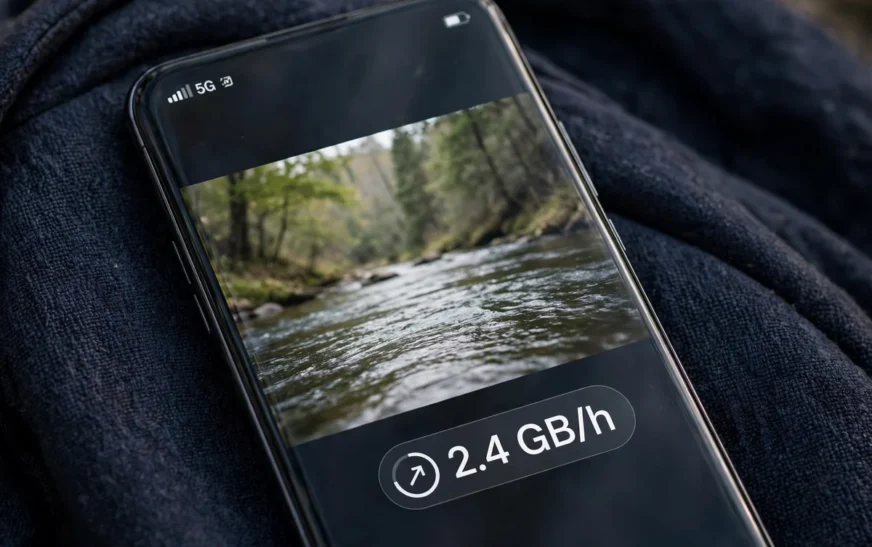
Quick answer: Streaming video uses roughly 0.3 GB per hour at low quality, 0.7 GB per hour in standard definition, up to 3 GB per hour in HD, and up to 7 GB per hour in 4K. That spread is the whole story: the same one-hour show can cost you less than half a gigabyte or seven gigabytes, depending only on the quality setting your app picks.
Related reading: connecting AirPods to a laptop
The short version nobody tells you up front
Most people blame their phone plan when data runs out. The plan is usually fine. The streaming app is the problem, because it quietly picks the highest quality your connection can handle, and it never asks whether you wanted to spend that much data to watch a cooking video on a six-inch screen.
Video is different from everything else you do on a phone. A text message is tiny. An hour of music is small. An hour of video is a firehose, because every second of moving pictures has to arrive as fresh data. There is no way around that. There is, however, a way to control it, and it starts with knowing what each quality level actually costs.
This guide gives you real numbers, not vibes. Where a number comes from a service’s own published settings, I say so. Where it is an estimate, I say that too. Then we turn those numbers into a monthly budget you can actually use, and a set of settings changes that cut usage without making everything look terrible.
Related reading: cancelling a music subscription
The numbers that matter: video quality versus data per hour
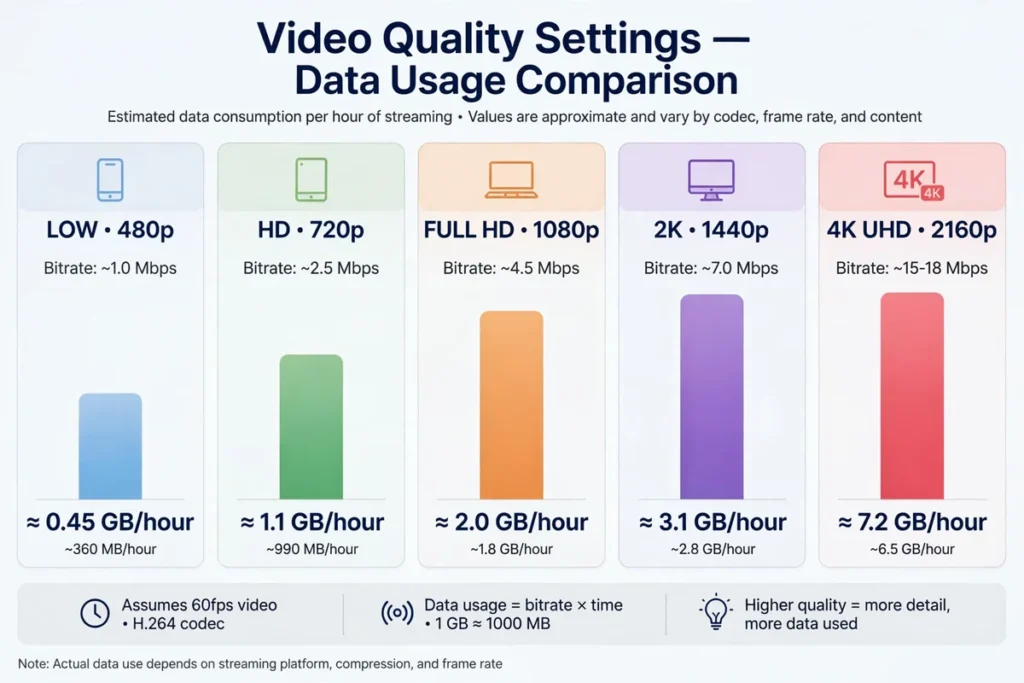
Netflix publishes its data usage settings, and they are the cleanest anchor available, because Netflix states them as maximums per hour. Low is up to 0.3 GB per hour. Medium, which is standard definition, is up to 0.7 GB per hour. High reaches up to 1 GB per hour in standard definition, 3 GB per hour in HD, and 7 GB per hour in 4K Ultra HD. Those are ceilings, not guarantees: a slow or simple scene uses less than a fast, detailed one, and the Auto setting adjusts to your connection.
Other video services land in the same neighbourhood, though their exact settings differ. As a planning estimate, think of 480p video as roughly 0.7 GB per hour, 720p HD as roughly 1.5 GB per hour, 1080p Full HD as roughly 3 GB per hour, and 4K as roughly 7 GB per hour. Those planning figures match the published Netflix ceilings at the top end and give you a workable middle for services that do not publish exact numbers. Treat them as estimates, not as promises from any one app.
The jump between levels is what catches people. Going from standard definition to HD roughly quadruples your data use. Going from HD to 4K more than doubles it again. A two-hour movie in standard definition costs about 1.4 GB. The same movie in HD costs about 6 GB. In 4K it costs about 14 GB. If you watch one movie a week on mobile data, the difference between SD and 4K over a month is roughly 50 GB. That is an entire phone plan, spent on sharper pixels you may not even notice on a phone screen.
Screen size matters here in a way people underestimate. On a phone, the difference between 720p and 1080p is hard to spot unless you hold the phone inches from your face. On a big television it is obvious. So the smartest saving is not to stop watching. It is to match the quality to the screen. Phone viewing at 720p or lower looks fine for most shows, and it cuts your data use in half or more compared with full HD.
Related reading: slow connection fixes
What about YouTube, music, and everything that is not Netflix?
YouTube is trickier than Netflix because it does not give you one simple data setting. It gives you a resolution picker, and the data follows the resolution. The planning estimates above still apply: a 480p YouTube video costs roughly 0.7 GB per hour, 720p roughly 1.5 GB, 1080p roughly 3 GB, and 4K roughly 7 GB. Short-form video is where people lose track, because no single clip feels expensive. Thirty minutes of scrolling through short videos at HD quality can easily cost 1.5 GB, and you will not remember a single clip that was worth it.
Music streaming is a relief after video. At high quality, music uses roughly 0.1 GB per hour. That means an hour of music a day for a month costs around 3 GB, which is a rounding error next to video. Podcasts and audiobooks are lighter still, since spoken audio compresses well. If your data is disappearing and you mostly listen to music, music is probably not the culprit. Look at video first.
Video calls sit in the middle. A standard one-on-one video call uses roughly 1 GB per hour. Group calls and higher resolutions use more. That matters if you work remotely from your phone, because a week of daily hour-long calls can add 5 GB or more before you watch a single show. Social media with autoplay video also lands around 1 GB per hour in planning estimates, which is why endless scrolling feels free and is not.
Gaming surprises people in the opposite direction. Playing a game online uses roughly 0.1 GB per hour for most titles, because the game itself lives on your device and only small position and state updates travel over the network. Downloads and updates are the trap: a single game download or update can be several gigabytes. Always do those on Wi-Fi, and the gameplay itself will barely dent your plan.
Related reading: setting up a second screen
Turn hours into a monthly number
Here is the simple math. Take your daily streaming hours, multiply by the per-hour figure for your usual quality, then multiply by 30. That is your monthly streaming data.
Say you watch one hour a day at 720p. That is roughly 1.5 GB per day, or 45 GB per month, just from streaming. Drop that hour to standard definition and you are at roughly 21 GB per month. Drop it to low quality and you are near 9 GB per month. Same show, same hour, wildly different bill.
Now add the rest of your life. An hour of music a day is roughly 3 GB per month. An hour of video calls a working day is roughly 20 GB per month. Browsing and email are light, roughly 0.1 GB per hour in planning estimates, so even two hours a day of browsing is only about 6 GB per month. The total is what your plan has to cover, and streaming usually dominates it.
A practical way to use this is to run your own habits through a calculator instead of guessing.
If you want a number for your own routine rather than a generic table, the data usage calculator on CripsyWire lets you plug in daily habits and see a monthly total and a plan size that fits.
That beats arguing with your carrier about a bill you cannot explain. When you can say “I stream an hour a day at HD, so I need at least 45 GB for video alone,” the conversation gets much shorter.
Related reading: phone fault fixes
Why your phone burns data even when you are not watching
Autoplay is the biggest silent drain. Social apps start playing videos the moment they appear on screen, in HD, whether you wanted to watch them or not. Turning off autoplay, or setting it to Wi-Fi only, is often worth several gigabytes a month for heavy scrollers, and it costs you nothing except a tap to play the videos you actually want.
Background refresh is the second drain. Apps refresh feeds, download previews, and sync in the background so everything feels instant when you open them. On a limited plan, that convenience is expensive. Restricting background data for the worst offenders, and letting only messaging and email refresh freely, keeps the phone useful without letting every app graze on your allowance all day.
Downloads are the third drain, and the most avoidable. App updates, podcast episodes, playlists, and show downloads all default to whenever they feel like it unless you tell them otherwise. Setting all of that to Wi-Fi only is a one-time job that pays off every month. A single app update over mobile data can cost more than a week of music streaming.
Wi-Fi assist features deserve a mention too. When your Wi-Fi signal gets weak, some phones quietly switch to mobile data to keep things smooth. That is helpful at home, and it is a leak when you are on a café network with a weak signal. If your data keeps vanishing on days you thought you were on Wi-Fi, this is a prime suspect, and turning it off is worth testing for a month.
Related reading: Chromebook screen tips
The settings that actually save data
Start inside the streaming apps themselves. In Netflix, the mobile data setting lets you pick Automatic, Maximum Data, Save Data, or Wi-Fi Only for downloads. Save Data caps quality on mobile and is the single biggest lever in this whole guide. YouTube has a similar quality picker per video and a “play HD on Wi-Fi only” style option in its settings, though the exact labels change with app versions. Set it once and forget it.
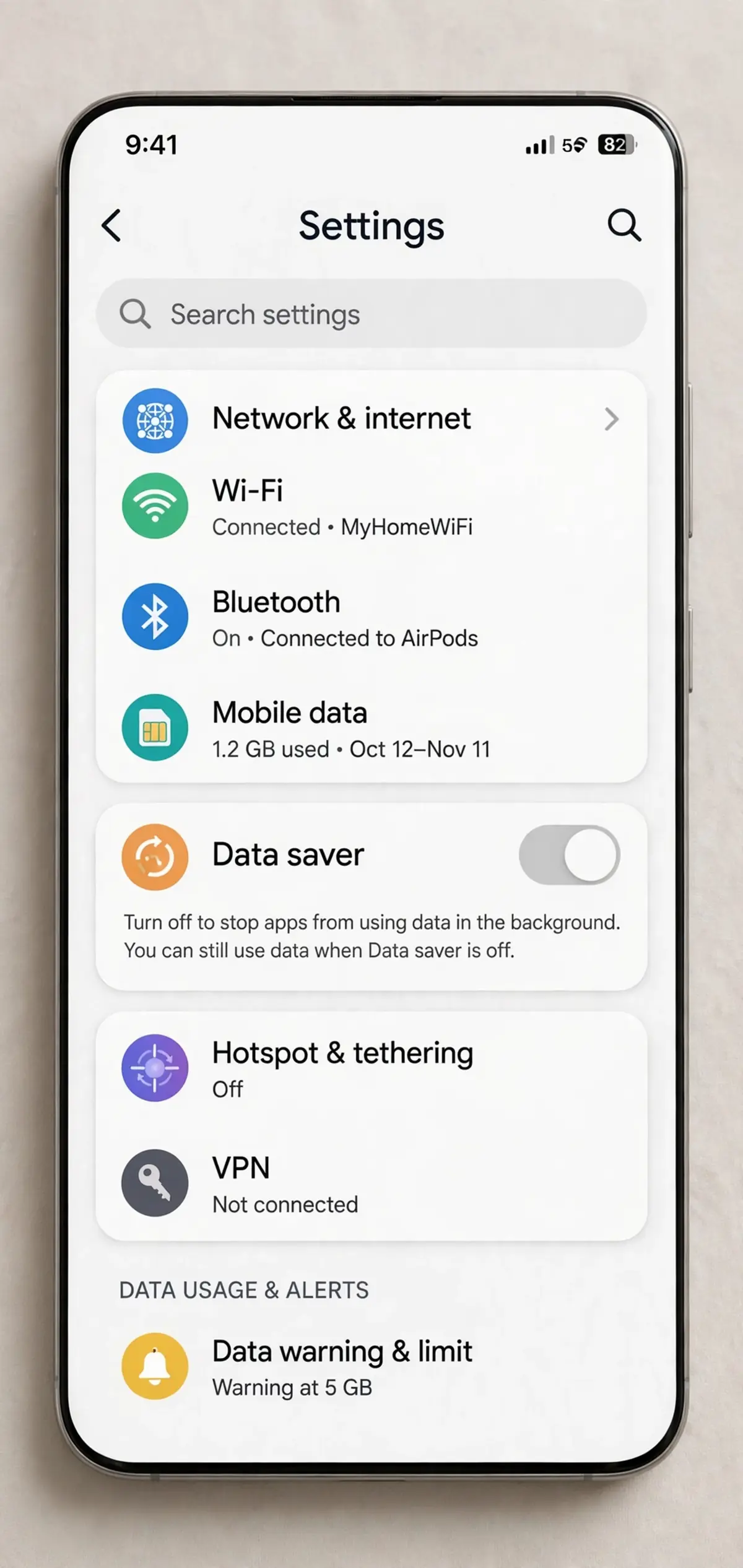
Next, set your phone’s system-level saver. On iPhone it is Low Data Mode; on Android it is Data Saver. These do not block data outright. They ask apps to behave more carefully: lower streaming quality, pause automatic downloads and backups, and slow background refresh. They are blunt tools, and that is their virtue. One toggle changes the behaviour of dozens of apps at once.
Then go app by app for the worst offenders. Your phone’s data usage screen ranks apps by how much they have used, and the top three usually explain most of the mystery. For each one, decide: does this app need mobile data at all, or can it wait for Wi-Fi? Social and video apps are the usual candidates for Wi-Fi-only treatment, while maps and messaging stay on mobile.
Finally, download ahead. If you know you will watch a show on a commute, download it on Wi-Fi the night before. Downloads use roughly the same amount of data as streaming the same content, but they use it on Wi-Fi, where it does not count against your mobile plan. That one habit alone can move tens of gigabytes a month off your mobile bill.
Related reading: browser productivity add-ons
What size plan do you actually need?
There is no universal answer, but there are honest brackets. A light user who mostly messages, listens to music, and browses on Wi-Fi can live happily on 5 GB. An average user with some streaming and social use off Wi-Fi usually lands in the 10 to 20 GB range. A heavy user who streams daily, takes video calls, and scrolls a lot off Wi-Fi should look at 50 GB or more. Someone streaming HD or 4K on mobile data regularly, or rarely touching Wi-Fi, needs 100 GB or an unlimited plan, and even then should check the fine print about throttling after a threshold.
The mistake is buying a plan for the person you wish you were. Buy it for the person you are. Track one real month first, using your phone’s own usage screen, then pick a plan with a little headroom above that month’s total. A plan that is slightly too big is a small waste. A plan that is slightly too small is a month of overage charges and throttled video.
Also remember that a plan’s headline number is not the whole story. Some plans slow you down after a certain amount of high-speed data, even if they call themselves unlimited. Others charge per extra gigabyte. Others cut video quality automatically. Read the throttling and overage terms before you sign, because those terms decide what your plan feels like in the last week of the month.
Related reading: Galaxy Watch 8 Classic review
Streaming on a hotspot costs the same, and sometimes more
This is a common misunderstanding, so let us be blunt: streaming on a laptop connected to your phone’s hotspot uses your phone’s mobile data, at the same per-hour rates, and often at higher quality, because laptops default to bigger screens and higher resolutions. A one-hour HD show on a laptop over a hotspot costs about 3 GB, same as on the phone, and a 4K show costs about 7 GB. The hotspot does not magically make data free or cheaper. It just moves the same cost to a bigger screen.
Worse, laptops are worse at saving data than phones. They update operating systems, sync cloud drives, and refresh browser tabs in the background, all over your hotspot, unless you set the connection as metered. If you hotspot regularly, set the connection as metered on the laptop, turn off automatic updates on that connection, and download big files on real Wi-Fi. Otherwise the hotspot will eat your plan while you are not even watching anything.
The same logic applies to tablets and smart TVs running off a phone hotspot. The screen gets bigger, the default quality goes up, and the data follows. A hotspot is a lifeline, not a home broadband replacement, and treating it like one is the fastest way to burn a monthly allowance in a weekend.
Related reading: fitness watch face-off
Common traps and how to dodge them
The first trap is Auto quality. Auto picks the best quality your connection supports, which on a fast 5G connection means the most expensive quality, always. If you are on mobile data, Auto is not your friend. Pick a quality manually, or use the app’s data saver mode, and let Auto live only on Wi-Fi.
The second trap is multiple streams. Every stream counts separately. Two people watching different shows on one mobile connection double the data. A household sharing a hotspot needs to budget per stream, not per household, and that math gets ugly fast at HD quality.
The third trap is background video. A video playing in a tab you forgot, a social feed autoplaying while the phone sits on the table, a preview looping on a streaming home screen — all of it counts. Close tabs, pause feeds, and treat any moving picture as a running meter.
The fourth trap is thinking Wi-Fi is always free. Public Wi-Fi is free in money terms, but it is often slow, and a slow connection can make a streaming app drop quality, buffer, and re-download chunks, wasting data and patience together. On a bad public network, downloading ahead on good Wi-Fi beats streaming live on bad Wi-Fi.
Related reading: earbud reset steps
A one-week experiment worth running
If you do not trust any table, run this experiment. For one week, set every streaming app to standard definition or its data saver mode on mobile, turn off social autoplay, and set downloads and updates to Wi-Fi only. At the end of the week, check your phone’s data usage screen and compare it with a normal week.
Most people see a drop of a third or more, with no real loss in enjoyment, because phone screens forgive lower quality. If the drop is small, your data was never going to video in the first place, and the usage screen will tell you which app actually deserves the blame. Either way, you will have replaced a guess with a measurement, and that is the only basis worth buying a plan on.
Keep the experiment honest. Do not also stop watching shows for that week and then credit the settings. Watch the same amount, at lower quality, and measure the difference. That is the number that matters, and it is the number your plan should be sized around.
Related reading: deleting a social account
FAQ
How much data does streaming use per hour?
Roughly 0.3 GB per hour at low quality, 0.7 GB per hour in standard definition, up to 3 GB per hour in HD, and up to 7 GB per hour in 4K, based on Netflix’s published settings. Other services land in a similar range, with exact figures varying by app and title.
Does streaming music use much data?
No, by video standards. Music at high quality uses roughly 0.1 GB per hour as a planning estimate, so an hour a day for a month is only about 3 GB. Video is the expense; music is a footnote.
Is 720p really that much cheaper than 1080p?
Yes. As a planning estimate, 720p costs roughly 1.5 GB per hour against roughly 3 GB per hour for 1080p, so it roughly halves the data. On a phone screen the visual difference is small, which makes 720p the sweet spot for mobile viewing.
Why does my data run out if I mostly use Wi-Fi?
Check autoplay, background refresh, Wi-Fi assist features, and downloads happening over mobile data. Also check whether “mostly on Wi-Fi” is actually true: a weak Wi-Fi signal can push your phone onto mobile data without you noticing.
Does downloading a show use less data than streaming it?
No, downloading uses roughly the same amount of data as streaming the same content at the same quality. The saving comes from downloading on Wi-Fi, so the data does not count against your mobile plan.
What is the fastest way to cut streaming data?
Set streaming apps to a data saver mode or standard definition on mobile, turn off social video autoplay, and set downloads and app updates to Wi-Fi only. Those three changes usually beat every other trick combined.
Related reading: AI tools roundup
The short version
Streaming data is almost entirely a quality question. Low quality costs about 0.3 GB per hour, standard definition about 0.7 GB, HD about 3 GB, and 4K about 7 GB. Pick a quality that matches your screen, turn off autoplay, download on Wi-Fi, and measure one real month before you buy a plan. Do that and streaming stops being a mystery bill and becomes a number you control.
More practical guides live on the CripsyWire blog.
The site itself is at CripsyWire.
For background on who runs it, see the about page.
Work out your own streaming number
Plug in your daily streaming, music and call habits and see your monthly total and the plan size that actually fits.

Continue Reading on CripsyWire
For more practical AI coverage for US buyers, see our full AI tools and agents library. When you are deciding between competing tools, the reviews and comparisons section breaks down head-to-head matchups. AI features that live inside your phone are tracked in smartphones, and AI on your wrist or finger in wearables. All of this is part of CripsyWire's broader Tech coverage — start at the homepage for what is newest.