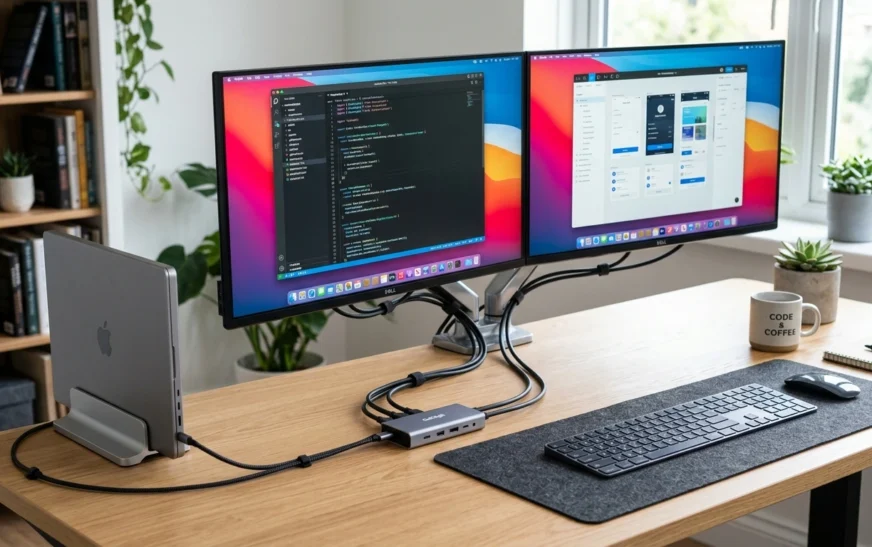
Here’s the thing nobody tells you when you finally cave and buy that second screen: plugging it in is the easy part. The hard part is everything after. Why is one monitor brighter than the other? Why does my mouse get “stuck” in the corner? Why does my neck hurt after a week when this was supposed to help me?
I’ve built more than my share of two-screen desks, fixed plenty of them for friends and family, and watched people make the same handful of mistakes over and over. So this isn’t a spec sheet. It’s the guide I wish someone had handed me the first time. By the end you’ll know exactly how to connect, arrange, and tune a dual monitor setup that actually feels good to use, whether you’re on Windows, a Mac, or even a Chromebook.
| Quick answer A dual monitor setup means running two displays from one computer so your desktop spreads across both screens. Connect each monitor to a video port (HDMI, DisplayPort, or USB-C), open your display settings, choose Extend, then drag the on-screen boxes to match how the monitors physically sit on your desk. That’s the whole game in four moves. |
Why a dual monitor setup is worth it (and when it isn’t)
Let’s get the numbers out of the way first, because they’re genuinely persuasive. Jon Peddie Research, which has surveyed thousands of office workers across multiple years, found that people using multiple monitors reported an average productivity bump of around 42%. A University of Utah study put error rates roughly a third lower with two screens than one. Even the more conservative figures floating around land in the 20–30% range. Whatever the exact number, the direction is the same: more screen, less friction.
The reason is boringly human. Every time you Alt-Tab to find a window, your brain pays a small tax to refocus. Do that a few hundred times a day and it adds up. With two screens you stop hunting and start glancing. Code on the left, browser on the right. Spreadsheet here, email there. Video call on one, your notes on the other.
That said, a second monitor isn’t magic. If you mostly write in one app, or you work from cafés on a 13-inch laptop, the upside shrinks fast. And a badly positioned second screen can actively hurt you, which is the part most guides skip and we’ll cover in detail below. If your wins come from software rather than hardware, you might get more mileage from better productivity Chrome extensions or a handful of solid AI productivity tools before you spend on glass.
What you actually need before you start
You probably have most of this already. Don’t overbuy.
- Two monitors. Same size and resolution is the dream it makes alignment painless. Mixed is fine, you’ll just do a little extra tuning.
- A computer with two video outputs. Most desktops handle dual displays without thinking. Laptops are where it gets tricky (more on that shortly).
- The right cables. HDMI, DisplayPort, or USB-C/Thunderbolt. Check what ports both ends actually have before you buy anything.
- A stable desk. Two screens, especially on arms, will expose a wobbly desk instantly. Give yours a firm shake. If it rocks, fix that first.
- Optional but worth it: a dual monitor arm, an external keyboard and mouse, and a USB-C dock if you’re on a laptop.
Cables and ports, ranked by how little they’ll annoy you
Not all connections are equal. If you have a choice, here’s the order I reach for:
| Connection | Best for | Notes |
| DisplayPort | Desktops, high refresh rates | Best signal. Supports daisy-chaining two monitors off one port. |
| USB-C / Thunderbolt | Laptops | Carries video + power + data in one cable. Cleanest laptop setup. |
| HDMI 2.0+ | Almost anything | Universal and reliable. The safe default. |
| DVI | Older gear | Works fine, just legacy. No audio. |
| VGA | Last resort | Analog and soft-looking. Avoid if you have any other option. |
How to set up dual monitors on Windows 11 (and Windows 10)
Good news: Windows 10 and Windows 11 handle two screens almost identically, so these steps work either way. The whole thing takes about five minutes once the cables are in.
- Connect both monitors to power and turn them on. Plug each one into a video port on your PC using HDMI, DisplayPort, or USB-C.
- On each monitor, make sure the input source matches the cable you used. A huge number of “it’s not working” moments are just a monitor sitting on the wrong input.
- Press Windows + P and choose Extend. If you see the same picture on both screens, you’re in Duplicate mode — Extend is what gives you the extra desktop space.
- Right-click the desktop and open Display settings. Click Identify so Windows labels the screens 1 and 2.
- Drag the on-screen boxes so their layout matches where the monitors physically sit. This is the fix for the maddening “my mouse goes the wrong way” problem — the boxes have to mirror reality.
- Pick your main display: select a monitor, scroll down, and tick Make this my main display. That’s where your taskbar and new windows land.
- Set resolution and scaling per monitor if they’re different sizes, then click Apply. Move your cursor across the seam to confirm it flows naturally.
| Pro move Win + P is your fastest friend. Need to mirror to a TV for a presentation? Win + P, Duplicate. Back to work? Win + P, Extend. No menu-digging required. |
Setting up dual monitors on a Mac
On macOS the path is System Settings ▸ Displays. Connect your second screen, and it usually appears on its own. You’ll see a layout map similar to Windows — drag the blue rectangles to match your real arrangement, and drag the white menu bar onto whichever screen you want to treat as primary.
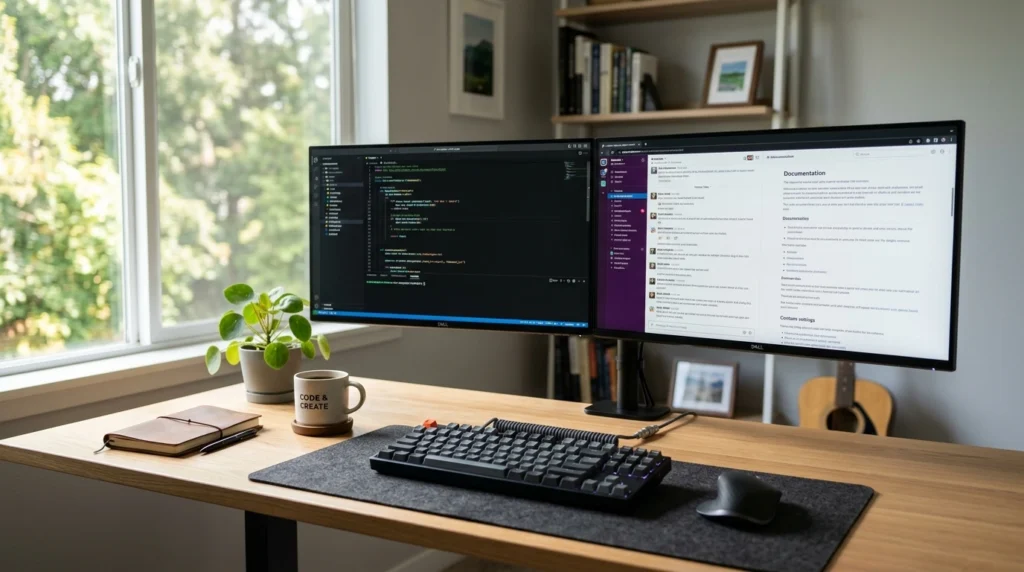
One Mac-specific gotcha: by default macOS may turn on mirroring the first time. Look for the “Mirror Displays” checkbox in the arrangement view and uncheck it to get true extended desktop. Also worth knowing — some MacBooks, particularly base-model Apple silicon chips, officially support only one external display. If your second screen refuses to show up at all, check your exact model’s display limit before assuming something’s broken.
The laptop problem most guides ignore
This is where people get stuck, so let’s slow down. Plenty of laptops can only drive one external monitor directly, even if they have two ports. The ports might be wired to the same internal video pipeline, so plugging in a second screen does nothing.
Two ways around it:
- Get a USB-C or Thunderbolt dock. One cable to the laptop, both monitors into the dock. This is the cleanest setup for a desk you return to every day, and it charges the laptop at the same time.
- Check for DisplayLink support. Some docks use DisplayLink to push extra displays your laptop couldn’t handle natively. You install a small driver and it just works. Confirm the dock lists DisplayLink before buying if you’re pushing your laptop past its native limit.
Want to run the laptop closed and use both external screens? Plug in an external keyboard and mouse, then in Windows set the lid-close action to “Do nothing” (or on Mac, just keep it plugged into power). Now you’ve got a tidy two-screen desktop with the laptop tucked away. If you’re still deciding what machine to anchor your desk around, our take on Chromebook vs a laptop is worth a read first.
Daisy-chaining: two monitors, one cable from your PC
If both monitors support DisplayPort 1.2+ with MST (Multi-Stream Transport), you can run a single DisplayPort cable from your PC to the first monitor, then a second cable from that monitor’s DisplayPort out to the second monitor. One port on your computer, two screens. It’s a clean trick for desktops short on outputs — just confirm both monitors actually list daisy-chain support, because plenty don’t.
On a Chromebook? It’s easier than you’d think
ChromeOS handles a second display gracefully. Plug it in, then go to the clock ▸ Settings ▸ Device ▸ Displays. From there you can extend or mirror, reorder the screens, and adjust resolution. If you’re using a convertible Chromebook as part of your setup, you might also want to turn off the touchscreen on your Chromebook so a stray thumb doesn’t jump your cursor mid-task.
Dual monitor ergonomics: the part that protects your neck
Here’s the uncomfortable truth. Most dual monitor setups, even the sleek-looking ones, are ergonomic disasters waiting to happen. People buy a second screen for productivity, then spend the next month wondering why their neck aches. Getting this right takes ten minutes and saves you real pain.
Height first, always
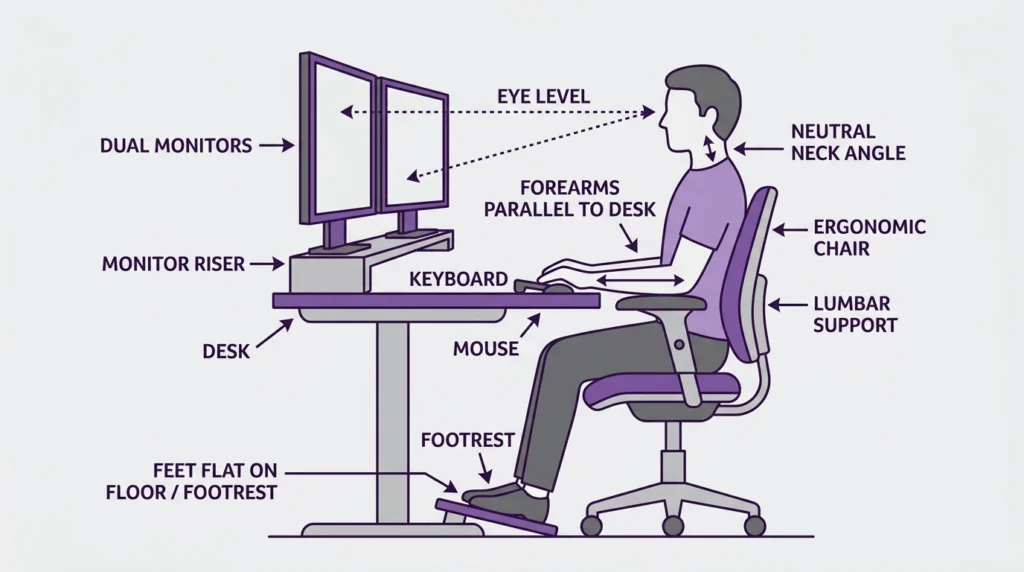
Set your chair height first, then your monitors. A simple test: sit back, look straight ahead, close your eyes, then open them. Your gaze should land naturally on the top third of the screen. If you’re looking down or tilting up, adjust. Both monitors should sit at the same height — mismatched heights force constant micro-adjustments your neck pays for.
Arrangement depends on how you split your time
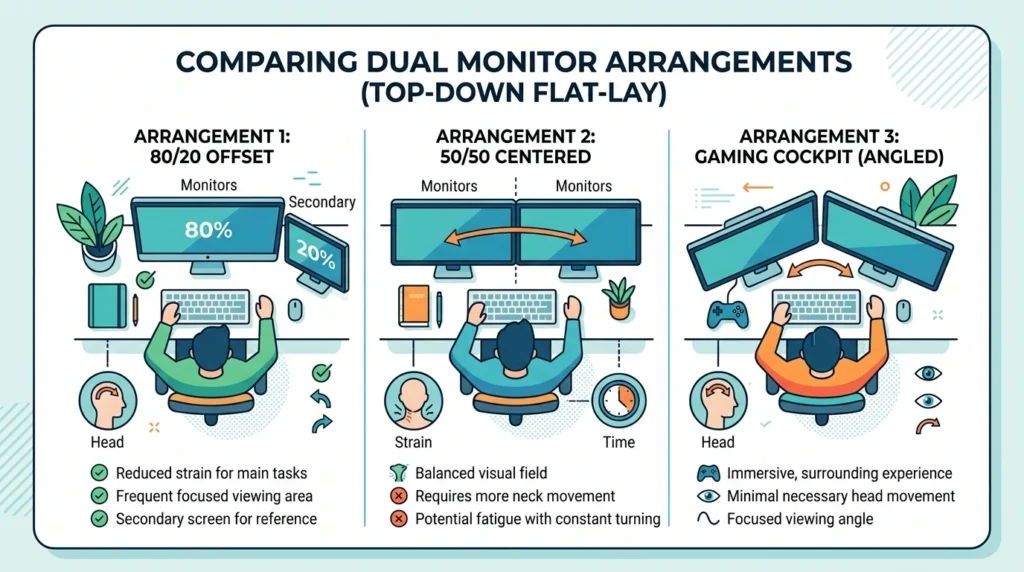
This is the nuance most guides miss. There’s no single “correct” layout — it depends on usage:
| How you use them | Best arrangement | Why |
| One main screen, one for reference (80/20) | Main monitor dead center, second angled to the side | Keeps your most-used screen straight ahead, head neutral. |
| Both equally (50/50) | Split the pair so the seam sits at your center line, angled in | Avoids constant head-turning to one fixed side. |
| Gaming + chat/stats | Primary centered, secondary angled 15–30° | The “cockpit” feel without neck rotation. |
That last point matters. If you put both screens side by side and use them equally, you’ll spend all day rotating your head to one side. Over weeks, that asymmetry is what causes the slow-building ache people blame on “just getting older.”
The small stuff that quietly wrecks your posture
- Stop typing on the laptop keyboard. If you’ve raised your laptop to use as a second screen, an external keyboard and mouse aren’t optional — they let you sit back instead of hunching forward.
- Mind the glare. Angle screens away from windows and overhead lights. Glare makes you lean and squint without noticing.
- Feet flat. If your chair is set for the desk but your feet dangle, a footrest fixes posture from the ground up.
- Take the 20-8-2 break. Cornell ergonomics researchers suggest: for every 20 minutes sitting, stand for 8 and move for 2. Your spine will thank you.
Mismatched monitors and the scaling headache
Buying two identical monitors avoids a surprising amount of grief. When you mix sizes or resolutions, Windows scales each one differently, and you get the classic problem: text looks normal on one screen and tiny (or huge) on the other, and windows seem to jump in size when you drag them across.
If you’re stuck with a mismatched pair — say a 4K monitor next to a 1080p one — go into Display settings and set the scaling percentage individually for each screen until text looks roughly the same physical size on both. It won’t be perfect, but it gets you 90% of the way. Matching refresh rates matters too if one screen is a high-refresh gaming panel; set each monitor’s refresh rate in advanced display settings so motion feels consistent.
Dual monitors vs one ultrawide: which should you pick?
Worth a genuine pause before you buy. An ultrawide (21:9 or 32:9) gives you one seamless, gap-free canvas — lovely for video editing timelines, trading dashboards, or anyone who hates the bezel running down the middle. Two separate monitors give you a physical divider that’s actually useful for snapping windows, plus the flexibility to rotate one into portrait mode.
| Dual monitors | Single ultrawide | |
| Window snapping | Natural — the bezel guides it | Needs software to split zones |
| Bezel in the middle | Yes (minor with thin bezels) | None — fully seamless |
| Portrait mode option | Yes, rotate one screen | No |
| Cost | Often cheaper per pixel | Usually pricier |
| Best for | Multitaskers, mixed tasks | Editors, immersive single-app work |
My honest take: for most people juggling email, browser tabs, and a main app, two monitors win on flexibility and value. Ultrawide is the move if your work lives inside one wide application and the center bezel genuinely bothers you.
Pros and cons at a glance
| Pros | Cons |
| Big jump in multitasking — no more Alt-Tab hunting Fewer errors on compare/copy tasks Cheap upgrade relative to the productivity gain Flexible — rotate one to portrait for reading/coding | Eats desk space — needs ~55–60 inches of width Easy to set up badly and hurt your neck Laptops may need a dock to drive both Can be a distraction magnet if you let it |
Common dual monitor setup mistakes (and quick fixes)
- Leaving the laptop flat as your “second screen.” You end up staring down all day. Raise it to eye level or use a dock and dedicated monitors.
- Side-by-side when you use both equally. Constant head-turning. Center the seam between them instead.
- Mismatched heights. Even an inch off forces your neck to compensate. Level them.
- Wrong projection mode. If Windows shows “PC screen only,” it deliberately ignores the second monitor. Win + P ▸ Extend.
- Boxes don’t match reality. If your cursor exits the wrong edge, your display arrangement doesn’t match the physical layout. Drag the boxes in settings.
- Ignoring cable quality. A flaky HDMI cable causes random flicker and dropouts people blame on the monitor. Swap it before troubleshooting deeper.
“Second monitor not detected” — the fix-it checklist
This is the single most common dual monitor headache, and the fix usually takes under ten minutes. Work down this list in order:
- Press Win + P and select Extend. If the projection mode was wrong, this alone often solves it.
- Check the monitor’s input source in its on-screen menu — HDMI vs DisplayPort. Many “dead” monitors are just waiting on the wrong input.
- Reseat the cable on both ends. Then try a different port or a known-good cable to rule out hardware.
- Open Settings ▸ System ▸ Display and click Detect. This forces Windows to look again.
- Update your GPU drivers from the manufacturer’s site (NVIDIA, AMD, Intel). If the problem started right after a Windows update, roll the display driver back in Device Manager.
- Still nothing? Plug the monitor into a different computer. If it works there, the issue is your PC’s port or drivers — not the monitor.
| Why is my second monitor not detected? Most often the projection mode is wrong or the monitor is on the wrong input. Press Windows + P and choose Extend, confirm the monitor’s input source, reseat the cable, then open Settings ▸ System ▸ Display and click Detect. If that fails, update or roll back your GPU driver. |
Expert tips to get more out of two screens
- Rotate one into portrait. A vertical screen is a game-changer for reading long documents, code, or chat feeds without endless scrolling.
- Learn the snap shortcuts. Windows key + arrows snaps windows into halves and quarters across both screens. It’s the fastest way to feel the benefit.
- Use a monitor arm. It frees desk space, lets you fine-tune height and angle, and makes the whole setup look intentional rather than improvised.
- Assign screens by task. Make one your “focus” screen and the other your “reference/comms” screen. Don’t let notifications colonize your main display.
- Match your backgrounds (or don’t). A single wallpaper that spans both screens looks slick; separate ones help you mentally zone each display. Personal preference, but worth a minute.
If you’re building this desk to earn from it, a clean two-screen workflow pairs nicely with the kind of work in our guide to AI side hustles more screen real estate genuinely helps when you’re juggling a client doc, a dashboard, and a chat window at once.
Frequently asked questions
Do I need a special graphics card for dual monitors?
For two monitors, almost any modern GPU or integrated graphics is enough most have the outputs built in. You only need to check GPU specs carefully when you’re pushing three or more displays, or running high resolutions at high refresh rates.
Can I use two different brand or size monitors together?
Yes. They don’t have to match. You’ll just spend a few extra minutes setting per-monitor resolution and scaling so text looks consistent across both. Matching monitors is easier, but mixing works fine.
Why does my mouse get stuck moving between screens?
Your on-screen display arrangement doesn’t match the physical layout. Open Display settings and drag the numbered boxes so they sit exactly how the monitors do on your desk — left, right, or stacked.
How big should my desk be for a dual monitor setup?
Most two-monitor setups want roughly 55 to 60 inches of width and at least 28 inches of depth so you can sit back far enough. Larger 32-inch screens need more of both.
Is dual monitor or one ultrawide better for productivity?
Two monitors win on flexibility and window-snapping for mixed tasks like email, browsing, and a main app. An ultrawide is better if your work lives in one wide application and you hate the center bezel.
Will a second monitor slow down my computer?
Barely, for everyday work. Driving an extra display uses a little more GPU power, but for browsing, documents, and office tasks it’s negligible. Heavy gaming or video work across both screens is where you’d notice the load.
How do I make one monitor the main display?
In Windows, open Display settings, click the monitor you want, scroll down, and tick “Make this my main display.” On a Mac, drag the white menu bar onto your preferred screen in System Settings ▸ Displays.
Final verdict
A dual monitor setup remains one of the highest-return, lowest-effort upgrades you can make to a workspace. The productivity research backs it up, but you don’t need a study to feel the difference after a single afternoon of not hunting for windows.
Just remember the part most people rush: the setup is more than plugging in cables. Get the height right, arrange the screens around how you actually work, match your scaling, and keep a stable desk under it all. Do that, and your second monitor will feel less like a gadget and more like the thing you can’t believe you worked without. Spend ten extra minutes on the ergonomics today and you’ll save your neck from a month of regret.

Continue Reading on CripsyWire
For more practical tutorials and hidden features, see our full how-to guides section. AI workflow guides feed into the broader AI tools and agents coverage, phone tricks live in smartphones, and wearable setup walkthroughs in wearables. When you are deciding what to buy, the reviews and comparisons section helps. All part of CripsyWire Tech, and the homepage shows what is newest.