Quick answer: To fix a slow DNS lookup, switch your device or router to a faster public DNS resolver like Cloudflare (1.1.1.1) or Google (8.8.8.8), then flush your DNS cache. If pages still stall before loading, the real culprit is usually an IPv6 timeout, a VPN, or a leftover virtual network adapter, not the resolver speed itself.
You click a link. For a second, nothing. The tab spins, the status bar reads “Resolving host,” and you sit there wondering if your internet just died. Then the page snaps in like nothing happened.
That pause has a name. It’s a DNS lookup, and when it drags, every site you visit feels broken even though your connection is perfectly fine.
I’ve spent more hours than I’d like to admit chasing this exact problem, on my own machines, on a friend’s gaming rig that “felt laggy,” and on a small office network where half the staff swore the Wi-Fi was dying. Nine times out of ten it wasn’t the bandwidth. It was DNS quietly tacking a half-second onto every single request.
Good news: most of these fixes take under five minutes and you don’t need to be a network engineer. The trick is doing them in the right order, and knowing when the “obvious” fix is actually the wrong one. Let’s get into it.
What a Slow DNS Lookup Actually Is (in Plain English)
Every website has a name (cripsywire.com) and a number (something like 192.0.2.45). Humans remember names. Computers need the number. DNS, the Domain Name System, is the phonebook that turns one into the other.
When you type a URL or tap a link, your device fires off a question: “What’s the IP for this domain?” A DNS server answers. Only then can your browser start downloading anything. No IP, no page. It’s a hard gate at the very front of every connection.
A healthy lookup is invisible. On a good setup it finishes in 10 to 40 milliseconds, faster than you can blink. The trouble starts when that answer takes 200, 400, sometimes 2,000 milliseconds. Stack that delay across the dozen domains a single modern page pulls from (fonts, ads, analytics, images on a CDN) and you’ve got a site that feels sludgy for reasons that have nothing to do with your download speed.
Here’s what’s normal and what isn’t:
| DNS lookup time | What it means |
|---|---|
| Under 20 ms | Excellent. You’ll never notice it. |
| 20–50 ms | Fine. Typical for a good public resolver. |
| 50–100 ms | Borderline. You start to feel it on busy pages. |
| 100–200 ms | Slow. Noticeable lag before pages load. |
| Over 200 ms | Broken-feeling. Fix this. |
First, Prove DNS Is the Actual Problem
Don’t change a single setting yet. This is where most guides get it backwards. If you start swapping DNS servers before you’ve measured anything, you’ll never know whether it helped or you just got lucky with a router reboot.
You want a number. A baseline.
On Windows, open PowerShell and run a timed lookup:
Measure-Command { Resolve-DnsName cripsywire.com }Read the TotalMilliseconds value. (Plain nslookup works for a basic check, but it won’t show you timing.)
On Mac or Linux, the dig command is your friend:
dig cripsywire.comFind the line that says ;; Query time: 24 msec. That’s your answer, in black and white.
In any browser, press F12, open the Network tab, reload the page, and click any request. In the Timing breakdown there’s a row literally labeled “DNS Lookup.” That tells you how long resolution took for that exact domain, under the real conditions you actually browse in.
Run the test three or four times and average it. The first query is often slow because nothing’s cached yet; the repeats show the true performance. If your numbers sit comfortably under 50 ms, DNS isn’t your bottleneck, the slowness is coming from somewhere else (your connection, the site’s server, or an overloaded browser). If you’re seeing triple digits or random multi-second spikes, keep reading.
What’s Actually Causing the Slowdown
Slow DNS almost always traces back to one of these. Knowing which one you’ve got saves you from blindly trying fixes that don’t apply.
Your ISP’s Default DNS Is Just Slow
This is the big one. When you got internet, your provider quietly assigned you their own DNS servers, and plenty of them are overloaded, under-maintained, or physically far away. ISP resolvers commonly answer in 80 to 400 ms. A good public resolver does it in 10 to 20. That’s not a small difference, that’s a 10x gap on every request.
Stale or Corrupted Cache
Your device remembers recent lookups so it doesn’t have to ask twice. Helpful, until a cached record goes out of date or gets corrupted. Then your machine keeps trying an old IP that no longer works, hangs, retries, and finally gives up and asks fresh. That hang is the delay you feel.
The IPv6 Timeout Trap
This one’s sneaky and badly underrated. Modern systems often request an IPv6 address (an AAAA record) first. If your ISP or router has half-baked IPv6 support, your device waits, gets nothing, waits some more, then falls back to IPv4. That fallback can cost a flat 2 to 5 seconds per lookup. People chase this for weeks blaming their browser.
A VPN Routing Your Queries the Long Way
VPNs send your DNS through an encrypted tunnel, sometimes to a server on another continent. That adds real round-trip latency, 50 to 150 ms, that simply isn’t there when the VPN is off. Corporate split-tunnel setups are notorious: the machine keeps trying to reach an internal resolver that’s only available on the tunnel.
Ghost Network Adapters
Old VPN clients, VMware, VirtualBox, that USB tethering app you installed once, they all leave behind virtual network adapters. These ghosts sit in your adapter list with their own (often dead) DNS settings, and your OS sometimes tries to route lookups through them first. Dead end, timeout, retry.
The Router Itself
Most home routers run a little DNS forwarder of their own. If its firmware is old, its cache is corrupt, or it’s just cooking in a cabinet somewhere, every device on your network inherits the problem. That’s why a single router reboot sometimes fixes “everyone’s internet.”
How to Fix Slow DNS Lookup, Step by Step
Work through these roughly in order. The first two solve the vast majority of cases.
1. Switch to a Faster Public DNS Server
Highest impact, lowest effort. You’re swapping your ISP’s sluggish resolver for one of the big public ones that answer from a server physically near you using Anycast routing.
Here’s how the main free options stack up:
| Provider | Primary / Secondary | Best for |
|---|---|---|
| Cloudflare | 1.1.1.1 / 1.0.0.1 | Raw speed and privacy |
| 8.8.8.8 / 8.8.4.4 | Reliability, rock-solid uptime | |
| Quad9 | 9.9.9.9 / 149.112.112.112 | Built-in malware blocking |
| OpenDNS | 208.67.222.222 / 208.67.220.220 | Family content filtering |
To set it on Windows: Settings → Network & Internet → your connection → Edit DNS settings → switch to Manual → enter the IPv4 primary and secondary.
On Mac: System Settings → Network → your connection → Details → DNS → tap + and add the addresses.
My honest take: Cloudflare’s 1.1.1.1 is the fastest in most regions I’ve tested, and Quad9 is the one I recommend to family because it quietly blocks known malicious domains. Pick one, re-run your dig test, and compare it against the baseline you took earlier.
2. Flush Your DNS Cache
After switching resolvers, you have to clear the old cache or your device will keep serving stale answers from the previous server for hours. Skip this and you’ll swear the switch did nothing.
- Windows: open Command Prompt and run
ipconfig /flushdns - Mac:
sudo dscacheutil -flushcache; sudo killall -HUP mDNSResponder - Linux (systemd):
sudo resolvectl flush-caches
Here’s the part almost everyone misses: Chrome keeps its own DNS cache, separate from your operating system. Flushing Windows or Mac doesn’t touch it. Type chrome://net-internals/#dns into Chrome’s address bar and hit “Clear host cache.” If you’ve been troubleshooting for an hour and nothing works, this is usually why.
3. Set the DNS on Your Router Instead of Every Device
Changing DNS on your laptop fixes your laptop. Changing it on the router fixes the phone, the tablet, the smart TV, the gaming console, everything, in one move.
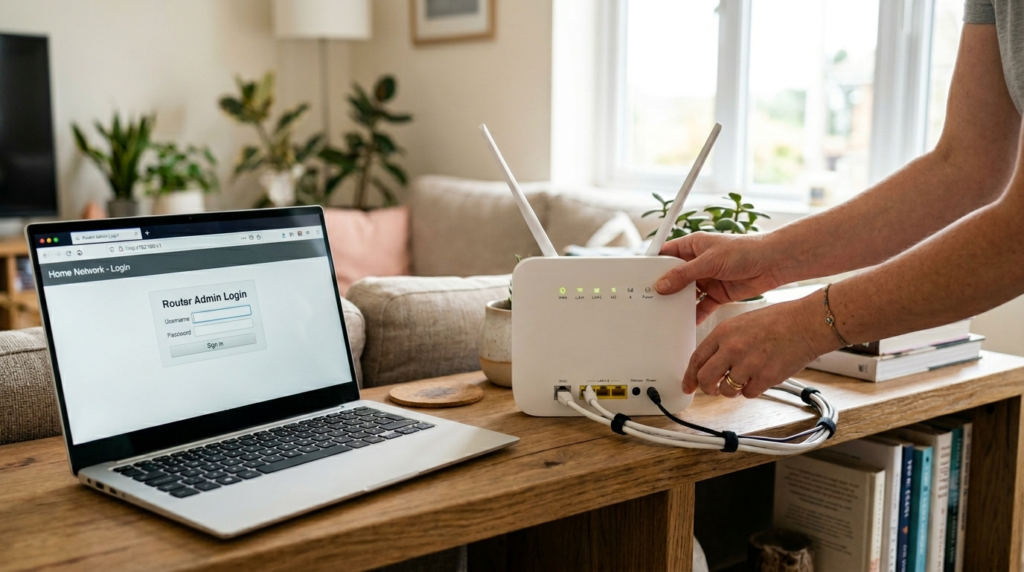
Log into your router admin panel (usually 192.168.1.1 or 192.168.0.1 in a browser), find the DNS settings under WAN, Internet, or DHCP, and drop in 1.1.1.1 and 1.0.0.1. Save, reboot the router, done.
One catch: some ISPs lock the DNS fields on the routers they hand out. If yours is greyed out, you’ll have to set DNS per device, or buy your own router.
4. Test Whether IPv6 Is the Problem
If your lookups are fast most of the time but randomly hang for a couple of seconds, suspect IPv6. As a diagnostic, temporarily disable it.
On Windows: Network Connections → right-click your adapter → Properties → uncheck Internet Protocol Version 6 (TCP/IPv6) → OK.
If the multi-second stalls vanish, you found it. That said, don’t leave IPv6 off forever out of habit, it’s the future of the internet and plenty of services lean on it. Treat this as a test. If it’s the culprit, the better long-term fix is sorting out your router’s IPv6 config or nudging your ISP.
5. Clear Out Ghost Network Adapters
Open Device Manager on Windows (or the Network list on Mac) and look for adapters tied to software you no longer use, old VPNs, VirtualBox, stray TAP drivers. Disable the ones you’re sure about. On Mac, delete dead VPN profiles from System Settings → Network. Fewer phantom paths means your OS stops wasting time routing DNS through interfaces that go nowhere.
6. Turn On DNS over HTTPS
Standard DNS travels in plain text, which means your ISP (and anyone snooping) can see every domain you visit, and in some cases hijack or throttle those queries. DNS over HTTPS (DoH) encrypts them. Beyond the privacy win, it can sidestep ISP-level DNS meddling that quietly slows you down.
In Chrome: Settings → Privacy and security → Security → “Use secure DNS,” then pick Cloudflare or Google. On phones it lives under Private DNS settings (next section).
7. Fix It on Your Phone
Your phone has the same problem, just buried in different menus.
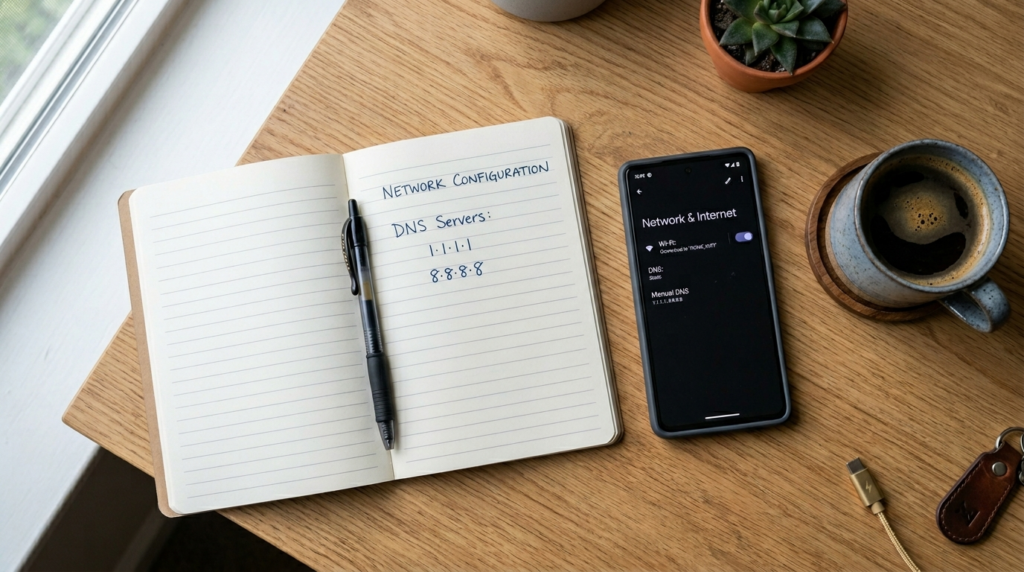
On Android, there’s a clean built-in option: Settings → Network & Internet → Private DNS → set it to dns.google or 1dot1dot1dot1.cloudflare-dns.com. That forces fast, encrypted DNS across your whole phone, Wi-Fi and mobile data both.
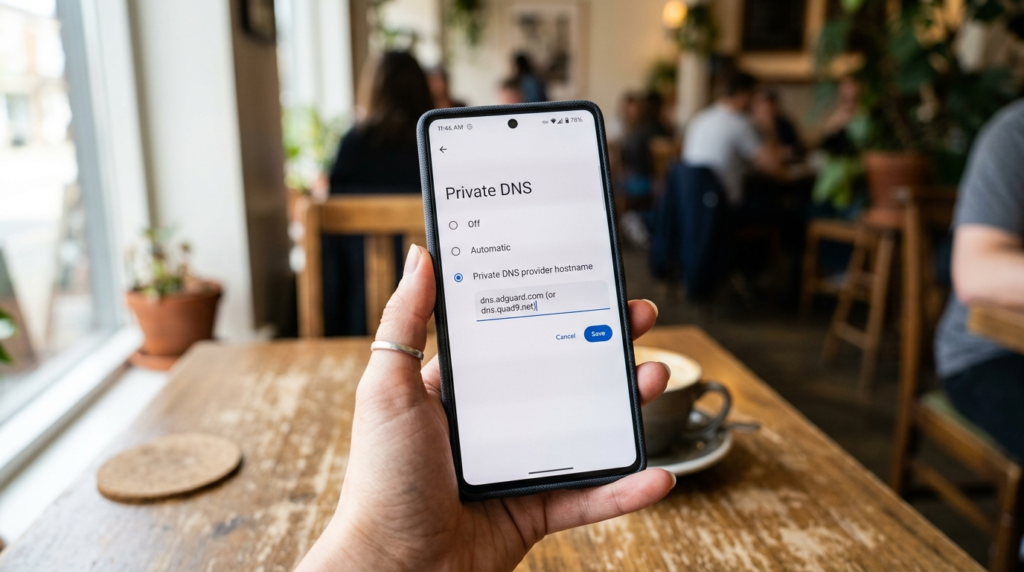
On iPhone, there’s no native field, but installing the free Cloudflare 1.1.1.1 app does the same job in a tap.
If your phone’s network has been flaky in general, DNS is only one suspect, hardware and software gremlins cause their share too. Working through phone issues methodically, the same patient way you’d diagnose a phone microphone that stopped working, beats randomly toggling settings.
8. Fix It on a Chromebook
Chromebooks make this painless. Open Settings → Network → your Wi-Fi → Network, expand the DNS section, choose “Custom name servers,” and enter 1.1.1.1 and 1.0.0.1. ChromeOS applies it instantly, no reboot.
Chromebooks have a handful of these tucked-away settings worth knowing, like how to turn off the touchscreen on a Chromebook when accidental taps drive you up the wall. And if you’re still deciding whether the platform fits you at all, our honest breakdown of Chromebook vs laptop lays out the trade-offs.
9. Restart the Router (Yes, Really)
I know, “turn it off and on again” is a cliché. It’s also the single fix that clears a corrupted router DNS cache and resets a forwarder that’s quietly choking. Unplug it, wait a full 30 seconds so the capacitors drain, plug it back in. Do this last if nothing else worked, or first if you’re impatient and the whole house is complaining at once.
If You Run a Website: Cut Your Own DNS Lookups
Everything above is for the person browsing. But if you’re on the other side, running a site, slow DNS hits your visitors as higher Time to First Byte and worse Core Web Vitals. A few server-side moves help.
Use dns-prefetch to tell browsers to resolve key third-party domains early:
html
<link rel="dns-prefetch" href="https://fonts.googleapis.com">Use preconnect for the two or three most critical origins, it resolves DNS, opens the TCP connection, and completes the TLS handshake ahead of time. Don’t overdo it; every preconnect eats a connection slot, so cap it at two or three.
Beyond that: keep your DNS records’ TTL sensible (too low means constant re-lookups, too high means slow propagation when you change something), and flatten long CNAME chains with ALIAS records where your DNS host supports it. Each hop in a CNAME chain is another lookup your visitors wait through.
If your site leans on a pile of third-party scripts, a leaner stack helps too, the same logic behind picking only the best productivity Chrome extensions instead of installing thirty: every extra connection is a tax someone pays.
Common Mistakes That Keep DNS Slow
A few traps I see constantly:
- Switching DNS but never flushing the cache. You changed the resolver, but your device is still answering from the old one’s stale records. Always flush after switching.
- Forgetting Chrome’s private cache. You flushed the OS, tested in Chrome, saw no change, and gave up. Chrome cached its own copy. Clear it at
chrome://net-internals/#dns. - Only setting a primary DNS. Leave the secondary blank and the moment your primary hiccups, you’re stuck on a timeout. Always set both.
- Disabling IPv6 permanently out of fear. It’s a fine diagnostic, a bad lifestyle. If IPv6 is the issue, fix the config, don’t amputate.
- Blaming bandwidth. Paying for a faster internet plan does nothing for DNS. You can have gigabit fiber and still wait half a second on every lookup.
The Honest Truth: “Fast DNS” Advice Is Sometimes Wrong
Here’s the part most articles won’t tell you. “Just switch to 1.1.1.1” is great advice for a typical home user with a slow ISP resolver. It is often the wrong fix in other situations.
On a corporate or Active Directory network, your slowness usually isn’t resolver speed at all, it’s timeouts. Windows is waiting five or ten seconds for an internal DNS server that’s only reachable over a VPN that’s currently down, then falling back. Swapping in a public resolver there can actually break internal name resolution, printers, logins, while doing nothing for the real delay. The fix in that world is auditing which adapter points where, and making sure your machine isn’t querying a server it can’t reach.
So measure first. If your dig test shows a clean 200 ms answer, the resolver is slow, switch it. If it shows a fast answer most of the time with occasional 5-second cliffs, the resolver is fine and you’ve got a timeout or IPv6 problem. Different disease, different cure.
Expert Tips
A few things worth knowing once the basics are handled:
- Benchmark more than one resolver before committing. Cloudflare wins in a lot of places, but Google or even a regional provider can beat it depending on where you live. The
dig @1.1.1.1,dig @8.8.8.8,dig @9.9.9.9comparison takes two minutes. - Set DNS at the router for the household, and on each device’s encrypted Private DNS for when you’re out on public Wi-Fi. Belt and suspenders.
- If only one site is slow to resolve, it’s probably that site’s DNS, not yours. Don’t tear apart your config over one stubborn domain.
- Re-flush your cache every few weeks if you tinker with network settings often. Stale entries creep back.
What is a slow DNS lookup?
A slow DNS lookup is when your device takes too long, usually over 100 milliseconds, to translate a website’s name into its IP address. You feel it as a pause before a page begins loading, even though your internet speed is fine.
Why is my DNS lookup so slow?
Most often it’s your ISP’s overloaded default DNS server, a stale local cache, or an IPv6 timeout forcing a slow fallback to IPv4. VPNs and leftover virtual network adapters are common secondary causes.
Does changing my DNS server actually speed up browsing?
Yes, when your current resolver is the bottleneck. Moving from a slow ISP DNS (80–400 ms) to Cloudflare or Google (10–20 ms) cuts the delay on every request. It won’t help if your slowness comes from bandwidth or the website’s own server.
What is the fastest DNS server?
Cloudflare (1.1.1.1) is the fastest in most regions, with Google (8.8.8.8) close behind and rock-solid. The only way to know for sure where you live is to benchmark them with dig, since “fastest” depends on which server is physically nearest you.
How do I flush my DNS cache?
On Windows, run ipconfig /flushdns in Command Prompt. On Mac, run sudo dscacheutil -flushcache; sudo killall -HUP mDNSResponder. In Chrome, clear it separately at chrome://net-internals/#dns.
Will disabling IPv6 fix slow DNS?
It can, if your ISP or router handles IPv6 poorly and your device wastes seconds waiting on AAAA records before falling back to IPv4. Use it as a test. If it helps, the better long-term fix is correcting your IPv6 setup rather than leaving it off.
How do I check my DNS lookup time?
Run dig yourdomain.com on Mac or Linux and read the “Query time” line. On Windows, use Measure-Command { Resolve-DnsName domain.com } in PowerShell. Or open DevTools (F12), go to the Network tab, and read the “DNS Lookup” row.
Can a VPN cause slow DNS lookups?
Yes. VPNs route your DNS queries through an encrypted tunnel, sometimes to a distant server, adding 50–150 ms. Split-tunnel and corporate setups can be worse: your device may keep trying an internal resolver that’s only reachable on the tunnel.
How often should I clear my DNS cache?
There’s no fixed schedule, but flushing it every few weeks, or any time you change DNS servers or a site suddenly stops loading right, keeps stale records from causing trouble.
Is DNS over HTTPS worth turning on?
For most people, yes. It encrypts your lookups so your ISP can’t see or tamper with them, and it can sidestep ISP-level DNS slowdowns. The speed cost is negligible on a modern connection.
Final Verdict
Slow DNS is one of those problems that feels mysterious and turns out to be boring, in the best way. You don’t need new hardware or a faster plan. You need to measure first, switch to a fast public resolver, flush every cache (including Chrome’s sneaky private one), and rule out the IPv6-and-VPN gremlins.

For 90% of people reading this, two steps fix it: change your DNS to Cloudflare or Google, and flush the cache. Do it at the router level and the whole house benefits. The rest of the list is for the stubborn cases. And the most important habit of all is the one nobody mentions: take a baseline measurement before you touch anything, so you actually know what worked.
Five minutes. That’s usually the whole story. Go reclaim that half-second you’ve been losing on every click.

Continue Reading on CripsyWire
For more practical tutorials and hidden features, see our full how-to guides section. AI workflow guides feed into the broader AI tools and agents coverage, phone tricks live in smartphones, and wearable setup walkthroughs in wearables. When you are deciding what to buy, the reviews and comparisons section helps. All part of CripsyWire Tech, and the homepage shows what is newest.