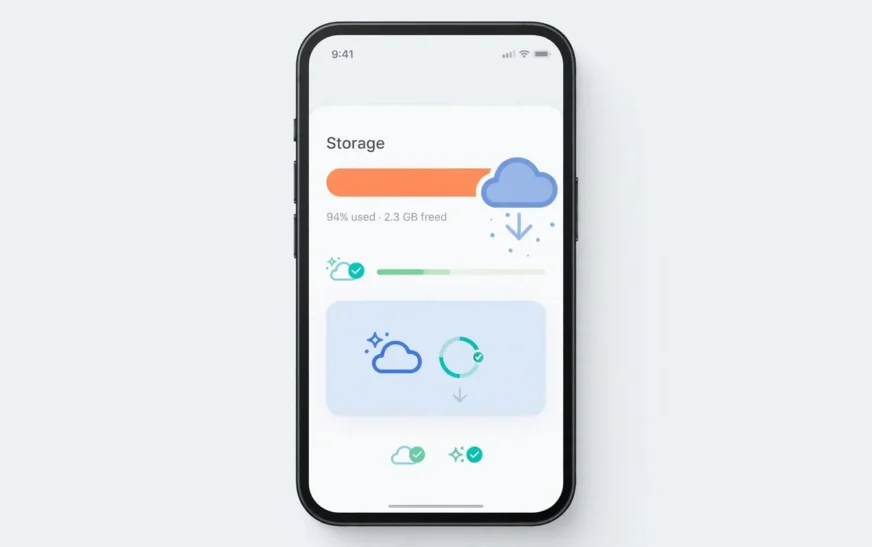
Quick answer: You can get more storage on your phone without buying a new one by moving photos and videos to the cloud and removing the local copies, offloading unused apps, clearing bloated caches, deleting downloads and duplicates, and — on phones that support it — adding a microSD card. If none of that frees enough room, a cloud storage subscription buys you breathing room far cheaper than a new phone.
The honest truth about “more storage”
Nobody sells you the storage number on the box. A phone labelled 128 GB does not hand you 128 GB of usable room. The operating system measures storage differently from the manufacturer, and the system itself plus pre-installed apps take a chunk before you install anything. That is why a fresh phone can feel half full before you have done anything wrong.
This matters because it changes the goal. You are not trying to beat the box number. You are trying to recover usable room on the phone you already own, and to stop the same pile-up from happening again next month. Most people who complain about storage do not have a hardware problem. They have a housekeeping problem, plus a few settings working against them.
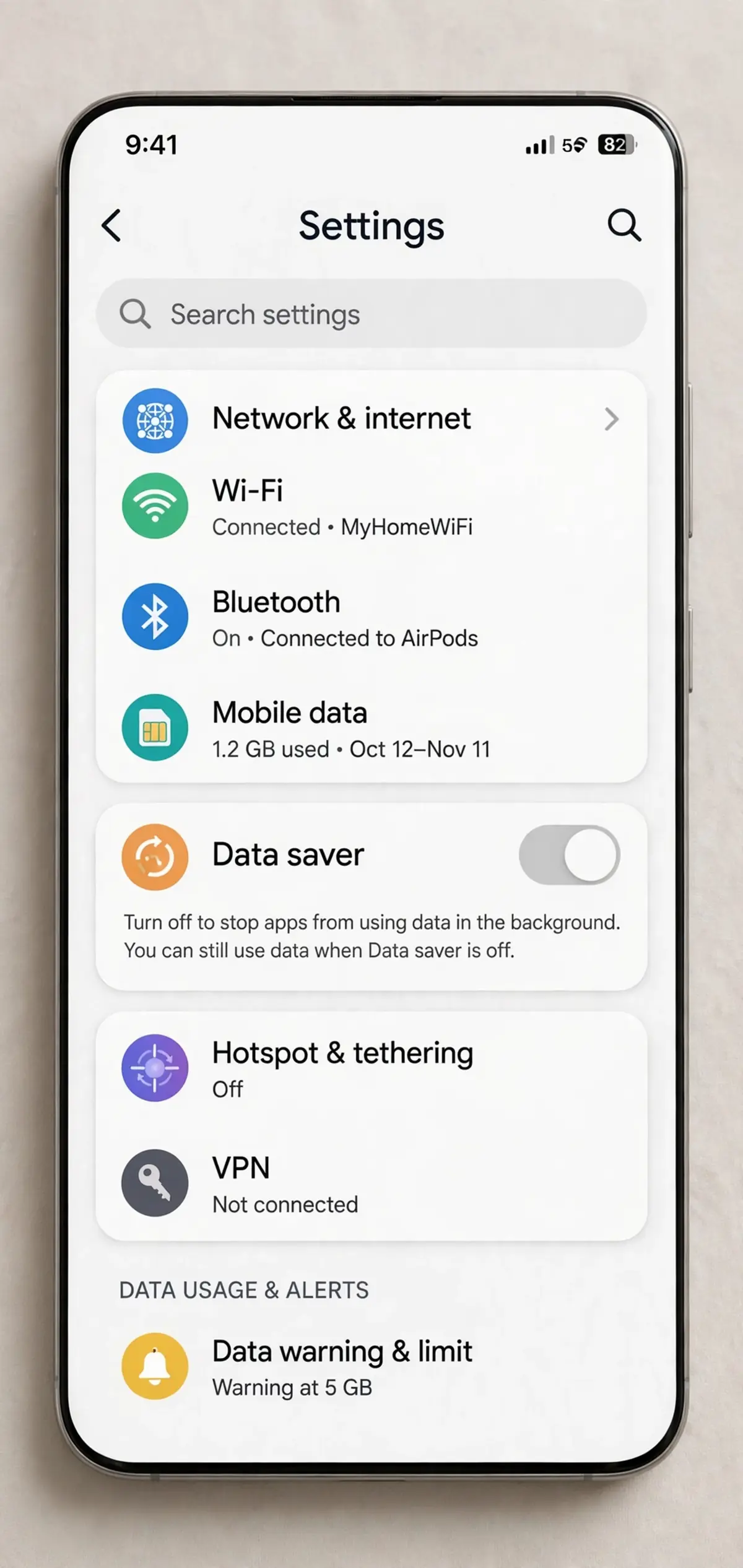
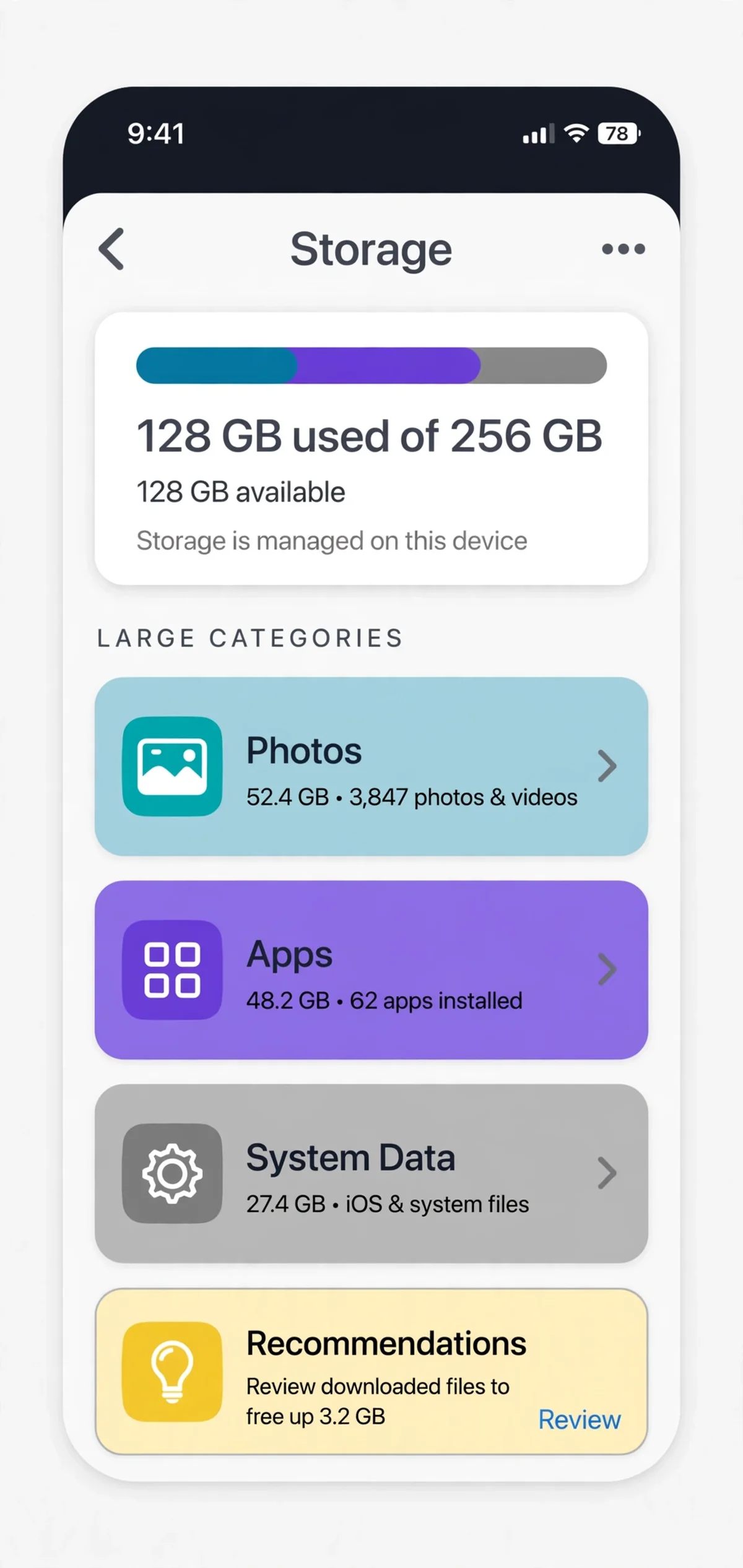
Start by looking at the actual numbers before you delete anything. On iPhone, open Settings, then General, then iPhone Storage. On Android, open Settings, then Storage. The breakdown tells you whether photos, apps, system data, or something else is the real culprit. Guessing leads to deleting the wrong things — usually precious photos — while the actual hog, often a single streaming app’s cache, sits untouched.
Move photos and videos to the cloud first
Photos and videos are the biggest storage win for most people, and they are also the safest thing to move, because a cloud copy means the originals survive even if the phone does not. Back up your camera roll to iCloud Photos, Google Photos, or another service you trust, wait until the backup actually finishes, and only then remove local copies.
On iPhone, the “Optimize iPhone Storage” setting keeps small previews on the phone and full-resolution originals in iCloud. That single toggle can free tens of gigabytes on a photo-heavy phone, and your pictures still look fine when you open them, because the full version downloads on demand. On Android, Google Photos offers a “Free up space” option that removes backed-up copies from the device after confirming they are safely stored online.
The trap here is impatience. If you delete local photos before the backup completes, you have not freed storage, you have destroyed memories. Check the backup status, ideally over Wi-Fi — a slow home network makes the whole job drag, which is one reason the next generation of wireless explained matters for heavy cloud users — and confirm a few recent photos appear in the cloud before you clear anything. A slow afternoon of backing up beats a fast afternoon of regret.
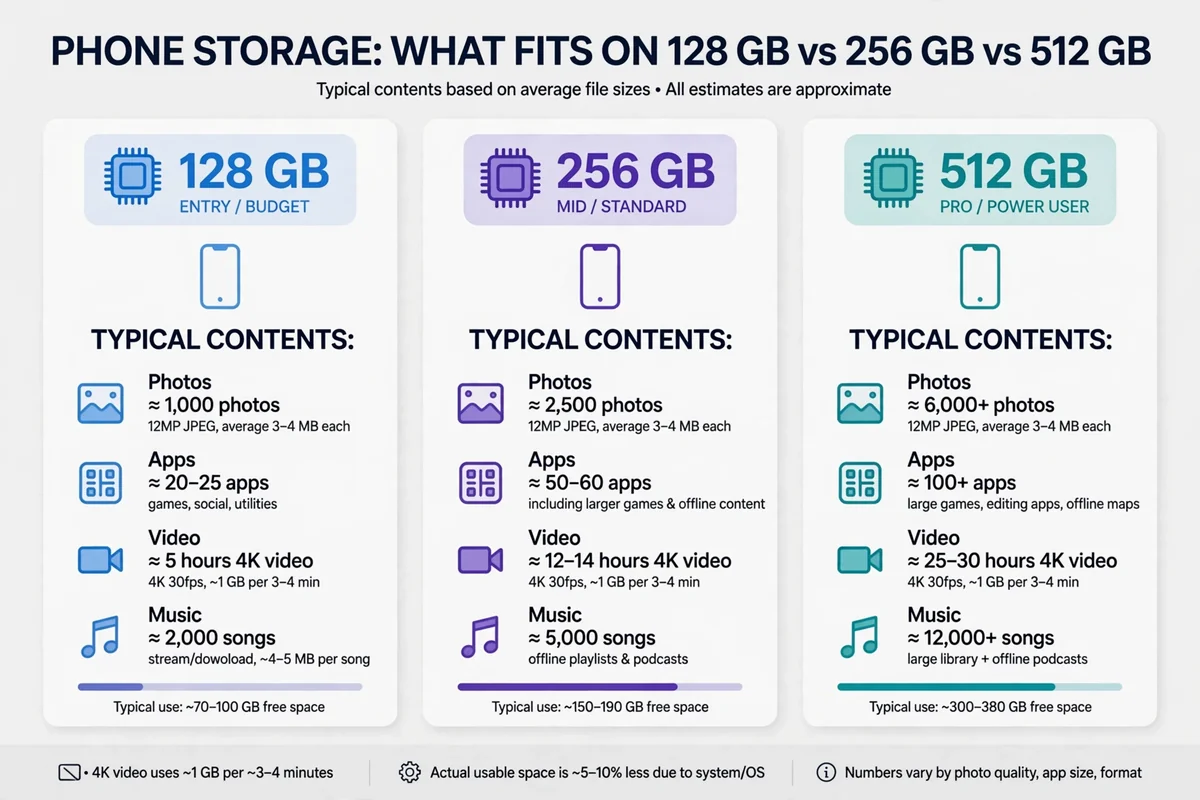
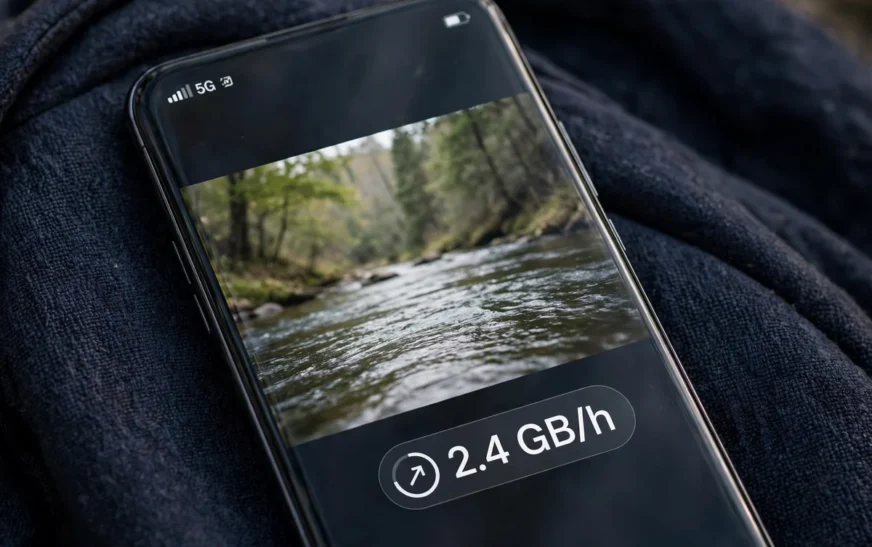
Video deserves special attention. A single minute of 4K video can eat as much room as dozens of photos, and most people keep far more video than they will ever rewatch. If you want a sense of scale, the guide to how many photos fit on a 128 GB phone shows how quickly a camera roll grows once video enters the picture. CripsyWire’s own calculator uses planning figures of roughly 65 MB per minute for 1080p video and about 190 MB per minute for 4K at 30 frames per second, which explains why a short holiday clip can dwarf a whole year of still photos. Trim clips you will never edit, back up the keepers, and stop shooting everything in 4K by default if your phone lets you choose.
If you want a reality check on what your phone actually holds, the phone storage calculator shows usable space for common phone sizes and lets you test your own mix of photos, video, apps, and music before you decide anything.
Offload apps instead of deleting them
Deleting an app feels final, so people avoid it and keep dozens of apps they never open. Offloading is the middle path, and it is built into both major platforms. On iPhone, offloading removes the app itself but keeps its documents and data, so reinstalling later restores it as if it never left. Android has a similar archive option on newer versions, and both systems can do this automatically for apps you have not used in a while.
Start with games. A single big 3D game can take several gigabytes, and most people have two or three installed that they have not opened in months. Next, look at streaming and social apps, which are often far bigger than their download size suggests because of cached content. Then check apps you installed for one trip, one event, or one job and never touched again.
Do not offload blindly, though. Keep your banking, messaging, health, and authenticator apps installed. Those are small, and reinstalling them at the wrong moment — at a checkout, at an airport, during a login — is a pain out of proportion to the space saved. The goal is to remove the big, rarely used apps, not to strip the phone down to a brick.
A useful test: if you cannot remember the last time you opened an app, offload it. If you miss it within a week, reinstalling takes a minute. If you do not miss it, you just bought yourself permanent room for free. That is a better deal than any storage upgrade.
Clear the caches that quietly balloon
Caches are the storage equivalent of a junk drawer. Every app keeps temporary files so it can load faster next time, and over months those files grow far beyond any sensible size. Browsers, social apps, streaming apps, and messaging apps are the worst offenders. Clearing a cache does not delete your account, your posts, or your saved content — it deletes temporary copies your phone can rebuild.
On Android, you can clear an individual app’s cache from Settings, then Apps, then the app, then Storage. On iPhone, there is no single clear-all-cache button, so you clear caches app by app where the app offers it, or offload and reinstall the worst offenders. Safari’s website data can also be cleared from Settings, though that will sign you out of some sites, so expect to log back in.
Messaging apps deserve their own look. Group chats full of videos, memes, and voice notes pile up silently, and many people never change the default that auto-saves every incoming photo and video. Old accounts and chats you no longer use are part of the same pile; the steps for removing a messaging account cleanly show how much clutter a single unused account can leave behind. Turning off auto-save for busy groups, and clearing old media from chats you no longer need, can free surprising amounts of space. The same logic applies to email attachments and podcast downloads that keep stacking up in the background.
If cache-clearing feels fiddly, a dedicated walkthrough of the Android side of this job — how to clear the cache on Android step by step — covers the exact menus without the guesswork.
Use a microSD card, if your phone allows it
Here is where honesty matters: most modern flagship phones do not have a microSD slot at all. Apple has never offered one on iPhone, and many premium Android phones dropped the slot years ago. If your phone has no slot, no card in the world will help, and anyone telling you otherwise is selling something.
But if your phone does have a slot — many mid-range Android phones still do — a microSD card is the cheapest real storage expansion available. Buy a card from a reputable brand, in a size your phone supports, and use it for photos, videos, music, and offline downloads. Keep apps and system files on internal storage where they run fastest, and treat the card as a warehouse, not a workshop.
Two warnings apply. First, cheap no-name cards fail, and a failed card can take your only copy of a photo with it, so never treat a card as a backup. Second, some phones let you format a card as internal storage, which sounds clever and usually ends badly: remove the card and apps break, and the card itself becomes unreadable elsewhere. Use the card as portable storage, keep a cloud copy of anything important, and you get extra room without the drama.
Before spending anything, check your phone’s specs for a slot. If there is none, skip this section entirely and spend the money on cloud storage instead. Chasing a hardware fix for a phone that cannot take one wastes time and money.
Cloud storage subscriptions: what they actually buy
A cloud subscription does not add storage to your phone. It adds storage somewhere else, and lets your phone lean on it. That distinction matters, because a cloud plan only helps if you actually use the tools that move files off the device: optimized photo storage, cloud-backed files, and automatic backup. Paying for cloud space while keeping every original on the phone is like renting a storage unit and leaving everything in your hallway.
For most people, the smallest paid tier is enough to stop the “storage full” warnings, because photos are the main hog and photo optimization does most of the work. Heavy video shooters and people with huge offline libraries may need a bigger tier, but start small and upgrade only when the service actually tells you that you are full. Cloud providers are happy to sell you room you will never use.
Also remember that cloud storage is a subscription, not a purchase. Stop paying and your files can become read-only or, after a grace period, deletable. That is fine as long as you understand it. Keep a second copy of anything irreplaceable — an external drive, a computer, a second service — because a single cloud account is a single point of failure. The Android backup guide is a good template for the habit even if you use an iPhone, since the principle is identical: more than one copy, in more than one place.
Downloads, duplicates, and the forgotten folders
After photos, apps, and caches, the next wins hide in folders nobody opens. Downloads fills up with PDFs, installers, boarding passes, and files you needed exactly once. Screenshots multiply: every receipt, meme, and map screenshot stays forever unless you clear them. Duplicate photos — bursts, near-identical shots, accidental pocket photos — add up quietly.
Spend ten minutes on each of these and you will usually find gigabytes. Delete old downloads without mercy; if you need a file again, it is almost always re-downloadable. For screenshots, keep the ones you actually reference and delete the rest in bulk. For duplicates, your phone’s photo app may already suggest them, or a reputable duplicate-finder can do the job, but review before deleting in bulk so you do not lose the best shot of a burst.
Voice memos, screen recordings, and offline maps are another quiet pile. A screen recording of a game or a tutorial can be hundreds of megabytes, and offline maps for cities you visited once sit there indefinitely. Delete the recordings you have already shared, and remove offline areas you no longer need. None of this is glamorous, and all of it works.
The same housekeeping habit pays off elsewhere. Moving contacts, photos, and files between phones goes wrong in the same way storage does — too much stuff, no plan — which is why a proper contacts transfer checklist reads like a storage cleanup checklist with different labels.
When the answer really is a bigger phone
Sometimes the honest answer is that your phone is simply too small for your life. If you shoot 4K video daily, keep a large offline music library, play several big games, and refuse cloud backup on principle, no amount of cache-clearing will make a 64 GB phone comfortable. At that point, the cheapest fix is not another year of fighting warnings — it is a phone with more storage next time you upgrade.
The trick is to buy the right size once, rather than the smallest size twice. For most people, 256 GB is the comfortable middle: enough for years of photos, some video, and a healthy app collection without constant pruning. Light users who live in the cloud can manage on 128 GB. Heavy creators should look at 512 GB. Buying the smallest option to save money, then paying for cloud storage and spending weekends deleting things, is usually the most expensive choice of all.
Also consider timing. If your phone is otherwise fine — good battery, good camera, supported software — a cloud subscription or a microSD card buys you another year or two. A tired battery is a separate problem with its own fix, and the iPhone battery replacement guide is worth checking before you assume the whole phone needs replacing. If the battery is dying, the software support has ended, or the camera no longer meets your needs, storage is just one reason among several, and upgrading the whole phone makes more sense than nursing it along.
One more consideration: heat and age make storage problems worse, because a struggling phone feels slower as it fills up. If your device runs hot while doing ordinary things, the phone overheating guide is worth a read before you blame storage alone for the sluggishness.
A storage routine that keeps working
The real fix is not a one-time purge. It is a routine so small you will actually keep it. Once a month, check your storage breakdown. Delete screenshots and downloads you no longer need. Offload apps you have not opened. Confirm your photo backup is current, then let optimization do its job. That is five minutes, once a month, and it prevents the crisis entirely.
Set two automatic helpers and let them work. Turn on automatic offloading of unused apps, and turn on optimized photo storage. Both are set-and-forget, and together they handle the two biggest sources of creep. Then set a reminder — the first Sunday of the month works — to do the manual pass: downloads, duplicates, and messaging media.
Finally, test your own numbers before your next phone purchase. Plug your real habits into the phone storage calculator and see how much room your photos, videos, apps, and music actually need. Buying storage based on your life, rather than a salesperson’s upsell or a fear of running out, is how you end up with a phone that stays comfortable for years.
FAQ
How can I get more storage on my phone for free?
Back up photos and videos to the cloud and remove local copies, offload unused apps, clear bloated caches, and delete downloads, duplicates, and old messaging media. Those four moves are free and usually recover the most room.
Does deleting apps free up storage?
Yes, deleting an app frees the space the app itself used, plus its data unless you offload instead. Offloading frees most of the space while keeping your data for a later reinstall, which is the safer choice for apps you might want back.
Can I add storage to an iPhone?
No. iPhones have no microSD slot, so you cannot add physical storage. Your options are cloud storage, optimized photo storage, offloading, and cleanup — or a larger phone next time you upgrade.
Is cloud storage the same as phone storage?
No. Cloud storage lives on remote servers, not on your phone. It helps only when your phone is set to keep smaller local copies and full versions in the cloud, which is what optimized photo storage does.
How much storage do I need on a new phone?
For most people, 256 GB is the comfortable choice. Light cloud-first users can manage on 128 GB, while heavy video shooters and big-game players should consider 512 GB. Test your own habits in a calculator before buying.
Why does my phone fill up again after I clean it?
Because caches rebuild, messaging media keeps arriving, and photos keep accumulating. Automatic offloading and optimized photo storage, plus a short monthly cleanup, stop the pile-up from returning.
The short version
More storage is usually hiding in plain sight: in the cloud, in offloaded apps, in bloated caches, and in folders you never open. Work through those in order, set the two automatic helpers, and keep a five-minute monthly routine. Only when your phone is genuinely too small for your life — or failing in other ways — is a new phone the right answer.
For more practical phone guides, browse the CripsyWire blog.
Check your real storage needs first
See how much usable space your phone size gives you, and how your photos, videos, apps, and music fit into it.

Continue Reading on CripsyWire
For more practical AI coverage for US buyers, see our full AI tools and agents library. When you are deciding between competing tools, the reviews and comparisons section breaks down head-to-head matchups. AI features that live inside your phone are tracked in smartphones, and AI on your wrist or finger in wearables. All of this is part of CripsyWire's broader Tech coverage — start at the homepage for what is newest.