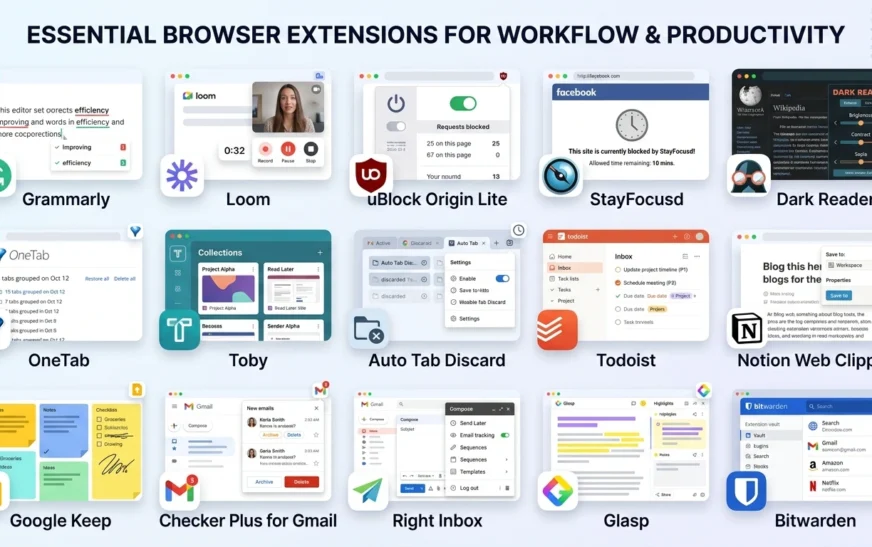
Here’s something most “best productivity chrome extensions” lists won’t tell you: a huge number of them are written by companies trying to slip their own extension to the top of the page. We don’t have a tool to sell you. CripsyWire is an independent tech publication, so the only thing we care about here is which extensions are actually worth the space in your toolbar in 2026 and which ones quietly slow your browser down or harvest more data than they’re worth.
We installed, used, and removed dozens of them over several weeks. These 15 made the cut because they solve a clear problem, stay out of your way, and are still worth keeping after the first week. They’re grouped by the job they do, so you can jump straight to what you need.
Quick picks (if you only install three)
Short on patience? Start here:
- Best all-rounder: Todoist capture any task or link without leaving the page.
- Best for a faster, calmer browser: uBlock Origin Lite fewer ads, fewer distractions, lighter pages.
- Best for writing: Grammarly catches mistakes everywhere you type.
Install those three, use Chrome for a week, then come back and add the rest based on what’s actually slowing you down. If your work is increasingly AI-driven, it’s also worth pairing these with the best AI productivity tools we tested separately extensions handle the browser, AI apps handle the heavy lifting.
How we tested best productivity chrome extensions
Every extension below was judged on four things: does it solve a real problem, does it stay actively maintained, how much memory it eats, and how reasonable its permissions are. An extension that wants to “read and change all your data on all websites” for a trivial feature didn’t make the list. Free tiers were tested as real users, not as press accounts, so the limits we mention are the ones you’ll actually hit.
Writing and communication
Grammarly
Grammarly checks spelling, grammar, and tone in real time across almost everywhere you type — Gmail, Google Docs, LinkedIn, your CMS. If a big part of your day is written communication, it quietly removes a layer of friction you stopped noticing.
Best for: anyone who writes emails or documents in the browser. Free vs paid: the free tier handles core corrections well; paid adds rewriting and tone tuning. Honest downside: it can feel naggy, it’s heavier on memory than most, and your text passes through Grammarly’s servers fine for general writing, worth thinking about for anything sensitive.
Loom
Loom records your screen and camera into a quick shareable video. Instead of typing a 400-word email explaining something, you talk through it in two minutes. For remote and async teams, it genuinely saves time.
Best for: explaining things that are faster shown than written. Free vs paid: the free plan covers light use; heavy users hit the video cap. Honest downside: the free limits arrive quickly, and for tiny teams it can be more tool than you need.
If a lot of your async work is now handled by automation, you may get more out of pairing video updates with AI agents that cut costs rather than adding another subscription.
Focus and distraction control
uBlock Origin Lite
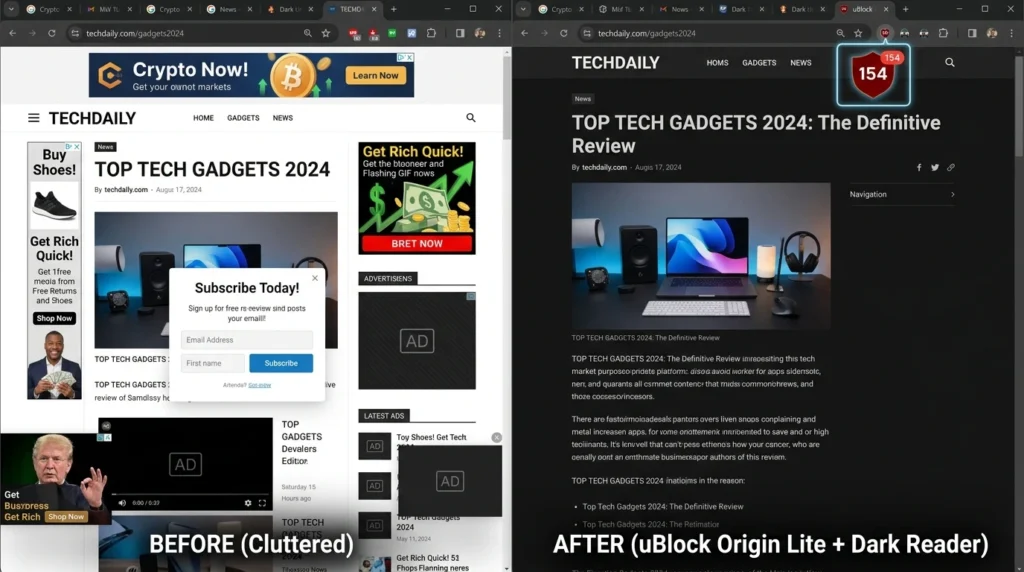
This is the one extension almost everyone benefits from. uBlock Origin Lite blocks ads and trackers, which means pages load faster, look cleaner, and distract you less. Honest heads-up worth knowing: the full uBlock Origin was removed from the Chrome Web Store in late 2024 when Google switched to its Manifest V3 extension system. The version you can install on Chrome today is uBlock Origin Lite (uBOL) same developer, rebuilt for the new rules.
Best for: everyone. Free vs paid: completely free and open-source. Honest downside: because of Manifest V3’s limits, Lite is a little less powerful than the classic version (fewer custom filtering options). If you want the full-strength original, it still runs on Firefox or Brave.
StayFocusd
StayFocusd lets you set daily time limits on the sites that eat your day. Once you’ve burned your 20 minutes on whatever your weakness is, it locks you out until tomorrow.
Best for: people who open a “quick” tab and resurface an hour later. Free vs paid: free. Honest downside: if you lack willpower you can disable it, and it only governs Chrome not your phone.
Dark Reader
Dark Reader forces a clean dark mode onto every site, which makes long sessions far easier on the eyes. It’s a small thing that pays off around hour six of a workday.
Best for: late-night workers and anyone with eye strain. Free vs paid: free. Honest downside: it mis-renders the occasional site and adds a little CPU load on image-heavy pages.
If your distraction problem is really a phone problem, sometimes the highest-leverage move isn’t an extension at all it’s deciding whether to delete your Instagram account and removing the temptation entirely.
Tabs and memory
OneTab
If you’re a chronic tab hoarder, OneTab collapses every open tab into a single clean list, instantly freeing the memory they were holding. One click brings any of them back.
Best for: people with 30+ tabs open right now. Free vs paid: free. Honest downside: the list itself gets long, and there are no smart folders.
Toby
Toby turns your tabs into visual, saveable collections organized by project. Close everything at the end of the day, then reopen an entire workspace tomorrow with one click.
Best for: project-based and client-based work. Free vs paid: there’s a free tier, though it now caps saved tabs (around 60). Honest downside: it’s another dashboard to maintain, syncing needs an account, and some users dislike the newer free-plan limits.
Auto Tab Discard
Auto Tab Discard suspends inactive tabs so they stop draining RAM, then reloads them when you click back. It’s the honest replacement for the old “Great Suspender,” which was pulled from the Chrome store after it changed hands and raised malware concerns,a good reminder to check who maintains your extensions.
Best for: older or low-RAM laptops. Free vs paid: free and open-source. Honest downside: discarded tabs take a second to reload.
Heavy tab use is also a hardware question. If your machine is constantly choking on tabs, our breakdown of Chromebook vs a laptop covers whether the problem is your browser or your RAM.
Tasks and notes
Todoist for Chrome
Todoist lets you add any task including the current page as a link to your to-do list without breaking flow. It’s the fastest capture tool we tested.
Best for: anyone running a real task system. Free vs paid: the free tier is strong; Pro adds reminders and filters. Honest downside: a couple of genuinely useful features sit behind the paywall.
Notion Web Clipper
If you live in Notion, the Notion Web Clipper saves any page straight into your workspace, tagged and ready. It turns “I’ll find that later” into a one-click habit.
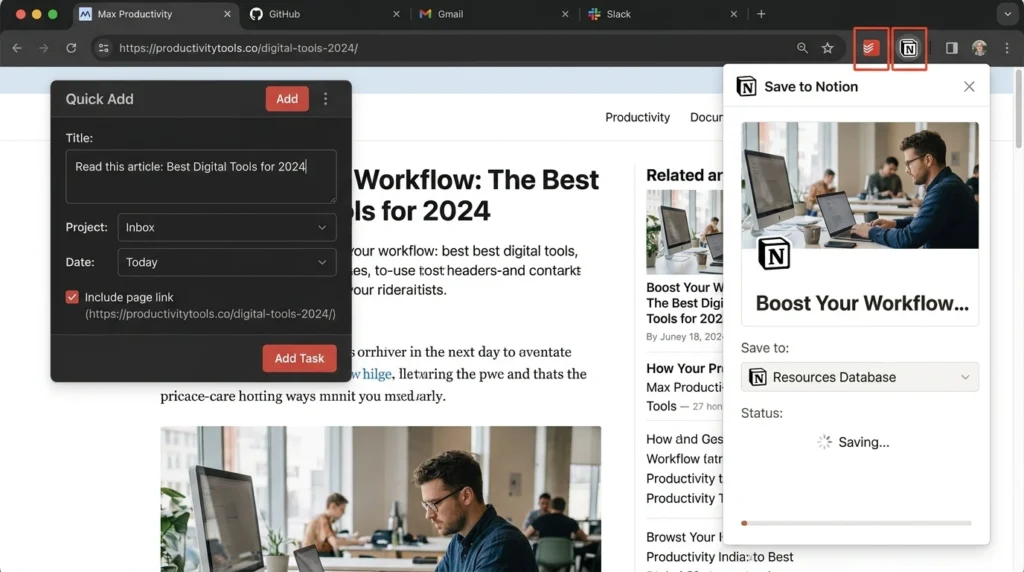
Best for: Notion users and researchers. Free vs paid: free. Honest downside: it’s basic for property editing or templates, alternatives like Save to Notion go further and it’s pointless if Notion isn’t already your home base.
Google Keep
For people in the Google ecosystem, the Google Keep extension is the simplest possible capture: one click saves a note or link, synced everywhere instantly.
Best for: fast, no-friction capture. Free vs paid: free. Honest downside: organization is basic it’s a notepad, not a system.
Email and scheduling
Checker Plus for Gmail
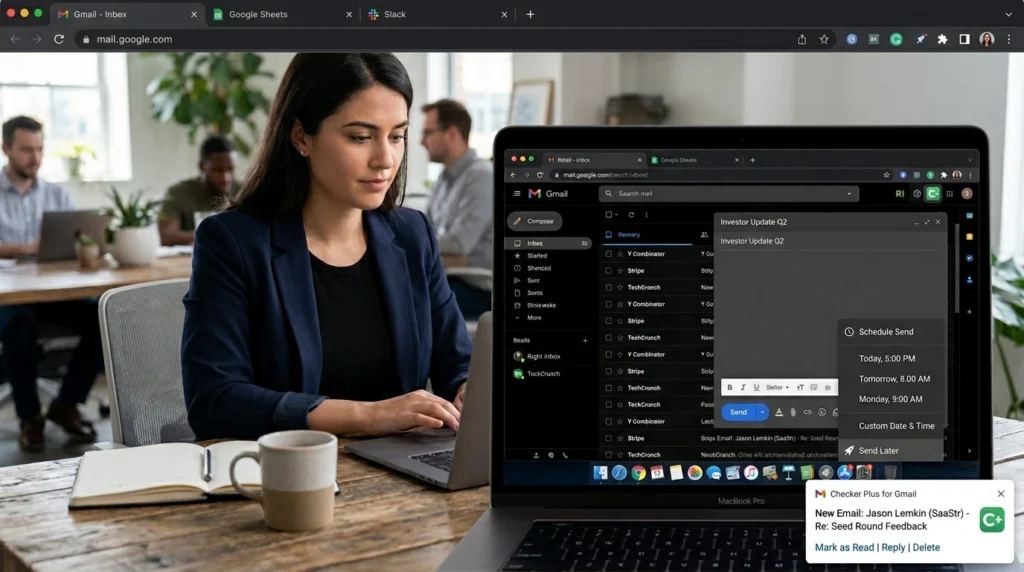
Checker Plus for Gmail lets you read, reply to, and get notified about email without keeping a Gmail tab open. For people who get pulled into their inbox all day, it’s a surprisingly big focus win.
Best for: heavy inbox users. Free vs paid: free (donation-supported). Honest downside: the permissions look broad. It’s well-regarded, but you should know what you’re granting.
Right Inbox
Right Inbox adds schedule-send, reminders, follow-ups, and tracking inside Gmail. The schedule-send alone is worth it if you work across time zones.
Best for: founders and solo professionals living in Gmail. Free vs paid: the free tier limits tracked and scheduled emails. Honest downside: you’ll hit the free cap fast, and open-tracking is a privacy gray area for the people you email.
For anyone trying to turn these efficiency gains into actual income, it pairs well with our guide to realistic AI side hustles the same “save minutes everywhere” mindset, applied to earning.
Research and AI
Glasp
Glasp lets you highlight and save text from any page, then generates AI summaries of what you’ve collected. For research-heavy work, it replaces a messy pile of copied quotes with something searchable.
Best for: researchers, writers, and students. Free vs paid: free. Honest downside: the social-sharing features add noise, some users report occasional login/loading bugs, and the AI summaries always need a human sanity-check.
Bitwarden
A password manager isn’t glamorous, but autofill quietly saves you real minutes every single day — and the security upgrade is enormous. Bitwarden is open-source, audited, and has the most genuinely usable free tier of any manager we tried.
Best for: everyone, no exceptions. Free vs paid: the free tier covers most individuals. Honest downside: the interface is less polished than paid rivals, and self-hosting is for advanced users only.
Extensions to skip (and red flags to watch)
Not every popular extension earns its keep. Be cautious with anything that demands sweeping permissions for a tiny feature, “free VPN” or “coupon finder” extensions that frequently monetize your browsing data, and abandoned extensions that haven’t updated in years. The Great Suspender saga is the cautionary tale: a trusted, widely loved extension changed owners and became a risk overnight. Before installing anything, glance at its last-updated date, its reviews, and the permissions it asks for.
How many extensions is too many?
Every extension is a little memory, a little startup time, and one more permission surface. The honest rule we follow: keep only what you actually use in a given week, and pin just the three or four you touch daily. If Chrome feels sluggish, your extensions are usually the first place to look not the last. Quality over quantity beats a toolbar full of icons you forgot you installed.
Frequently asked questions
What is the best Chrome extension for productivity? There’s no single winner, because it depends on your work. If we had to name a core set for most people, it’s Todoist for tasks, uBlock Origin Lite for a faster browser, and Grammarly for writing. Those three cover the broadest set of daily needs.
Do Chrome extensions slow down your computer? Yes, somewhat each one uses memory and can run scripts in the background. A handful of well-chosen extensions won’t be noticeable on a modern machine, but a dozen heavy ones will. Tab-suspending tools like Auto Tab Discard help offset the cost.
Are Chrome productivity extensions safe? Most well-known extensions with strong review histories are safe. The risk comes from obscure or abandoned extensions, and from granting broad permissions to tools that don’t need them. Check the developer, the reviews, and the last update before installing.
Are these extensions free? Almost all of them have a genuinely useful free tier. A few (Grammarly, Loom, Right Inbox) gate their most advanced features behind paid plans, but you can get real value without paying.
How many extensions should I install? There’s no magic number, but a practical ceiling for most people is around eight to ten active extensions, with three or four pinned. Beyond that you’re usually adding clutter, not productivity.
The bottom line
The best browser setup isn’t the one with the most extensions it’s the one with the fewest distractions. Start with the quick picks, add only what solves a problem you actually have, and remove anything you haven’t opened in a month. Build it deliberately, and Chrome stops being a place you lose time and becomes a place you save it.

Continue Reading on CripsyWire
For more practical AI coverage for US buyers, see our full AI tools and agents library. When you are deciding between competing tools, the reviews and comparisons section breaks down head-to-head matchups. AI features that live inside your phone are tracked in smartphones, and AI on your wrist or finger in wearables. All of this is part of CripsyWire's broader Tech coverage — start at the homepage for what is newest.