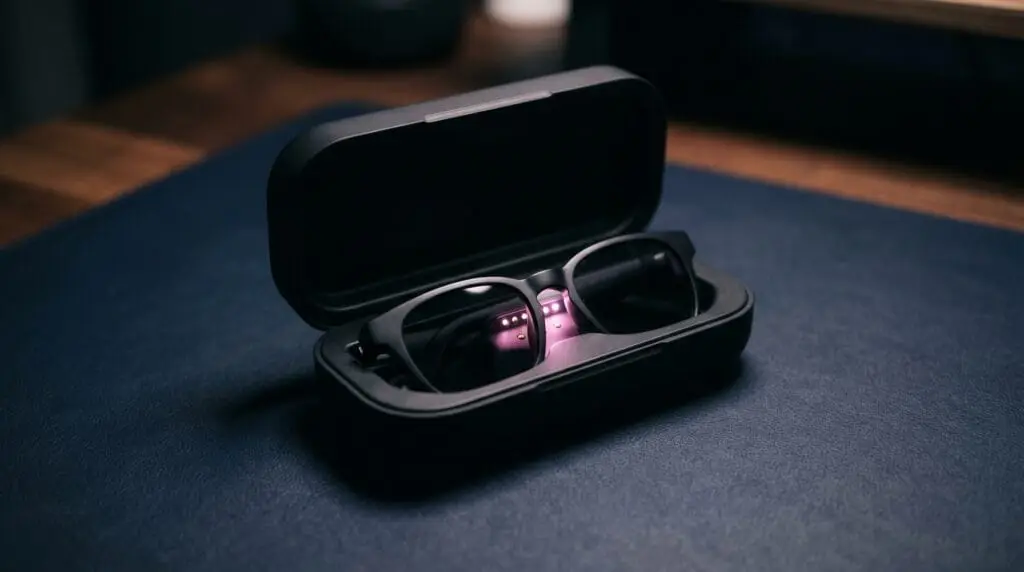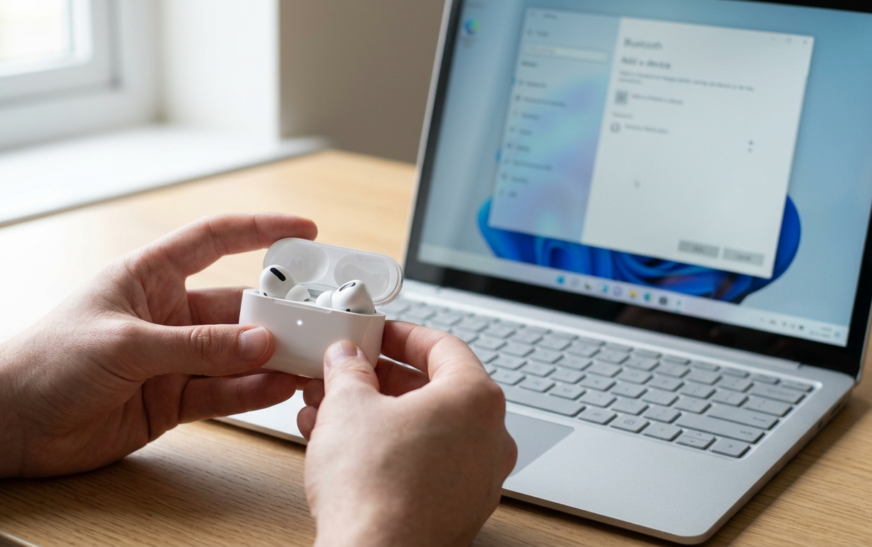
You open the case, hold it next to your laptop, and nothing happens. No pop-up and no pairing card. Your iPhone found them in two seconds, so why can’t a laptop that costs three times as much?
The reason is simple. The one-tap magic only happens between AirPods and Apple devices signed in to the same Apple Account. Every other laptop sees your AirPods as a regular Bluetooth headset, so you have to pair them yourself. Once you know the right button press for your model, it takes under a minute.
This guide covers every laptop type people actually use: Windows 11, Windows 10, MacBooks, Chromebooks, and Linux machines. It also covers the part most guides skip, which is why your AirPods sound fine on YouTube and terrible on Zoom.
Quick Answer: How to Connect AirPods to a Laptop
To connect AirPods to a laptop, turn on Bluetooth on the laptop and put your AirPods in pairing mode. On AirPods 1–3 or AirPods Pro 1–2, hold the button on the back of the case. On AirPods 4, AirPods 5, or AirPods Pro 3, double-tap the front of the case. When the light flashes white, select your AirPods in the laptop’s Bluetooth list.
The rest of this guide covers the exact menus for each operating system and what to do when that simple version doesn’t work.
What You Need Before You Pair AirPods With a Laptop
Check these four things first. They cause most failed pairing attempts.
- Charge. Keep the buds in the case and make sure the case has some battery. A dead case can’t enter pairing mode, and a nearly dead one can drop the connection halfway through setup.
- Bluetooth on the laptop. Almost every laptop sold in the last decade has it built in. Older desktops and some budget office PCs don’t, which we cover further down.
- The AirPods aren’t busy. If they’re playing audio on your phone right now, they may refuse the new connection. Pause the music, or switch off Bluetooth on the phone for a minute.
- Distance. Keep the case within about a foot or two of the laptop during setup. Bluetooth reaches further than that, but pairing works best up close.
One more thing worth knowing: AirPods remember several devices. Pairing them with your laptop won’t unpair them from your iPhone. You’ll switch between the two manually, which we’ll cover later.
How to Put AirPods in Pairing Mode (Every Model)
This is the step where most people get stuck, because Apple changed the method on newer models. Older AirPods have a physical setup button on the back of the case. The newer ones don’t have a button at all.
| AirPods model | How to enter pairing mode | What you’ll see |
|---|---|---|
| AirPods (1st, 2nd, 3rd gen) | Buds in case, lid open, press and hold the button on the back for about 5 seconds | Status light flashes white |
| AirPods Pro (1st and 2nd gen) | Buds in case, lid open, press and hold the back button for about 5 seconds | Status light on the front flashes white |
| AirPods 4, AirPods 5, AirPods Pro 3 | Buds in case, lid open, hold the case near the laptop, double-tap the front of the case | Status light flashes white |
| AirPods Max | Press and hold the listening mode (noise control) button for about 5 seconds | Status light flashes white |
Be careful with two things here.
Don’t keep holding after the light turns white. On button models, holding for around 15 seconds starts a reset instead. If you see amber, you’ve gone too far. That isn’t a disaster, but you’ll have to set the buds up again with your phone.
Don’t try to pair AirPods Max by holding the Digital Crown. Some guides tell you to hold the noise control button and the Digital Crown together. That combination is for resetting the headphones, not pairing them. For normal pairing, use the listening mode button alone.
These steps match Apple’s official guide for pairing AirPods with non-Apple devices, which is worth bookmarking if Apple changes the method again.
If you’re not sure which model you have, check your iPhone under Settings > Bluetooth, then tap the info icon next to your AirPods. The model name is listed there.
How to Connect AirPods to a Windows 11 Laptop
Windows 11 is where most people run into this, so here’s the exact path. It’s the same on HP, Dell, Lenovo, ASUS, Acer, Microsoft Surface, and Snapdragon-based Copilot+ laptops, because the Bluetooth menu belongs to Windows, not to the laptop brand.
- Press Windows + I to open Settings.
- Click Bluetooth & devices in the left sidebar.
- Make sure the Bluetooth toggle is on.
- Click Add device at the top of the page.
- In the pop-up, choose Bluetooth (the first option).
- Open your AirPods case and put them in pairing mode using the table above.
- When your AirPods appear in the list, click them.
- Wait for “Your device is ready to go,” then click Done.
Your AirPods now show up under Bluetooth & devices, usually with a status like “Connected voice, music.” That label tells you Windows has set them up both as headphones and as a headset microphone. Keep that in mind, because it matters for calls.
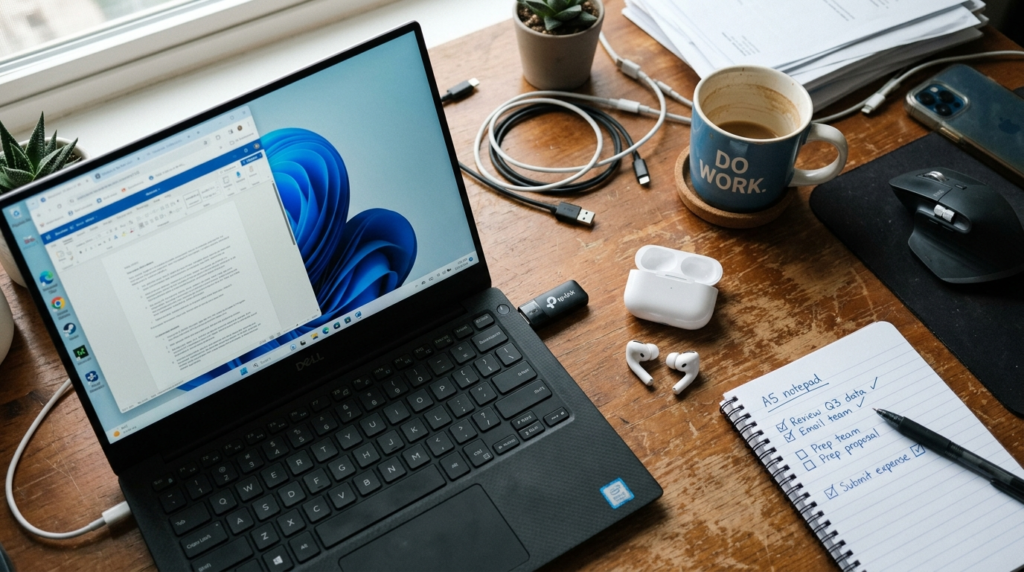
Quick tip: Windows sometimes keeps audio on your laptop speakers even after pairing. Click the speaker icon in the taskbar, click the arrow next to the volume slider, and pick your AirPods as the output.
How to Connect AirPods to a Windows 10 PC
Windows 10 lost official support from Microsoft in October 2025, but plenty of laptops still run it. The pairing steps are nearly identical. Only the menu names differ.
- Open Settings (Windows + I) and go to Devices.
- Select Bluetooth & other devices and turn Bluetooth on.
- Click Add Bluetooth or other device, then choose Bluetooth.
- Put your AirPods in pairing mode.
- Click the AirPods when they appear, then click Done.
On Windows 10 you’ll often see your AirPods listed twice in sound settings, once as stereo headphones and once as a “Hands-Free” headset. That’s normal. The section on call quality below explains which one to pick.
How to Connect AirPods to a MacBook
MacBooks are the easy case, with one habit that annoys people later.
Automatic Connection (Same Apple Account)
If you’ve already set up your AirPods with an iPhone, and your MacBook is signed in to the same Apple Account, they’re probably already paired with the Mac. You don’t need to do anything else.
- Put the AirPods in your ears.
- Click Control Center in the menu bar, then click Sound.
- Choose your AirPods from the list.
That’s all. No pairing mode needed.
Manual Pairing on a Mac
Use this if the AirPods don’t show up in Control Center, or if they were paired using a different Apple Account.
- Open the Apple menu and choose System Settings.
- Click Bluetooth and make sure it’s turned on.
- Put your AirPods in pairing mode.
- When they appear under Nearby Devices, click Connect.
Stop Your MacBook From Grabbing Your AirPods
Automatic switching is great until your Mac takes your AirPods in the middle of a phone call because a notification played. You can fix this. With the AirPods connected, open System Settings, click your AirPods’ name in the sidebar, and find Connect to This Mac. Set it to When Last Connected to This Mac instead of Automatically. The Mac will now wait for you to choose it.
How to Connect AirPods to a Chromebook
Most guides skip Chromebooks entirely, which is odd given how many students use them. AirPods work fine on ChromeOS as a standard Bluetooth headset.
- Click the time in the bottom-right corner to open Quick Settings.
- Click the arrow next to Bluetooth and make sure it’s on.
- Click Pair new device. You can also reach this through the ChromeOS Settings app under Bluetooth.
- Put your AirPods in pairing mode.
- Select them from the list and wait for “Connected.”
If you’re still deciding between a Chromebook or a traditional Windows laptop, the AirPods experience is about the same on both. You get audio and a microphone, and none of Apple’s extras.
Connecting AirPods to a Linux Laptop
Linux works too, but it’s the one platform where AirPods can be stubborn. On GNOME or KDE, open the Bluetooth panel in system settings, put the AirPods in pairing mode, and click them. That works on a lot of setups.
If they show up but refuse to connect, or connect and drop right away, a common fix is to change how the Bluetooth service talks to them:
- Open
/etc/bluetooth/main.confwith admin rights. - Find the line
#ControllerMode = dualand change it toControllerMode = bredr(remove the#). - Save the file and restart Bluetooth with
sudo systemctl restart bluetooth. - Pair again.
This forces classic Bluetooth mode, which AirPods handle more reliably on many distros. The trade-off is that it can break some Bluetooth Low Energy accessories. If you dual-boot Windows and Linux, you may also need to pair the AirPods again each time you switch operating systems, because each system saves its own pairing key.
How to Reconnect AirPods to Your Laptop Later
You only pair once. After that, reconnecting is quicker, but it doesn’t happen on its own the way it does on Apple devices.
On Windows: open the case near the laptop, go to Settings > Bluetooth & devices, and click Connect under your AirPods. The faster way is the Bluetooth shortcut in Quick Settings (Windows + A), where you can click the arrow next to Bluetooth and pick your AirPods.
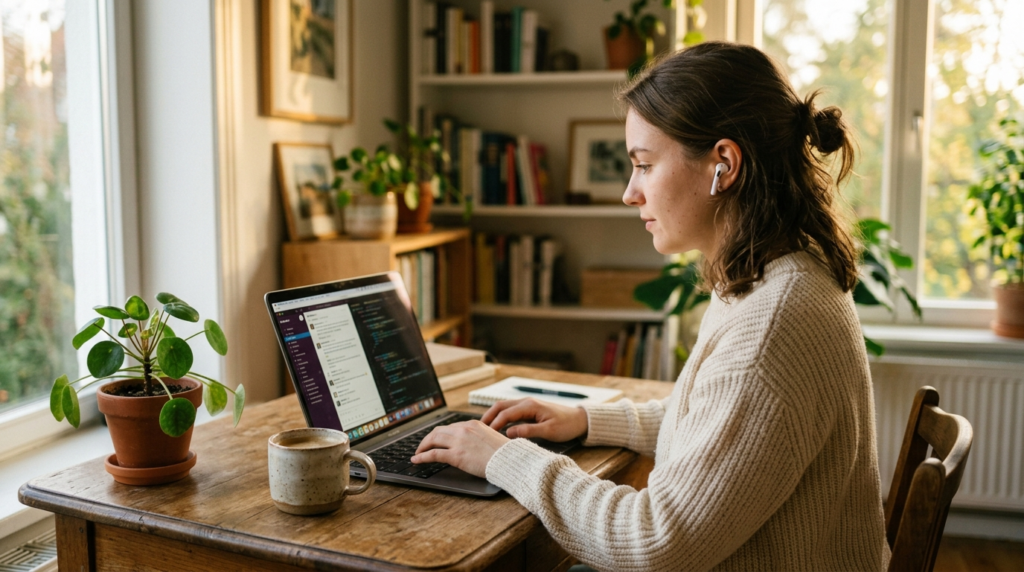
Switching back to your iPhone: open Control Center on the phone, press and hold the audio card, and pick your AirPods. You can also tap them in Settings > Bluetooth. Your laptop will simply lose the connection.
This manual back-and-forth is the biggest daily annoyance for people who use AirPods on a Windows work laptop and an iPhone. It isn’t a bug. Apple’s automatic switching only works between Apple devices on the same account, and there’s no setting that changes that.
What Works on a Non-Apple Laptop and What Doesn’t
This is the part competitors tend to brush past. AirPods work on Windows, Chromebooks, and Linux, but you’re using the basic headset version of them.
| Feature | Windows / Chromebook / Linux | MacBook |
|---|---|---|
| Music, video, and calls | Yes | Yes |
| Microphone | Yes (lower quality during calls) | Yes |
| Play/pause and skip with stem or tap controls | Mostly yes | Yes |
| Switching between noise cancellation and Transparency (Pro, Max) | Yes, from the buds themselves | Yes, plus menu controls |
| Siri | No | Yes |
| Automatic device switching | No | Yes |
| Automatic ear detection (pausing when you remove a bud) | Unreliable or absent | Yes |
| Personalized Spatial Audio with head tracking | No | Supported on compatible Macs |
| Per-bud and case battery display | Limited or none | Yes |
| Firmware updates | No, needs an Apple device | Yes |
| Changing AirPods settings (double-tap actions, name) | No | Yes |
The firmware point is worth thinking about. If your only Apple device was an old iPhone you’ve stopped using, your AirPods may never get another update. That matters, because Apple sometimes fixes connection bugs through firmware.
Why AirPods Sound Bad on Laptop Calls (and How to Fix It)
Here’s a situation plenty of people know. Your music sounds great. You join a Teams meeting, and suddenly everything sounds like a 2005 phone call. Your colleagues also say you sound far away.
This isn’t a broken AirPod. It’s how Bluetooth works. When a laptop uses the AirPods’ microphone, it switches the connection from a high-quality music mode to a hands-free mode that has to carry sound both ways. There’s much less data available in that mode, so audio quality drops a lot in both directions. Apple devices handle this better using Apple’s own tricks. Windows, ChromeOS, and Linux fall back to the standard hands-free profile.
The fix that actually works: keep the AirPods for listening and use a different microphone for talking.
- In Windows 11, go to Settings > System > Sound.
- Under Output, choose your AirPods (the stereo entry if you see two).
- Under Input, choose your laptop’s built-in microphone array or a USB mic.
- Inside Zoom, Teams, Google Meet, or Discord, open audio settings and set the speaker and microphone to the same choices. These apps often ignore the system default.
You keep the good sound quality in your ears, and people hear you through the laptop mic. The one downside is that the laptop mic picks up more room noise. In a quiet home office it’s usually fine. In a café, it isn’t.
If your mic problems happen on your phone too, and not just the laptop, the AirPods probably aren’t the issue. That points to a different set of fixes.
AirPods Won’t Connect to Laptop? Fixes in the Right Order
Work through these from the top. The early fixes solve most cases, and the later ones take more effort.
AirPods Not Showing Up in the Bluetooth List
- Put them back in pairing mode. Pairing mode times out after a short while. If you opened the Add device window late, the AirPods may have stopped advertising. Close the lid, open it, and try again.
- Check that the light is actually white. A green light means charged, not pairing. An amber light means low charge or a reset in progress.
- Turn off Bluetooth on nearby Apple devices for a minute. An iPhone or iPad in your pocket can connect first.
- Toggle Bluetooth off and on on the laptop, or turn airplane mode on and off.
- Restart the laptop. It’s boring advice, but Bluetooth drivers sometimes get stuck, and a restart fixes them more often than it should.
Connected but No Sound
- Click the taskbar speaker icon and pick the AirPods as the output manually.
- If there are two AirPods entries, choose the stereo/headphones one, not Hands-Free.
- Check the volume inside the app. Browsers and media players have their own volume controls.
- Clean the speaker mesh gently with a dry, soft brush. Blocked mesh can make one bud sound quiet or silent on any device.
AirPods Keep Disconnecting From the Laptop
- Remove the device and pair it again. In Bluetooth & devices, click the three dots next to the AirPods, choose Remove device, then pair from scratch. A corrupted pairing record causes a lot of random disconnects.
- Update the Bluetooth driver. Right-click Start, open Device Manager, expand Bluetooth, right-click your adapter, and choose Update driver. Even better, get the latest driver from your laptop maker’s support site. Intel, Realtek, and Qualcomm adapters all get Bluetooth fixes regularly.
- Stop Windows from turning off the adapter. In Device Manager, open your Bluetooth adapter’s properties. On the Power Management tab, if it’s there, uncheck “Allow the computer to turn off this device to save power.”
- Run the Bluetooth troubleshooter. On Windows 11 it’s under Settings > System > Troubleshoot > Other troubleshooters. Newer builds send you to the Get Help app instead.
- Reduce interference. USB 3.0 hubs, some wireless mouse receivers, and crowded 2.4 GHz Wi-Fi can all interfere with Bluetooth. Moving the laptop or using a 5 GHz network can help.
If none of that works, factory reset your AirPods and pair them from scratch on both the phone and the laptop. On models with a button, hold it until the light flashes amber, then white. Models without a button use a different method, so follow the model-specific steps.
Your Laptop or PC Has No Bluetooth
This mostly affects desktops, but some older or stripped-down laptops have the same problem. Check first. If there’s no Bluetooth section in Settings and no Bluetooth category in Device Manager, you don’t have it.
A USB Bluetooth adapter fixes this cheaply. Look for Bluetooth 5.0 or newer and Windows plug-and-play support. For desktops, it helps to find out which motherboard your desktop uses first. Many modern boards have Bluetooth built in and just need the antenna attached to the back panel.
A Note on Latency: Gaming and Video
Bluetooth adds a short delay between the audio and the image on screen. For YouTube and Netflix you won’t notice, because most players correct for it. In competitive games, you can feel it. Gunshots and footsteps arrive a fraction of a second late, which is a different problem from lag in online games caused by your network.
If you play shooters or rhythm games, a wired headset or a 2.4 GHz wireless gaming headset with its own USB dongle will beat AirPods on a laptop every time. That’s just how the technology works, and no setting in Windows fixes it. For casual games and streaming watch parties with friends, AirPods are perfectly fine.
Real-World Setups That Work Well
The hybrid worker. You use a Windows work laptop at a work-from-home desk setup and carry an iPhone. Pair AirPods to both. Use the laptop mic for meetings, as explained above, and learn the one-tap Control Center switch on your phone. This setup is fine once you get used to the manual switching.
The student with a Chromebook. Pair once, and use the AirPods for lectures and videos. For online exams or presentations, test the mic first, because Chromebook calls use the same hands-free mode as Windows.
The all-Apple user. You don’t need to pair anything. Change the “Connect to This Mac” setting so your MacBook stops taking the AirPods every time a notification plays.
Frequently Asked Questions
Can you connect AirPods to a Windows laptop?
Yes. AirPods work with any Windows 10 or Windows 11 laptop that has Bluetooth. Open Settings > Bluetooth & devices > Add device > Bluetooth, put your AirPods in pairing mode, and select them. You get audio and a microphone, but no Siri, automatic switching, or firmware updates.
Where is the pairing button on AirPods 4?
AirPods 4 don’t have a physical setup button. To pair them with a laptop, open the case with the buds inside, hold it close to the laptop, and double-tap the front of the case. When the status light flashes white, the AirPods show up in the laptop’s Bluetooth list. AirPods 5 and AirPods Pro 3 work the same way.
Why are my AirPods not showing up on my laptop?
Usually the AirPods aren’t in pairing mode, or another device grabbed them first. Make sure the status light is flashing white, not green or amber. Turn off Bluetooth on your iPhone for a moment, keep the case near the laptop, and restart the laptop’s Bluetooth. If they still don’t appear, reset the AirPods.
Why does my AirPods mic sound bad on my laptop?
When a laptop uses the AirPods microphone, Bluetooth switches to a hands-free mode with much less audio data, so both listening and speaking quality drop. The best fix is to keep AirPods as the output device and pick the laptop’s built-in microphone as the input in your system and meeting app settings.
Can I use AirPods with my laptop and iPhone at the same time?
AirPods can be paired with both, but they play audio from only one device at a time. Switching between an iPhone and a Windows laptop is manual. You select the AirPods in the Bluetooth menu of whichever device you want to use. Automatic switching only works between Apple devices using the same Apple Account.
Do I need an iPhone to use AirPods with a laptop?
No. You can pair AirPods straight to a Windows laptop, Chromebook, or Linux machine without owning any Apple device. The catch is that you can’t update the AirPods firmware or change settings like double-tap actions without an Apple device, so you’ll be stuck with the current firmware.
How do I connect AirPods to a laptop without Bluetooth?
You can’t connect AirPods without Bluetooth, since they have no cable or wireless dongle option. Buy a small USB Bluetooth adapter (Bluetooth 5.0 or newer), plug it in, let Windows install the driver, and then pair the AirPods normally through Settings > Bluetooth & devices.
Do AirPods work with a HP or Dell laptop?
Yes. The laptop brand doesn’t matter. HP, Dell, Lenovo, ASUS, Acer, and Microsoft Surface laptops all use the Windows Bluetooth menu. As long as the laptop has working Bluetooth and an up-to-date driver, AirPods pair the same way on every brand.

Continue Reading on CripsyWire
For more practical tutorials and hidden features, see our full how-to guides section. AI workflow guides feed into the broader AI tools and agents coverage, phone tricks live in smartphones, and wearable setup walkthroughs in wearables. When you are deciding what to buy, the reviews and comparisons section helps. All part of CripsyWire Tech, and the homepage shows what is newest.