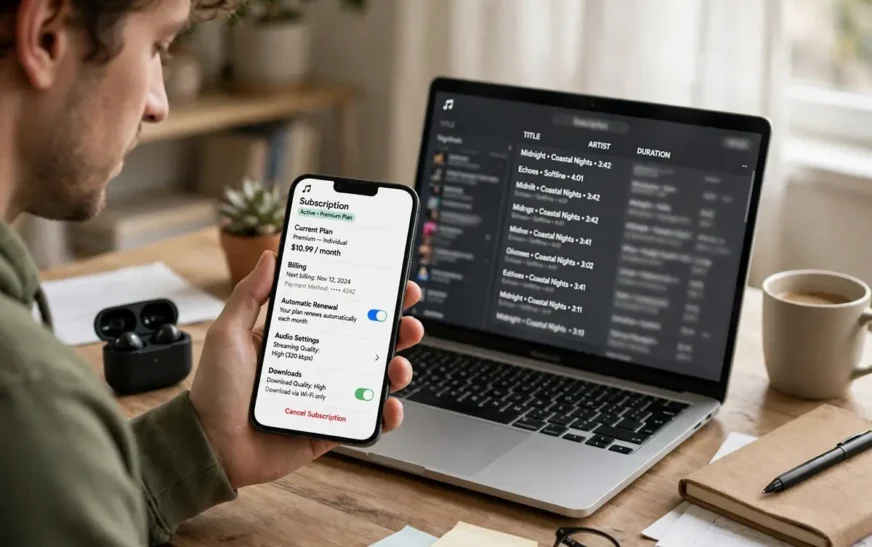
Cancelling Amazon Music should take two minutes. For many people it takes much longer, not because the button is impossible to find, but because they are looking in the wrong place for the wrong plan. Answer which plan you have, and who bills you for it, first, and the rest is a short, predictable sequence.
First, find which Amazon Music plan you actually have
| What you see | What it means | What cancelling does |
|---|---|---|
| Amazon Music Unlimited (Individual) | Paid add-on, billed monthly or annually | Stops renewal; access runs to the end of the paid period |
| Amazon Music Unlimited (Family Plan) | Paid add-on shared with invited members | Account holder cancelling ends the plan for members too |
| Amazon Music Prime | Included with a Prime membership at no extra music charge | There is no separate music subscription to cancel |
| Amazon Music Standard | A separate tier with its own renewal settings in some regions | Cancel through the same music settings page, under its own section |
| Free trial of Unlimited | Trial that converts to paid billing if not cancelled | Cancel before the trial end date shown on the settings page, or it renews |
Prime confusion causes more failed cancellations than any other single issue. Prime Music is a benefit of Prime, not a separate paid subscription. If your settings page shows only Prime Music and no Unlimited subscription, there is nothing to cancel in music settings. Do not cancel Prime by accident while trying to cancel music.
Family Plans need a second thought before anyone cancels. The account holder controls the plan. If you are a member invited by someone else, you cannot cancel the plan from your own settings in the same way, and cancelling as the holder ends access for every member at the end of the paid period. Check who the holder is and warn members first.
How to cancel Amazon Music on the web
Sign in at amazon.com/music/settings. Find your Unlimited subscription under Your Music Subscription. Open the Subscription Renewal details. Select Cancel subscription, or Cancel renewal if that wording appears. Read the screen explaining what you will lose, select Continue to cancel, and confirm. Wait for the confirmation screen showing your end date, and keep the confirmation email until the end date passes with no further charge.
If the cancel option is missing, stop and check three things before trying again. First, confirm you signed in to the correct Amazon account, since many households have more than one. Second, confirm the plan is Amazon-billed rather than Apple, Google, or carrier-billed, because third-party plans do not show a cancel button in Amazon settings. Third, check whether the plan is already set not to renew, in which case the end date is already shown and no further action is needed.
A related warning saves people real frustration: cancelling a subscription and deleting an account are different actions with different consequences. Remember that deleting an account is different from stopping a subscription — the same principle applies here. You do not need to delete your Amazon account to stop paying for music, and deleting an account to escape a subscription creates far larger problems with orders, Prime, and purchased content than a clean cancellation ever would.
How to cancel in the Amazon Music app
On Android, open the Amazon Music app, tap the gear or settings icon, and look for Settings, then Amazon Music Unlimited or Subscription Renewal. Select Cancel Subscription and confirm. On some builds, the app opens your Amazon account in a browser to complete the step. Complete that browser confirmation rather than closing it halfway.
On iPhone, the app route only works if Amazon bills you directly. If you subscribed through Apple, the app may redirect you to Apple settings or show no cancel control at all. That is not an error. It is a sign that Apple holds the billing, and the iPhone settings route in the next section is the one to use. Do not keep tapping inside the Amazon app hoping a different menu will appear.
How to cancel Amazon Music on iPhone through Apple billing
This is the route most iPhone owners get wrong, because the Amazon settings page cannot cancel a subscription that Apple bills. If you subscribed inside the Amazon Music app on an iPhone or iPad, or through an Apple promotion, Apple is almost certainly the biller. Check first: on your iPhone, open Settings, tap your name at the top, tap Subscriptions, and look for Amazon Music in the active list. If it is there, cancel it there.
Tap Amazon Music in the Subscriptions list, tap Cancel Subscription, and confirm. Apple stops renewal immediately, but you keep access until the end of the current billing period, just as with an Amazon-billed cancellation. Check that Amazon Music moves to an expired state in that list, and keep a screenshot showing the end date.
If Amazon Music does not appear in Apple Subscriptions, you did not subscribe through Apple, or the subscription is under a different Apple ID. Check other Apple IDs in the household, including a family organizer’s account, before assuming the subscription is gone. Family Sharing can hide the biller: the organizer may hold the subscription while members only see the music access.
The menu logic here mirrors other app subscriptions. People who have cancelled a gaming or streaming subscription before will recognize the pattern, since cancelling a gaming subscription follows a different menu depending on whether the platform store or the service itself bills you. The principle is identical: cancel where the money is taken, not where the content is played.
How to cancel on Android, Google Play, and through a carrier
Android owners face the same billing split as iPhone owners, with Google Play in Apple’s place. If you subscribed through the Google Play Store, open the Play Store app, tap your profile icon, go to Payments and subscriptions, then Subscriptions, find Amazon Music, and cancel there. Google keeps access until the end of the paid period, and the cancellation shows in Play Store subscription history, which is the record to keep.
If you subscribed directly through Amazon on an Android phone, use the web route or the Amazon Music app route above. The Amazon Shopping app also offers a path: profile, Account, Memberships and Subscriptions, then Amazon Music Unlimited, then Cancel subscription. Whichever app you start in, verify the result at amazon.com/music/settings afterward, since app menus can show a confirmation that still needs a final browser confirmation to complete.
Carrier billing is the hardest to spot and the easiest to miss. Some mobile providers bundle or bill Amazon Music as part of a phone plan. In that case, neither Amazon settings nor Google Play may show a working cancel button. Check your carrier bill for a music line item, contact the carrier to remove it, and check the next bill specifically for that line.
Can you cancel Amazon Music with Alexa?
If you want to try it, say clearly: “Alexa, cancel my Amazon Music Unlimited subscription.” Then verify the result immediately at amazon.com/music/settings. If the settings page still shows an active renewal with no end date, the voice attempt did not complete the cancellation, whatever Alexa said in reply. Complete the web cancellation and keep the confirmation email as the record.
If you mainly listen through a car system, test that setup before the end date. A service that works fine on a phone can behave differently through a dashboard, with different offline handling and voice controls. Checking guidance on listening through a car system after you switch before you cancel means a commute problem surfaces while Unlimited still works.
Pause instead of cancel: who can, and who cannot
According to Amazon’s help pages, you cannot pause if you are on an annual plan, a free trial, a promotion, or a plan billed through Apple, Google, or a mobile provider. Eligible monthly plans, billed directly by Amazon, may offer a pause option alongside cancel in the Subscription Renewal details. A pause takes effect at the end of the current billing cycle, and the subscription resumes automatically or can be resumed manually from music settings while paused.
Pause and cancel differ in one decisive way. A paused subscription is designed to come back. If you pause and forget about it, billing resumes on its own schedule. A cancelled subscription stays cancelled until you deliberately resubscribe. Pause suits a known break, such as a holiday. Cancel suits an open-ended departure, since resubscribing later takes minutes.
What happens after you cancel: library, downloads, and playlists
Unlimited tracks you added to your library or downloaded for offline listening stop playing when the paid period ends. In the app, those songs and podcasts appear greyed out, and the playback option is removed. Downloads tied to the subscription cannot be played in another app after cancellation, but you can re-download them if you resubscribe later.
Playlists, liked songs, and library entries themselves generally remain saved to your account. The list survives, but the right to play Unlimited tracks from it does not. If you resubscribe later, those playlists should play again in full, subject to catalog availability at that time.
Purchased music is different. Songs you bought as MP3s from Amazon are yours in a way subscription streams are not. They should remain playable and downloadable separately from Unlimited access. Before cancelling, identify any purchased tracks you care about and download copies you control, rather than relying on streaming access to prove ownership later.
That ownership point pairs naturally with moving tracks you own to a player you control if you prefer offline playback outside any streaming app. Subscription and purchase rights are easy to confuse until the end date arrives, so sort purchased tracks before that date, not after.
After cancellation, the app typically reverts to the free or Prime tier available in your region, with a limited, ad-supported selection. That tier is useful for casual listening, but it is not Unlimited under another name. Expect fewer tracks on demand, more shuffle-style playback, and ads where the free tier includes them. If that experience frustrates you, the issue is the tier change, not a fault in the app.
Choosing what to listen to next
After you settle the music side, think about how you will actually listen day to day. A gap in listening often comes not from losing Unlimited, but from picking a replacement app in a rush on the end date itself. Test the replacement before that date, on the routines where you actually listen: the commute, the workout, and the evening at home.
For readers who switch to audiobooks during commutes, exploring audiobook apps worth trying next before the end date means no gap in listening. Compare offline download limits, playback speed controls, and sleep timers, since those features matter more day to day than catalog size alone.
Offline handling deserves a test of its own. Download an episode or album in the new app, switch the phone to airplane mode, and play it through. If downloads expire quickly, fail silently, or refuse to play without a connection, you have learned something important while Unlimited still works as a fallback. A replacement app that only streams reliably is a poor fit for flights, rural commutes, and gyms with weak signal.
Sleep timers and playback speed also separate good replacements from frustrating ones. A timer that stops cleanly at the end of a chapter, and speed controls that do not distort voices, matter nightly for audiobook listeners. Test both on a real evening listen, not just in the settings menu, before you commit to a new app for months.
For workout listening, a change of app is also a good moment to check your hardware. A new app with poor offline handling will expose a weak setup fast, and a long run is a bad time to discover it. Focus on fit, sweat resistance, and offline storage rather than brand alone when you judge whether your current earbuds still suit the new app.
Home listening is the last routine to test. A speaker, a smart display, or a car system may each handle a new service differently, with different voice commands and different limits on skipping tracks. Run the new app through each device you actually use for a day, and note any device where it fails, so you are not troubleshooting a whole household on the end date itself.
Test your next setup on a laptop as well as a phone, if you listen on a computer during work. A setup that works on a phone but stutters on a laptop is a setup problem to solve while Unlimited still works, not after it stops. Guidance on listening on a laptop after you switch services can help if wireless earbuds are part of that setup, especially when pairing behaves differently across devices.
Before you cancel: a checklist that prevents regret
- Screenshot the plan name, renewal date, billing method, and any trial end date from music settings.
- Finish or note your place in any Family Plan audiobook, since that benefit ends with the billing cycle.
- Transfer playlists to your next service, or export a list of favorite tracks while they still play.
- Download any purchased MP3s separately from subscription downloads, and confirm they play outside the Amazon Music app.
- Tell Family Plan members the end date if you are the account holder.
- Cancel through the correct biller, wait for the confirmation screen, and save the confirmation email.
- Verify the end date at amazon.com/music/settings, and check Apple Subscriptions or Google Play Subscriptions if that biller applies.
- Set a calendar reminder for the end date to confirm no further charge appears and to delete subscription downloads if you need the storage back.
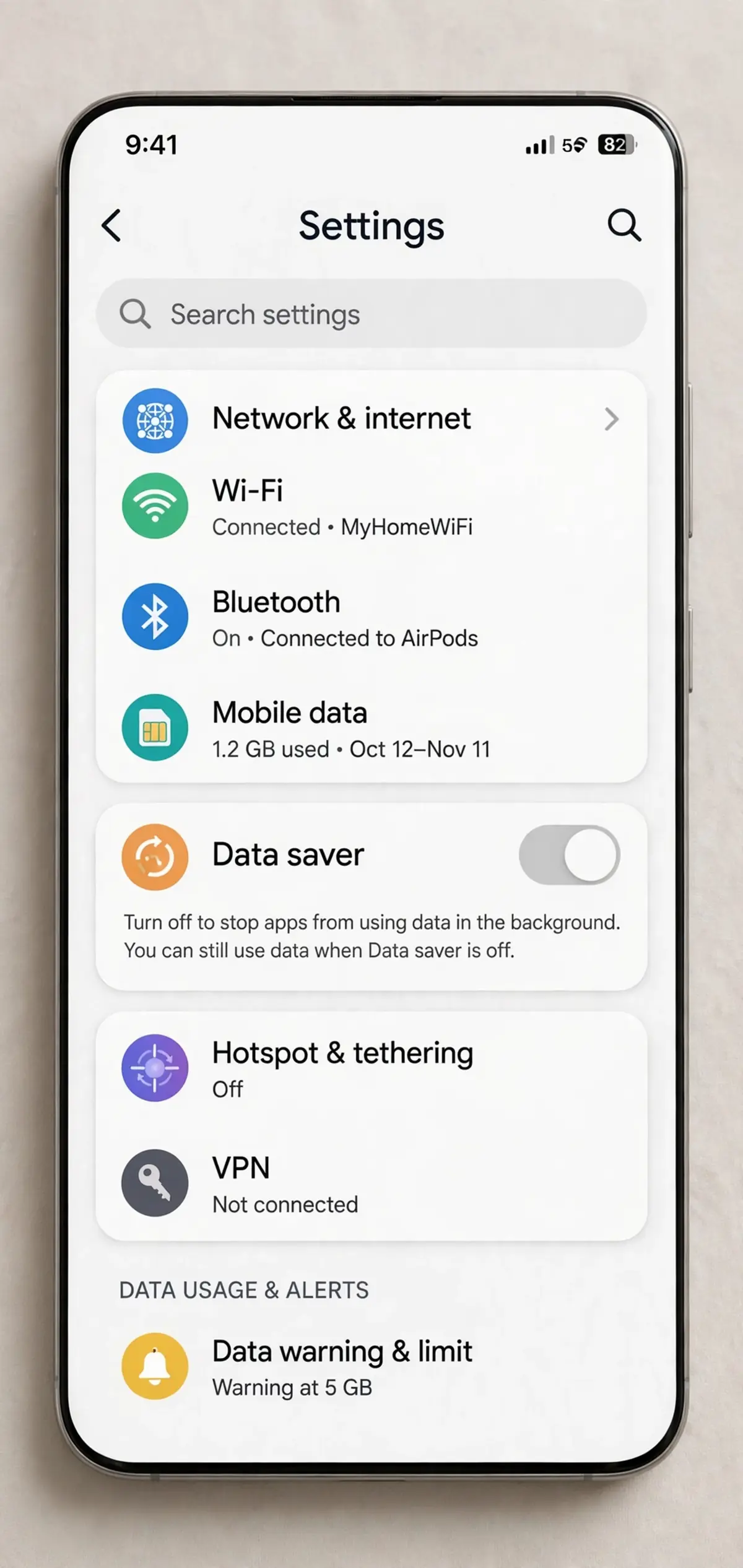
Test data use on a real outing before you rely on a new app for a long trip. Stream for an hour on mobile data, then check usage in your phone settings. That one test tells you more than any plan description about whether downloads, quality settings, or an offline-first routine need to change.
Plan your mobile listening around that change too, since a new app with different offline rules can raise data use quickly. Guidance on streaming over mobile data after switching plans helps you judge whether your current plan still fits a streaming-heavy routine, especially if you previously relied on Unlimited downloads to avoid mobile data use.
Still being charged after cancelling? Work this list in order
First, check the date. Cancellation stops renewal; it does not refund the period you already paid for in most cases, and access continues to the end of that period. A charge dated before your cancellation may be legitimate even if it arrived late. Compare the charge date with the end date on your confirmation email before disputing anything.
Second, check for a second subscription. Households commonly hold two: one Amazon-billed and one Apple or Google-billed, or one under a second Amazon account. Search inboxes for Amazon Music confirmations, check Apple and Google subscription lists, and check Memberships and Subscriptions under each Amazon account you control.
Third, check Family Plan ownership. If you are a member, the holder’s cancellation controls the plan. If you are the holder, members cannot cancel it for you. If a former holder still bills the plan, access for members continues until that holder cancels. Coordinate with the holder rather than cancelling your own unrelated settings in circles.
Fourth, check for a trial rollover. A free trial converts to paid billing if not cancelled before the trial end date shown in settings. A charge the day after a trial ends is almost always that rollover. Cancel immediately to stop the next period, and state the trial end date and cancellation date clearly when you contact support, since those two dates decide the conversation.
Fifth, check carrier billing and bundles. If your phone bill shows a music charge, the carrier controls it. Contact the carrier with the bill line item highlighted, and ask for written confirmation of removal. Keep checking the next bill, since carrier removals can take a cycle to appear.
Sixth, consider a strange-charge check on the device itself. If charges appear for services you do not recognize, or subscriptions you never knowingly started, it is worth checking a phone that shows strange subscription charges and reviewing installed apps, voice purchase history, and family purchase approvals. Malware is not the most common cause of a single Amazon Music charge, but unexplained subscriptions across several services point toward account or device hygiene, not a single billing error.
When you contact support, bring the confirmation email, the end date, the billing method, and the charge date and amount from your statement. Support can act on dated evidence, not on a vague memory of cancelling. If support confirms cancellation and a charge still appears after the end date, ask for a case reference and check the next statement.
Refunds: what to expect, plainly
Voluntary cancellation generally does not produce a refund for the unused part of a month you already paid for. You keep access to the end of that period instead. Refund rules vary by biller, purchase type, and region. If you believe a charge is an error — a duplicate, a charge after a confirmed end date, or a trial charge you cancelled in time — dispute that specific charge with dated evidence.
Frequently asked questions
Does cancelling Amazon Music cancel Amazon Prime?
No. Amazon Music Unlimited is a separate paid add-on from Prime membership. Cancelling Unlimited stops music renewal only, and Prime members keep Prime benefits plus the included Prime Music tier.
Will I lose my playlists if I cancel Amazon Music Unlimited?
Your playlists and library entries generally remain saved to your account, but Unlimited tracks in them grey out and lose playback after the paid period ends. Purchased MP3s should remain playable. Transfer playlists before the end date, while tracks still play.
Can I pause Amazon Music instead of cancelling?
Some monthly plans billed directly by Amazon offer a pause option in Subscription Renewal details, effective at the end of the billing cycle. You cannot pause an annual plan, a free trial, a promotion, or a plan billed through Apple, Google, or a carrier.
Why is Amazon Music still charging me after I cancelled?
Check the charge date against your confirmed end date first, since the paid period runs to its end. Then check for a second subscription under another Amazon account, Apple ID, Google account, or carrier bundle, and check whether a Family Plan holder still controls the plan.
Can I cancel Amazon Music on Alexa?
Amazon’s forum answers say an Echo can cancel an Amazon-billed Unlimited plan by voice, while several guides say Alexa cannot manage subscriptions. Treat voice as a fallback: try it, then verify immediately at amazon.com/music/settings. If no end date appears there, complete the web cancellation.
What happens to downloaded songs after I cancel?
Subscription downloads stop playing after the paid period ends, because they are tied to the active subscription. They appear greyed out in your library with playback removed. Purchased tracks are different and should remain available separately.
Can I resubscribe later, and will my library come back?
Yes. You can resubscribe through Amazon Music settings or the relevant store biller, and your saved playlists should play again in full for tracks still in the catalog. If you return during a promotion or trial, check the trial end date and billing method on day one.
What to do next
Open music settings now and write down your plan name, renewal date, and biller. If Amazon bills you, cancel on the web and save the confirmation email. If Apple or Google bills you, cancel in that store’s list instead, and if a carrier bills you, contact the carrier with the bill line in hand. After the end date, check your next statement. Checking guidance on listening from a watch on runs without a phone nearby is useful, but the cleanest move is simpler: pick your next app before Unlimited ends and test it on your commute and workout first.

Continue Reading on CripsyWire
For more practical tutorials and hidden features, see our full how-to guides section. AI workflow guides feed into the broader AI tools and agents coverage, phone tricks live in smartphones, and wearable setup walkthroughs in wearables. When you are deciding what to buy, the reviews and comparisons section helps. All part of CripsyWire Tech, and the homepage shows what is newest.