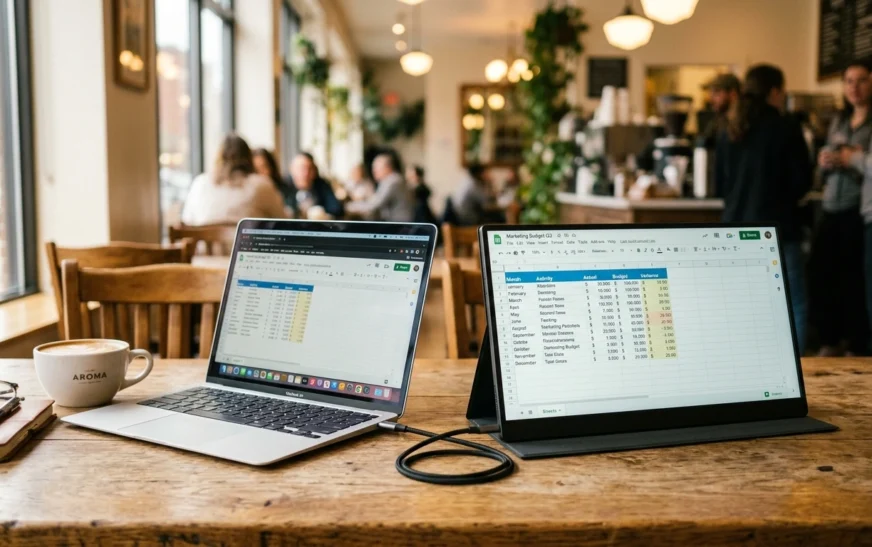
Portable monitors went from a niche gadget to something half the people in any coffee shop seem to own. And honestly, the boom created a mess. Dozens of near-identical brands you have never heard of, a race to the bottom on price, and a flood of “best portable monitors” lists that exist mainly to collect affiliate clicks. A lot of them recommend whatever pays the most, then bury the one thing that trips up real buyers.
This guide takes a different angle. I will tell you which specs genuinely change your day-to-day experience, point you to the models that consistently earn strong marks, and spend real time on the part nobody covers: getting the thing to work reliably once it shows up. If you have ever plugged a brand-new screen into your laptop and watched it stay black, this is for you.
Quick answer: what’s the best portable monitor for most people?
| Quick answer For most people, a 15.6 to 16-inch portable monitor with a 1080p or 2.5K IPS panel and full-function USB-C (DisplayPort Alt Mode plus Power Delivery) is the sweet spot. It is light enough to travel with, sharp enough for real work, and runs from a single cable on a modern laptop. Pay more only if you need gaming refresh rates, OLED contrast, or touch. |
Everything past that is about matching the screen to how you actually use it. A frequent flyer who lives in spreadsheets wants something different from a gamer hauling a Steam Deck, and a video editor wants different things again. So before you look at any product, it helps to understand what the numbers on the spec sheet really mean.
What actually makes a portable monitor good
Spec sheets love to throw acronyms at you. Most of them do not matter much. These six are the ones I would actually weigh before spending money.
Screen size and weight
Anything between 14 and 16 inches is the comfortable zone for a travel second screen. It roughly matches a laptop lid, slips into the same bag, and does not feel cramped. There are 7-inch panels for Raspberry Pi builds and giant 27-inch models that stretch the word “portable” to breaking point. A good 15.6-inch unit weighs around 1.5 pounds, which you barely notice. Once you cross into 18 inches and up, you are carrying a real slab, so be honest about whether you will keep packing it.
Resolution and aspect ratio
1080p (Full HD) is the baseline and it is genuinely fine on a 15-inch screen for documents, browsing, code, and chat windows. Step up to 2.5K (2560×1600) and text gets crisper, which is nice if you stare at small fonts all day. The aspect ratio sneaks up on people too. A 16:10 panel gives you more vertical room than a standard 16:9, and that extra height is a quiet win for spreadsheets and long documents. I would not chase 4K on a panel this small. You will rarely see the difference, and it makes the power situation harder, which brings us to the section everyone skips.
Brightness, measured in nits
This is the spec buyers ignore and then regret. Many portable monitors are dimmer than the desktop screen you are used to, clustering somewhere around 250 to 350 nits. Around 300 nits is workable for a normal room. If you sit near a window, work outside, or hate glare, look for 400 nits or more. A glossy finish looks punchier but mirrors every light behind you, while a matte coating kills reflections at the cost of a little pop. For a screen you will use in airports and hotel rooms with random lighting, matte usually wins.
Panel type: IPS versus OLED
IPS is the sensible default. Good color, wide viewing angles, fair price, predictable power draw. OLED looks stunning, with true blacks and contrast that makes movies and dark interfaces pop, but it costs more and its power use swings wildly with what is on screen. A bright white document can actually pull more from an OLED than a dark editing app. For most work-and-travel use, a solid IPS panel is the smarter buy. Save OLED for when picture quality is the whole point.
Refresh rate
Here is where marketing gets loud. A 60Hz panel is completely fine for spreadsheets, coding, slide decks, and video calls. You do not need more for work, full stop. High refresh rates of 120Hz, 144Hz, or 180Hz only earn their keep if you game on the thing, whether that is a handheld, a Steam Deck, or a console hooked up in a hotel. Those fast panels also draw more power and are fussier to run, so do not pay for speed you will never use.
Ports and connectivity
Look for two things: USB-C with DisplayPort Alt Mode (the port that actually carries video) and a full-size or mini HDMI as a fallback. Most decent units have two USB-C ports, one for video and one for power, which sounds simple until you discover not every USB-C port is the same. That distinction is responsible for more frustrated buyers than any other single thing in this category.

The USB-C and power trap (why your new monitor won’t turn on)
If your portable monitor flickers, dims, shows “no signal,” or refuses to wake up, the problem is almost never a dead screen. It is power and cabling. This is the part the giant listicles wave away in one line, and it is exactly where people lose hours.
Start with the cable. The USB-C connector on your phone charger fits perfectly into a portable monitor and will do absolutely nothing for video, because plenty of cables carry power only. You need a full-function USB-C cable rated for video and data. The one in the monitor’s box almost always works. The mystery cable from your drawer often does not.
Then there is the port. A USB-C port only sends video if it supports DisplayPort Alt Mode. On many laptops, the two USB-C ports that look identical are wired differently, so one drives a display and the one beside it only charges. If your monitor works on one port but not the other, that is the explanation. Treat every USB-C port as its own spec, not a duplicate.
Power is the last piece. A 15.6-inch 1080p panel sips roughly 8 to 12 watts, which a modern laptop hands over without complaint. Crank the brightness, or move to a bright 4K, touch, dual-screen, or high-refresh model, and demand climbs toward 15 to 30 watts. That is when a single laptop cable starts to wobble. The fix is a monitor with USB-C Power Delivery passthrough, fed by a 65W or 100W charger, so the screen and your laptop both get what they need. Phones, tablets, and handhelds have tighter power budgets, so they are the most likely to need that extra feed.
| Quick answer Do portable monitors need their own power? Sometimes. A 15.6-inch 1080p screen usually runs on a single USB-C cable from a modern laptop. Brighter, 4K, touch, or high-refresh models, and any phone or tablet host, often need a separate USB-C charger or a Power Delivery power bank to stay stable. Drop the brightness first if it flickers. |
One honest warning while we are here: skip portable monitors with a built-in battery. They cost more, weigh more, and a cheap external power bank does the same job for less. If you are still working out whether a Chromebook or a traditional laptop fits your travel setup better, sort that out first, because it changes which ports and power you will be working with.
Best portable monitors in 2026, by use case
A quick note on these picks, because I would rather be straight with you. I have not personally bench-tested every unit below, and any guide claiming it lab-tested twenty screens in a single week is selling you something. These are models that consistently earn strong reviews across the major testing outlets, grouped by who they actually suit. Prices in this category swing constantly, so treat the ranges as rough and always check the current price and recent buyer reviews before you commit. Across the market you will find decent options from roughly $50 at the bottom to well past $700 at the top.
| Best for | Screen & resolution | Refresh | Why it stands out |
| All-round work | 16″ · 2.5K (2560×1600) IPS, 16:10 | 60Hz | Sharp, taller workspace, touch on some units |
| Value | 15.6–16″ · 1080p IPS | 144Hz | Cheap, light, good enough for a travel second screen |
| Gaming | 16.1″ · 1440p IPS | 180Hz | Fast panel for handhelds and consoles on the road |
| Big screen | 27″ · 1440p IPS, matte | 60Hz | Desktop-class size that still folds flat to carry |
| Creative / premium | 14–15.6″ · OLED or calibrated IPS, touch | 60Hz | Best contrast and color, usually the priciest |
Best all-rounder for work
A 16-inch, 2.5K, 16:10 IPS panel is the most useful shape for getting things done. The ViewSonic TD1656-2K is a strong example: a sharp 2560×1600 display, brightness that holds up better than most, multi-touch, and a bundled stylus, all in an aluminum body that feels a step above the plastic crowd. The taller screen gives you real room for two windows side by side. If you spend your day in docs, dashboards, and email, this is the category to shop in, and it pairs nicely with the right productivity tools to turn a cramped laptop into a proper two-screen workspace.
Best value
If you just want more screen on the cheap, a 15.6 to 16-inch 1080p IPS panel with a 144Hz option, like Arzopa’s budget Z-series, does the job for a fraction of the premium models. You give up some brightness and color accuracy, and the build feels plasticky, but as a grab-and-go second screen for a hotel desk it is hard to argue with the price. This is the “good enough, and I will not cry if it gets scratched in my bag” pick.
Best for gaming
Gamers want a fast panel and the ports to feed it. A 16.1-inch 1440p screen at 180Hz, such as the Arzopa Z3FC, hits a sweet spot for handhelds and consoles on the move, and it runs at 144Hz over HDMI for things like a Switch 2 or Xbox Series X. Just remember the source has to actually output that refresh rate through the port you are using, and high-refresh panels are the ones most likely to need extra power. If you game or work off your phone, make sure you are starting with an Android phone that supports USB-C video output, because not every handset can drive an external display.
Best big-screen
Yes, 27-inch portable monitors exist, and the Asus ZenScreen MB27ACF is the headline act. It is a 2.5K, matte, 99% sRGB panel that stays surprisingly slim, and it ships with a monitor arm and mounting hooks so you can hang it almost anywhere. This is a niche pick for people who present, collaborate, or want a near-desktop workspace they can still fold flat and carry between rooms. It is not something you toss in a backpack for a flight, and the side-mounted ports look cluttered on a desk, but nothing else gives you this much screen in a portable shell.
Best premium and creative
When picture quality is the point, you move up to OLED or carefully calibrated IPS with touch, and the price jumps with it. Slim touchscreen units like the espresso Display range or the SideTrak Solo Pro Touch lead here, and Asus’s ProArt line targets creators who need accurate color. These are the screens worth it for photo and video work, or for anyone who simply wants the nicest possible display and will pay for it. Note that glossy OLED panels mirror bright rooms, so plan your lighting.
Best for phones and dual-screen setups
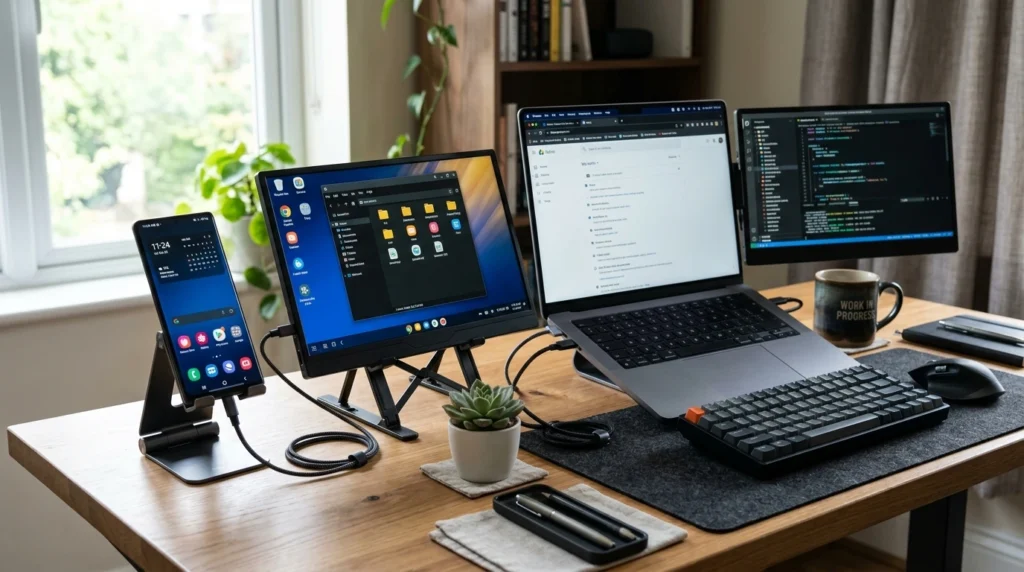
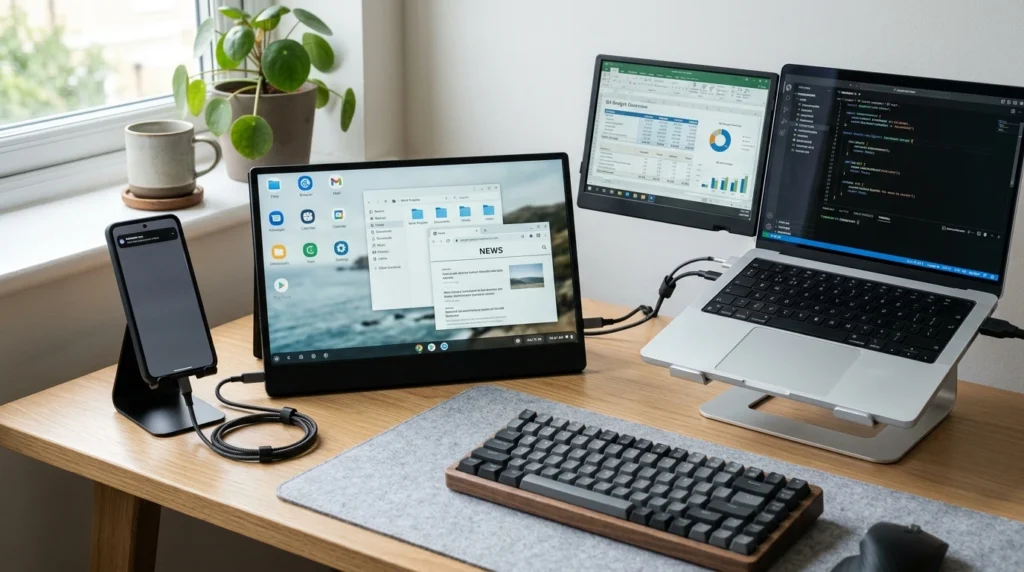
A portable monitor is not just a laptop accessory. A recent phone with USB-C video out can drive one for a desktop-style workspace, and Samsung’s DeX mode makes that genuinely usable. Newer iPhones with a USB-C port can output video too. And if one extra screen is not enough, clip-on dual-panel rigs like the Xebec Tri-Screen flank your laptop with two displays for a true mobile command center, though they add real weight.
Who should skip a portable monitor
A good strategist tells you when not to buy. A portable monitor is the wrong call more often than the ads suggest.
- You never leave your desk. If the screen lives in one spot, a cheap full-size desktop monitor gives you more inches, more brightness, and more ports for the same money or less.
- Your laptop has no video-capable USB-C and you hate dongles. You can make HDMI plus separate power work, but it is two cables and some fiddling. Know that going in.
- You are tempted by a battery built into the screen. Skip it. External power banks are cheaper, lighter to replace, and easier to upgrade.
- You want a giant screen but a tiny bag. The 27-inch models are real, but they are not the carry-anywhere fantasy the listings imply.
How to set it up so it actually works
Once the right screen arrives, this short routine prevents most first-day headaches.
- Confirm which USB-C port on your laptop supports DisplayPort Alt Mode, and use that one. Check the spec sheet or look for a small display icon.
- Use the cable that came in the box, or a full-function USB-C cable rated for video and 100W. Do not grab a random phone charger cable.
- On Windows, press Win + P and choose Extend. On a Mac, open Displays and arrange the screens. Use Detect if nothing appears.
- If text looks tiny or cramped, bump display scaling to 125% or 150%, especially on a 16-inch high-resolution panel.
- If it flickers or disconnects, lower the brightness first, then add a USB-C Power Delivery charger to the monitor’s power port. That fixes the large majority of cases.
Frequently asked questions
Are portable monitors worth it?
For anyone who works, studies, or games away from a fixed desk, yes. A second screen is one of the cheapest, most noticeable productivity upgrades you can make, and a 15-inch model adds little weight to a bag. If you never move from one spot, a desktop monitor is the better value.
Do portable monitors need a separate power source?
Often a single USB-C cable from a modern laptop powers a 15.6-inch 1080p screen on its own. Brighter, 4K, touch, or high-refresh models, and any phone or tablet host, frequently need a separate USB-C charger or a Power Delivery power bank to run without flickering.
Can I use a portable monitor with my phone?
Yes, if your phone’s USB-C port supports video output through DisplayPort Alt Mode. Many recent Android phones do, and Samsung’s DeX turns it into a desktop-style layout. Newer iPhones with USB-C can output video as well. Older phones without USB-C video need an adapter and separate monitor power.
What size portable monitor is best?
For most people, 15.6 to 16 inches is the sweet spot. It matches a typical laptop, fits the same bag, and gives enough room to work comfortably. Smaller 13 to 14-inch screens save weight, while 17-inch and larger panels feel premium but get heavy and harder to pack.
Is 1080p enough, or do I need 1440p or 4K?
On a 15-inch portable screen, 1080p is perfectly readable for documents, browsing, and code. Stepping up to 2.5K sharpens small text and is a nice upgrade if you stare at fonts all day. 4K is overkill at this size, costs more, and makes the power situation trickier for little visible gain.
Can portable monitors run consoles like the PS5 or Switch 2?
Yes. Most portable monitors with HDMI or full-function USB-C can connect to a PS5, Xbox Series X, or Nintendo Switch 2. For smooth gaming, pick a model with a higher refresh rate, and feed the monitor its own power, since consoles do not supply enough through the video connection.
Why does my portable monitor flicker or stay black?
Almost always a cable or power issue, not a faulty screen. Use a full-function USB-C cable, plug into a port that supports video output, and add a USB-C Power Delivery charger if the panel is bright or high-refresh. Lowering the brightness often stabilizes a marginal setup instantly.
The bottom line
Strip away the marketing and the buying decision is simple. For most people, a 15.6 to 16-inch IPS panel with full-function USB-C and a matte finish covers nearly everything, and you only spend more for gaming speed, OLED, or touch. The model matters less than getting the size, brightness, and power situation right, because the “best” screen is useless if it will not turn on in your hotel room.
Buy for how you actually work and travel, not for the spec that looks biggest on the box. Match the screen to your laptop or phone, sort out the cable and power before your first trip, and a portable monitor quietly becomes one of those upgrades you stop noticing because you would never go back.

Continue Reading on CripsyWire
For more practical tutorials and hidden features, see our full how-to guides section. AI workflow guides feed into the broader AI tools and agents coverage, phone tricks live in smartphones, and wearable setup walkthroughs in wearables. When you are deciding what to buy, the reviews and comparisons section helps. All part of CripsyWire Tech, and the homepage shows what is newest.