I broke my first dual boot in 2019. A routine Windows update decided my Linux bootloader didn’t deserve to exist, and I spent a Saturday evening with a rescue USB learning words I won’t repeat here. I’ve set up more than a dozen dual boot machines since then, and every single one taught me something the glossy corporate guides never mention.
So here’s the honest version.
A dual boot is a setup where one computer has two complete operating systems installed — say, Windows 11 and Ubuntu — and you pick which one to run every time you turn the machine on. Only one OS runs at a time. A small program called a boot manager shows you the choice at startup.
That’s the definition. But if you’re actually thinking about doing this, the definition is maybe 10% of what you need to know. The other 90% is why you’d bother, what quietly goes wrong, and whether a virtual machine would serve you better. Let’s get into all of it.
What Does Dual Boot Mean, Exactly?
Dual boot (also written as dual-boot or dual booting) means two independent operating systems living on the same physical computer, each in its own walled-off section of storage. When the machine powers on, instead of jumping straight into Windows like a normal PC, it pauses at a menu. You pick an OS. That OS then takes full control of your CPU, RAM, graphics card — everything — until you shut down or restart.
The key word is full control. This is what separates dual booting from every other way of running two systems. There’s no sharing, no emulation layer, no performance tax. Whichever OS you booted gets 100% of your hardware.
The most common pairing by far is dual boot Windows and Linux. But the concept stretches further:
- Windows 11 alongside Windows 10 (two versions of the same OS)
- Two different Linux distributions, like Ubuntu and Fedora
- Windows and macOS on older Intel Macs via Boot Camp
One thing dual boot is not: running two operating systems at the same time. If you want Windows and Linux on screen simultaneously, that’s virtualization, and it’s a completely different animal. We’ll compare the two properly in a minute, because picking the wrong approach is the single most common mistake beginners make.
How Does a Dual Boot Work?
To understand dual booting, you only need to grasp three ideas: partitions, the boot manager, and what your computer does in the first five seconds after you press the power button. None of this requires a computer science degree.
Disk Partitions: Giving Each OS Its Own Room
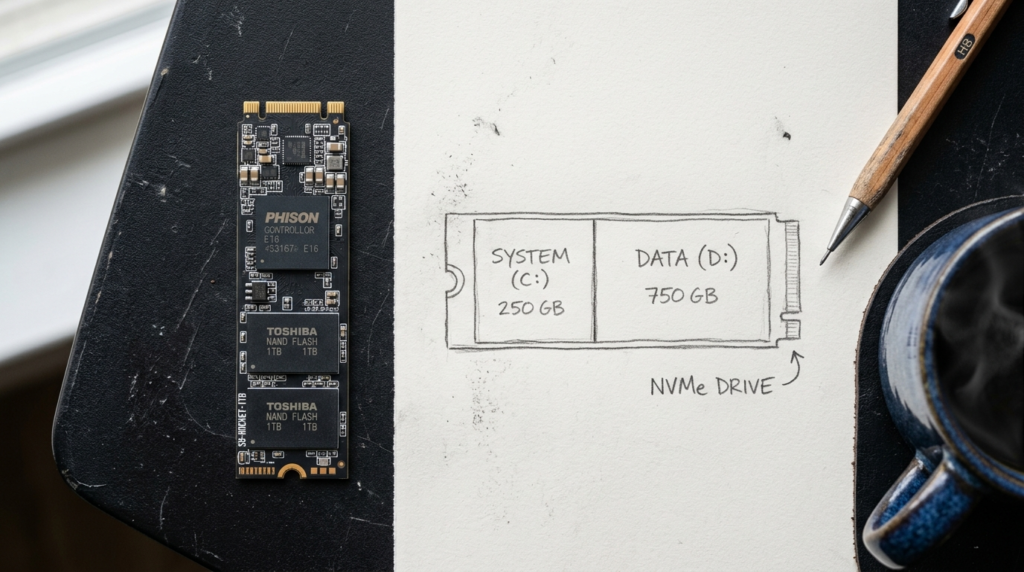
Your SSD or hard drive isn’t one indivisible block. It can be split into partitions — logical sections that behave like separate drives. In a typical dual boot setup, Windows lives on one partition formatted as NTFS, and Linux lives on another formatted as ext4. Each OS treats its partition as home turf and, mostly, ignores the other.
Think of it like a duplex. Two households, one building, separate front doors. They share the foundation (your physical hardware) but not the living space.
Some people go a step further and install each operating system on a completely separate physical drive. If your machine has two SSD slots, this is genuinely the better way to do it — the systems can’t step on each other’s partitions, and if one drive dies, the other OS survives untouched.
The Boot Manager: The Doorman at Startup
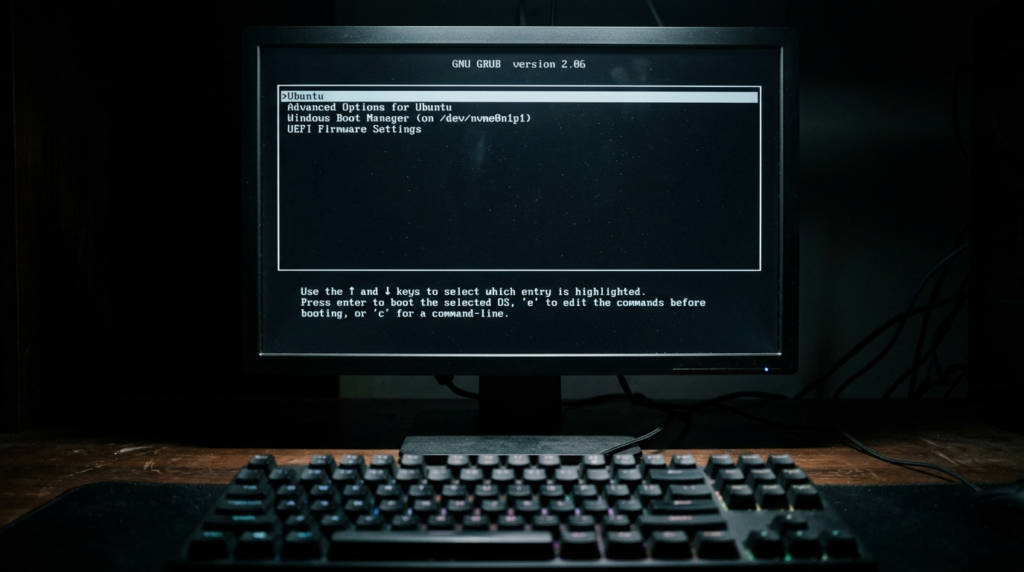
The boot manager (or bootloader) is the small program that presents the OS menu when you start the computer. On a Windows-plus-Linux system, this is almost always GRUB — the GRand Unified Bootloader that ships with most Linux distributions. GRUB detects your Windows installation during setup and adds it to the menu automatically.
Why GRUB and not the Windows boot manager? Because the relationship is one-sided. GRUB happily recognizes and boots Windows. Windows Boot Manager, on the other hand, pretends Linux doesn’t exist. It can’t read Linux file systems and offers no menu for them. So in practice, Linux’s bootloader runs the show.
What Happens When You Press Power
Here’s the five-second sequence on a modern machine:
- Your PC’s firmware (UEFI — the modern replacement for the old BIOS) wakes up and runs hardware checks.
- UEFI looks at its boot entries and loads the boot manager — GRUB, in most dual boot setups.
- GRUB draws the menu: Ubuntu, Windows 11, maybe a couple of recovery options.
- You pick one (or a countdown timer picks the default for you).
- The chosen OS loads and owns the machine until the next restart.
Switching operating systems means a full reboot. Every time. If that sentence made you wince, keep reading, because it matters for the next section.
Dual Boot vs Virtual Machine vs WSL: Which One Do You Actually Need?
This is the decision the top-ranking guides skate past, and it’s the one that actually determines whether you’ll be happy in three months.
You have three ways to run a second operating system, and they solve different problems:
Dual boot gives the second OS your full, native hardware performance. Nothing is shared. The cost: rebooting to switch, and a setup process that touches your disk partitions and bootloader — the riskiest kind of tinkering there is.
A virtual machine (VM) runs the second OS inside a window on your current OS, using software like VirtualBox or VMware. Both systems run at once, switching is instant, and nothing about your disk layout changes. The cost: the guest OS shares your RAM and CPU, and 3D graphics performance is noticeably worse. A VM with 8GB of RAM assigned on a 16GB machine leaves both sides feeling cramped.
WSL (Windows Subsystem for Linux) is Microsoft’s built-in way to run a real Linux command line inside Windows. For developers who just need Linux tools — bash, git, Docker, Python environments — WSL2 is honestly excellent and takes ten minutes to enable. No partitioning, no bootloader, no drama.
Here’s my honest decision framework after years of using all three:
- You want to daily-drive Linux, game on it, or squeeze full performance from modest hardware → dual boot
- You occasionally need to test something in another OS, and you have 16GB+ of RAM → virtual machine
- You’re a developer who needs Linux tooling but lives in Windows → WSL first, dual boot only if WSL falls short
- You need macOS on a PC → none of these; that’s Hackintosh territory, and it’s dying fast
A surprising number of people set up a dual boot when a VM or WSL would have served them better with zero risk. Be ruthless with yourself about which camp you’re in.
Why People Dual Boot in 2026
Dual booting is a decades-old technique, but 2026 has given it a genuine second wind. These are the reasons people are actually doing it right now — not the recycled textbook reasons.
The Windows 10 Shutdown Pushed Millions Toward Linux
Microsoft ended free support for Windows 10 in October 2025. That left a huge number of perfectly functional PCs stranded — machines that fail Windows 11’s hardware requirements (TPM 2.0, newer CPUs) but still have years of life in them. For those users, installing Linux alongside their existing system is a low-commitment escape route: keep the old Windows partition for the two apps you can’t replace, do everything else on a modern, patched, secure Linux desktop. It’s the most practical dual boot use case of this decade.
Gaming on Windows, Everything Else on Linux
Windows still owns PC gaming — anti-cheat systems in particular remain hostile to Linux, even though Valve’s Proton has made thousands of titles playable. So the classic gamer setup persists: boot Windows for competitive titles, boot Linux for work, browsing, and development. If gaming is your priority, native Windows performance still wins, and pairing it with a wired connection to reduce your ping matters more than any OS choice.
Development and Testing on Real Hardware
Some things simply behave differently on bare metal than in a VM: GPU compute workloads, audio production with low-latency requirements, driver development, and performance benchmarking. Developers who ship software for both platforms often keep a dual boot machine precisely because “it works in the VM” and “it works” are not the same sentence.
Reviving Older Hardware
A lightweight Linux distribution can make an eight-year-old laptop feel quick again. Dual booting lets you test that claim without burning the boat — old Windows install stays put while you trial Linux Mint on a second partition. If you’re weighing whether an aging machine is worth saving at all, our Chromebook vs laptop breakdown covers when a cheap replacement beats a rescue mission.
Separation of Work and Personal Life
One OS for work with the VPN, monitoring agent, and corporate policies; one OS that’s entirely yours. Since only one system runs at a time and each sits on its own partition, the separation is stronger than any user-account trick within a single OS.
Common Dual Boot Combinations (And One That’s Gone)
Windows + Linux. The default. Windows for compatibility, Linux for speed, privacy, and development. Ubuntu, Linux Mint, and Fedora all detect Windows during installation and configure the dual boot menu for you.
Windows 11 + Windows 10. Less common, but real — usually for testing software against both versions, or keeping a legacy app alive. Both use the Windows Boot Manager, which handles two Windows installs gracefully.
Linux + Linux. Enthusiast territory. Running a stable distro alongside a bleeding-edge one, for example. Works fine, though managing two GRUB installs takes some care.
Windows + macOS — mostly dead. Boot Camp let Intel Macs dual boot Windows natively, but Apple Silicon Macs (2020 onward) don’t support it at all. On a modern Mac, virtualization is your only realistic route to Windows. If you see a 2026 article telling you to “just use Boot Camp,” close the tab — the author hasn’t touched a Mac in five years.
Advantages of Dual Booting
Dual booting has earned its place. Here’s what it genuinely delivers:
- Full native performance in both systems. No VM overhead, no shared RAM. Each OS runs exactly as fast as the hardware allows. For gaming and heavy compute, this gap is not subtle.
- True hardware access. GPUs, USB devices, audio interfaces, Wi-Fi cards — everything works (driver support permitting) without passthrough tricks.
- One machine instead of two. You get both ecosystems without buying a second laptop. For students and freelancers, that’s real money.
- Strong isolation. A problem in one OS — malware, a botched update, a corrupted config — usually leaves the other bootable. Usually. (See the next section for the exceptions.)
- A safe way to migrate. Thinking of leaving Windows for Linux? Dual boot lets you move gradually instead of leaping. Most successful Linux switchers I know dual booted for months first.
Disadvantages of Dual Boot: The Stuff Nobody Warns You About
Every guide lists “uses more disk space” as the big downside. Sure. But the disadvantages that actually ruin weekends are more specific, and they come from experience, not glossaries.
Windows updates can break your bootloader. This is the classic. A major Windows feature update rewrites boot files and occasionally wipes GRUB from the boot order, leaving your machine booting straight into Windows as if Linux never existed. Your Linux install is still there — but recovering the menu means booting a live USB and repairing GRUB. Annoying at best, panic-inducing if you didn’t know it was possible.
Windows Fast Startup silently locks your files. Windows’ Fast Startup feature doesn’t fully shut down; it semi-hibernates. That leaves the NTFS partition flagged as “in use,” so when you boot into Linux, your Windows files mount read-only or refuse to mount at all. Worse, writing to a hibernated NTFS partition can corrupt it. Rule one of any Windows-Linux dual boot: turn Fast Startup off, day one.
The clock goes insane. Windows stores your hardware clock in local time; Linux assumes it’s in UTC. Result: every time you switch OS, your clock is wrong by your timezone offset. It sounds trivial until missed calendar reminders and failed HTTPS connections start piling up. The fix is a one-line setting, but you have to know it exists.
BitLocker and Secure Boot add friction. Resizing partitions on a BitLocker-encrypted Windows drive requires suspending encryption first, and some Linux setups need Secure Boot configuration tweaks. Neither is a dealbreaker anymore — major distros handle Secure Boot fine now — but it’s extra reading before you touch anything.
Storage is split, permanently-ish. Give Linux 100GB and later discover you need it back in Windows? Resizing partitions after the fact is possible but nerve-wracking, and it’s where most data-loss stories begin.
Rebooting to switch gets old. The friction is real. Plenty of dual boot setups quietly decay into “the OS I always use, plus 80GB I never touch.”
None of these should scare you off. All of them should inform how you set things up.
How to Set Up a Dual Boot: The Right Order of Operations
This isn’t a full click-by-click tutorial — that depends on your exact OS pair — but the sequence below is universal, and doing it out of order is how disasters happen.
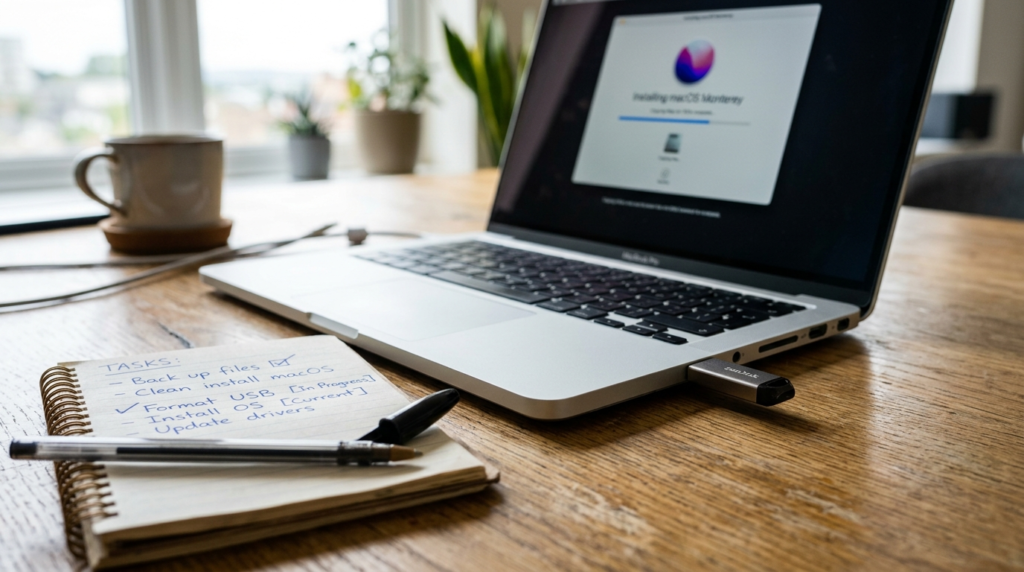
- Back up everything that matters. Not “later.” Now. Partitioning is the one operation where a power cut or a misclick can cost you real data. Cloud, external drive, both — whatever, just do it.
- Check your drive first. You’re about to shrink partitions and hammer the disk with writes. Take five minutes to check your SSD’s health before trusting it with two operating systems. Installing onto a dying drive is doubling down on a bad bet.
- Turn off Fast Startup in Windows (and suspend BitLocker if it’s enabled). This prevents the locked-partition problem before it starts.
- Shrink the Windows partition using Windows’ own Disk Management tool to create free space. For a comfortable Linux install, 60–100GB is realistic; the 25GB minimums you’ll see quoted are technically true and practically miserable.
- Create a bootable USB of your second OS with a tool like Rufus or balenaEtcher.
- Boot from the USB and choose “Install alongside Windows.” Mainstream Linux installers detect Windows and offer this option; it handles partitioning and GRUB setup automatically.
- Reboot and verify both systems appear in the menu and both actually boot. Then fix the clock (one command tells Linux to use local time) and you’re done.
Total time for a first-timer: budget an afternoon, expect two hours. The backup takes longer than the install.
One quality-of-life tip from my own setup: if you’ll be working across both systems regularly, a second screen makes the constant context-switching far less painful — one of the best portable monitors costs less than the time you’ll waste alt-tabbing through a single display.
Is Dual Booting Safe?
Yes — dual booting is safe when done carefully. The two operating systems don’t interfere during normal daily use. The genuine risk is concentrated in setup (partitioning mistakes can erase data) and in Windows updates occasionally breaking the boot menu. A full backup before installing removes almost all real danger.
To put it plainly: I’ve never lost data from using a dual boot system. Every close call I’ve had came from modifying one — resizing partitions, reinstalling one OS over another, or restoring Windows from an image without thinking about GRUB. Treat partition changes with the respect you’d give electrical work, and dual booting is boring in the best way.
The one ongoing safety habit worth adopting: keep a Linux live USB in a drawer. It’s your bootable recovery tool if Windows ever evicts GRUB, and it turns a scary problem into a fifteen-minute fix.
So, Should You Dual Boot? An Honest Verdict
Here’s the ruthless version.
Dual boot if: you’ll genuinely use both systems weekly; you need bare-metal performance (gaming, GPU work, audio); you’re migrating from Windows 10 and want a safety net; or you’re learning Linux seriously rather than as a curiosity.
Don’t dual boot if: you need the second OS a few times a month (use a VM); you only need Linux command-line tools on Windows (use WSL); your only drive is nearly full; or you don’t have a current backup and won’t make one. That last group — no exceptions.
The honest middle ground most guides won’t admit: a lot of dual boot setups get abandoned. People install Linux with grand intentions, boot it six times, and drift back to their comfort OS. That’s fine — the experiment costs nothing but disk space — but if you suspect you’re in that category, start with a VM or WSL and save yourself the partitioning risk.
Dual booting is a power tool. Power tools are wonderful when you have a real job for them, and pointless clutter when you don’t.
FAQs About Dual Booting
Does dual booting slow down your computer?
No. Only one operating system runs at a time, so each gets full hardware performance — dual booting adds zero slowdown while an OS is running. The only real costs are disk space for the second system and a few extra seconds at the boot menu during startup.
Can I dual boot with only one drive?
Yes. A single SSD or hard drive can be split into separate partitions, one per operating system. It works reliably and is how most laptops dual boot. Two physical drives are safer and easier to manage if your machine supports them, but they’re a convenience, not a requirement.
Can I remove one operating system later?
Yes. You can delete the unwanted OS’s partitions and reclaim the space. The catch is the bootloader: removing Linux leaves GRUB pointing at nothing, so you must restore the Windows boot manager first (a quick command from Windows recovery). Deleting partitions before fixing the bootloader is the common mistake.
Do both operating systems see each other’s files?
Partially. Linux reads and writes Windows NTFS partitions comfortably, so you can access Windows files from Linux. Windows can’t read Linux ext4 partitions without third-party tools. Many dual booters create a shared NTFS data partition both systems can use for documents and downloads.
How much space does a dual boot need?
Plan for at least 60–100GB for the second operating system if you’ll actually use it. Bare minimums (around 25–30GB for most Linux distributions) technically work but fill up fast once updates, applications, and files accumulate. Whatever you allocate, resizing later is possible but risky — decide generously upfront.
Is dual boot better than a virtual machine?
Neither is better; they solve different problems. Dual boot wins for performance-critical work like gaming and GPU tasks because the OS runs natively. A virtual machine wins for convenience — instant switching, no partitioning, no bootloader risk. Frequent light use favors a VM; serious heavy use favors dual booting.
Does dual booting void your warranty?
No. Installing a second operating system is a software change and doesn’t void hardware warranties. Manufacturer support may decline to troubleshoot software issues on a non-shipped OS, but the hardware coverage itself is unaffected. Keep recovery media for the original OS in case you ever need warranty service.

Continue Reading on CripsyWire
For more practical tutorials and hidden features, see our full how-to guides section. AI workflow guides feed into the broader AI tools and agents coverage, phone tricks live in smartphones, and wearable setup walkthroughs in wearables. When you are deciding what to buy, the reviews and comparisons section helps. All part of CripsyWire Tech, and the homepage shows what is newest.