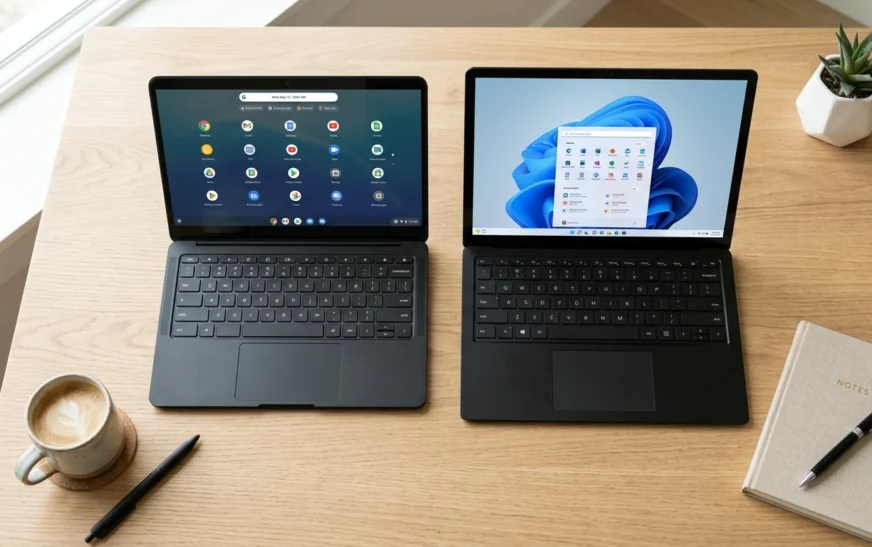
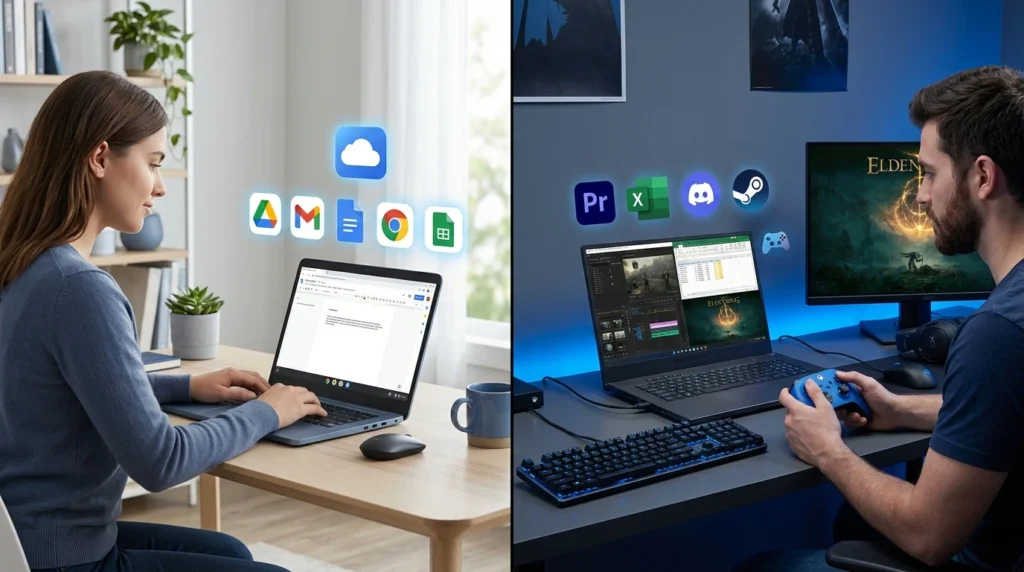
Here’s the thing nobody tells you in the store: a Chromebook is a laptop. It has a screen, a keyboard, a trackpad, the whole shape. So when people ask “should I get a Chromebook or a laptop?”, what they’re really asking is whether Google’s stripped-down, web-first computer will do everything they need or whether they’ll be cursing it three weeks later when it can’t run the one program they live in.
I’ve set up dozens of these machines for family, students, and small offices. The short version? Chromebooks are brilliant for some people and quietly miserable for others. The trick is figuring out which group you’re in before you spend the money. Let’s sort that out.
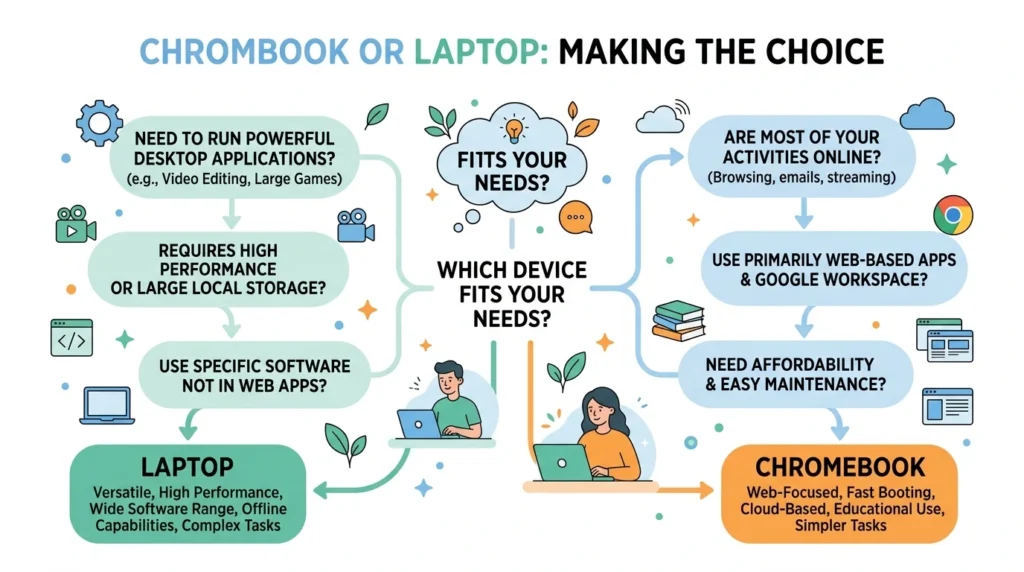
Quick answer: Buy a Chromebook if you mostly browse, write, stream, and live in Google or Microsoft’s web apps ,you’ll get great battery life and a low price. Buy a traditional Windows or Mac laptop if you need heavy software like full Photoshop, serious gaming, large local files, or specialized work tools.
What Is a Chromebook, Really?
A Chromebook is a laptop that runs ChromeOS, Google’s lightweight operating system built around the Chrome browser. Instead of installing big programs the way Windows does, it leans on web apps and cloud storage. That single design choice is the root of almost every difference you’ll read about below.
ChromeOS sits on top of a Linux foundation, which is part of why it boots in seconds and rarely feels sluggish on cheap hardware. You sign in with a Google account, and your files, settings, and bookmarks follow you. Lose the device and you’ve mostly lost a piece of plastic, not your data that lives in the cloud.
One more wrinkle worth knowing: Google has started building a higher-spec tier called Chromebook Plus, which ships with more memory, better screens, and built-in Gemini AI features. So the old line that “all Chromebooks are underpowered” isn’t quite true anymore.
What Counts as a “Regular” Laptop?
When people say “laptop” in this comparison, they usually mean a Windows machine or a MacBook. These run full desktop operating systems and can install pretty much anything — Adobe’s creative suite, video editors, accounting software, PC games, niche work tools, you name it.
That flexibility is the whole point. A Windows laptop can be a $300 budget box or a $3,000 workstation with a discrete graphics card. A Mac gives you Apple’s polished ecosystem. Either way, you’re getting local power and a software library that a Chromebook simply can’t match.
Chromebook vs Laptop: The Quick Comparison
If you only read one section, make it this one.
| Factor | Chromebook | Windows / Mac Laptop |
| Operating system | ChromeOS (web-first) | Windows or macOS (full desktop) |
| Typical price | ~$200 to $500 | ~$400 to $3,000+ |
| Best for | Browsing, docs, streaming, school | Heavy software, gaming, creative work |
| Software | Web apps + Android apps | Full desktop programs |
| Local storage | Small (32–256GB), cloud-first | Large (256GB–2TB+) |
| Battery life | Often 10+ hours | Usually 6–12 hours |
| Setup & upkeep | Almost zero maintenance | More updates and management |
| Update lifespan | Up to 10 years (2021+ models) | Varies by maker; often shorter |
| Offline ability | Limited but improving | Full |
Prices are general ranges and shift with sales and region.
Price: Where Your Money Actually Goes
Snippet: Chromebooks usually cost $200 to $500, while Windows and Mac laptops span $400 to well over $3,000. You pay less for a Chromebook because it runs lighter software and uses cloud storage instead of expensive local hardware.
This is the headline reason most people consider a Chromebook, and it’s a fair one. You can walk out with a perfectly capable Chromebook for the price of a fancy dinner-for-two. A gaming Chromebook like the Acer Chromebook Plus 516 GE has even shown up around $300 on sale — with a 120Hz screen, which is wild at that price.
But cheap and good aren’t the same. The bargain-bin Chromebooks with 4GB of RAM and a slow MediaTek chip will frustrate you the moment you open fifteen tabs. If you’re spending money, spend it in the $350–$500 Chromebook Plus range and you’ll get something that feels genuinely smooth. On the laptop side, $600–$800 is the sweet spot where Windows machines stop feeling like a compromise.
Performance and Everyday Speed
Here’s a truth that surprises people: a $400 Chromebook often feels faster for everyday stuff than a $400 Windows laptop. Why? ChromeOS is lighter. It isn’t juggling background services and bloatware, so web browsing and document work feel snappy even on modest chips.
Flip the workload, though, and the gap reverses fast. Edit 4K video, render a 3D model, compile code, or run heavy spreadsheets with macros, and a real laptop with a proper processor and more RAM pulls ahead by a mile. Chromebooks weren’t built for that, and pretending otherwise leads to buyer’s remorse.
My rule of thumb: if your daily computing is “open browser, do things in browser, close browser,” a Chromebook will feel quick. If your work involves installed professional software, you want a laptop.
Software and Apps: The Real Dividing Line
This is the single most important section, so don’t skim it. Software compatibility is where most regrets come from.
Chromebooks run web apps, Android apps from the Google Play Store, and — on supported models — Linux apps for more advanced users. That covers an enormous amount: Gmail, Google Docs and Sheets, the web versions of Microsoft Office, Canva, Netflix, Spotify, Zoom, and thousands more.
What it doesn’t cover is the heavy desktop stuff. Full Adobe Photoshop and Premiere, desktop QuickBooks, most PC games, AutoCAD, and a lot of company-specific or industry tools simply won’t install. The web or Android versions exist for some of them, but they’re usually trimmed-down. Before you buy, write down the three programs you absolutely cannot live without and check each one. That five-minute exercise saves a lot of pain.
Storage: Local vs the Cloud
Snippet: Chromebooks ship with small local storage (often 32–256GB) and expect you to use cloud services like Google Drive. Traditional laptops offer 256GB to 2TB or more on fast SSDs, which suits large local files, big photo libraries, and offline work.
If you hoard files locally, years of RAW photos, video projects, a huge music library a Chromebook’s tiny drive will feel claustrophobic. If your stuff already lives in Drive, OneDrive, or Dropbox, you’ll barely notice. Most Chromebooks have a microSD slot or USB-C for cheap expansion, which helps.
Battery Life and Portability
Chromebooks win here, and it’s not close. Because the hardware is doing less, they sip power. Ten-plus hours on a charge is normal, and they tend to be thin and light. That’s exactly why schools love them — they survive a full day without a hunt for an outlet.
Plenty of premium laptops now match that endurance, especially the latest MacBooks and ARM-based Windows machines. But dollar for dollar, a Chromebook usually gives you more hours of unplugged life for less money.
Security and Updates: The 10-Year Detail Nobody Mentions
Chromebooks are genuinely low-maintenance and hard to break. Updates install quietly in the background, every app runs in its own sandbox, and there’s no real tradition of Chromebook viruses. For a non-technical parent or grandparent, that peace of mind is worth a lot.
Here’s the part most comparison articles skip. Since 2023, Chromebooks released from 2021 onward get a full 10 years of automatic ChromeOS updates and security patches from their platform launch date. By 2026, the large majority of active Chromebooks qualify, and the average Chromebook lifespan has climbed past seven years.
Buying tip: Every Chromebook has an Auto Update Expiration (AUE) date the point where it stops getting updates. Check it before buying (Settings > About ChromeOS, or Google’s support page). A model with an AUE far in the future is a much better long-term value, especially second-hand.
Windows and Mac get updates too, of course, but a Windows laptop’s practical lifespan depends more on hardware aging and the manufacturer’s support, and it usually asks more of you to keep things tidy.
“Is ChromeOS Dying?” What the Aluminium OS News Actually Means
You may have seen scary headlines. Here’s the calm version: Google is rebuilding ChromeOS on top of Android’s underlying technology an effort reported under the name Aluminium OS with the first devices expected to start arriving in 2026. The goal is tighter app compatibility and deeper Gemini AI features, not killing the platform.
Think renovation, not demolition. Google has publicly reaffirmed the 10-year update commitment, so a Chromebook you buy today isn’t about to be abandoned. If anything, the Android foundation should make Chromebooks more capable over time, not less.
Gaming in 2026: A Big Change You Should Know About
This is the freshest, most important update in the whole Chromebook conversation, and almost every older article gets it wrong.
Important: The Steam-for-Chromebook beta ended on January 1, 2026. Games installed through that beta no longer run. So native PC gaming on a Chromebook is effectively off the table for now — but cloud gaming has stepped in to fill the gap.
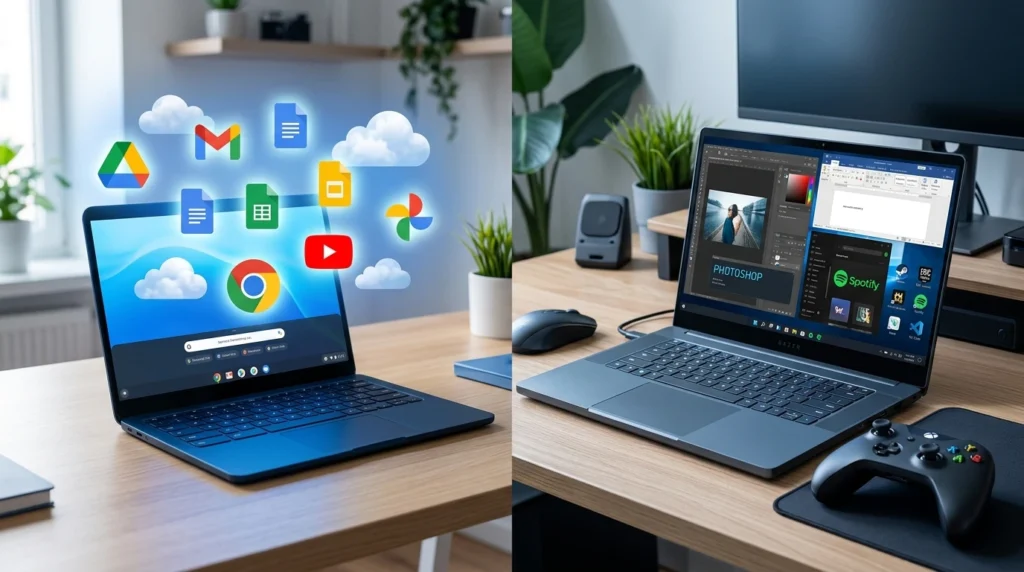
If gaming matters to you, the realistic options on a Chromebook today are: Android games from the Play Store, and cloud gaming services like NVIDIA GeForce Now or Xbox Cloud, which stream real PC and console games over the internet. Cloud-gaming Chromebooks with fast 120Hz screens exist precisely for this. They work shockingly well as long as your internet is solid.
Want to install and play AAA titles locally, offline, with mods? That’s a gaming laptop, full stop. Don’t buy a Chromebook expecting that.
Offline Use: Can a Chromebook Work Without Wi-Fi?
Snippet: Yes, partly. Google Docs, Sheets, Slides, Gmail, downloaded media, and many Android apps work offline on a Chromebook once enabled. But because so much of ChromeOS is web-based, a Chromebook is happiest with a reliable internet connection.
If you frequently work somewhere with no signal a remote cabin, long flights without Wi-Fi, spotty rural service a traditional laptop with everything installed locally is the safer bet. For most people who are online most of the day, the offline limits rarely bite.
Who Should Buy a Chromebook?
- Students from elementary through college doing research, writing, and online classes.
- Anyone who basically lives in a browser — email, Google or Microsoft web apps, YouTube, social, streaming.
- Parents shopping for a kid’s first computer that’s cheap, safe, and hard to mess up.
- Older relatives who want something simple with no virus worries and automatic updates.
- Anyone wanting a light, cheap second device with all-day battery for the couch or travel.
Who Should Stick With a Traditional Laptop?
- Creative pros who need full Photoshop, Premiere, Lightroom, or DaVinci Resolve.
- Gamers who want to install and play PC titles, especially offline.
- Developers, engineers, and analysts running heavy local tools or virtual machines.
- Anyone tied to specific desktop software for work — accounting suites, CAD, industry apps.
- People who store huge libraries of files locally or often work without internet.
How to Choose: A Simple Step-by-Step
- List the three apps or tasks you use most. Be honest about what you actually do, not what you imagine doing.
- Check if those apps run as web or Android versions. If all three do, a Chromebook is on the table.
- Decide your internet reality. Mostly online? Chromebook is fine. Often offline? Lean laptop.
- Set a budget. Under $500 and web-focused points to a Chromebook Plus; heavy needs push you to a $600+ laptop.
- If buying a Chromebook, check the AUE date so you get the longest update life possible.
- Match the specs to the job: aim for 8GB RAM minimum, and 16GB if you multitask hard or do creative work on a laptop.
Pros and Cons at a Glance
Chromebook — Pros
- Low price and excellent value
- Long battery life and light weight
- Fast boot, low maintenance, strong built-in security
- Up to 10 years of updates on newer models
Chromebook — Cons
- Limited heavy/desktop software
- Small local storage; cloud-dependent
- Native PC gaming is off the table after the 2026 Steam shutdown
- Less useful when fully offline
Laptop — Pros
- Runs virtually any software
- More power, storage, and upgrade headroom
- Full offline capability and real gaming options
Laptop — Cons
- Costs more for equivalent everyday feel
- Shorter battery on cheaper models
- More updates, maintenance, and security housekeeping
Common Mistakes People Make
- Buying the cheapest Chromebook with 4GB RAM, then wondering why it chokes on a dozen tabs. Spend a little more.
- Assuming the web version of an app equals the desktop version. Often it’s missing features you rely on.
- Ignoring the AUE date and buying an older model that’s nearly out of updates.
- Expecting to install Steam and game locally — that door closed in January 2026.
- Overbuying a powerful laptop “just in case” when all you do is browse and write. That’s money left on the table.
Expert Tips
- Test-drive ChromeOS for free first: install ChromeOS Flex on an old laptop and see if the workflow fits before committing.
- If you go Chromebook, get the Chromebook Plus tier — the jump in RAM, screen, and AI features is worth the small premium.
- Pair a Chromebook with a cloud-gaming subscription if you want games; it sidesteps the hardware limits entirely.
- On a laptop, prioritize an SSD and 16GB of RAM over a flashy processor for the best real-world feel.
- Whatever you buy, check return windows. A week of real use tells you more than any spec sheet.
Frequently Asked Questions
Is a Chromebook a laptop?
Yes. A Chromebook is a type of laptop that runs Google’s ChromeOS instead of Windows or macOS. It has the same clamshell shape, keyboard, and trackpad, but it’s built around web apps and cloud storage rather than installed desktop software.
Can a Chromebook replace a laptop for school or work?
For most students and office workers who live in browsers and Google or Microsoft web apps, yes. It struggles only when your job needs heavy desktop programs like full Adobe software, CAD, or specialized industry tools that have no good web version.
Do Chromebooks work without the internet?
Partly. Google Docs, Gmail, downloaded files, and many Android apps work offline once enabled. But because ChromeOS is web-first, a Chromebook is far more useful with a steady connection than fully offline.
Can you play games on a Chromebook in 2026?
You can play Android games and stream PC and console games through cloud services like GeForce Now. Native Steam gaming ended on January 1, 2026, so installing and running PC games locally is no longer an option. For that, choose a gaming laptop.
How long do Chromebooks last?
Chromebooks released from 2021 onward get up to 10 years of automatic updates from their platform launch date. The average real-world lifespan now sits above seven years. Always check a model’s Auto Update Expiration (AUE) date before buying.
Is ChromeOS being discontinued?
No. Google is rebuilding ChromeOS on an Android-based foundation (reported as Aluminium OS), with first devices expected around 2026. It’s a modernization for better app support and AI features, and the 10-year update promise still stands.
Which is better, a Chromebook or a Windows laptop?
Neither is universally better it depends on your tasks. A Chromebook wins on price, battery, and simplicity for web-based use. A Windows laptop wins on software range, power, gaming, and offline work. Match the device to what you actually do.
The Verdict
If your computing life happens in a browser writing, email, research, streaming, video calls a Chromebook gives you most of what a laptop does for half the price, with better battery and almost no upkeep. Get one in the Chromebook Plus range, check the AUE date, and you’ll be happy for years.
If you need real software muscle creative apps, gaming, development, big local files, or guaranteed offline work buy a traditional Windows or Mac laptop and don’t look back. Trying to force a Chromebook into that role is the fastest way to regret the purchase.
Figure out which camp you’re in, and the choice basically makes itself.

Continue Reading on CripsyWire
For more honest tech matchups, browse our full reviews and comparisons library. AI tool reviews live in AI tools and agents, phone reviews in smartphones, and wearable reviews in wearables. Before you buy, our step-by-step guides may help with setup decisions. The CripsyWire homepage highlights what is newest, all under our Tech coverage.