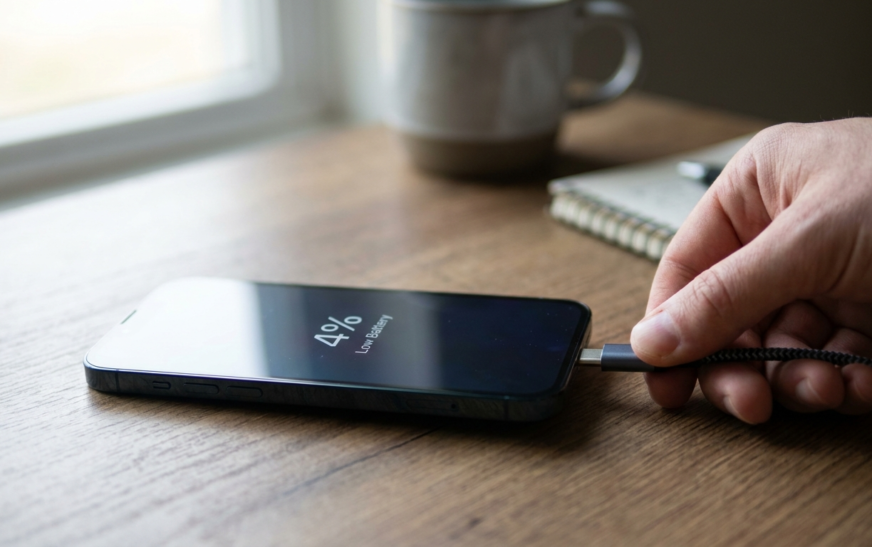
| Quick answer: If your phone won’t charge, first prove it’s truly not charging (the icon can lie), then swap the cable and wall adapter, clean lint out of the port with a wooden toothpick, and restart the phone. If you see a “moisture detected” or “liquid detected” warning, stop, dry the port, and use wireless charging meanwhile. Most charging problems are a dirty port or a dead cable, not a dead phone, and you’ll usually fix it at home in under ten minutes. |
You plug in at night, half-asleep, and assume you’re set. Morning comes and the screen reads 4%. Now you’re scrambling, no charge, no time, and a phone that’s suddenly useless. It’s a special kind of stress, because a phone that won’t charge isn’t just inconvenient. It’s your alarm, your maps, your wallet, all hostage to a cable that decided to quit.
Here’s what years of dealing with dead handsets taught me: the phone is rarely the problem. Most of the time it’s something boring and fixable, a frayed cable, a port packed with pocket lint, a cheap adapter that can’t push enough power, or a software hiccup a restart wipes out. People panic and book a repair when the real fix costs nothing and takes two minutes.
So before you spend money or write off your phone, work through this in order. I’ve put the fastest, most common fixes first, the way a repair tech actually triages it, and saved the moisture-detected mess and the genuine hardware stuff for later. Let’s get your phone drinking power again.
Why Your Phone Suddenly Won’t Charge
Charging looks like one simple action, but it’s really a chain: wall outlet → adapter → cable → port → charging chip → battery. A break anywhere in that chain stops the whole thing. That’s good news, actually, because it means you can test each link one at a time and find the weak one.
The usual culprits, roughly in the order I run into them:
- A worn or fake cable. Charging cables flex thousands of times and the wires inside fray, especially near the connector. The single most common cause, full stop.
- Lint packed in the port. Your pocket stuffs fabric fuzz into that little opening until the cable can’t seat properly. Shockingly common, and almost nobody suspects it.
- A weak power source. A laptop USB port or a low-output adapter may not push enough wattage to charge while the screen’s on.
- A software glitch. The charging system can hang after long uptime; a reboot clears it.
- Moisture in the port. Modern phones refuse to charge when they sense liquid, even a tiny bit of humidity, to protect the pins.
- Heat or battery protection. Too hot, or an optimized-charging setting, can pause or cap charging on purpose.
- Real hardware damage. A bent port, a swollen battery, or water corrosion, usually after a drop or spill.
First, Make Sure It’s Actually Not Charging
This sounds obvious, but skip it and you’ll waste an afternoon chasing a problem that isn’t there. Sometimes the phone is taking power and the on-screen icon is frozen or lying to you, a display glitch, not a charging fault. Other times it’s charging so slowly you can’t see movement.
Do this quick check: plug in, wait two full minutes, then look for the percentage to actually move, not just the charging animation to appear. On a phone that won’t turn on, plug it in and watch for a battery icon or a red LED within a minute. If the number climbs at all, your phone charges fine and you may be dealing with a slow-charge or battery-drain issue instead of a dead port.
| Reality check: A charging icon is not proof of charging. It only means the phone detected a power connection. Watch the actual percentage over two minutes, that’s the real test. |
How to Fix a Phone That Won’t Charge: 12 Fixes in Order
Work top to bottom. The first five solve the overwhelming majority of cases. Don’t jump ahead to a factory reset before you’ve checked a cable.
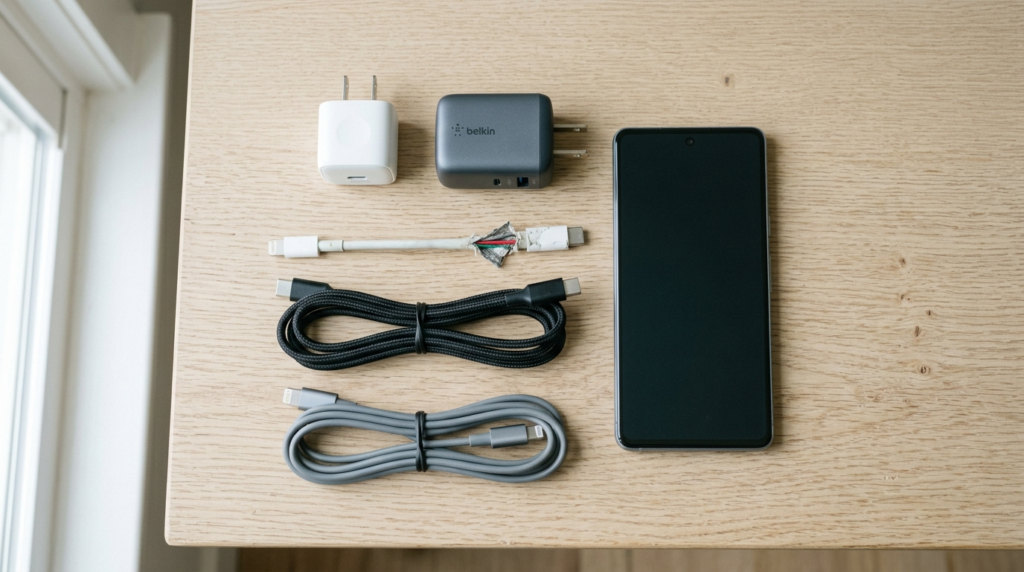
1. Swap the Cable, Then the Adapter (Test One at a Time)
Cables die from the inside. The outer jacket looks perfect while the copper inside has cracked from being bent at the same spot a thousand times. So borrow or grab a different cable you know works and try that first.
Crucial detail: change one thing at a time. New cable, same adapter, test. Still dead? Same cable, different adapter. If you swap both at once and it works, you’ll never know which one was broken, and you’ll keep the faulty one in your bag to ruin another day. Cheap, uncertified cables are the worst offenders here; a frayed or counterfeit cable can stop charging entirely or trigger “accessory not supported” warnings.
2. Try a Different Outlet and a Real Wall Charger
The power behind the cable matters as much as the cable. A USB port on a laptop, a TV, or a car often trickles out far less power than a wall adapter, sometimes not enough to charge while the phone is awake. Plug straight into a wall outlet with a proper adapter.
And test the outlet itself. Plug a lamp or another charger into the same socket. Power strips and old extension cords fail silently. Skip the hub, skip the extension lead, go directly to the wall for this test.
3. Clean the Charging Port (The Fix Nobody Expects)
If the cable wiggles, only charges at a weird angle, or won’t click in fully, your port is almost certainly clogged. Months of pocket lint compress into a dense little plug at the bottom of the port, physically blocking the cable from seating. Clear it and the phone often springs back to life instantly.
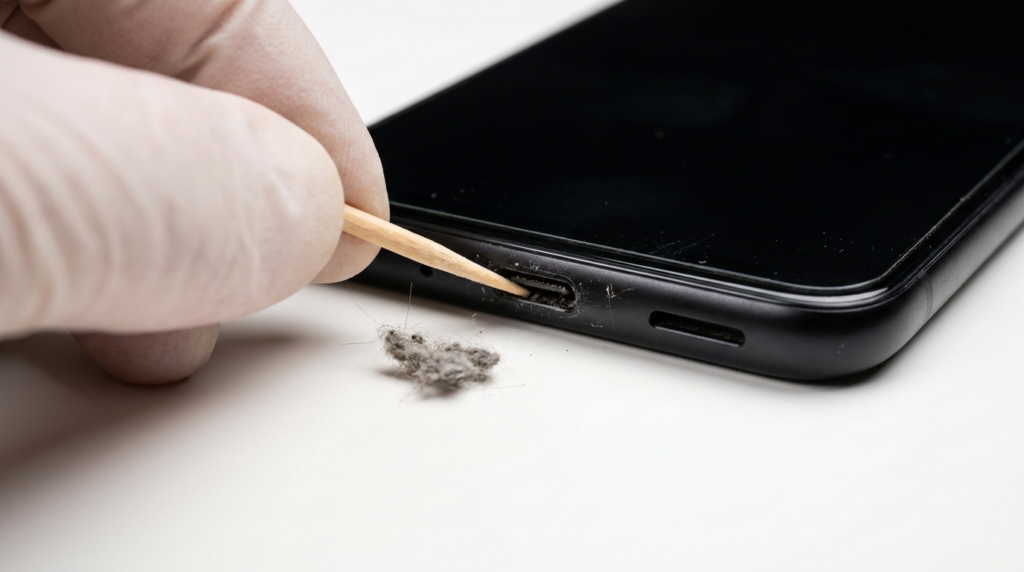
How to do it safely:
- Power the phone off first. Always.
- Shine a bright light into the port and look for grey or black fuzz packed at the back.
- Gently scrape it out with a wooden or plastic toothpick. Work from the back and drag debris out. Light pressure only.
- Hold the port facing down so loosened lint falls out, then plug in and test.
| Do not: Don’t jab metal (a pin or SIM tool) into the port, you can bend the pins or short the contacts. Be cautious with compressed air too; Apple specifically advises against blasting it into the port, since pressure can push debris or moisture deeper. |
4. Restart the Phone (and Force Restart If It’s Frozen)
A surprising share of “won’t charge” cases are pure software. The charging manager hangs, and the phone stops accepting power even though every cable and port is fine. A restart clears it in seconds.
If the screen is black and the phone seems dead, plug it in first, then force restart. On most recent iPhones: press and release Volume Up, press and release Volume Down, then hold the Side button until the Apple logo appears. On most Androids: hold Power and Volume Down together for around 20 seconds. Then let it charge undisturbed for half an hour before judging.
5. Let It Charge for 30 Minutes Before Panicking
A battery drained to absolute zero plays dead. Plug it into a known-good wall charger and walk away for 30 minutes. A truly flat phone sometimes shows nothing, no icon, no light, for several minutes before it has enough juice to display anything. Both Apple and Google explicitly recommend this wait. Patience here saves a lot of needless worry.
6. Handle the “Moisture Detected” or “Liquid Detected” Warning
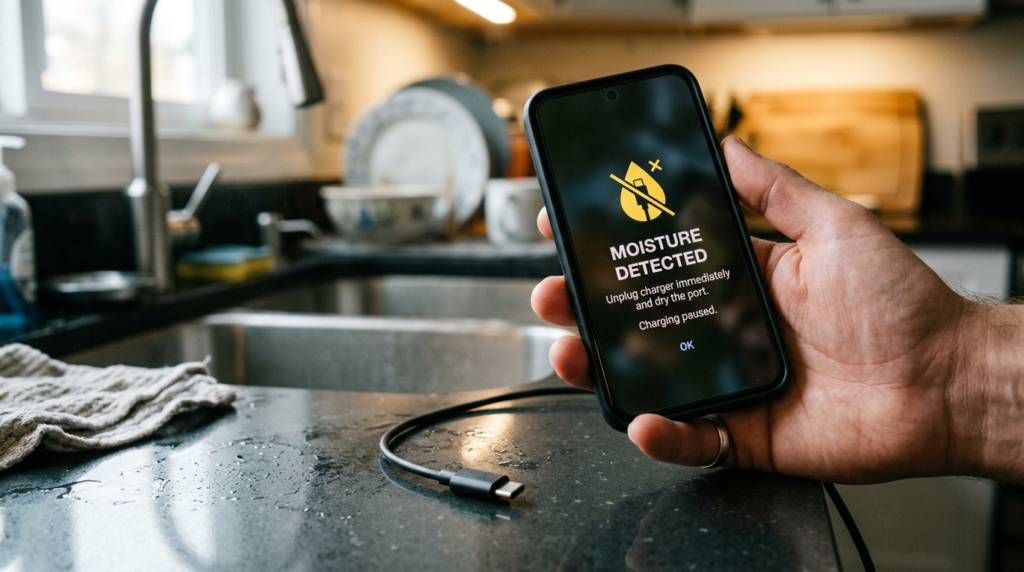
This one deserves its own section because it panics people and most guides barely cover it. If your phone shows a water-drop icon or a “liquid detected in connector” message, it’s deliberately refusing to charge to stop corrosion and shorting. That’s a safety feature, not a breakdown.
What to actually do:
- Unplug immediately and don’t force it. Charging a wet port can fry the pins.
- Hold the phone with the port facing down and gently shake or tap to shed droplets.
- Leave it in a dry, airy spot, ideally with a fan, for 30 minutes to a few hours. Skip the bag of rice, it does little and the dust can make things worse.
- Need power now? Use a wireless charger if your phone supports it. The wireless coil doesn’t touch the wet port, so it’s safe.
If it’s bone dry but the warning won’t clear (humidity and glitches trigger false alarms), a few extra tricks help. On Samsung, clearing the USB Settings cache (Settings → Apps → show system apps → USB Settings → Storage → Clear cache) resolves a lot of phantom warnings, and turning off fast charging temporarily can let it charge through. On iPhone 15 and newer you may see an Emergency Override option on the charging alert that forces a charge anyway, use it only when you’re certain the port is dry.
| Caution: If your phone was actually submerged or drenched, don’t try to push past the warning. Power it off, dry it for a full day, and if the mic, speaker, or charging still misbehaves, get it looked at. Water damage usually isn’t covered by warranty, so don’t rush it. |
7. Update Your Software
Charging is partly managed by firmware, and firmware has bugs. Manufacturers ship fixes for battery-recognition and charging glitches in regular updates more often than you’d think. If your phone still powers on, get it to a working charger or a wireless pad, then check for an update: Settings → General → Software Update on iPhone, Settings → System → Software update on Android.
8. Cool It Down (Heat Pauses Charging on Purpose)
Phones won’t charge normally when they’re hot, it’s a protection against battery damage. If you’ve been gaming, navigating, or streaming while plugged in, or the phone sat in a hot car or direct sun, it may pause charging until it cools.
Take the case off to let heat escape, stop using the phone while it charges, and move it somewhere cool. Charging on a soft bed or under a pillow traps heat, put it on a hard, open surface instead. Once the temperature drops, charging usually resumes on its own.
9. Check Whether It’s Actually a “Charge Limit,” Not a Fault
Here’s a fake problem that fools a lot of people: the phone “won’t charge past 80%.” That’s almost always Optimized or Adaptive Charging working exactly as designed, holding at 80% to protect long-term battery health, then topping up before your usual wake time. It is not a malfunction.
If you genuinely need a full charge right now, you can override it. On iPhone, the lock-screen notification lets you tap “Charge Now,” or adjust it under Settings → Battery → Charging. On many Androids, look under Battery settings for Adaptive Charging or Battery Protection. Honestly, though? Leaving the limit on is better for your battery over the years. Only disable it if you have a specific reason.
10. Inspect for Hardware Damage (Port, Battery, Pins)
If you’ve reached here, look closely. Shine a light into the port and check the little gold pins, are any bent, corroded, or coated in blue-green fuzz? That fuzz means corrosion, usually from moisture, and it needs professional cleaning. Look at the back and sides of the phone too: a battery that’s swelling will push the screen or back panel outward, even slightly.
| Stop here if: You see a swollen or bulging battery. A swelling lithium battery is a safety hazard, don’t keep charging it, don’t puncture it, and get it to a technician. This is the one case where DIY ends and a pro begins. |
11. Test the Battery’s Health
Batteries wear out. After roughly 300 to 500 full charge cycles, capacity drops noticeably, and an old battery can charge erratically or refuse charge at certain percentages. Check the numbers: on iPhone, Settings → Battery → Battery Health & Charging shows Maximum Capacity. On many Androids it’s under Battery or Device Care, or use a tool like AccuBattery to estimate. If you’re well under 80% capacity and seeing odd behavior, the battery itself may be the answer.
12. Back Up, Then Try a Reset (Last Software Resort)
Before you assume hardware and before you pay anyone, a reset can clear a deep software fault, but it wipes the phone, so it’s genuinely a last resort. Back up first (cloud or computer), then on iPhone try Reset All Settings (keeps your data) before a full erase; on Android, do a factory reset only after a backup. If the phone still won’t charge after a clean reset, you’ve ruled out software, and it’s time for a technician.
Match Your Symptom to the Most Likely Fix
| What you’re seeing | Most likely cause & fix |
| Only charges at a certain angle | Loose or dirty port — clean it (#3) |
| Nothing at all, no icon, no light | Dead cable or flat battery — swap cable, wait 30 min (#1, #5) |
| Charges from wall, not from laptop | Weak power source — use a wall adapter (#2) |
| Water-drop / liquid warning | Moisture protection — dry it, go wireless (#6) |
| Charges slowly or stops when hot | Overheating — cool it down, remove case (#8) |
| Stops at 80% every time | Optimized charging, not a fault (#9) |
| Charges fine but drains fast | Aging battery — check battery health (#11) |
| Blue-green fuzz or bent pins | Hardware damage — see a pro (#10) |
iPhone vs Android: Where the Fixes Differ
The basics are identical, but a few menus and quirks aren’t. Here’s the quick map.
| Fix | iPhone | Android |
| Force restart | Vol Up, Vol Down, hold Side button | Hold Power + Vol Down ~20s |
| Software update | Settings > General > Software Update | Settings > System > Software update |
| Battery health | Settings > Battery > Battery Health | Battery/Device Care or AccuBattery |
| Charge limit control | Settings > Battery > Charging | Adaptive Charging / Battery Protection |
| Moisture override | Emergency Override (iPhone 15+) | Clear USB Settings cache (Samsung) |
| Liquid indicator | LCI in SIM tray (older models) | Check port for residue/corrosion |
Common Mistakes That Make Charging Problems Worse
- Jamming metal into the port. A pin or needle bends the pins or rips the contacts. Wood or plastic only.
- Blasting compressed air at a wet port. It can drive moisture and debris deeper. Let it air-dry instead.
- Charging through the moisture warning by force. On a genuinely wet port, that’s how you corrode the pins for good.
- The rice myth. Rice barely absorbs anything useful and sheds dust into the port. Airflow and time win.
- Swapping cable and adapter at once. You’ll fix it but never learn which was broken, so the bad one stays in rotation.
- Factory resetting before the basics. Don’t wipe your phone before you’ve tried a different cable and cleaned the port.
- Ignoring a swollen battery. That’s a safety issue, not a charging quirk. Stop and get it serviced.
Expert Tips to Keep It From Happening Again
- Buy certified cables (MFi for iPhone, reputable brands for USB-C). The bargain-bin three-pack is a false economy, it frays fast and can refuse to charge.
- Clean the port every few weeks with a gentle toothpick pass. Prevention beats a panicked morning.
- Unplug from the plug, not the cable. Yanking the cord is what cracks the wires near the connector.
- Keep a wireless charger around as a backup. It sidesteps a bad port entirely and saves you on moisture-warning days.
- Charge between 20% and 80% when you can. It meaningfully slows battery aging and reduces the odd-percentage charging glitches that come with a worn cell.
- Don’t game or stream while charging. The heat both slows charging and ages the battery faster.
DIY vs Professional Repair: When to Stop
| Fix it yourself | See a professional | |
| Best for | Cables, ports, lint, software, drying | Bent ports, corrosion, swollen battery |
| Cost | Often free or a cheap cable | Labor usually exceeds the part |
| Risk | Low, if you avoid metal & force | None to the rest of the phone |
| Time | Minutes | A day or two without the phone |
| Skip it when | You see swelling or corrosion | Phone is old and near replacement |
Draw the line here: if you’ve swapped the cable and adapter, cleaned the port, restarted, dried any moisture, ruled out heat and charge limits, and the phone still takes nothing, you’ve exhausted the home fixes. At that point it’s likely the port daughterboard or the battery, both jobs better left to someone with the right tools. And if the phone is genuinely old, weigh the repair cost against just replacing it. If you’re already shopping, our rundown of the best Android phones in 2026 is a reasonable place to start.
Frequently Asked Questions
Why is my phone plugged in but not charging?
Usually a faulty cable, a weak power source, or a lint-clogged port. Swap to a cable you know works, plug into a wall outlet rather than a USB port, and clean the port with a wooden toothpick. A quick restart clears software-related charging hangs. Most cases resolve without any repair.
How do I clean my charging port safely?
Power the phone off, shine a light inside, and gently lift out lint with a wooden or plastic toothpick, working from the back. Hold the port downward so debris falls out, then test. Never use metal, and avoid blasting compressed air, which can push grime or moisture deeper.
What does “moisture detected” mean and how do I fix it?
Your phone sensed liquid in the port and stopped charging to prevent corrosion. Unplug, shake the port gently facing down, and air-dry it for 30 minutes to a few hours. Use a wireless charger meanwhile. On Samsung, clearing the USB Settings cache often clears a false warning.
Why does my phone charge so slowly?
Common causes are a low-output adapter, a worn cable, a dirty port, or heat. Use the wall charger rated for your phone, keep it cool, and stop using power-hungry apps while charging. A slow charge can also signal an aging battery if everything else checks out fine.
Is it bad that my phone won’t charge past 80%?
No, that’s almost always Optimized or Adaptive Charging protecting your battery, not a fault. It holds at 80% then tops up before you wake. You can override it in battery settings if you need a full charge now, but leaving it on extends your battery’s lifespan.
Should I put my wet phone in rice?
No. Rice absorbs very little moisture from inside a sealed phone and can shed dust and starch into the port. Air-drying in a ventilated spot, ideally with a fan, works better. Power the phone off, keep the port facing down, and give it time before charging.
Can a bad cable really stop charging completely?
Yes. Cables fail internally while looking perfectly fine outside, the copper cracks from repeated bending near the connector. A frayed or counterfeit cable can stop charging entirely or trigger an “accessory not supported” alert. Testing a known-good cable is the fastest first diagnostic.
How do I know if my battery needs replacing?
Check battery health: iPhone shows Maximum Capacity under Settings, Battery, Battery Health, and many Androids show it under Battery or Device Care. Below about 80% capacity, plus fast draining, sudden shutdowns, or refusing charge at certain percentages, points to a worn battery that needs replacing.
My phone is hot and won’t charge, what’s wrong?
Heat triggers a safety pause. Phones limit or stop charging when too warm to protect the battery. Remove the case, stop using the phone, and move it somewhere cool and open, not under a pillow or in sun. Charging typically resumes by itself once it cools down.
When should I see a professional?
When you’ve swapped cables and adapters, cleaned the port, restarted, dried any moisture, and ruled out heat and charge limits, and it still won’t charge. Also go straight to a pro if you see a swollen battery, bent pins, or blue-green corrosion, those are hardware issues, not DIY fixes.
Final Verdict: Work the Chain, Don’t Panic
A phone that won’t charge feels like a disaster and turns out, almost every time, to be something small. The fix lives in that simple chain, outlet, adapter, cable, port, battery, and your job is just to test each link until you find the broken one. Start with a different cable. Clean the port. Restart. Those three alone rescue the large majority of phones that land on a repair counter.
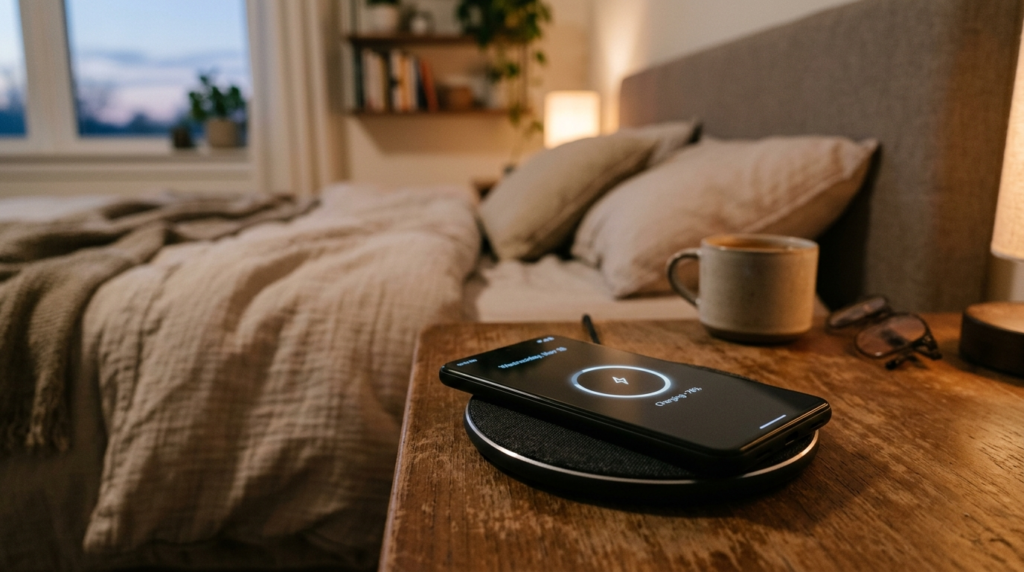
Save the resets and the repair shop for the genuine hardware faults, a corroded port, a swollen battery, water damage that drying couldn’t undo. And build the habits that keep you out of trouble: a decent cable, a quick port clean now and then, and a wireless charger in the drawer for the days the port acts up.
While you’ve got the phone in pieces of attention, it’s worth fixing the other small annoyances too. If your calls have been rough lately, our guide on how to fix a phone microphone walks through the same kind of quick, no-cost troubleshooting. And if wireless earbuds are part of your setup, how to reset AirPods is a handy companion fix.
Ten minutes and a spare cable. That’s usually the whole story.

Continue Reading on CripsyWire
For more practical tutorials and hidden features, see our full how-to guides section. AI workflow guides feed into the broader AI tools and agents coverage, phone tricks live in smartphones, and wearable setup walkthroughs in wearables. When you are deciding what to buy, the reviews and comparisons section helps. All part of CripsyWire Tech, and the homepage shows what is newest.