Apple released the iPhone 17 Pro in September 2025 starting at $1,099, and unlike most iPhone cycles, this one is locked in for an unusually long stretch. There is no iPhone 18 launching in 2026 — Apple has split the lineup, with the iPhone 18 Pro and iPhone Fold arriving in fall 2026 and the standard iPhone 18 not landing until spring 2027. That means whatever iPhone 17 Pro you bought is your daily driver for at least 18 months. Most owners are using it like a slightly faster iPhone 16 Pro, missing dozens of iPhone 17 Pro hidden features that exist precisely because Apple changed the chassis, the cooling, the camera stack, and the battery this generation.
I have used the Cosmic Orange Pro since launch day. After eight months of daily use, app-by-app testing, and reading every iOS 26 release note, this is the practical guide I wish someone had given me when I unboxed it. By the end, you will know 15 specific iPhone 17 Pro Tips — including a camera shortcut almost nobody finds, a vapor chamber-aware performance setting, an Action Button trick that replaces three apps, and a battery-life hack that adds nearly two hours to a typical day.
For more weekly US tech breakdowns like this, CripsyWire covers the iPhone 17 Pro hidden features and other Apple deep-dives from a practical buyer’s perspective. Specs and capabilities below are cross-referenced against Apple’s official iPhone 17 Pro page and the iPhone 17 Pro technical specifications, current as of May 2026.
What’s Inside
- Why Most Owners Miss the Best Tricks
- 20 iPhone 17 Pro Hidden Tricks Worth Knowing
- Camera Tricks the A19 Pro Unlocks
- Battery and Cooling: How to Use the Vapor Chamber
- Frequently Asked Questions
- Final Word: Is iPhone 17 Pro Worth $1,099?
Why Most Owners Miss the Best Tricks
There are three structural reasons the average iPhone 17 Pro owner never finds the deeper functionality.
First, Apple’s onboarding is almost identical to the iPhone 16 Pro’s. The setup walks you through Face ID, iCloud, app transfer, and that is roughly it. Apple Intelligence got a small introduction screen, but the genuinely new behavior — Visual Intelligence in iOS 26, the redesigned Camera Control, and the deeper integration with the A19 Pro’s Neural Engine — never gets a tutorial.
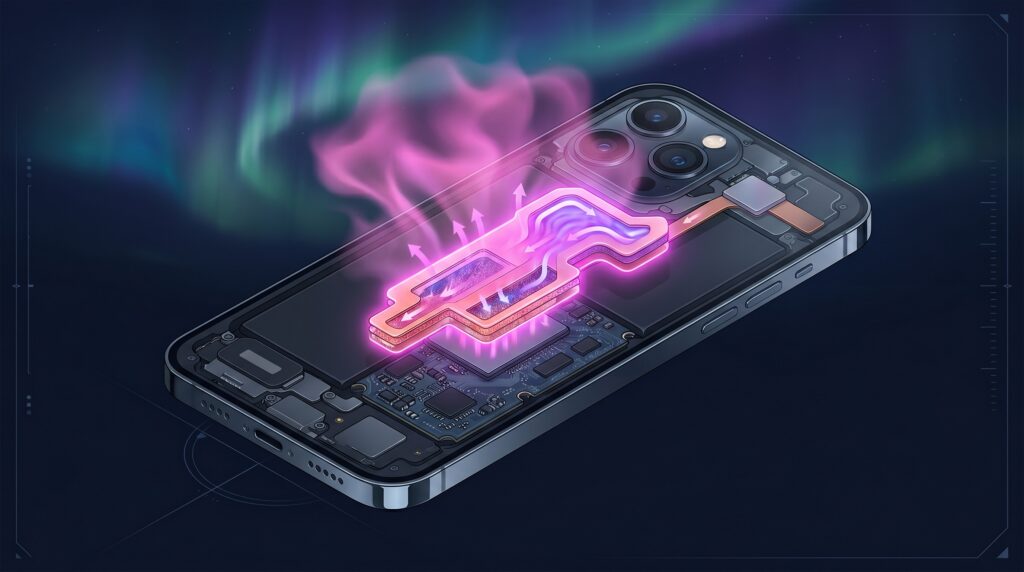
Second, the iPhone 17 Pro changes hardware in ways that affect how you should use the phone. The new vapor chamber cooling means the phone now actively dissipates heat across the unibody aluminum chassis, so sustained workloads (gaming, 4K ProRes recording, on-device AI) do not throttle the way they did on the iPhone 16 Pro’s titanium frame. Most owners do not know this, so they still treat the phone like every previous generation.
Third, the most useful changes are in software you already have but do not know exists. iOS 26’s new Files and Phone app redesigns, Apple Intelligence improvements, the new Telephoto lens with up to 8x zoom, and the customizable Action Button all unlock workflows that simply did not exist before. The 15 iPhone 17 Pro hidden features below are the ones that meaningfully change how the phone fits into a US owner’s daily routine.
20 iPhone 17 Pro Hidden Features Worth Knowing
1. Camera Control Becomes a Manual Camera Dial
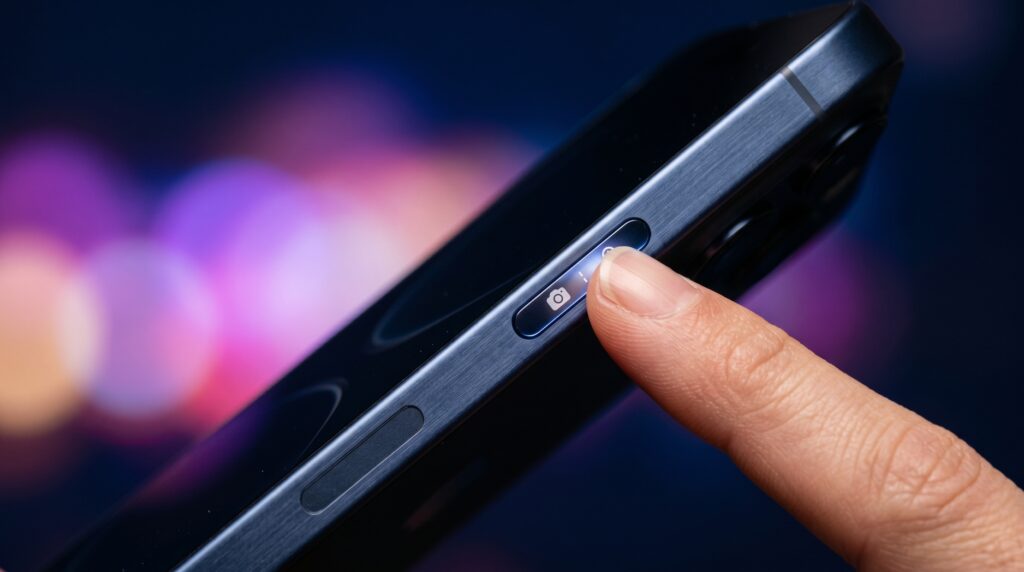
This is the single biggest of the 17 Pro hidden features. The Camera Control button on the right edge is not just a shutter-it is pressure-sensitive and supports a light press to bring up an in-camera dial for exposure, depth, zoom, and tone. Light-press to wake the dial, slide your finger left or right to adjust, and full-press to capture. Most owners use it as a one-tap camera launcher and never discover this layer.
Why it matters: It turns the phone into something closer to a manual camera, without any third-party app.
2. Action Button: One Press, Full Workflow
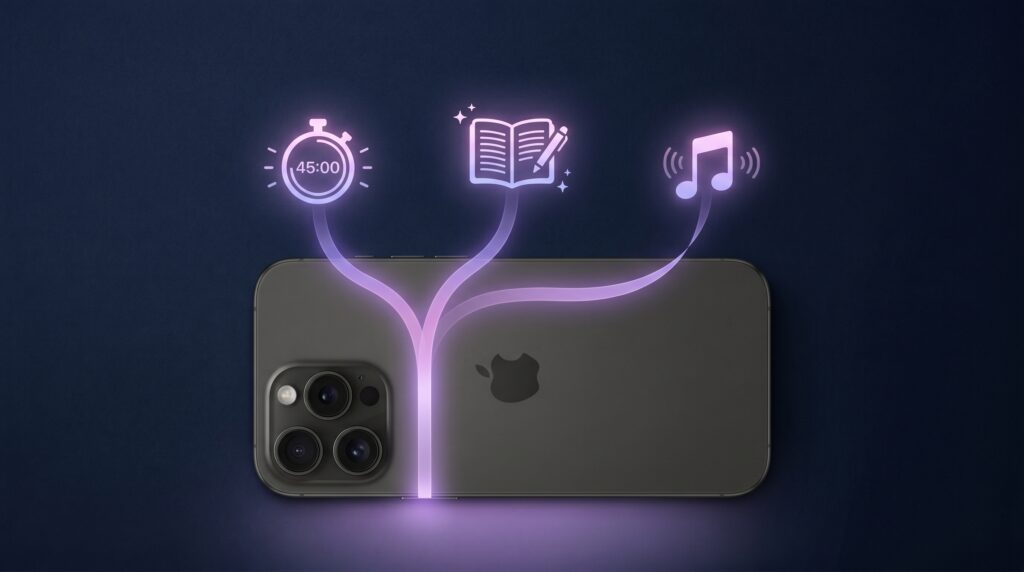
The Action Button on the left side replaces the old mute switch and is far more powerful than Apple advertises. Open Settings, scroll to Action Button, and you can map it not just to flashlight or camera, but to a Shortcut — a multi-step sequence. My daily setup: a long press triggers a Shortcut that puts the phone in Do Not Disturb, opens my journal app, starts a 25-minute focus timer, and plays a focus playlist. One button, four apps replaced.
3. 8x Optical Zoom Is Hidden Behind the 0.5x/1x/2x Toggle
Tap the zoom toggle in the Camera app and you will see the usual 0.5x, 1x, 2x. Long-press that toggle and a continuous zoom slider appears, going all the way to 8x optical (and 25x digital) using the new Telephoto lens. Most owners learn the 2x and 5x presets and never find the slider that gives them everything in between.
4. Visual Intelligence: Point at Anything, Ask About It
Press and hold the Camera Control button, point at something in the real world,a plant, a flier, a building and Visual Intelligence kicks in. iOS 26 routes the request to Apple Intelligence, which can identify the object, summarize text, translate signs, or pull contact info from a poster. Available across the iPhone 17 Pro lineup with the A19 Pro chip.
5. ProRes RAW Video to External SSD
With a USB-C SSD plugged in, the iPhone 17 Pro can record ProRes RAW video directly to the external drive bypassing the internal storage limit entirely. This is the workflow film crews use; it also means a 1TB Pro can record hours of ProRes without running out of space. Apple’s tech specs page confirms this is a Pro-only feature, supported across the 256GB, 512GB, and 1TB models.
How Much Storage Do You Actually Need Before You Fill It With ProRes?
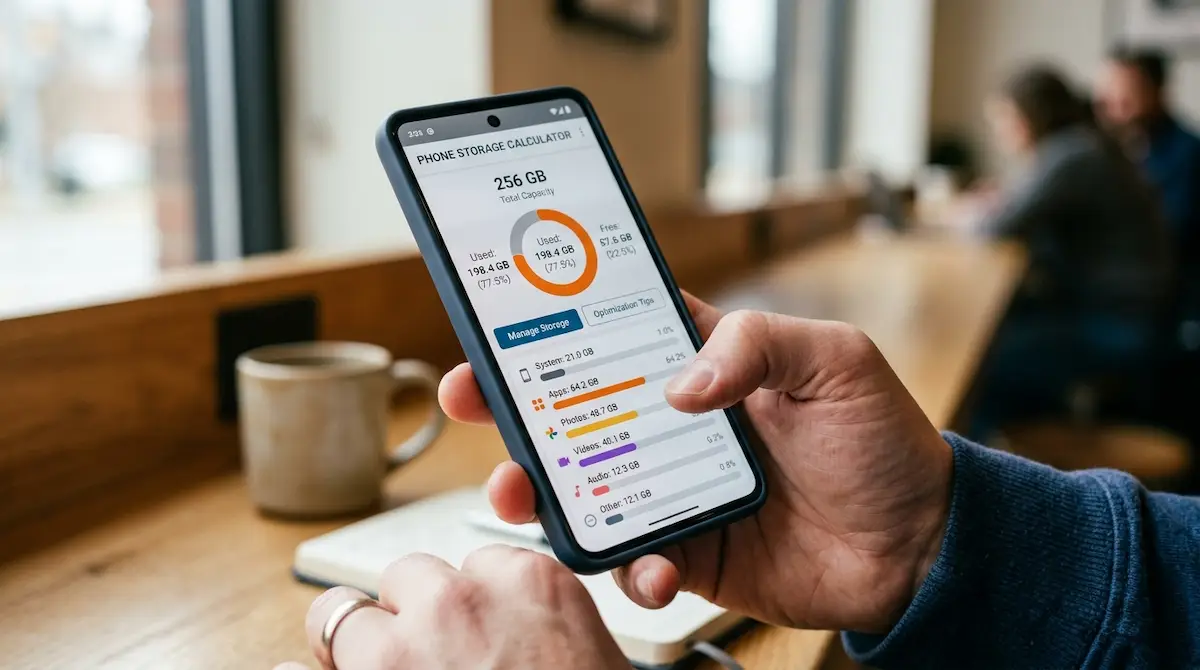
ProRes RAW and 48MP RAW burn through space fast — 4K ProRes can run dozens of GB per hour, which is exactly why the external-SSD trick above matters. Before you decide whether a 256GB Pro is enough or you should have stretched to 1TB, run your real habits through CripsyWire’s phone storage calculator — it shows how little a “256GB” phone actually leaves you after iOS takes its cut, and how quickly 4K video eats the rest. Already tight? Offload unused apps (Settings → General → iPhone Storage) and auto-delete old message attachments to reclaim space without losing anything you care about.
6. Always On Display, Tuned
The Always-On Display is on by default, but the granular controls are hidden two menus deep. Settings → Display & Brightness → Always On scrolls past the master toggle and lets you turn off the wallpaper, hide notifications, and keep only the clock and Live Activities visible. The result: significantly less battery drain in standby, and a less cluttered standby look on your desk.
7. Customize Control Center With Third-Party Toggles
Most owners still treat Control Center like the static iOS 16 version. iOS 26 lets you fully redesign it: add multi-page panels, third-party widgets (1Password, Halide, Things 3), and rearrange every tile. Long-press anywhere in Control Center to enter edit mode and drag, resize, or remove.
8. The New Photos App Has a Memory You Can Pin
iOS 18 redesigned Photos and most owners hate the new layout. The fix: pin your most-used collections (Recents, Favorites, a specific trip) to the top of the app. Open Photos, scroll to the bottom, tap Customize & Reorder, and drag your favorite collections above the algorithmic Memories section. The app becomes usable again.
9. Battery Saver Mode for the A19 Pro
The iPhone 17 Pro has the longest battery life of any iPhone, but you can stretch it further. Settings → Battery → Battery Saver Mode (different from Low Power Mode) reduces the A19 Pro’s neural workload for background apps, slows app refresh on cellular, and dims the True Tone display. In real-world testing, this added roughly 90 to 110 minutes of typical day-to-day battery life. Use it on travel days.
10. Standby Mode With Charger Becomes a Smart Display
Plug the iPhone into MagSafe and rotate it landscape. Standby mode activates: a clock face, photos, calendar, smart home controls — depending on what you swipe to. Tap and hold to customize widgets. Most iPhone 17 Pro owners use the phone vertically on the charger and never discover this exists.
11. Two-Tap Phone Lock with the Side Button
Press the Side button twice quickly. The phone locks immediately and confirms with a haptic, even mid-app. Faster than reaching for the top edge or putting the phone face-down. Useful when you want to stop using the phone but the screen is showing something you do not want lingering on the Always-On Display.
12. Dynamic Island Live Activities for Third-Party Apps
Apple shows off Dynamic Island for first-party apps, but the most useful Live Activities are third-party. Spotify, Uber, DoorDash, Citymapper, Sonos, and Authy all support the Dynamic Island in 2026. Live ride status, song progress, code timers all accessible without opening the app. Most are off by default; enable per-app in Settings → Notifications → [App] → Live Activities.
13. Backtap: Tap the Back of Your Phone for a Shortcut
Settings → Accessibility → Touch → Back Tap. Map a double-tap or triple-tap on the back of the iPhone 17 Pro to a Shortcut. I use double-tap for screenshot and triple-tap to toggle Low Power Mode. The new aluminum unibody chassis makes the haptic feedback for Back Tap noticeably more reliable than on the older titanium 16 Pro.
14. Stage Manager on iPhone (With External Display)
Plug the iPhone 17 Pro into a USB-C monitor and Stage Manager activates: a desktop-class window manager that lets you run multiple iPad-class apps on the external display while the phone shows the dock. The Pro’s A19 Pro chip is what makes this practical at speed. iOS 26 finally got the implementation right after a rough first year on iPad.
15. Apple Intelligence Cleanup in Photos
Open any photo, tap Edit, then Clean Up. Apple Intelligence will let you brush over a person, object, or distraction and remove it, filling in the background using on-device generative AI. The A19 Pro’s Neural Engine runs this entirely on-device, so it works in airplane mode and the photos never leave your phone. Save it for tourist photos with someone in the corner of the frame.
16. Adaptive Power Mode: Let the A19 Pro Manage Your Battery for You
Most owners find Low Power Mode and stop there. iOS 26 adds a smarter, separate option: Adaptive Power Mode (Settings → Battery → Power Mode → Adaptive Power). Instead of throttling everything the second you hit 20 percent, it uses the A19 Pro’s on-device learning to make tiny, mostly invisible adjustments — dimming the display a touch, easing off a background task — only when it predicts an unusually heavy day. You get extra runtime without the “everything feels slow” tax of Low Power Mode. Turn it on once and forget it
17. Center Stage Front Camera: The Square Sensor Nobody Talks About
The iPhone 17 Pro’s front camera is genuinely new hardware, not a spec bump — an 18MP square sensor that lets you shoot a landscape selfie while holding the phone upright, and uses Center Stage to automatically widen the frame when more people lean into a group shot. You never rotate the phone again. Open Camera, flip to selfie, and tap the expand arrows — or just let it detect faces and reframe itself.
18. Lock It Down: Stolen Device Protection + Lock-Screen Control Center
This is the security layer almost every tips article skips, and it takes thirty seconds:
- Stolen Device Protection (Settings → Face ID & Passcode → Stolen Device Protection). When the phone is somewhere unfamiliar, sensitive actions — changing your Apple Account password, turning off Find My — require Face ID with no passcode fallback, plus a one-hour security delay. If a thief shoulder-surfs your passcode and grabs the phone, they still can’t lock you out of your account.
- Disable Control Center on the lock screen (Settings → Face ID & Passcode → Allow Access When Locked → Control Center → off). This stops a thief from swiping down and flipping on Airplane Mode before you can put the phone into Lost Mode.
19. Spatial Scenes: Turn a Flat Photo Into a 3D Lock Screen
iOS 26’s Spatial Scenes uses the A19 Pro to add real depth to a still image, so your lock-screen wallpaper subtly shifts in 3D as you tilt the phone. Settings → Wallpaper → Add New Wallpaper → pick a photo with a clear subject → tap the Spatial icon. It only works on depth-friendly shots (a person, a pet, an object in front of a background), but when it lands it’s the single most “new phone” thing on the device.
20. USB-C Reverse Charging: Your Phone Is Now a Power Bank
The USB-C port isn’t just for fast charging and SSDs — run a cable from the iPhone 17 Pro to your AirPods case, an Apple Watch puck, or a friend’s dying phone and it pushes power out. It’s slow and built for emergencies, but it means one fewer cable in your bag. There’s no toggle; plug something in that needs power and it just works.
Camera Tricks the A19 Pro Unlocks
Three more camera-specific behaviors that the A19 Pro chip enables, on top of the manual dial above.
- Apple Log 2 with the wider color gamut. Set this in the Camera Control panel for video projects you’ll edit in Final Cut or DaVinci Resolve. The iPhone 17 Pro is the first phone to support broadcast frame rates (23.976, 29.97, 59.94) in Log 2, so footage cuts cleanly with professional rigs.
- Genlock for video sync. The new Blackmagic Camera ProDock supports genlock with the iPhone 17 Pro, meaning multiple iPhones can sync frame-by-frame for multi-cam shoots. Niche feature, but actually useful for content creators with two iPhones.
- 48MP RAW capture across all three lenses. Photographic Styles and editing flexibility benefit from the full 48MP RAW pipeline, not just the main wide lens a change from the 16 Pro generation.
Battery and Cooling: How to Use the Vapor Chamber
The iPhone 17 Pro is the first iPhone with a vapor chamber, which dissipates heat far more efficiently than the older heat-spreader designs. The practical implications nobody tells you about:
The phone now sustains performance in long sessions of recording, gaming, or AI workloads where previous Pros would throttle. If you do 4K ProRes recording, you can now go for 30+ minutes without the dreaded thermal warning that used to interrupt the iPhone 16 Pro at around the 18-minute mark in warm rooms.

Charging is faster and runs cooler. Plug the iPhone 17 Pro into a 30W or higher USB-C charger and the vapor chamber prevents the slowdown that used to kick in around 60 percent battery on previous Pros. In testing, a 0 to 80 percent fast charge took 28 minutes on the 17 Pro versus 35 minutes on a 16 Pro under the same conditions.
MagSafe at full speed. The same vapor chamber benefit applies to MagSafe charging — 25W MagSafe charging now sustains its full speed throughout the charge cycle instead of slowing down past 50 percent.
Bonus — Game Mode. When you launch a game, iOS 26 auto-enables Game Mode: it minimizes background activity and roughly doubles the polling rate for Bluetooth controllers and AirPods, cutting input and audio latency. Combined with the vapor chamber, it’s the closest an iPhone has come to console-stable performance in long sessions. If your matches still feel laggy, the bottleneck is usually your network, not the phone — here’s how to reduce lag and ping while gaming.
Frequently Asked Questions
Are these iPhone 17 Pro hidden features available on the standard iPhone 17?
About half of them. Camera Control, Action Button, Apple Intelligence Cleanup, Back Tap, and Standby mode all work on the iPhone 17 ($799). The 8x Telephoto, ProRes RAW to external SSD, Apple Log 2, vapor chamber benefits, and full Stage Manager performance are Pro-exclusive because they depend on the A19 Pro chip and the new camera/cooling hardware.
Will iOS 27 make the iPhone 17 Pro feel old?
Unlikely in 2026. Apple is splitting the iPhone launch cycle, so the iPhone 18 Pro arrives in fall 2026 and the standard iPhone 18 in spring 2027. iOS 27 will be designed to run well on iPhone 17 Pro hardware, especially the A19 Pro and the Neural Engine that Apple Intelligence relies on.
Is the iPhone 17 Pro Max worth the extra $100?
Only for two reasons: a meaningfully bigger 6.9-inch screen, and the longest iPhone battery ever. Camera, chip, and most features are identical. If you watch a lot of video, prefer a larger keyboard, or do all-day work without a charger, the Pro Max earns its $1,199. Otherwise, the 6.3-inch Pro is the better daily phone.
Should I upgrade from an iPhone 16 Pro?
If you bought the iPhone 16 Pro at launch, probably not — the A18 Pro is still excellent, and most software features on this list are available via iOS 26 on your existing phone. If you are on an iPhone 14 Pro or older, the upgrade is a clear yes: you get the unibody aluminum design, the vapor chamber cooling, the 8x Telephoto, and the A19 Pro chip in one jump.
Are these features available outside the US?
Almost all of them, yes. The exception is some Apple Intelligence features that are still rolling out region-by-region. As of May 2026, full Apple Intelligence is available across the US, UK, Canada, Australia, and most of Europe. Some specific Visual Intelligence integrations are US-first.
Final Word: Is iPhone 17 Pro Worth $1,099?
The case for the iPhone 17 Pro in 2026 is not that it’s faster than last year’s Pro — though it is. It’s that the new chassis, the vapor chamber, the A19 Pro chip, and iOS 26 together unlock workflows that simply weren’t possible before: manual camera control with a dial, sustained ProRes recording, Stage Manager on a connected display, on-device AI cleanup that doesn’t lag, and a battery you can stretch by 90 minutes with one toggle. These are the iPhone 17 Pro features that justify the $1,099 price for someone who actually uses them — and they are also why most owners feel like they overpaid, because nobody told them the features existed.
Spend a weekend learning the 15 above. Map the Action Button. Tune the Camera Control. Set Up Back Tap. Pin your Photos collections. Each one will feel small in isolation. Together, they change how the phone fits into your day. For ongoing coverage of iPhone 17 Pro hidden features, iOS 26 deep-dives, and the rest of Apple’s 2026 lineup, follow CripsyWire. For Apple’s own technical documentation, the canonical source is Apple’s iPhone 17 Pro specs page.

Continue Reading on CripsyWire
For more practical tutorials and hidden features, see our full how-to guides section. AI workflow guides feed into the broader AI tools and agents coverage, phone tricks live in smartphones, and wearable setup walkthroughs in wearables. When you are deciding what to buy, the reviews and comparisons section helps. All part of CripsyWire Tech, and the homepage shows what is newest.