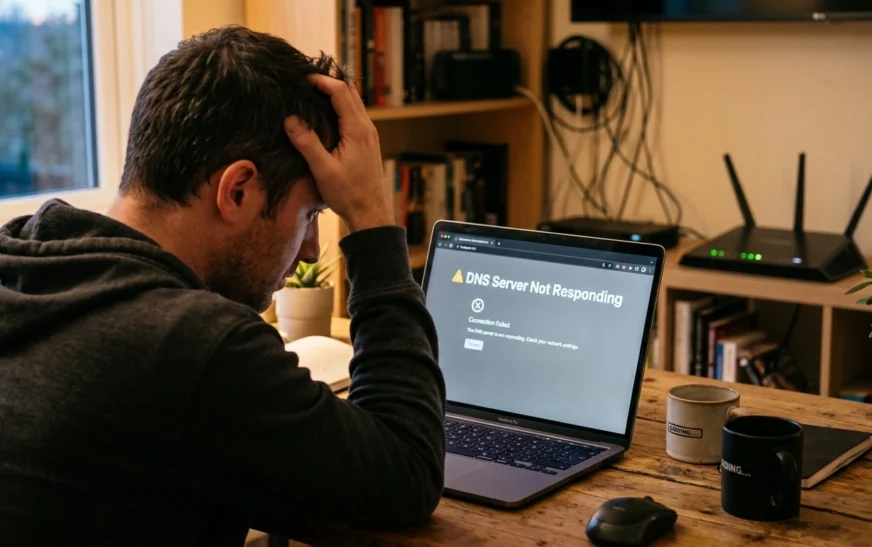
You’re trying to open a website. The page hangs, then Windows hits you with “The DNS server isn’t responding.” Meanwhile your Wi-Fi icon says you’re connected. Spotify might even still be playing. So what gives?
Here’s the quick answer, because you probably don’t want a lecture right now:
To fix a DNS server not responding error, restart your router and device first. If that fails, flush your DNS cache (
ipconfig /flushdnson Windows), then switch to a public DNS server like Cloudflare (1.1.1.1) or Google (8.8.8.8). One of these three steps solves the majority of DNS errors.
If that fixed it, great — close this tab and get on with your day. If it didn’t, or the error keeps coming back every few days, stick around. Most guides on this topic dump 8 random fixes on you and hope one sticks. This one is different: we’ll spend two minutes figuring out where the problem actually lives first, so you’re not resetting Winsock on a laptop when the real culprit is your router.
I’ve fixed this error on family laptops, my own testing machines, and one memorable occasion where the “broken DNS” turned out to be an antivirus firewall silently eating every lookup for three days. Everything below comes from that kind of hands-on troubleshooting, not a rewritten spec sheet.
What Does “DNS Server Not Responding” Actually Mean?
DNS (Domain Name System) is the phone book of the internet. When you write cripsywire.com, your device doesn’t know what that name means – it needs the numerical IP address behind it.
So it asks a DNS server, “Hey, what’s the number for this site?”
A “DNS server not responding” error means your device asked that question and got silence back. Your internet connection itself may be perfectly fine. The pipe is open; the phone book is just closed.
That’s why this error is so confusing. You are connected. Data can flow. But your browser has no idea where any website lives, so nothing loads.
The lookup can fail for a handful of reasons:
- Your router is holding onto stale or corrupted data
- Your device’s local DNS cache has gone bad
- The DNS server you’re using (usually your ISP’s) is slow, overloaded, or down
- A firewall, antivirus, or VPN is blocking DNS traffic on port 53
- Your network settings point to a DNS server that doesn’t exist — often after a typo during manual setup
- Your network drivers are outdated or misbehaving
Twelve fixes below cover every one of those causes. But first, the triage step everyone skips.
Before You Fix Anything: The 2-Minute Triage
This is where most tutorials fail you. They hand you fixes without helping you figure out whether the problem is your device, your router, or your ISP. Get this right and you’ll skip half the list.
Test 1: Is it actually DNS?
Open your browser and type 1.1.1.1 directly into the address bar. That’s a raw IP address — no DNS lookup needed.
- A page loads? Your internet works; DNS is the problem. The fixes below will help.
- Nothing loads at all? Your connection itself is down. That’s a different problem — check cables, Wi-Fi, and whether your ISP has an outage.
Test 2: Is it one device or every device?
Grab your phone (on the same Wi-Fi, not mobile data) and try loading a website.
- Phone works, computer doesn’t? The problem lives on your computer. Jump to fixes 3–11.
- Nothing on the network works? The problem is your router or ISP. Start with fixes 1, 5 (router-level), and 12.
Two minutes, and you’ve just cut your troubleshooting time in half. Now the fixes, ordered from fastest to most involved.
Fix 1: Restart Your Router the Right Way
Yes, it’s the oldest advice on the internet. It’s also the fix that clears more DNS errors than anything else, because a router restart dumps its temporary memory, flushes its own DNS cache, and forces a fresh handshake with your ISP.
But there’s a right way to do it:
- Unplug the router from power. Don’t just tap the power button — some routers treat that as sleep, not restart.
- Wait a full 30 seconds. Capacitors inside need time to fully discharge and clear memory.
- Plug it back in and give it 60–90 seconds to fully boot.
- Restart your computer too, then test a website.
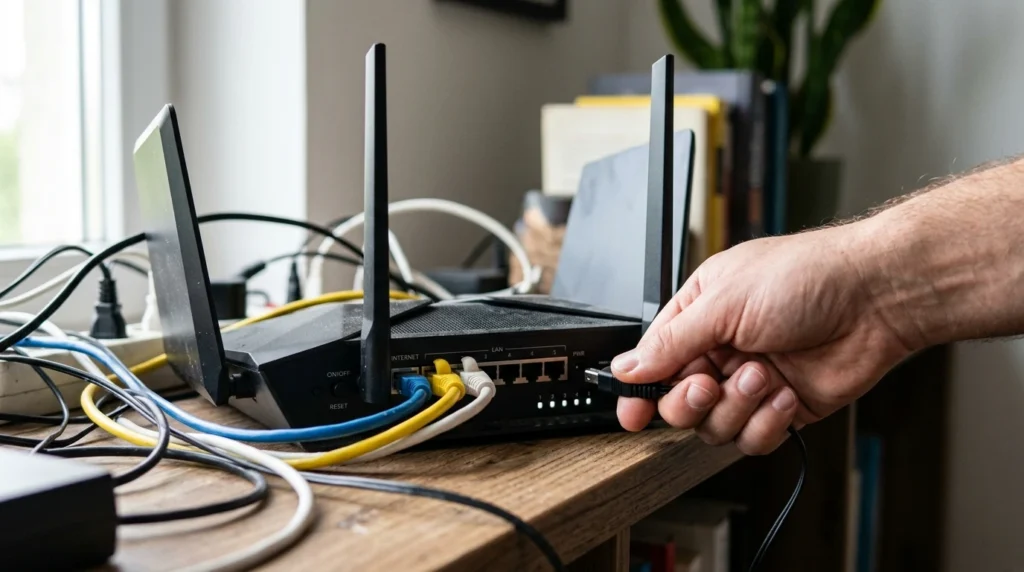
If you have a separate modem and router, unplug both, then power the modem on first, wait for its lights to stabilize, and then power the router.
Fixed? You’re done. Still broken? Keep going.
Fix 2: Try a Different Browser (and Rule Out the Easy Stuff)
Occasionally the “DNS error” isn’t a DNS error at all — it’s one browser having a moment. Chrome in particular runs its own internal DNS cache and its own Secure DNS setting, either of which can break independently of your system.
Try the same site in Edge, Firefox, or Safari. If it loads there:
- Clear the broken browser’s cache and cookies
- In Chrome, visit
chrome://net-internals/#dnsand click Clear host cache - Check Chrome’s settings for Use secure DNS — if it points to a custom provider, switch it back to your default
While you’re at it, disable your browser extensions temporarily. Proxy extensions, ad blockers with DNS-level filtering, and sketchy “free VPN” add-ons all intercept DNS lookups, and a broken one can take your browsing down with it. If your toolbar has grown crowded over the years, our roundup of best productivity Chrome extensions covers which ones are actually safe and worth keeping.
Fix 3: Flush Your DNS Cache
Your operating system keeps a local record of recent lookups so it doesn’t have to ask the DNS server for the same site twice. Handy — until an entry in that cache goes stale or corrupt. Then your device keeps “answering” from a broken phone book without ever asking the real server.
Flushing the DNS cache wipes that record clean. It’s harmless, takes ten seconds, and fixes an enormous number of intermittent DNS problems.
How to flush DNS cache on Windows 10 and 11
- Press Windows key, type
cmd, right-click Command Prompt, and choose Run as administrator - Type the following and press Enter:
ipconfig /flushdnsYou’ll see “Successfully flushed the DNS Resolver Cache.” That’s it.
How to flush DNS cache on Mac
Open Terminal (Spotlight → type “Terminal”) and run:
sudo dscacheutil -flushcache; sudo killall -HUP mDNSResponderEnter your password when prompted. No confirmation message appears — silence means it worked.
Fix 4: Release and Renew Your IP, Then Reset Winsock (Windows)
If flushing the cache didn’t do it, go one layer deeper. This sequence forces Windows to drop its current network lease, request a fresh one, and rebuild the network socket configuration that sometimes gets mangled by VPN installs, antivirus software, or interrupted updates.
In that same admin Command Prompt, run these one at a time:
ipconfig /release
ipconfig /renew
netsh int ip reset
netsh winsock reset
Then restart your computer. Don’t skip the restart — the Winsock reset doesn’t take effect until you do.
This combo is my go-to when a machine has had a VPN client installed and removed, or when the error started right after “cleaning” software ran. Those tools love to leave network settings in a weird half-state.
Fix 5: Change Your DNS Server (The Fix That Sticks)
Everything so far treats the symptom. This one often cures the disease.
By default, your devices use your internet provider’s DNS servers. Fix of slow DNS is also avalbile on Cripsywire. Plenty are slow, overloaded during peak hours, or flaky in ways that produce exactly the error you’re staring at. Switching to a public DNS server sidesteps them entirely — and it’s free.
The big three:
| Provider | Primary DNS | Secondary DNS | Known For |
|---|---|---|---|
| Cloudflare | 1.1.1.1 | 1.0.0.1 | Speed, privacy |
| 8.8.8.8 | 8.8.4.4 | Reliability | |
| Quad9 | 9.9.9.9 | 149.112.112.112 | Blocks malicious domains |
Any of them beats a struggling ISP resolver. Cloudflare is consistently the fastest in independent testing, and a quicker resolver shaves real milliseconds off every page load — it’s the same trick we recommend when you want to reduce your ping for gaming.
Change DNS on Windows 11
- Settings → Network & Internet → Wi-Fi (or Ethernet)
- Click your connection → Hardware properties
- Next to DNS server assignment, click Edit
- Switch to Manual, toggle IPv4 on
- Preferred DNS:
1.1.1.1— Alternate DNS:1.0.0.1 - Save
Change DNS on Mac
- System Settings → Network → select your connection → Details
- Click the DNS tab
- Hit + and add
1.1.1.1, then1.0.0.1 - Click OK, then Apply
Change DNS on your router (protects every device at once)
If multiple devices in your home hit DNS errors, change it at the router instead:
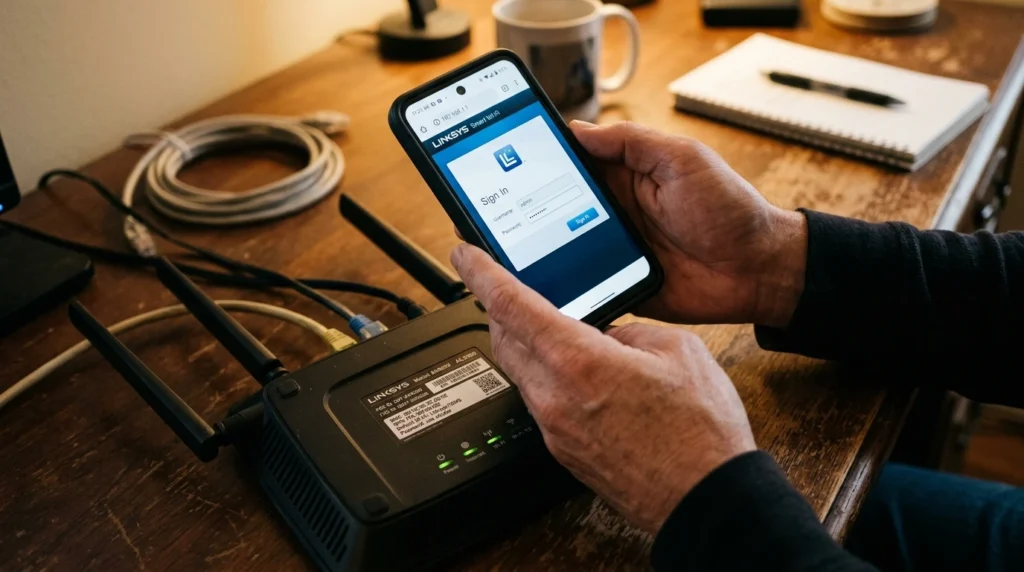
- Type your router’s IP into a browser — usually
192.168.1.1or192.168.0.1 - Log in (credentials are often on the router’s sticker if you never changed them)
- Find DNS settings — usually under WAN, Internet, or DHCP settings
- Replace the ISP defaults with
1.1.1.1and1.0.0.1 - Save and let the router reboot
One honest caveat: if your DNS settings were manually changed at some point and that’s the problem (a typo like 1.1.1.11 will silently kill all lookups), setting everything back to Obtain DNS server automatically is the fix instead. Check what’s currently in the field before assuming.
Fix 6: Disconnect Your VPN and Proxy
VPNs reroute your DNS queries through their own servers by design. When the VPN’s DNS endpoint hiccups — or the app crashes but leaves its network filter behind — you get DNS errors that make no sense, because your actual connection is untouched.
- Disconnect the VPN fully, then quit the app (not just minimize it)
- Test a website
- On Windows, also check Settings → Network & Internet → Proxy and make sure Use a proxy server is off unless you set one up deliberately
If the error vanishes with the VPN off, update the VPN app before anything else — DNS leaks and stuck filters are usually patched quickly. Still broken after an update? Switch VPN protocols in the app’s settings (WireGuard vs. OpenVPN) or contact their support.
Fix 7: Temporarily Disable Your Firewall and Antivirus
Security software sits between your device and the network, inspecting traffic. When it misfires, DNS queries on port 53 are a favorite thing to silently block. Avast and AVG in particular have a long history of doing this after certain updates.
To test:
- Open your antivirus and disable its firewall or web shield for 10 minutes
- On Windows, search Windows Security → Firewall & network protection and briefly toggle off the firewall for your active network
- Try loading a site
If it works, you’ve found the culprit. Don’t leave the firewall off — that’s trading a DNS error for a much worse problem. Instead:
- Update the security software
- Add a DNS exception or re-allow the “DNS Client” through the firewall
- If the software keeps interfering after updates, that’s a legitimate reason to switch products
Fix 8: Update or Reinstall Your Network Drivers
An outdated or corrupted network adapter driver can fail at DNS resolution while leaving basic connectivity intact — which is exactly the confusing symptom pattern we’re dealing with.
On Windows:
- Right-click Start → Device Manager
- Expand Network adapters
- Right-click your adapter (Ethernet or Wi-Fi) → Update driver → Search automatically
- No luck? Right-click → Uninstall device, then restart. Windows reinstalls a clean copy on boot.
Two extra tips from experience:
- Windows Update’s driver is sometimes older than the one on the manufacturer’s site. For Intel, Realtek, or Killer adapters, grabbing the driver directly from their site fixes issues Windows Update won’t.
- While you’re in the adapter’s properties, open the Power Management tab and uncheck “Allow the computer to turn off this device to save power.” That setting causes bizarre intermittent DNS drops on laptops, especially after waking from sleep.
If you run a dual boot setup, check whether the DNS error happens in both operating systems. Working fine in Linux but broken in Windows? That confirms a driver or software problem, not hardware — genuinely useful information.
Fix 9: Disable IPv6 (With an Honest Caveat)
Half the internet’s DNS guides tell you to disable IPv6, and it does sometimes work — usually on older routers or networks where IPv6 is half-configured. Your device tries the IPv6 route for DNS, gets nothing, and stalls before falling back.
On Windows:
- Press Windows + R, type
ncpa.cpl, press Enter - Right-click your active connection → Properties
- Uncheck Internet Protocol Version 6 (TCP/IPv6)
- Click OK and restart
The caveat: IPv6 is the modern standard, and disabling it is a workaround, not a cure. If this fixes your problem, the real issue is your router’s IPv6 handling — check for a firmware update (Fix 12) and consider re-enabling IPv6 afterward. Treat this as a diagnostic tool as much as a fix.
Fix 10: Restart the DNS Client Service and Try Safe Mode
Two Windows-specific moves that most guides skip entirely.
Restart the DNS Client service. This is the Windows component that actually performs and caches lookups. If it’s hung, nothing else you do matters. Press Windows + R, type services.msc, find DNS Client in the list, right-click → Restart. (On some Windows versions the option is greyed out — in that case a full reboot restarts it anyway.)
Boot into Safe Mode with Networking. Hold Shift while clicking Restart, then navigate to Troubleshoot → Advanced options → Startup Settings → Restart, and press 5 when the menu appears. Safe Mode loads Windows with only essential drivers and services — no third-party antivirus, no VPN filters, no startup apps.
If DNS works perfectly in Safe Mode, you’ve just proven the problem is a third-party program on your machine, not Windows or your network. Uninstall recent software one piece at a time, starting with anything security- or network-related.
Fix 11: Disable Extra Network Adapters
Windows machines quietly accumulate network adapters: virtual adapters from VMware or VirtualBox, leftover VPN TAP adapters, Bluetooth networking, and a secondary Wi-Fi or Ethernet port you never use. Windows occasionally routes DNS queries through the wrong one — usually a virtual adapter going nowhere.
- Press Windows + R, type
ncpa.cpl, press Enter - Look at every adapter listed
- Right-click each one you’re not actively using → Disable
Leave only your actual connection enabled, then test. This is a surprisingly common cause on machines that have ever had virtualization software or multiple VPNs installed.
Fix 12: Router Firmware, Factory Reset, and Calling Your ISP
If you’ve made it here, the problem is almost certainly upstream of your computer.
Update the router’s firmware. Log into the router admin panel (same as Fix 5) and look for a firmware or update section. Outdated firmware is the single most common cause of DNS errors that keep coming back no matter what you do on your devices.
Factory reset the router. Last resort before the phone call: hold the reset pinhole for 10 seconds. You’ll need to set up your Wi-Fi name and password again, so note your settings first. This wipes any corrupted configuration accumulated over years.
Call your ISP. If every device fails, the router is reset and updated, and public DNS didn’t help — the problem may be on your provider’s end entirely. ISP DNS outages happen more often than providers like to admit. Check DownDetector for your provider before calling; if thousands of others are reporting the same thing, nothing on your end will fix it, and honestly, no article can either. Sometimes the answer really is “wait an hour.”
How to Fix DNS Server Not Responding on Phones
Phones hit DNS errors too — usually showing up as Wi-Fi connected but nothing loading. Before assuming a hardware fault (phones get blamed for a lot; see our phone not charging guide for how often the “broken” part is actually fine), try these:
Android
- Toggle Airplane mode on for 10 seconds, then off
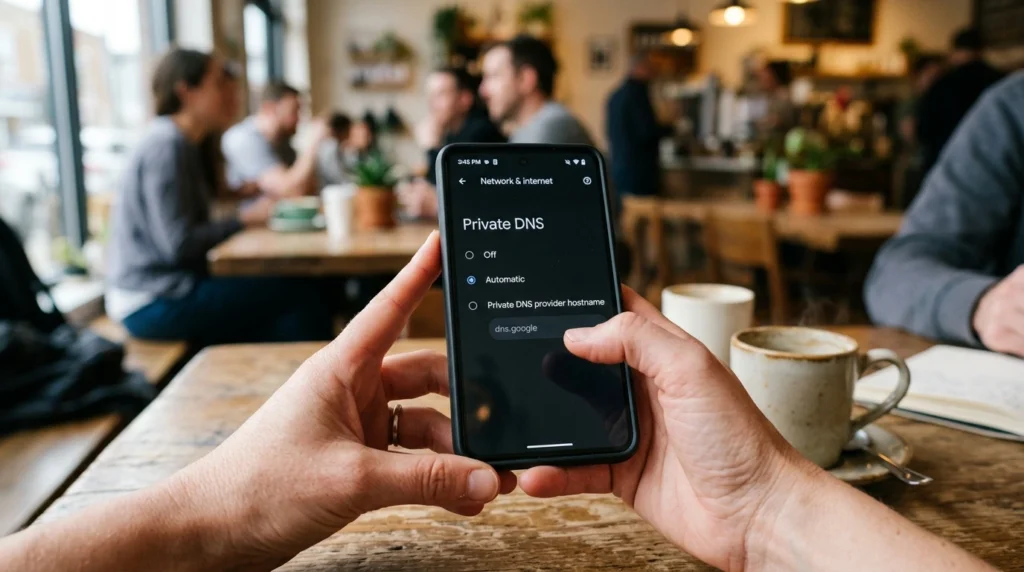
- Settings → Network & Internet → Private DNS
- Choose Private DNS provider hostname and enter
one.one.one.one(Cloudflare) ordns.google - Still broken? Settings → System → Reset options → Reset Wi-Fi, mobile & Bluetooth
Private DNS is the underrated fix here — it applies Cloudflare or Google DNS to every network your phone joins, encrypted, permanently.
iPhone
- Settings → Wi-Fi → tap the ⓘ next to your network
- Scroll to Configure DNS → Manual
- Remove the existing entries and add
1.1.1.1and1.0.0.1 - Alternatively, tap Forget This Network and rejoin from scratch
DNS Server Not Responding vs. DNS_PROBE_FINISHED_NXDOMAIN
These two get lumped together constantly, but they’re different failures — and knowing which one you have changes the fix.
“DNS server not responding” means your device couldn’t reach the DNS server at all. It asked; nobody answered. This is a connectivity problem between you and the server — fix it with the steps above.
“DNS_PROBE_FINISHED_NXDOMAIN” means the server answered but said the domain doesn’t exist. This is a lookup problem. If it happens on one specific site, check your spelling of the URL, then check your hosts file (C:\Windows\System32\drivers\etc\hosts) for a rogue entry. If it happens everywhere, your configured DNS server address is probably invalid — go straight to Fix 5.
Same neighborhood, different houses.
How to Prevent DNS Errors From Coming Back
Fixing the error once is fine. Fixing it every week is a lifestyle nobody wants. A few habits that keep it away:
- Keep public DNS set at the router level. One change protects every device and removes your ISP’s resolver from the equation permanently.
- Update router firmware twice a year. Set a reminder. Most people never do it once.
- Replace routers older than 5–6 years. Aging hardware causes recurring DNS drops that no software fix reaches.
- Be picky about VPNs and “PC cleaner” apps. These two categories cause more DNS damage than everything else combined.
- After any VPN uninstall, run the Fix 4 commands. Thirty seconds of prevention against weeks of intermittent weirdness.
The Bottom Line
Most DNS server not responding errors fall to one of three fixes: a proper router restart, a DNS cache flush, or switching to a public DNS server. When they don’t, the triage test at the top tells you where to dig — device-level fixes (drivers, firewall, Winsock, adapters) for a single machine, or router and ISP fixes when the whole network is down.
The error looks scary because it’s wrapped in jargon. Underneath, it’s just a phone book that stopped answering. Now you know how to get it back on the line.

Continue Reading on CripsyWire
For more practical tutorials and hidden features, see our full how-to guides section. AI workflow guides feed into the broader AI tools and agents coverage, phone tricks live in smartphones, and wearable setup walkthroughs in wearables. When you are deciding what to buy, the reviews and comparisons section helps. All part of CripsyWire Tech, and the homepage shows what is newest.