Most people meet their SSD twice. Once on the day they buy it, and once on the day it dies. Everything in between, they just trust it to keep their photos, games and tax files safe. That trust is usually fine until it isn’t.
Here’s the uncomfortable bit nobody likes to say out loud: an SSD can be sitting at a perfectly healthy 98% one week and refuse to boot the next. Flash storage doesn’t grind and click on its way out like an old spinning hard drive did. It tends to go quiet, then go dark. So the only real defence you have is checking in on it before it gives you a reason to panic.
Good news? Checking your SSD’s health takes about five minutes and costs nothing. You don’t need to open your PC, buy software, or understand flash memory at a molecular level. You just need to know which numbers to look at and which ones to actually worry about. Let’s get into it.
Quick Answer: How to Check SSD Health
Snippet answer: To check SSD health, read its built-in SMART data. On Windows, run PowerShell’s Get-PhysicalDisk | Get-StorageReliabilityCounter, or install free CrystalDiskInfo. On Mac, use Disk Utility’s First Aid or smartmontools. On Linux, run sudo smartctl -a. Look at Percentage Used, wear level and reallocated sectors.
That’s the 30-second version. But the number on the screen only helps if you know what “healthy” actually looks like, so stick around for the part where we translate the jargon into plain English.
Why Bother Checking Your SSD Health at All?
SSDs feel invincible because they have no moving parts. No spinning platter, no read head hovering over a disk. But they wear out in a different way: every block of flash memory can only be written and erased a limited number of times before it stops holding data reliably. Your drive is quietly burning through that budget every single day.
Checking health regularly buys you three things that matter:
- Time to back up. The single most valuable thing a health check gives you is a warning shot before failure, so your files aren’t held hostage.
- A heads-up on heat. Modern NVMe drives can run hot enough to throttle themselves. A health tool shows you that before it tanks your performance.
- Proof of a real problem. If your machine keeps freezing, SMART data tells you whether the drive is the villain or whether something else is.
On that last point, a quick reality check: a sluggish computer isn’t always a storage problem. If games stutter or pages crawl, the bottleneck might be your connection rather than your drive. If that sounds like your situation, our guide on how to reduce ping is worth a look before you blame the SSD. Diagnose the right thing first.
What SMART Data Actually Tells You (and What It Doesn’t)
Every modern SSD ships with a self-monitoring system called SMART—Self-Monitoring, Analysis and Reporting Technology. Think of it as a tiny black box recorder inside the drive. It logs how much data you’ve written, how hot the drive runs, how many errors it’s had to clean up, and roughly how much life it has left.
Every tool in this guide—free or paid, Windows or Mac—is really just reading that same SMART data and dressing it up in a nicer interface. So the tool you pick matters far less than knowing how to read what it shows you.
Be honest with yourself: SMART is good at predicting gradual wear. It is terrible at predicting sudden death. A controller chip can fry, a firmware bug can brick the drive, or a power surge can take it out with zero warning in the SMART log. A clean health report is reassuring, not a guarantee. Back up anyway.
SATA vs NVMe: They Speak Different Languages
This trips up almost every guide online, so pay attention here. Older SATA SSDs and modern NVMe SSDs report SMART data using completely different attribute sets. A SATA drive talks about things like Reallocated Sectors Count and Wear Leveling Count. An NVMe drive throws out cleaner terms like Percentage Used, Available Spare and Critical Warning.
If you don’t know which type you have, you’ll stare at attributes that don’t exist on your drive and assume something’s broken. Not sure which one is in your machine? You can identify it the same way you’d check your motherboard model—through your system tools—since the slot type (M.2 NVMe vs 2.5″ SATA) is tied to what your board supports.

How to Check SSD Health on Windows
Windows gives you three solid routes, from the no-download command line all the way to detailed manufacturer software. I’ll rank them the way I’d actually use them.
Method 1: PowerShell (The Modern Built-In Way)
Here’s where most articles are stuck in 2019. They tell you to open Command Prompt and type wmic diskdrive get status. That command is being retired—Microsoft has deprecated WMIC in Windows 11, and it’s disappearing. Worse, all it ever returned was a vague “OK,” which tells you almost nothing.
The current, future-proof method uses PowerShell. Open it as administrator and run these two commands:
- Press the Start button, type PowerShell, right-click it and choose Run as administrator.
- Type Get-PhysicalDisk and hit Enter to see your drives and a basic HealthStatus.
- For the real detail, type Get-PhysicalDisk | Get-StorageReliabilityCounter | Format-List and press Enter.
That second command is the good one. It returns the drive’s Wear figure (how much endurance you’ve used), Temperature, and read/write error totals—the stuff that actually predicts trouble. No download, no deprecated tools, no nonsense.
Method 2: CrystalDiskInfo (The Free Crowd Favorite)
If staring at a terminal isn’t your thing, CrystalDiskInfo is the tool nearly every technician reaches for. It’s free, lightweight and gives you a color-coded verdict the second you open it: blue for Good, yellow for Caution, red for Bad.
- Download CrystalDiskInfo from its official site and install it (skip any bundled extras during setup).
- Open it. Your drive’s health status and temperature sit right at the top.
- Scroll the SMART table to see Power On Hours, Total Host Writes, and the wear-related attributes.
One genuinely useful detail: recent versions can flag suspiciously fake drives, which has become a real problem with counterfeit SSDs flooding marketplaces. If your “2TB Samsung” reports weird values, that’s a red flag worth trusting.
Method 3: Your SSD Maker’s Own Tool
Brand-specific software digs deeper than anything generic because the manufacturer knows exactly how their drive reports data. These also handle firmware updates, which fix real bugs and occasionally extend lifespan:
- Samsung Magician — health, wear, firmware, and a genuine-drive check for Samsung SSDs.
- WD / SanDisk Dashboard — health, temperature and firmware for Western Digital and SanDisk drives.
- Crucial Storage Executive — wear data plus Momentum Cache for Crucial SSDs.
- Seagate SeaTool / Kingston SSD Manager — health checks and non-destructive diagnostic tests.
How to Check SSD Health on a Mac
Macs make this both easier and more frustrating. Easier because the basics are built in. More frustrating because Apple hides the detailed flash data better than Windows does.
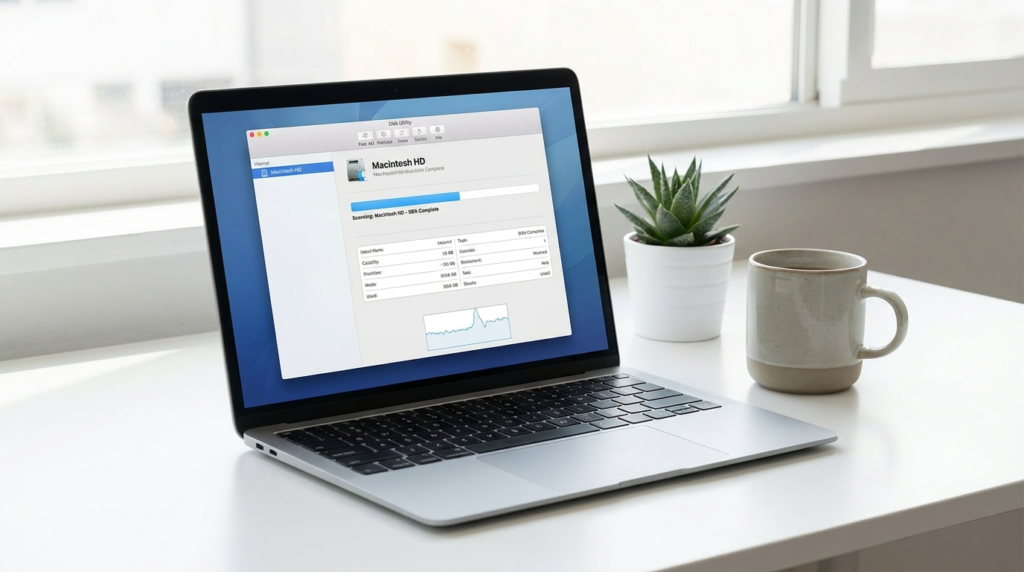
Disk Utility First Aid (The Built-In Check)
- Open Finder, go to Applications, then Utilities, and launch Disk Utility.
- Select your physical drive in the sidebar (the top item, not just a volume under it).
- Click First Aid, then Run, to scan for file-system errors and check the SMART status.
A status of “Verified” means no critical SMART errors. Anything mentioning “Failing” or “Fatal” means back up immediately and stop trusting the drive. You can also click the Apple menu, then About This Mac, then More Info and Storage, for a quick overview.
smartmontools (For the Numbers Apple Hides)
Disk Utility gives you a pass/fail, not the wear percentage. For that, install smartmontools via Homebrew, then read the full report:
- brew install smartmontools — installs the toolkit.
- smartctl -a disk0 — dumps the full SMART report, including Percentage Used and Available Spare on NVMe drives.
The Apple Silicon Reality Check
Worth knowing: On M1, M2, M3 and later Macs, the SSD is soldered to the logic board. You can monitor its health, but you can’t replace it yourself if it wears out. That makes regular checks and solid backups more important on Apple Silicon, not less—because the fix for a dead drive is a logic-board repair, not a quick swap.
How to Check SSD Health on Linux
Linux is the most transparent of the three. The smartmontools package does everything, and it’s a one-line install on most distros.
- Install it: sudo apt install smartmontools on Debian/Ubuntu, or sudo dnf install smartmontools on Fedora/RHEL.
- For a SATA SSD, run sudo smartctl -a /dev/sda.
- For an NVMe SSD, run sudo smartctl -a /dev/nvme0 (or add -d nvme if needed).
Look near the top for “SMART overall-health self-assessment test result: PASSED.” Then scroll to Percentage Used and Available Spare for the wear story. You can also run a non-destructive self-test with sudo smartctl -t short /dev/sda and read the result a couple of minutes later.
SSD Health Tools Compared at a Glance
Not sure which route to take? Here’s the honest side-by-side.
| Tool | Cost | Platform | Best For | Skill Level |
| PowerShell | Free | Windows | Quick check, no downloads | Beginner+ |
| CrystalDiskInfo | Free | Windows | Everyday users wanting a clear verdict | Beginner |
| Maker tools (Magician, etc.) | Free | Win/Mac | Firmware + deepest data | Beginner |
| Disk Utility | Free | macOS | Quick pass/fail on Mac | Beginner |
| smartmontools | Free | Mac/Linux | Raw, detailed wear data | Intermediate |
| Hard Disk Sentinel | Paid (free tier) | Win/Linux | Background monitoring + alerts | All levels |
How to Read the Numbers Without Losing Your Mind
This is the section the competition skips, and it’s the one that actually matters. A tool can scream “Good” while a single attribute quietly tells the real story. Here’s what to look at, ranked by how much you should care.
Percentage Used / Life Remaining
On NVMe drives, Percentage Used is your headline number. It starts at 0% on a fresh drive and counts up as you burn through the rated endurance. At 100%, the drive has used its full warrantied write budget—though it often keeps working past that. On SATA drives the same idea appears as a Wear Leveling Count or “Life Remaining,” usually counting down from 100%. Under 80% used? Relax. Past 90%? Start planning a replacement.
Available Spare
Flash drives keep a hidden pool of spare blocks to swap in when others wear out. Available Spare shows how much of that reserve is left, as a percentage. There’s also an Available Spare Threshold (often 10%). If your spare drops to that threshold, the drive is running out of healthy blocks to fall back on. That’s a genuine “back up now” moment.
Reallocated & Pending Sectors
On SATA drives, Reallocated Sectors Count tracks how many bad areas the drive has quietly remapped. A few is normal. A number that climbs week over week is not. Current Pending Sector Count is even more telling—those are sectors flagged as suspect but not yet remapped. Either one rising over time is the drive whispering that it’s tired.
Power-On Hours & Unsafe Shutdowns
Power On Hours just tells you how long the drive has been running—context, not a warning. Unsafe Shutdowns counts the times your machine lost power without closing the drive down properly. A high count won’t kill the drive instantly, but each one risks data corruption, so it’s a nudge to invest in a surge protector or stop yanking out external drives mid-write.
TBW vs Your Actual Writes (The Math That Calms You Down)
Manufacturers rate drives in TBW—Terabytes Written. Most consumer SSDs are rated somewhere between 150 and 600 TBW. Now compare that to reality: a typical desktop user writes maybe 30 to 50 GB a day. Do the arithmetic on a 300 TBW drive and you’re looking at well over a decade before you hit the limit.
Quick example: A 500GB SSD rated at 300 TBW, with 40 GB written per day, would take roughly 20 years to exhaust its write rating. Your laptop will be a museum piece long before the flash gives out. That’s why obsessing over wear is usually wasted worry for everyday users.
Temperature
SSDs are happiest under about 60°C. SATA drives rarely get hot. NVMe drives, especially fast Gen4 and Gen5 ones, can spike toward 70–80°C under heavy load and then deliberately slow themselves down to cool off. If your drive idles in the 70s, that’s a cooling problem—add a heatsink or improve airflow—not necessarily a dying drive.
Your 5-Minute SSD Health Check (Step by Step)
If you do nothing else from this guide, do this once a month.
- Open your tool of choice. CrystalDiskInfo on Windows, Disk Utility on Mac, smartctl on Linux.
- Read the overall status first. Good / Verified / PASSED means carry on. Caution or Failing means slow down and pay attention.
- Check Percentage Used or wear level. Under 80%? Healthy. Climbing past 90%? Plan ahead.
- Glance at temperature. Under 60°C idle is ideal. Persistent 70s+ means fix your cooling.
- Scan for rising error or reallocation counts. Any non-zero value that keeps growing is your cue to back up.
- Confirm your backup is current. Health checks are pointless if a failure still costs you your files.
Signs Your SSD Is Dying (Don’t Talk Yourself Out of These)
Sometimes the SMART data looks fine and the drive still misbehaves. Trust the symptoms. If you’re seeing these, check health immediately and back up first:
- Files randomly corrupting or refusing to open when they were fine yesterday.
- The drive flips to read-only. This is the drive’s last-ditch failsafe—it’s protecting what’s left. Back up now, not later.
- Boot times collapsing, freezes when saving files, or apps hanging on launch.
- The drive vanishing and reappearing in your system, or showing up with the wrong capacity.
- Blue screens or kernel panics that name a storage or boot device.
The one rule that saves data: The moment you suspect your SSD is failing, stop installing things and copy your important files off it first—before you run another diagnostic. Every minute a dying drive stays powered on is a minute it can get worse.
What to Actually Do at Each Health Level
Numbers are useless without a decision attached. Here’s the plain version.
- 90–100% life remaining (Good): Nothing. Keep a normal backup routine and check again next month.
- 70–89% (Still fine): No drama. Note the trend so you know how fast it’s moving.
- Below 70% or any Caution flag: Tighten up backups, watch the error counts, and start budgeting for a replacement.
- Bad / Failing / Available Spare near threshold: Back up immediately, then clone to a new drive. Don’t keep using it as your main disk.
Common Mistakes People Make When Checking SSD Health
- Defragmenting an SSD. Never do this. Defrag was for spinning drives. On an SSD it does nothing useful and burns write cycles for no reason.
- Trusting a single “OK” status. That old wmic command’s vague “OK” hides everything that matters. Look at the actual attributes.
- Panicking over one non-zero value. A drive can carry a couple of reallocated sectors for years and be totally fine. It’s the trend that matters, not a single number.
- Reading SATA attributes on an NVMe drive (or vice versa). Wrong language, wrong conclusions. Know which drive type you have first.
- Filling the drive to the brim. A near-full SSD slows down and wears faster because the controller has less room to work. Leave breathing space.
- Checking health but never backing up. The whole point of an early warning is acting on it. A warning you ignore is just a sad fact.
Expert Tips to Make Your SSD Last Longer
- Keep 10–20% free. That headroom lets the controller manage wear and keeps speeds up. It’s the cheapest performance upgrade there is.
- Leave TRIM on. It’s enabled by default on modern systems. On Windows you can confirm with fsutil behavior query DisableDeleteNotify—a result of 0 means it’s working.
- Update firmware. Maker tools push fixes that resolve real bugs and sometimes improve endurance. Worth doing once or twice a year.
- Mind the heat. A cheap M.2 heatsink keeps a fast NVMe drive out of throttling territory and slows long-term wear.
- Move giant temp files elsewhere. Video scratch files and constant huge transfers chew through write budget. Park them on a secondary or external drive.
- Use a surge protector or UPS. Sudden power loss is one of the few things that corrupts SSD data outright. Protect against it.
How Long Do SSDs Actually Last?
For a normal person doing normal things—browsing, gaming, office work—a modern SSD comfortably lasts 5 to 10 years, and many keep going well beyond that. Large-scale failure data from operators like Backblaze has shown SSDs holding up at least as well as the hard drives they replaced, especially as boot drives.
But averages hide the truth that matters: SSDs can still die young and without warning thanks to controller or firmware faults. A 10-year average lifespan is cold comfort if yours is the unlucky one that fails in year two. Storage type also shapes this—a Chromebook with cheaper eMMC storage behaves differently from a laptop with a proper NVMe SSD, which is one of many trade-offs we get into in our Chromebook vs laptop breakdown. Either way, the rule never changes: monitor it, and back up regardless.
Pros and Cons of Relying on SMART Health Checks
| The Upside | The Catch |
| Free, fast and built into every modern drive | Can’t predict sudden controller or firmware death |
| Great at catching gradual wear early | Attribute names differ between brands and drive types |
| Lets you back up before it’s too late | A vague “OK” status can lull you into false comfort |
| Tracks temperature so you can fix cooling | Useless if you check but never act on the warning |
Frequently Asked Questions
How do I check SSD health on Windows 11 without any software?
Open PowerShell as administrator and run Get-PhysicalDisk to see the health status, then Get-PhysicalDisk | Get-StorageReliabilityCounter | Format-List for wear and temperature. It’s built in, current, and needs no downloads—unlike the old, now-deprecated wmic command.
What is a good SSD health percentage?
Anything above 80% life remaining (or under 20% “Percentage Used”) is healthy. Between 70% and 80% is still fine but worth watching. Once you drop below 70% or see a Caution flag, tighten up backups and start planning a replacement.
Can I check SSD health without downloading anything?
Yes. Windows has PowerShell, Mac has Disk Utility’s First Aid, and Linux has smartctl. All three read your drive’s built-in SMART data. Downloaded tools like CrystalDiskInfo just present that same data more clearly.
How often should I check my SSD’s health?
Once a month is plenty for a healthy drive used normally. If it’s an older drive, handles heavy writes, or you’ve seen warning signs, check weekly. The bigger habit to keep is a current backup, which matters more than any single scan.
Does checking SSD health hurt the drive?
No. Reading SMART data is completely passive and adds no wear. Even non-destructive self-tests are safe. The only thing that wears an SSD is writing and erasing data, which a health check doesn’t do.
Why does my SSD show 100% health but still feel slow?
Health and speed are different things. A near-full drive, missing TRIM, an overheating NVMe that’s throttling, or a background process can all cause slowdowns on a perfectly healthy drive. And sometimes the lag isn’t storage at all—it’s your network or RAM.
Can a failing SSD be repaired?
Usually not in any lasting way. If a drive flips to read-only or fails SMART, treat it as end-of-life: back up, then replace. You can sometimes recover data, but trusting a failing SSD with new data is asking for a second loss.
What’s the difference between SSD health and SSD lifespan?
Lifespan is the rated endurance—how much you can theoretically write (TBW) before wear-out. Health is the live snapshot of how much of that you’ve used plus any errors right now. A drive can have lots of lifespan left and still flag a health problem from a defect.
Is CrystalDiskInfo safe and accurate?
Yes, it’s a trusted, widely used free tool that reads your drive’s own SMART data accurately. Just download it from the official source and decline any bundled extras during installation to avoid unwanted add-ons.
How do I check the health of an external or portable SSD?
Connect it and use the same tools. One caveat: some USB enclosures don’t pass SMART data through cleanly, so a tool may show limited info. If so, try a different cable or enclosure, or check it via the manufacturer’s own software.
Final Verdict
Checking your SSD’s health isn’t some advanced ritual reserved for IT pros. It’s a five-minute habit that turns a catastrophic, out-of-nowhere data loss into a calm, scheduled drive upgrade. The tools are free, the steps are simple, and the numbers stop being scary the moment you know what they mean.
So here’s the unglamorous truth to take away: the health check matters, but the backup matters more. SMART will warn you about slow wear, and it’ll miss the sudden failures entirely. Run the check monthly, watch the wear and error trends rather than panicking over a single number, and keep a backup you’d actually trust with your life’s files. Do that, and your SSD becomes the most boring, reliable part of your machine—which is exactly what you want it to be.

Continue Reading on CripsyWire
For more practical tutorials and hidden features, see our full how-to guides section. AI workflow guides feed into the broader AI tools and agents coverage, phone tricks live in smartphones, and wearable setup walkthroughs in wearables. When you are deciding what to buy, the reviews and comparisons section helps. All part of CripsyWire Tech, and the homepage shows what is newest.