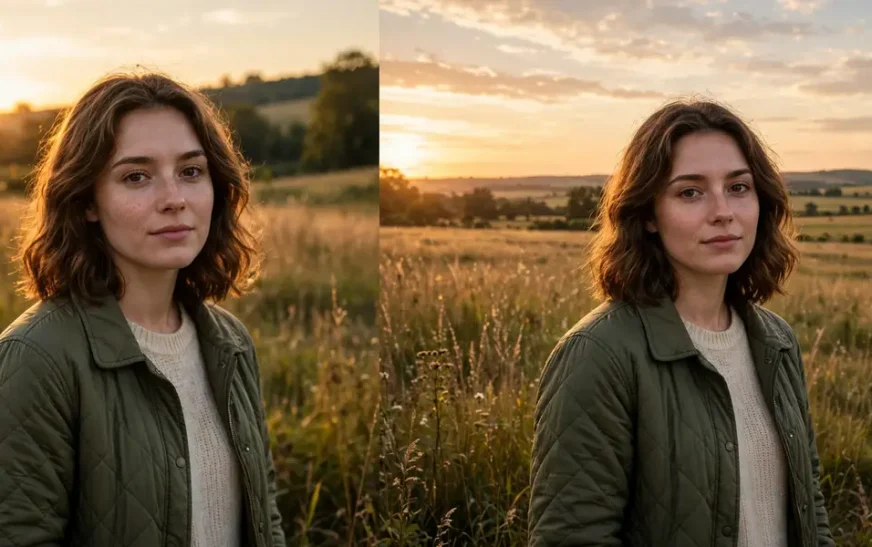
Quick answer: An AI image extender expands a photo beyond its original frame using outpainting: the AI studies the existing picture — its textures, lighting, and composition — and generates new pixels that continue the scene in any direction you choose. It does not stretch the photo, and it does not recover pixels that were cropped out; it invents a plausible continuation. The main free options in 2026 are Canva Magic Expand, PicsArt, Fotor, and ExtendImage.AI, with Photoroom the strongest for product photos. Tell the tool what belongs in the new space with a short prompt, check the result for repeating patterns and broken lines, and export at the aspect ratio the placement needs: 1:1 for a feed post, 4:5 for a portrait post, 9:16 for a story, 16:9 for a banner or video.
Every marketer and creator runs into the same problem: a great photo in the wrong shape. The shot is square and the banner needs to be wide. The portrait is vertical and the feed post needs to be square. The product photo is tight and the ad layout needs room for a headline. The old answers were to crop the photo and lose the subject, stretch it and distort everything, or reshoot it and lose the day.
An AI image extender offers a fourth answer. It keeps the original photo exactly as it is and builds new picture around it, so the frame grows and the subject stays intact. The technology is called outpainting, and it has moved from a research demo to a feature inside tools most people already have. This guide explains how it works, when it beats cropping, which free tools are worth trying, how to prompt the new space so the result looks real, and where it still fails.
If you are new to AI images generally, the guide to text to image AI explains how the underlying technology turns words into pictures.
The AI image prompt builder turns a short description into a finished prompt you can use anywhere, including the new space an extender creates.
What an AI image extender is
An AI image extender takes a picture you already have and extends the canvas around it, filling the new space with new content. The procedure is also called AI outpainting or image uncropping. It works on a photo you already have, which is what separates it from the AI image generators that build a picture from a text prompt.
The AI does not actually recover the exact pixels that were cropped out. Those pixels are gone. It generates a plausible continuation based on the available visual context: the colours, textures, lighting, and surrounding elements at the edge of the frame. A sky continues as sky. A wooden table continues as wood. A beach continues as sand and sea. The better the edge information, the more convincing the result.
That distinction matters for expectations. An extender is at its best on backgrounds: skies, walls, fields, water, blurred crowds, out-of-focus foliage. It is at its worst on anything with structure that must continue exactly: a face cut in half at the edge, a line of text, a building with straight lines, a patterned floor. The AI can invent a plausible sky. It cannot reliably invent the other half of a specific person’s face.
Most extenders live inside a bigger editing suite, so check what else you get before paying for a single-purpose tool. Canva’s Magic Expand sits inside Canva. Photoroom’s AI Expand sits inside its product-photo tools. Adobe’s Generative Expand sits inside Photoshop and Adobe Express. A standalone extender is worth it only when you extend images often and want nothing else.
Extending versus upscaling: different problems
People confuse extending with upscaling, and the tools sometimes blur the line, but they solve different problems. Extending changes the shape of the frame. Upscaling changes the resolution inside it.
Extending adds new pixels around the edges so a square photo becomes a wide banner. The original pixels stay where they were, untouched, and the new area is invented. Upscaling keeps the same frame and invents detail inside it so a small image becomes a larger one. The original pixels are reinterpreted, not preserved.
You need extending when the shape is wrong: the photo is square and the placement is wide. You need upscaling when the size is wrong: the photo is 800 pixels wide and the print needs 3,000. You need both when a small square photo must become a large wide banner, and in that case extend first, then upscale, because upscaling an already-extended image gives the upscaler more real pixels to work with.
How to extend an image, step by step
The workflow is the same across nearly every tool, and it takes about two minutes once you know it.
- Upload the photo. JPG, PNG, WebP, and usually HEIC are accepted. Start with the highest-resolution original you have, because the extender can only invent new pixels as good as the edge it reads from. A 400-pixel thumbnail gives the AI almost nothing to work with.
- Pick the direction and the ratio. Choose which edges to extend — top, bottom, left, right, or all four — and pick the destination shape: square 1:1, portrait 4:5, story 9:16, or wide 16:9. Lock the ratio before you generate, because regenerating at a different ratio later means starting over.
- Prompt the new space. Most tools let you describe what should appear in the extension. “More blue sky with soft clouds” beats leaving it blank. “Wooden table continuing to the left” beats a guess. Keep the prompt short and concrete: one subject, one setting.
- Generate and inspect. Zoom in on the seam where the original ends and the new pixels begin. Look for repeating patterns, a line that bends where it should stay straight, a face or hand appearing in the new area, and text that dissolves into shapes. If the seam is visible, regenerate with a different seed or a tighter prompt.
- Export at the right size. Download the result at the highest resolution the plan allows. Free tiers often cap the export size or add a watermark, so check the export panel before you assume the download matches the preview.
The single most important step is the third. Prompt quality drives the result more than the tool does. Telling the software what belongs in the new space beats letting it guess, and a one-line prompt is usually enough.
The ratios that matter
Three ratios cover nearly every placement across social, ads, and the web. Learn them once and the rest is detail.
| Ratio | Shape | Main placements |
|---|---|---|
| 1:1 | Square | Feed posts, profile pictures, product thumbnails |
| 4:5 | Portrait | Feed posts that take more screen height, Pinterest pins |
| 9:16 | Vertical | Stories, Reels, TikTok, phone wallpapers |
| 16:9 | Wide | Banners, website heroes, YouTube thumbnails, video frames |
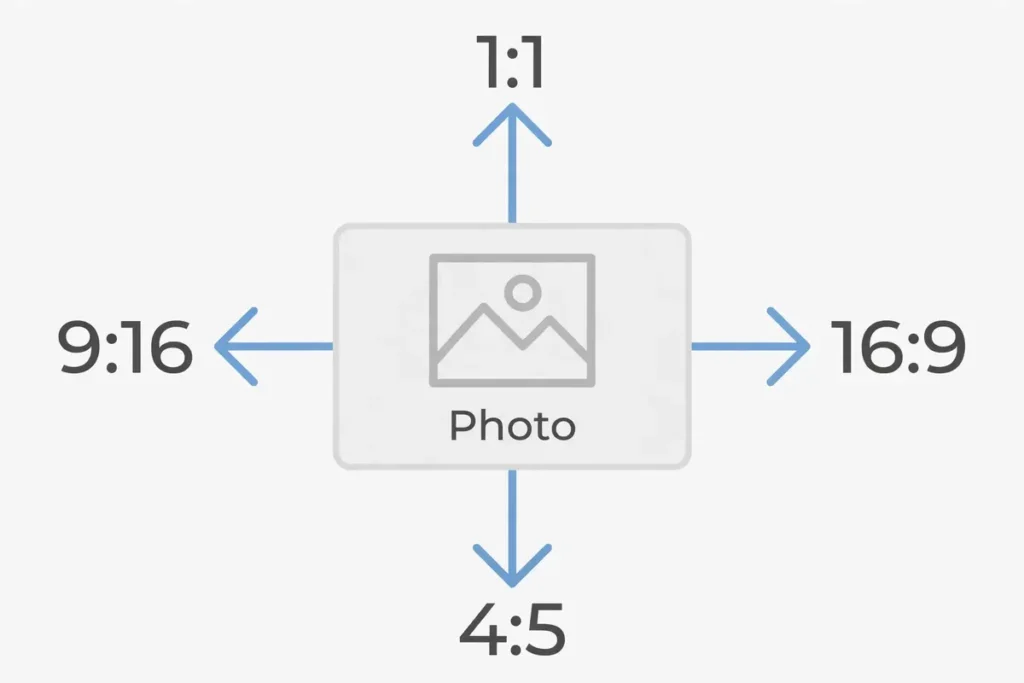
A square product photo extended to 16:9 makes a banner with room for a headline on the side. The same photo extended to 9:16 makes a story with room for text above and below. The same photo extended to 4:5 makes a feed post that takes more of the screen than a square. One source photo, three placements, no reshoot.
The ratio also decides how much the AI must invent. Extending a square to 4:5 adds a little new space top and bottom. Extending a square to 16:9 adds a lot of new space on the sides, and the more new space, the more chances for something to look wrong. When the extension is large, keep the new area simple: sky, wall, blur, empty table. Save the complex scenes for small extensions.
The best free AI image extenders in 2026
| Tool | Free tier | Best for | Catch |
|---|---|---|---|
| Canva Magic Expand | Free with a Canva account; full use on Pro ($15/month) | Design work, social posts, quick ratios | Best features need Pro |
| PicsArt AI Image Extender | 3 free images, then $13/month or $60/year | Mobile editing, portraits to landscape | Free tier is very small |
| Fotor AI Image Extender | Free tier; Pro $8.99/month or $3.33/month billed yearly | Quick expansion, custom sizes | Pro needed for full resolution |
| Photoroom AI Expand | Free plan; Pro $12.99/month or $7.50/month billed yearly | E-commerce product photos | Built for products, not portraits |
| ExtendImage.AI | Free | Simple resizing to three preset sizes | Only three sizes; files under 4MB |
| Pixoate AI Image Extender | Free, no sign-up, no watermark | No-account use, batch work | Free downloads are web-size; full resolution needs Premium |
Prices are as listed on the Photoroom comparison page in 2026, and they change, so check the live plan page before paying. The pattern across all of them is the same freemium model: a few free credits or exports, then a paid plan, with free tiers typically capping resolution or adding a watermark.
Canva Magic Expand is the best starting point for most people, because it is inside a tool many already use, it offers aspect-ratio presets, and it matches the style of the original well. Its free tier covers casual use, and Pro unlocks the full feature set. For a design workflow rather than a one-off, it is the default choice.
PicsArt is the best mobile option, with context-aware expansion and social-media templates built in. The free tier is only three images, so treat it as a trial rather than a free tool. Fotor is the quickest for a simple job: upload, pick a size up to twice the original, and go. Photoroom is the strongest for e-commerce, because its expansion is tuned for product photos with clean backgrounds and consistent presentation.
ExtendImage.AI and Pixoate are the no-account options. ExtendImage.AI is free and takes an image from your computer or a URL, but it only offers three sizes — square, mobile screen, and PC screen — and files cannot exceed 4MB. Pixoate needs no sign-up and puts no watermark on free downloads, with batch mode for up to 60 images on Premium, but free downloads are web-size and the original-resolution result needs Premium or a credit.
How to prompt the new space
An extender without a prompt guesses. An extender with a prompt follows. The prompt for the new space is shorter than a full image prompt, because the original photo already sets the subject, the style, and the light. Your job is only to describe the extension.
Name the surface and the direction: “more blue sky above”, “wooden table continuing to the left”, “blurred green foliage on both sides”. Name the mood when it matters: “soft evening light”, “clean white background”. Say what must not appear: “no people, no text, no buildings”. The negative prompt matters here more than in full generation, because the new space is empty and the model will fill it with whatever it associates most strongly, which is often a person or a sign.
The AI image prompt builder is useful for this even though it is a prompt tool rather than an extender: build the description of the new space with it, then paste the result into the extender’s prompt field.
The guide to the AI negative prompt explains what to exclude and how.
The collection of AI image prompt examples shows the same short-prompt structure applied to products, portraits, and landscapes.
One warning: do not prompt the new space to contain the subject again. “A lighthouse on the left” when the lighthouse is already in the centre gives you two lighthouses. The new space should contain background, not a second subject.
Common failures and how to fix them
Repeating patterns. The new area shows the same leaf, brick, or wave three times in a row. This is the most common failure, and it appears when the edge the AI reads from is itself repetitive. Fix it by extending in smaller steps, or by prompting a different surface for the new space.
Faces and hands in the new area. The model invents a person where there was empty background. Fix it with a negative prompt: “no people, no faces, no hands”. Check the new area at full zoom before exporting, because a small face hides at thumbnail size.
Text dissolving into shapes. Letters in the new area become wavy lines that look like text from a distance. Fix it the same way: “no text, no letters, no signs”. If the original contains a sign, extend away from it rather than across it.
Architecture lines that bend. A straight wall or window frame continues at the wrong angle across the seam. Fix it by extending in the direction the lines run, not across them, or by choosing a simpler edge to extend from. Buildings with strong perspective are the hardest case for any extender.
Resolution caps on free tiers. The preview looks sharp and the download is small. This is the free tier doing its job. Export at the highest size the plan allows, and if the placement needs print quality, use a paid export or upscale the extended result afterwards.
Watermarks. Some free tiers stamp the output. Check the export before you use it anywhere public, and do not crop a watermark out: the terms of most free tiers forbid it, and the crop usually cuts into the image anyway.
When not to extend
Extending is not always the answer. Crop when the photo is already wider than the placement and the subject survives the cut: cropping is instant, free, and introduces no invented pixels. Reshoot when the subject itself is cut off at the edge, because no extender can invent the missing half of a specific face or product reliably. Use a different photo when the source is tiny or heavily compressed, because the extender will invent new pixels from a poor edge and the seam will show.
The rule is simple: extend backgrounds, crop subjects, reshoot people. If the new space is mostly sky, wall, water, or blur, extend. If the new space must contain a specific object, find a wider original or reshoot.
Frequently asked questions
What is an AI image extender?
An AI image extender is a tool that uses generative AI, through a process called outpainting, to expand the borders of a photograph. It analyses the existing pixels — textures, lighting, and composition — and predicts what lies beyond the original frame, generating new pixels that continue the scene.
Is there a free AI image extender?
Yes. Canva Magic Expand, PicsArt, Fotor, ExtendImage.AI, and Pixoate all offer free tiers. Free use usually comes with limits: a small number of images, capped export resolution, or a watermark. ExtendImage.AI is fully free but only offers three preset sizes, and Pixoate needs no sign-up and puts no watermark on free downloads, though free downloads are web-size.
Does an AI image extender stretch the photo?
No. Stretching resizes the existing pixels and distorts them. An extender keeps the original pixels exactly where they are and generates new pixels around them, so nothing in the original is distorted. The new area is invented, not stretched.
Can an AI image extender recover cropped-out parts of a photo?
No, not the exact pixels. The cropped-out content is gone. The extender generates a plausible continuation based on the visible edge, which looks convincing for backgrounds like sky and water, and unreliable for specific objects, faces, or text that were cut off.
What is the difference between extending and upscaling?
Extending changes the shape of the frame by adding new pixels around the edges. Upscaling changes the resolution inside the same frame by inventing detail within it. Extend first and upscale second when a small square photo must become a large wide banner.
Which aspect ratio should I extend to?
Match the placement: 1:1 for feed posts and thumbnails, 4:5 for portrait feed posts, 9:16 for stories and vertical video, 16:9 for banners, website heroes, and video frames. Those four ratios cover nearly every placement.
Bottom line
An AI image extender solves the wrong-shape photo without a reshoot: keep the original, grow the frame, and let outpainting invent a plausible continuation. It is at its best on backgrounds and simple scenes, and it needs a prompt for the new space and a careful check of the seam. Start free with Canva Magic Expand or Pixoate, use Photoroom for product photos, and pay only when the placement needs full resolution or watermark-free exports.
If the picture you are extending came from a generator, the guide to the ChatGPT image prompt shows how to phrase the original prompt so the image extends cleanly.
For anime-style images, the same extension rules apply, and the guide to Midjourney anime prompts shows how style words shape the original before you extend it.
Extended stills also make good video frames, and the guide to the best free AI video generators tests the free options for turning images into video.
If image work is part of a daily workflow rather than a one-off, the guide to the best AI productivity tools shows where extenders and generators fit alongside the other tools that actually earn their keep.
Extended images are bigger files than the originals, and a library of them fills storage like any other photo collection. The phone storage calculator shows how much room your image habits need before the phone starts complaining.
The same wrong-shape problem hits phone photos headed for a computer, and the guide on how to send photos from iPhone to PC covers the seven ways to move them without losing quality.
Write the prompt for the new space
An extender guesses without a prompt. Build a short, concrete description of what belongs beyond the frame — free, with no sign-up.
Continue Reading on CripsyWire
For more practical AI coverage for US buyers, see our full AI tools and agents library. When you are deciding between competing tools, the reviews and comparisons section breaks down head-to-head matchups. AI features that live inside your phone are tracked in smartphones, and AI on your wrist or finger in wearables. All of this is part of CripsyWire's broader Tech coverage — start at the homepage for what is newest.