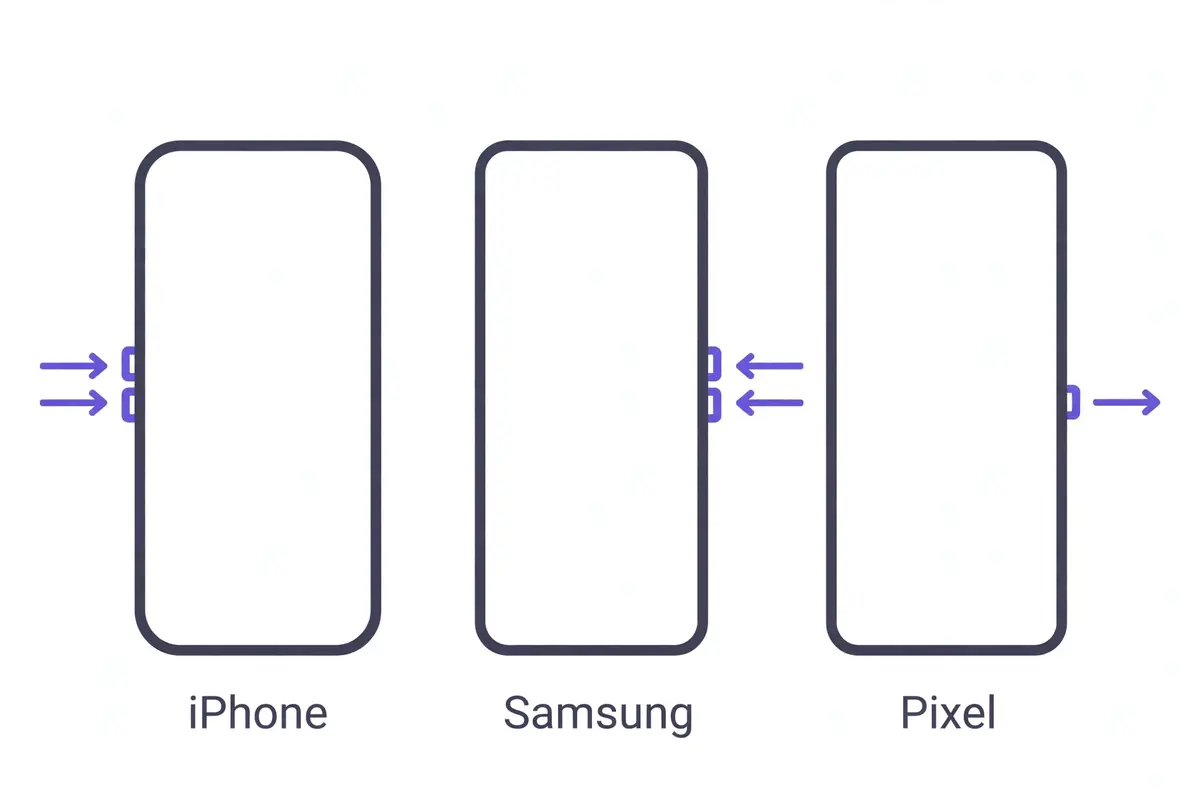
Quick answer: Force restart your phone with its physical buttons first — that alone fixes most unresponsive screens. On iPhone with Face ID, press Volume Up, then Volume Down, then hold the Side button until the Apple logo appears. On Samsung, hold the Side and Volume Down buttons together for 7 seconds. On Pixel, hold the power button for about 30 seconds. If the screen still ignores touch, remove the case and screen protector, unplug the charger, and try safe mode before you consider a reset or a repair.
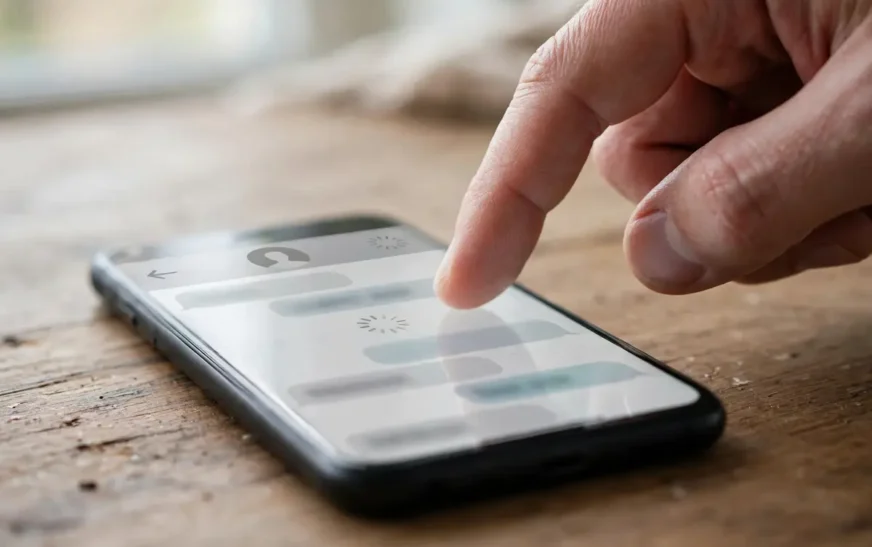
A phone screen that stops responding to touch is one of the most stressful phone problems there is. The phone is on, calls and alarms still come through, but you cannot swipe, tap, or unlock anything. The good news is that most cases are software problems or simple interference, and you can fix them at home without tools. This guide works through the fixes in order, from the quickest to the most involved, for iPhone and Android. It also shows you how to tell a software problem from a hardware problem, how to back up your data when the screen will not cooperate, and when to stop and get a repair.
What you see tells you where to start
Before you try anything, look at what the screen is doing. The symptom points at the cause, and the cause decides the fix.
| What you see | Likely cause | Start with |
|---|---|---|
| Whole screen frozen, buttons still work | Software freeze or crashed app | Force restart |
| Touch fails only while charging | Charger or cable interference | A different charger |
| Touch fails after a new screen protector | Protector or case pressing on the screen | Remove protector and case |
| Touch works in some areas, dead in others | Digitizer damage or a dead patch | Touch test, then repair |
| Screen taps things by itself (ghost touch) | Moisture, damaged digitizer, bad replacement screen | Dry it, remove protector, repair check |
| Screen dead after a drop or water | Hardware damage or loose connector | Backup first, then repair |
| Touch fails only in one app | That app is crashing | Close or delete the app |
Why a phone screen stops responding
A touchscreen is two parts working together: the display that shows the picture and the digitizer, a thin layer that senses your finger. When touch stops working, one of three things has happened. Software has frozen, something is interfering with the digitizer, or the digitizer itself is damaged.
Software freezes are the most common cause. An app crashes, the operating system hangs, or a buggy update leaves the touch layer unresponsive while the rest of the phone keeps running. A force restart clears this in most cases.
Interference is the second cause. A thick case, a poorly cut screen protector, a wet screen, gloves, or a faulty charger can all confuse the digitizer. Cheap or damaged chargers are a known trigger: they can leak small electrical noise into the phone, and the touch layer reads that noise as bad input. Heat can do it too. A phone that is very hot from gaming or charging in the sun may ignore touches until it cools down, which is one reason an overheating phone acts strangely in several ways at once.
Hardware damage is the third cause. A drop can crack the digitizer or loosen the display connector inside the phone. Water can corrode the touch controller. A screen that was replaced with a low-quality part can develop ghost touch or dead zones weeks later. If the glass is cracked and touch died at the same moment, that is almost certainly hardware.
Fix 1: Force restart with the buttons
This is the single most effective fix, and it needs no working screen at all. A force restart cuts power to the frozen software and boots the phone cleanly. It does not delete anything.
iPhone with Face ID (iPhone X and later): press and quickly release Volume Up, press and quickly release Volume Down, then press and hold the Side button until the Apple logo appears. It can take 10 seconds or more.
iPhone 7 and 7 Plus: press and hold the Side button and the Volume Down button together until the Apple logo appears.
iPhone 6s and earlier: press and hold the Home button and the Side (or Top) button together until the Apple logo appears.
Samsung Galaxy: press and hold the Side key and Volume Down together for more than 7 seconds, until the phone restarts.
Google Pixel: if the screen is frozen, hold the power button for about 30 seconds. Google’s own guidance says to hold it for around 60 seconds if the phone still does not respond.
Motorola and most other Android phones: press and hold the Power button and Volume Down together for 7 to 10 seconds.
If the phone restarts and touch works again, the problem was a software freeze. You are done. If the phone restarts but touch still fails, move on to the next fix.
Fix 2: Remove the case, screen protector, and stickers
Take the case off completely. Peel off the screen protector, especially a cheap or third-party one that was not cut exactly for your model. A protector that is slightly too big can press on the screen edges, and a tempered glass protector with a crack in it can create dead spots. Remove any stickers covering the screen or the sensors near the earpiece.
Clean the screen with a soft, slightly damp, lint-free cloth. Do not use household cleaners or spray liquid directly on the phone. If the screen is wet, dry it fully and wait a few minutes before testing touch again. If touch works after you remove the protector, the protector was the problem. Buy a replacement made for your exact model, and turn on the touch sensitivity setting described in Fix 5.
Fix 3: Unplug the charger and accessories
Disconnect the charger and any USB-C or Lightning accessory. If touch only fails while the phone is plugged in, the charger or cable is the cause. Try a different charger and a different cable, ideally the one that came with the phone or a certified replacement. Avoid using the phone while it charges with a suspect charger. If touch works the moment you unplug, do not use that charger again. A charger that interferes with touch is a sign it is faulty, and a faulty charger is worth replacing even if it still charges. This is also a good moment to rule out a charging problem itself, since a phone that will not charge properly and a phone with a dead screen often share the same damaged port or cable.
Fix 4: Let the phone cool down or warm up
Touchscreens misbehave at temperature extremes. A phone left in a hot car or in direct sun can ignore touches until it cools. A phone left out in freezing weather can do the same. Move the phone to room temperature and wait 10 to 15 minutes. Do not put it in a fridge or freezer, and do not blow hot air on it. If the phone feels hot, close heavy apps and unplug it. A phone that keeps overheating has a deeper problem than a frozen screen, and it is worth finding out why it runs hot before the heat damages the battery.
Fix 5: Turn on touch sensitivity (Android)
Some Android phones have a setting that boosts touch sensitivity for use with a screen protector. If your screen misses taps only since you fitted a protector, this setting can fix it.
On Samsung Galaxy, go to Settings, then Display, then Touch sensitivity, and switch it on. On Pixel 8a and earlier models including Fold, go to Settings, then Display and touch, then Touch sensitivity, then Screen protector mode. On Pixel 9, 9 Pro, and 9 Pro XL, the same menu has Adaptive touch instead, which adjusts sensitivity on its own.
iPhones do not have an equivalent protector mode, but they do have touch accommodations under Settings, then Accessibility, then Touch. Touch Accommodations can change how long a touch must last and whether repeated touches are ignored. If those settings were changed by accident, they can make a healthy screen feel dead, so check that they are off unless you need them. Apple also bundles several touch-related settings in the same Accessibility area. If you like digging into iPhone settings, these hidden iPhone features are worth a look.
Fix 6: Boot into safe mode to rule out a bad app
Safe mode loads only the software your phone shipped with. If touch works in safe mode, a downloaded app is the cause. If touch still fails, the problem is the system or the hardware.
On Samsung, press and hold the Power (Side) button and Volume Down together, then touch and hold Power off on the screen menu and tap Safe mode. On most other Android phones, force restart the phone, and when the manufacturer’s logo appears, press and hold Volume Down until the phone finishes starting. You will see “Safe mode” in a corner of the screen. Test the touch. If it works, restart normally and uninstall recently installed apps one by one, starting with the newest. Screen overlays, custom launchers, and battery saver apps are common culprits.
iPhones have no safe mode, but the same logic applies. Think about what changed just before touch failed. A new app, a new update, or a new accessory. Delete the most recent app, then restart. If the problem started right after an iOS update, the next fix covers that.
Fix 7: Check for a software update
A buggy update can break touch, and the fix for it is usually the next update. If you can get temporary touch control back, go to Settings and check for a system update, then install it. On Android, also update your apps from the Play Store, since a single crashing app can freeze the touch layer. Before downloading a large update over mobile data, check how much data you have left, because a system update can be several gigabytes and a failed download makes things worse. Use Wi-Fi where you can. If the screen is too dead to reach Settings at all, skip this fix and come back to it after the phone is working again.
System updates need free space as well as battery. If an update refuses to download, clear out old downloads and cached files first and try again.
If you run out of room often, it helps to know where the space actually goes and how to get more of it before the next update.
If you are not sure what is eating the space, run a quick check first. A storage calculator shows the split between photos, video, apps, and system files in seconds.
Fix 8: Run the built-in touch test
A touch test shows whether the problem is software or a dead patch of display. On Samsung Galaxy phones, open the Phone app and dial `*#0*#`, then choose Touch and draw across the whole screen until every box turns green. Boxes that stay blank mark dead areas, and dead areas mean hardware damage. Pixels do not have the same dialer code, but the same idea works with a drawing app or a touch test app from the Play Store once the screen responds again. On iPhone, there is no built-in touch test, so the test is simpler: if the whole screen is dead after a restart, and the protector and charger are ruled out, treat it as hardware.
Fix 9: Back up your data without touching the screen
If the screen stays dead, back up before you try anything destructive like a factory reset. On Android, plug in a wired USB mouse with a USB-C adapter (OTG). The mouse pointer appears on screen, and you can click through the menus to turn on backup and copy photos to a computer. On iPhone, you can ask Siri to turn on iCloud Backup, or connect the phone to a computer you have trusted before and back it up there. If the phone has never trusted that computer, the screen is needed to tap Trust, so try the mouse trick on Android or use iCloud if it was already on. Getting photos off first matters more than anything else, and moving iPhone photos to a PC is straightforward once you have any working input, even a mouse or a keyboard.
For Android, back up contacts, photos, and messages to your Google account before you reset, since a reset erases everything on the phone.
Fix 10: Factory reset as a last resort
A factory reset erases everything and returns the phone to how it left the shop. It fixes deep software problems that a restart cannot, but it is also the point of no return, so only do it after a backup. On Android, you can reset from the recovery menu without touch: force restart into recovery (usually Power plus Volume Up), then use the volume buttons to move and the power button to select “Wipe data / factory reset”. On iPhone, connect to a computer and restore through Finder or iTunes. If touch works again after the reset, the problem was software. If it still fails on a clean phone, the hardware is at fault and no software fix will help.
Ghost touch: when the screen taps itself
Ghost touch is the opposite problem: the screen registers taps nobody made, opens apps, and types on its own. It is usually caused by moisture inside the phone, a damaged digitizer, or a faulty replacement screen. Start by drying the phone completely and removing the screen protector and case. Turn the phone off for a few minutes. If ghost touch started after a screen replacement, the replacement part is the likely cause, and the shop that fitted it should fix it under warranty. If it started after the phone got wet, do not charge it until it is fully dry, and get it checked. A phone with ghost touch can also dial numbers and send messages on its own, so turn it off when you are not using it.
Partial touch and dead zones
Sometimes only part of the screen responds. A strip along one edge is dead, or taps register a centimetre away from your finger. This is almost always hardware: a damaged digitizer, a loose display connector after a drop, or a failing touch controller on the motherboard. Software fixes will not repair a dead zone. The touch test in Fix 8 maps the damage. A small dead zone in a corner can be lived with for a while by rotating the phone or using a different keyboard layout, but it will usually spread. Get a repair quote before it gets worse.
Water damage: what to do and what not to do
If the screen died after the phone got wet, turn it off immediately and do not charge it. Charging a wet phone can short the circuits and turn a small problem into a dead phone. Dry the outside, remove the case and SIM tray, and let the phone dry in moving air for at least 24 hours. Do not put it in rice. Rice does not dry a phone effectively, and dust and starch from the rice can get into the ports and make things worse. Silica gel packets work better if you have them. Even if the phone starts working again, water damage can corrode parts slowly, so a check at a repair shop is worth it. Water damage is also usually not covered by a standard warranty, so check what your warranty or insurance actually covers before you pay for a repair.
Repair or replace: how to decide
If the software fixes all fail, you are looking at a repair. A screen replacement is the most common fix, and its cost depends on the model: a budget Android screen can be cheap, while a recent iPhone or Samsung flagship screen can cost a large part of the phone’s value. Get a quote from the manufacturer first, then from a reputable independent shop, and compare. Ask whether the replacement screen is original or third-party, since low-quality screens are a common cause of ghost touch and dead zones later. Check your warranty, AppleCare+, or Samsung Care+ before you pay anything, since accidental damage cover changes the price completely. If the repair costs more than half the price of a comparable replacement phone, replacing the phone is usually the better choice. Other hardware can fail after a hard drop too, so if the microphone or speaker also stopped working, the damage may be wider than the screen, and a repair quote should cover the whole phone, not just the glass.
Frequently asked questions
Why is my phone screen not responding to touch but the phone is on?
Because the touch layer and the display are separate parts. The screen can show the picture while the digitizer that senses your finger has stopped working. A software freeze is the most common cause, and a force restart with the physical buttons usually fixes it. If it does not, the cause is interference from a protector or charger, or hardware damage.
How do I restart my phone when the screen does not work?
Use the physical buttons only. On iPhone with Face ID, press Volume Up, then Volume Down, then hold the Side button until the Apple logo appears. On Samsung, hold the Side and Volume Down buttons for more than 7 seconds. On Pixel, hold the power button for about 30 seconds. No screen interaction is needed for any of these.
Can a screen protector make my touchscreen unresponsive?
Yes. A protector that is too thick, poorly cut, cracked, or fitted with air bubbles can block or confuse touch sensing. Remove it and test the screen bare. If touch works without it, the protector was the problem. Buy one made for your exact model and turn on the touch sensitivity setting on Android.
Why does my touchscreen only fail while charging?
A faulty or uncertified charger can leak electrical noise that interferes with the digitizer. Unplug it and try a different charger and cable. If touch works the moment you unplug, stop using that charger. This is also a sign the charger itself is failing, so replace it rather than keep using it.
What is ghost touch and how do I stop it?
Ghost touch is when the screen registers taps nobody made. It is usually caused by moisture, a damaged digitizer, or a poor-quality replacement screen. Dry the phone fully, remove the protector and case, and restart it. If it started after a screen replacement, take it back to the shop that fitted the screen.
Will a factory reset fix an unresponsive screen?
It fixes the problem only if the cause is software. A reset erases everything and returns the phone to factory settings, so back up first. If touch still fails on a clean phone after a reset, the hardware is damaged and a repair is needed.
How much does it cost to fix an unresponsive phone screen?
It depends on the model and the cause. A software fix costs nothing. A screen replacement can range from a small amount for a budget Android phone to a large part of the phone’s value for a recent iPhone or Samsung flagship. Get a quote from the manufacturer and from an independent shop, and check your warranty or AppleCare+ or Samsung Care+ cover first.
Should I fix the screen myself?
Only if you have done it before and you accept the risk. Modern phones are glued shut, and opening one without the right tools can damage the battery or the display connector. A bad DIY repair can also void the warranty. For most people, a professional repair is cheaper than a second repair after a failed DIY attempt.
Bottom line
Start with a force restart using the physical buttons. That alone fixes most unresponsive screens, on iPhone and Android alike. Then remove the case and protector, unplug the charger, and let the phone reach room temperature. Safe mode and a software update come next, and a factory reset is the last software step, only after a backup. If the screen still ignores touch on a clean phone, the digitizer or its connector is damaged, and the fix is a repair, not another setting. Work through the fixes in order, back up before anything destructive, and check your warranty before you pay for a screen.

Continue Reading on CripsyWire
For more practical tutorials and hidden features, see our full how-to guides section. AI workflow guides feed into the broader AI tools and agents coverage, phone tricks live in smartphones, and wearable setup walkthroughs in wearables. When you are deciding what to buy, the reviews and comparisons section helps. All part of CripsyWire Tech, and the homepage shows what is newest.