To disable autocorrect, open your device’s keyboard settings and switch off the auto-correction toggle. On iPhone go to Settings → General → Keyboard → Auto-Correction. On Android open Settings → System → Languages & input → On-screen keyboard → Gboard → Text correction → Auto-correction. On Windows 11 go to Settings → Time & language → Typing → Autocorrect misspelled words. Apps like Word and Google Docs correct separately and need their own switch.
That’s the 30-second version. Now the part nobody tells you.
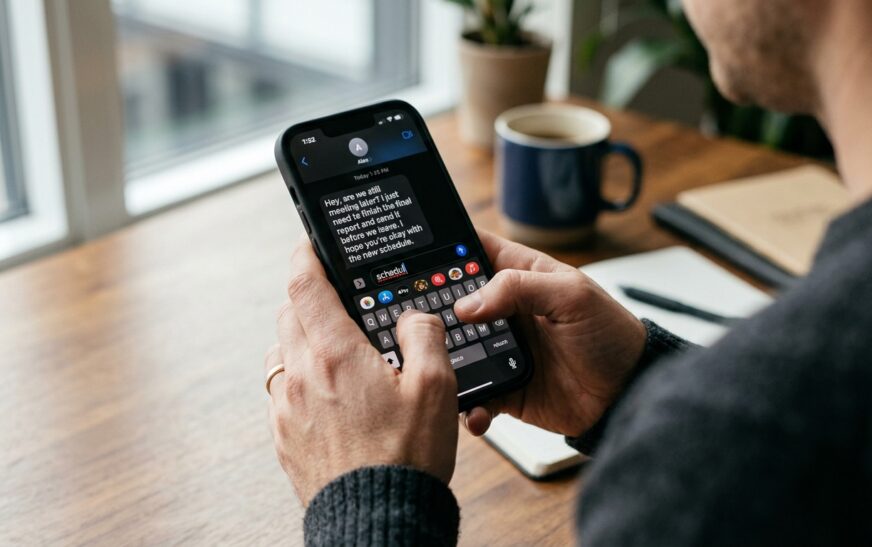
You type your friend’s name. The phone types something else. You fix it. The phone fixes it back.
That specific flavour of rage is why you’re here, and I want to be upfront about something before we get to the settings: most guides on this topic will show you one toggle, congratulate you, and leave. Then you go back to typing and the corrections keep happening — because on almost every modern device, autocorrect isn’t one feature. It’s three or four separate systems stacked on top of each other, each with its own switch, each capable of overriding what you just turned off.
So this guide does two jobs. It gives you the exact taps for every major platform, and it explains the stack, so you actually stop the corrections instead of playing whack-a-mole for a week.
Autocorrect Isn’t One Feature — And That’s Why Turning It Off Fails
Here’s the mental model that makes everything else click. When you type a word into a messaging app, up to four different pieces of software can decide to change it:
Layer 1 — The keyboard app. Gboard, Samsung Keyboard, SwiftKey, the built-in iOS keyboard. This is where autocorrect lives on phones. It rewrites words the moment you hit space.
Layer 2 — The operating system. Windows and macOS both run their own text correction that applies system-wide, in any text field, independent of what app you’re in.
Layer 3 — The app itself. Microsoft Word, Outlook, Google Docs and Notion all ship their own autocorrect engines. Word’s is famously aggressive — it fixes capitalisation, converts straight quotes to curly ones, and turns hyphens into bullet lists.
Layer 4 — Browser extensions and assistants. Grammarly, writing add-ons, some AI helpers. These sit on top of everything and rewrite text in the browser regardless of your OS settings.
Turn off layer 1 and layer 3 keeps correcting. Turn off layer 3 and layer 4 keeps correcting. This is the single biggest reason people search “how to disable autocorrect” twice in the same month. Keep the four layers in your head as you work through the steps below and you’ll know exactly where the leftover corrections are coming from.
There’s one more distinction worth ten seconds of your time, because mixing these up wastes a lot of effort:
- Autocorrect replaces what you typed, without asking.
- Predictive text suggests words above the keyboard. It changes nothing unless you tap it.
- Spell check underlines the word in red and leaves it alone.
- Auto-capitalisation and auto-punctuation are separate toggles again.
Plenty of people who think they hate autocorrect actually hate predictive text, or vice versa. Disabling the wrong one leaves the annoyance intact and removes something useful. Worth knowing which enemy you’re fighting.
How to Turn Off Autocorrect on iPhone (iOS 26 and Later)
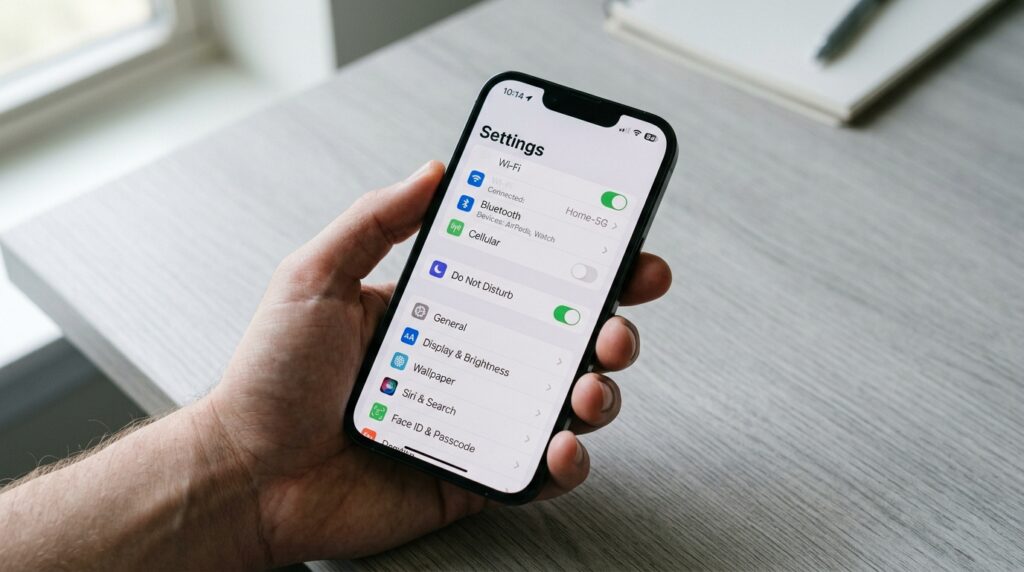
Apple keeps every keyboard control in one screen, which makes this the cleanest platform to fix.
- Open Settings.
- Tap General.
- Tap Keyboard (labelled Keyboards on some builds).
- Switch off Auto-Correction.
That’s the core fix. Below it you’ll find the toggles most people also want:
- Predictive or Predictive Text — kills the suggestion strip above the keyboard.
- Check Spelling — leave this on if you want typos underlined in red but never silently changed. This is the sweet spot for most people. You keep the safety net, you lose the interference.
- Auto-Capitalization — turn off if you prefer lowercase texting.
- Smart Punctuation — the one that converts straight quotes and hyphens into typographic versions. Developers and anyone pasting code should switch this off.
Apple rebuilt the correction engine in iOS 26 around a transformer language model, and the practical result has been divisive. It’s better at whole-sentence context and noticeably worse at leaving unusual words alone. If corrections got worse for you after an update rather than better, you’re not imagining it — a lot of people reported the same thing through the iOS 26.x cycle.
The iPhone Catch: Third-Party Keyboards Ignore Apple’s Toggle
If you installed Gboard or SwiftKey on your iPhone, Apple’s Auto-Correction switch does nothing while that keyboard is active. It only governs Apple’s own keyboard.
Fix it inside the keyboard’s own app:
- Gboard on iOS: open the Gboard app → Keyboard settings → turn off Auto-correction.
- SwiftKey on iOS: open the SwiftKey app → Settings → Typing → turn off Autocorrect.
This trips up a surprising number of people. They flip Apple’s switch, nothing changes, and they conclude the setting is broken.
How to Disable Autocorrect on Android
Android is where menu paths fragment, because manufacturers rename things. The destination is always the same: your keyboard app’s text correction screen.
Gboard (Pixel, Motorola, Nothing, OnePlus and Most Stock Android)
- Open Settings.
- Tap System → Languages & input. On some phones this is General management or just Languages.
- Tap On-screen keyboard → Gboard.
- Tap Text correction.
- Switch off Auto-correction.
The fastest shortcut, and the one I actually use: press and hold the comma key on the Gboard keyboard itself, then tap the gear icon. It drops you into Gboard settings without touching the Settings app at all.
While you’re on the Text correction screen, three more toggles matter:
- Show suggestion strip — removes the word suggestions entirely.
- Auto-capitalisation — self-explanatory.
- Double-space full stop — the one that inserts a period when you tap space twice.
Note that switching off auto-correction in Gboard doesn’t remove suggestions. The keyboard will still offer words; it just stops applying them without permission. That’s a feature, not a bug, and it’s usually the behaviour people actually wanted.
How to Turn Off Autocorrect on Samsung Galaxy Phones
Samsung’s One UI uses different vocabulary, and this is where most Android guides quietly get it wrong. Samsung calls its combined correction-and-suggestion system Predictive text.
- Open Settings.
- Tap General management.
- Tap Samsung Keyboard settings.
- Open Smart typing (on newer One UI builds the toggles may sit on the main screen).
- Switch off Predictive text.
Also look for Auto replace, Auto spacing and Auto punctuate in the same area. Auto replace is the one that swaps a word outright — if a single specific word keeps getting mangled, that’s your culprit.
Samsung buries these one level deeper than Google does, and the naming difference is genuinely confusing. If you’ve recently switched brands, this is one of several small friction points, along with the fact that your learned keyboard dictionary doesn’t survive the move when you transfer contacts to a new phone — messages and contacts come across, typing habits start from zero. Anyone comparing hardware for their next upgrade can see how the current lineup stacks up in our guide to the best Android phone in 2026.
SwiftKey on Android
Open the SwiftKey app → Typing → Typing & autocorrect → switch off Autocorrect. SwiftKey separates autocorrect from prediction more cleanly than most keyboards, which is one reason writers who work in multiple languages tend to stick with it.
How to Turn Off Autocorrect in Windows 11
Windows added system-wide autocorrect for physical keyboards a few versions back, and a lot of people never realised it was on.
- Press Win + I to open Settings.
- Click Time & language.
- Click Typing.
- Switch off Autocorrect misspelled words.
Nearby you’ll find Highlight misspelled words, which underlines errors without changing them, and Show text suggestions when typing. My recommendation: leave highlighting on, turn autocorrect and suggestions off. You get a visual flag without losing control of your own sentences.
For IT admins and shared machines: the same control exists as Group Policy. Run gpedit.msc, then navigate to User Configuration → Administrative Templates → Control Panel → Regional and Language Options and enable Turn off autocorrect misspelled words. Enabling that policy locks the setting so individual users can’t switch it back — useful in a call centre or clinical environment where product codes and drug names keep getting mangled.
Microsoft Word and Outlook Have Their Own Autocorrect
This is layer 3, and it’s the one that survives everything you just did.
Word: File → Options → Proofing → AutoCorrect Options → untick Replace text as you type.
Outlook (classic): File → Options → Mail → Spelling and Autocorrect → Proofing → AutoCorrect Options → untick Replace text as you type.
Word for Mac: Word menu → Preferences → AutoCorrect.
Two things worth knowing here. First, the AutoCorrect word list is shared across Office apps — delete an entry in Word and it disappears from Outlook and PowerPoint too. Second, the AutoFormat As You Type tab is a separate beast that handles smart quotes, automatic bulleted lists and hyperlink conversion. If Word keeps turning your dashes into bullets, that’s the tab you want, not the AutoCorrect tab.
One honest limitation: in New Outlook for Windows, undoing a correction only fixes that one instance. It doesn’t teach the app your preference. You’ll need an explicit AutoCorrect exception for names it keeps rewriting.
How to Disable Autocorrect on Mac (macOS Tahoe 26)
macOS handles this system-wide, so one change covers Mail, Messages, Notes, Safari and most third-party apps.
- Open System Settings.
- Click Keyboard in the sidebar.
- Scroll to Text Input and click Edit next to your input source.
- Switch off Correct spelling automatically.
- Click Done.
Same panel, same trip: Capitalize words automatically, Show inline predictive text and Add period with double-space. Turn off whichever ones bother you.
Two Mac-specific quirks I’ve run into repeatedly. Some apps cache the setting and need to be quit and relaunched before the change takes hold — TextEdit is a known offender. And any app with its own spell engine ignores the system toggle entirely; in those, use Edit → Spelling and Grammar → Correct Spelling Automatically and untick it per app.
How to Turn Off Autocorrect on a Chromebook
ChromeOS keeps auto-correction per input method, which is the detail that catches people out. If you have both US English and another layout installed, you have to disable it twice.
- Click the clock, then the gear icon to open Settings.
- In the sidebar choose Languages and inputs.
- Click Inputs and keyboards.
- Under Input methods, click the input method you’re using — for example English (US).
- Switch off Auto-correction for both the physical and on-screen keyboard.
Nearby you’ll also find Spelling and grammar check and emoji suggestions, both worth reviewing if you want a genuinely quiet typing experience. And while you’re in the input settings, this is the same corner of ChromeOS where you’d turn off the touchscreen on a Chromebook if stray palm taps are moving your cursor mid-sentence. If you’re still deciding whether ChromeOS suits how you write day to day, our Chromebook vs laptop breakdown covers the trade-offs honestly.
The Layer Everyone Forgets: Browsers, Grammarly and Extensions
You’ve turned off the OS. You’ve turned off the keyboard. Words are still changing in Gmail. Here’s why.
Chrome’s built-in spell check: Chrome menu → Settings → Languages → under Spell check, switch off Check for spelling errors when you type text on web pages. Chrome’s Enhanced spell check also sends what you type to Google’s servers for better accuracy, which is worth knowing if you handle sensitive text.
Grammarly and similar assistants override everything below them. Grammarly applies its own corrections inside the browser no matter what your OS says. If it’s installed, disable it per-site or switch it off in the extension menu. We’ve written a full assessment of what Grammarly’s AI checker gets right and where it falls short, and the short version is that its suggestions are opinionated in ways that matter for anyone writing in a specialist vocabulary. Extensions are the least visible layer in this whole stack, so if you’ve got a crowded toolbar it’s worth auditing what’s actually running — our roundup of productivity Chrome extensions covers what earns its place and what doesn’t.
Google Docs: Tools → Preferences → untick Automatically correct spelling. Docs corrects independently of both Chrome and your OS, so this one’s mandatory if you draft there.
Why Autocorrect Keeps Turning Back On
A genuinely common complaint, and there are four real causes:
You disabled it for one language only. iOS, macOS and ChromeOS all store correction settings per input source. Add a second keyboard language and it arrives with autocorrect enabled by default.
A major OS update reset it. Feature updates occasionally restore defaults for settings the update touched. Apple’s iOS 26 correction rebuild reset preferences for some users.
You’re using a different keyboard than you think. Switching between Gboard and a manufacturer keyboard mid-conversation is easier than it sounds.
Work device policy. Managed devices push settings back on a schedule. If you’re on a corporate laptop and a setting won’t stick, MDM is almost certainly the reason and no amount of clicking will fix it — that’s an IT ticket.
A Better Option Than Nuking It Entirely
Here’s my honest opinion after years of turning this feature off and eventually turning most of it back on: full disablement is often the wrong tool. It’s a sledgehammer for a problem that usually has a scalpel.
Three targeted fixes solve maybe 80% of autocorrect complaints without giving up the safety net.
Reset the keyboard dictionary. Your keyboard learns from you, and it also learns your mistakes. Once it’s absorbed a bad pattern, it doubles down. A reset clears the learned data and often fixes repeat offenders in one move.
- iPhone: Settings → General → Transfer or Reset iPhone → Reset → Reset Keyboard Dictionary
- Samsung: Settings → General management → Samsung Keyboard settings → Reset to default settings → Erase personalised predictions
- Gboard: Gboard settings → Dictionary → Delete learned words
Teach it your vocabulary. On iPhone, Settings → General → Keyboard → Text Replacement, tap +, put the word you keep getting corrected in the Phrase field and leave the Shortcut field empty. The word is now permanently protected. Every platform has an equivalent personal dictionary. This is the single most underrated fix on this entire page — five minutes of adding names, brand terms and jargon does more good than disabling the feature outright.
Delete the offending entry. In Word and Outlook, the AutoCorrect list is editable. If it insists on turning a product code into a word, find that entry and remove it rather than switching off all replacement.
Dictate instead. Voice input bypasses autocorrect entirely, which is handy for long messages. Worth noting that it depends on clean audio, so if your dictation accuracy has quietly degraded, the problem may be hardware — we’ve covered how to diagnose a phone microphone that stopped working and it’s a more common failure than most people assume.
Be Honest With Yourself Before You Turn It Off
Some ruthlessness, since that’s more useful than reassurance.
Autocorrect measurably reduces typing errors for most people on touchscreens. If you’re a fast, sloppy thumb-typer, disabling it will make your messages worse, not better, and you’ll notice within a day.
It’s genuinely important accessibility infrastructure. For people with dyslexia, motor control conditions, tremors, or anyone typing in a second language, autocorrect isn’t a nuisance — it’s what makes the device usable. Disable predictive text if the suggestion strip distracts you, but think hard before removing correction entirely.
Where turning it off clearly wins: writing code or technical documentation, working with product SKUs and part numbers, medical or legal terminology, messaging in a language your phone isn’t set to, or writing in dialect and slang the dictionary refuses to accept.
Where it usually loses: casual texting on a phone, typing while walking, one-handed input.
And a small warning nobody mentions. Switching off autocorrect *and* spell check together means nothing catches your typos. That’s a real risk on job applications and client emails. Keep spell check on. Let it underline. Just don’t let it edit.
Quick Reference: Autocorrect Settings by Platform
| Platform | Path | Toggle |
| iPhone / iPad | Settings → General → Keyboard | Auto-Correction |
| Android (Gboard) | Settings → System → Languages & input → On-screen keyboard → Gboard → Text correction | Auto-correction |
| Samsung Galaxy | Settings → General management → Samsung Keyboard settings → Smart typing | Predictive text |
| Windows 11 | Settings → Time & language → Typing | Autocorrect misspelled words |
| macOS 26 | System Settings → Keyboard → Text Input → Edit | Correct spelling automatically |
| Chromebook | Settings → Languages and inputs → Inputs and keyboards → [input method] | Auto-correction |
| Microsoft Word | File → Options → Proofing → AutoCorrect Options | Replace text as you type |
| Google Docs | Tools → Preferences | Automatically correct spelling |
| Chrome | Settings → Languages → Spell check | Check for spelling errors |
Frequently Asked Questions
How do I disable autocorrect but keep spell check?
Switch off the auto-correction toggle and leave the spell check toggle enabled. On iPhone that means turning off Auto-Correction in Settings → General → Keyboard while leaving Check Spelling on. Typos get underlined in red but are never changed automatically. This is the best setup for most people.
Why does autocorrect still change words after I turned it off?
Because something else is correcting you. Check your keyboard app, your operating system, the app you’re typing in, and any browser extension like Grammarly. Each of those has its own independent autocorrect setting, and disabling one doesn’t touch the others.
Does turning off autocorrect delete my learned words?
No. Disabling autocorrect stops corrections from being applied but leaves your personal dictionary intact. If you want that data cleared, you need to reset the keyboard dictionary separately — a distinct action in your device’s reset or keyboard settings.
How do I stop autocorrect from changing one specific word?
Add it to your personal dictionary or text replacement list rather than disabling the whole feature. On iPhone, use Settings → General → Keyboard → Text Replacement and enter the word in the Phrase field with no shortcut. In Word, delete the offending entry from the AutoCorrect list.
Can I turn off autocorrect for just one app?
On macOS yes — use Edit → Spelling and Grammar → Correct Spelling Automatically inside the app. Word, Outlook and Google Docs each have their own settings too. On iPhone and Android, keyboard-level autocorrect applies system-wide and can’t be limited to a single app.
Is autocorrect the same as predictive text?
No. Autocorrect replaces what you typed without asking. Predictive text only shows suggestions above the keyboard and changes nothing unless you tap one. They’re separate toggles on every major platform, and disabling one leaves the other running.
Why did autocorrect get worse after an update?
Apple replaced its correction engine in iOS 26 with a transformer-based model, and many users found the new behaviour more intrusive particularly with homophones and fast swipe typing. Resetting the keyboard dictionary often helps, since the model may have learned patterns from your earlier corrections.
The Bottom Line
Disabling autocorrect takes about fifteen seconds per device. Making the corrections actually stop takes a bit longer, because you have to work down the stack: keyboard, operating system, application, extension. Miss one and you’ll be back to searching for the same answer next week.
If I could give you one piece of advice from this whole page, it’s this: don’t switch it all off on reflex. Reset your keyboard dictionary, add your problem words to text replacement, and keep spell check running. Nine times out of ten that solves the actual irritation while leaving you a safety net for the days you’re typing one-handed on a train.
The other one time out of ten, you’re writing code and every symbol matters. Then yes — switch it off, all four layers, and don’t look back.

Continue Reading on CripsyWire
For more practical tutorials and hidden features, see our full how-to guides section. AI workflow guides feed into the broader AI tools and agents coverage, phone tricks live in smartphones, and wearable setup walkthroughs in wearables. When you are deciding what to buy, the reviews and comparisons section helps. All part of CripsyWire Tech, and the homepage shows what is newest.