What Guided Access is supposed to do
Diagnose first: which failure do you actually have?
| Your symptom | Most likely cause | Go to |
|---|---|---|
| Triple-click does nothing at all | Shortcut not assigned, or click speed too fast | Triple-click section |
| Triple-click shows a menu, not Guided Access | Several shortcuts ticked at once | Triple-click section |
| Guided Access starts, then exits by itself | Time limit reached, or a conflicting restriction | Time limit and conflicts sections |
| Session will not end, passcode rejected | Wrong code, or a stale code after an update | Stuck-phone section |
| Works in one app, fails in another | That app, not Guided Access, is the problem | Per-app section |
| “App unavailable, contact your administrator” | Managed device / MDM Single App Mode | Managed-device section |
The setup check everyone skips, done properly
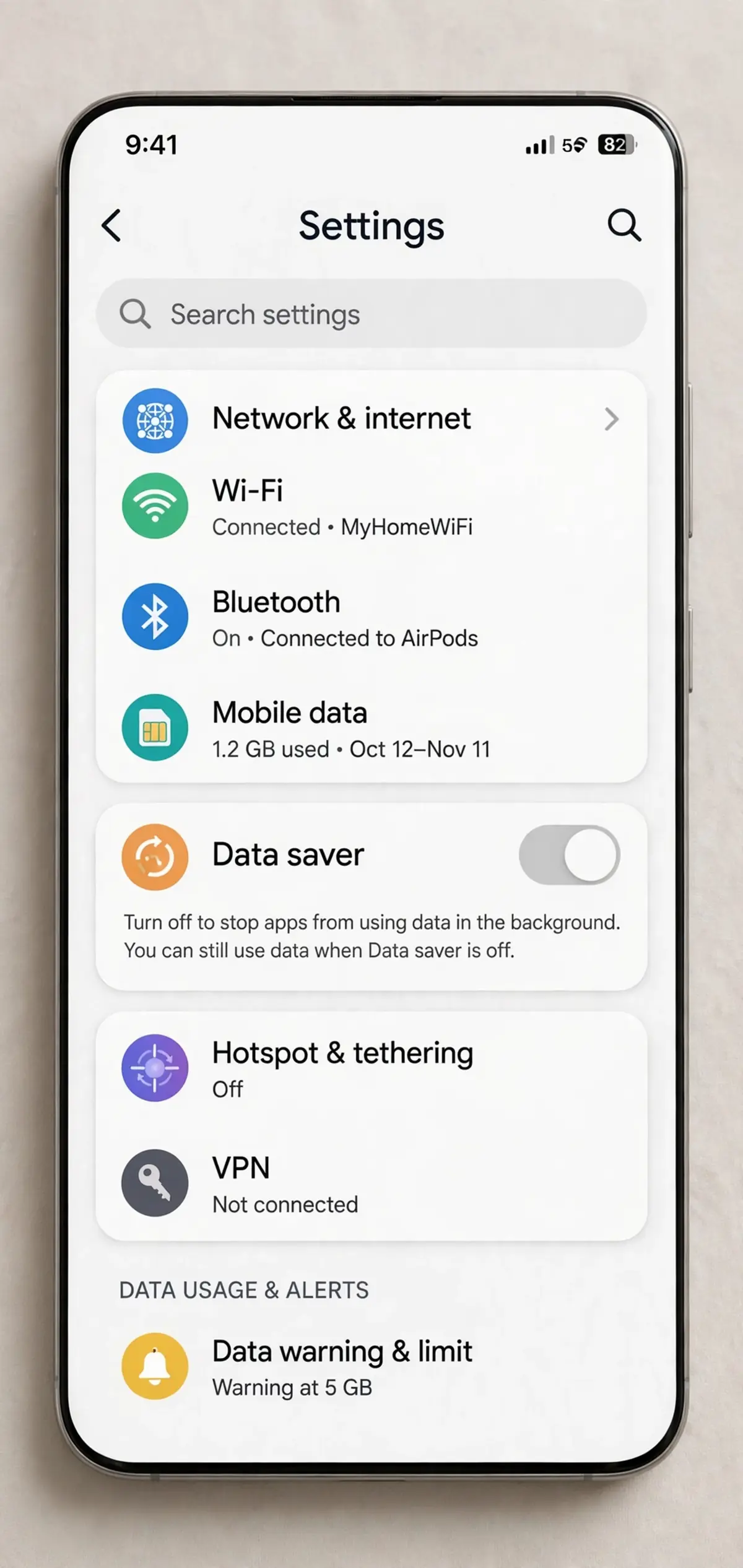
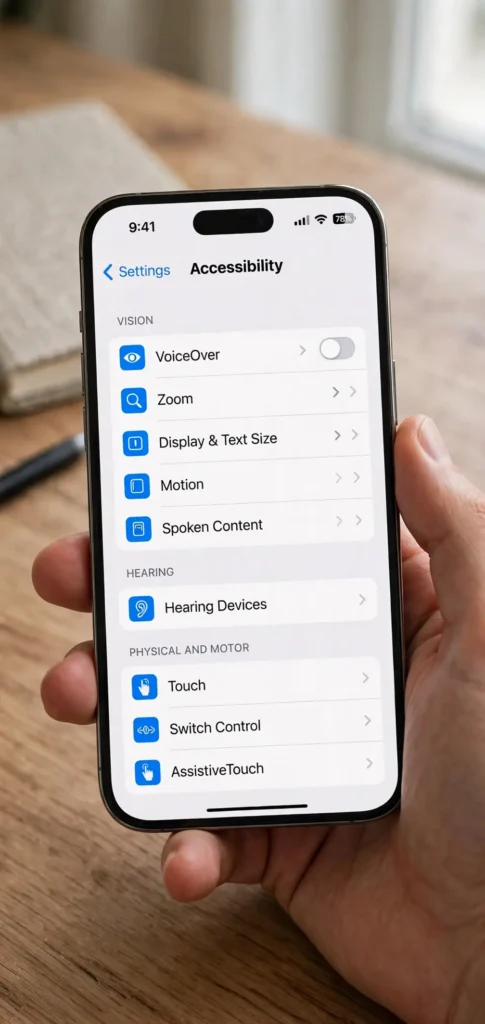
Open Settings, tap Accessibility, scroll down, and tap Guided Access. The main toggle must be on. If it is off, turn it on — Guided Access is not enabled by default, and a surprising number of “it stopped working” reports trace back to someone turning it off during a cleanup and forgetting about it.
The passcode trap: three codes, not one
Here is where most passcode confusion starts. Your Guided Access passcode is not your device passcode, and neither of them is your Screen Time passcode. They are three separate codes that happen to live on the same phone, and entering the right code in the wrong place fails every time.
Why triple-click does nothing
Triple-click is the front door of Guided Access, and when it does nothing, the usual advice is “check your settings.” That advice is right but incomplete, because there are three separate settings that can each break triple-click, and they live in different places.
First, the shortcut assignment. Go to Settings, tap Accessibility, scroll to the bottom, and tap Accessibility Shortcut. Guided Access must have a checkmark there. Without it, triple-clicking the Side button does nothing at all, no matter how many times you try. This checkmark is separate from the main Guided Access toggle, which is why people swear the feature is on while the shortcut is off. Both must be on.
Third, click speed. Triple-click has a rhythm, and if your phone’s click speed is set too fast, your three presses may not register as a triple-click at all. Go to Settings, tap Accessibility, tap Side Button, and set Click Speed to Slow or Slowest, then test again. This is the fix that helps older users, users with motor difficulties, and anyone whose triple-click “sometimes works” — intermittent success is the signature of a timing problem, not a broken button.
Testing triple-click without guessing
Test in a calm moment, not during the session you need. Open a simple app like Notes, triple-click, and see what happens. If the Guided Access setup screen appears, the shortcut works and your original problem is elsewhere — the app, a restriction, or a session setting. If nothing happens in Notes either, the shortcut itself is broken and the three checks above are your fix. Testing in a second app is the fastest isolation step in this whole guide, and it takes less than a minute.
When Guided Access starts, then quits on its own
Session options that change everything: touch, keyboards, motion
The Options screen at the start of a session is not decoration. Each toggle there solves a real use case, and each one left in the wrong state creates a complaint that sounds like a bug.
Keyboard behavior outside Guided Access can also mislead you. If autocorrect or keyboard settings have been changed on the phone generally, typing inside a locked session can feel different from typing outside it, and the session gets blamed for a phone-wide setting. For a clear look at how those keyboard controls actually work, see this guide to turning off autocorrect and related typing settings.
Stuck in Guided Access: get out without losing data
This is the section to read if you are stuck right now. Work through it in order, and stop at the first step that works. Each step costs more than the last, so do not skip ahead to a restore.
After you get out, fix the trap before the next session
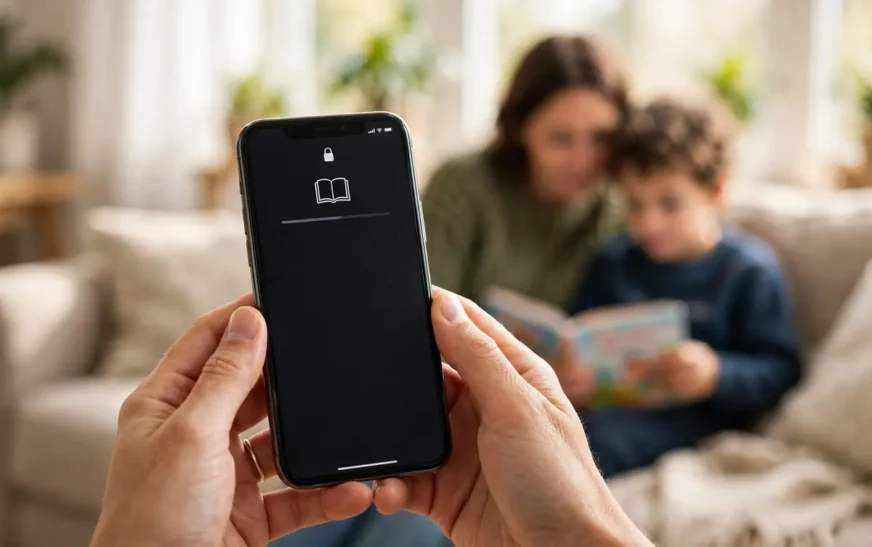
Guided Access for kids: one app, done right
Audio is a good example of a use case people underuse. Locking the phone to a single listening app turns it into a simple story player with no home screen to wander into, which is calmer for a car ride or a bedtime routine than a phone full of options. If you are choosing what to lock the phone to, this roundup of audiobook apps worth locking a phone to for kids and long trips helps you pick an app that holds attention on its own, so the lock is doing less work.
Screen Time, school profiles, and managed devices
The emergency-services warning, again, because it matters
Guided Access disables more than app switching. While a session runs, Crash Detection and Emergency Services are not available, which means a phone locked to a game in a child’s hands or a demo phone on a shop counter cannot be relied on for an emergency call until the session ends. This is not a reason to avoid Guided Access. It is a reason to end sessions when the phone needs to be a phone again, and to keep a second way to call for help where a locked phone is left unattended for long periods. If you need to understand what emergency indicators on an iPhone actually mean, this explanation of what the SOS indicator on an iPhone signals is a useful companion read before you set up a long session.
Guided Access vs other lock modes: do not confuse them
Screen Time is the confusion most people hit first. It can limit an app, block it at certain hours, or require extra approval, and all of that feels like a lock — but the phone still lets you open other apps, switch tasks, and wander. A Focus mode is even softer: it quiets notifications while leaving everything reachable. Neither one holds the phone to a single app the way Guided Access does, so fixing them will not fix a session that will not start.
StandBy is another false friend. A phone charging sideways in StandBy looks locked, and a phone in Guided Access looks like it is showing one app, but they solve different problems. StandBy is a glanceable display for a charging phone. Guided Access is a restriction for a phone in someone’s hands. If your phone keeps dropping into a clock view when you expected a locked app, you are looking at StandBy triggering on a charger, not Guided Access failing. For the full picture of that other mode, see this guide to turning a charging iPhone into a bedside clock and widget display.
Works in one app, fails in another: isolate the app
When Guided Access works in Notes but not in a particular game or video app, the app is the prime suspect. Some apps handle focus, rotation, or full-screen video in ways that clash with a locked session. Some apps restart themselves or trigger system prompts that Guided Access cannot contain. The fix list for this branch is short and specific.
The full fix list, in the order that wastes the least time
Use this list top to bottom for a phone you can reach settings on. Skip steps that do not match your symptom, and stop when Guided Access works.
| # | Fix | What it costs you |
|---|---|---|
| 1 | Confirm Guided Access toggle on | Nothing |
| 2 | Confirm Accessibility Shortcut ticked, only Guided Access ticked while testing | Nothing |
| 3 | Set Click Speed to Slow or Slowest, retest triple-click | Nothing |
| 4 | Set or reset Guided Access passcode; enable Face ID/Touch ID exit | A minute, and a code to remember |
| 5 | Toggle Guided Access off, restart, toggle it back on | A restart |
| 6 | Test in a second app; update or reinstall the failing app | App sign-in may be needed again |
| 7 | Turn Low Power Mode off and retest | Nothing |
| 8 | Check Screen Time limits and downtime for conflicts | Adjusting a limit |
| 9 | Update iOS under Settings > General > Software Update | Download time and a restart |
| 10 | Reset All Settings (keeps apps, photos, data; resets Wi-Fi passwords and system settings) | Re-entering Wi-Fi and custom settings |
| 11 | iCloud Lost Mode from another device (stuck sessions only) | Needs a second device |
| 12 | Restore through Finder/iTunes or recovery mode (erases device) | A backup and a full restore |
Update iOS properly, when it is actually the fix
Reset All Settings, with eyes open
Setting up a device so Guided Access rarely breaks
Most Guided Access failures are setup failures that happen weeks before the symptom. A phone set up for a child, a classroom, or a shop counter deserves a setup pass that prevents the common traps.
If the device is new or newly handed over, the transfer itself can introduce confusion — a Guided Access passcode set on an old phone does not carry over as a device passcode, and a child who knows the old unlock code may not know the Guided Access code at all. When you move a phone to a new owner or a new role, document the Guided Access code separately from the unlock code. For the transfer process itself, this walkthrough of moving contacts and setup to a new phone covers the handover steps that keep a new device from starting life with half-finished settings.
A prevention checklist to run once
- Guided Access on, passcode set and written down away from the phone, biometric exit on.
- Accessibility Shortcut: Guided Access ticked, competing shortcuts unticked while testing.
- Click speed set so triple-click registers reliably for the person who will use it.
- Session tested in the real app, with real options, and ended successfully by the owner.
- Time limit warning sound on, Display Auto-Lock set for the session length.
- Screen Time limits checked for conflicts with the locked app.
- Managed profile checked: if one exists, the administrator knows Guided Access is in use.
Run that checklist once per device and most future “not working” reports never happen. Skip it and you will troubleshoot the same phone repeatedly, each time under worse conditions than the last.
A child-safe or classroom setup is also a network setup, not just an app lock. A locked app with open access to everything on the network is only half a restriction, and a phone that can reach anything can still reach trouble through the one app it is locked to, if that app has a browser or a store inside it. Pair the app lock with sensible network controls for the room or home where the device will be used. This guide to securing a home Wi-Fi network properly covers the router-level steps that complement an app lock instead of duplicating it.
Battery, charging, and long sessions
A long session changes how you should think about power. A phone locked to one app for hours is not idling — it is running a screen, a processor, and often audio or video the whole time, so it will drain faster than a phone sitting in a pocket. Plan for that before the session starts, not when the low-battery warning appears mid-task.
Charging trouble during a session deserves the same treatment as charging trouble anywhere else: check the cable, the port, and the adapter before blaming the app or the lock. A phone that stops charging while locked in one app will still show a charging fault, and chasing Guided Access settings for a cable problem wastes the session. If the phone will not charge reliably at all, work through this guide to fixing a phone that will not charge before you set up another long session on it.
Battery health matters for kiosk-style use. A phone left in Guided Access all day, every day, with the screen on, will cycle its battery harder than a phone used normally, and an aging battery will show that strain as shorter sessions and unexpected shutdowns. If a device that once lasted a school day now dies by lunch in the same session, the battery is a suspect, not the lock. This guide to whether an iPhone battery needs replacing helps you separate a tired battery from a settings problem before you replace a phone that only needed a battery.
Time limits, sounds, and the end of a session
Volume for those warnings follows the phone’s general volume and alert settings, not a separate Guided Access volume. If warning sounds are too quiet to hear across a room, or loud enough to startle a classroom, adjust the phone’s alert volume before the session, not during it. For a closer look at how alarm and alert volumes behave on an iPhone, see this guide to alarm volume settings that actually control what you hear. Test the warning sound once, at the volume the room will hear, and the end of the session stops being a surprise.
Frequently asked questions about Guided Access not working
Why does triple-click do nothing on my iPhone?
The most common reason is that Guided Access is not ticked under Settings > Accessibility > Accessibility Shortcut, even though the main Guided Access toggle is on. Check that checkmark first, then check click speed under Accessibility > Side Button, and untick competing shortcuts while you test. If the button fails in every app, suspect the button or case, not Guided Access.
I forgot my Guided Access passcode. How do I get out?
Try Face ID or Touch ID first if you enabled biometric exit — that bypasses the forgotten code. If biometrics are not enabled, force restart the phone (Volume Up, Volume Down, hold Side until the Apple logo, on iPhone 8 and later). If the phone returns to the locked session, use iCloud Find My Lost Mode from another device to reach the lock screen, and use a restore only as a last resort, with a backup first.
Why does Guided Access keep turning off by itself?
Check for a time limit first, then Screen Time limits or downtime that hit during the session, then an app crash. A session that ends at the same time every day points to a schedule. A session that ends in one app only points to that app. A session that ends randomly after an update points to a settings conflict that a toggle-off, restart, toggle-on cycle often clears.
Does Guided Access work with every app?
It works with most apps, but some apps handle full-screen video, rotation, or system prompts in ways that clash with a locked session. Test in a second app to isolate the problem. If Guided Access works elsewhere, update or reinstall the failing app and start the session after signing in, not before.
Can Guided Access block emergency calls?
While a session runs, Crash Detection and Emergency Services are not available, according to Apple. End the session before relying on the phone for emergency use. Do not leave a phone in Guided Access as the only phone available in a room where an emergency call might be needed.
Should I reset all settings or restore my iPhone to fix Guided Access?
Reset All Settings first, and only after the cheaper fixes fail — it keeps your data but resets system settings including Wi-Fi passwords. Restore only when the phone is stuck or unusable after a force restart and Lost Mode, because a restore erases the device and needs a backup and a full restore afterward.
Why does my school or work iPhone say “contact your administrator”?
That message means the device is managed and locked to an app that is not available, usually because of a management policy or a failed app deployment. Contact the administrator with the exact message. Do not restore a managed device on your own, since that can break enrollment.
What to do next
Do the diagnosis before the next fix, not after it. Open settings, confirm the toggle and the shortcut, test triple-click in Notes, and test in a second app. Those four checks take under five minutes and they sort most failures into a branch with a known fix: shortcut, passcode, app, restriction, or managed device. If you are stuck right now, use the stuck-phone steps in order and set up biometric exit the moment you are free, so the next session cannot trap you the same way. Guided Access is a simple lock, and it stays simple only when the exit is easier than the entrance — a passcode you remember, a fingerprint or face that works, and one shortcut that does exactly what you expect when you triple-click. If the phone you are setting up dies quickly in long sessions, check whether its battery needs replacing before blaming the lock.

Continue Reading on CripsyWire
For more practical tutorials and hidden features, see our full how-to guides section. AI workflow guides feed into the broader AI tools and agents coverage, phone tricks live in smartphones, and wearable setup walkthroughs in wearables. When you are deciding what to buy, the reviews and comparisons section helps. All part of CripsyWire Tech, and the homepage shows what is newest.