What StandBy mode on iPhone actually does
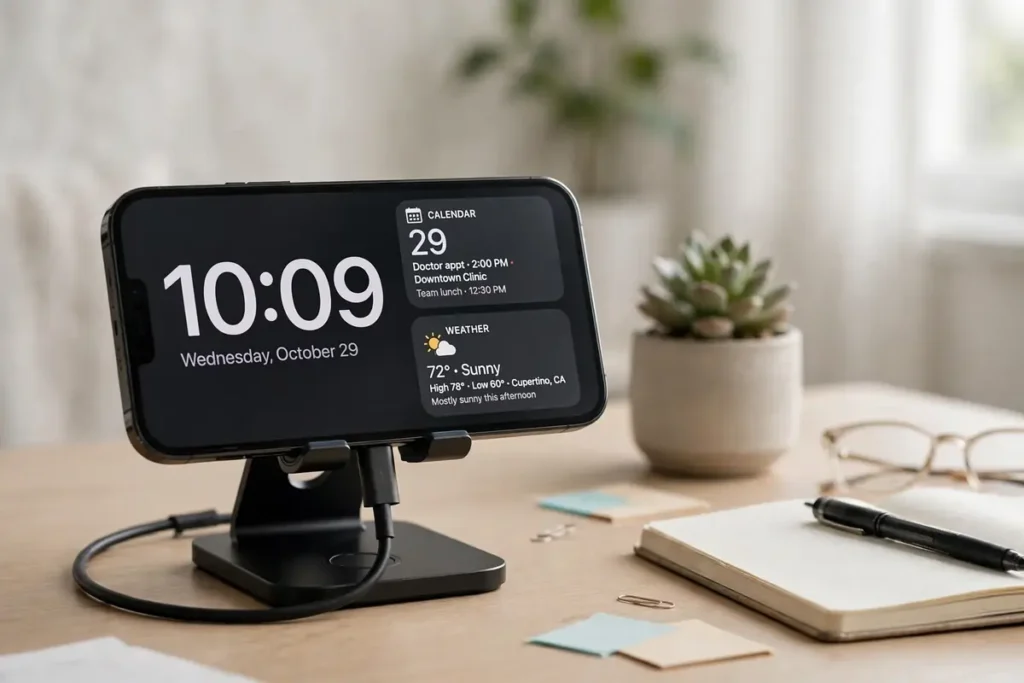
StandBy has three views, and you will use one of them far more than the other two. The widget view pairs a clock with a stack of widgets. The photo view cycles through pictures you choose. The clock view goes big and simple, with several styles to pick from. Swiping left or right moves between views. Swiping up or down changes the style inside the view you are on. Long-pressing lets you edit what is shown. Once you learn those three gestures, you have learned the whole interface.
The three conditions, checked in order
Before changing any setting, check the three triggers in order, because a missed trigger looks exactly like a broken feature.
First, the phone must be charging. Wired, MagSafe, or Qi wireless charging all count, but the connection has to be real and steady. A cable that only charges when you hold it at a certain angle will not give StandBy a stable trigger.
Second, the phone must be in landscape orientation — on its side, not upright, not flat on its back. It also needs to be fairly still and tilted, not lying flat on a table. This is the condition most people miss. StandBy was designed around a stand or a charging dock that holds the phone at an angle, the way a bedside clock sits. A phone lying flat on a wireless pad is charging, and it is locked, but it is not in the posture the feature expects.
Third, the phone must be locked. If you are staring at the home screen, StandBy will not take over. Lock the phone, set it down sideways on the charger, and give it a couple of seconds. The switch is not instant. Two or three seconds of stillness is normal before the full-screen view appears.
How to turn on StandBy mode
Open Settings, scroll down, and tap StandBy. Make sure the main toggle is on. It ships turned on for most people, so if you have never touched this screen, the toggle is probably already green and your problem is position or charging, not this switch.
While you are on that screen, look at the options underneath it. Show Notifications controls whether alerts appear over your StandBy view. Turn it on if you want delivery updates and messages to surface while the phone charges, and turn on Show Preview on Tap Only if you would rather see that a notification arrived without its contents showing to anyone walking past. That second option is the right default for a bedroom or a shared office, where a full message preview on a big screen is more exposure than most people intend.
The Display settings on this screen are where Pro and non-Pro phones split. On a Pro model with an Always-On display, you will see Display options that let the screen stay on, dim automatically, or turn off after 20 seconds. On other models you will see a Night Mode toggle instead. Do not go hunting for a Display menu that your phone does not have. If your phone shows Night Mode rather than Display, that is normal for your model, not a missing feature.
A 30-second test that settles most arguments
Picking a charger and stand that actually works
StandBy cares less about charging speed than about position. A stand that grips the phone sideways and keeps it at a readable angle will beat a faster charger that leaves the phone wobbling or sliding flat. MagSafe stands have a natural advantage here because the magnets snap the phone into the same sideways position every time, so you stop thinking about alignment. A wired cable works too, as long as you prop the phone up — the cable itself does not care about orientation, but it does, so the propping is on you.
Flat charging pads are the classic trap. The phone charges perfectly well on a flat pad, and StandBy stays silent, and the owner concludes the feature is broken. It is not broken. It is waiting for a sideways, angled, stationary phone, and a flat pad cannot give it one. If you love your flat pad, keep it for daytime top-ups and put a cheap angled stand where you actually want the feature to live, by the bed or on the desk.
When you are choosing a stand, check two things before you buy: that it holds the phone in landscape without you balancing it, and that it keeps charging while the phone sits in a case. A stand that demands a naked phone or drops the charge every time the phone shifts will train you to stop using StandBy within a week. For a closer look at what separates a reliable stand from a frustrating one, read this guide to wireless charging stands that actually hold a phone sideways.
Kitchen, desk, and bedside are three different setups
The three views, and which one earns its place
Widget view: the default, and the most useful
The widget view is what most people see first: a clock on one side and a stack of widgets on the other. Swipe up or down on either side to cycle through what is shown. Long-press to add or remove widgets, and turn Smart Rotation off if you are tired of the stack changing on its own and hiding the widget you actually wanted.
Clock view: simple on purpose
Photo view: a frame that charges your phone
Swipe to the photo view and your phone becomes a digital photo frame, cycling through an album you choose. Tap the plus or the album control when customizing to pick which photos appear, and leave out anything you would not want a guest to see on a bedside table. Photo view is the view people show off, and it is also the view that most often surprises someone with a photo they forgot was in the album.
Night Mode, red tint, and sleeping next to a screen
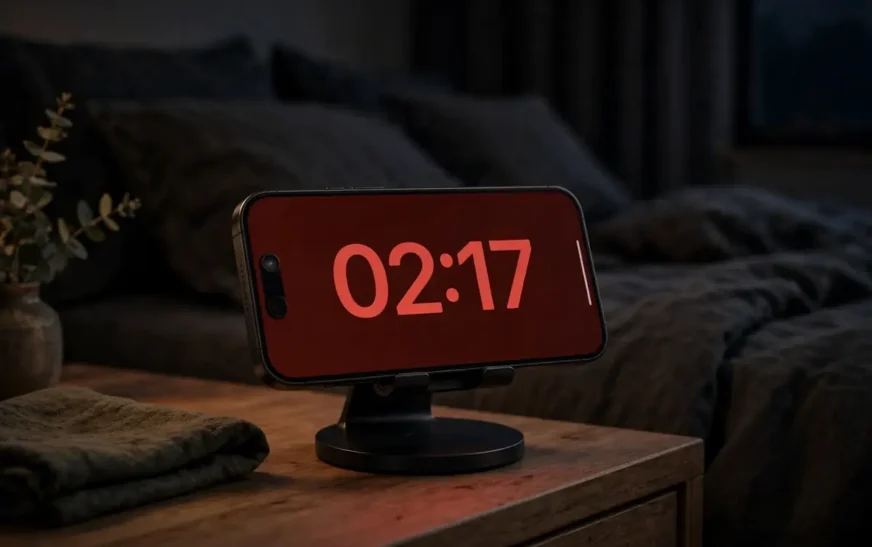
Night Mode is StandBy’s answer to the obvious complaint: a bright screen next to a bed is a terrible alarm clock. When the room gets dark, Night Mode drops the brightness and shifts the display toward red, which is far less jarring at 3 a.m. than a white clock face. On Pro models this lives under Display settings; on other models it is the Night Mode toggle on the main StandBy screen.
Motion to Wake sits nearby, and it decides whether the screen lights up when you move in the room. Turn it on if you want to glance at the time without touching the phone, and turn it off if every midnight trip past the nightstand wakes a screen you would rather keep dim. There is no universally right setting. A light sleeper in a small room usually wants it off. Someone using StandBy as a hallway clock usually wants it on.
StandBy as a bedside clock: alarms, notifications, and sleep
StandBy earns its keep at night only if alarms still behave the way you expect. An alarm set on your iPhone will still sound and appear large on the StandBy screen, and you can snooze or dismiss it from there without fumbling for the home screen in the dark. That is genuinely better than a traditional alarm clock, because the snooze target is huge and you are not hunting for a tiny button.
Volume is where bedside setups quietly fail. An alarm at a level that works in a quiet house may be too soft after a long day, or loud enough to wake someone else in the room. Test the alarm once during the day from the StandBy screen before trusting it on a morning that matters, and check the phone’s alarm and ringer settings rather than assuming the StandBy screen has its own volume control. It does not. If alarms have been inconsistent for you before, this walkthrough of alarm volume controls that stop missed wake-ups covers the settings that actually decide how loud an alarm sounds.
A bedside checklist worth running once
- StandBy toggle on, Night Mode on, Motion to Wake set to your preference.
- Show Notifications off or preview-on-tap-only for the bedroom spot.
- Alarm tested once from the StandBy screen, at the volume you will actually sleep through or wake to.
- Charger and stand checked: phone sits sideways, stays charging, and does not slide when you tap snooze.
- Photo view, if used at the bedside, limited to an album you are happy for anyone in the room to see.
Photos in StandBy, and the storage question nobody asks
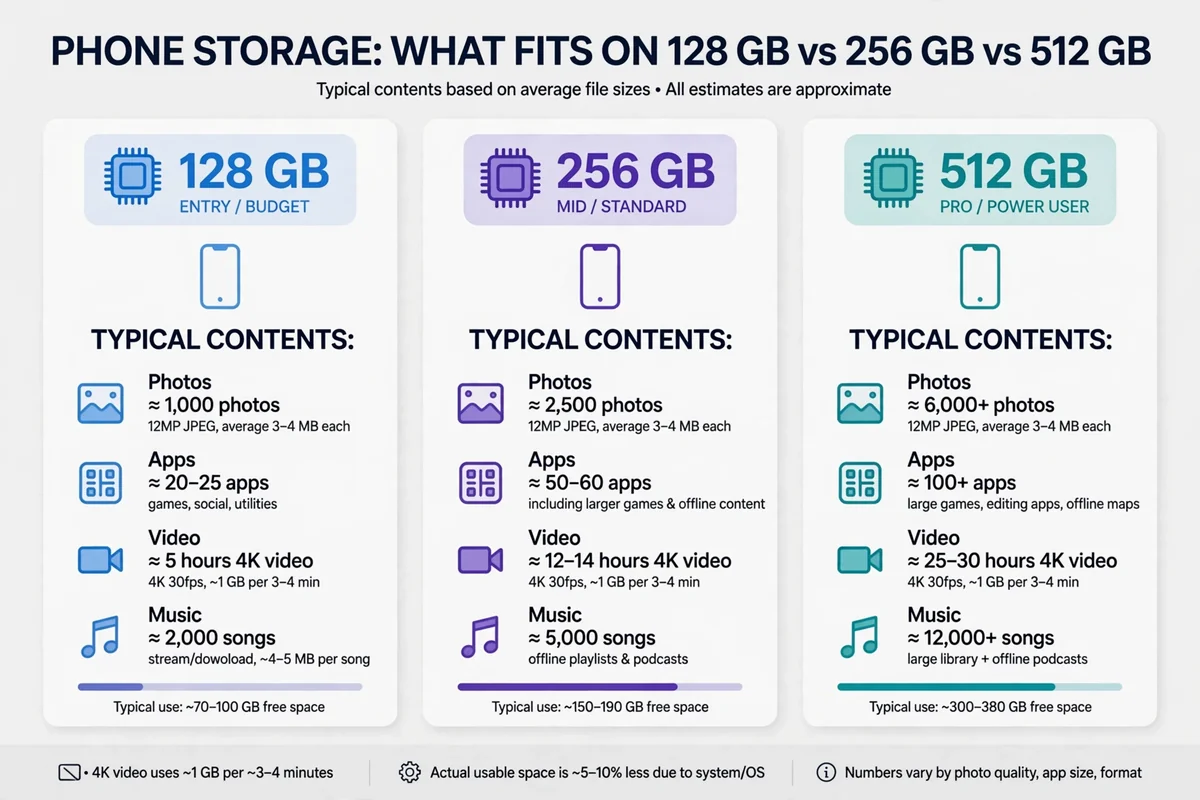
Storage matters in a quiet way here. If your phone is constantly near full, you may hesitate to keep favorite photos on the device at all, and photo view ends up pointed at a thin album or switched off. Understanding how much a phone actually holds helps you decide whether to keep full-resolution favorites locally or lean on cloud storage and a smaller on-device set. This breakdown of how many photos fit on a typical phone storage size gives you a realistic sense of that trade-off before you trim an album you did not need to trim.
Screen size changes what StandBy is good for
StandBy scales to the phone, but it does not feel the same on every phone. A large Pro Max screen turns the clock view into something readable from across a room and the widget view into something you can scan without glasses. A smaller phone still works, and the clock is still legible from a nightstand, but the widget text shrinks and the photo view loses some of its frame-like presence.
If you are comparing phones or wondering how much screen you actually gain by moving up a size, a side-by-side look at current iPhone screen sizes compared in one place makes the trade-off concrete instead of guesswork. Screen size is also the reason StandBy feels like a different feature on different phones, even though the settings are identical.
Small phones and StandBy: what to expect
Owners of smaller iPhones sometimes report that StandBy feels cramped, and they are not imagining it. The widget stack still works, but each widget shows less, and the clock styles that look dramatic on a big screen look merely adequate on a small one. The fix is to simplify: one clock, one or two widgets, no photo view at the bedside, and a stand that puts the phone close rather than across the room.
The compact SE line is the clearest example. It runs StandBy, it charges and turns sideways like any other supported iPhone, and the experience is serviceable rather than spectacular. If you are weighing a smaller phone against a larger one and the feature matters to you, read up on what the compact SE model does well and where it feels tight before deciding that screen size is a detail. For the feature, it is the detail.
Battery, heat, and the Always-On question
Setting Display to Never on a Pro model is a choice, not a default to accept blindly. Never means the clock stays visible all night, which is exactly what some people want and exactly what drains the most power. Automatically, where the screen sleeps in a dark, empty room, is the smarter default for most bedrooms. You can always tap to wake it. A clock you have to tap once is still a clock.
If your battery already struggles to get through a day, StandBy will not fix that, and an always-on bedside screen will make a weak battery more obvious. In that case the real question is battery health and whether a replacement makes sense, not which the feature setting to tweak. This guide to signs your iPhone battery actually needs replacing helps you tell normal aging from a battery that is genuinely holding the phone back.
Pro models, Always-On display, and what you actually gain
The Always-On display is the feature that turns StandBy from a sometimes-clock into a real bedside clock. On Pro models that support it, the StandBy screen can stay dimly visible all night, updating the time and widgets without you touching anything. On other models, the screen sleeps and you wake it with a tap or a nudge. Both are the feature. Only one feels like a clock that is always there.
Pro models also tend to surface extra StandBy-adjacent options and refinements first, from Display behavior to how Live Activities present on the StandBy screen. If you own a recent Pro iPhone and have never explored what else it hides, this roundup of hidden features on the latest Pro iPhone is a useful next read — not because it needs those features, but because the phone you bought for the feature probably does more on a stand than you have asked it to do.
Should you buy a Pro phone just for StandBy?
StandBy vs a watch on the nightstand
Apple Watch owners already have a version of this idea: Nightstand mode turns a charging watch into a small bedside clock. StandBy is the phone-sized version, with bigger text, widgets, and photos the watch cannot match. The watch wins on footprint and on staying out of the way. The phone wins on readability and on showing more than the time.
Some people use both, and that is not as redundant as it sounds. A watch on its charger by the bed gives a small, dim clock that never tempts you to pick it up and scroll. A phone in StandBy gives a larger display for the morning routine — weather, calendar, and the first alarm — at the cost of a screen that invites interaction. If you already wear a watch and are considering a dedicated bedside device, compare the experience honestly before adding another screen to the bedroom. For a sense of what a full-featured watch brings to that setup, see this look at the rugged Apple Watch built for outdoor and all-day use.
StandBy not working: a ranked fix list
Most StandBy failures fall into a short list, and the order you check them matters. Start cheap and reversible, and save the destructive steps for last.
| Check | What to do | What it rules out |
|---|---|---|
| Toggle | Settings > StandBy on; toggle off and on once | A switch that was off or stuck |
| Position | Lock phone, place sideways at an angle, wait 5 seconds | Flat pad, upright, or moving phone |
| Charger | Try a different cable or stand; confirm charging icon | Weak or intermittent charging |
| Low Power Mode | Settings > Battery, turn Low Power Mode off | Power saving dimming the display early |
| Orientation lock | Control Center, turn orientation lock off and retest | A lock interfering with landscape detection |
| Restart | Power off, wait 30 seconds, power on | Temporary software glitch |
| Update | Settings > General > Software Update | A bug fixed in a later iOS version |
| Reset settings | Settings > General > Transfer or Reset iPhone > Reset All Settings | A deep settings conflict (costs Wi-Fi passwords and custom settings) |
When charging itself is the problem
StandBy cannot trigger on a phone that is not reliably charging, so a charging fault masquerades as a StandBy fault. If the charging icon flickers, the phone charges only at certain angles, or the battery percentage stalls while plugged in, fix charging first and the feature will usually follow. This troubleshooting guide for a phone that will not charge properly walks through cable, port, adapter, and case checks in the order that finds the fault fastest, and it is worth running before you touch any the feature setting a second time.
Who StandBy is for, and who should turn it off
Frequently asked questions about StandBy mode
Does StandBy mode work on any iPhone?
StandBy works on iPhones that run iOS 17 or later, which covers a wide range from the iPhone XR and XS onward and the second-generation SE onward. The difference is not whether it works, but whether the screen stays on: only Pro models with an Always-On display keep the StandBy screen lit indefinitely. Other models show the feature and then sleep, waking on tap or movement.
Why does my StandBy screen turn off after a few seconds?
On a phone without an Always-On display, that is normal behavior, not a fault. The screen sleeps to save battery and you wake it by tapping the screen or nudging the table. If you have a Pro model and the screen still sleeps, check Settings > StandBy > Display and Low Power Mode, since either can override the stay-on setting.
Does StandBy drain the battery overnight?
While charging, StandBy should not leave you worse off in the morning, because the charger offsets the screen’s draw. An always-on Pro display uses more power than a sleeping screen, so a weak charger or a failing battery will show up faster with Display set to Never. If the phone loses charge overnight while plugged in, suspect the charger or battery before the feature.
Can I use StandBy without a MagSafe charger?
Yes. Any charger counts as long as the phone is charging, locked, sideways, and stationary. A wired cable with the phone propped at an angle works. MagSafe simply makes the sideways position automatic, which is why it feels more reliable in practice even though the feature does not require it.
Why is my StandBy screen red at night?
That is Night Mode, which shifts the display to a dim red tint in low light so the screen is less harsh in a dark room. You can turn it off under StandBy settings if you prefer normal colors at night, but most people keep it on for the bedroom and turn it off for daytime spots by choosing a different view or setup.
Can I stop notifications from showing on StandBy?
Yes. Go to Settings > StandBy and turn Show Notifications off, or turn on Show Preview on Tap Only so alerts appear without their contents. This is a per-phone setting, so a bedroom phone can stay quiet while a desk phone shows everything.
How do I turn StandBy off completely?
Open Settings, tap StandBy, and switch the main toggle off. The phone will charge normally and stay dark when locked, with no full-screen view. You can turn it back on the same way whenever you want it again.
What to do next
Set up one spot properly before you try to perfect every room. Pick the place your phone charges longest — for most people that is the bedside — put a stand there that holds the phone sideways without fuss, choose the clock view with Night Mode on and notifications off, and live with it for three nights. If you wake up liking the glanceable clock and never missing a message, add the desk setup with widgets next. If you wake up annoyed by the light, turn Motion to Wake off first and StandBy off second, in that order. The goal was never to use every view. The goal was a charging phone that tells you the time without demanding your attention, and one good setup proves whether that trade is worth it for you faster than any settings tour will.

Continue Reading on CripsyWire
For more practical tutorials and hidden features, see our full how-to guides section. AI workflow guides feed into the broader AI tools and agents coverage, phone tricks live in smartphones, and wearable setup walkthroughs in wearables. When you are deciding what to buy, the reviews and comparisons section helps. All part of CripsyWire Tech, and the homepage shows what is newest.