What double sided printing actually does
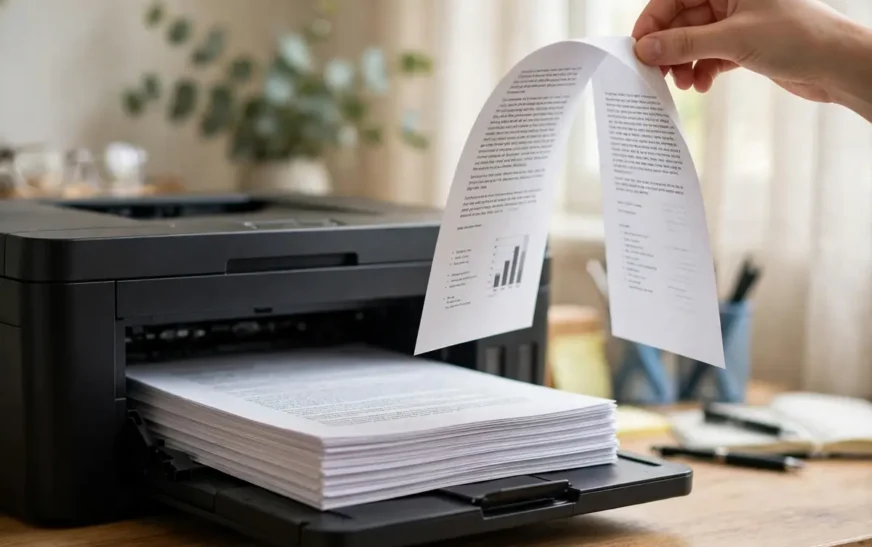
Double sided printing, also called duplex printing, puts page one on the front of a sheet and page two on the back. That sounds trivial until page two comes out upside down, or the printer stops halfway. The setting itself is simple. The confusion comes from three things hiding behind it: whether your printer can flip paper on its own, which edge the paper flips on, and which program you are printing from. Each of those can override the others, and most failed print jobs trace back to one of them.
Automatic duplex means the printer pulls the sheet back in, flips it, and prints the second side itself. Manual duplex means you print one side, reload the stack by hand, and print the other side. They fail in different ways, and the fix for one does not help the other. The other term to learn is binding edge. Flip on long edge turns the page like a book, keeping the top at the top. Flip on short edge turns it like a notepad, flipping it upward. Get this wrong and every back page reads upside down.
Check first: does your printer flip paper on its own?
Before you open any print dialog, find out what your printer can do. The fastest check is inside the print dialog itself. Open any document, press Ctrl+P or Cmd+P, select your printer, and look for Print on both sides, Two-sided, Duplex, or 2-Sided Printing. If you see it, you have automatic duplex, or at least a driver that believes you do. If you do not see it, do not assume the printer cannot do it. A generic driver installed by Windows can hide the option even on a printer that supports duplex, and that is one of the most common reasons people conclude, wrongly, that manual printing is their only choice.
Check the manufacturer’s support page for your exact model and look for the word duplex in the specifications. If a network printer is not appearing at all, work through a guide to fixing a DNS server that is not responding before blaming the duplex setting. If the spec sheet says automatic duplex or auto two-sided, install the full driver from the manufacturer instead of relying on the driver Windows picked on its own. Remove the printer, restart, install the full package, and check the dialog again. This single step brings the greyed-out option back more often than any other fix, and it costs nothing but ten minutes.
If the spec sheet says manual duplex only, plan for the manual method. Many home printers skip the duplexer to keep the price down, and manual duplex works fine once you learn your printer’s reload direction.
How to print double sided on Windows
On Windows, the cleanest path runs through the print dialog of the program you are using. Open the document, press Ctrl+P, and select your printer. In Microsoft Word, look for the menu that says Print One Sided and open it. The same Word print menu sits alongside the formatting controls, so if a document looks cramped after duplexing, check how to set double spacing in a Word document before reprinting. If Print on Both Sides appears there, your printer supports duplex and Word is ready to use it. If only Print One Sided appears, either the printer lacks duplex or the driver is hiding it, and you should check the full driver before going further.
Click Printer Properties or Preferences next to the printer name. The exact tab name varies by brand: HP tends to put it under a Layout or Finishing tab, Brother under Basic, Epson on the Main tab as 2-Sided Printing, and Canon under a Layout or Quality section. Look for Duplex, Two-Sided, or Print on Both Sides, then pick long edge for portrait or short edge for landscape. Click OK to return to the main dialog, and print a single test sheet before you commit to the full job.
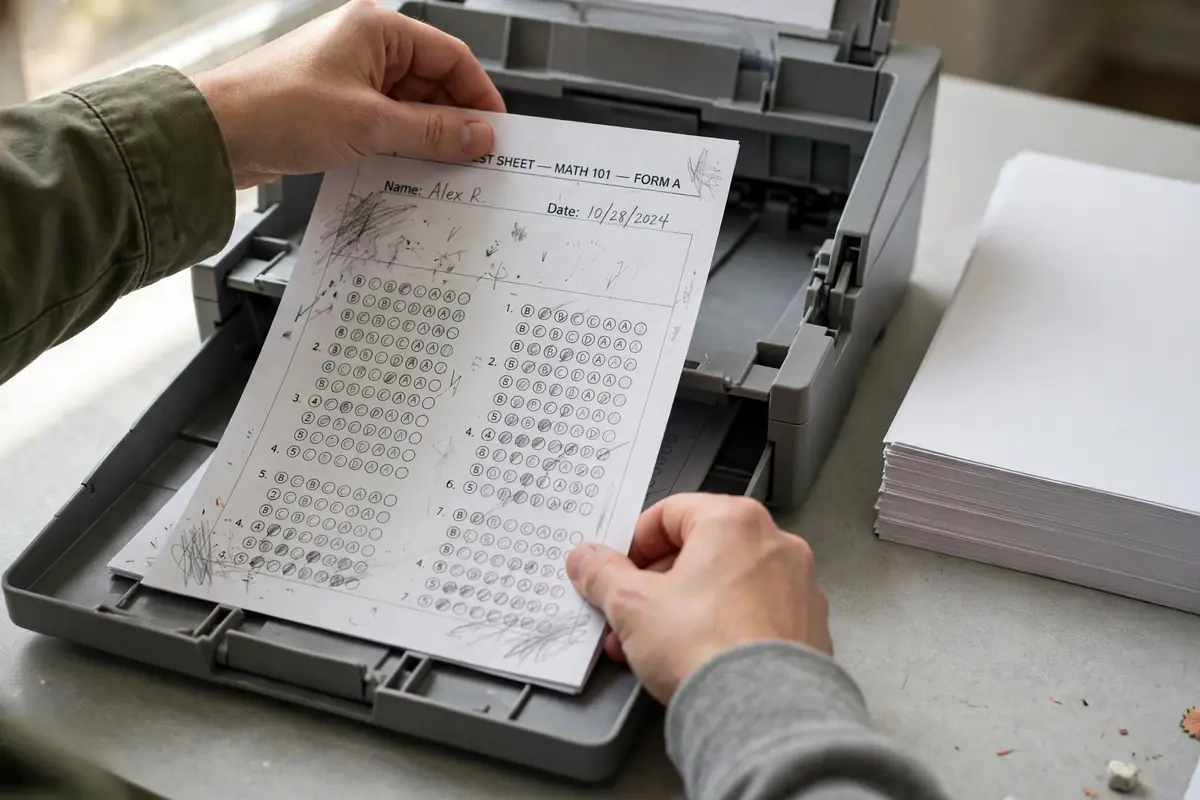
That test sheet matters more than any other habit in this guide. Print pages one and two only, hold the sheet up, and check that page two reads the right way up and that the margins line up. If it is upside down, you picked the wrong edge. If only one side printed, the driver setting and the program setting disagree, and you need to set duplex in both places. If the sheet jammed, stop and check the paper before you feed fifty more sheets into the same problem.
To make duplex the default in Windows 11, open Settings, Bluetooth and devices, Printers and scanners, select your printer, open Printing preferences, set duplex to Flip on long edge, and click Apply. For all users on a shared computer, use Printer Properties, Advanced, Printing Defaults instead. Turn off “Let Windows manage my default printer” if your default keeps changing on its own.
How to print double sided on a Mac
On a Mac, press Cmd+P and look at the print window. The duplex control usually lives under the Layout menu, which you reach from the dropdown that may initially say Copies and Pages or Preview. Open that dropdown, choose Layout, and look for Two-Sided. Pick Long-Edge binding for a portrait document or Short-Edge binding for a landscape one, then print.
If you are printing a long job from a laptop, confirm the machine will stay powered through it; a quick check for whether your Mac is actually charging beats discovering a dead battery halfway through a manual reload. If the Two-Sided option is greyed out or missing, the usual suspects are the same as on Windows: a generic driver, a printer that only supports manual duplex, or a preset that overrides the setting. Check that you are not using a saved preset that forces single-sided printing, then check the manufacturer’s site for a full Mac driver for your exact model. Brother’s own support notes make this point plainly: duplex output that comes out upside down often traces back to a generic driver rather than to the document itself.
Mac users in a browser hit a second trap: Chrome’s dialog has its own two-sided checkbox that does not always reflect the driver setting. If it shows no duplex option, click Print using system dialog and use the Mac Layout menu instead. When the two disagree, trust the system dialog and the test sheet.
How to print double sided in Word, Google Docs, and PDFs
Word, Google Docs, and PDF readers each put the duplex control in a slightly different place, and that is why a person who prints fine from Word can fail from Chrome five minutes later. In Word on Windows, the Print One Sided menu is your indicator: if Print on Both Sides is listed, use it, and set the flip edge in Printer Properties. In Word on Mac, go to Copies and Pages, then Layout, then Two-Sided, exactly as in the Mac section above. For a manual printer in Word, use the odd-pages-only and even-pages-only options under the same print menu, and follow the reload method later in this guide.
Google Docs has no duplex setting of its own; it borrows your browser and driver settings. In Chrome, press Ctrl+P or Cmd+P, pick your printer rather than Save as PDF, click More settings, tick Print on both sides, and pick Flip on long edge for portrait. If the checkbox is absent, click Print using system dialog and set duplex in the driver dialog. The same rule holds in Edge, Firefox, and Safari, with different wording. Wireless printers also sit on your home network, so it is worth locking down your home Wi-Fi before sharing a printer across every device in the house.
PDFs add a third layer: the reader dialog, the browser dialog if applicable, and the driver properties behind both. If you tick Print on both sides in the reader and nothing happens, open Printer Properties from that dialog and set 2-Sided Printing there too. Check the page count as well: a one-page PDF has nothing to put on the back.
The one-sheet test that saves every long job
Print one sheet, with page one on the front and page two on the back, before you print anything long. Hold it up to the light. Read page two. Check that the top of page two is at the top of the sheet when you turn it the way the finished document will be turned. If you are making a book-style report, turn the sheet sideways like a book page. If you are making a landscape handout or a calendar, flip it upward like a notepad. The test takes thirty seconds and answers the only question that matters: does this combination of program, driver, and printer produce the document you actually want?
For a wireless printer, a weak connection can also stall a long duplex job, and understanding the latest Wi-Fi standard helps explain why an older router struggles with large files. Mark the test sheet “front, top” and “back, top” in pencil and keep it by the printer for comparison. It also catches paper problems early: damp or curled paper misfeeds more in duplex because the sheet makes two passes, so use flat, dry plain paper, fan the stack, and seat it squarely against the tray guides.
Manual duplex: the reload method that actually works
Manual duplex is where most guides go vague, so here is the method in full. First, print only the odd-numbered pages. In Word, choose Odd pages only in the print menu. In a PDF reader, set the page range to odd pages or print the odd pages as a custom range. Let the whole stack finish, and do not shuffle it. Keep the pages in the order they came out.
Now take one sheet from the top of that stack and run the orientation test. Put a small pencil mark on the blank side of that sheet, reload it the way you think is correct, and print a single even page onto it. Look at the result. If the even page landed on the blank side, the right way up, you have the reload direction. If it landed on the printed side, or upside down, you have learned the direction is wrong at the cost of one sheet instead of fifty. Write the correct direction on a sticky note and put it on the printer, because you will forget it by next month and every printer feeds differently.
Chromebook owners follow the same reload test, and if you are still deciding on hardware, a comparison of Chromebooks and laptops covers the trade-offs that affect printing support. The general pattern most printers follow is this: take the stack as it came out, flip the whole stack over so the blank sides face up, and reload it without rotating it end to end — but treat that as a starting guess, not a rule. Some printers feed face up, some face down, and some reverse the page order on output. The pencil test is the rule. Once you know your printer’s direction, the rest is mechanical: reload the full odd-page stack in that direction, print the even pages, and check the first two sheets before you walk away.
Print long documents in small batches, ten or twenty sheets at a time, so a reload mistake ruins a batch rather than the whole job. Let inkjet pages dry for a minute before reloading, and fan the stack either way to break static.
Flip on long edge vs short edge, explained with real documents
The edge rule is simple once you tie it to a physical object. A portrait report, a letter, a school essay, and a book chapter all turn like a book, so they use flip on long edge. The binding edge is the long side of the page, and turning the page sideways keeps the top at the top. A landscape presentation handout, a wall calendar, and a notepad all flip upward, so they use flip on short edge. The binding edge is the short side, at the top, and flipping upward keeps the top at the top for that orientation.
The trap is a mixed document: one duplex job applies one binding edge to the whole job, so landscape pages in a portrait report can come out inverted. Print the portrait and landscape sections as separate jobs with different flip settings, then combine them. A print preview will not warn you, because it shows the document as designed, not as the printer will flip it.
Fixing the five failures you will actually hit
Use this table as a diagnostic, not as a list to read in order. Find your symptom, try the first fix, and run a test sheet before you try the next one.
| Symptom | Most likely cause | Fix to try first |
|---|---|---|
| No double sided option at all | Generic driver, or printer lacks automatic duplex | Install the manufacturer’s full driver; if the option still does not appear, use manual duplex |
| Back page prints upside down | Wrong flip edge for the document orientation | Switch long edge to short edge, or the reverse, and test one sheet |
| Only one side prints | Viewer and driver settings disagree | Set duplex in Printer Properties as well as in the program dialog |
| Second side smears (inkjet) | Ink not dry before the sheet re-enters the printer | Let pages dry, use a higher quality setting, or look for a delay-between-pages option |
| Jams in duplex mode | Curled, damp, or misaligned paper; debris in the duplexer | Use flat dry plain paper, seat the stack squarely, clear the duplexer gently without forcing torn paper |
Work the causes in order when the option is missing: confirm the model supports automatic duplex, install the full driver, switch to the system dialog, then check presets or office policies. If all four check out, the printer is manual-only. When the back is upside down, change the flip edge and leave the document alone; rotating pages in Word to compensate creates a file that looks wrong on screen and still prints wrong later. For a one-sided PDF, set duplex in the driver properties and confirm you are not printing to Save as PDF. For repeated jams, power off before clearing, remove every torn fragment, and run one plain sheet before resuming.
Paper, ink, and settings that quietly break duplex
Paper choice matters more in duplex than in single-sided printing because every sheet makes two passes. Standard plain paper in the weight your printer manual recommends is the safe choice. Very thick card, glossy photo paper, envelopes, and labels often cannot duplex at all: the printer may refuse the job, jam, or print the second side badly. Canon’s own support note for one PIXMA model makes the limit explicit, allowing duplex only on plain paper and certain postcard sizes and blocking it for borderless printing. Other brands have their own versions of the same limit, so check your model’s manual rather than assuming every paper type duplexes. While a long job runs, keeping a phone topped up on the desk helps too, and a roundup of the best wireless chargers for a desk setup covers that side of the desk.
Inkjets need drying time, so a fresh first side can smear on re-entry, especially with heavy colour. Lasers fuse toner with heat, so drying is not the issue, but heat and static can curl a sheet and cause a misfeed on the second pass. Draft mode can also look faint on the second side; if it does, use a normal or best quality setting, and use a duplex density setting if your driver offers one.
Printing double sided from a phone, tablet, or Chromebook
Mobile duplex depends entirely on whether the printer and its driver report duplex support to the phone or tablet. On an iPhone or iPad, open the document, tap Share, then Print, select the printer, and look for a Duplex or Double-Sided option in the print options. On Android, if the print service itself behaves oddly, clearing cached data on Android is a low-risk step before reinstalling the manufacturer’s plugin. If it appears, turn it on and pick the flip direction. If it does not appear, the printer either lacks automatic duplex or the mobile driver does not expose it, and no setting on the phone will create it. In that case, print the document from a computer instead, or use the manual method from the computer.
Android printing works the same way through the system print service or the manufacturer’s print app: the duplex toggle appears only when the printer reports support. If it does not appear, check that you are using the manufacturer’s print plugin rather than a generic one, and check the full driver situation on a computer to confirm whether the printer supports duplex at all. Chromebooks follow the Chrome pattern: Ctrl+P, More settings, look for Two-sided, and switch to the system dialog if the option is hidden.
Setting up a workspace where duplex just works
Duplex printing rewards a small amount of setup. Keep the manufacturer’s full driver installed, keep a sticky note with your manual reload direction on the printer if you have a manual machine, and keep a small stock of flat plain paper reserved for double sided jobs. A second screen helps you proofread while the printer runs, and a two-monitor desk layout shows how to set that up without crowding the printer. If you print double sided every day, set duplex as your Windows default using the Printing Preferences path above, so you stop paying attention to the setting for routine jobs and only change it for the occasional single-sided print.
Frequently asked questions
Why is my double sided print upside down on the back?
You picked the wrong flip edge. Portrait needs flip on long edge; landscape needs flip on short edge. Switch it, test one sheet, and check before reprinting. If both edges fail, suspect a generic driver or a preset.
Why is there no double sided option in my print dialog?
Either the printer lacks automatic duplex, the driver is generic, or a browser dialog masks the driver setting. Install the full manufacturer driver, switch to the system dialog, and check the specifications. If manual-only, use odd-pages-then-even-pages.
Can I print double sided on any printer?
Any printer can print both sides manually, provided it feeds already-printed sheets without jamming. Automatic duplex needs a printer built with a duplexer, so check the specifications before assuming support.
How do I print double sided in Google Docs?
Press Ctrl+P or Cmd+P, pick your printer rather than Save as PDF, click More settings, tick Print on both sides, and choose Flip on long edge for portrait. If the checkbox is missing, use the system dialog and set duplex in the driver.
How do I print double sided manually without messing up the order?
Print odd pages first, keep the stack in order, run a one-sheet pencil test to learn the reload direction, write it on the printer, then reload and print the even pages. Work in small batches for long documents.
Does double sided printing save paper?
Yes: twenty sheets single-sided becomes ten double-sided, assuming the same content and no reprints. The saving disappears if jobs need reprinting for upside-down backs, which is why the test sheet is part of the saving.
Why does my PDF print on one side only?
A PDF passes through two or three layers: reader dialog, browser dialog if applicable, and driver properties. Set duplex in the driver properties too, confirm you are printing to a real printer rather than Save as PDF, and check the PDF has more than one page.
What to do next
Start with the one-sheet test, using the flip edge for your document orientation, and write the result on the printer if you use manual duplex. If it passes, set duplex as your default and keep single-sided printing for forms and envelopes. If it fails, work the table from the top: driver, flip edge, then program-versus-driver disagreement. That order fixes most duplex problems quickly, and stops the waste that matters most: paper lost to reprints.

Continue Reading on CripsyWire
For more practical tutorials and hidden features, see our full how-to guides section. AI workflow guides feed into the broader AI tools and agents coverage, phone tricks live in smartphones, and wearable setup walkthroughs in wearables. When you are deciding what to buy, the reviews and comparisons section helps. All part of CripsyWire Tech, and the homepage shows what is newest.