Xbox Game Pass is one of the most popular gaming subscription services available today. It gives players access to hundreds of games across Xbox consoles, PC, and cloud gaming.
But maybe you’re not using it enough anymore.
Maybe your favorite game left the library. Maybe you’re cutting monthly expenses. Or perhaps you only subscribed for a specific release.
Whatever the reason, canceling Xbox Game Pass is simple once you know where Microsoft hides the settings.
The biggest mistake people make? They think turning off recurring billing and canceling are the same thing. They’re not.
This guide walks through every method available in 2026 and explains exactly what happens after cancellation.
Table of Contents
- Quick Answer
- Turn Off Recurring Billing vs Cancel Subscription
- How to Cancel Xbox Game Pass on a Browser
- How to Cancel on Xbox Series X or Series S
- How to Cancel PC Game Pass
- How to Cancel Through the Xbox Mobile App
- What Happens After Cancellation?
- Comparison Table
- Common Mistakes to Avoid
- Expert Tips
- FAQs
- Final Verdict
Quick Answer
To cancel Xbox Game Pass in 2026:
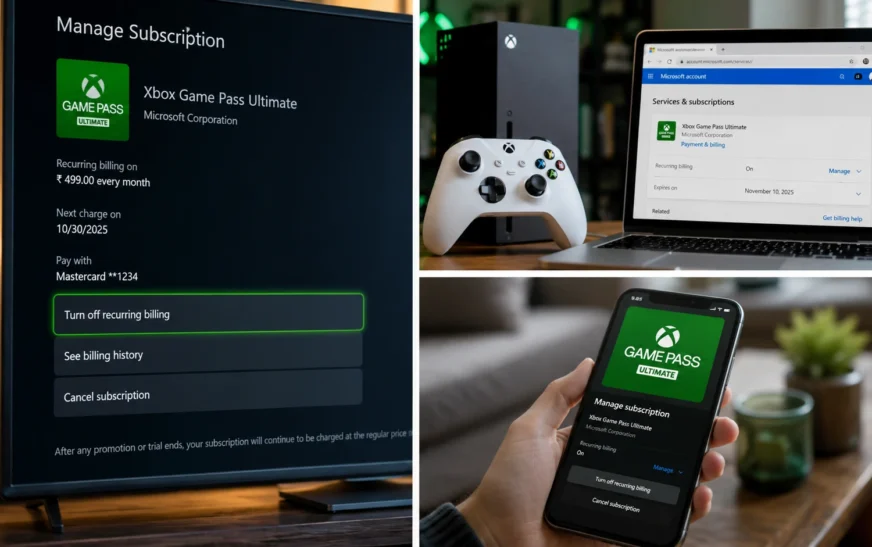
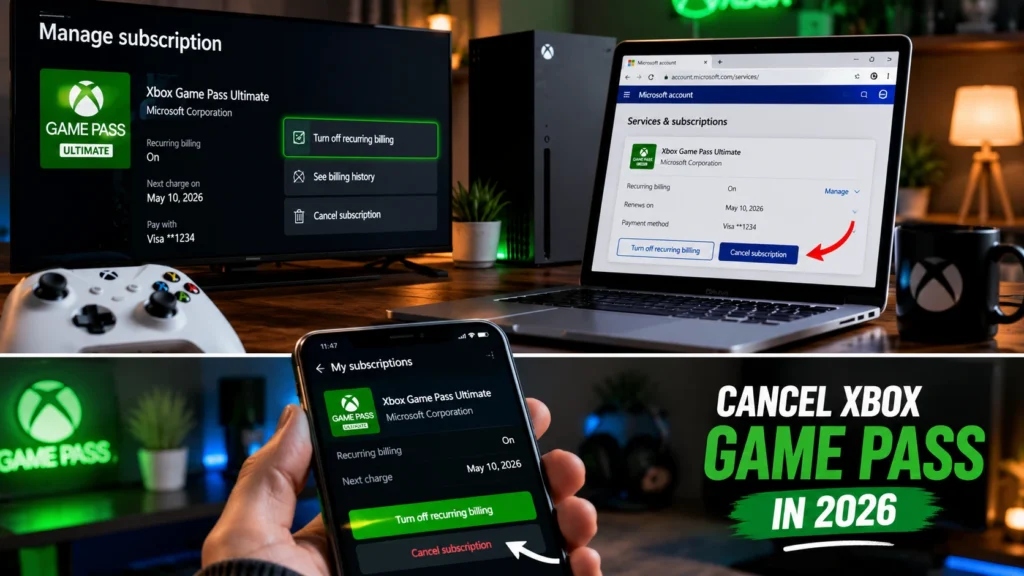
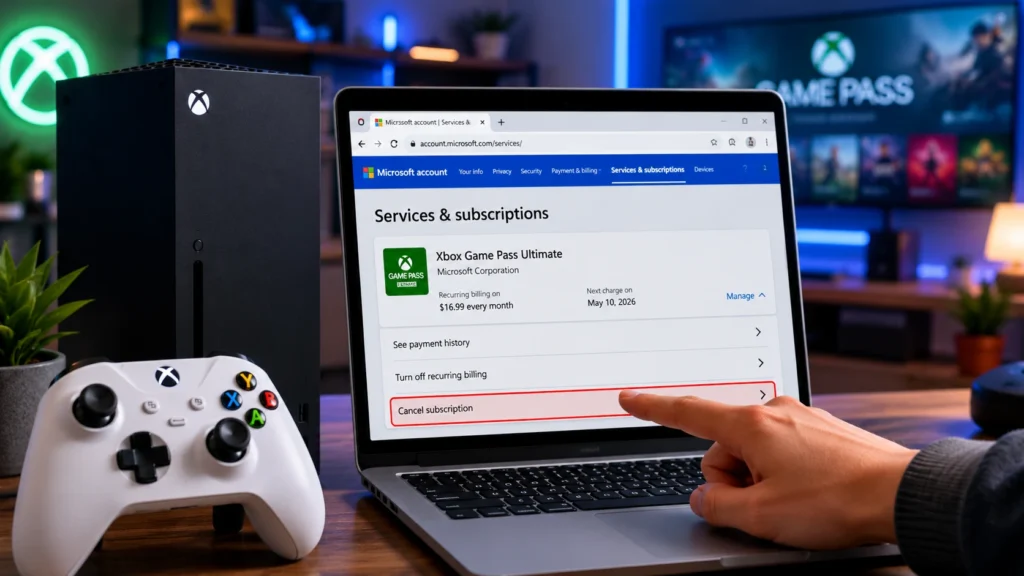
Sign in to your Microsoft account, open Services & Subscriptions, select your Xbox Game Pass membership, click Manage, then choose Cancel subscription or Turn off recurring billing and follow the prompts.
If you’re troubleshooting gaming hardware, check our guide on how to reset AirPods: how to reset AirPods.
Turn Off Recurring Billing vs Cancel Subscription
This is where many gamers get confused.
| Option | What Happens |
|---|---|
| Turn Off Recurring Billing | You keep Game Pass until the current billing period ends |
| Cancel Subscription Immediately | May end benefits sooner depending on eligibility and refund options |
| Do Nothing | Subscription renews automatically |
In most cases, turning off recurring billing is the safest choice because you keep access to your games until the paid period expires.
How to Cancel Xbox Game Pass on a Browser
This is the easiest and most reliable method.
Sign Into Your Microsoft Account
Visit the Microsoft account subscription page and sign in using the account linked to your Game Pass membership.
Open Services & Subscriptions
Locate the active Xbox Game Pass subscription.
You may see:
- Xbox Game Pass Ultimate
- PC Game Pass
- Xbox Game Pass Standard
Select Manage
Click Manage beside the subscription.
Choose Cancellation Option
You’ll usually see one of these:
- Cancel subscription
- Turn off recurring billing
Follow the prompts and confirm your choice.
Watch for Retention Pop-Ups
Microsoft may offer:
- Temporary discounts
- Plan downgrades
- Promotional pricing
- Alternative subscription tiers
If you’re determined to leave, simply continue through the prompts until confirmation appears.The browser method works the same on any Android device, and if your phone is due for an upgrade, see our ranked picks for the best Android phone in 2026.
How to Cancel Xbox Game Pass on Xbox Series X
If you’re already gaming on your console, you can handle it directly from there.
Open the Guide
Press the Xbox button controller shortcut.
Navigate to Settings
Go to:
Profile & System → Settings → Account → Subscriptions
Select Your Subscription
Choose your Game Pass plan.
Cancel or Disable Auto Renewal
Select:
- Cancel Subscription
- Turn Off Recurring Billing
Follow the on-screen instructions.
How to Cancel PC Game Pass
If you only use Game Pass on Windows, the process is nearly identical.
Access Microsoft Services
Log into the Microsoft account associated with your PC Game Pass membership.
Locate the Subscription
Under Services & Subscriptions, find PC Game Pass.
Manage and Cancel
Choose Manage and then:
- Cancel subscription
- Turn off recurring billing
If you already see Turn on recurring billing, cancellation is already complete and your membership will simply expire at the displayed date.
How to Cancel Through the Xbox Mobile App
f you mostly played Game Pass through cloud streaming on your iPhone, iOS 26’s automatic Game Mode is one of the iPhone 17 Pro hidden features worth knowing for the games you keep playing.
The mobile app doesn’t actually process cancellations directly.
Instead, it redirects you to Microsoft’s subscription management page.
Open the Xbox App
Tap:
Profile → Settings
Choose Manage Subscription
The app opens your browser.
Complete Cancellation
Follow the same Microsoft account steps used on desktop.If you run Windows and Linux on the same machine, boot into Windows first, since the Xbox app only works there. It’s one of the small trade-offs of a dual boot setup.
What Happens After You Cancel?
Many people worry they’ll lose everything.
You won’t.
Your Saved Games Stay
Game saves remain attached to your Xbox account.
If you return later, your progress will still be there.
Purchased Games Remain Yours
Any game you bought separately remains playable.
Only Game Pass access is removed.
Downloaded Game Pass Titles Stop Working
Once the membership expires, games obtained through Game Pass become inaccessible until you:
- Renew membership
- Purchase the game
You Can Rejoin Anytime
There is no penalty for canceling and resubscribing later.
Xbox Game Pass Cancellation Methods Compared
| Method | Difficulty | Recommended |
|---|---|---|
| Microsoft Website | Easy | Best Option |
| Xbox Series X Console | Easy | Good |
| Xbox Mobile App | Moderate | Acceptable |
| PC Xbox App | Moderate | Works |
| Phone Support | Not Available | Not Recommended |
Several guides note that cancellation ultimately routes through Microsoft account management anyway.
Common Mistakes to Avoid
Using the Wrong Microsoft Account
Many households have multiple Xbox profiles.
Always verify you’re signed into the account that owns the subscription.
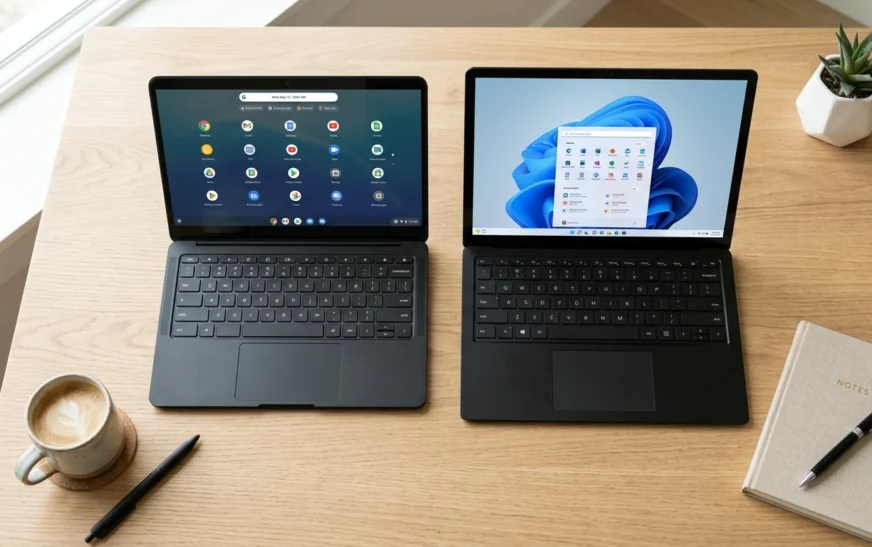
Comparing portable computing devices? Read Chromebook vs Laptop: Chromebook vs Laptop comparison
Assuming Cancellation Was Successful
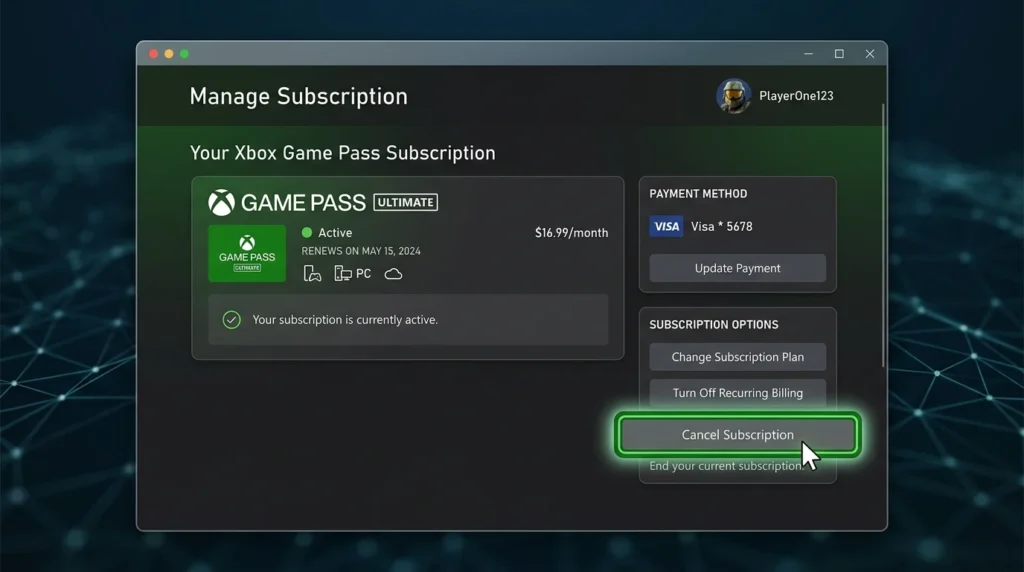
Check your subscription page afterward.
You should see either:
- Expiration date
- Turn on recurring billing
Both indicate auto-renewal is disabled.
Not ready to pay for another subscription yet? Free daily puzzles like LinkedIn Games are an easy way to fill the gap between gaming sessions.
Forgetting Third-Party Billing
If you subscribed through:
- Apple App Store
- Google Play
You may need to cancel through those platforms instead.
Ignoring Renewal Dates
Some users believe cancellation means immediate loss of access.
Usually, benefits remain active until the billing cycle ends.
Expert Tips
Take a Screenshot
After cancellation, save a screenshot showing your expiration date.
Check Your Email
Microsoft normally sends a confirmation email.
Consider Downgrading Instead
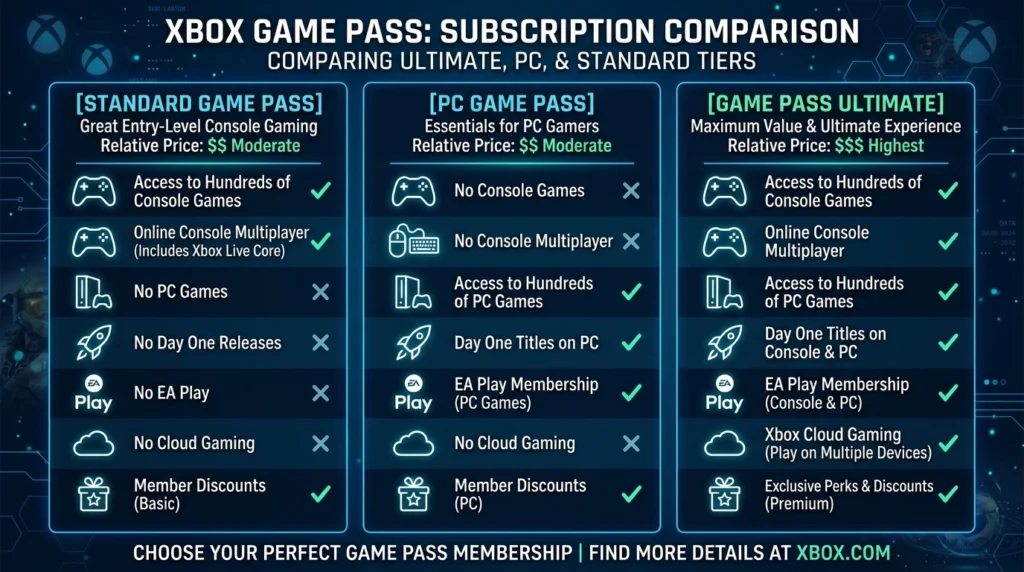
Heavy PC gamers may prefer PC Game Pass instead of Xbox Game Pass Ultimate if they’re looking to reduce costs while keeping access to many benefits.
Verify Payment Methods
Remove outdated payment methods to avoid future billing confusion.
Frequently Asked Questions
How do I cancel Xbox Game Pass immediately?
Sign into your Microsoft account, open Services & Subscriptions, select Manage beside Game Pass, then choose Cancel Subscription and follow the prompts. Immediate cancellation options may vary depending on billing status.
Interested in AI-powered gadgets? Explore Moxie Robot 2026: Moxie Robot review 2026
Can I cancel Xbox Game Pass Ultimate?
Yes. Xbox Game Pass Ultimate can be canceled using the same Microsoft subscription management page used for other Game Pass plans.
How do I turn off recurring billing on Xbox?
Go to your Microsoft subscription settings, locate Game Pass, select Manage, and choose Turn Off Recurring Billing.
Will I lose my game saves if I cancel?
No. Your saved progress remains linked to your Xbox account and can be accessed again when you resubscribe or purchase the game.
Can I cancel PC Game Pass separately?
Yes. PC Game Pass can be managed independently through your Microsoft account subscription dashboard.
If you’re rethinking your PC gaming setup after cancelling, a proper dual monitor setup makes it easier to keep guides or chat open while you play
Why can’t I find my subscription?
The most common reason is using the wrong Microsoft account. Check all accounts associated with your Xbox consoles and purchases.
Do downloaded Game Pass games stay installed?
Yes. The files remain on your device, but you won’t be able to launch them after the membership expires unless you buy the game or renew the subscription.
Final Verdict
If you’re wondering how to cancel Xbox Game Pass in 2026, the fastest route is through your Microsoft account’s Services & Subscriptions page. Whether you’re using Xbox Game Pass Ultimate, PC Game Pass, or a standard Xbox membership, the process takes only a few minutes.
For most users, turning off recurring billing is the better choice because it prevents future charges while allowing continued access until the current billing cycle ends. Before leaving, make sure you verify the cancellation, watch for retention pop-ups, and save your confirmation details.
For wearable tech enthusiasts, see Whoop vs Apple Watch 2026: Whoop vs Apple Watch 2026 Building the perfect gaming setup? A great coffee break starts with the best home coffee grinders: best home coffee grinders

Continue Reading on CripsyWire
For more practical tutorials and hidden features, see our full how-to guides section. AI workflow guides feed into the broader AI tools and agents coverage, phone tricks live in smartphones, and wearable setup walkthroughs in wearables. When you are deciding what to buy, the reviews and comparisons section helps. All part of CripsyWire Tech, and the homepage shows what is newest.