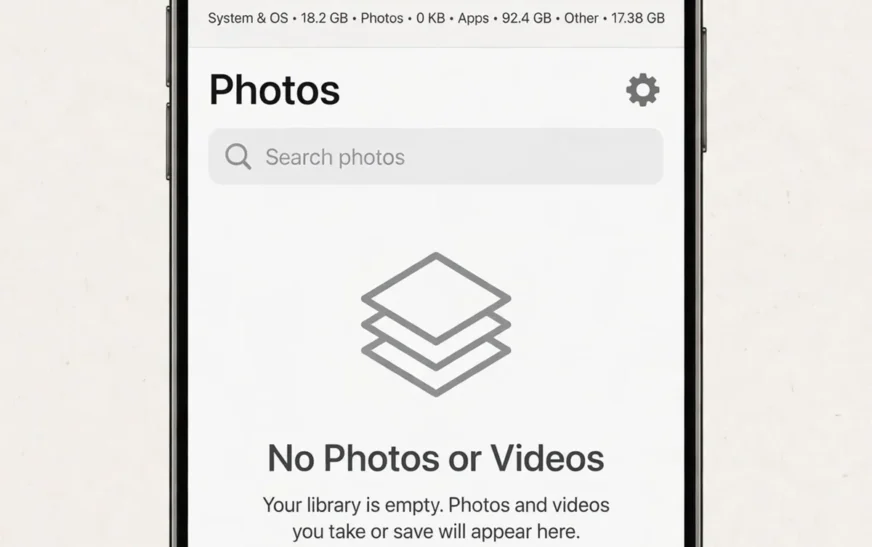
Quick answer: Your phone storage stays full after deleting everything because deleted photos sit in the trash for around 30 days, system data and caches keep growing, messaging and streaming apps hold hidden downloads, and the storage screen itself can lag behind reality. Empty the trash, clear bloated caches, remove offline downloads and old messaging media, restart the phone, and recheck the storage screen before assuming anything is broken.
First, check whether anything actually changed
Before you panic, give the phone a moment and a restart. Storage screens do not always update instantly after a big deletion. The system recalculates in the background, and the number you see immediately after deleting may be stale. Restart the phone, wait a few minutes, then open Settings and check storage again. In many cases, the bar has moved and the crisis was partly a display lag.
If the number barely moved, do not assume the deletion failed. It may have succeeded in a way that does not free space yet, which is the most common explanation and the subject of the next section. Or the space you freed may have been small compared with the real hog, which is hiding in a category you have not looked at. Both are fixable, and both are more common than a genuinely faulty phone.
Start by comparing before and after properly. If you did not note the free space before deleting, you cannot tell how much you actually freed. Check now, delete something measurable — a large video, for example — and check again after emptying the trash. That test tells you whether deletion works at all, or whether something is intercepting the freed space.
If you want a baseline for what your phone size should offer, the phone storage calculator shows usable space for common sizes, which helps you tell a genuinely full phone from a miscalculated one.
The trash: deleted does not mean gone
This is the number one reason, by a wide margin. When you delete a photo or video on iPhone or Android, it does not vanish. It moves to a trash or recently deleted album, where it sits for around 30 days in case you change your mind. During those 30 days, it still occupies exactly as much space as before. Deleting a thousand photos and checking storage five minutes later therefore shows almost no change, and people reasonably conclude that deletion does not work.
The fix is simple: open the trash and empty it. On iPhone, open Photos, then Albums, then Recently Deleted, and choose Delete All. On Android, open Google Photos or your gallery app, find Trash or Bin, and empty it. Confirm carefully, because emptying the trash is irreversible in a way ordinary deletion is not. Once it is empty, check storage again, and the bar should finally move.
Trash exists in more places than the photo gallery. File manager apps, email apps, messaging apps, and cloud drive apps often have their own trash folders, and files deleted inside those apps sit there too. If you bulk-deleted documents or downloads, check the trash in the app you used, not just the gallery. A file manager’s trash can hold gigabytes that the photo trash never touches.
The same logic applies to recently deleted chats and voice memos, which some apps retain for a period after deletion. If you deleted a large chat to free space and nothing changed, check whether that app keeps deleted items, and clear them from there as well.
System Data and “Other”: the grey monster
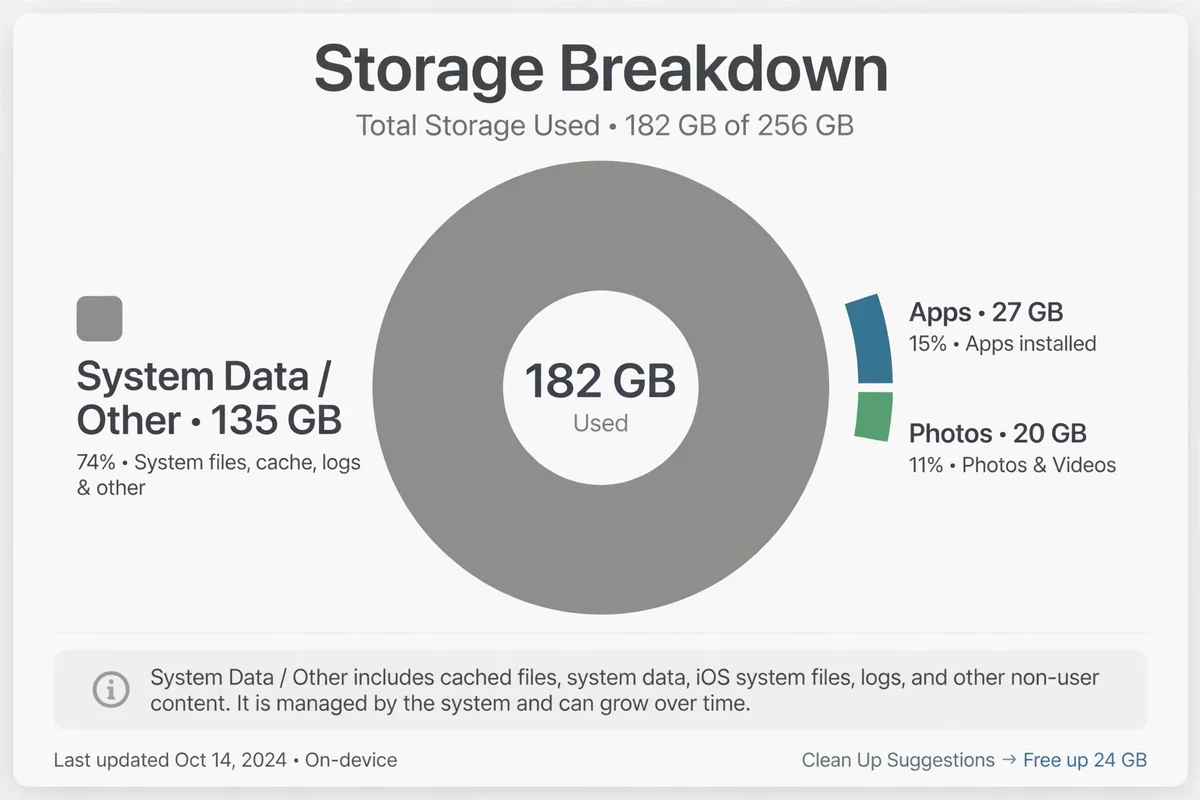
After trash, the next suspect is the category called System Data on iPhone, or System and Other on Android. It looks alarming because it is often large and vague, and it grows without any obvious action on your part. Part of it is the operating system itself, which you cannot delete. Part of it is caches, logs, temporary files, and update leftovers, which you can shrink. Knowing which part is which stops you from either ignoring it or trying to delete things that will break the phone.
Safe ways to shrink system data start with a restart, which clears temporary files the system no longer needs. Next, update the operating system: updates often clean up old update files and optimise storage handling. Then clear browser and app caches, which feed into system data on some phones. On iPhone, offloading unused apps also trims associated system caches. On Android, clearing the cache partition from recovery mode is an option on some phones, but only if you are comfortable with recovery menus, and it is unnecessary for most people.
What you should not do is hunt for system folders in a file manager and delete files you do not recognise. Those files exist for a reason, and deleting the wrong one can break apps, break updates, or in extreme cases require a factory reset. If system data remains huge after the safe steps, the heavy-duty fix is a backup followed by a factory reset and restore, which rebuilds the system cleanly. That works, but only with a verified backup first, and only after gentler steps have failed.
A phone that stays slow after storage is freed may have a separate issue. Heat, for example, makes a phone feel sluggish regardless of storage, and the phone overheating guide helps separate a heat problem from a storage problem.
Caches that rebuild faster than you clear them
Caches are temporary files apps keep to load faster, and they are supposed to be small. In practice, they grow for months without limit, especially in browsers, social apps, streaming apps, and messaging apps. Clearing a cache frees space, but the cache starts rebuilding immediately as you use the app again, which can make it feel as if clearing did nothing. The trick is to clear the biggest caches and then change the habit that fills them, rather than clearing the same cache weekly forever.
On Android, open Settings, then Apps, choose an app, then Storage, and tap Clear Cache. Do not tap Clear Data by mistake: clearing data deletes logins, settings, and sometimes content, while clearing cache deletes only temporary files. On iPhone, there is no universal cache button, so you clear caches inside each app where the app offers the option, or offload and reinstall the app to reset its cache completely.
Streaming apps deserve a separate look, because their “cache” often includes offline downloads you deliberately saved and forgot. Deleting those downloads inside the app frees far more than any cache button. Social apps are similar: years of scrolled photos and videos sit in cache, and reinstalling the app is often the fastest reset on iPhone. Browsers accumulate website data that can be cleared from the browser’s settings, though you will need to log back into some sites afterwards.
A detailed Android walkthrough of this job is available in the guide to clearing the cache on Android, which covers the exact menus without guesswork.
Messaging media: the hidden photo library
Most people have two photo libraries: the one in their gallery, and the one hiding inside their messaging apps. Every photo, video, voice note, and document sent in a chat is stored by the messaging app, often in addition to a copy saved to the gallery. Group chats are the worst, because dozens of people contribute media you never asked for, and the default setting on many phones auto-saves it all.
If you deleted gallery photos but left messaging media untouched, you may have deleted the smaller library and kept the larger one. Open each messaging app’s storage or data section, sort chats by size, and delete media from the largest chats first. Turn off auto-save for busy groups so the pile stops growing. Back up any chat that matters before you start, because deleting chat media is permanent once the trash, if any, is emptied.
Unused messaging accounts add to the problem. An account you stopped using years ago still holds its chats and media locally until the app or account is removed. The same applies to social accounts you abandoned: the steps for deleting an Instagram account remove both the account and the local data it left behind. Closing such an account removes that footprint, and the steps for deleting a messaging account show how much an abandoned account can quietly retain.
Email is a quieter version of the same problem. Large attachments, especially in a work inbox, accumulate over years, and mail apps that download attachments for offline reading can hold gigabytes. Clearing old attachments, or switching the mail app to download on demand, frees space without deleting the emails themselves.
Offline downloads you forgot you saved
Offline content is storage that feels invisible because you do not see it in the gallery. Streaming apps let you download films and shows for travel. Music apps let you download albums and podcasts. Map apps let you download whole cities. Each download is deliberate at the time and forgotten within weeks, and together they can outweigh your entire photo library.
Go through each app that offers downloads and check its downloads section. Delete films you have already watched, albums you no longer listen to, podcast backlogs you will never finish, and offline maps for places you visited once. These deletions are painless because the content is re-downloadable, unlike photos, which are not.
Podcasts deserve special attention because they auto-download by default in many apps. A daily podcast with auto-download enabled can add hundreds of megabytes a week without you ever pressing a button. Turn off auto-download, delete the backlog, and keep only the episodes you actually intend to hear. The same applies to streaming app settings that download over Wi-Fi automatically.
If you travel often and rely on offline content, budget for it explicitly when choosing a phone size. The phone storage calculator lets you test how offline music, video, and maps fit different phone sizes, which is better than discovering the cost after you have already filled the phone.
Photos that are not in the gallery
Some photos live outside the main gallery and escape ordinary deletion. Screenshots live in their own album on many phones, and people take screenshots constantly without ever deleting them. Recently shared photos, edited copies, and burst sequences create extra versions that the gallery may show as a single item while storing several files. Cloud photo apps can also keep a local cache of photos you viewed, even if the originals live online.
Do a pass through screenshots first, oldest first, deleting in bulk and keeping only the ones you still reference. Then look for burst sequences and edited duplicates, keeping the best version and deleting the rest. Then check whether your photo app has a “free up space” or “device folders” section that reveals folders outside the camera roll, such as screenshots, downloads, and app-specific folders. Those folders are where deleted-everything efforts usually fail, because the gallery cleanup never touched them.
A sense of photo scale helps set expectations. The guide to how many photos fit on a 128 GB phone translates photo counts into gigabytes, so you can judge whether your remaining photos alone explain a full phone, or whether something else must be hiding.
When the phone itself is the problem
Occasionally, none of the above explains a full phone, and the cause is the phone itself. A failing storage chip, a corrupted system, or a software bug can report wrong numbers or refuse to free space. Signs include storage numbers that jump wildly, apps crashing when storage is supposedly available, and a factory reset that does not restore normal behaviour. These are rare, but they happen, especially on older phones.
Before concluding the hardware is at fault, try the heavy-duty software fix: back up everything, factory reset, and restore only what you need rather than restoring a full backup that may reintroduce the same bloat. The Android backup walkthrough covers the backup-first habit, and the same rule applies on iPhone: verify the backup from another device before you reset anything. If the phone is clean after reset and fills up again quickly without new content, that points to a system issue worth professional attention. If it stays clean, the original problem was software bloat, and a more selective restore prevents its return.
Also consider whether the phone is simply too small for your life. A 64 GB phone in 2026 leaves roughly 50 GB usable after the system takes its share, and no amount of trash-emptying will make that comfortable for a heavy user. In that case, the honest fix is not another cleanup but a larger phone next time, or disciplined cloud backup in the meantime. Storage size is fixed on most modern phones, so buying the right size matters more than any cleanup trick.
Battery and age can masquerade as storage problems too. A phone with a dying battery feels slow and unreliable in ways people blame on storage, and the iPhone battery replacement guide is a useful check before you assume storage is the only thing wrong.
A checklist that actually frees space
Work through this list in order, checking storage after each step, and stop when you have enough room. First, restart the phone and recheck. Second, empty the photo trash and every other app trash you used. Third, back up photos and chats, then delete backed-up local copies. Fourth, clear the largest app caches, without touching app data. Fifth, delete offline downloads, podcast backlogs, and offline maps you no longer need. Sixth, clear messaging media from the largest chats and turn off auto-save for busy groups. Seventh, delete screenshots, downloads, and duplicates. Eighth, update the operating system and restart again.
If storage is still full after all eight steps, the remaining space is almost certainly system files you should not delete, or a phone that is simply too small for your usage. At that point, a factory reset with a selective restore is the last software fix, and a larger phone is the last hardware fix. Either way, you will have ruled out every common cause, which is more than most cleanup attempts manage.
Keep a short monthly routine afterwards: empty the trash, check the top three storage categories, and clear the largest cache. Five minutes a month prevents the slow creep that leads back to the same warning, and it means the next cleanup is a check rather than a rescue. If cloud backups keep stalling during that routine, the cause is often the connection itself, and the guide to fixing slow DNS lookups covers the small causes behind slow networks.
FAQ
Why is my phone storage full even after deleting photos?
Because deleted photos sit in the trash for around 30 days and still take up space until you empty it. Other causes include system data, app caches, messaging media, and offline downloads that gallery deletion never touches.
How do I empty the trash on my phone?
On iPhone, open Photos, then Albums, then Recently Deleted, and choose Delete All. On Android, open your gallery or Google Photos, find Trash or Bin, and empty it. Also check trash folders in file manager, email, and cloud drive apps.
What is System Data on iPhone storage?
System Data includes the operating system plus caches, logs, and temporary files from the system and its apps. You cannot delete the operating system part, but restarting, updating, and clearing caches can shrink the temporary part.
Can I delete Other storage on Android?
You cannot delete the system portion of Other storage directly, but you can shrink it by clearing caches, deleting offline downloads, updating the system, and restarting. A factory reset with a verified backup is the last resort.
Why does storage fill up again so quickly?
Because caches rebuild, messaging media keeps arriving, podcasts auto-download, and photos accumulate. Turning off auto-save and auto-download, plus a monthly cleanup, stops the fastest sources of regrowth.
Is a factory reset safe for freeing storage?
Yes, if you have a verified backup first. A reset rebuilds the system cleanly and removes accumulated bloat, but restoring a full backup can reintroduce the same bloat, so restore selectively.
The short version
Deleting photos is only the first step, and on its own it frees nothing until the trash is emptied. After trash, the real hogs are system data, caches, messaging media, and forgotten offline downloads. Work through those in order, restart and recheck, and leave system files alone. If nothing works, the phone may simply be too small, or it may need a reset with a selective restore.
For more practical phone guides, browse the CripsyWire blog.
Check your real usable storage
See how much room your phone size actually gives you, and how your photos, videos, apps, and downloads fit into it.

Continue Reading on CripsyWire
For more practical AI coverage for US buyers, see our full AI tools and agents library. When you are deciding between competing tools, the reviews and comparisons section breaks down head-to-head matchups. AI features that live inside your phone are tracked in smartphones, and AI on your wrist or finger in wearables. All of this is part of CripsyWire's broader Tech coverage — start at the homepage for what is newest.