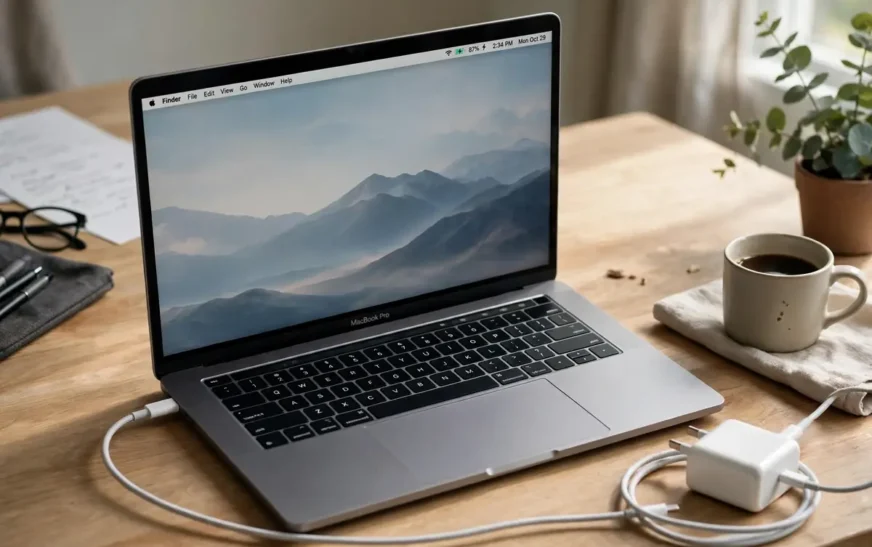
You plug in your Mac, and nothing obvious happens. No light, no sound, no percentage climbing, and you are left wondering whether the charger, the cable, the port, or the Mac itself is at fault. The frustration is worse because Macs changed charging systems over the years: older Macs had a MagSafe light that told you instantly, newer USB-C Macs have no light at all, and the newest MagSafe Macs have a light again but with different meanings. The answer depends on which Mac you own and whether it is on, off, or dead.
This guide covers all three cases, in order from fastest check to deepest diagnosis. It explains what each indicator actually means, including the confusing ones: “Battery Not Charging”, a plug icon instead of a lightning bolt, and a battery that stops at 80 percent. It also covers what to do when the Mac will not turn on at all, because that is when the charging question matters most and when the usual on-screen checks are unavailable. Phone and Mac charging faults share causes, and a phone that stops charging on a trip covers the phone side.
Check 1: the menu bar battery icon
The fastest check on a Mac that is on is the battery icon in the top-right menu bar. When the Mac is charging, the icon shows a lightning bolt superimposed on the battery, and the battery percentage climbs over time. Click the icon to see more detail: Power Source should say Power Adapter when charging, and the dropdown may show an estimate of time until fully charged. If the battery icon is not in the menu bar, enable it in System Settings, Control Center, Battery, Show in Menu Bar, because a hidden icon cannot tell you anything.
A plug icon instead of a lightning bolt is a common source of confusion. A plug usually means the Mac is connected to power and running from the adapter, but not actively charging the battery, which can happen when the battery is already full, when the Mac is using power directly, or when optimised charging is holding the charge. That is not necessarily a fault. If the percentage is stable or slowly climbing, and Power Source says Power Adapter, the Mac is powered, even if the battery itself is not gaining charge at that moment. The distinction matters because many owners assume “no lightning bolt equals no power”, and then replace a charger that was working fine.
If the menu bar shows a battery with a low percentage and no bolt or plug after plugging in, the Mac is not receiving power, or it is not recognising the charger. Try the port, cable, and adapter checks below before assuming a battery or logic-board fault, because those three items fail far more often than the Mac itself. A single check of the menu bar is enough to confirm charging when it works; when it does not, the next checks narrow down where the failure lies. Heat while charging affects phones too, and why a phone feels hot while charging explains when to worry.
Check 2: the MagSafe light, and why USB-C Macs have none
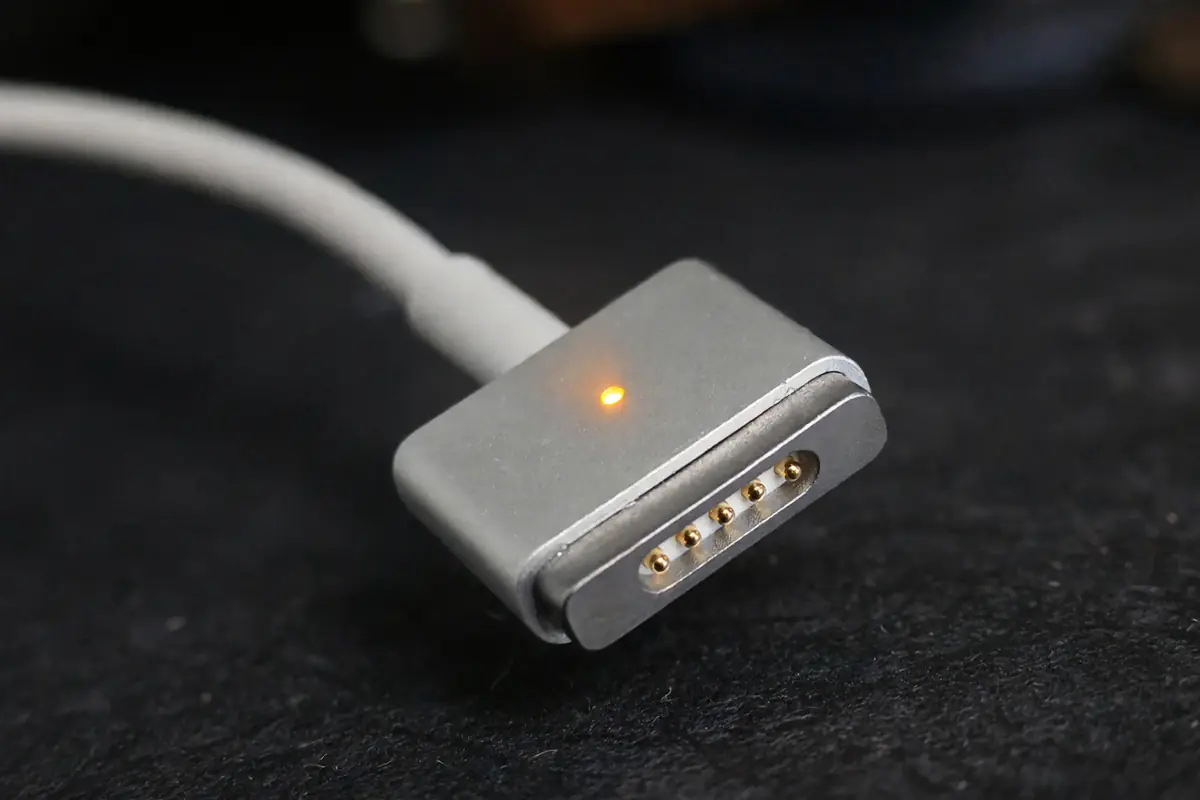
MagSafe Macs, both older models and the newer MagSafe 3 models, have a light on the charging connector itself. Amber or orange means the battery is charging, and green means the battery is fully charged and the Mac is running from power. That light is the most immediate charging indicator Apple ever made, because you can see it without turning the Mac on, without logging in, and without finding a menu. If the light is amber, the Mac is charging, even if the screen is off. If it is green, the battery is full, which is also a success, not a failure.
USB-C Macs, including many MacBook Pro and MacBook Air models from the USB-C era, have no indicator light on the charger or the cable. That absence is why so many USB-C owners feel uncertain: plugging in produces no visible change unless the screen is on and the menu bar is visible. For those Macs, the menu bar, the connection chime, and System Report are the indicators, not a light, and the power adapter itself may feel warm during charging, which is a weak but real secondary signal. Do not look for a light that was never designed into the product, and do not assume a USB-C Mac is broken because it lacks one.
A MagSafe light that flickers, changes colour repeatedly, or stays dark when the Mac is plugged in deserves attention. Flickering often means a poor connection, debris in the port, or a damaged cable, and cleaning the connector gently, checking for bent pins, and trying a different cable are the first steps. A light that stays dark on a known-good charger and cable, with a Mac that will not turn on, points to a deeper power or battery issue that needs service, not another cable swap. The light is a diagnostic tool, not just a convenience, and its behaviour tells you where to look next. A worn phone battery shows similar symptoms, and a phone that drains fast and runs hot covers replacement decisions.
Check 3: the connection chime and the screen
When you connect a charger to a Mac that is on, or waking, you may hear a short chime, similar to the iPhone charging sound but quieter. That chime confirms the Mac recognised a power connection, and it is useful when the screen is off or the menu bar is hidden. If you do not hear it, check whether sound is muted, whether the Mac is fully dead, or whether the connection is loose, because a dead battery may not produce a chime until it has charged enough to power the sound hardware. Disconnect and reconnect once, firmly, and listen again, rather than repeatedly plugging and unplugging, which can wear the port.
When a Mac is off and you connect a charger, the screen may briefly show a battery icon, indicating charge level, or a low-battery symbol if the battery is very low. That icon is proof that power is reaching the Mac, even if it will not turn on yet. If the battery is deeply discharged, the Mac may need several minutes of charging before it shows anything or turns on, and repeatedly pressing the power button during those minutes does not speed it up. Leave it connected for at least ten minutes, then try powering on once, and if nothing happens, move to the adapter and port checks.
A Mac that shows a battery icon but will not turn on after charging may have a different problem from charging itself, such as a display fault, a logic-board fault, or a battery that can no longer hold a charge. Shining a light on the screen can help distinguish a dead display from a dead Mac: if you can faintly see content, the backlight may have failed while the Mac itself is running. That distinction saves a needless charger replacement and points to service instead, which is the right outcome for a hardware fault that no cable can fix. Before any service visit, backing up a phone safely before service is a useful precaution for a second device.
Check 4: System Report, the definitive proof
For a definitive answer, open System Report and look at the Power section. Click the Apple menu, About This Mac, More Info, System Report, then Hardware, Power. There you will find Charging: Yes or No, the current charge percentage, the battery’s cycle count, its condition, and whether the power source is an adapter. Charging: Yes is proof that the Mac is actively charging, regardless of what the menu bar icon looks like at that moment. Charging: No, with a charger connected, is proof of a problem, and the surrounding details, such as adapter wattage, can point to the cause.
Adapter wattage matters here. A MacBook Pro that needs a high-wattage adapter may charge slowly, or not at all under heavy load, from a low-wattage phone charger, even though the connector fits. System Report shows the adapter’s wattage, and comparing it with the wattage your Mac requires, as stated by Apple for your model, tells you whether the charger is underpowered. Using the adapter that came with the Mac, or a reputable adapter of equal or higher wattage, removes that variable. A charger that works for a phone is not automatically sufficient for a laptop, and that mismatch is a common cause of “plugged in but not charging” complaints.
Battery condition is also shown in System Report and in System Settings, Battery, Battery Health. A battery listed as Normal with a reasonable cycle count is healthy. A battery listed as Service Recommended, or with a very high cycle count, may still charge but hold less capacity, and it may stop charging at a lower percentage or drain faster than expected. That is a battery-age issue, not a charger issue, and replacing the battery, through Apple or an authorised service provider, is the fix, not a new adapter. Check condition before buying accessories, because accessories cannot fix a worn battery. Mac owners often pair a specific iPhone size, and a detailed size comparison for iPhones helps compare them.
Why a Mac stops at 80 percent, or says “Not Charging”
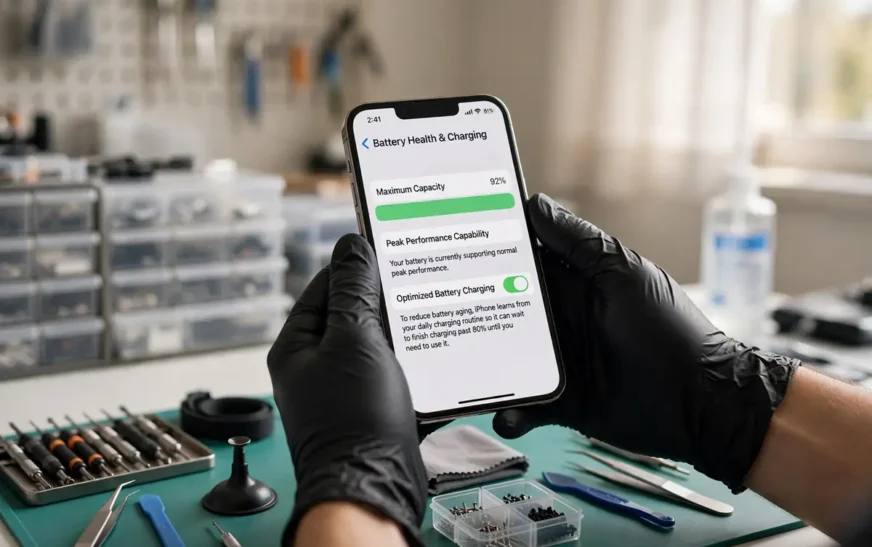
Optimised battery charging is Apple’s feature that learns your daily routine and delays charging past 80 percent until you need the Mac, to reduce battery wear. If your Mac sits at 80 percent for hours while plugged in, that is often optimised charging working as designed, not a fault. It is most noticeable on Macs that are usually plugged in at a desk, because the system learns that you do not need a full charge until later. You can check the setting in System Settings, Battery, and you can charge to full immediately from the battery menu if you need it for travel, but leaving optimised charging on is generally better for long-term battery health.
“Battery Not Charging” in the menu bar is a related message that causes unnecessary worry. It can mean the Mac is running from power but not charging the battery because the battery is full, because optimised charging is holding it, because the adapter is underpowered for the current load, or because the battery is too hot or too cold to charge safely. If the Mac is cool, the adapter is correct, and the message persists for hours while the battery drains, that is a fault to investigate. If the message appears briefly during heavy use and clears when the load drops, it is usually the adapter struggling to both power the Mac and charge the battery at once, and a higher-wattage adapter or a lighter load will resolve it.
Heat is a legitimate reason for a Mac to pause charging. Lithium batteries should not charge when very hot, and a Mac that is hot from gaming, rendering, or direct sunlight may pause charging until it cools. Move the Mac to a cooler surface, close demanding apps, and let it cool before assuming a fault. The same applies to cold: a Mac brought in from freezing weather should warm to room temperature before charging. Those pauses protect the battery, and overriding them with a different charger will not help, because the pause is in the Mac’s battery management, not in the adapter. New iPhones share charging habits with Macs, and a guide to the newest flagship covers the phone side.
Port, cable, and adapter swaps that actually diagnose
When charging fails, swap one variable at a time. Try a different USB-C port, because ports can fail individually, and a port that works for data may not work for charging if its power circuitry is damaged. Try a different cable, because cables fail internally without visible damage, especially at the strain relief near the connector. Try a different adapter, preferably the original adapter for your Mac or a known-good adapter of equal wattage. If any single swap fixes the problem, you have found the faulty part, and replacing that part is cheaper than servicing the Mac.
Inspect the port and connector for debris, lint, and damage. A USB-C port clogged with lint may not seat fully, and a MagSafe connector with debris may not make proper contact. Clean gently with a dry, soft brush or compressed air, never with a metal object, and check for bent pins or a loose connector that wobbles. If the port is physically damaged, or if the Mac shows signs of liquid exposure, stop and seek service, because continued plugging can cause further damage. A swollen battery is another stop condition: if the trackpad feels raised, the case does not sit flat, or the battery looks swollen, do not charge the Mac and do not attempt a repair yourself; take it to Apple or an authorised provider promptly, because a swollen battery is a safety issue.
For a Mac that will not turn on at all, the diagnostic sequence is: connect a known-good charger, wait ten minutes, look for a MagSafe light, a screen battery icon, or a chime, try a different port and cable, and then try powering on once. If nothing responds to a known-good charger and cable, the problem is likely the battery or the Mac’s power circuitry, and service is the next step. That sequence prevents the common mistake of buying three chargers for a Mac that needed a battery, and it gives a service provider useful information: “no response to a known-good charger” is a far better report than “it will not charge”. A small phone and a MacBook make a light travel pair, and a compact phone for small hands is that phone.
| Indicator | What it means | What to do |
|---|---|---|
| Lightning bolt in menu bar | Actively charging | None, let it charge |
| Plug icon, Power Adapter | Running from power, battery not gaining | Check if full or optimised charging |
| MagSafe amber | Charging | None |
| MagSafe green | Fully charged | None, unplug if travelling |
| Charging: Yes in System Report | Definitive charging proof | None |
| Battery Not Charging | Paused, full, hot, or underpowered adapter | Cool down, check adapter wattage |
| Stops at 80% | Optimised charging | Charge to full from menu if needed for travel |
| No light, no icon, no chime | No power recognised | Swap port, cable, adapter, then service |
Frequently asked questions
How do I know if my MacBook is charging when it is off?
Connect the charger and look for a MagSafe light (amber means charging), a battery icon on screen, or a warm adapter after a few minutes. A deeply discharged Mac may need ten minutes before it shows anything, so wait before pressing power repeatedly.A MacBook owner with an iPhone should also know how standby mode works on iPhone for bedside charging routines.
Why does my Mac say Battery Not Charging while plugged in?
It may be full, optimised charging may be holding it, the adapter may be underpowered for the current load, or the battery may be too hot. If it persists for hours while the battery drains, with a correct adapter and a cool Mac, investigate further.
Why does my Mac stop charging at 80%?
Optimised battery charging delays charging past 80% until you need the Mac, to extend battery life. You can override it from the battery menu for a trip, but leaving it on is better for long-term health.
Can I use a phone charger for my MacBook?
It may connect, but a low-wattage phone charger may charge very slowly or not at all under load, especially for a MacBook Pro. Use an adapter of equal or higher wattage to your Mac’s original adapter for reliable charging.
What if my Mac will not turn on even after charging?
Wait ten minutes on a known-good charger, try a different port and cable, and look for a light, icon, or chime. If there is still no response, the battery or power circuitry likely needs service, and a swollen battery should be taken to service immediately without further charging attempts. A Mac that charges but cannot download has a network problem, and sorting out a sluggish connection for downloads addresses it.
Does a warm power adapter mean it is charging?
A warm adapter during charging is normal, because charging generates heat. A cold adapter after an hour on a Mac that is not charging suggests no power is flowing, which points to a cable, port, or adapter fault.
What to do next
Start with the menu bar or MagSafe light for a fast answer, confirm with System Report if you need proof, and treat “Not Charging” and 80 percent holds as features to understand before assuming a fault. If charging genuinely fails, swap port, cable, and adapter one at a time, and stop at any sign of a swollen battery or physical damage. That sequence answers the charging question in minutes for most Macs, and it gives you a clear, useful report for service when the answer is a hardware fault rather than a charger problem. Service visits go smoother with a clean second device, and clearing cached data on a phone before service helps.

Continue Reading on CripsyWire
For more practical tutorials and hidden features, see our full how-to guides section. AI workflow guides feed into the broader AI tools and agents coverage, phone tricks live in smartphones, and wearable setup walkthroughs in wearables. When you are deciding what to buy, the reviews and comparisons section helps. All part of CripsyWire Tech, and the homepage shows what is newest.