The clip you want to keep, and the logo in the way
You found a recipe, a repair tip, or a tutorial you will need when you have no signal. Watching it again inside TikTok works until the creator deletes it, the app is unavailable, or you are somewhere with no connection. A saved MP4 solves that, because it is a normal video file you can play, edit, or keep in an archive without opening an app.
The catch is the watermark. TikTok’s own save button stamps the TikTok logo and the creator’s username onto the video, and that mark does not sit still. It jumps between the top and bottom of the frame every few seconds, which kills any plan to crop it out cleanly. Trim the top and it reappears at the bottom a moment later. That moving mark is deliberate: it credits the creator and sends the clip back to TikTok when it gets reshared.
A link-based downloader takes a different route. It fetches the clean source file TikTok already serves, before the watermark is stamped on, so the saved MP4 has no moving logo at all. That is the method most guides describe in three steps and then stop. The steps are simple. The decisions around them are where people get stuck.
The rights check comes before the link
Converting is clean only for your own videos, Creative Commons or public-domain work, or work with permission. That is the same stance CripsyWire takes for YouTube conversion, and it holds for TikTok too. Downloading a clip does not change who made it, and a credit line does not replace permission.
Run a one-sentence test before you paste anything: who gave me permission, and where is it written? Your own video passes. A creator who agreed in writing, often in return for a credit and a link, passes for the use you agreed. A clip for a class deck, a compilation, or a repost needs that agreement first, not after the video is already published. Take extra care with footage of children, school events, or junior sports: get permission from the organiser and from parents before any clip is used, and leave out names, faces, or uniforms if anyone is unsure.
Personal, offline viewing of your own or permitted clips is the safe core use. Reposting someone else’s video as your own, stripping credit, or using a clip commercially without permission is a different act entirely, and a clean MP4 makes that misuse easier, not more legitimate. If the permission answer is unclear, keep the clip inside TikTok’s own save and favourite features instead, or ask the creator. A short message asking permission is faster than dealing with a takedown later.
Two ways to save a TikTok video as MP4
There are really only two routes, and picking the right one depends on what you need the file for.
| Method | Watermark | Best for | Watch out for |
|---|---|---|---|
| TikTok app, Save video | Logo and username, moving | Quick personal saves, sharing with credit visible | Mark jumps around the frame, cannot be cropped out |
| Browser link downloader | Clean, no moving logo | Editing, archiving, your own clips | Needs a public link, quality depends on the source |
| Screen recording | Whatever is on screen | Last resort, live content | Lower quality, captures notifications and controls |
The in-app route is the simplest and the most honest for casual sharing, because the credit stays on the video. The link route is better when you plan to edit your own clip, present it, or keep a clean archive copy, because a moving logo over captions or a face ruins an edit. Screen recording is a fallback, not a plan: it captures whatever is on screen at the time, including playback controls if you are careless, and the quality is limited by your screen and recording settings.
For video from another platform, the same permission logic applies in reverse. The guide to converting YouTube videos to MP4 covers that workflow on its own terms, and the rights question there is identical.
How to save a TikTok video, step by step
In the TikTok app (watermarked copy)
Open the video, tap Share, then tap Save video. The MP4 lands in your camera roll or gallery, with the moving watermark included. If the Save video button is missing, the creator has disabled downloads for that video, and that choice should be respected rather than worked around. A missing button is information, not a bug to defeat.
With a link downloader (clean copy)
Open the video, tap Share, then Copy link. Paste that link into a browser downloader, wait for it to fetch the available files, preview the result, and choose the MP4 without watermark. On a computer the file lands in Downloads. On an iPhone it usually lands in the Files app, not Photos, and you will need to move it into Photos yourself if that is where you want it. On Android it usually lands in Downloads and appears in the gallery after the media scan runs.
Use the full link, not a caption, a username, or a partial URL. Short share links starting with vm.tiktok.com or vt.tiktok.com work in most tools, because the tool expands them. A link copied from a comment or a message thread may be truncated, and a truncated link is the most common reason a downloader reports that it cannot find the video.
Before you save a batch
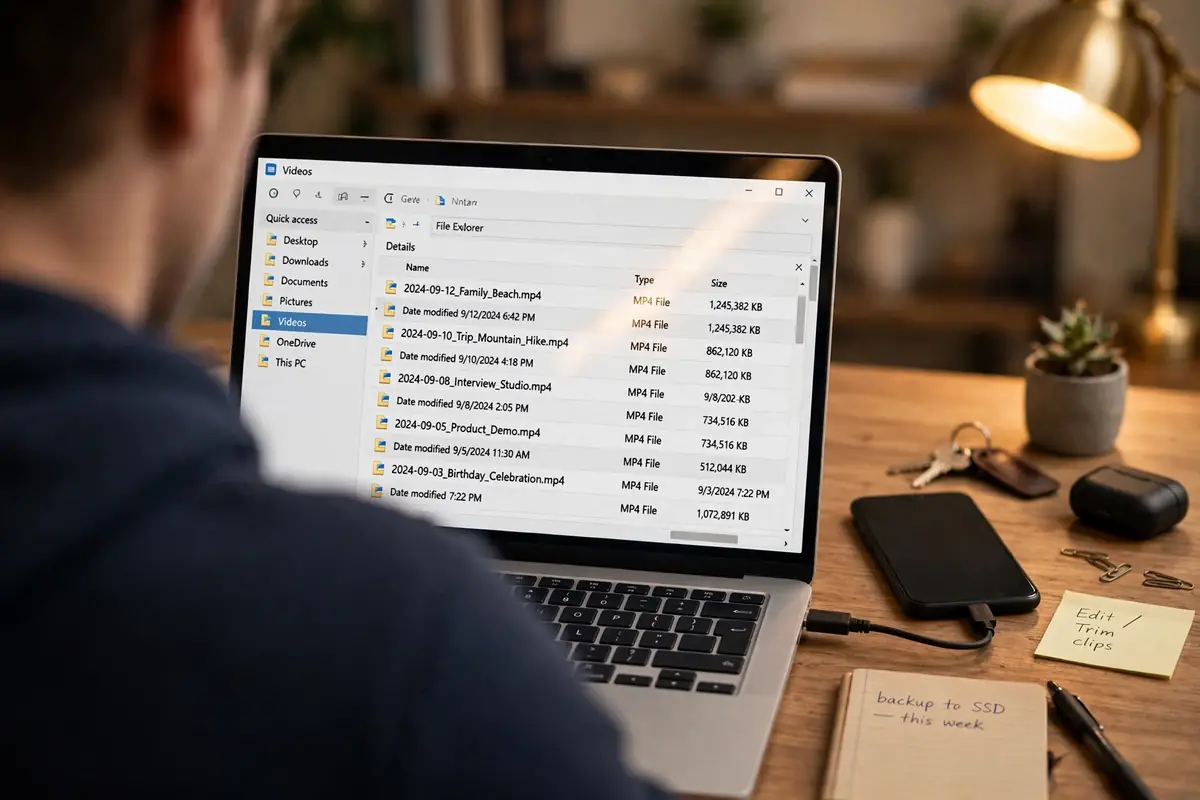
Saving one clip is trivial. Saving fifty clips for a project is where organisation matters. Decide on a naming rule before you start: date, creator, and topic, in that order, so files sort sensibly later. Keep a simple note of each clip’s original link and permission status, especially for compilation or class work. A folder full of files named “video_1.mp4” through “video_50.mp4” is not an archive. It is a puzzle you will have to solve later, under time pressure, when you can no longer remember which clip was which.
If a batch matters enough to keep, it matters enough to back up. Before a big save-and-transfer session on Android, it is worth backing up an Android phone first, so a full-storage crash or a failed transfer does not take photos and other files with it at the same time.
What quality will you actually get?
Most downloaders label their output “HD” and stop there. That label hides a real range. The clean MP4 without watermark is often 576p to 720p, while a separate HD MP4, when TikTok stores one, is often 1080p. TikTok caps most uploads at 1080p, so there is no true 4K file waiting behind a better tool. If a tool promises 4K from a TikTok clip, it is upscaling, not recovering detail the creator never uploaded.
Check the file instead of trusting the label. On a computer, open the file properties and look at resolution and file size. On a phone, open the video details in your gallery or files app. A 1080p clip should look sharp on a laptop screen; a 720p clip will look soft when blown up to a TV. For phone viewing, 720p is usually fine. For editing or archiving your own work, take the HD copy when one is offered: exporting a 720p source at 1080p does not add sharpness, it just makes a bigger file.
File sizes stay small by video standards, because TikTok clips are short. A minute of 1080p short-form video is typically tens of megabytes, not hundreds, though fast motion, dense detail, and higher frame rates push it up. That is why a batch of clips rarely threatens a modern phone on its own, and why the real storage problem is usually everything else already on the phone, not the TikTok saves.
On iPhone, Android, and desktop: the differences that matter
iPhone users hit one specific friction point: Safari saves the MP4 to Files, and it does not automatically appear in Photos. To fix that, open Files, find the download, tap Share, and choose Save Video. Until you do that, the clip is saved but invisible in your camera roll, which convinces many people the download failed when it actually succeeded. Also note that the App Store blocks most dedicated TikTok downloaders, so the browser route, or a desktop transfer, is the practical path. Never install a configuration profile for a downloader: profiles can change network and trust settings, and a video file never needs one.
Android is more forgiving. Browser downloads land in Downloads and usually appear in the gallery, and file managers make moving and renaming clips straightforward. The failure mode here is different: a phone that is already full will report a successful download and then show a file that will not play, or will stop the download partway through. If saves keep failing on a phone that otherwise works, clearing cached files on Android is a quick first step before assuming the downloader is broken, because cached data from social apps is often the largest invisible occupant of a full phone.
Desktop is the best place for batches, editing, and verification. Paste links in a desktop browser, check resolution and sound on a large screen, rename files with a keyboard, and transfer finished clips to a phone over USB or cloud storage.
Data, storage, and battery: the quiet costs
Saving clips is not free, even when the tool is. Each download uses data once, while streaming the same clip ten times uses data ten times, so a saved copy wins for anything you replay often. Before a trip or a big batch, it helps to know how much mobile data a month of short video actually uses, because short-form video is deceptively heavy: dozens of small clips add up faster than one long video, and autoplay in the app itself often uses more data than the clips you deliberately save.
Storage follows the same logic. A handful of clips is nothing. A project archive of hundreds of clips, plus the edits and exports made from them, is not. Name files clearly, delete failed or duplicate downloads promptly, and move finished projects off the phone rather than letting them sit in Downloads forever. A phone that is full will also misbehave in ways that look like downloader failures, from stalled saves to apps closing mid-download.
Battery is the third quiet cost. Long sessions of downloading, previewing, and editing heat a phone up, and a hot phone throttles performance and drains faster. If playback or saving keeps dying, check the device before re-downloading a library that was fine, because a dead battery mid-transfer corrupts the very files you are trying to keep.
Photo slideshows, Stories, audio-only, and LIVE
Not every TikTok post is a video, and each type needs a different path.
Photo slideshows look like videos in the feed but are a set of still images with sound. A good downloader lists each image separately, so you can take the whole set or just the frames you wanted, plus the sound as its own file. If a tool returns only one image or nothing at all for a slideshow, it does not support that post type, and a different tool or a manual save of your own images is the honest fallback.
Stories are temporary by design. Public Stories can sometimes be saved while they are still online, but once they expire, no legitimate downloader can recover them. If a Story is yours, save it from your own archive or camera roll before it expires rather than relying on a third-party tool after the fact.
Audio-only downloads are a common request: keep the sound, drop the picture. Most TikTok downloaders offer an MP3 or M4A button beside the video options, using the sound exactly as TikTok stores it. The rights rule does not change because the picture is gone. Your own sound is fine. Someone else’s song is not made yours by saving it as audio, and the workflow for turning a clip’s sound into an audio file is worth following on its own terms rather than assuming an audio save is a different legal category.
LIVE broadcasts have no normal shareable video link while they are running, and most downloaders cannot fetch them at all. Recordings of a completed LIVE, where TikTok offers a replay, behave like normal videos. If there is no replay, screen recording is the only route, with the quality limits that come with it.
Editing a saved clip: keep the source, export once
A clean MP4 is a good starting point for an edit, not a finished edit. Import the saved file, cut it, add captions, and export once at a sensible resolution. Each extra export degrades quality, because every platform recompresses video on upload.
For new material built around saved clips, free AI video tools can help with captions, cuts, and new visuals, but they do not change the rights question. Generating a new clip around someone else’s footage still needs permission for that footage, and an AI tool’s output is not a licence for the source material. Keep the permission note with the project file, so the edit, the source, and the agreement travel together.
Subtitles deserve a decision before you start. Some downloaders save captions as a separate file, some burn them into the picture, and some ignore them. Separate captions are more flexible for editing and accessibility, because they can be toggled and corrected. Burned-in captions are simpler for a clip that must always show text, but they cannot be turned off or fixed later without re-editing the picture. Test one clip before a batch, because caption handling is where tools differ most.
How to spot a safe downloader in ten seconds
- The site uses HTTPS, and the domain matches the tool name rather than a lookalike with extra letters.
- No account, no extension, and no notification permission is required for a basic download.
- The real download button sits near the link box, and file size and quality are shown before you save.
- No fake system warning, no “your device is infected” pop-up, and no countdown timer pressuring a click.
- The tool never asks for a TikTok password. A downloader that asks for login credentials is not a downloader. It is a phishing page.
- The downloaded file ends in .mp4, opens in a normal player, and does not ask you to install a special player to watch it.
Fail three of those and close the tab. If a download arrives as an installer, a script, or a zip file when you asked for an MP4, delete it without running it, and learn how to remove malware after a bad download before using the device for anything sensitive. A real MP4 never needs an installer.
When a TikTok download fails: work through it in order
Most failures fall into a small set of causes. Work through them in order instead of installing three new tools at once.
“Video not found” or “cannot fetch”. Re-copy the link from Share, not from a comment or message thread, and confirm the video still plays in TikTok. If it was deleted, set to private, restricted to friends, or region-restricted, no legitimate tool can fetch it. That is a permission and availability limit, not a tool bug.
Download starts, then stalls or gives a tiny file. Check the connection before retrying five times. If general browsing is also slow or stalling, fixing a slow DNS lookup is worth trying before blaming the downloader, because a shaky connection will stall a video download long before it stalls a text page. Try a lower-quality copy, try a desktop browser, and check storage: a full phone can report a download as done and then show a file that will not play.
No sound, or sound out of sync. Some tools return a video-only stream by mistake, or the source itself had a sound problem. Preview the file before a batch, and reconvert with a tool that offers a combined MP4 with audio included. If sync drifts only at the end of a longer clip, the source frame rate and the tool’s handling of it are the usual suspects, not your player.
File plays on a computer but not on a phone. Codec or resolution issue. Reconvert to a standard MP4 at 1080p or lower, and test on the target device early, not after saving twenty clips. On iPhone, also check whether the file is sitting in Files rather than Photos, because that alone explains many “download failed” reports.
Save button missing in the app. The creator disabled downloads for that video. Respect that choice. A tool that promises to bypass a creator’s download setting for a video you do not own is not solving a technical problem. It is overriding a permission decision.
TikTok blocked on a network. School, work, or public networks sometimes block TikTok outright, which stops both the app and browser tools that fetch from it. On your own home network, securing a home Wi-Fi network properly, including checking its restrictions and DNS settings, is a better first step than routing downloads through an unfamiliar proxy that asks for more access than a link downloader should ever need.
Frequently asked questions about TikTok to MP4
Can I download a TikTok video without the watermark?
Yes, with a link downloader that fetches the clean source file, for your own videos or clips you have permission to keep. TikTok’s own Save video button always adds the moving logo and username. Cropping that mark out does not work well, because it jumps around the frame.
Why does my TikTok download have no sound?
Usually the tool returned a video-only file, or you picked a video-only option by mistake. Preview the file, reconvert with a combined MP4 option that includes audio, and test one clip before saving a batch.
Can I download a private TikTok video?
No, not with any legitimate downloader. Private, friends-only, deleted, and region-restricted videos are not accessible to these tools. If the video is yours, use TikTok’s own archive, camera roll copy, or account data options instead.
Where do TikTok downloads go on iPhone?
Safari saves them to the Files app, not Photos. Open Files, find the MP4, tap Share, and choose Save Video to move it into your camera roll. On Android and desktop, downloads usually land in the Downloads folder and appear in the gallery or file manager.
Is downloading TikTok videos legal?
It depends on rights, not on whether the video is public. Your own videos and work with permission are clean. Reposting, selling, or using someone else’s clips commercially without permission is not, and a credit line alone does not replace permission.
Can I download TikTok photo slideshows and Stories?
Photo slideshows can often be saved image by image, plus the sound as its own file, where the tool supports that post type. Public Stories can sometimes be saved while they are still online, but expired Stories cannot be recovered by a legitimate downloader.
What quality should I pick for TikTok to MP4?
Take the HD copy, usually 1080p, for editing and archiving your own work. Take the standard clean MP4, often 720p, for phone viewing, where the smaller file is easier to store.
What to do next
Pick one of your own videos, save it both ways, and compare: the watermarked copy from the app and the clean copy from a link downloader. Play each one end to end, check the sound, and move the clean copy into Photos or your archive folder with a clear name. If that test passes, you have a workflow you can trust for the clips that matter. If playback keeps dying, check a phone that will not charge properly before re-downloading anything. Keep permission notes with any clip that is not yours, delete failed downloads promptly, and let the moving watermark remind you of the simplest rule in this whole guide: a saved file is easy, and a saved file you are actually allowed to keep is better.

Continue Reading on CripsyWire
For more practical tutorials and hidden features, see our full how-to guides section. AI workflow guides feed into the broader AI tools and agents coverage, phone tricks live in smartphones, and wearable setup walkthroughs in wearables. When you are deciding what to buy, the reviews and comparisons section helps. All part of CripsyWire Tech, and the homepage shows what is newest.