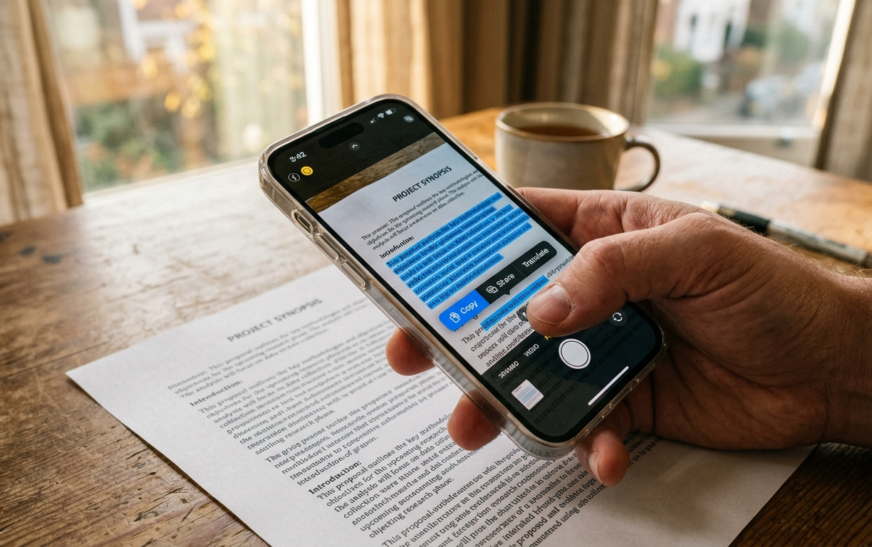
Google Lens for iPhone works, but there is no Google Lens app in the App Store. Lens lives inside four Apple-approved places: the Google app, Google Photos, Chrome for iOS, and Google’s AI Mode. Install the free Google app, tap the camera icon beside the search bar, allow camera access, and you have full Lens on iPhone in under a minute.
The thing nobody tells you until you’ve already wasted ten minutes
You searched the App Store for “Google Lens.” You found something called Lens. It has a slick icon, decent screenshots, and a paywall that slaps you after three scans.
That app is not Google’s.
I’ve watched three different people make this mistake in the last year, and one of them actually paid for a subscription before realizing it. So let’s clear the air right at the top: Google has never shipped a standalone Google Lens app on iOS. It ships Lens as a feature baked into apps you may already have. Everything else wearing the Lens name in the App Store is a third party riding the search demand.
Once you know where to look, Lens on iPhone is genuinely excellent. I use it to translate ingredient lists, pull text out of screenshots that iOS refuses to select, price-check furniture, and settle arguments about what kind of tree that is. What follows is the version of this guide I wish existed when I first went hunting.
What Google Lens on iPhone actually is
Google Lens is a visual search engine. Instead of typing words into a box, you feed it pixels — a live camera feed, a photo from your library, or a region of your screen — and Google runs a search on what it sees.
Under the hood it’s doing several jobs at once: object recognition, optical character recognition (OCR), reverse image matching against Google’s index, and, since the Gemini integration, actual reasoning about the relationship between objects in a frame. That last part is the big shift. Old Lens matched your photo against a database. Current Lens can look at a cluttered desk and answer “which of these cables charges a MacBook?”
Google says Lens handles more than 20 billion visual searches a month across all platforms. It is not a side project.
Why there’s no Google Lens app for iPhone
Two reasons, and neither is a conspiracy.
First, Apple restricts deep camera and system-level hooks in ways that make a standalone Lens app less useful than Lens-inside-the-Google-app. Second — and let’s be honest about this — Lens is a hook that keeps you inside Google’s ecosystem. Bundling it into the Google app means every visual search also lands you in Google Search, with Google’s ads and Google’s AI Overview.
The old claim that Lens is an “Android exclusive Google dangles to sell Pixels” is outdated. The iOS version has been at feature parity on the important stuff for a while now, and some iOS-first features have actually shipped ahead of Android.
How to spot the fake Lens apps
Before you install anything, check three things:
- Seller name. It must say Google LLC. Anything else is a clone.
- Price model. Google’s Lens is free with no scan limits. If it counts your scans and asks for $9.99/month, close it.
- App name. Google’s actual apps are called Google, Google Photos, and Google Chrome. There is no app titled “Google Lens.”
How to get Google Lens on iPhone: 4 methods that work
Method 1: The Google app (fastest, most complete)
This is the real deal and takes about 45 seconds.
- Install the free Google app from the App Store (seller: Google LLC).
- Open it. Look at the search bar at the bottom.
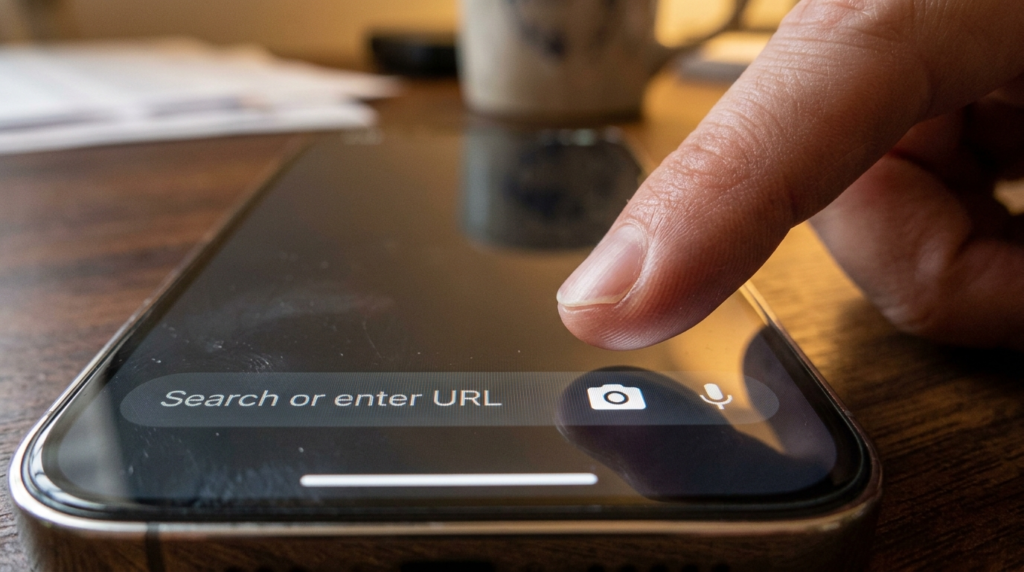
- Tap the camera icon sitting to the right of the search field, next to the mic.
- Tap OK when iOS asks for camera permission.
- Point and shoot, or pull an existing photo from the roll strip at the bottom.
The viewfinder opens straight into live camera now — Google changed this a while back so you’re not stuck on a gallery picker first. Along the bottom you’ll see modes: Search, Translate, Homework, and Shopping depending on your region and app version.
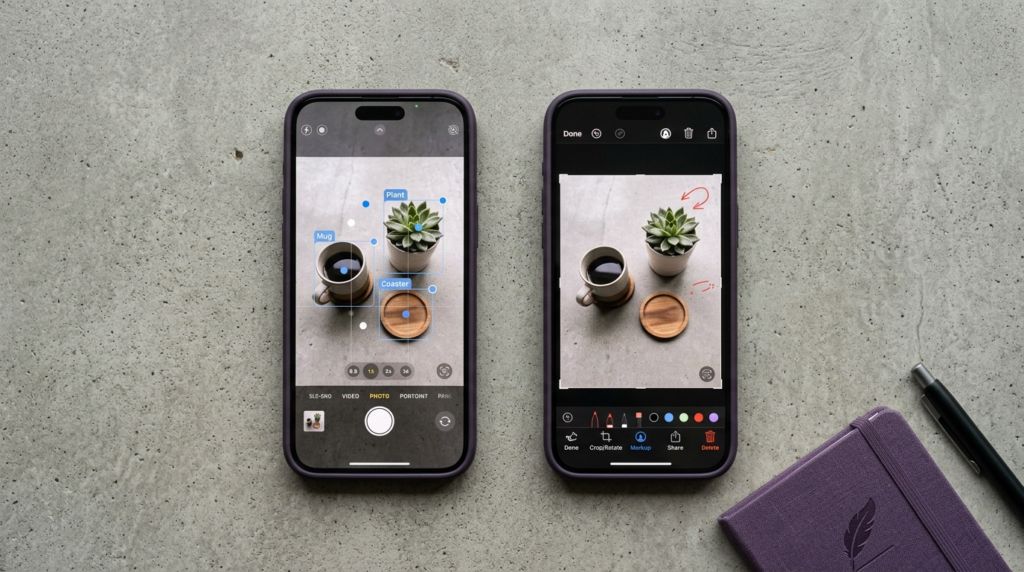
One habit that changes your results: don’t just snap and hope. Tap the specific object you care about, or drag the corner handles to crop tight around it. Lens guesses badly when you hand it a busy frame. Tight crop, better answer. Every time.
Method 2: Google Photos (for pictures you already took)
Already have the shot? Open Google Photos, tap any image, and hit the Lens icon in the bottom toolbar. Lens analyzes the saved photo and offers actions — copy text, translate, find the product, identify the plant.
This is my go-to for screenshots. iOS text selection inside screenshots is inconsistent, and Lens OCR is more reliable at grabbing a phone number off a poster photo than Live Text is at a bad angle.
Worth noting: this route also works when the live camera in the Google app is glitching, which is a useful fallback we’ll come back to in the troubleshooting section.
Method 3: Chrome for iOS and “Search Screen with Google Lens”
This is the feature most guides still haven’t updated for, and it’s the closest thing iPhone users have to Android’s Circle to Search.
In Chrome for iOS:
- Open the three-dot menu.
- Choose Search Screen with Google Lens.
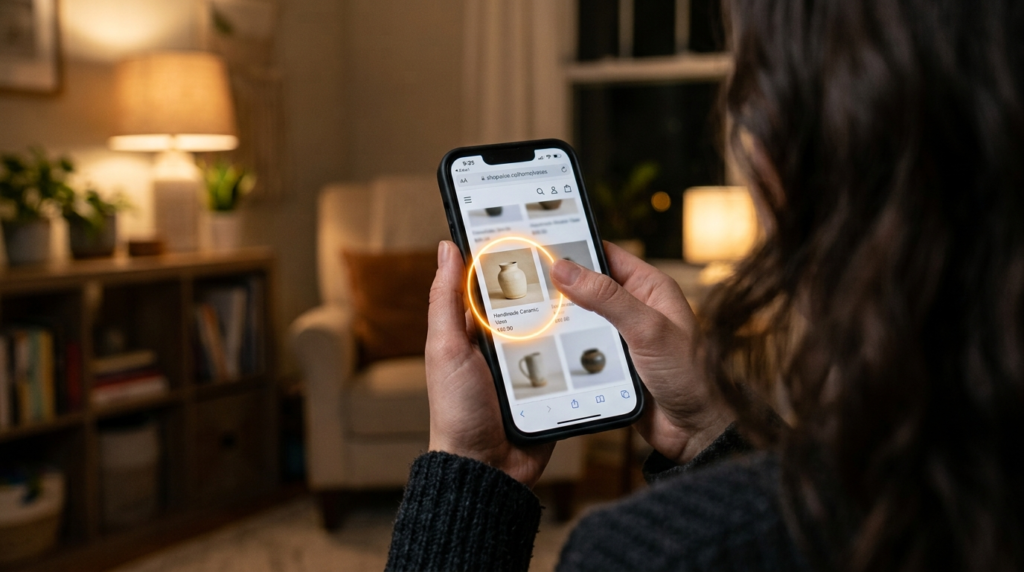
- Draw, highlight, or tap over anything on the page.
No screenshot. No new tab. No leaving the article you were reading. Google has been rolling a Lens icon into the address bar for the same thing, so depending on your version you may see it there instead of buried in the menu.
Chrome for iOS also handles QR codes and barcodes through Lens — open a new tab, tap the Lens icon in the search bar, frame the code, and tap the link that surfaces. If you’re the kind of person who leans on browser tooling, our roundup of the best productivity Chrome extensions covers the desktop side of that workflow.
The same screen-search gesture also lives inside the Google app on iOS, not just Chrome.
Method 4: Widget, Shortcut, or Back Tap (the power-user route)
Three taps is still three taps. Cut it down:
- Widget: Long-press your Home Screen → + → search Google → add the medium widget. It carries direct shortcuts for Lens, Voice, and Incognito. One tap to Lens from your Home Screen.
- Shortcuts app: Build a shortcut that opens the Google app straight into Lens, then pin it to your Home Screen or Lock Screen.
- Back Tap: Settings → Accessibility → Touch → Back Tap → Double Tap → assign your Lens shortcut. Tap the back of your iPhone twice, Lens opens. This is the trick long-time iPhone users swear by and almost no article mentions.
If you’re generally into squeezing more out of your device, we’ve collected 20 more of these in iPhone 17 Pro hidden features.
What Google Lens for iPhone is genuinely good at
Translating text in the real world
Point the camera at a menu, sign, or label, switch to Translate, and Lens overlays translated text on the live view. It covers 100+ languages.
Real-world verdict from someone who’s used it abroad: excellent for menus, street signs, and product packaging. Shaky on handwriting, stylized fonts, and vertical text. If the source text is decorative, expect nonsense. Snap a still photo instead of using the live overlay when the translation keeps flickering — a static image gives the OCR a stable target and the accuracy jumps noticeably.
Pulling text out of anything (OCR)
Lens will lift text off a whiteboard photo, a book page, a serial number sticker, a Wi-Fi password taped behind a router. Copy it, then paste it on your phone or push it to a desktop Chrome session.
This is the single feature I’d miss most. Typing a 24-character router password by hand is a form of punishment.
Shopping and reverse image search on iPhone
See a chair, a jacket, a lamp — Lens finds visually similar items and where to buy them. You can refine with words: add “in blue” or “under $200” to narrow the visual match.
Honest caveat: results skew heavily toward large retailers with strong product feeds. Vintage, handmade, or regional items often return “similar vibes” rather than the actual product. Treat it as a starting point, not a sourcing tool.
Identifying plants, animals, landmarks, and art
The classic use case, and still reliably good. Lens can now identify art, books, landmarks, natural landmarks, and sculptures alongside the plants and animals it always handled.
Do not use it for anything with a safety consequence. Mushroom identification, snake identification, plant toxicity for pets — Lens is a search tool, not a field guide, and a confident wrong answer in those categories is dangerous. I’d say the same about using any consumer AI vision tool for medical or foraging decisions.
Homework and problem-solving
Photograph a math, physics, chemistry, or biology problem and Lens surfaces step-by-step explainers and videos rather than just an answer. Useful for a stuck student, less useful as a shortcut — it explains the method, which is arguably the point.
Searching what’s on your screen
Covered above under Chrome, but worth restating as its own capability: you can search a video frame, an in-app image, or a paragraph on a webpage without ever saving a file. That’s the workflow that made me stop screenshotting things purely to search them later.
Google Lens vs Apple’s Visual Intelligence: which should you actually use?
Here’s where most articles wave vaguely and move on. Let’s be specific, because Apple’s own tool got seriously good and you may not need Google at all for some tasks.
Visual Intelligence started as a Camera Control button feature on iPhone 16, then expanded to iPhone 15 Pro and iPhone 16e through the Action button and Control Center. With iOS 26, Apple extended it to your screen: take a screenshot (volume up + side button), and you get Ask, Image Search, Highlight to Search, and context buttons like Add to Calendar, Summarize, and Look Up.
The plot twist: Apple’s Image Search button hands your selection to Google. Ask hands it to ChatGPT. So on screenshots, you’re often using Google’s index anyway — just through Apple’s front door.
| Google Lens | Apple Visual Intelligence | |
|---|---|---|
| Where it lives | Google app, Photos, Chrome, AI Mode | Screenshot UI, Camera Control, Action button, Control Center |
| Device support | Any iPhone that runs the Google app | iPhone 15 Pro and later, Apple Intelligence enabled |
| Live camera search | Yes, full-featured | Yes |
| Screen/screenshot search | Yes, in Chrome and the Google app | Yes, deeply integrated |
| Live translation overlay | Strong, 100+ languages | Weaker, more limited |
| Shopping results | Deep product matching | Google/Etsy/Pinterest handoff |
| Where processing happens | Google servers | Detection on-device; Ask and Image Search leave the device |
| Calendar / action extraction | Limited | Excellent |
| Requires internet | Yes, always | Detection often local; searches need connection |
Use Lens when
You’re translating, doing OCR at volume, shopping, identifying something in the physical world, or you want AI Overview context with source links. Lens simply knows more objects, and its translation is on a different level.
Use Visual Intelligence when
You’re working with a screenshot, want an event pulled into your calendar, want a text block summarized, or you don’t want a Google account touching the query. Apple’s screenshot flow is faster because it’s zero-install and one gesture. For quick “what is this thing on my screen” moments, it beats opening the Google app.
My actual behavior: Visual Intelligence for anything already on my screen. Lens for anything in front of my camera. That split has held up for months.
AI Overviews, AI Mode, and Search Live
Lens results on iPhone now frequently open with an AI Overview — a generated summary at the top of your visual search, with links out to sources. Google extended this so Lens can describe novel or unusual images it has never indexed, rather than only matching against known objects. You don’t have to type a question; the overview appears on its own for those queries.
AI Mode goes further. Tap the Lens icon in AI Mode’s search field, shoot or upload an image, and you can ask layered follow-ups — compare two products, ask how something is assembled, plan around what you’re seeing. Google runs a “query fan-out,” firing multiple searches about the whole scene and the individual objects inside it, then synthesizing. Available on iOS through the Google app.
Search Live is the conversational version: share your live camera feed and talk to Search in real time, asking questions as you pan around. It launched on Android and iOS in late 2025 and expanded to 200+ countries in early 2026.
This matters beyond convenience. Visual search is now an answer engine, and increasingly the answer arrives before the blue links do. If you follow this space, our guide on how to follow AI news in 2026 covers how fast this layer is moving.
Where Google Lens on iPhone falls short
No sugar-coating. These are the real limits.
It’s useless offline. Every Lens query is processed on Google’s servers. Airplane mode, dead zone, foreign SIM with no data — no Lens. This is the one that bites travelers, precisely when translation matters most. Screenshot the menu, translate when you’re back on Wi-Fi.
It eats mobile data. Live translation and Search Live push a continuous stream of image data upward. On a metered plan abroad, a long Lens session is not free. Worth modeling before a trip — our data usage calculator will tell you roughly what your plan can absorb.
It drains battery fast. Camera + screen + upload + processing is close to the worst-case combination for an iPhone battery. Twenty minutes of continuous Lens use is noticeable. If your handset is already struggling, that’s a separate problem worth diagnosing — see our fixes for a phone that won’t charge properly.
It fails on the obscure. Mass-market products, famous landmarks, common species: excellent. Regional crafts, niche components, unlabeled machine parts: often wrong, and confidently so. Lens rarely says “I don’t know.”
It’s not a document scanner. Lens does OCR, not document management. For multi-page scanning with proper output, use Apple’s built-in Notes scanner or a dedicated app.
Voice search inside Lens needs mic permission that people routinely deny during setup and then forget about.
Privacy: what Google keeps when you use Lens on iPhone
Straight answer: Lens searches are tied to your Google activity like any other search. If you’re signed in, they land in your account history. Google uses this data to improve its search and machine-learning systems.
Two important nuances most articles skip:
Lens in Chrome behaves differently. Google states that when you use Lens to search webpage content in Chrome, it doesn’t retain data beyond temporary processing for that specific query, and that neither the page nor the image is used for training as a result. That’s a meaningfully different posture from a standard Lens camera search.
Apple’s route is more private by default. Visual Intelligence detection happens on-device. Only when you tap Ask or Image Search does anything leave your iPhone — to OpenAI or Google respectively. If privacy is your priority, the screenshot flow gives you a clearer boundary about when data ships out.
Practical middle ground: sign out of the Google app for casual visual searching, or use Chrome’s incognito mode. You’ll lose search history and personalization. That’s the trade.
Google Lens not working on iPhone? Work through this order
Roughly 80% of Lens failures on iOS come down to permissions or connectivity. Do these in sequence and stop when it works.
1. Confirm you have a real connection. Lens is 100% cloud-processed. A Wi-Fi network that’s connected but not passing traffic will make Lens hang on “uploading” forever. Toggle airplane mode on and off, or switch Wi-Fi to cellular. If your whole connection is unstable, our guide to fixing DNS server not responding covers the deeper causes.
2. Check camera permission. Settings → Google → make sure Camera is on. Then Settings → Privacy & Security → Camera → confirm Google is toggled on. iOS updates occasionally reset these silently.
3. Check photo permission. Settings → Privacy & Security → Photos → Google. Set to All Photos or Limited. If it’s on None, the gallery strip inside Lens will be empty and the app looks broken.
4. Update the Google app. Older builds break against new iOS APIs. The Lens icon going unresponsive or vanishing entirely is a classic symptom of a stale version.
5. Force quit and relaunch. Swipe up, flick the Google app away, reopen.
6. Try Google Photos instead. Open a photo, tap Lens. This often works when the live viewfinder in the main app is glitching, which tells you the problem is the camera pipeline, not your account or connection.
7. Test your camera in Apple’s Camera app. If that’s also misbehaving, it’s a hardware or system issue and Lens is a symptom, not the cause. Mic problems show a similar pattern — we’ve written about diagnosing a phone microphone that stopped working.
8. Delete and reinstall the Google app. This clears corrupted cache and forces permission prompts to appear fresh. Sign back in afterward.
9. Update iOS. Last resort, but a mismatch between an aggressive Google app update and an old iOS build does happen.
What not to do: ignore the ads for “iOS system repair” utilities that promise a one-click Lens fix. Lens breaking is not an iOS corruption event. Those tools are solving a problem you don’t have.
Five things that made Lens dramatically more useful for me
Crop before you search. Non-negotiable. The single highest-impact habit.
Add words to a visual query. After the image loads, tap the search field and type a modifier — “ceramic,” “cheapest,” “how to repair.” You’re combining visual and text intent, and the results improve sharply.
Use it on your own screenshots. Screenshots of Instagram posts, video frames, PDFs that won’t let you select text. Lens doesn’t care about the app’s restrictions.
Save the shot when connectivity is bad. Photo now, Lens later. Obvious, and I still forget it every trip.
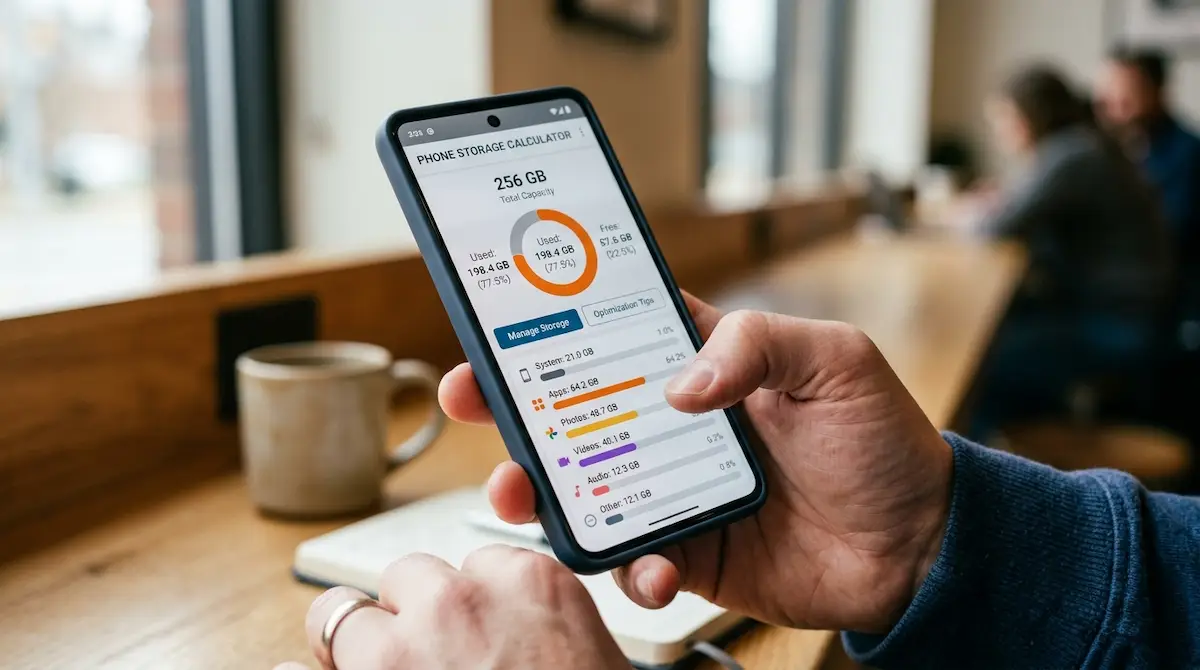
Watch your storage. If Lens is your workflow, you’ll accumulate screenshots fast. Run the numbers with our phone storage calculator before your library eats your free space.
Visual search is also creeping into wearables — if you’re curious how this plays out on your face rather than in your hand, we covered the Ray-Ban Meta hidden features that do something similar.
The verdict
Google Lens on iPhone is not a compromise version. It’s the same engine Android gets, minus a dedicated icon in your App Library — and the widget-plus-Back-Tap combination solves that in ninety seconds.
Install the Google app. That’s the whole answer for most people. Add Google Photos if you work with saved images. Turn on Chrome’s screen search if you research on your phone. Lean on Apple’s Visual Intelligence for screenshots because it’s faster and keeps more of the work local.
What I’d push back on is the framing you’ll see elsewhere that this is a workaround or a hack. It isn’t. Google ships Lens on iOS deliberately and updates it in step with Android, sometimes ahead of it. The only genuine friction is that the App Store search for “Google Lens” points you at the wrong thing — and now you know not to fall for it.
Frequently Asked Questions
Is there a Google Lens app for iPhone?
No. Google has never released a standalone Google Lens app on the App Store. Lens is built into the free Google app, Google Photos, and Chrome for iOS. Apps named “Lens” from other developers are unrelated to Google and often charge subscriptions.
How do I get Google Lens on my iPhone?
Install the Google app from the App Store, open it, tap the camera icon next to the search bar at the bottom, and allow camera access. Lens opens directly into the viewfinder. You can also access Lens through Google Photos or Chrome for iOS.
Is Google Lens free on iPhone?
Yes. Google Lens is completely free with no scan limits, no subscription, and no premium tier. It requires only a free Google app download. Any iOS app charging for “Lens” scans is a third-party product, not Google’s.
Does Google Lens work on iPhone without internet?
No. Every Lens query is processed on Google’s servers, so an active Wi-Fi or cellular connection is required. Apple’s Live Text handles basic offline text recognition, but full visual search always needs a connection.
Which is better, Google Lens or Apple’s Visual Intelligence?
Lens wins on translation, OCR, shopping, and identifying objects in the physical world. Visual Intelligence wins on screenshots, calendar extraction, text summaries, and privacy. Most iPhone users benefit from using both for different tasks.
Can I use Google Lens on a screenshot on iPhone?
Yes, two ways. Open the screenshot in Google Photos and tap the Lens icon, or take the screenshot and use Apple’s Visual Intelligence Image Search button, which routes the search to Google.
Does Google Lens save my searches?
Lens searches are saved to your Google account activity when you’re signed in, and Google uses them to improve its systems. Lens searches performed on webpage content in Chrome are handled differently, with data kept only temporarily for that specific query.
Which iPhones support Google Lens?
Any iPhone that can run the current Google app supports Lens, including older models. Apple’s Visual Intelligence has stricter requirements — generally iPhone 15 Pro and newer with Apple Intelligence enabled.
How do I fix Google Lens not working on my iPhone?
Check your internet connection first, then confirm camera and photo permissions in Settings, update the Google app, force quit and relaunch, and try Google Photos as a fallback. Reinstalling the Google app resolves most remaining cases.
Can Google Lens translate a menu in real time on iPhone?
Yes. Open Lens in the Google app, switch to Translate mode, and point the camera at the text. Translation appears as a live overlay across 100+ languages. Accuracy drops on handwriting and decorative fonts — taking a still photo usually produces a cleaner result.

Continue Reading on CripsyWire
For more flagship phone coverage, browse our full smartphones section. Comparing iPhone, Galaxy, and Pixel side-by-side? Our reviews and comparisons area handles the head-to-head decisions. The AI tools and agents that power your phone get their own deep coverage, and the wearables section covers everything that pairs with your device. All sits under Tech — the homepage ties it all together.