Quick answer: Yes. A hotspot uses your phone’s mobile data, because the hotspot is just your phone sharing its mobile connection with another device. Everything that device downloads, streams, or syncs counts against your mobile plan, at the same rates as on the phone, and laptops usually burn it faster because they default to higher quality and heavier background activity.
Related reading: phone fault fixes
The one-sentence version, and why people get it wrong
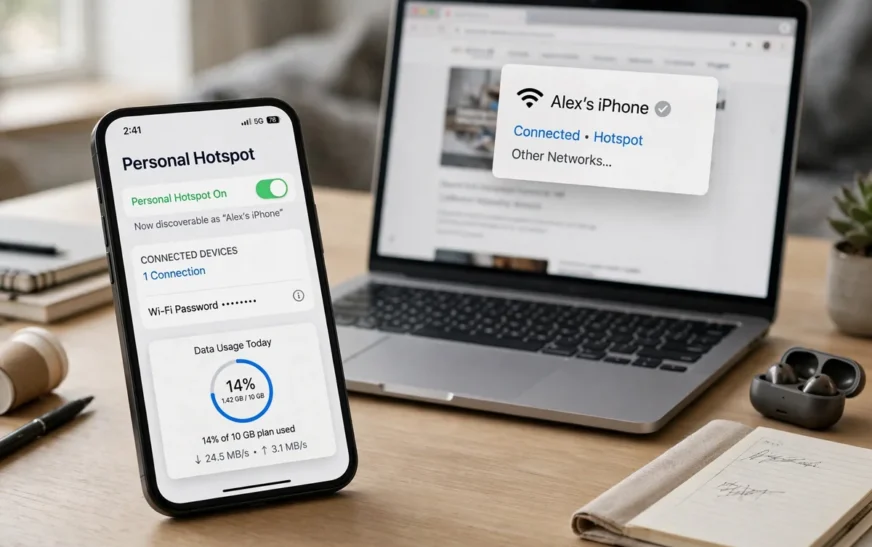
A hotspot is not a second internet connection. It is your phone’s mobile connection, lent to another device. The phone becomes a small Wi-Fi router, and the laptop, tablet, or other phone connects to it over Wi-Fi, but the internet on the other side of the phone is still mobile data, billed to your plan, at your plan’s terms.
People get this wrong for an understandable reason: the connected device shows a Wi-Fi symbol, and Wi-Fi usually means free, unmetered internet. On a hotspot, that symbol is a lie of appearance. The Wi-Fi link is only the short hop between the laptop and the phone. Beyond the phone, everything travels over the mobile network, and the carrier counts every byte of it. If you remember one thing from this guide, remember that Wi-Fi symbol on a hotspot device does not mean free data.
The confusion costs real money. A laptop streaming an HD show over a hotspot uses about 3 GB per hour, same as a phone streaming HD, and a 4K show uses about 7 GB per hour. A workday of laptop use over a hotspot, with video calls, cloud sync, and browsing, can easily reach 10 GB or more. On a 20 GB plan, that is half the month in a day. On a 5 GB plan, it is the month gone before lunch.
Related reading: Chromebook screen tips
How a hotspot actually works
When you switch on a hotspot, your phone does three jobs at once. It keeps its own mobile data connection to the tower. It creates a Wi-Fi network that other devices can join. And it routes traffic between the two, forwarding requests from the connected devices out over mobile data, and forwarding responses back over Wi-Fi to the right device. The phone also usually assigns the connected devices local addresses and handles the bookkeeping of which response belongs to which device, the same job a home router does, just on a smaller scale.
The phone’s own apps and the connected device’s apps share the same mobile connection and the same allowance. There is no separate hotspot pipe. If you are streaming music on the phone while a laptop streams video over the hotspot, both streams draw from the same plan, and the total is what the carrier counts. That shared nature is why hotspot use feels so expensive: two devices’ appetites, one allowance.
Hotspots come in three flavours, and the data cost is the same for all of them, though the convenience differs. Wi-Fi hotspot is the common one, letting several devices connect wirelessly. USB tethering connects one device by cable, which is slightly more efficient and charges the phone at the same time, but still uses mobile data. Bluetooth tethering connects one device over Bluetooth, which is slower and less common, but still uses mobile data. The connection method changes speed and battery use. It does not change billing. All three count against your mobile plan.
Battery is the hidden cost nobody budgets for. Running a hotspot makes the phone work hard: it maintains the mobile connection, runs the Wi-Fi radio, and routes traffic, all at once, and the phone heats up and drains faster than normal. A phone hotspotting a laptop for a workday will usually need charging well before the day ends, and a hot phone may also slow its own performance to manage heat. Keep a charger handy, and expect the phone to run warm. That warmth is normal, but a phone that gets very hot while hotspotting deserves a break and a cooler spot.
Related reading: browser productivity add-ons
How much data does hotspot use, really?
The honest answer is: exactly as much as the connected device uses, and connected devices usually use more than phones. A laptop browsing the web uses roughly the same as a phone browsing, around 0.1 GB per hour as a planning estimate, but a laptop does much more in the background: it syncs cloud drives, updates apps and the operating system, refreshes open tabs, and downloads email attachments, often without asking. Those background jobs can add several gigabytes in a day without any visible activity, which is why a laptop on a hotspot feels like it burns data while doing nothing.
Video is the big, visible cost, and it follows the same quality math as on a phone. Standard definition video costs roughly 0.7 GB per hour. HD at 720p costs roughly 1.5 GB per hour. Full HD at 1080p costs roughly 3 GB per hour. 4K costs roughly 7 GB per hour. Laptops default to higher quality than phones because their screens are bigger, so a show that cost 1.5 GB per hour on a phone may cost 3 GB per hour on a laptop, for the same show, simply because the laptop asked for a sharper picture.
Video calls over a hotspot cost roughly 1 GB per hour for a standard one-on-one call, and more for group calls or higher resolutions. A workday with four hours of video calls over a hotspot is roughly 4 GB before any other work happens. Add cloud sync, browsing, and a few downloads, and a remote workday over a hotspot can realistically reach 10 to 15 GB. That is not a fault or a leak. It is what modern laptop work actually costs in data, and it is why hotspots are a lifeline for a day, not a replacement for home broadband for a month.
Music and messaging over a hotspot are light, as they are on a phone. Music at high quality costs roughly 0.1 GB per hour as a planning estimate. Messaging is negligible unless it involves large photos or videos. The hotspot cost is dominated by video, calls, cloud sync, and downloads, in that order, and controlling those four controls the bill.
Related reading: Galaxy Watch 8 Classic review
How carriers count hotspot data
Carriers count hotspot data at their network equipment, against your line, in the same way they count phone data, because from the network’s side there is no difference: data leaves the tower for your phone, regardless of whether the phone displays it or forwards it to a laptop. Your carrier sees a total for your line. It may or may not break out hotspot use separately in its app, but the total is what matters for billing.
Some plans treat hotspot data as part of the main allowance, which is the simplest case: phone and hotspot draw from one pool, and the total is all that matters. Other plans give hotspot its own smaller allowance, separate from the phone allowance, which is the trap: a plan with 50 GB of phone data and only 5 GB of hotspot data will cut off or throttle the hotspot long before the phone data runs out. Still other plans allow hotspot use but throttle it to a lower speed, so the hotspot works but video buffers and downloads crawl, regardless of how much allowance remains.
Throttling and deprioritisation apply to hotspot data as they do to phone data, and sometimes more strictly. A plan marketed as unlimited may still throttle hotspot data after a threshold, or cap hotspot speed from the start. Roaming hotspot use is usually treated even more strictly, and some plans block hotspot use while roaming entirely, or charge it at roaming rates that dwarf normal rates. Check your plan’s hotspot terms before you travel, not after the bill arrives.
The practical step is simple: open your carrier’s app or portal and look for a hotspot line, a hotspot allowance, or a hotspot speed note, alongside your main allowance. If you cannot find one, call or message the carrier and ask three questions: is hotspot included in my main allowance or separate, is there a hotspot speed limit, and what happens when the hotspot allowance runs out? Write down the answers. Those three answers decide whether a hotspot is a tool you can rely on or a trap you should use sparingly.
Related reading: fitness watch face-off
Why your phone’s usage screen and your carrier disagree on hotspot
Your phone’s per-app data list shows what apps on the phone used. Hotspot traffic belongs to the connected device, not to an app on the phone, so it may not appear clearly in that list, or it may appear as a single hotspot or tethering total, depending on the phone. The result is a gap: the phone’s app list suggests you used, say, 8 GB, while the carrier says you used 20 GB, and the missing 12 GB is hotspot traffic that the app list never attributed to a recognisable app.
This gap is normal, not a billing error, in most cases. It is a measurement difference: the phone measures by app, the carrier measures by line, and hotspot traffic is line traffic without an app. The way to close the gap is to check the carrier’s figure, which includes hotspot use, and to check the phone’s hotspot or tethering total if your phone shows one, rather than relying on the per-app list alone.
If the gap persists after accounting for hotspot use, and it is large month after month, it is worth querying, with dated screenshots of both the phone’s totals and the carrier’s totals. But start by accounting for hotspot use honestly, including background laptop activity you did not see, because that background activity is the usual explanation, and it is much more common than a billing error.
Related reading: earbud reset steps
Hotspotting safely: settings that save gigabytes
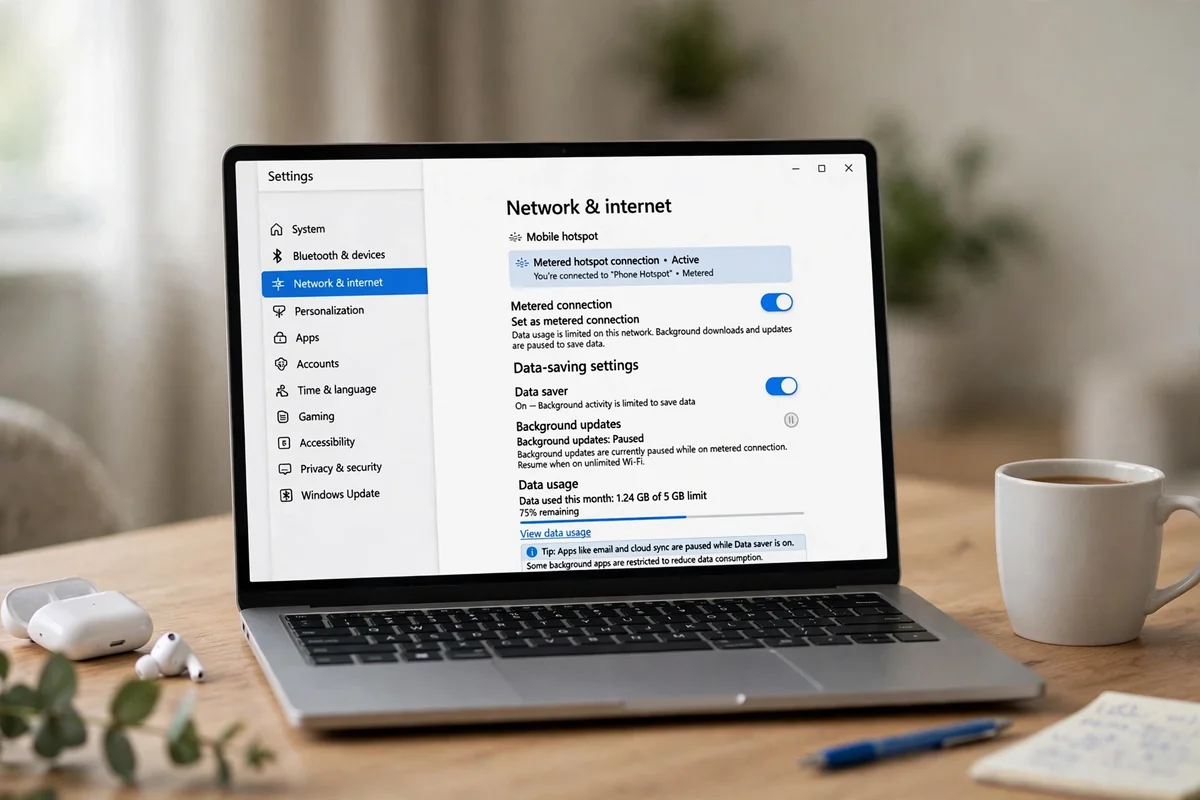
The single most effective setting is to mark the hotspot connection as metered on the connected device. On a Windows laptop, go to the Wi-Fi settings for the hotspot network and turn on the metered connection option. On a Mac, there is no single metered switch in the same way, but you can achieve a similar result by turning off automatic updates and cloud sync while on the hotspot. A metered connection tells the laptop to hold back automatic updates, cloud sync, and other background downloads, which are the silent gigabytes.
Next, turn off automatic updates on the laptop while hotspotting. Operating system updates are large, often several gigabytes, and they will happily download over a hotspot unless told not to. Set updates to manual or to Wi-Fi only, and install them when you are on real Wi-Fi. The same goes for app updates, cloud drive sync, and photo backup on the laptop: pause them while on a hotspot, and resume them on Wi-Fi.
Then lower video quality deliberately. Set streaming apps on the laptop to standard definition or 720p while on a hotspot, and set video calls to standard quality rather than HD where the app allows it. The visual difference on a laptop screen at normal viewing distance is modest, and the saving is roughly half the data compared with full HD. For a workday of calls and video, that one change can save several gigabytes.
Finally, close what you are not using. Browser tabs with auto-refreshing feeds, open cloud documents syncing constantly, and background apps all draw data over a hotspot even when you are not looking at them. Close tabs and apps you do not need for the current task, and the hotspot will last noticeably longer. It is unglamorous advice, and it works, because the biggest hotspot waste is not what you watch, it is what you forgot was open.
Related reading: deleting a social account
When a hotspot is the right tool, and when it is not
A hotspot is the right tool for short, important jobs: sending an email from a laptop where there is no Wi-Fi, joining a video call from a car park, uploading a document from a client site, or getting a tablet online for an hour. For those jobs, the data cost is modest, the convenience is high, and the hotspot earns its keep.
A hotspot is the wrong tool for sustained, heavy use: working from home for a month on a hotspot instead of broadband, streaming 4K video every evening over a hotspot, downloading large games or operating systems over a hotspot, or running a household’s devices off one phone. Those jobs will burn through any normal mobile allowance in days, throttle or cut off, and leave you with a bill or a dead connection at the worst moment. For sustained heavy use, get real broadband, or at least a dedicated mobile broadband plan with an allowance sized for laptop use, rather than stretching a phone plan beyond what it was designed for.
A dedicated mobile broadband device or a home 4G or 5G router is a middle path worth considering if you work remotely without fixed broadband. Those devices have plans sized for laptop-scale use, often with much larger allowances than phone plans, and they do not drain a phone’s battery or heat it up. They still use mobile data, and they still cost per gigabyte in plan terms, but the allowance matches the job, which is the whole point.
Related reading: AI tools roundup
Security: a hotspot is a small network, so lock it
A hotspot is a Wi-Fi network, and like any Wi-Fi network it needs a strong password. Use a long, random password, not your phone number, not a simple word, and not the default password if your phone lets you change it. Anyone who joins your hotspot shares your mobile data and, in principle, can see traffic on that small network, so keep the password private and change it if you suspect it has leaked.
Turn the hotspot off when you are not using it. An open hotspot broadcasts its existence, drains battery, and invites connection attempts. Switching it off when done is free, takes a second, and removes the risk entirely. Also check how many devices are connected, in the hotspot settings, from time to time. An unfamiliar device on the list is a sign the password has leaked, and changing it at once is the right response.
Public hotspots are a different risk and a different topic, but the same caution applies in reverse: when you join someone else’s hotspot or a public network, assume the connection is shared and avoid sensitive transactions unless you are using a VPN or a trusted network. Your own hotspot, locked with a strong password and switched off when not in use, is a reasonably safe small network for everyday work.
Related reading: Android backup steps
FAQ
Does hotspot use data?
Yes. A hotspot shares your phone’s mobile data connection with another device, and everything that device does online counts against your mobile plan.
Does hotspot use more data than using the phone directly?
For the same activity, the data is roughly the same, but laptops usually use more in practice, because they default to higher video quality and run heavier background sync, updates, and downloads than phones.
Is hotspot data separate from my phone data?
It depends on your plan. Some plans draw hotspot and phone data from one allowance. Others give hotspot its own smaller allowance or throttle its speed. Check your carrier’s hotspot terms for your plan.
Why did my data run out so fast on a hotspot?
Usually video quality and laptop background activity: HD or 4K video, video calls, cloud sync, and operating system or app updates over the hotspot. Mark the connection as metered and pause updates and sync while hotspotting.
Can I use a hotspot for free?
No, unless your plan includes hotspot use within an allowance you have already paid for. There is no free hotspot data beyond what your plan provides, and roaming hotspot use can be charged at roaming rates.
Does turning on a hotspot drain battery?
Yes, noticeably. The phone runs its mobile radio, its Wi-Fi radio, and routing all at once, and it heats up. Keep a charger handy for long hotspot sessions.
Related reading: clearing Android cache
The short version
Yes, a hotspot uses your mobile data. The Wi-Fi symbol on the connected device only covers the short hop to the phone; beyond the phone, everything is mobile data, billed to your plan. Laptops burn it faster than phones, because of higher video quality and background activity. Mark the connection as metered, pause updates and sync, lower video quality, check your plan’s hotspot terms, and use hotspots for short jobs, not as a broadband replacement.
Before a long hotspot session, it helps to know what your habits cost. The data usage calculator on CripsyWire turns daily activities into a monthly total, which is a good reality check before you lend your connection to a laptop.
More practical guides live on the CripsyWire blog.
The site itself is at CripsyWire.
For background on who runs it, see the about page.
Budget your hotspot before you switch it on
Estimate your monthly data from daily habits, so a day of hotspotting does not eat a month of allowance.

Continue Reading on CripsyWire
For more practical AI coverage for US buyers, see our full AI tools and agents library. When you are deciding between competing tools, the reviews and comparisons section breaks down head-to-head matchups. AI features that live inside your phone are tracked in smartphones, and AI on your wrist or finger in wearables. All of this is part of CripsyWire's broader Tech coverage — start at the homepage for what is newest.