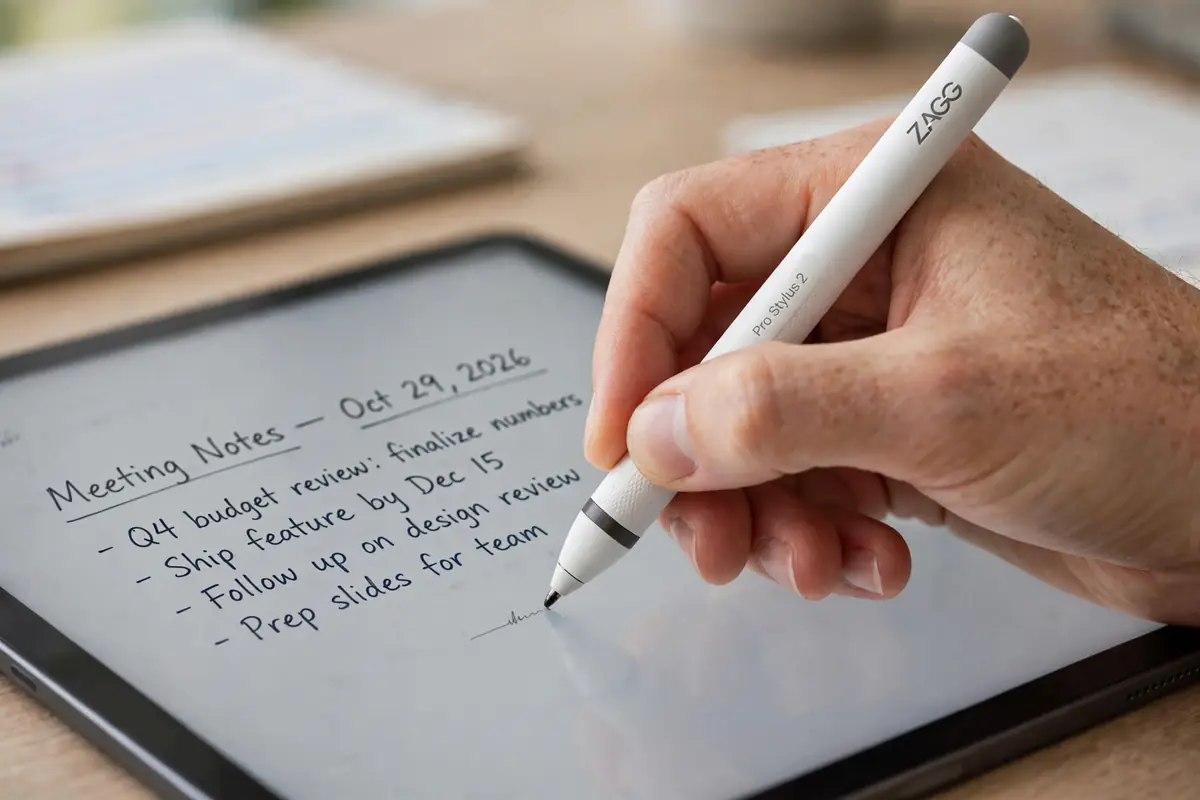
The one-sentence verdict
Buy the ZAGG Pro Stylus 2 if you mainly write, annotate and sketch casually on an iPad. Skip it if your art depends on pressing harder for darker, thicker lines. That single split decides almost every buying question about this stylus, and everything else — the dual tip, the charging, the compatibility list — is detail around it.
What the ZAGG Pro Stylus 2 actually is
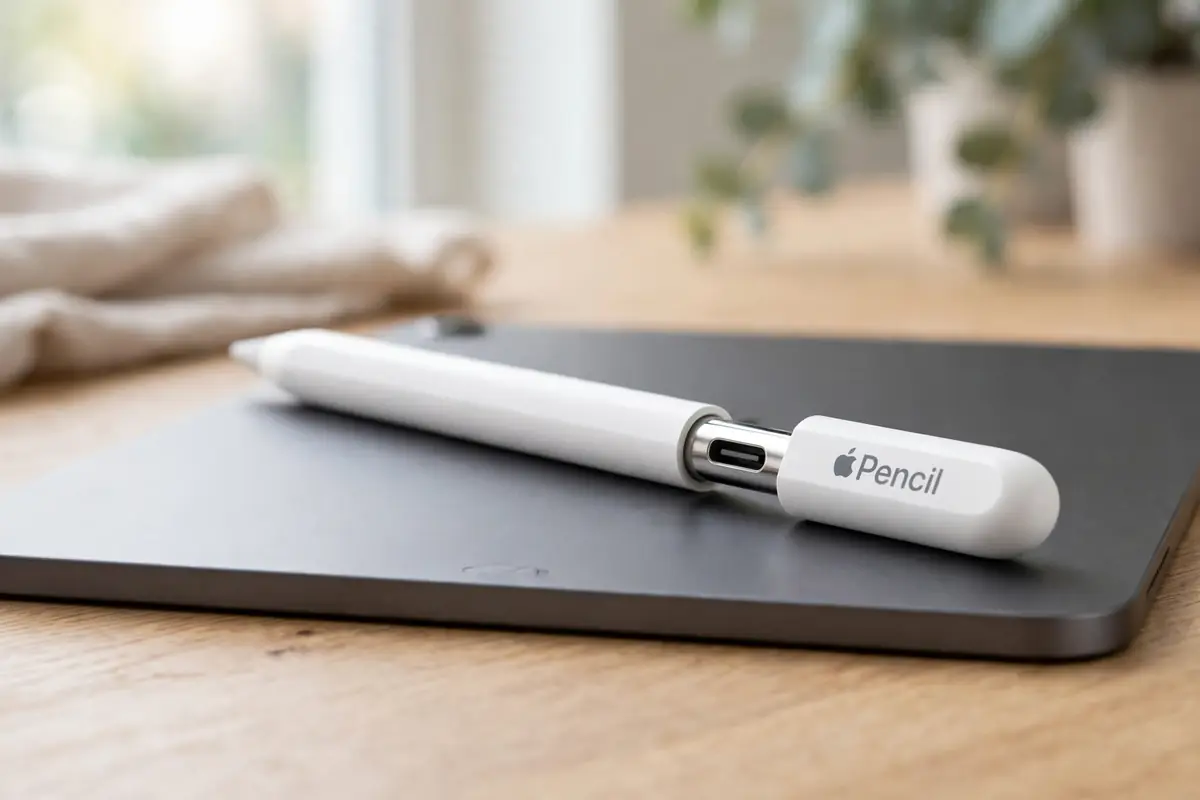
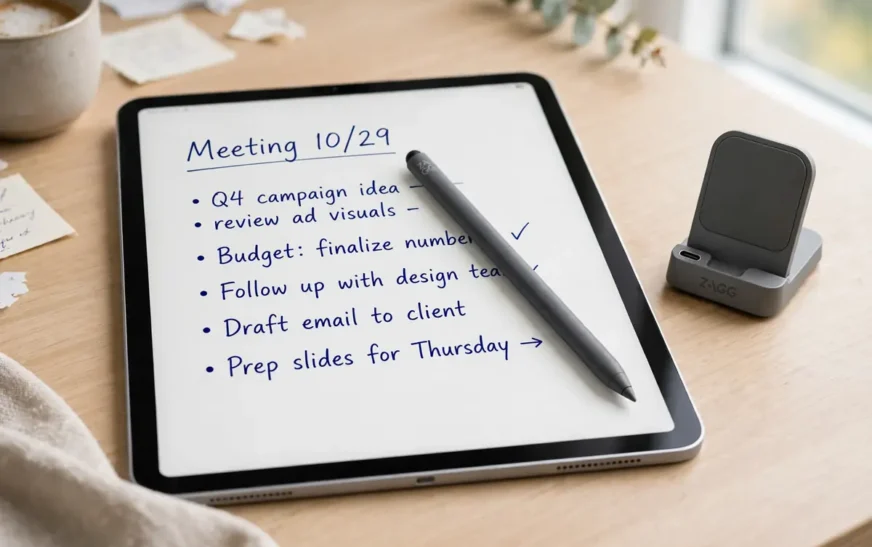
The Pro Stylus 2 is ZAGG’s active stylus for iPad, built as a cheaper, more versatile rival to the Apple Pencil. It is a pen-shaped tool, roughly pencil-sized, with two working ends. One end carries a fine active tip for writing and drawing. The other end carries a round, universal capacitive tip that works like a fingertip: scrolling, swiping, tapping and navigating without drawing a line.
That dual-tip design is the product’s best idea, and it solves a real annoyance with the Apple Pencil. An Apple Pencil is always a pencil. When you want to scroll a long document, you either put the pencil down or fumble with a mode switch. With the ZAGG, you flip the stylus over and scroll with the capacitive end, then flip it back and write. For students working through lecture notes, professionals marking up contracts, and anyone who annotates PDFs all day, that flip becomes second nature within an hour.
Compatibility: check your exact iPad before you buy
ZAGG describes the Pro Stylus 2 as compatible with all iPads from 2018 onward. Retailer listings give a narrower, model-specific version of the same claim: iPad Pro 11-inch and 12.9-inch (3rd to 5th generation), iPad Air 10.9-inch (including the M2 model), iPad 10.2-inch and 9.7-inch, and iPad mini 5th and 6th generation. Both versions point in the same direction, but they are not identical, and the difference matters if your iPad is newer than the listings, or an unusual variant.
Screen size still matters for comfort, even when compatibility is confirmed. A stylus that feels balanced on a 12.9-inch Pro can feel long on a mini, and a small iPad leaves less room to rest your palm. A guide comparing iPhone and iPad screen sizes helps frame the trade-off. Buy the stylus for the iPad you own, not the iPad you wish you owned.
How it feels to write with
In normal writing, the Pro Stylus 2 feels close to an Apple Pencil, and several reviewers say so plainly. Lines appear where the tip touches, with no obvious skipping in ordinary note-taking, and the ink tracks the tip accurately enough that handwriting, signatures and form-filling feel natural. For the core job — replacing a pen on paper with a pen on glass — it does the job well.
Palm rejection is the feature that makes that possible. While the active tip is in use, resting your palm on the screen should not leave stray marks or move the page. ZAGG, retailers and reviewers all describe the same behaviour: only the stylus registers while you write. That sounds like a small detail until you try a cheap capacitive stylus without it, where every palm rest becomes a smudge, a zoom or a lost paragraph. Palm rejection is the line between a toy and a tool, and the ZAGG clears it.
Tilt recognition is the second headline feature, and it needs a more careful description than retailer pages give it. Tilt the stylus and supported apps vary the stroke width, mimicking shading with a real pencil. How-To Geek’s review, however, reports that the tilt has no graduation: you get full-power vertical writing or soft side shading, with nothing in between. That is fine for casual shading and calligraphy-style notes. It is not the smooth, graded shading a trained artist expects, and buyers who want that control should know the limit before they buy, not after.
The missing feature: pressure sensitivity
Here is the honest core of this review. The ZAGG Pro Stylus 2 has no pressure sensitivity. Press lightly or press hard, and the line stays the same weight and darkness. Every independent review consulted for this guide confirms it, and it is the single biggest difference between this stylus and Apple’s higher-end pencils.
For note-taking, that absence is often a benefit, not a flaw. Cult of Mac’s reviewer makes the point well: when writing, you want the line width and darkness you set in the app to stay put, not to wobble with every change in hand pressure. Students, professionals and annotators get consistent, readable notes, and they never fight the stylus for control of the line.
For art, the absence is a deal-breaker. Pressure sensitivity is how digital brushes mimic real brushes: light pressure for faint, thin lines, heavy pressure for bold, dark strokes. Without it, shading, line variation and expressive drawing all have to be faked with manual settings, tilt and layer tricks. A casual sketcher can live with that. A serious illustrator, comic artist or digital painter cannot, and should not be talked into trying.
Charging, battery and the magnetic cradle
Charging is where the “2” in Pro Stylus 2 earns its keep. The stylus charges wirelessly: drop it onto the included magnetic cradle, or onto any Qi-compatible charger, and it tops up without a cable. The magnetic attachment also lets it cling to the side of recent iPad Pro models for storage, much like an Apple Pencil 2, so it is less likely to roll off a desk and vanish into a bag.
Battery life is rated at up to 6.5 hours per full charge across ZAGG, retailer and review sources. Treat that as a realistic school or work day of intermittent use, not six and a half hours of continuous drawing. Heavy, continuous use will drain it faster, and a stylus that dies mid-lecture is a stylus that needed charging the night before. Build the habit: cradle it when you finish, not when the warning appears. If your desk already has a Qi pad for a phone, the stylus can share it, but test placement first: a pad that charges a phone reliably can still miss a thin stylus that sits off-centre, so check a roundup of wireless chargers that actually work with small devices before assuming the pad you own will work.
Power control is refreshingly simple. Push the round capacitive end to turn the stylus on, and it switches itself off after 15 minutes of inactivity to save battery. An LED on the charging cradle shows when it is charging. There is no app, no settings menu and no pairing dance for basic use: ZAGG describes automatic pairing with compatible iPads, and reviewers report that pairing is immediate when the stylus is magnetically attached.
ZAGG Pro Stylus 2 vs Apple Pencil USB-C: the real rival
| Feature | ZAGG Pro Stylus 2 | Apple Pencil USB-C |
|---|---|---|
| Pressure sensitivity | No | No |
| Tilt recognition | Yes | Yes |
| Palm rejection | Yes | Yes |
| Dual tip (active + capacitive) | Yes | No |
| Wireless / magnetic charging | Yes, cradle or Qi | No, USB-C cable |
| Works on iPhone as a capacitive stylus | Yes, capacitive end | No |
| Magnetic attachment to iPad Pro | Yes | Yes, for storage |
| Battery life (rated) | Up to 6.5 hours | Varies by model; check Apple’s current spec |
Read that table as a buyer, not as a fan. If you want the cheapest Apple-branded pencil, the deepest app integration and the simplest story (“it just works with my iPad”), the USB-C pencil wins on brand and ecosystem. If you want the capacitive end for scrolling, wireless charging, and a stylus that also works on a phone, the ZAGG wins on versatility at the same launch price. Neither gives you pressure sensitivity, so neither is the artist’s pick. For that job, step up to a higher Apple Pencil model and pay for the feature that actually matters.
A note on prices: retailer listings for the ZAGG have shown both $79.99 and, in one Best Buy data snippet, $59.99, and ZAGG’s own page has shown the model out of stock at times. Prices and stock move, so start with the current listing, not with a number in an article.
For a deeper look at Apple’s own cheaper pencil, including its charging and pairing quirks, see the guide to Apple’s cheaper USB-C pencil before you decide. The two products look similar on a shelf. Their daily habits — cable versus cradle, pencil-only versus dual tip — are not similar at all.
Setup checklist: five minutes that prevent five days of annoyance
First, charge it fully on the cradle before first use, and confirm the LED indicator shows charging. A half-charged stylus that dies during your first test tells you nothing about the product, and everything about the unboxing.
Second, turn it on by pushing the capacitive end, then open a note-taking app that supports Apple Pencil and write a full paragraph, including a signature and a quick sketch. Check that lines start where the tip lands, with no skipping at the start of strokes. If strokes skip, try a different app before blaming the hardware: app support varies.
Third, test palm rejection deliberately. Rest your palm on the screen as you normally would, write across the page, and lift and replant your hand mid-sentence. Stray marks, jumps or zooming during this test mean something is wrong — with pairing, with the app, or with the stylus — and it is better to find out now than during an exam.
Fifth, test the capacitive end separately. Flip the stylus, scroll a long page, tap buttons, and navigate the home screen. This end works even when the active tip is not paired, so a capacitive end that works while the active tip does not is a pairing clue, not a dead battery. That distinction saves a return: a pairing problem is fixable in Bluetooth settings, while a dead stylus is not.
If the active tip refuses to pair at all, forget any Apple Pencil in Bluetooth settings, restart the iPad, and try again. If it still refuses, test the stylus on a second compatible iPad if you can borrow one. A stylus that works on one iPad and not another has a pairing or settings problem. A stylus that works on neither has a hardware problem, and that is the point to contact the seller.
Finally, check your screen protector before you judge the stylus. A thick or textured protector can add drag, dull the tip faster, and make palm rejection feel less clean, so read about how a grainy screen protector ruining stylus feel presents before you return a stylus that is actually fighting the protector, not failing on its own.
Daily use: where it shines and where it strains
Students are the natural audience. Lecture notes, annotated slides, marked-up readings and handwritten problem sets are exactly the workload this stylus handles well: consistent lines, reliable palm rejection, quick scrolling with the capacitive end, and a battery that survives a day of classes if charged overnight. The dual tip pays off in lectures, where you switch between writing and scrolling constantly.
Professionals come second. Signing documents, marking up contracts, sketching a diagram in a meeting and annotating a presentation are all pencil jobs that do not need pressure sensitivity. The capacitive end also helps here: navigating a long document without leaving accidental ink is a small pleasure that adds up across a workday.
Casual creators come third, with a caveat. Sketching ideas, storyboarding, colouring and light illustration all work, and tilt shading adds some expression. The caveat is the one already stated: without pressure sensitivity and without graduated tilt, expressive drawing hits a ceiling quickly. Use the ZAGG to find out whether you enjoy digital drawing. If you do, and you start fighting the line weight, that is the signal to upgrade, not a failure of the purchase. Creators who film their work from above should also sort out a steady overhead mount early: a shaky phone video ruins an otherwise good tutorial, and a shortlist of budget tripods for overhead filming is a better starting point than a full camera rig for a top-down shot.
Two strains show up in longer use. Tips wear out: several users report faster tip wear than expected, which is annoying but fixable, since the stylus ships with a spare. Check the tip monthly if you write heavily — a worn tip skips, drags and feels scratchy, and a fresh tip often “fixes” a stylus that seemed to be failing. The second strain is the battery ceiling. Six and a half hours is enough for a day, not for a weekend away without the cradle, so pack it when you travel.
Charging troubleshooting: when it will not charge
Check the cradle first. Seat the stylus firmly in the magnetic cradle and confirm the LED indicator lights up. A stylus resting beside the cradle, or held at an angle by a case, may look docked without actually charging. Remove thick cases from the equation for one test charge, and try a different Qi charger if you have one, to separate a cradle problem from a stylus problem.
Check the power source next. A cradle plugged into a dead USB port, a low-power hub or a switched-off power strip will not charge anything, and the stylus gets blamed for the outlet’s failure. Plug the cradle’s cable into a known-good charger and port, and give it a full charge cycle before judging. A stylus left flat for months may need a longer first charge before it responds, and a stylus that charges but dies in minutes has a battery problem, not a charger problem. If a full, confirmed charge still gives only a short working time, contact the seller while the return window is open.
General charging habits help across devices, not just styli. If a phone or tablet in the same household also refuses to charge, the shared culprit is often the cable, the port or the power source, and a guide to fixing a phone that refuses to charge covers that diagnosis well. Fix the power chain first, then judge the device.
Desk setup, accessories and the iPad as a second screen
Wireless charging is the first. If your desk already has a Qi pad for a phone, the ZAGG can share it, which removes one cable and one excuse for a dead stylus. Test the pad you own before assuming it works, and check the pad’s size and placement, not just its wattage.
Some owners also use the iPad as a second display for a Mac, marking up documents on the iPad while the main work sits on the laptop screen. In that setup, the stylus becomes a markup tool for the whole desk, not just the tablet. If that workflow appeals to you, read a guide to using an iPad as a second display and check whether your Mac and iPad support the feature, because the stylus is only useful there if the display link itself works first.
Who should buy it, who should skip it
Buy it if you take notes, annotate documents, sign forms, sketch ideas or mark up readings on a compatible iPad, and you want wireless charging and a capacitive scrolling end in the same tool. Buy it if you want one stylus for an iPad and a phone. Buy it if you are buying for a student or a professional who writes far more than they draw.
Skip it if you are a digital artist, illustrator or comic creator who needs pressure sensitivity for line variation and shading. Skip it if you need a double-tap shortcut to switch tools, which this stylus does not offer. Skip it if your iPad is not on the compatibility list, or if you need the hover preview feature found on higher Apple Pencil models. Each of those is a real need, and none of them is fixed by a firmware update or a settings change.
The middle group — casual sketchers who might become serious artists — should buy honestly. The ZAGG is a low-cost way to learn whether digital drawing suits you. If you outgrow it, you have learned something valuable about your own work, and the upgrade to a pressure-sensitive pencil will feel like a promotion, not a rescue. If you never outgrow it, you saved money and gained a capacitive end into the bargain.
Work sessions pair a stylus with audio more often than buyers admit. If you switch between an iPad and a laptop during the day, sort out connecting AirPods to a laptop before the session starts, rather than fighting Bluetooth mid-lecture.
Frequently asked questions about the ZAGG Pro Stylus 2
Is the ZAGG Pro Stylus 2 compatible with my iPad?
It is compatible with iPads from 2018 onward, per ZAGG, with retailer listings naming iPad Pro 11 and 12.9-inch (3rd to 5th generation), iPad Air 10.9-inch (including M2), iPad 10.2 and 9.7-inch, and iPad mini 5 and 6. Check your exact model in Settings, then General, then About, and match it against the seller’s current list before ordering.
Does it have palm rejection?
Yes. While the active tip is in use, your palm resting on the screen should not leave stray marks or interfere with the stylus path. That is one of the features that separates it from cheap capacitive pens, which register every palm touch as input.
Does it have pressure sensitivity?
No. Pressing harder does not make lines darker or thicker. It does have tilt recognition, so tilting the stylus in supported apps varies stroke width, but reviewers report the tilt is not graduated — it is closer to two states than a smooth range. Note-takers rarely miss pressure sensitivity. Artists will.
How do I charge the ZAGG Pro Stylus 2?
Place it on the included magnetic wireless charging cradle, or on any Qi-compatible charger. An LED on the cradle shows charging status. Battery life is rated at up to 6.5 hours per full charge, and the stylus switches itself off after 15 minutes of inactivity.
Does it work with apps that support Apple Pencil?
Yes, the active tip works with apps that support Apple Pencil, which covers the major note-taking, drawing and annotation apps. The capacitive end works like a finger on any touchscreen, including iPhones, even when the active tip is not paired.
What is the capacitive end actually for?
Scrolling, swiping, tapping and navigating without drawing. Flip the stylus over when you want to move through a document, and flip it back when you want to write. It also prevents fingerprint smudges on the screen, since you are touching glass with the tip instead of a finger.
What to do next
Check your exact iPad model, then answer one question honestly: do you write more than you draw, or draw more than you write? If writing wins, order the Pro Stylus 2 from a seller with a clear return policy, run the five-minute setup checklist on arrival, and charge it on its cradle every night. If drawing wins, skip it and buy a pressure-sensitive Apple Pencil instead, because no tip replacement or settings tweak will give this stylus a feature it was never built with. The right stylus is the one that matches the work you actually do, and for note-takers, this one matches it well.

Continue Reading on CripsyWire
For more honest tech matchups, browse our full reviews and comparisons library. AI tool reviews live in AI tools and agents, phone reviews in smartphones, and wearable reviews in wearables. Before you buy, our step-by-step guides may help with setup decisions. The CripsyWire homepage highlights what is newest, all under our Tech coverage.