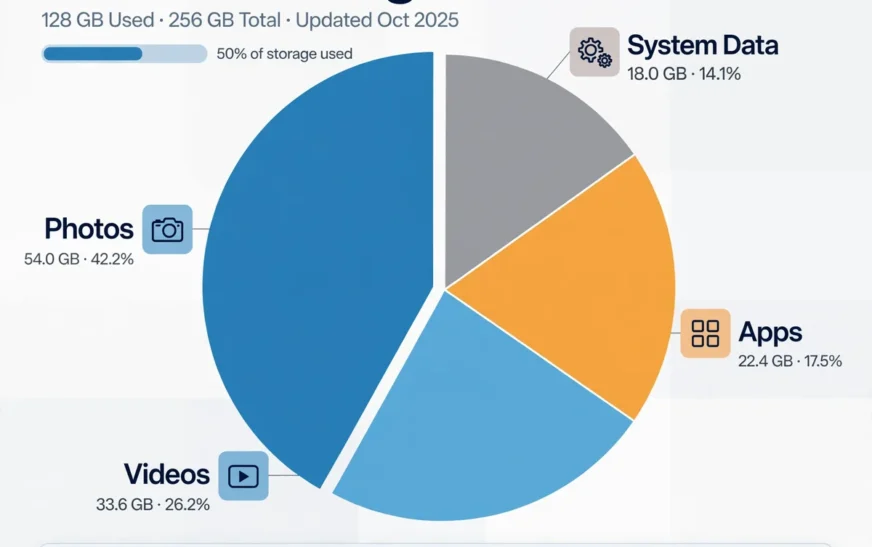
Quick answer: On most phones, videos take up the most storage, followed by photos, then apps and games, then system data, then messaging media and downloads. A single hour of 4K video can outweigh thousands of photos, and a few large games or streaming downloads can outweigh an entire photo library — so check your storage breakdown by category before deleting anything, because the biggest category is rarely the one you expect.
How to run your own storage audit
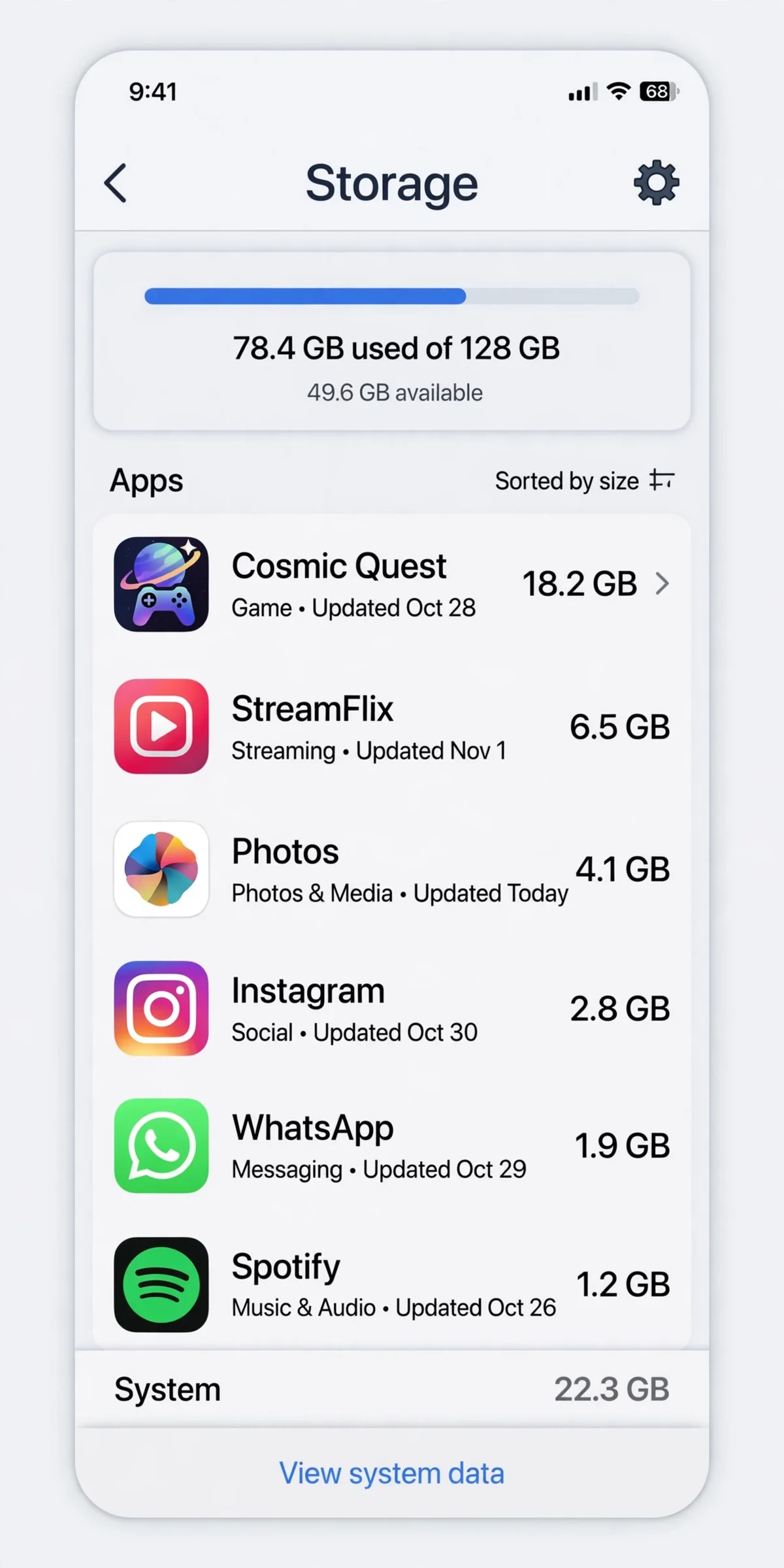
Open the storage screen and let it finish loading. On iPhone, go to Settings, General, then iPhone Storage. On Android, go to Settings, then Storage. You will see a breakdown by category and a list of apps sorted by size. That breakdown is your audit, and it is more useful than any generic ranking, because every phone’s mix is different. A photographer’s phone is photo-heavy. A gamer’s phone is app-heavy. A traveller’s phone is download-heavy. The generic order below tells you what to expect, but your own screen tells you what is true for you.
Work through the categories below in the order given, comparing each one with your own numbers as you go. For each category, note roughly how much it uses, whether that amount surprises you, and whether the contents are backed up, re-downloadable, or irreplaceable. That last distinction decides what you can delete safely. Backed-up photos and re-downloadable films are safe to remove. Unbacked-up photos and unique documents are not, no matter how large they are.
If you want a planning baseline for your phone size, the phone storage calculator shows usable space for common sizes and lets you test how photos, videos, apps, and music fit together. Use it alongside your audit, not instead of it, because a calculator estimates while your storage screen measures.
Number one: video, by a landslide
Video is the largest storage consumer on most phones, and it is not close. CripsyWire’s calculator uses planning figures of roughly 65 MB per minute for 1080p video, about 190 MB per minute for 4K at 30 frames per second, and around 440 MB per minute for 4K at 60 frames per second. That means an hour of 1080p video costs roughly 4 GB, an hour of 4K at 30 frames per second costs roughly 11 GB, and an hour of 4K at 60 frames per second costs roughly 26 GB. A weekend of shooting can therefore add more storage than a year of still photos.
The reason video surprises people is that it hides in several places at once. Camera roll video is the obvious pile, but screen recordings, slow-motion clips, time-lapses, and video messages add their own piles, and downloaded films and shows from streaming apps add another. A phone that looks photo-heavy in the gallery may actually be video-heavy once downloads and recordings are counted.
Check video in three places: the camera roll, sorted by duration; the screen recordings folder, if your phone separates it; and each streaming app’s downloads section. Delete clips you will never edit, back up the keepers, and consider shooting everyday clips in 1080p instead of 4K. The quality difference on a phone screen is modest, and the storage difference is roughly threefold. For creators who edit on the phone, the best free AI video generators guide is a useful reminder that many clips can be recreated or trimmed rather than kept in full resolution forever.
Number two: photos, the steady drip
Photos are the second-largest category for most people, and unlike video they grow quietly rather than in bursts. CripsyWire’s calculator uses a planning figure of about 3.5 MB per modern photo, so a thousand photos cost roughly 3.5 GB and ten thousand cost roughly 35 GB. Ten thousand photos sounds like a lot until you realise a keen photographer reaches it in a couple of years without trying, especially with bursts, live photos, and duplicates counting separately.
Photos also multiply. A single moment can produce a burst of twenty shots, a live photo with a video component, an edited copy, and a copy saved by a messaging app. The gallery may show you one image while the phone stores several files. Screenshots add another layer: people take screenshots constantly and delete them never, and a busy screenshot habit can add gigabytes on its own.
Audit photos by album, not just by total. Check screenshots, bursts, and recently deleted items separately, because each hides a different pile. Back up before deleting, empty the trash afterwards, and use optimized storage so full-resolution originals live in the cloud while smaller versions stay on the phone. That combination is what keeps a photo library from swallowing a phone over time.
Live photos and portrait-mode shots deserve a note of their own, because they look like single photos and behave like small videos. A live photo stores a short video clip alongside the still image, and portrait shots store depth information that adds weight. Neither is huge on its own, but across thousands of photos the extra weight adds up, and turning live photos off for everyday shots is an easy saving that costs nothing in quality for most subjects. Similarly, HDR and high-efficiency formats change file sizes in ways that are hard to predict from photo counts alone: newer formats store the same image in less room, while older formats store more. If your phone offers a high-efficiency capture setting, turning it on shrinks future photos without any visible difference for most people, and it slows the growth of the whole library from that day forward.
For a concrete translation of photo counts into gigabytes, the guide to how many photos fit on a 128 GB phone puts real numbers on a camera roll, which helps you judge whether photos alone explain your storage pressure.
Number three: apps and games
Apps are the third-largest category, and the most misleading, because an app’s download size is only the start. CripsyWire’s calculator assumes an average app at about 100 MB, but the range is enormous: a simple utility may be tens of megabytes, while a big 3D game can be several gigabytes, and app updates grow apps steadily over time. Caches add another layer on top, as streaming, social, and browser apps accumulate temporary files that can push a modest app past a gigabyte.
Sort your apps by size in the storage screen and look at the top five. You will usually find one or two surprises: a game you have not opened in months, a streaming app with forgotten offline downloads, or a social app whose cache has ballooned. Those three are the classic app-storage hogs, and they are also the easiest to fix: offload or delete the unused game, delete offline downloads inside the streaming app, and clear or reset the social app’s cache.
Messaging apps sit in a grey area between apps and media, because their size mostly comes from chat media rather than the app itself. A messaging app that looks huge in the storage list is usually holding years of photos and videos from group chats. Clearing media from the largest chats, rather than deleting the app, is the right fix there, and turning off auto-save for busy groups stops the pile from rebuilding.
Pre-installed apps are a minor footnote. Some can be deleted, some can only be disabled, and the space involved is usually small. Do not spend an afternoon fighting them when games, downloads, and caches offer far larger wins.
Number four: system data and the operating system
System data is the category people understand least and fear most. On iPhone it appears as System Data, on Android as System or Other, and it typically runs to 12 to 20 GB or more depending on the phone and software version. Part of it is the operating system itself, which you cannot delete. Part of it is caches, logs, temporary files, and update leftovers, which you can shrink by restarting, updating, and clearing app caches.
System data grows for ordinary reasons. Every system update leaves files behind. Every app contributes caches that the system counts in its own bucket on some phones. Browsing, streaming, and messaging all generate temporary files that the system manages. None of this means your phone is broken, and none of it means you should go hunting for system folders to delete. Deleting files you do not recognise in system folders can break apps, break updates, or require a factory reset.
If system data looks unusually large — say, several tens of gigabytes and growing — restart the phone, update the system, clear the largest app caches, and recheck. If it stays huge, a backup followed by a factory reset and selective restore rebuilds the system cleanly. That is the heavy-duty fix, and it works, but only with a verified backup first. A detailed Android version of the cache side of this job is in the guide to clearing the cache on Android.
A phone that feels slow after storage is freed may have a different cause. Heat, for instance, makes a phone sluggish in ways storage does not explain, and the phone overheating guide helps separate a heat issue from a storage issue.
Number five: messaging media, the second photo library
Messaging media deserves its own rank because it is so often overlooked. Every photo, video, voice note, and document sent in a chat is stored by the messaging app, often in addition to a copy in the gallery. Group chats multiply this: dozens of contributors, years of history, and a default setting that auto-saves everything. A single busy group chat can hold gigabytes, and a phone with several such chats can hold a second photo library that never appears in the gallery’s totals in an obvious way.
Audit messaging media app by app, sorting chats by size where the app allows it. Delete media from the largest chats first, keep the chats themselves, and turn off auto-save for groups you barely read. Back up chats that matter before you start, because deleting chat media is permanent once any trash period expires. If an account is entirely abandoned, closing it removes its footprint altogether; the steps for deleting a messaging account show how much an unused account can retain.
Email attachments are a smaller cousin of messaging media. A work inbox with years of large attachments, downloaded for offline reading, can hold gigabytes that never show up in the gallery. Clearing old attachments, or switching the mail app to download on demand, frees space without deleting the emails.
Number six: downloads, podcasts, maps, and music
The remaining categories are individually small and collectively significant. Downloads hold PDFs, installers, forms, and files from single occasions, and the folder is rarely cleaned. Podcasts auto-download by default in many apps, adding hundreds of megabytes a week for shows you may never hear. Offline maps for cities you visited once sit indefinitely. Offline music libraries, especially downloaded albums and playlists, add up for travellers and commuters. Voice memos and screen recordings, often forgotten, can each run to hundreds of megabytes.
Audit these by opening each app’s downloads or offline section and sorting by size or date. Delete films already watched, albums no longer played, podcast backlogs you will never finish, maps for places you left, and recordings already shared. All of this content is re-downloadable, which makes it the safest category to clear aggressively. If you rely on offline content for travel, budget for it when choosing a phone size, using the phone storage calculator to test how offline libraries fit different sizes.
One more small pile: documents and files from work or school accounts, which can include large presentations and PDFs. Move irreplaceable files to a cloud drive, then delete local copies you no longer need. The goal is not to empty every folder, but to know what is in each one and whether it earns its space.
How storage pressure changes over a phone’s life
A new phone feels spacious because its storage is empty and its apps are at their smallest. Over the first year, photos accumulate, apps update and grow, caches build, and messaging media piles up. By the second year, the phone that felt roomy can feel tight, even if your habits have not changed at all. This is normal growth, not a fault, and it is why buying a phone for today’s usage always disappoints eventually.
App updates are the quietest driver of this growth. An app you installed at 200 MB may be 400 MB two years later, not because you added anything, but because the developer added features, higher-resolution assets, and larger libraries. Multiply that across fifty apps and the creep becomes significant. Games grow fastest, as updates add maps, characters, and higher-quality textures, but even simple utilities grow over time.
Operating system updates add their own weight. Each major update brings new features and larger system files, and while updates also clean up old files, the net trend over a phone’s life is upward. A phone that shipped with 12 GB of system data may carry 18 GB or more after several major updates. That growth is one more reason to buy headroom: the phone you buy today will carry a larger system tomorrow.
Age also changes what you keep. Early in a phone’s life, you keep everything because space is plentiful. Later, you start deleting, offloading, and optimising, which takes time and attention. The users who avoid this trap are the ones who bought a size with headroom and set up automatic helpers early: optimized photo storage, automatic offloading, and a monthly check. Those habits cost almost nothing and postpone the tight phase by years.
Finally, remember that a phone’s other parts age too, and an ageing phone can feel like a storage problem when it is not. A worn battery, for example, makes a phone slow and unreliable in ways people blame on a full drive, and the iPhone battery replacement guide is worth a look before you conclude storage is the whole story. Similarly, unused social apps keep growing their caches long after you stop opening them; closing an account you abandoned, using the steps for deleting an Instagram account, removes both the app data and the account behind it. And if cloud backups keep stalling while you try to free space, the connection itself may be the bottleneck, as the guide to fixing slow DNS lookups explains.
Putting your audit together
Once you have checked each category, rank them for your phone specifically. Write down the top three by size, and the total they account for. In most cases, those three will explain the majority of used space, and fixing them will free more than everything else combined. That ranking is your personal storage story, and it should drive every deletion decision from here on.
A typical audit might read: video 40 GB, photos 25 GB, apps 20 GB, system 15 GB, messaging 8 GB, downloads 5 GB. Another might read: apps 50 GB, video 20 GB, photos 15 GB, system 12 GB. Both are normal, and both point to different first moves. The first phone needs video triage. The second needs game and download triage. Generic advice that ignores your ranking will always be less effective than advice that follows it.
After the audit, back up what matters, delete in the order of your ranking, empty every trash folder involved, and recheck. Then set two automatic helpers — optimized photo storage and automatic offloading of unused apps — and a monthly five-minute check of the top three categories. That routine keeps the audit current, so the next time storage feels tight, you already know where to look.
Keep the audit itself somewhere you can find it again. A short note — your top three categories and their sizes today — turns the next cleanup into a comparison rather than a fresh investigation. If video grew by 10 GB in a month, you know to look at recent clips and downloads. If apps grew, you know to check caches and new installs. If system data jumped, you know an update or a cache problem is the likely cause. Without that baseline, every cleanup starts from zero, and the same surprises repeat. With it, storage becomes a number you watch, like a bank balance, rather than a crisis that arrives without warning.
For more practical phone guides, browse the CripsyWire blog.
Test your own storage mix
See how your photos, videos, apps, and downloads fit your phone size, and which category is really eating your space.

Continue Reading on CripsyWire
For more practical AI coverage for US buyers, see our full AI tools and agents library. When you are deciding between competing tools, the reviews and comparisons section breaks down head-to-head matchups. AI features that live inside your phone are tracked in smartphones, and AI on your wrist or finger in wearables. All of this is part of CripsyWire's broader Tech coverage — start at the homepage for what is newest.