What unified memory actually is
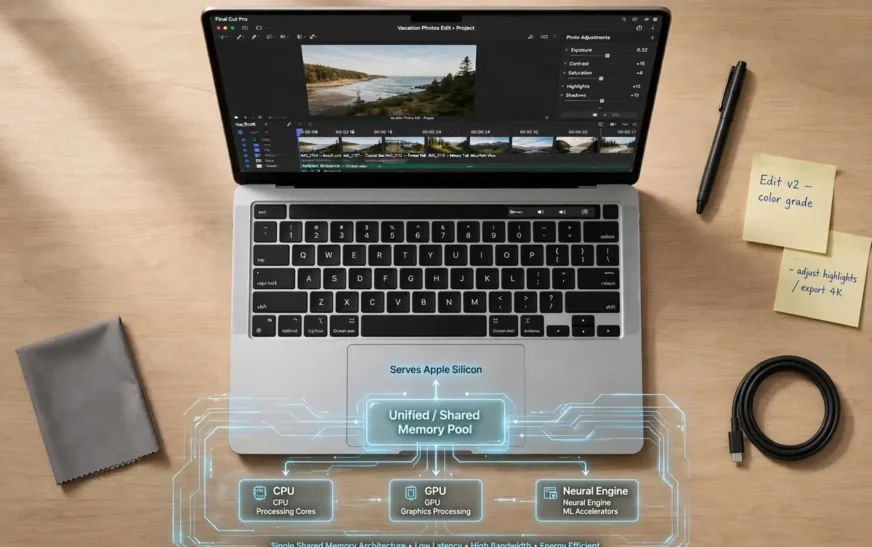
Unified memory is Apple’s name for a design where the processor, the graphics chip and the machine-learning processor all draw from one pool of memory. On an Apple Silicon Mac, the CPU, GPU and Neural Engine sit on a single chip, called a system on a chip, and the memory sits on that same package, millimetres from the cores. Every part of the chip can read the same data without handing it back and forth between separate banks.
A traditional PC or an older Intel Mac splits the job. System RAM belongs to the CPU. Video memory, or VRAM, belongs to a separate graphics card. When the CPU and GPU need to work on the same photo, video frame or 3D scene, the data gets copied from one pool to the other. Copying takes time, uses power, and creates a bottleneck that shows up as stutter, slow previews or laggy timeline scrubbing.
How unified memory works inside an Apple Silicon Mac
Think of a traditional setup as two kitchens in two buildings. One kitchen cooks, the other plates, and every dish has to be carried across the street between them. Unified memory is one kitchen where the cooks, the platers and the prep team all work from the same counter. The food never leaves the room, so less time is lost in transit.
Three design choices make that kitchen fast. First, the memory is physically close to the processor cores, so data travels a short distance. Second, the connection between memory and processor is wide, so a large amount of data can move at once. That width is called memory bandwidth, and it is one reason a Mac with a modest memory size can still chew through 4K footage: the data gets to the cores quickly, even if the total pool is not huge. Third, macOS manages the pool dynamically. It hands more memory to the GPU when you open a graphics-heavy app, then hands it back to the CPU when you switch to a browser with forty tabs.
Unified memory vs RAM vs VRAM
People use these three terms as if they were interchangeable. They are related, but they describe different jobs, and mixing them up is how buyers end up with the wrong machine.
| Term | What it means | Where it lives on Apple Silicon |
|---|---|---|
| RAM | Short-term working memory for the CPU | Part of the unified pool |
| VRAM | Short-term working memory for the GPU | Part of the same unified pool |
| Unified memory | One shared pool doing both jobs | On the processor package itself |
Storage GB is not memory GB
This is the most expensive confusion in Mac buying. Storage is where files live when the machine is off. Memory is where active work lives while the machine is on. A Mac with 512GB of storage and 16GB of unified memory does not have 512GB of working space. It has 16GB, and the 512GB is just a bigger filing cabinet.
Buyers mix the two because both are sold in gigabytes and both appear on the same checkout page. The result is predictable: someone buys a Mac with a huge SSD and base memory, then wonders why it stutters with twenty apps open, while their files sit comfortably on a drive that is barely half full. If you have ever wondered how much storage a 128GB device really holds, you have already met the same confusion on phones, where a storage number gets read as a performance number. On a Mac, the same mistake costs far more, because you cannot fix the memory side later.
The rule is simple. Storage decides how many files, apps and projects you can keep. Memory decides how many of them you can work on at once, and how large each one can be before the system starts swapping. Buy storage for your library. Buy memory for your workload. If the budget forces a choice, most buyers should protect memory first and add external storage later, since external drives are cheap and a memory upgrade after purchase is impossible.
Why Apple switched, and what you actually feel
Apple did not switch to unified memory to win a spec-sheet argument. It switched because putting everything on one chip saves power, saves space and removes the copy bottleneck described above. The gains show up in ways owners notice without ever opening Activity Monitor.
Battery life is the first. Less data shuffling means less energy spent moving bytes around, and a single efficient chip replaces a CPU, a separate GPU and the circuitry between them. Heat is the second. A MacBook Air with Apple Silicon has no fan in most models, yet it stays quiet under loads that made Intel Airs spin up and throttle. Silence is not a luxury detail here; a machine that throttles under heat gets slower the longer you push it, so staying cool is a performance feature in its own right.
The third gain is responsiveness. Apps launch fast, switching between apps feels instant, and the system rarely shows the spinning wait cursor for ordinary tasks. Some of that is the fast SSD, some of it is macOS, and some of it is the short, wide path between memory and processor. Buyers should not credit unified memory with all of it, but they should not dismiss it either.
None of this means unified memory makes a small pool infinite. It makes a given pool go further. A 16GB unified Mac will beat a 16GB Intel Mac at multitasking, and it will feel closer to a larger Windows machine than the raw number suggests. It will still run out of room if you ask it to hold a 4K timeline, a RAW photo library, a video call, a browser full of tabs and a local AI model at the same time. Efficiency stretches capacity. It does not replace it. The contrast is sharpest against PCs that pair system RAM with discrete graphics cards with their own video memory, where the two pools never compete — and where the headline RAM number hides the VRAM entirely.
How much unified memory do you need
Pick the tier that matches your heaviest normal week, not your lightest day, and remember you are buying for the machine’s whole life, not for this month.
| Your workload | Suggested unified memory | Why |
|---|---|---|
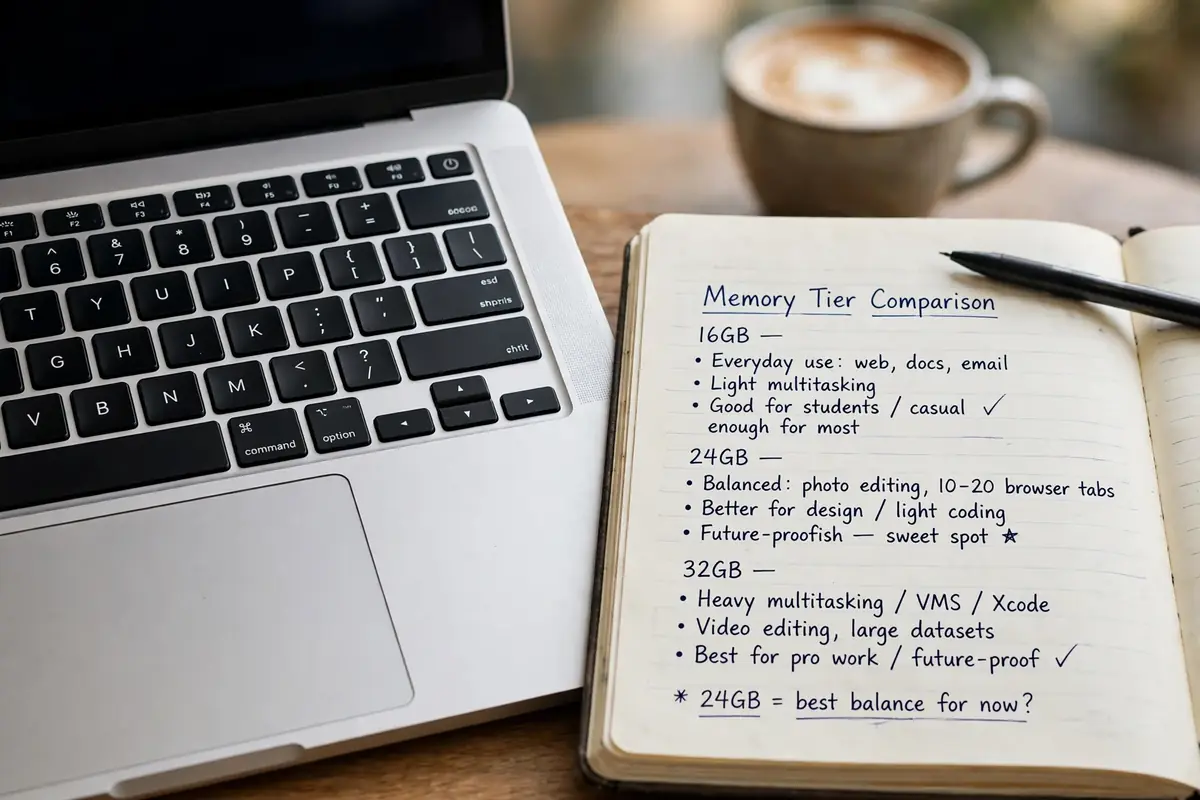
| Browsing, email, documents, streaming, video calls | 16GB | The current base on new Macs; comfortable for everyday multitasking |
| Students, office work, light photo editing, coding | 16GB to 24GB | 16GB works; 24GB buys headroom for heavier semesters and bigger projects |
| Photo editing, 1080p to 4K video, music production, app development | 24GB to 32GB | Large media files and long timelines eat the shared pool fast |
| 6K/8K video, 3D rendering, large AI models, virtual machines | 48GB or more | These workloads can swallow a whole pool on their own |
The jump from 16GB to 24GB is the sweet spot for most buyers who keep a Mac for four or five years. Software gets heavier every year, browsers get hungrier, and the project you do not do yet is the one that will punish a tight memory choice. The jump from 24GB to 32GB matters less for general use and more for creators who already know their files are large. If you have never filled 24GB, you probably do not need 32GB yet. If you regularly watch your Mac swap, you already know you do.
Display choice sits in the same trade-off. A large external monitor, especially a high-resolution one, draws on the shared pool and on the GPU, so the panel you pick is part of the performance decision, not just a picture-quality decision. Before committing to a big external display, compare the panel options in a proper QLED versus OLED display choice guide, and remember that resolution and refresh rate cost GPU memory whether the panel is QLED or OLED.
The catch you cannot fix later: unified memory is soldered in
Here is the sentence that should be printed on every Mac checkout page: the memory you pick at purchase is the memory you keep for the life of the machine. Unified memory is soldered onto the processor package. There is no slot, no stick to swap, and no reputable upgrade path after the fact. Forum stories about rework stations resoldering memory exist, but they are expensive, risky, warranty-ending work, not a realistic plan for a laptop you depend on.
When the GPU and CPU fight over the same pool
Picture a video editor exporting a 4K timeline while a browser holds research tabs, a chat app runs, and a photo editor sits open in the background. The GPU wants a large chunk of the pool for frames. The CPU wants a large chunk for the export. The browser wants its share for tabs. On a discrete-GPU machine, the GPU’s hunger is fenced off in VRAM, so the CPU side degrades gracefully. On a unified Mac, all three hungers draw from one pot, and the system starts compressing memory, then swapping to the SSD, then slowing everything down together.
External displays make this worse in a way buyers rarely expect. A second monitor is not free: driving more pixels takes GPU memory from the same pool. That is true on any machine, but on a unified Mac the cost lands in the pool your apps also need. If your setup involves running a second monitor alongside heavy apps, budget memory for the display as well as the work. A 16GB Mac driving two high-resolution displays and a video editor is a different machine from a 16GB Mac driving its own screen and a browser.
How to tell if your Mac is running out of memory
Do not guess. macOS will tell you, if you look in the right place, and the check takes about thirty seconds. Open Activity Monitor from Applications, then Utilities, and click the Memory tab. Ignore the big “Memory Used” number at first. macOS deliberately fills memory with cached files, because unused memory is wasted memory, and a high used number on its own is normal. Look at two things instead: the Memory Pressure graph, and Swap Used.
Green pressure means the system is comfortable. Yellow means it is working hard and compressing memory to cope. Red means it is out of comfortable room and leaning on swap. A brief yellow spike during an export is normal. Yellow or red during your ordinary work — email, browser, documents, calls — is a warning that your workload has outgrown your memory.
Swap Used tells the same story in numbers. A few hundred megabytes of swap is nothing to worry about. Several gigabytes of swap, sustained across a work session, means macOS is parking active data on your SSD because the pool is full. SSDs are fast, but they are still far slower than memory, and heavy swapping is the direct cause of stutter, tab reloads and the spinning wait cursor.
Run the check during your heaviest normal hour, not after a fresh restart with one app open. Open your real projects, your real tabs, your real call, then look. If pressure is green, your memory is fine and your slowdown lives somewhere else. If pressure is red, no cleaner app, no settings tweak and no restart ritual will fix it for long. The fix is a lighter workload, or a Mac with more memory next time.
Mistakes buyers keep making
The first mistake is treating “8GB feels like 16GB” as a law of nature. It is a rough shorthand for efficiency, not a conversion rate. It holds for light and medium work, where compression and bandwidth cover the gap. It breaks for large files, long timelines and heavy multitasking, where the pool is simply smaller and no efficiency trick invents more room.
The third mistake is blaming memory for every slowdown. A slow Mac can be a full drive, a runaway background process, a bad network, or malware. Before you spend money on a new machine, spend ten minutes checking the other suspects. The Activity Monitor check above rules memory in or out in one look. If pressure is green and the machine is still slow, the answer lies elsewhere, and guides on ruling out malware on a slow machine are a better next step than a bigger memory tier.
The fourth mistake is comparing memory numbers across platforms as if they were the same unit. A Windows gaming laptop with 16GB of RAM plus 8GB of VRAM has 24GB of working memory split across two jobs. A Mac with 16GB unified has 16GB for both jobs. The Mac may still win on efficiency and bandwidth for many tasks, but the raw comparison flatters the Mac by hiding the VRAM. Compare total working memory, not just the headline number.
A pre-purchase checklist that prevents regret
First, write down your heaviest week: the apps open at once, the largest files you touch, the calls you take while working. Size memory for that week. If your heaviest week is “browser, documents, streaming,” 16GB is honest. If it includes photo or video work, start at 24GB and justify going lower, not going higher.
Third, compare the whole machine, not just the memory number. A laptop bought for portability, battery and screen is a different purchase from a desktop bought for raw power, and memory is only one part of either decision. Readers weighing a lighter, cheaper machine against a full laptop should work through a proper Chromebook versus laptop buying decision before they fixate on gigabytes: the right device category matters more than a memory tier on the wrong device.
Buying used: read the spec sheet twice
Used Macs are where the unified memory trap bites hardest, because the cheapest listings are almost always the base-memory models from the 8GB era. A used M1 or M2 Mac with 8GB can be a fine second machine or a student’s writing laptop. It is a poor choice as a primary creative machine, no matter how good the price looks, because the limitation travels with the machine to its next owner too.
Check three things before paying. Confirm the exact chip and memory size in the seller’s screenshots, not just the listing title. Ask for a screenshot of Activity Monitor’s Memory tab during normal use, or run it yourself at handover. And test the machine as you will use it: open your apps, open your files, and watch for tab reloads and swap growth over twenty minutes, not two.
Power checks belong on the same handover list. A used laptop with a tired battery or a flaky charger will feel broken in ways that look like performance problems, and a quick check on telling whether your Mac is actually charging saves an argument with a seller later. Battery health, charger behaviour and memory pressure are three separate checks, and a machine can fail any one of them while passing the other two. Price a used base-memory Mac against its remaining useful life, not against a new machine’s sticker: if the used machine gives you two good years and the new one gives you five, the new one is often cheaper per year even at twice the price.
Heat, throttling and the limits of efficiency
Efficiency has a ceiling, and sustained heavy work finds it. A Mac that renders video for an hour, exports a large library, or runs a local AI model will get warm, and warmth eventually forces the chip to slow down to protect itself. Unified memory does not repeal physics; it delays the moment physics shows up, by wasting less energy on copying data in the first place.
Fanless machines handle this differently from fanned ones. A fanless Air must shed heat through its chassis alone, so it throttles sooner under sustained load, while a Pro with fans can hold higher speeds for longer on the same task.
That distinction matters when you compare a Mac with a phone. A phone under sustained load heats a small body with no fan and throttles quickly, which is why guides on why phones overheat under sustained load read so differently from Mac thermal behaviour. A MacBook Pro has more thermal room, a bigger body and, on Pro models, fans. A MacBook Air has no fan and relies on efficiency and the chassis to shed heat.
If your work is hours of sustained rendering, the chip tier and the cooling design matter as much as the memory size. A fanless Air will throttle sooner than a Pro with fans, even with the same memory, and buyers who expect Air silence under Pro workloads will be disappointed by a machine that was never designed for that job.
Frequently asked questions about unified memory
Is unified memory the same as RAM?
Close, but not identical. Unified memory does the job of RAM, and it also does the job of VRAM, from one shared pool. For everyday conversation, calling it RAM is fine. For buying decisions, remember the pool serves two masters, so a graphics-heavy task and a multitasking-heavy task compete for the same gigabytes.
Can I upgrade unified memory after buying a Mac?
No. It is soldered onto the processor package on Apple Silicon Macs. There is no slot and no supported upgrade. Choose the size at purchase, and if you are torn between two tiers, the higher one is usually the cheaper regret.
Is 8GB of unified memory enough?
For light use — browsing, email, documents, streaming — yes, on an older machine you already own. For a new purchase, 8GB is no longer the base configuration, and buying an 8GB machine as your main computer in 2026 means accepting a short useful life for anything beyond light work. As a primary machine, it is a compromise you should make deliberately, not by accident.
Does more unified memory make a Mac faster?
Only when you were running out. More memory removes a bottleneck; it does not speed up work that already fits comfortably in the pool. A writer with 16GB will not type faster on 64GB. A video editor who swaps constantly on 16GB will feel a real difference on 32GB. Buy memory to remove a limit you actually hit, not to chase a speed number. Heat can mimic the same slowdowns, so check heat problems on a MacBook Pro screen before blaming memory alone.
How do I check my Mac’s memory pressure?
Open Activity Monitor, go to Applications, then Utilities, click the Memory tab, and look at the Memory Pressure graph and Swap Used during your heaviest normal work. Green pressure and small swap mean you are fine. Sustained yellow or red pressure with gigabytes of swap means your workload has outgrown your memory.
What to do next
Open Activity Monitor on the Mac you own today and run the pressure check during your heaviest hour, then write down the result before you shop. If pressure stays green, your next Mac needs the same memory or one tier up for longevity, and your money is better spent on storage, screen or battery. If pressure runs yellow or red, size your next Mac for the workload that caused it, buy one tier above that, and treat the soldered memory as a one-time decision you will live with for years. The definition of unified memory is interesting. The decision it forces is what actually costs money, and now you know how to make it once, correctly.

Continue Reading on CripsyWire
For more practical tutorials and hidden features, see our full how-to guides section. AI workflow guides feed into the broader AI tools and agents coverage, phone tricks live in smartphones, and wearable setup walkthroughs in wearables. When you are deciding what to buy, the reviews and comparisons section helps. All part of CripsyWire Tech, and the homepage shows what is newest.