Your iPhone alarm has one job, and it fails in the most annoying way possible: quietly. You set it, you trust it, and then you wake up late to a phone that insists it went off. Most of the time it did go off. It just went off at a volume you could sleep through, on a speaker muffled by bedding, or through earbuds sitting in another room.
The confusion is not your fault, because Apple changed the rule and most guides have not caught up. For years the honest answer was simple: the alarm used your ringtone volume, full stop. Turn your ringer down for a quiet evening and your morning alarm went down with it. That rule held so long it became standard advice everywhere.
Then iOS 27, generally available from 14 September 2026, split alarms and timers away from the ringtone behind a toggle called Match Ringtone Volume. Leave it on and the old behaviour stays. Turn it off and alarms get their own slider. That single toggle is why two people can follow the same guide and get different results, and why a guide written in 2024 can now point you at a slider that no longer controls what you think it controls.
Change alarm volume on iOS 27
On iOS 27, open Settings, tap Sounds and Haptics, and scroll to Alarms and Timers. You will see a Match Ringtone Volume switch. If it is on, your alarm simply follows your ringtone, which is the old behaviour under a new label. Turn it off and a dedicated slider appears underneath. Drag it right for a louder alarm and left for a quieter one, then leave the toggle off.
Test the change right away with a real alarm, not by judging the slider position. Set an alarm for two minutes from now, put the phone where it sits overnight, and listen from your bed. A setting that sounds fine in your hand is not proof it will wake you from the next room. Timers share this slider, so a louder wake-up alarm also means a louder kitchen timer, and Apple gives no way to split those two inside this menu.
Change alarm volume on iOS 26 and earlier
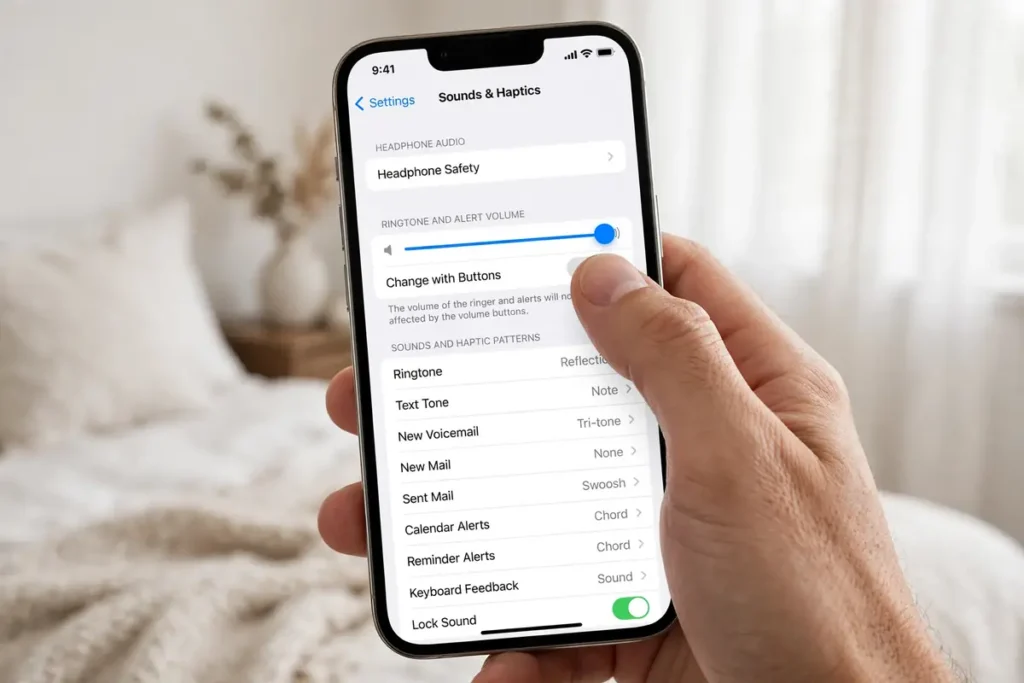
On iOS 26 and earlier, open Settings, tap Sounds and Haptics, and drag the slider under Ringtone and Alerts. Dragging it plays a sample tone, so you can hear the change as you make it. That slider is your alarm volume, your ringtone volume, and your text alert volume all at once. There is no hidden alarm-only slider to find, and no setting inside the Clock app that overrides it for a regular alarm.
Underneath that slider sits Change with Buttons, which decides whether the side buttons can move it. Turn it on and you can adjust alarm volume on the fly, which is convenient and risky in equal measure. A phone rattling in a bag can lose several notches without you noticing, and the next morning’s alarm pays for it. Turn it off and the side buttons stop touching ringer and alarm volume entirely, which locks your chosen level in place. For anyone who has slept through an alarm after a day of pocket presses, turning this off is the most reliable habit in this guide.
Your Sleep schedule alarm has its own volume
Here is where even careful readers get caught. If you use a Sleep schedule in the Health app or the Clock app, its Wake Up alarm does not simply follow the main slider. It keeps its own sound, vibration, and volume settings, chosen when the schedule was created. You can raise the ringtone slider to maximum and still be woken by a gentle chime at low volume, because the schedule plays by its own rules.
To check it, open the Clock app, tap Alarms, and look at the top of the list for the Sleep | Wake Up entry. Tap Change, scroll to the alarm options, and drag the volume slider there. You will be asked whether the change applies to the next wake-up only or to the full schedule; choose the full schedule unless you are making a one-night exception. The same edit is available from the Health app under Sleep.
Pick a tone that wakes you
Volume is only half the wake-up equation. A soft, melodic tone at maximum volume can still fail to cut through deep sleep, while a sharp, percussive tone at moderate volume snaps most people awake. Open the Clock app, edit an alarm, tap Sound, and preview tones with the phone across the room, not pressed to your ear. Previewing at arm’s length tells you almost nothing about a 6 a.m. wake-up.
Louder, more urgent options in the built-in list include Radar and Beacon, with a fast attack and a repeating pattern. Softer options such as Silk and Ripple suit daytime reminders or a gentle wake-up for a light sleeper. Heavy sleepers should start with an urgent tone and work down, not start with a gentle tone and wonder why it failed. In the alarm edit screen, tap Vibration and choose a strong, repeated pattern as well, because sound plus vibration wakes more reliably than either on its own.
Where the phone sleeps matters
A speaker firing into a mattress, a pillow, or a thick case loses a surprising amount of its punch. The iPhone speaker sits at the bottom edge, and if that edge is pressed into bedding or covered by a case flap, the alarm has to fight fabric before it reaches you. Put the phone on a hard nightstand, speaker edge exposed, with nothing draped over it. If you charge overnight, a stand that holds the phone upright keeps the speaker clear and the screen visible at a glance.
A phone that dies before morning cannot sound any alarm, no matter how perfect the volume setting is. Old cables, loose ports, and worn batteries all create the same morning: a dead phone and a missed alarm. Treat the charging setup as part of the alarm system, not as a separate chore. A dependable wireless charger for the nightstand removes the daily fumble with a cable and keeps the phone topped up without a plug that works loose in the dark.
StandBy mode, the full-screen clock that appears when a charging iPhone sits on its side, turns the phone into a bedside clock you can read without picking it up. That makes a 3 a.m. time check silent and quick instead of a bright-screen fumble. It also helps you spot a disabled alarm before you go to sleep, because the next alarm time is visible at a glance. If you use StandBy, check that the phone is actually charging in that position and not slowly draining because the stand alignment is off.
StandBy also shows widgets and Live Activities beside the clock, which can tempt you to check notifications at night. Keep the widget stack simple for the bedroom, so the screen stays a clock first and a distraction second. A calm StandBy screen makes the pre-sleep glance useful instead of stimulating.
That overnight StandBy display pairs well with a loud alarm for a simple reason: you see the setup before you trust it. A quick glance before bed confirms the phone is charging, the alarm is on, and the time is right. Without that glance, a disabled alarm, a wrong day, or a dead charger can hide until morning, when it is too late to fix.
When the alarm goes to the wrong device
Start with the output list, not the volume slider, when an alarm seems silent. Open Control Center, look at the audio output, and confirm it shows the iPhone speaker. That one check separates a routing problem from a volume problem in seconds, and it prevents a week of adjusting the wrong setting.
Bluetooth is the most common reason a “silent” alarm is not silent at all. It is playing, just somewhere you cannot hear it. If your iPhone is still connected to wireless earbuds in their case across the room, a Bluetooth speaker in another room, or a car stereo from yesterday’s drive, alarm audio can route away from the phone speaker. The phone did its job. Your ears were simply not where the sound went.
Before bed, glance at Control Center and check the audio output. If anything other than the iPhone speaker is shown, disconnect it or turn Bluetooth off for the night. This is especially true for earbuds, because a pair left connected can steal the alarm even when the buds themselves are charging in their case. Wireless listening became the default for millions of people, and a device designed to follow you everywhere is exactly the kind of device that stays connected when you forget it. Reading how Apple’s earbuds evolved over time helps explain why that always-connected behaviour feels so normal now, even when it works against a morning alarm.
Cars add a special version of this trap. Drive home with the phone paired to the car, park, walk inside, and the phone may still hold the car connection for a while or reconnect when you pass the garage. The same applies to a smart speaker that grabs the connection when it powers on. None of this is a defect. It is Bluetooth doing what it was asked to do, at the worst possible hour. A nightly habit of checking the output device takes ten seconds and prevents the most baffling missed alarms.
A partner sleeping beside you changes the calculation too. A loud speaker alarm that wakes the whole room may not be the kindest option, even if it works. In that case a watch tap first, followed by a speaker alarm a few minutes later, wakes you without waking everyone else at the same instant.
If you genuinely want a private alarm that only you hear, a watch tap is a better tool than earbuds in bed. A wrist device can vibrate you awake without waking a partner, and it keeps working when the phone speaker is muffled. A wrist-tap wake-up on an Ultra watch, for example, pairs a strong haptic tap with the phone alarm as a backup, so you get two different kinds of wake-up signal instead of one sound fighting a pillow. Use the watch as the first nudge and the phone speaker as the backup, not the other way round.
Attention Aware, Focus, and Silent Mode
Face ID iPhones ship with Attention Aware Features, a setting that lowers alert volume when the phone thinks you are looking at it. In theory it should make a bedside alarm louder when you are asleep and not looking. In practice, users report alarms that dip in volume at the wrong moment, especially when the phone is face-up and catches your gaze as you stir. If your alarm starts loud and then seems to fade, turn this off and test for a few nights. The path is Settings, then Face ID and Passcode, then Attention Aware Features.
Silent Mode and Do Not Disturb cause a different kind of confusion. The physical silent switch, or the Action Button on newer models, silences calls and notifications but does not silence Clock alarms. Do Not Disturb and most Focus modes work the same way: they quiet notifications, not alarms. If your alarm produced no sound at all, Silent Mode alone is rarely the explanation. Sleep Focus is the exception worth checking, because a Sleep schedule can replace your regular alarm with its own softer Wake Up alarm, as covered above, and that replacement can feel like the alarm was blocked when it was actually swapped.
Fix a quiet alarm, step by step
First, set the correct slider for your iOS version and turn Change with Buttons off if you are on older iOS. Second, edit the alarm itself and confirm the sound is not set to None, the repeat days are right, and the time is a.m. rather than p.m. Third, check the Sleep schedule volume if you use one. Fourth, turn off Attention Aware Features for a few nights. Fifth, disconnect Bluetooth before bed. Sixth, delete the problem alarm and create it fresh, because alarms carried across restores and updates occasionally carry a glitch a fresh alarm does not. Seventh, restart the phone and check for an iOS update.
| Symptom | Most likely cause | First fix to try |
|---|---|---|
| Alarm sounds, but too quiet | Wrong slider, Sleep volume, or Attention Aware dip | Set the iOS 27 alarm slider, or the ringtone slider on older iOS, then check Sleep volume |
| Alarm vibrates only | Sound set to None | Edit the alarm and pick a tone, not just a vibration |
| Alarm plays in another room | Bluetooth still connected | Disconnect earbuds, speaker, or car before bed |
| Alarm never sounds | Dead battery, disabled alarm, or corrupted alarm | Charge overnight, confirm the alarm toggle is on, recreate the alarm |
| Alarm sounds, then fades | Attention Aware Features or a soft tone | Turn Attention Aware off and switch to a sharper tone |
| Weekday alarm quiet, weekend alarm loud | Sleep schedule volume differs from regular alarms | Edit the Wake Up alarm volume for the full schedule |
When the phone will not charge
A phone that cannot stay charged cannot wake you, and charging trouble often masquerades as an alarm problem. If the phone is dead in the morning, the alarm setting was never tested, because the phone was off when the alarm was due. Check the cable, the port, and the adapter before changing any volume setting.
An iPhone that will not charge overnight needs a charging diagnosis first, because no volume slider rescues a phone with no power. Try a different cable and adapter, test another outlet, and check whether wireless charging works while wired charging does not. That split narrows the fault quickly.
Lint in the port, a frayed cable, and a loose wall adapter all cause intermittent charging that looks fine at bedtime and fails by 3 a.m. Clean the port gently or have it cleaned professionally, and replace any cable with visible damage. A reliable overnight charge is part of the alarm system, not a separate chore.
When the battery is the problem
Battery age plays a quieter role in missed alarms. A worn battery can drop from a healthy percentage to dead faster than you expect, especially in a cold room, and it can shut the phone down under load even when the percentage looked fine at bedtime. Faster drain and unexpected shutdowns are the classic signs.
Signs of an ageing iPhone battery include a battery health reading well below its original capacity, found in Settings, then Battery, then Battery Health. A battery that cannot hold an overnight charge turns every alarm into a gamble, and replacing it restores the whole phone, not just the alarm.
Test the theory before spending money. Charge fully, leave the phone unplugged overnight with no alarm set, and check the percentage in the morning. A large overnight drop with no obvious app running points to battery or background drain, not to an alarm setting. Close demanding apps and retest for a second night.
When heat is the problem
Heat ties charging and battery trouble together. A phone charging under a pillow, inside a thick case, or in direct sun by a window can run warm, throttle, or drain faster. A phone that feels hot in the morning deserves attention for its own sake, not just as an alarm suspect.
A phone that runs hot overnight may be charging badly, running a stuck background task, or sitting in a case that traps warmth, and each cause has a different fix. Move the phone to a cool, ventilated spot, take it out of a heavy case overnight, and close any app that ran hot the previous day.
Check for a runaway task in Battery settings, where usage by app over the last 24 hours is listed. An app with high background activity overnight is a common heat source, and restricting its background refresh often cools the phone and preserves the morning charge. Do not ignore sustained heat, because it shortens battery life over time.
After you upgrade to a new iPhone
A new phone can quietly reset the habits that made your old alarm reliable. A new Action Button assignment, a new Focus mode, or a changed default can alter how the phone behaves overnight, and last year’s setup does not always carry over perfectly. After any upgrade, re-run the test alarm rather than assuming everything transferred.
Checking hidden settings on the iPhone 17 Pro, for example, is a useful habit after an upgrade, because it surfaces controls you may not have set yourself. Look for Focus schedules, Attention Aware settings, and Change with Buttons, and set each one deliberately for the new phone. Five minutes here prevents a week of mystery alarms.
Frequently asked questions
Can I set a different volume for each alarm?
No. On iOS 27 the Alarms and Timers slider is shared by every regular Clock alarm and by timers. On older iOS the Ringtone and Alerts slider is shared the same way. The only alarm with its own volume is the Sleep schedule Wake Up alarm, which keeps a separate slider inside its schedule settings.
Does Silent Mode stop my iPhone alarm?
No. Silent Mode silences calls, texts, and notifications, but Clock alarms still sound. The same is true of Do Not Disturb and most Focus modes. If an alarm produced no sound, check Bluetooth routing, a sound set to None, a disabled alarm, or a dead battery before blaming Silent Mode.
Why does my alarm play through my earbuds or speaker?
Because the iPhone is still connected to that device, and iOS routes alarm audio to the active output. Disconnect the device before bed, or turn Bluetooth off for the night, and confirm Control Center shows the iPhone speaker as the output. A watch tap is the useful exception, because it adds vibration without stealing the speaker sound.
What should I do if my alarm still fails after all these fixes?
Recreate the alarm from scratch, restart the phone, update iOS, and test again for three nights with Bluetooth off and Attention Aware off. If calls and music also sound muffled, have the speaker checked. If only alarms fail, try Reset All Settings as a last software step, after noting your Wi-Fi settings, because it clears preferences without deleting your data.
Can I make my alarm get louder gradually?
The built-in Clock app does not offer a true gradual-volume ramp for a regular alarm. Sleep schedule Wake Up sounds are gentler by design, which is the closest built-in option to a gradual wake-up. If a gradual ramp matters to you, use a Sleep schedule for regular wake-ups and a standard alarm with a sharp tone as a backup.
What to do next
Set the right slider for your iOS version tonight, pick a tone sharp enough to cut through sleep, and run a five-minute test alarm from the next room before you rely on it. Turn Change with Buttons off if pocket presses have ever lowered your alarm, check the Sleep schedule volume if your weekday alarm behaves differently from your weekend alarm, and disconnect Bluetooth before bed if your alarm has ever played somewhere you could not hear it. Those habits turn an alarm from a hope into a system you can trust.

Continue Reading on CripsyWire
For more practical tutorials and hidden features, see our full how-to guides section. AI workflow guides feed into the broader AI tools and agents coverage, phone tricks live in smartphones, and wearable setup walkthroughs in wearables. When you are deciding what to buy, the reviews and comparisons section helps. All part of CripsyWire Tech, and the homepage shows what is newest.