| Quick answer: To reduce ping, plug into Ethernet, kill bandwidth-hungry background apps, switch to a faster DNS resolver, and pick the closest game server. If your ping spikes only when the house is busy, the real culprit is almost always bufferbloat, fix it with SQM or QoS on your router. Most people drop 20 to 60ms in under ten minutes without paying a cent more to their ISP. |
You line up the shot. You click. A full half-second later your character finally fires, into thin air, because the guy you were aiming at already moved, already killed you, already started typing something rude in chat. That delay has a number, and the number is your ping.
I’ve chased high ping across more setups than I can count, my own rig, a friend’s apartment where the Wi-Fi looked fine on speed tests but played like garbage, a shared house where four people streamed Netflix while one person tried to rank up in Valorant. Almost none of it came down to slow internet. It came down to small, fixable things that pile up and add latency nobody bothers to measure.
So this isn’t another list that tells you to “buy faster internet” and calls it a day. Some of these fixes take thirty seconds. A couple take ten minutes. One of them, the bufferbloat fix, is the thing 90% of guides skip entirely, and it’s often the whole ballgame. Let’s get your ping down.
What Ping Actually Is (and Why Low Ping Beats Fast Internet)
Ping is the round-trip time for a tiny packet of data to travel from your device to a server and back, measured in milliseconds (ms). Think of shouting across a canyon and waiting for the echo. A short canyon echoes back fast. A long one makes you wait.
Here’s the part that trips people up: download speed and ping are different things. You can pay for a 1,000 Mbps fiber plan and still feel laggy, because speed is how much data moves at once, while ping is how fast the first byte gets there. A wide highway doesn’t help if every car waits at a long red light. For gaming, video calls, and anything real-time, low ping wins over raw speed every single time.
Ping vs latency vs lag, the quick version: Latency is the one-way delay. Ping is the round trip (there and back). Lag is what you feel when either one gets bad. People use them interchangeably and that’s fine in casual talk, but knowing the difference helps you diagnose the right thing.
What Counts as Good Ping?
| Ping range | What it feels like |
| Under 20 ms | Excellent. Pro-tier. You’ll never notice it. |
| 20–50 ms | Great. Smooth for competitive gaming and calls. |
| 50–100 ms | Fine for most games. You start to feel it in shooters. |
| 100–150 ms | Noticeable lag. Delayed inputs, rubber-banding. |
| Over 150 ms | Rough. Fix this before blaming your aim. |
First, Measure Your Ping (Don’t Skip This)
Every guide jumps straight to fixes. That’s backwards. If you start changing settings without a baseline number, you’ll never know whether something helped or you just got lucky with a reboot. Get a number first.
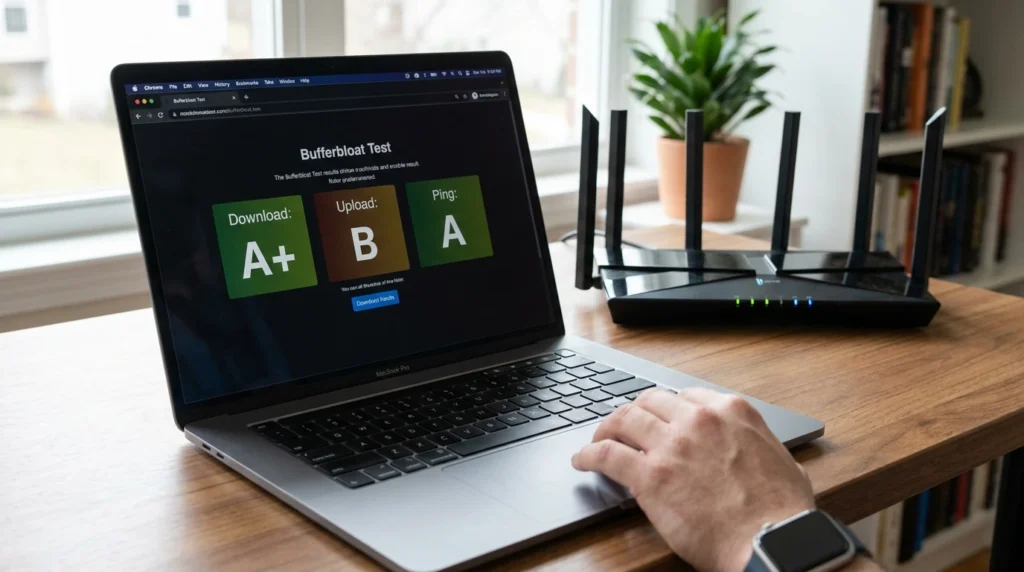
- In-game: most games show live ping somewhere on screen, scoreboard, top corner, or a netgraph you toggle in settings. This is your real-world number.
- Command line: open Command Prompt (Windows) or Terminal (Mac) and type ping google.com. Let it run, hit Ctrl+C, and read the average. Run it a few times.
- Speed test: Speedtest by Ookla or Cloudflare’s test reports ping alongside download/upload. Run it wired, then on Wi-Fi, and compare.
- The load test (most important): run a ping or bufferbloat test while someone else streams 4K or downloads a big file. If your ping is fine when idle but explodes under load, you’ve found bufferbloat, more on that below.
Write the numbers down. Idle ping, ping under load, wired vs wireless. That tiny bit of homework tells you which of the fixes below you actually need, instead of throwing all fourteen at the wall.
How to Reduce Ping: 14 Fixes, Ordered by Impact
Work top to bottom. The first handful solve the vast majority of cases. The later ones are for stubborn setups that don’t respond to the basics.
1. Plug Into Ethernet (The Single Biggest Win)
Wi-Fi is convenient and, for gaming, it’s the enemy. Walls, distance, microwaves, your neighbor’s router all add interference, jitter, and packet loss, the exact things that spike ping. A wired Ethernet cable sidesteps all of it with a direct line to your router.
In practice, going from Wi-Fi to Ethernet routinely shaves 10 to 30ms and, more importantly, kills the random spikes that wireless throws at you. Grab a Cat6 cable (cheap, more than enough for home use), keep it reasonably short, and plug straight in. If you’re serious about competitive play, this one move beats almost everything else combined.
| Reality check: A long, tangled cable run isn’t worse for latency, Ethernet barely loses anything over distance. Don’t overthink cable categories either; Cat6 is plenty. Save your money. |
2. Fix Bufferbloat, The Hidden Ping Killer Nobody Mentions
This is the fix that separates this guide from the rest. Bufferbloat is when your router crams too much data into oversized buffer queues instead of letting some packets go. Your tiny, time-sensitive game packets get stuck behind a fat pile of download data, and your ping rockets from 25ms to 200ms the instant anyone in the house starts a download or backup.
Here’s the kicker: a 500 Mbps connection with bad bufferbloat plays worse than a 50 Mbps connection without it. Raw speed doesn’t save you. This is why your ping is perfect at 3am and miserable at dinner time.
How to test it: run the free Waveform Bufferbloat Test (or Cloudflare’s) while someone streams or downloads. You’ll get a grade from A to F. Anything below a B means your router is the problem, not your internet plan.
How to fix it:
- Enable SQM (Smart Queue Management) if your router supports it. This is the gold-standard fix. SQM uses algorithms like CAKE or fq_codel to keep your game packets moving even during heavy downloads.
- Set your upload and download caps to about 85–90% of your measured speed. The deliberate sacrifice gives SQM room to manage the queue. Yes, you trade a little top-end bandwidth for dramatically lower latency, worth it.
- No SQM? Enable basic QoS and set your gaming device as highest priority. Less effective than SQM, but it helps.
Routers that do SQM well: anything running OpenWrt, ASUS routers with Merlin firmware, eero mesh (it’s labeled “optimize for conferencing and gaming”), and GL.iNet models. If your ISP’s default gateway is five years old and chokes the moment the network gets busy, this is your sign to upgrade, an $80 router with SQM will beat a $600 “gaming” router without it.
3. Kill Bandwidth-Hungry Background Apps
Cloud sync, auto-updates, and streaming run quietly in the background and quietly wreck your ping. OneDrive, Google Drive, Dropbox, and iCloud love to upload at the worst possible moment. Steam, the Epic launcher, and Windows Update do the same.
Windows: press Ctrl+Shift+Esc, open Task Manager, click the Network column to sort by usage, and close whatever’s hogging it. Mac: use Activity Monitor’s Network tab. Pause cloud sync before a session. On a console, make sure no games are downloading or updating in the background.
4. Pick the Closest Game Server
Physics doesn’t negotiate. Data crossing an ocean adds 70 to 100ms no matter how good your gear is. If your game lets you choose a region, pick the one nearest you. Most do this automatically, but plenty default to overloaded or wrongly-guessed servers.
One nuance worth knowing: the closest server isn’t always the best if it’s slammed at peak hours. Occasionally a slightly farther server with more headroom plays smoother. Tools like PingPlotter let you test latency to different regions if you want to get precise about it.
5. Switch to a Faster DNS Resolver
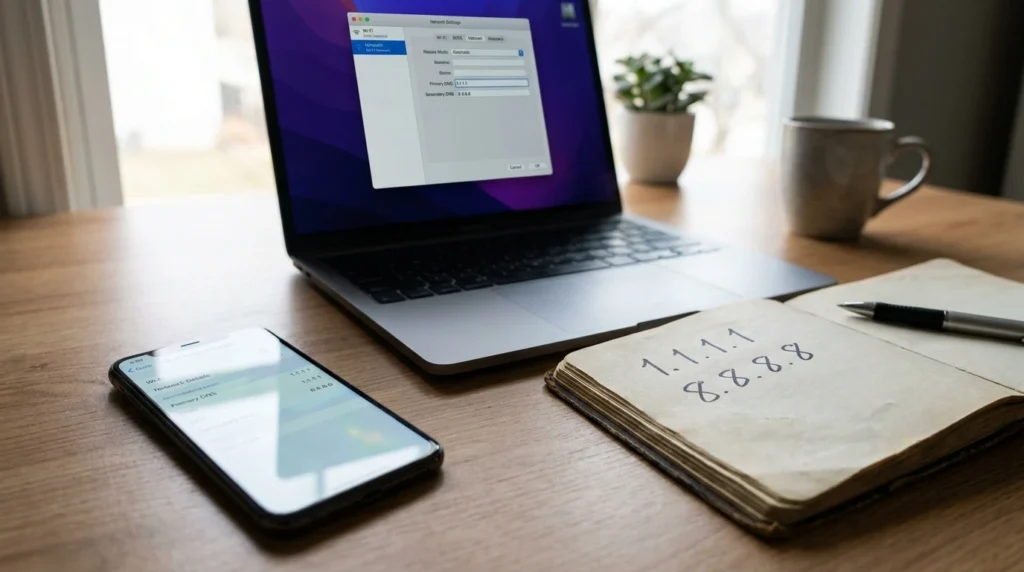
DNS is the phonebook that turns a server name into an IP address before you connect to anything. Your ISP’s default DNS is often slow and overloaded, adding a delay to that very first step. Swapping to a fast public resolver helps connection setup feel snappier, and it’s a 60-second change.
| Provider | Primary / Secondary | Best for |
| Cloudflare | 1.1.1.1 / 1.0.0.1 | Raw speed and privacy |
| 8.8.8.8 / 8.8.4.4 | Rock-solid reliability | |
| Quad9 | 9.9.9.9 / 149.112.112.112 | Built-in malware blocking |
Set it on your device, or better, on your router so every device benefits. Just know that DNS mostly affects how fast new connections start, not your in-game ping once you’re already connected. If pages stall before they load, the issue may run deeper, our full walkthrough on how to fix slow DNS lookup covers the IPv6 timeouts and stale-cache traps that DNS-swapping alone won’t solve.
6. Restart Your Router and Modem
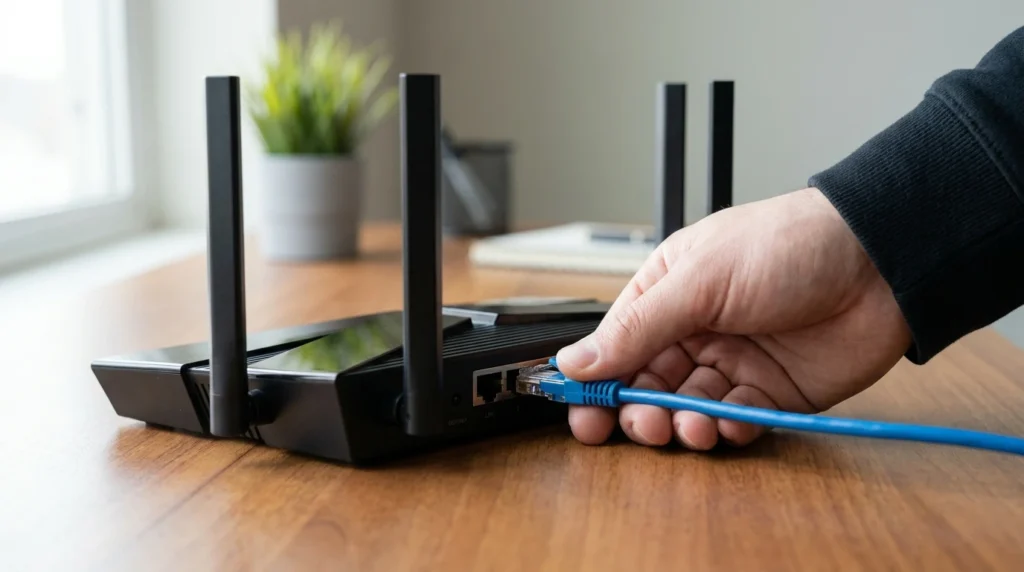
The cliché exists because it works. Routers are little computers, and over days or weeks they leak memory, corrupt their DNS cache, and overheat in whatever cabinet they’re stuffed into. A restart clears all of it and often hands you a cleaner route to your ISP.
Unplug both router and modem, wait a full 30 seconds so the capacitors actually drain, then plug the modem back first and the router after it boots. Do this when the whole house complains at once, it’s the fastest thing to try.
7. Reduce the Number of Devices Sharing Your Network
Every phone, tablet, smart TV, and security camera nibbles at your bandwidth and competes for the router’s attention. A single 4K stream or a console downloading an update can starve your game. Temporarily boot the non-essentials off the network during a session, or set QoS to prioritize your gaming device so it gets fed first.
8. Optimize Your Wi-Fi (If You’re Truly Stuck Wireless)
Sometimes Ethernet just isn’t possible. Fine, then make Wi-Fi as good as it gets:
- Use the 5 GHz band, not 2.4 GHz. 5 GHz is faster and less congested for nearby devices. 2.4 GHz reaches farther but is crowded and slow.
- Get close to the router. Every wall and floor between you and it adds latency and packet loss.
- Change your Wi-Fi channel. In apartments, dozens of networks fight over the same channels. A Wi-Fi analyzer app finds the least crowded one.
- Upgrade to Wi-Fi 6 or 6E if your gear is ancient, it handles many devices with far less congestion.
9. Update Router Firmware and Network Drivers
Outdated firmware can carry buffer-management bugs that quietly inflate ping; manufacturers sometimes cut bufferbloat 20–30% in a single update. Log into your router admin panel (usually 192.168.1.1 or 192.168.0.1), check for updates, and enable auto-update if it’s there. On your PC, grab the latest network adapter driver from the manufacturer, not just whatever Windows decided was “up to date.”
10. Add Your Game as a Firewall Exception
Firewalls and antivirus tools inspect packets flowing in and out, and that inspection adds a sliver of delay. Adding your game as a trusted exception trims unnecessary processing without leaving yourself wide open. Skip disabling security entirely, that’s a bad trade for a few milliseconds.
11. Disable Nagle’s Algorithm (Advanced, Game-Dependent)
Nagle’s algorithm bundles small packets together to save bandwidth, efficient for file transfers, bad for twitchy games where you want every input sent the instant it happens. Disabling it can smooth out certain titles. It’s a registry tweak on Windows, so back up first, and know it only helps specific games. Treat it as a fine-tuning step, not a miracle.
12. Turn Off Windows Bandwidth Reservation
Windows quietly reserves a slice of your bandwidth for system processes. Power users reclaim it through the Group Policy Editor: open gpedit.msc, go to Computer Configuration → Administrative Templates → Network → QoS Packet Scheduler, edit “Limit reservable bandwidth,” enable it, and set it to 0%. Modest gains, but free if you’re chasing every millisecond.
13. Try a VPN, But Only in One Specific Case
This one’s misunderstood. A VPN usually adds latency because your traffic takes extra hops. The exception: if your ISP is throttling your game or routing your traffic on a bad path, a quality VPN can sometimes find a faster route and lower your ping. Test with the VPN off, then on. If it’s worse (it often is), drop it. Don’t run a VPN for gaming by default.
14. Upgrade Your Connection or Call Your ISP
If you’ve worked through everything above and ping is still bad, the bottleneck may genuinely be your line. Fiber’s symmetrical upload and download is a real advantage here, slow upload speed quietly drives high ping because every action you take has to be sent to the server. Call your ISP; they can often spot line faults remotely. And if your plan has a data cap you keep hitting, throttling could be the hidden cause. Sometimes the honest answer is that you’ve outgrown your provider.
Which Fix Should You Try First? Match the Symptom
| Your symptom | Most likely fix |
| Ping spikes only when others stream/download | Fix bufferbloat (SQM/QoS) — #2 |
| High ping all the time, on Wi-Fi | Switch to Ethernet — #1 |
| Ping fine at home server, awful on others | Pick the closest server — #4 |
| Pages slow to start loading | Faster DNS resolver — #5 |
| Random spikes out of nowhere | Restart router, update firmware — #6, #9 |
| Good wired ping, bad on one laptop | Update that device’s network driver — #9 |
Common Mistakes That Keep Your Ping High
- Buying faster internet to fix ping. Speed and latency are different. Gigabit fiber with bufferbloat still lags. Diagnose before you spend.
- Changing settings without measuring. No baseline means you can’t tell what worked. Always test before and after.
- Blaming Wi-Fi gear when it’s bufferbloat. A pricey gaming router won’t help if the real issue is queue management your router isn’t doing.
- Running a VPN by default. Unless you’re being throttled, it usually adds latency, not removes it.
- Disabling your firewall completely. An exception for your game is smart. Turning off protection is reckless for a couple of milliseconds.
- Leaving QoS bandwidth caps at the ISP’s advertised speed. SQM needs your real measured speed, set to 85–90%, or it can’t do its job.
Expert Tips Once the Basics Are Handled
- Test bufferbloat under load, not idle. An idle test will lie to you and show an A while your games stutter.
- Use mtr (Mac/Linux) or WinMTR (Windows) to see which hop adds the delay. If it’s the first hop, it’s your network. If it’s deep in your ISP’s path, it’s on them.
- Set DNS at the router for the whole house, and encrypted Private DNS on your phone for public Wi-Fi. Belt and suspenders.
- If only one game lags, it’s probably that game’s servers, not your setup. Don’t tear your network apart over one title.
- On a wired controller or peripheral, a 1000Hz polling rate and a wired (or 2.4GHz dongle) connection beats Bluetooth, which sneaks in 8–25ms of input lag.
Ethernet vs Wi-Fi for Low Ping: The Honest Trade-off
| Ethernet | Wi-Fi | |
| Ping & stability | Best — low, consistent | Variable, prone to spikes |
| Packet loss | Near zero | Common with interference |
| Convenience | Tethered to a cable | Move around freely |
| Setup effort | Plug and play | Needs channel/band tuning |
| Best for | Competitive gaming, calls | Casual browsing, mobility |
Frequently Asked Questions
What is a good ping for gaming?
Under 50ms is great, and under 20ms is pro-level. Between 50 and 100ms is playable for most games but noticeable in fast shooters. Above 100ms you’ll feel real lag and delayed inputs. For competitive play, aim for the lowest, most consistent number you can get.
Why is my ping so high even with fast internet?
Because speed and ping are different things. High ping on a fast connection usually means bufferbloat, Wi-Fi interference, a distant game server, or background apps eating bandwidth. Fast download speeds don’t guarantee low latency. Test your ping under load to find the real cause.
Does Ethernet really lower ping?
Yes. Switching from Wi-Fi to a wired Ethernet cable commonly drops ping by 10 to 30ms and, more importantly, removes the random spikes and packet loss wireless suffers from. It’s the single most effective fix for most people and costs the price of a cheap cable.
What is bufferbloat and how do I fix it?
Bufferbloat is when your router overloads its buffers, forcing your game packets to wait behind bulk downloads, so ping spikes whenever the network gets busy. Fix it by enabling SQM (Smart Queue Management) on your router and capping bandwidth at 85–90% of your measured speed.
Will a VPN reduce my ping?
Usually no, a VPN adds hops and latency. The one exception is when your ISP is throttling your game or using a poor route; a fast VPN can occasionally find a better path. Test with it off and on. If ping rises, don’t use it for gaming.
Does changing my DNS lower ping?
A faster DNS resolver like Cloudflare (1.1.1.1) or Google (8.8.8.8) speeds up how quickly new connections start, but it won’t change your in-game ping once you’re connected. It helps pages and matchmaking feel snappier rather than reducing latency to the game server itself.
How do I check my ping?
Type ping google.com in Command Prompt or Terminal and read the average, or use Speedtest by Ookla. Most games also show live ping on the scoreboard or a netgraph. For the most useful result, test while someone else is streaming to expose bufferbloat.
Can too many devices cause high ping?
Yes. Every device on your network shares bandwidth and the router’s attention. One 4K stream or a console download can starve your game. Disconnect non-essential devices during a session, or use QoS to give your gaming device priority so it’s served first.
Does upload speed affect ping?
It can. In gaming, every action you take is uploaded to the server, so a slow upload (common on cable plans) adds delay and lag even when downloads look fast. Fiber’s symmetrical speeds help, which is why upload speed quietly matters more than people expect.
Is high ping my ISP’s fault or mine?
Often it’s fixable on your end, bufferbloat, Wi-Fi, background apps, or server choice. Use mtr or WinMTR to see where the delay starts. If the first hop is fine but the delay appears deep in your ISP’s network, it’s on them; contact support.
Final Verdict: Measure, Fix the Right Thing, Stop Overpaying
High ping feels mysterious and almost always turns out to be boring, in the best way. You rarely need a faster plan or new hardware. You need to measure first, plug into Ethernet, and, if your ping only dies when the house gets busy, fix bufferbloat with SQM. Those three moves clear up the overwhelming majority of cases.
The rest of the list, DNS, server choice, background apps, firmware, is there for the stubborn setups that don’t respond to the basics. And the single habit that beats all of it: take a baseline number before you touch anything, so you actually know what worked instead of guessing.
Latency problems and DNS problems are cousins, both are about how fast that first connection happens. If you found this useful and pages still feel slow to load, our guide on how to fix slow DNS lookup is the natural next read. And if you’re rethinking your whole desk setup while you’re at it, the how-to guides section has plenty more.
Ten minutes. That’s usually the whole story. Go reclaim those milliseconds.

Continue Reading on CripsyWire
For more practical tutorials and hidden features, see our full how-to guides section. AI workflow guides feed into the broader AI tools and agents coverage, phone tricks live in smartphones, and wearable setup walkthroughs in wearables. When you are deciding what to buy, the reviews and comparisons section helps. All part of CripsyWire Tech, and the homepage shows what is newest.