You’re halfway through typing a message, your thumb grazes the screen, and suddenly the cursor jumps three lines up and you’re editing the wrong sentence. If that sounds familiar, you’ve met the one part of a touchscreen Chromebook that nobody warns you about. The good news is you can shut the touch panel off, and it takes about ten seconds once you know where to look.
Here’s the short version, then the detail.
Quick answer: To turn off the touchscreen on a Chromebook, open chrome://flags, enable “Debugging keyboard shortcuts,” restart, then press Search + Shift + T. The same shortcut turns touch back on whenever you want it. There is no permanent off switch buried in Settings, so this toggle is the most reliable method for nearly every Chromebook.
Table of Contents
- Why turn off the touchscreen at all
- The fastest way: a keyboard shortcut
- Turning the touchscreen back on
- Want to kill the touchpad too
- The “Settings menu” method and the honest truth about it
- The advanced route: Crosh and xinput
- Which method should you actually use
- On a school or work Chromebook? Read this first
- What to know before you disable touch
- Pros and cons at a glance
- Common mistakes people make
- Expert tips
- FAQs
- Final verdict
Why Turn Off the Touchscreen at All
A touchscreen is genuinely handy for scrolling a recipe or zooming a photo. It stops being handy the moment it starts registering touches you never meant to make.
The most common reason people want it gone is accidental input while typing. On smaller convertibles, your knuckles sit close to the panel, and a stray tap can deselect a text field or scroll you out of place. Other reasons show up too. Parents hand a Chromebook to a kid and would rather the screen stay put. Teachers prop the device flat to present and don’t want every gesture triggering something. And anyone troubleshooting a glitchy panel that registers “ghost” taps on its own will want a clean way to switch it off and confirm the hardware is the culprit.
My honest take: if you write a lot on a compact Chromebook, turning touch off is one of those small changes you don’t appreciate until you’ve lived without the random cursor jumps for a week.
The Fastest Way to Disable the Touchscreen
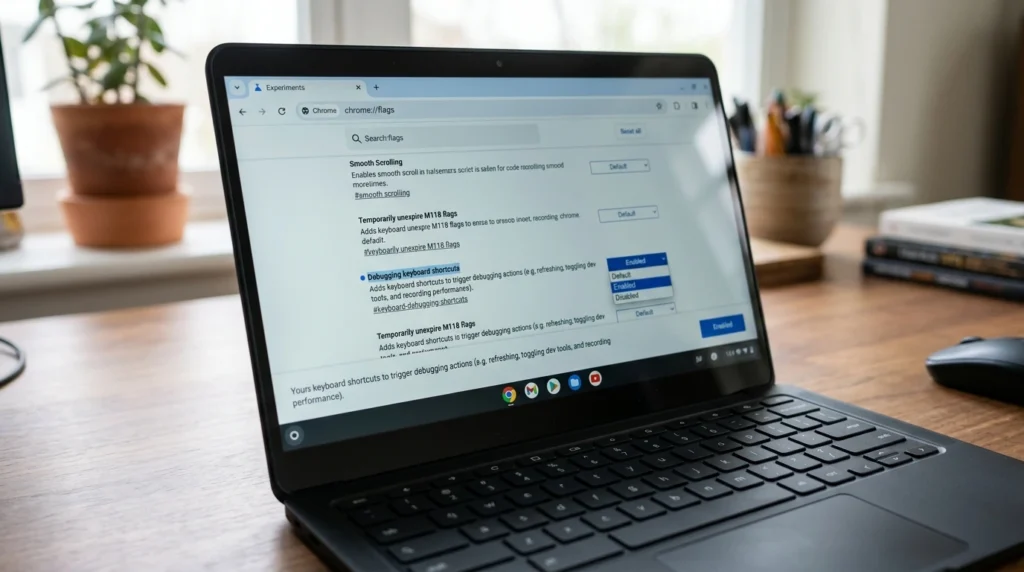
ChromeOS hides this behind a developer-focused setting called a flag. Flags are experimental switches, but the one you need here is stable and has worked the same way for years. You’re not putting your device at risk by using it.
Follow these in order.
Step one. Open the Chrome browser and type chrome://flags/#ash-debug-shortcuts into the address bar, then press Enter. This drops you straight onto the right setting, which is titled Debugging keyboard shortcuts. If the direct link doesn’t land you there, just open chrome://flags and search the word “debugging.”
Step two. Click the dropdown next to that flag and change it from Default (or Disabled) to Enabled.
Step three. A blue Restart button appears at the bottom. Save anything open first, because this closes your tabs, then click it. Your Chromebook reboots in a few seconds.
Step four. Once you’re back and logged in, press Search + Shift + T. The touchscreen goes dead immediately. Tap the display and nothing happens, while your keyboard and trackpad keep working normally.
The Search key is the one with the magnifying glass or launcher icon, sitting where Caps Lock lives on a regular laptop, just above the left Shift. If you’re ever unsure which combos your model supports, Google keeps a full list of ChromeOS keyboard shortcuts on its official help site.
One thing worth knowing: that setting sticks. The touchscreen stays off through sleep and reboots until you decide to switch it back on.
Turning the Touchscreen Back On
This part trips people up because they assume turning it off is permanent. It isn’t.
Snippet answer: Press Search + Shift + T again. Touch input comes right back. The shortcut is a simple on-off toggle, so the same three keys handle both directions for as long as the Debugging keyboard shortcuts flag stays enabled.
If you ever want to remove the capability entirely so the shortcut does nothing, head back to chrome://flags, set Debugging keyboard shortcuts to Disabled, and restart.
Want to Kill the Touchpad Too
Some people find the trackpad more annoying than the screen, especially when a palm brushes it mid-sentence. Once the same flag is enabled, you get a second shortcut for free.
Press Search + Shift + P to switch the touchpad off, and the same combo to bring it back. Handy if you run an external mouse and want the built-in pad out of the way.
The “Settings Menu” Method and the Honest Truth About It
A lot of guides tell you to dig through Settings for a touchscreen toggle. Here’s the part those guides skip: stock ChromeOS does not include a built-in on-off switch for the touchscreen for the vast majority of Chromebooks.
You can search the Settings app all afternoon and you won’t find one. A handful of older write-ups imply certain models have it, but in practice almost nobody does, and chasing a phantom toggle wastes your time. The keyboard shortcut above is the real native method. If a future ChromeOS build ever adds a proper Settings switch, great, but plan around the shortcut for now.
The Advanced Route: Crosh and xinput
There’s a command-line way to disable touch input, and it exists mostly for tinkerers. I’m including it for completeness, not as a recommendation.
This route needs Developer Mode, which weakens some device security and wipes your local data when you enable it. After that, you’d open the Crosh terminal with Ctrl + Alt + T, drop into a shell, run xinput to list input devices, find the touchscreen, and disable it by its ID.
The catch is that this often resets after a reboot, so you’d be retyping commands constantly. For nearly everyone, the flag plus shortcut is cleaner, safer, and survives restarts. Skip the terminal unless you genuinely enjoy living in it.
Which Method Should You Actually Use
| Method | Difficulty | Reliability | Reversible | Survives reboot | Works on school Chromebooks |
|---|---|---|---|---|---|
| Flag + Search + Shift + T | Easy | High | Yes, instant toggle | Yes | Usually no (admin blocks flags) |
| Crosh / xinput command | Hard | Low, fiddly | Yes, but manual | Often no | No (needs Developer Mode) |
| Settings menu toggle | n/a | Does not exist on stock ChromeOS | n/a | n/a | No |
For most readers, the first row is the answer. The other two are there so you know what you’re not missing.
On a School or Work Chromebook? Read This First
This is the part other articles leave out, and it affects a huge number of people searching for this exact fix.
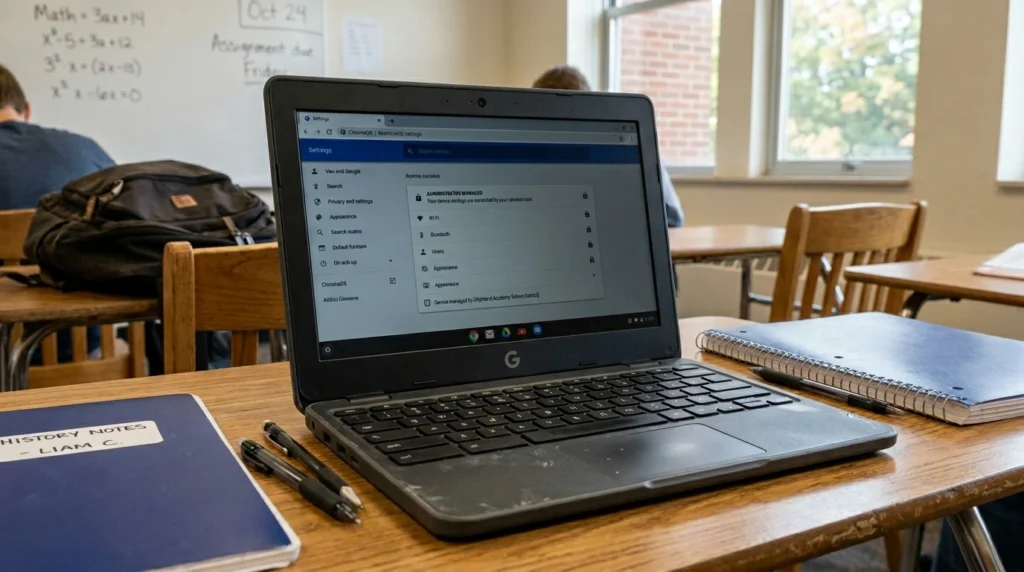
If your Chromebook came from a school or an employer, it’s almost certainly “managed,” which means an IT administrator controls what you can change. On these devices, chrome://flags is frequently locked, and you’ll see a message saying your administrator has disabled the setting. Developer Mode is usually blocked too. That means the keyboard-shortcut method above simply won’t run, no matter how carefully you follow it.
There’s no clever workaround I’d point you to, and trying to strip the management off a device you don’t own can get you in real trouble. The legitimate path is straightforward: ask whoever runs the device. A short note to your school’s tech team or your IT department, explaining that accidental touches are interrupting your work, is the right move. If you want to confirm how managed devices behave before you ask, Google’s official Chromebook Help lays it out.
What to Know Before You Disable Touch
A few realities save you from surprises later.
Your stylus stops working too. Touch and pen input run through the same digitizer, so the moment you switch off the touchscreen, your pen goes quiet. If you sketch or take handwritten notes, keep that in mind before you toggle.
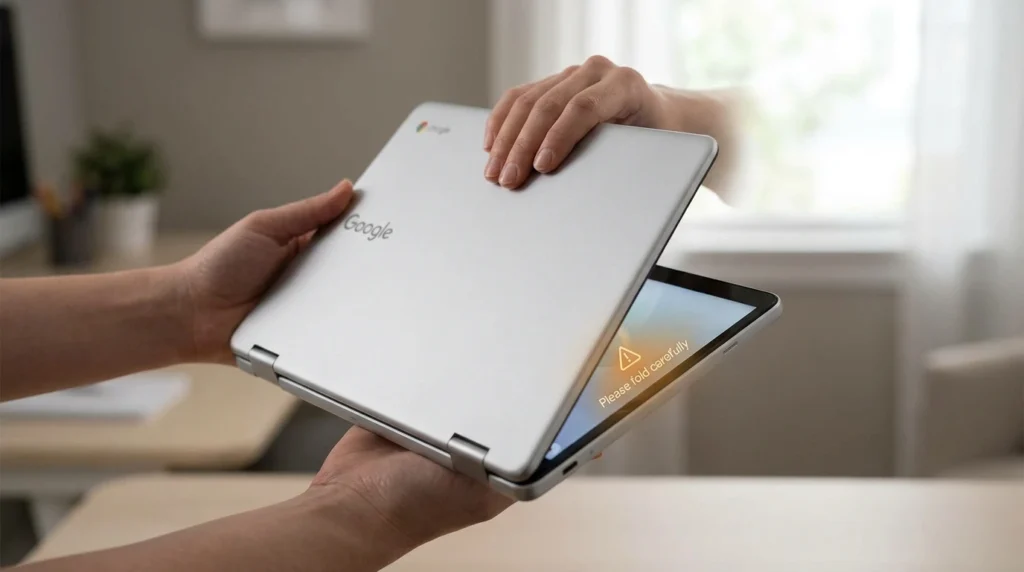
Convertibles can lock you out. On a 2-in-1 that folds into a tablet, ChromeOS automatically disables the keyboard and trackpad in tablet mode. If you’ve also turned the touchscreen off and then flip into tablet mode, you’ve got no working input at all. Switch touch back on before you fold the device flat.
Battery gains are tiny. Some guides sell this as a battery trick. The digitizer sips a small amount of power, so any saving is marginal at best. Turn the touchscreen off because the taps annoy you, not because you’re chasing extra runtime.
Pros and Cons at a Glance
Pros
- Stops accidental taps and cursor jumps while typing
- Toggles on and off in one shortcut once set up
- Stable, survives reboots, no special skills needed
- Lets you isolate a faulty panel when troubleshooting
Cons
- Disables stylus and pen input along with touch
- Blocked on most managed school and work Chromebooks
- Can leave a convertible with no input if you forget and enter tablet mode
- Negligible effect on battery life
Common Mistakes People Make
Pressing the wrong key combo. The Search key is the launcher key, not the Ctrl or Alt key. If nothing happens, you’re probably hitting the wrong one.
Forgetting to restart after enabling the flag. The shortcut only works once ChromeOS has rebooted with the flag active. Skip the restart and you’ll swear the trick is broken.
Hunting for a Settings toggle that isn’t there. Save yourself the frustration and go straight to the flag.
Turning touch off on a convertible, then folding it into tablet mode and panicking when nothing responds. Re-enable touch first, or fold, then disable.
Assuming it’s gone forever after a system update. A major ChromeOS update can occasionally reset flags. If your shortcut quietly stops working one day, pop back into chrome://flags, confirm Debugging keyboard shortcuts is still enabled, and restart.
Expert Tips
If accidental input is wrecking your typing flow, treat the touchscreen toggle as one piece of a cleaner setup rather than the whole fix. Pairing it with a few well-chosen tools makes a real difference. We’ve rounded up the best productivity Chrome extensions that cut distractions and keep you in the document instead of fighting your own hardware.
For heavier workflows, the right software matters as much as the input settings. The lineup of best AI productivity tools we actually rely on can shave real time off writing and research, touchscreen or not.
And if disabling touch has you quietly questioning whether a touchscreen Chromebook even fits how you work, that’s a fair thought. Our honest breakdown of Chromebook vs Laptop walks through who each one genuinely suits, so your next device matches your habits instead of fighting them.
FAQs
Does turning off the touchscreen save battery on a Chromebook? Barely. The touch digitizer uses a very small amount of power, so disabling it produces almost no measurable change in battery life. Switch it off to stop accidental taps, not to extend runtime. If battery is your concern, dimming the display does far more.
Will my stylus still work if I disable the touchscreen? No. Pen and touch input share the same digitizer on a Chromebook, so turning off the touchscreen also disables stylus input. If you rely on handwriting or drawing, leave touch on, or toggle it back with Search + Shift + T before you pick up the pen.
Why is Search + Shift + T not working for me? Three usual reasons. You didn’t restart after enabling the flag, you’re pressing Ctrl or Alt instead of the launcher Search key, or your Chromebook is school-managed and the flag is blocked. Recheck each, and confirm Debugging keyboard shortcuts is set to Enabled.
Can I permanently turn off the touchscreen? Not in the strict sense. ChromeOS has no permanent kill switch, but the shortcut keeps touch disabled through reboots until you toggle it back. That’s effectively permanent for daily use. Leaving the flag enabled is the closest thing to a lasting off setting.
Does this work on a school Chromebook? Usually not. Managed Chromebooks typically have chrome://flags and Developer Mode locked by an administrator, so the shortcut method won’t run. Your realistic option is to ask your school’s IT team to adjust the device, since bypassing management isn’t something you can or should do yourself.
Does the same trick disable the touchpad? Yes, with a different combo. Once Debugging keyboard shortcuts is enabled, press Search + Shift + P to switch the touchpad or trackpad off and on. It’s useful when you’ve plugged in an external mouse and want the built-in pad out of the way.
Will a ChromeOS update turn my touchscreen back on? Sometimes. A major system update can occasionally reset Chrome flags to default, which quietly re-enables touch. If your shortcut stops responding after an update, revisit chrome://flags, make sure the flag is still enabled, restart, and you’re set again.
Final Verdict
Turning off a Chromebook’s touchscreen is one of those fixes that feels like a secret once you know it. Enable one flag, restart, and Search + Shift + T becomes your personal switch for a panel that was getting in your way. The same keys bring it right back when you want to scroll a page with your finger again.
The two things to remember: your stylus rides along with the touchscreen, so both go quiet together, and if you’re on a school or work device, the lock is on the administrator’s side, not yours. For everyone on a personal Chromebook, this is a clean, reversible, low-risk tweak that makes the machine feel a little more like it’s working for you.

Continue Reading on CripsyWire
For more practical tutorials and hidden features, see our full how-to guides section. AI workflow guides feed into the broader AI tools and agents coverage, phone tricks live in smartphones, and wearable setup walkthroughs in wearables. When you are deciding what to buy, the reviews and comparisons section helps. All part of CripsyWire Tech, and the homepage shows what is newest.