The Apple Pencil USB-C confuses buyers because it looks like the expensive Pencils, attaches like them, and costs far less. That gap is not a sale. It is a trade. Apple removed the features artists need most, kept the features note-takers need most, and changed how the Pencil charges. Understand that trade before you buy, and this Pencil is a smart purchase. Miss it, and you will own a stylus that feels broken every time you try to shade a drawing.
What the Apple Pencil USB-C actually is
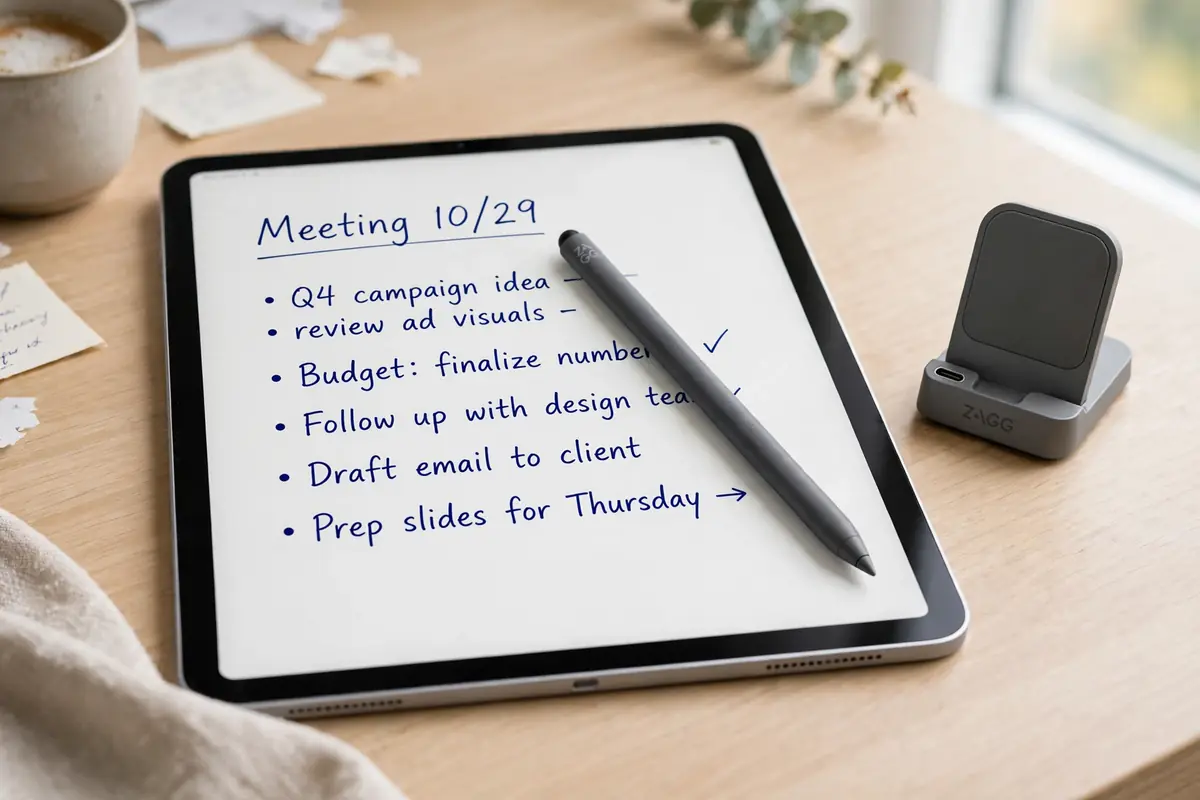
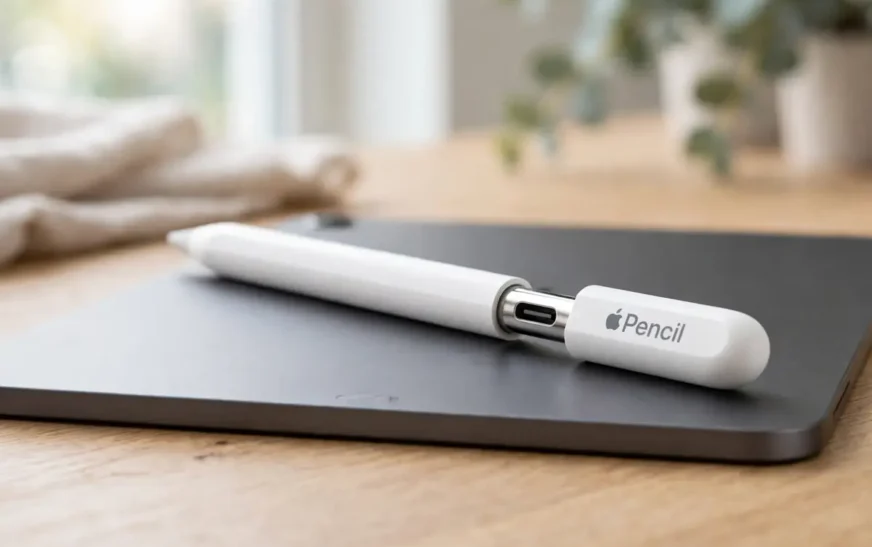
The Apple Pencil USB-C is Apple’s entry-level stylus, released in 2023. It is white, matte, and flat on one side so it can sit magnetically on a compatible iPad. It measures 155 mm long, 8.9 mm in diameter, and weighs 20.5 g. The shorter body suits smaller hands and long sessions, and the matte finish grips better than the glossy 1st gen Pencil. The tip is replaceable and screws on, so check it first when strokes start skipping.
A shorter Pencil with a hidden port
At the top end, a sliding cap reveals a USB-C port. Push it down and the Pencil looks sealed. That cap is the detail first-time owners miss. They snap the Pencil to the iPad, wait for a charging indicator, and nothing happens. The magnet holds the Pencil. It does not charge it. Storage and charging are separate jobs here, and only the cable does the second one.
Pairing and charging in plain English
Pairing takes under a minute when everything is ready. Turn on Bluetooth, slide open the cap, plug a USB-C cable into the Pencil, plug the other end into your iPad, and tap Pair when prompted. After that first cable pairing, the Pencil connects over Bluetooth for normal use. You still need the cable every time it needs power, and the box includes no cable, so use your iPad cable or another good-quality USB-C cable.
The compatibility check you must do first
Do not buy based on the iPad family name alone. “iPad Air” is not specific enough, because different Air generations take different Pencils. Check the exact model name in Settings, then General, then About, and match it against the list below. An incompatible Pencil will not pair no matter how many cables you try or restarts you do. Compatibility is a hard gate, not a setting you can work around.
Find your exact iPad model
Read the Model Name line in Settings, then General, then About, and compare it line by line. If your iPad is older than the models below, or it still has a Lightning port with no USB-C port, this Pencil is almost certainly wrong for you. Note the base-iPad trap too: the iPad (10th generation) and iPad (A16) appear on two Pencil lists, but the USB-C path is the simpler one because it needs no adapter.
The full compatible list
Apple lists the USB-C Pencil for these iPads, with iPadOS 17.1.1 or later required. That list is wider than the Pro list, and that width is this Pencil’s best selling point, covering older Pro and Air models the Pro Pencil cannot touch.
| iPad family | Compatible models |
|---|---|
| iPad Pro 13-inch | M4 and M5 |
| iPad Pro 11-inch | M4 and M5, plus 1st, 2nd, 3rd, and 4th generation |
| iPad Pro 12.9-inch | 3rd, 4th, 5th, and 6th generation |
| iPad Air 13-inch and 11-inch | M2, M3, and M4 |
| iPad Air | 4th and 5th generation |
| iPad | A16 and 10th generation |
| iPad mini | A17 Pro and 6th generation |
What you give up against the 2nd gen and Pro
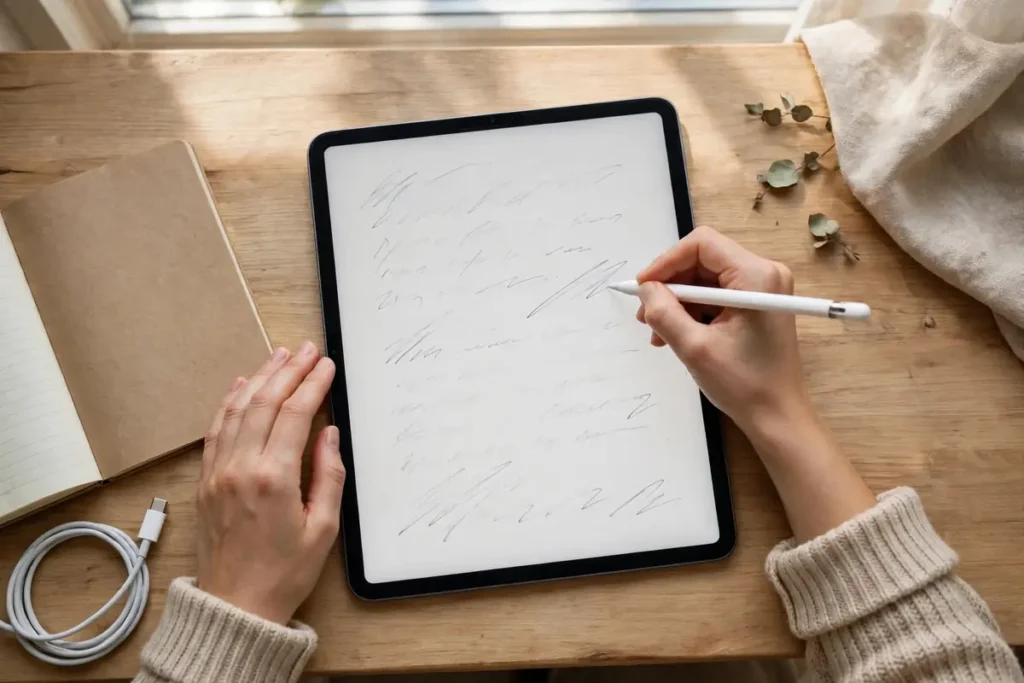
The USB-C Pencil keeps pixel-perfect precision, low latency, tilt sensitivity, and palm rejection. You can rest your hand on the screen, shade by tilting like a real pencil, and expect strokes to follow the tip without visible lag. For handwriting, those four features carry almost the whole experience. What it drops is pressure sensitivity, double-tap, squeeze, barrel roll, haptics, Find My, and magnetic charging, and that gap is why shoppers often compare third-party stylus options with pressure support before committing to Apple’s own lineup.
Pressure sensitivity, explained without jargon
Think of pressure as the difference between a ballpoint pen and a brush. A ballpoint makes roughly the same mark however hard you press. A brush changes with pressure. Digital artists rely on that change for line variation, shading, and calligraphy. Without it, every stroke has the same weight unless you change the tool setting by hand, and brush apps can only fake part of that variation with tilt and speed.
Gestures and Find My: what is missing
Double-tap sounds small until you use it. On a 2nd gen or Pro Pencil, tapping the flat side twice switches to the eraser or opens a tool palette. Here there is no double-tap, so every tool switch means tapping the screen, costing seconds dozens of times per session. Squeeze, barrel roll, and haptics are Pro-only, and Find My is missing too, which stings because a small white stylus is easy to lose in a bag.
Who feels the missing features most
Illustrators, comic artists, architects sketching with varied line weight, and calligraphers will feel the loss on day one. If your work depends on pressure, do not talk yourself into this Pencil because it is cheaper. Students, lawyers marking up documents, and teachers annotating slides will barely notice, because their bottleneck is never line weight. It is palm rejection, latency, and whether the Pencil is charged when class starts.
Who should buy the USB-C Pencil
Buy it if your main tasks are notes, lists, journal entries, PDF markup, form signing, and light sketching. Buy it if you own a compatible older iPad and do not want to hunt for a discontinued Pencil. Buy it for a child or student who wants the real Apple Pencil experience at the lowest current price: $79 in the US, against $129 for the Pro and 2nd gen models and $99 for the 1st gen model. Skip it if you draw for a living or know you will never remember to plug in a cable.
Charging routine that actually works
This Pencil fails owners in one predictable way: they treat magnetic attachment as charging, then discover a dead Pencil when they need it. Break that habit on day one. Snapping it to the iPad parks it. Plugging in a cable charges it. Keep a short USB-C cable in the same pouch as the Pencil, top up for a few minutes while you set up, and glance at the Batteries widget before you start. That same thinking helps the rest of your desk, where a dedicated wireless charging setup for the rest of your gear keeps your phone and earbuds topped up without another cable hunt.
The cable habit
Pick one cable and leave it with the Pencil. A cable in a drawer somewhere else will not get used. A short cable coiled in the Pencil pouch will. For first-time pairing, avoid charge-only cables that cannot carry data, or the Pair prompt may never appear. If pairing fails, swapping to the iPad’s own cable is the fastest test, and once paired, charging alone is less picky, but a known-good cable removes doubt in both cases.
Storing it so you do not lose it
Magnetic storage is convenient, but it is not secure. A Pencil snapped to an iPad edge can slide off in a bag, especially if the case does not cover that edge. A case with a dedicated Pencil slot or loop is the cheapest insurance for this accessory, and it stops the Pencil rolling off tables, which is how tips get chipped. At home, give it one fixed spot, because with no Find My, a routine beats a search every time.
Desk setup that makes a cheap Pencil feel pro
A Pencil does not work alone. It works in a setup: iPad flat or slightly raised, a note app you already know, and a screen you can read without glare. A cheap folio stand changes handwriting comfort more than any Pencil upgrade, because wrist angle decides how long you can write without fatigue. Keep the iPad at a slight angle, not flat on a hard desk, and keep brightness high enough that you can write lightly instead of pressing hard and leaning closer.
Apps that suit this Pencil best
Notes is the honest starting point: free, synced, and good for handwriting, sketches, and markup without a learning curve. GoodNotes and Notability add better organisation, search across handwritten notes, and planner templates. For PDF markup, the built-in Markup tools cover most needs. Drawing apps still run, and simple sketching works fine, but the ceiling is lower without pressure, so app choice matters more than Pencil choice for everyone except serious artists.
Handwriting tips that beat a hardware upgrade
Write slightly larger than you would on paper for the first week. Small, cramped iPad handwriting looks messier than the same writing on paper, because the screen is slicker and the tip glides faster. A matte screen protector adds friction and makes writing feel more natural, though it can wear tips faster, so keep a spare tip handy. Use zoom for fine detail instead of forcing tiny strokes, and let the app handle scaling.
A spare phone as a desk clock
A spare phone can join that desk setup as a glanceable clock and timer, keeping notifications off your iPad screen while you write. Setting it up takes a few minutes, and the guide to steps for turning an iPhone into a clock display while you work walks through the display and widget choices. Once it is set, your iPad stays a writing surface, not a notification centre, and your focus sessions get noticeably quieter.
When the Pencil will not pair or charge
Pairing failures follow a pattern, and working through them in order saves time. Start with the simplest causes, because the most common failure is not a broken Pencil. It is a flat Pencil, a wrong model, or a cable that carries power but not data. Confirm compatibility and update to iPadOS 17.1.1 or later, plug in with a known-good cable, and wait a full minute, since a deeply drained Pencil sometimes needs that minute before the Pair prompt appears at all.
The ordered fix checklist
- Confirm the exact iPad model against the compatibility list.
- Update iPadOS, then plug in with the iPad’s own USB-C cable.
- Wait one full minute, check Bluetooth is on, and forget the Pencil in Bluetooth settings before re-pairing.
- Restart the iPad while the Pencil stays connected, then retry.
- Clean both USB-C ports gently, tighten the tip clockwise until snug, and remove any case blocking the port.
- Test the Pencil on another compatible iPad if you can borrow one.
That last step isolates the fault. If it works on another iPad, your iPad’s port or software is the problem. If it works nowhere, the Pencil itself is faulty and needs service. Do not waste hours on software fixes for a hardware fault, and do not replace a good Pencil because of a bad cable.
Tip, port, and case problems
A loose tip mimics a dead Pencil. Strokes skip, lines break, and input feels uneven, all because the tip is not seated firmly. Screw it in gently until it stops, and replace it if it looks flat, chipped, or bent. Tips wear out, especially on matte protectors, and a fresh tip restores precision cheaply. Cases cause a second class of faults by blocking the magnetic edge or stopping the cable seating fully, so if pairing fails only with the case on, remove it and retry. For charging faults in general, the same test-cable, port, and power-source order used in a guide to steps for a phone that will not take a charge applies here too.
Hand size, travel, and the iPad you pair it with
A Pencil setup travels as a system: iPad, Pencil, cable, and case. A 13-inch Pro with a Pencil is a superb desk machine and a heavy bag companion. An iPad mini with the same Pencil is a pocketable notebook that goes everywhere. Neither is wrong. The mistake is buying the biggest iPad for note-taking and then leaving it at home because it is too heavy to carry daily. Screen room matters for writing at a natural size, while weight matters for actually taking the setup with you.
Which iPad to pair it with
If you already own a compatible iPad, pair it with the iPad you have. Do not buy a new iPad to justify a $79 Pencil. If you are buying both, the base iPad (A16 or 10th generation) plus the USB-C Pencil is the cheapest honest note-taking system Apple sells. Step up to an Air for a larger screen and longer support, and step up to a Pro only if you also want Pro Pencil features, or you waste the Pro’s best stylus features on a Pencil that cannot use them.
Travelling light with phone and tablet
Travelling light is a wider question than one stylus, and comparing device footprints helps, including how phone sizes compare when you travel light so the phone in your pocket and the tablet in your bag make sense as a pair instead of fighting for space. A small phone plus a mini iPad is a genuinely portable note system. A Pro Max phone plus a 13-inch iPad is a desk replacement that happens to move, and you should pack for it that way.
iPadOS tricks that make notes better
Scribble turns handwriting into text in supported fields, so you can handwrite an address into a search box without switching to the keyboard. Double-check conversions before sending anything important, because recognition still misreads names and technical terms. Quick Note, opened by swiping from the bottom corner with the Pencil, captures a thought without leaving your current app, and learning that gesture on day one turns the Pencil into a capture tool, not just a writing tool.
Gestures worth learning first
Learn three gestures and you will use the Pencil twice as fast. Swipe from the bottom corner for Quick Note, use two fingers to undo in most drawing apps, and drag across text with the Pencil to select it, then tap for copy, highlight, or lookup. Test gestures in Notes first, where support is most complete, before expecting them in every app. Those three cover most daily note work without opening a menu.
Hidden tricks on the phone side
Apple’s tips culture extends beyond the iPad, and readers who like digging into hidden features often enjoy a roundup of hidden tricks tucked inside recent iPhones for the phone side of their Apple setup.
Bluetooth and pairing quirks
Bluetooth quirks cause a surprising share of Pencil complaints. The Pencil pairs to one iPad at a time. If you paired it with another iPad, forget it on that iPad before pairing with the new one, or the new pairing may fail or drop. That rule catches households and classrooms where one Pencil moves between iPads. Interference is a second culprit: a room full of keyboards, headphones, and styluses can delay pairing, so move away, turn off accessories you are not using, and retry.
One Pencil, one iPad at a time
If you share an iPad, remember the Pencil follows the last pairing, not the last user. A Pencil paired to a partner’s iPad will not work on yours until you re-pair it with a cable, and that is normal behaviour, not a fault. Budget a minute for re-pairing when you swap. Schools should label Pencils, because identical white Pencils swap by accident, and a swapped Pencil paired to the wrong iPad creates a mystery fault that looks like a broken stylus.
When the Pencil disconnects mid-session
A mid-session disconnect usually means the battery ran out, Bluetooth dropped, or the app crashed. Check the Batteries widget first. If the battery is fine, close and reopen the app. If that fails, toggle Bluetooth off and on, then re-pair with the cable if needed. Save work early and often during long sessions, especially in drawing apps, so a disconnect costs seconds of work, not an hour. Most note apps autosave continuously, but drawing apps vary.
Pairing other Apple accessories
Bluetooth pairing logic is similar across Apple accessories, and the same patient, one-device-at-a-time approach that helps with connecting AirPods to a laptop over Bluetooth applies here: forget the old pairing, pair fresh, and test before assuming hardware failure.
Focused study sessions with a single app
A Pencil shines in focused sessions, where one app, one document, and no notifications beat multitasking. Put the iPad in Do Not Disturb, open only the note or textbook app, and write for a set block of time. That discipline matters more than any Pencil feature, because a distracted session produces poor notes regardless of hardware. For revision, summarise in your own handwriting, draw diagrams from memory, and test yourself by covering answers and rewriting them.
A simple study routine
Start with a blank note, write the topic title by hand, then summarise the material without looking at the source. Check your summary against the source, correct it in a different colour, and redraw any diagram you got wrong. That cycle beats re-reading notes passively, and the Pencil makes drawing and correction fast. End each session by exporting the note as a PDF and filing it by topic, building a revision library you can actually use later.
Locking down a study session
Locking a device to one app during study is a wider tablet habit, and a guide to locking a tablet to a single app during study covers the setup and the fixes when that lock itself misbehaves. Combined with Do Not Disturb and a fixed study block, that lock turns the iPad from a distraction machine into a single-purpose notebook, which is exactly the environment where a cheap, reliable Pencil outperforms a feature-packed one you never fully learn.
Frequently asked questions
Does the Apple Pencil USB-C work with iPhone?
No. It works only with the compatible iPads listed above. It does not pair with iPhones, Macs, or Android tablets, even though it uses a USB-C connector. The connector is for power and pairing with an iPad, not a universal stylus standard.
Does it charge when snapped to the iPad?
No. Magnetic attachment on this model is for storage only. You must plug in a USB-C cable to charge it. Check the Batteries widget rather than assuming a snapped-on Pencil is charging.
Is it good for drawing and Procreate?
It works for casual sketching, thanks to tilt and low latency. It is not good for serious drawing, because it lacks pressure sensitivity. Illustrators, painters, and lettering artists should choose the Pro or 2nd gen Pencil on a compatible iPad instead.
What iPadOS version does it need?
It needs iPadOS 17.1.1 or later on a compatible iPad. If pairing fails, updating iPadOS is one of the first steps to try, after confirming the exact iPad model against the compatibility list.
Does it come with a charging cable?
No. The box does not include a USB-C cable. Use your iPad’s cable or any good-quality USB-C cable. For first-time pairing, use a cable you know carries data, not a charge-only cable, or the Pair prompt may never appear.
Can I use it while it charges?
Yes, from a wall adapter with a long enough cable, though the cable trails from the Pencil. Most owners top up between sessions instead, because charging from the iPad while using it is awkward.
What to do next
Check your exact iPad model against the compatibility list, then decide by task, not by price alone. For notes, markup, and journaling, buy the USB-C Pencil, keep a short cable with it, and get a case with a Pencil loop. For drawing, painting, or lettering, skip it and buy the Pro or 2nd gen Pencil your iPad supports.

Continue Reading on CripsyWire
For more practical tutorials and hidden features, see our full how-to guides section. AI workflow guides feed into the broader AI tools and agents coverage, phone tricks live in smartphones, and wearable setup walkthroughs in wearables. When you are deciding what to buy, the reviews and comparisons section helps. All part of CripsyWire Tech, and the homepage shows what is newest.