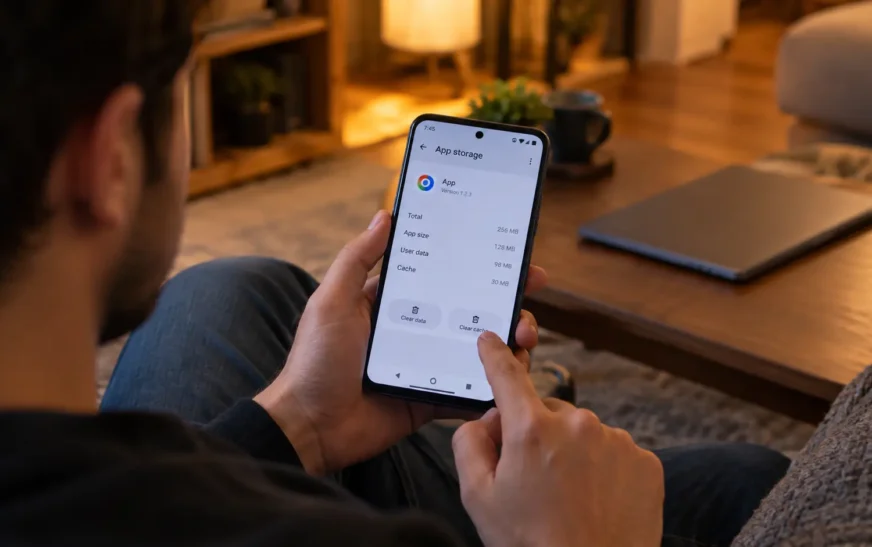
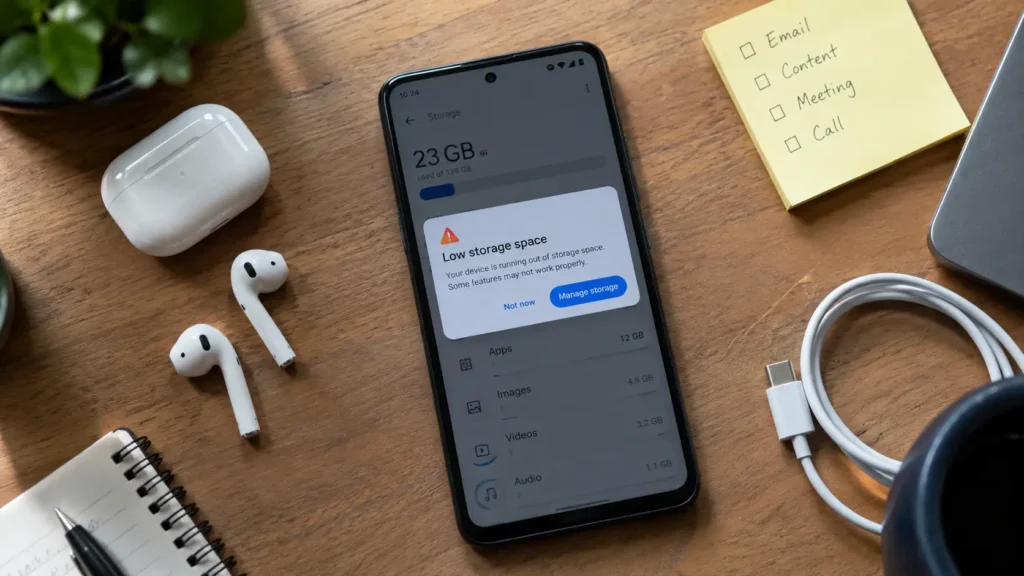
Your phone says storage is almost full. You search for a fix, and every page tells you the same thing: clear your cache. So you do. By Friday it’s full again.
Here’s what those pages rarely say out loud. Clearing cache is safe, takes about ten seconds per app, and now and then it rescues a glitchy app. It is also not a speed hack, and stock Android has no single button that wipes the cache for every app at once.
This guide shows how to clear cache on Android the right way: for one app, on Samsung, Xiaomi, OnePlus and Pixel phones, in Chrome, and the all-at-once workarounds people keep asking about. You’ll also see what gets deleted, what you should never tap by accident, and when leaving the cache alone is the smarter call.
What Is Cache on Android, and What Does Clearing It Delete?
Think of cache as an app’s scratch pad. Instagram keeps thumbnails so your feed doesn’t re-download every image on each scroll. Google Maps holds tiles for streets you’ve already viewed. Chrome saves images and scripts from sites you visit often. None of it is your stuff. It’s convenience.
Android also runs its own system-level cache that you never see, and the OS is built to trim app caches by itself when internal storage gets tight. That’s one reason manual clearing matters less than most guides pretend.
What trips people up is the button sitting right next to “Clear cache.” Here’s the difference in plain terms:
| Action | What it deletes | What stays | Real risk |
|---|---|---|---|
| Clear cache | Temporary files the app can recreate | Logins, settings, downloads, chats | Next launch is a little slower |
| Clear data (or Clear storage) | Everything the app saved on the phone, including accounts, settings and offline files | Only the app itself | Logs you out, can erase unsynced progress and downloads |
| Uninstall | The app and its local data | Anything synced to the cloud | You reinstall and sign in again |
That second row is the one that causes regret. Tap it on a game and your local save may vanish. Tap it on a music app and your offline playlists go with it.
Before you start deleting anything, it’s worth taking a minute to estimate how much phone storage you actually need. Cache is rarely the thing eating your gigabytes. More on that later.
How to Clear Cache on Android for a Single App (Pixel and Stock Android)
This is the method that works on Pixel phones and most phones running near-stock Android. The wording shifts a little between versions, but the shape stays the same.
- Open Settings and tap Apps. On some versions you’ll tap See all apps first.
- Scroll to the app you want, or use the search bar at the top.
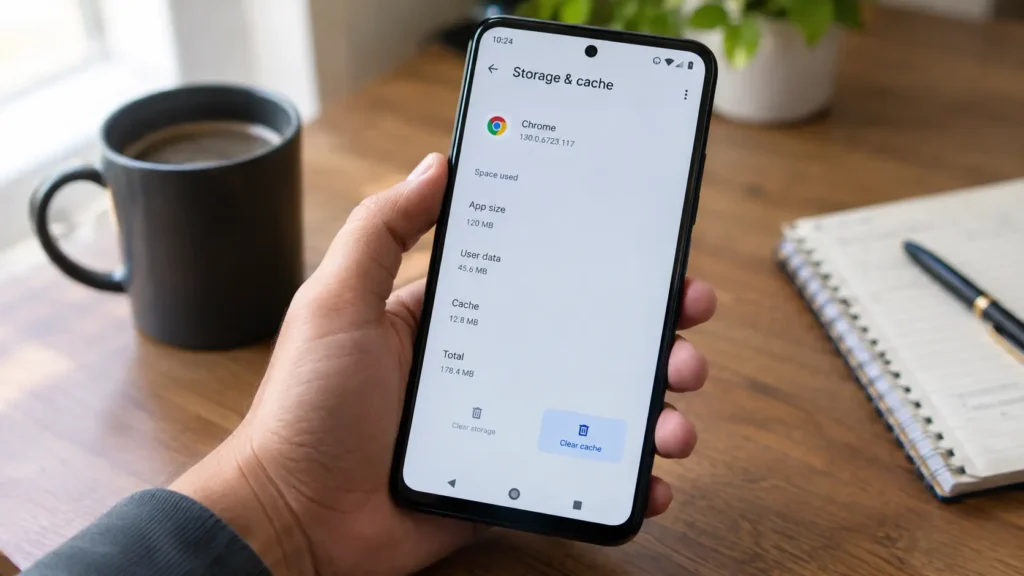
- Tap Storage & cache. Older versions just say Storage.
- Look at the number beside Cache, then tap Clear cache.
- Check that the cache figure dropped to zero or close to it.
That’s it. No restart, no warning, no progress bar. If the button turns grey, there was nothing left to clear.
The shortcut: clear app cache from the home screen
Long-press the app’s icon, tap the small i (App info), then tap Storage & cache. You skip the whole Settings scroll, which is handy when one app is clearly misbehaving.
Which apps are worth clearing first?
Don’t go app by app through all eighty. Sort by size: Settings > Storage lists apps by how much space they use, so you can see where the weight is. The usual offenders:
- Social and video apps like Instagram, TikTok and Facebook, which cache every clip you scroll past
- Chat apps with heavy media. Telegram is the classic one. If you’ve outgrown it entirely, here’s how to delete your Telegram account without losing what matters
- Chrome and other browsers
- Google Photos and gallery apps that store thumbnails
- Streaming apps. Spotify has its own Clear cache button inside its storage settings that leaves your downloads alone
Say a social app shows a cache measured in gigabytes while the app itself is a few hundred megabytes. That’s a good candidate. An app with a cache of a few megabytes isn’t worth your time.
What to leave alone
Don’t clear data or storage for Google Play services, Google Play Store or any system app unless an official support page tells you to. You can knock out sign-in, break notifications or force a long re-sync. Cache only, always.
How to Clear Cache on Samsung, Xiaomi, OnePlus and Motorola Phones
Same idea, different menus. Manufacturers rename things, bury things, and move them around between updates. If a path below doesn’t match your screen, open Settings, tap the search bar and type the app’s name or the word “storage.” That finds it faster than hunting.
How to clear cache on a Samsung Galaxy phone
Samsung’s own support page gives the route for one app: Settings > Apps > pick the app > Storage > Clear cache. Same as stock Android, just with One UI styling.
Then there’s Device care. Open Settings > Battery and device care and you’ll find optimization and storage tools that Samsung says can clear junk and app cache in one pass. In practice, results depend on your model and One UI version. Several Galaxy owners on Samsung’s own forums report the app cache cleaner is missing on phones like the S23 series. And Samsung’s US support page states that clearing every app’s cache at the same time isn’t something you can do short of a factory reset.
So treat Device care as a helpful extra, not a guarantee. If it doesn’t clear what you expected, go app by app.
For the browser: open Samsung Internet, tap the menu, go to Settings > Personal browsing data > Delete browsing data, tick Cached images and files only, and confirm. Leave cookies unticked unless you want to be signed out of every site.
While you’re in there, it’s worth checking which extras shipped with the phone. Many Android handsets come with background content apps, and if you’ve ever wondered what the Glance lock screen feed is doing on your device, that explainer covers it.
How to clear cache on Xiaomi, Redmi and POCO
Go to Settings > Apps > Manage apps, pick the app, then tap Clear data. On many versions a small menu appears with Clear cache as one option and Clear all data as the other. Pick the cache one. The wording looks scarily similar, so read before you tap.
The Security app also has a Cleaner tool that scans for junk files. It’s convenient, though it can nudge you toward deleting more than you need, so skim the list first.
How to clear cache on OnePlus and OPPO phones
Head to Settings > Apps > App management, choose the app, tap Storage usage, then Clear cache. Labels differ slightly between OxygenOS and ColorOS builds, but the Storage page is always the destination.
How to clear cache on Motorola and Nothing phones
These run close to stock Android, so use the Pixel path from the previous section: Settings > Apps > See all apps > app > Storage & cache > Clear cache.
One warning that applies to every brand. If you see Clear data, Clear storage or Delete all data sitting beside the cache option, that’s the destructive one. Read the label twice.
How to Clear All Cache on Android at Once (and Why the Button Disappeared)
Older Android versions had a lazy-person’s shortcut: Settings > Storage > tap Cached data > OK. One tap, every app. That option was removed in Android 8.0 Oreo, and Sony’s community moderators were already telling confused users in the Oreo era that it was a decision made by Google. It never came back.
What you can do instead:
- Samsung Device care. On Galaxy phones, Settings > Battery and device care offers optimization and storage cleanup. Whether it touches app cache depends on your model, as covered above.
- Files by Google. Open the app, go to the Clean tab and review the junk files card, which includes temporary app files. It shows you what it plans to delete before it deletes anything.
- Restart the phone. Not a cache clear, but it flushes memory and fixes a surprising number of “it’s being weird” moments without touching your data.
- Do it by hand. For the five or six apps that matter, it takes two minutes.
One option you should ignore: factory reset. Yes, it technically wipes every cache. It also wipes everything else.
For more phone fixes that don’t require drastic measures, browse our phone troubleshooting guides.
How to clear Chrome cache on Android
Browser cache is separate from app cache, and it can get big if you browse a lot.
- Open Chrome and tap the three dots in the top right.
- Tap Delete browsing data (older versions say Clear browsing data).
- Pick a Time range. “All time” clears the most.
- Tick Cached images and files.
- Untick Browsing history and Cookies and site data unless you want those gone too.
- Tap Delete data.
That unticking step is the one people skip. Leave cookies ticked and you’ll be signed out of Gmail, your bank and everything else.
What about the system cache and “wipe cache partition”?
You may have seen advice to boot into recovery mode and choose Wipe cache partition. On modern phones, that advice is mostly obsolete. Phones with dual (A/B) partitions handle updates seamlessly, so manually wiping system cache after an update no longer does much. A Samsung Community post says Samsung removed the option from recovery with its February 2026 security patch, in line with other brands that dropped it long ago.
If your phone still offers it, it won’t hurt your files, but it also isn’t a cure-all. Try a normal restart and an update check first.
Does Clearing Cache on Android Make Your Phone Faster? The Honest Answer
<div class="cw-quick"><span class="cw-label">Quick answer</span>Usually not. Cache exists to make apps faster, so deleting it often makes the next launch slightly slower while the app rebuilds it. Clearing cache helps in three cases: storage is nearly full, an app is crashing or stuck on old content, or one app's cache has grown absurdly large.</div>Some guides promise a phone that feels brand new after a cache purge. That’s overselling it. Delete the cache and every app that used it starts from scratch, which means more loading, more network traffic and, for the first few minutes, a phone that can feel a touch slower, not faster.
The gains are real in specific situations:
- Storage is nearly full. Android needs breathing room to work smoothly. Freeing space can take pressure off the system, which is where the “it feels faster” reports usually come from.
- An app is acting broken. Stuck on a loading screen, showing a stale profile photo, crashing right after an update. A corrupted cached file is a plausible culprit, and clearing it is a free first fix.
- One app hoards space. A single bloated cache is worth trimming. Dozens of tiny ones aren’t.
What clearing cache won’t do: fix a dying battery, cure overheating, repair a slow chip, or speed up a phone that’s simply old.
The hidden cost: mobile data
Here’s one nobody mentions. Once the cache is gone, apps re-download images, thumbnails and map tiles. On Wi-Fi, who cares. On a capped plan, repeated clearing quietly eats allowance. If you’re watching your numbers, check how much data you need per month and run your habits through the Data Usage Calculator before making cache-clearing a weekly ritual.
Should you use a cache cleaner app?
No. Honestly, no. Settings does the job for free. Many cleaner apps push ads, nag you constantly, and ask for accessibility access, which is a big permission to hand over for a task you can do yourself in four taps. Some run in the background and use the battery they claim to save. If you want a safe cleanup tool, use Files by Google or your phone maker’s built-in option.
How often should you clear cache?
When there’s a reason. A rough rhythm that makes sense: when an app misbehaves, when storage warnings appear, or when you spot one app with an oversized cache. Doing it on a schedule “just because” gains you nothing and costs you re-downloads.
Clear Cache on Android Not Working? Fixes for Slow Phones, Full Storage and Crashing Apps
Sometimes you clear the cache and nothing changes. That usually means cache was never the problem. Here’s how to work out what is.
Storage still full after you clear cache on Android
Cache is typically a small slice of what fills a phone. The big hitters are photos, videos, downloads, offline maps and app data. If you shoot a lot of 4K video, a 128GB phone fills fast, and the real numbers on how many photos 128GB holds might surprise you. Check Settings > Storage to see the breakdown, then deal with the biggest category first. Backing up photos to the cloud and deleting the local copies frees far more than any cache purge.
An app keeps crashing or won’t load
Work up the ladder, and stop as soon as it’s fixed:
- Force stop the app and reopen it.
- Clear its cache.
- Update the app from the Play Store.
- Restart the phone.
- Clear its data, only after backing up anything important.
- Uninstall and reinstall.
Most problems die at step 2 or 3. Step 5 is the nuclear option, so don’t skip ahead to it.
Your phone is slow or hot, not just full
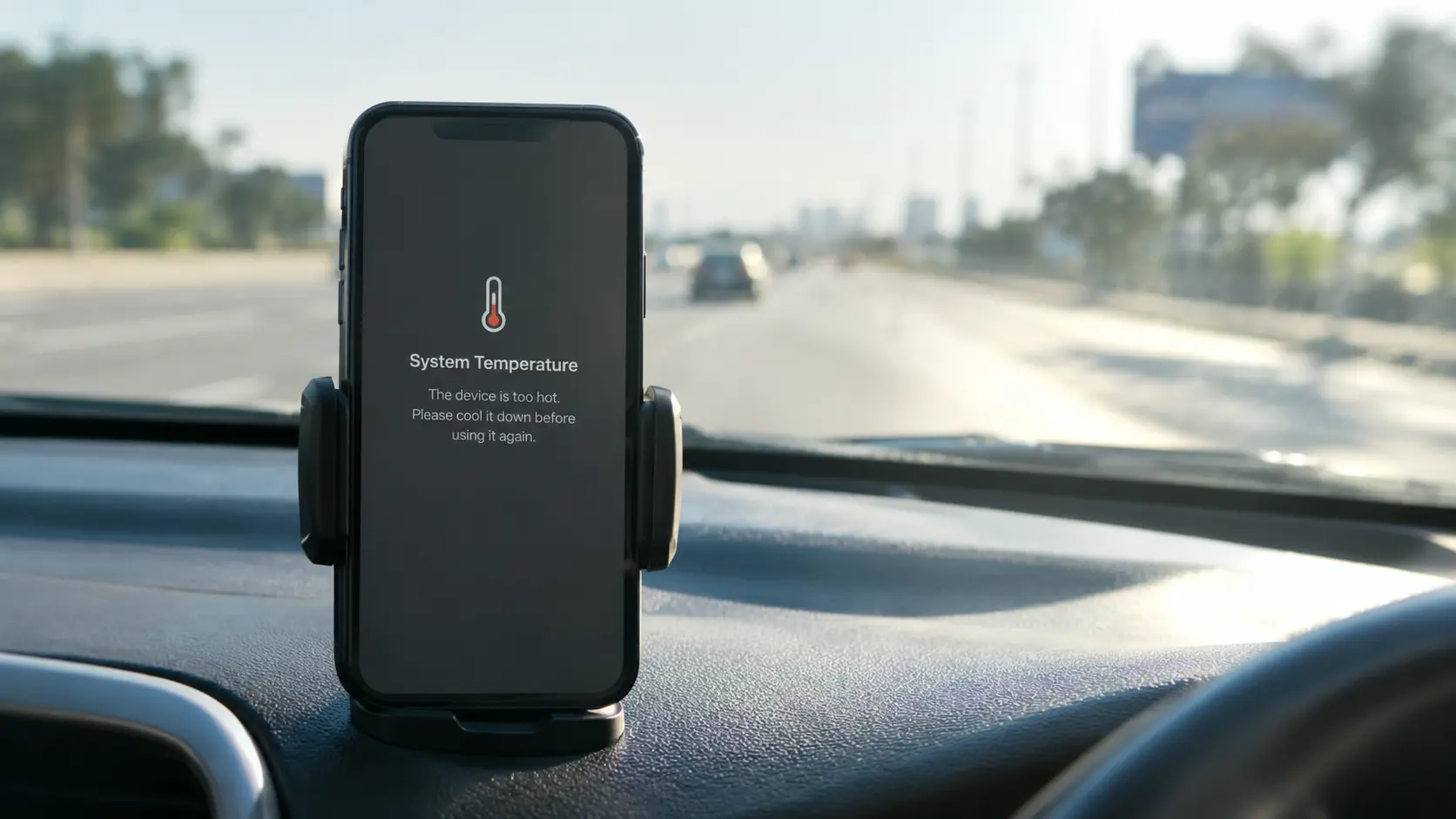
If the phone runs warm while you scroll, cache is not your culprit. Heat, a hungry background app or a tired battery are likelier. Our breakdown of why your phone is overheating covers the causes and the fixes that actually work. Updating Android and your apps matters here too, since updates often carry performance fixes.
Keyboard acting strange
If suggestions and autocorrect are misbehaving, the keyboard app’s cache is worth clearing first. If it’s still wrong, you may simply want to turn off autocorrect and stop fighting it. Clearing the keyboard’s data resets the words it learned, so only do that if you’re fine retyping your shortcuts.
Before you clear data or switch phones
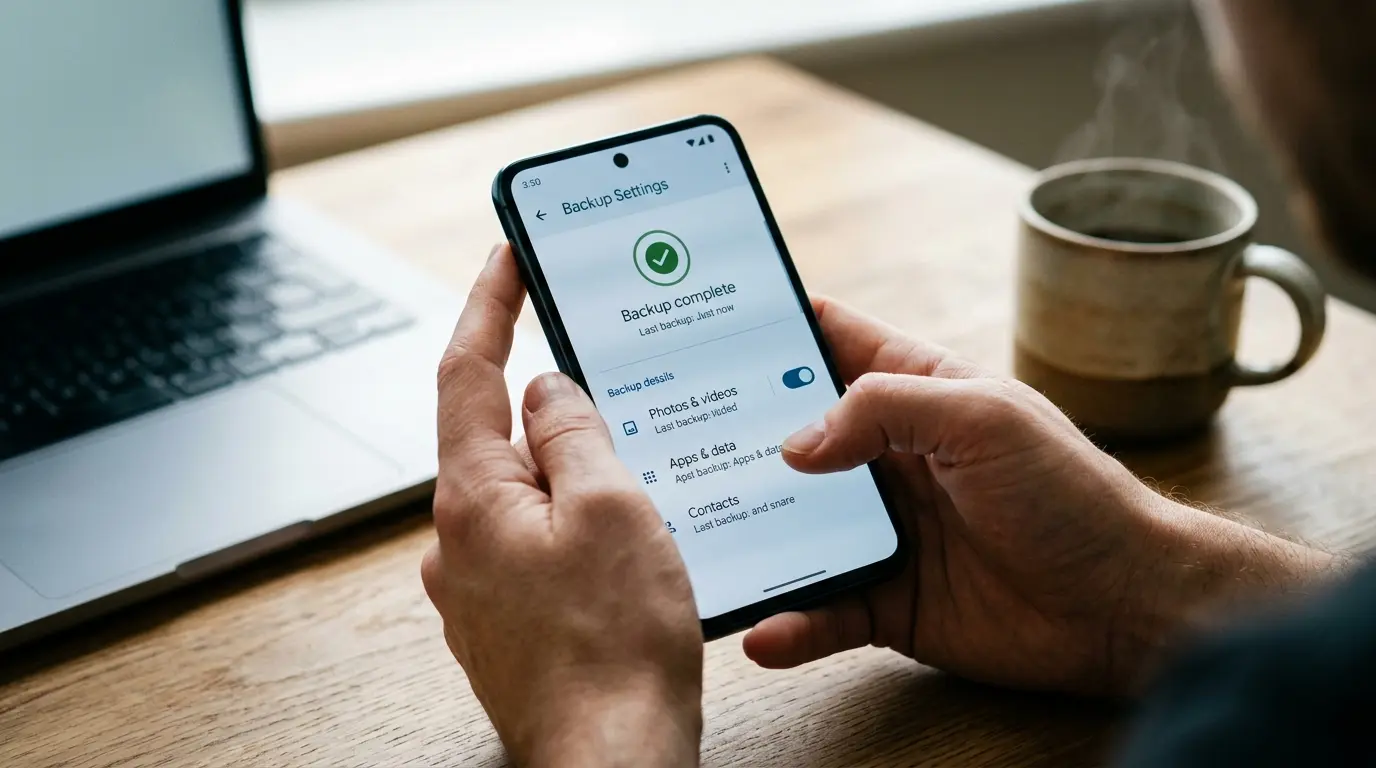
Cache is disposable. Data isn’t. Before clearing data on any app, make sure its content is backed up or synced. And if you’re upgrading rather than cleaning, here’s how to transfer contacts to a new phone the right way, so a cleanup doesn’t turn into a lost address book.
A leave-a-buffer note: many people try to keep a healthy slice of storage free so the phone doesn’t struggle. That’s a common rule of thumb, not an official Android requirement, but it’s a sensible habit.
Want more phone fixes like these? Our smartphone guides cover everything from battery drain to data limits.
How to Clear Cache on Android: Frequently Asked Questions
How do I clear cache on Android?
Open Settings, tap Apps, select the app, tap Storage (or Storage & cache), then tap Clear cache. Menu names vary by brand, so use the Settings search bar if you can’t find it. Avoid Clear data unless you’re troubleshooting and have backed up the app’s content.
Is it safe to clear cache on Android?
Yes. Clearing cache is safe because it only removes temporary files the app can recreate. You won’t lose photos, chats, logins or settings. The only side effects are a slightly slower first launch and some re-downloaded images. Clearing data or storage is the risky action, so double-check which button you press.
What happens if I clear cache on Android?
The app deletes its stored temporary files, freeing some storage. Next time you open it, the app rebuilds that cache, so it may load slower for a moment and use a little mobile data. Your accounts, saved files and settings are untouched. Nothing is permanently lost.
What’s the difference between clear cache and clear data?
Clear cache removes temporary files and leaves your account and settings alone. Clear data (also called Clear storage) resets the app to its fresh-install state, deleting logins, settings and locally saved files. Think of cache as a scratch pad and data as the app’s memory. Use cache first, data last.
Does clearing cache delete photos or messages?
No. Clearing cache doesn’t touch your photos, videos, messages or documents. Those live in storage or the cloud, not in an app’s cache folder. The exception is clearing data or storage, which can delete locally saved items like offline downloads or unsynced game progress, so back up first.
How do I clear cache for all apps at once on Android?
You can’t on stock Android, because Google removed the clear-all button in Android 8.0. Samsung’s Device care or the junk cleaner in Files by Google can clear some temporary files in bulk, though results vary by model. Otherwise, clear the cache app by app, starting with the biggest.
How often should I clear cache on Android?
Only when there’s a reason: an app is crashing, storage is nearly full, or one app’s cache has ballooned. There’s no benefit to doing it on a fixed schedule. Android already trims caches when space runs short, and clearing too often just forces apps to re-download files.
How do I clear cache on a Samsung phone?
Open Settings, tap Apps, choose the app, tap Storage, then tap Clear cache. For the browser, use Samsung Internet’s Settings, then Personal browsing data, then Delete browsing data. Samsung’s Battery and device care menu offers extra cleanup tools, but availability depends on your model and One UI version.
Do I need a cache cleaner app for Android?
Skip them. Android’s own Settings, Files by Google and your phone maker’s tools do the same job without the ads or risky permissions. Many cleaner apps ask for accessibility access, push constant notifications, and can use battery in the background. The gains are small and the trade-offs aren’t worth it.
How do I clear Chrome cache on Android?
In Chrome, tap the three dots, choose Delete browsing data, select a time range, tick Cached images and files, untick cookies and browsing history, then tap Delete data. Unticking cookies keeps you signed in to your accounts. Other browsers have a similar option in their settings.
The short version: clear the cache for the app that’s misbehaving, leave the rest alone, and never tap Clear data without a backup. Your phone already handles most of the housekeeping on its own.

Continue Reading on CripsyWire
For more practical tutorials and hidden features, see our full how-to guides section. AI workflow guides feed into the broader AI tools and agents coverage, phone tricks live in smartphones, and wearable setup walkthroughs in wearables. When you are deciding what to buy, the reviews and comparisons section helps. All part of CripsyWire Tech, and the homepage shows what is newest.