You are mid-sentence on a call and the other person keeps saying “you’re cutting out”. Or you send a voice note and it plays back as a faint whisper. A dead or muffled phone microphone is one of those problems that feels much bigger than it is, because suddenly the most basic thing your phone does, carrying your voice, just stops.
Here is the good news after years of poking at broken handsets: most mic failures are not hardware. They are a blocked opening, a permission toggle, a stray Bluetooth connection, or a setting that flipped during an update. You can usually fix it yourself in a few minutes without spending a cent. This guide walks you through it in the order a repair tech would actually use, starting with the fastest checks and only escalating if you have to.
Quick answer: To fix a phone microphone, first test which of your three mics is failing using Voice Memos, a speaker call, and a video. Then restart the phone, remove the case, disconnect Bluetooth, check app mic permissions, and gently clean the mic opening. If none work, it is likely hardware.
What You’ll Find Below
- Why a phone mic suddenly dies
- Find out which microphone is actually broken
- Fast fixes to try in the first two minutes
- The permission problem almost everyone misses
- When Bluetooth is quietly stealing your mic
- Cleaning the mic opening without wrecking it
- iPhone-only fixes (Mic Modes and more)
- Android-only fixes (Safe Mode, cache, reset)
- Water damage: what to do in the first hour
- iPhone vs Android fixes at a glance
- DIY repair vs a professional, pros and cons
- Common mistakes that make it worse
- Expert tips from real repairs
- When to stop and see a pro
- FAQs
- Final take
Why a Phone Mic Suddenly Stops Working
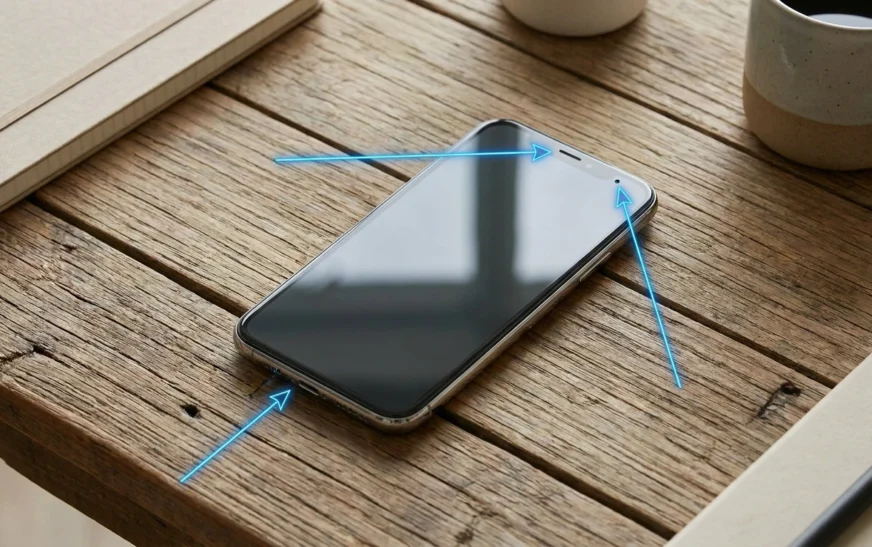
A modern phone does not have one microphone. It has three, sometimes four, scattered around the body so it can cancel noise and route your voice cleanly. That matters because the symptom usually points straight at the culprit. If you sound fine on speakerphone but muffled on a normal call, that is one specific mic, not the whole phone.
The usual suspects, roughly in order of how often I see them:
- Lint or pocket dust packed into the mic grille (extremely common, and people never suspect it)
- A case or screen protector that shifted and now covers an opening
- An app that lost microphone permission after an update or reinstall
- Bluetooth earbuds or a car kit silently grabbing the mic input
- A software glitch that a restart clears in seconds
- Noise-cancellation or a mic setting behaving badly
- Genuine hardware damage, often after a drop or water exposure
First, Find Out Which Microphone Is Actually Broken
Skip this step and you will waste an hour fixing the wrong thing. Each mic has a job, so each one has its own quick test. Do all three, even if you think you already know the answer.
The three-mic test
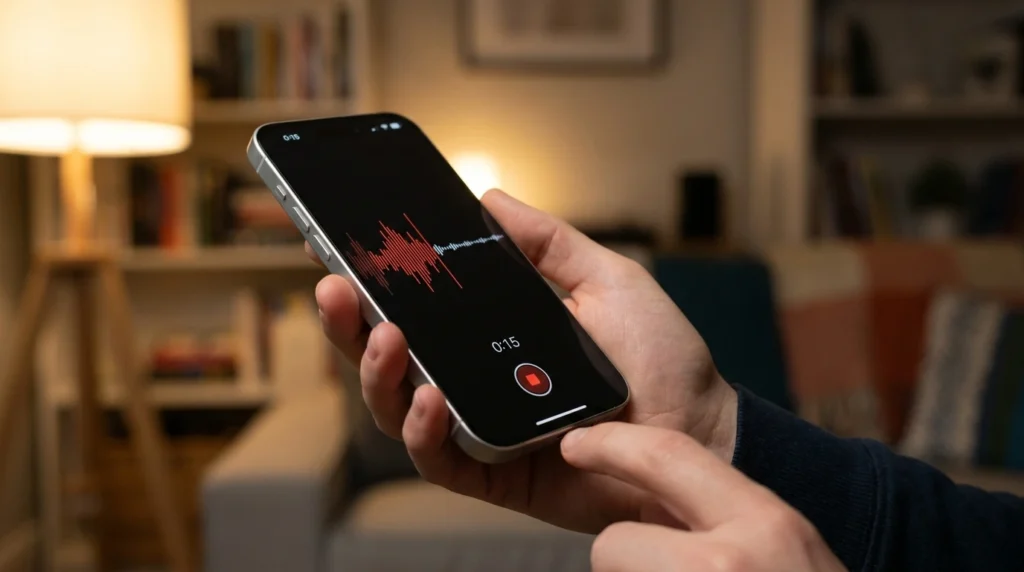
- Bottom mic (normal calls and voice notes): open Voice Memos or your recorder app, hold the phone like you are on a call, and talk near the charging port for ten seconds. Play it back.
- Top earpiece mic (speakerphone, FaceTime, Siri or Google Assistant): make a speaker call or ask your voice assistant a question while holding the phone in front of your face.
- Rear mic (video and the camera): record a short clip talking toward the back of the phone, then watch it back.
If every test is silent or weak, you are probably looking at a hardware fault or a system-wide setting. If only one fails, you have just narrowed the whole problem down to a single component, which makes everything that follows much faster.
Quick answer: If you can be heard on speakerphone but not on a normal call, your bottom microphone is the problem. If you sound fine on calls but videos have no audio, it is the rear mic. Matching the symptom to the mic saves you from random troubleshooting.
Fast Fixes to Try in the First Two Minutes
Before you dig into menus, run this short list. It clears a surprising share of mic problems and costs you nothing but a couple of minutes.
- Restart the phone properly. Power it off, wait thirty to sixty seconds, then turn it back on. A reboot clears the audio routing that gets tangled after long uptime.
- Take the case off. Third-party cases drift, and a misaligned cutout over the mic is shockingly common. Test again with it removed.
- Disconnect every Bluetooth device. Earbuds in your pocket still count. More on this below, because it is sneakier than it sounds.
- Toggle Airplane Mode on, wait ten seconds, then off. This resets the audio stack without erasing anything.
- Make sure you are not muted, and nudge call volume up. Obvious, yes, but it catches people every day.
If one of these brings the mic back to life, you are done. No need to go further. If not, keep going, because the next sections cover the fixes that actually solve the stubborn cases.
The Permission Problem Almost Everyone Misses
Here is the pattern: your mic works perfectly in the recorder app, but WhatsApp, Zoom, or your camera cannot hear you. That is almost never broken hardware. The app simply lost permission to use the microphone, often quietly, after an update or a reinstall.
On Android
Open Settings, search for Permission Manager, tap Microphone, and check that the misbehaving app is set to Allow. While you are there, confirm the system-wide mic access is on. On Samsung phones this lives under Settings, then Security and privacy, then the privacy controls, where a single master toggle can mute the mic for everything.
For a deeper Android voice-assistant or audio-routing tangle, Google’s own walkthrough at the Android microphone help pages is worth a look, since some OEM menus hide these toggles in odd places.
On iPhone
Go to Settings, then Privacy and Security, then Microphone. You will see a list of every app that has asked for the mic. Flip the switch on for whatever is failing. If an app is not in the list at all, it has never requested access, so reinstalling it usually forces a fresh permission prompt.
Quick answer: If the mic works in one app but not another, it is a permissions issue, not hardware. On iPhone go to Settings then Privacy and Security then Microphone. On Android open Settings then Permission Manager then Microphone, and enable the app that cannot hear you.
When Bluetooth Is Quietly Stealing Your Mic
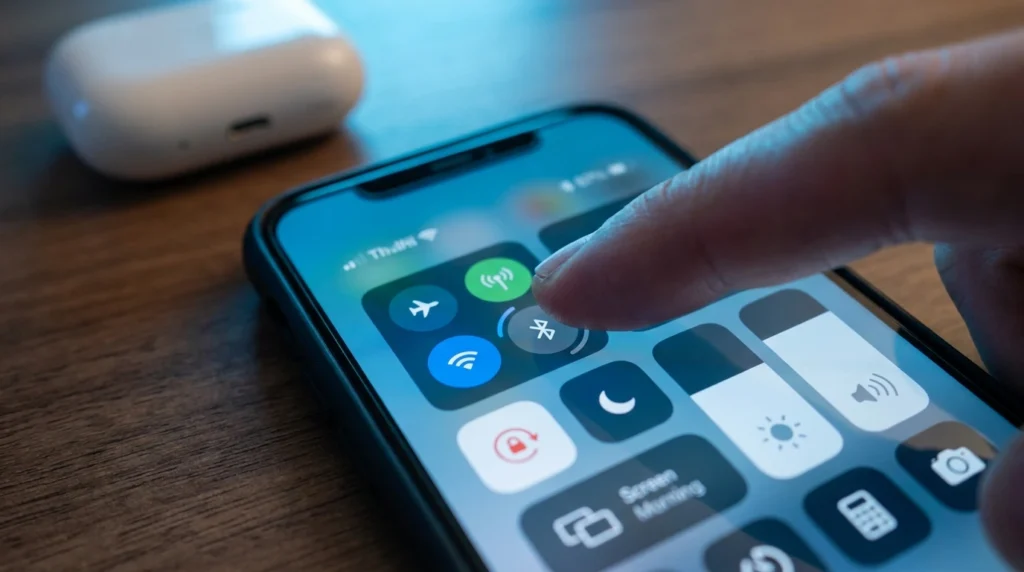
This one fools even experienced users. The moment a Bluetooth device connects, it often becomes the default microphone. So your phone’s built-in mic goes silent, not because it is broken, but because the system is listening through earbuds sitting in your bag, or a car kit two rooms away. A dead, out-of-range Bluetooth mic sounds exactly like a faulty phone mic.
Open Control Center or your quick settings and turn Bluetooth off entirely, then test a call. To be thorough, go into Bluetooth settings and choose Forget or Disconnect for any paired audio device. Once nothing else is claiming the input, the phone falls back to its own mic instantly.
If your earbuds themselves are the weak link, with one side not picking up your voice, a clean reset of the buds often fixes it faster than anything. Our step-by-step on how to reset AirPods covers every model, and the same logic applies to most wireless earbuds: re-pair from scratch and the mic handshake usually sorts itself out.
Cleaning the Mic Opening Without Wrecking It
If your voice sounds muffled rather than absent, debris is the prime suspect. That tiny grille collects lint, pocket fuzz, and over time a surprising plug of grime. Cleaning it is easy, but this is also where people do real damage, so go gently.
Do this
- Find the mic hole (usually bottom edge near the charging port, plus one by the rear camera).
- Use a soft dry brush, a clean toothbrush, or a wooden toothpick to loosen debris with light pressure.
- Hold the phone with the opening facing down so loosened dust falls out.
- Re-run the recorder test to check the difference.
Do not do this
- Do not blast it with compressed air. The pressure can push debris deeper or damage the membrane behind the grille.
- Do not jam a metal pin in hard. You can puncture the mesh and turn a cleaning job into a repair.
- Do not use water or cleaning sprays directly on the opening.
Quick answer: Clean a muffled phone mic with a soft dry brush or a toothpick using light pressure, holding the opening downward so dust falls out. Avoid compressed air and never force metal into the grille, since both can damage the membrane and make the problem permanent.
iPhone-Only Fixes Worth Knowing
Newer iPhones added a feature that trips people up constantly: Mic Modes. On iOS 16.4 and later you can switch your input mode mid-call, and the wrong one can make you sound thin, distant, or heavily filtered, which feels exactly like a failing mic.
During a call or FaceTime, swipe down from the top-right to open Control Center, tap the call controls tile, and look for Mic Mode. Try Standard if your voice sounds processed and robotic. Try Voice Isolation if background noise is burying you. Wide Spectrum is for capturing the whole room, which is rarely what you want on a call.
Two more iPhone moves that genuinely help: reset all settings (Settings, General, Transfer or Reset iPhone, Reset, Reset All Settings) which keeps your data but clears bad toggles, and a check for an iOS update, since Apple has shipped mic fixes in point releases more than once.
While you are in the settings, it is worth knowing your device better in general. We rounded up a stack of genuinely useful tricks in our guide to iPhone 17 Pro hidden features, several of which touch audio and Control Center shortcuts you will actually use.
For model-specific guidance or warranty questions, Apple’s official support site is the most reliable source, and it can confirm whether your specific iPhone has a known mic-related advisory.
Android-Only Fixes Worth Knowing
Android gives you a few extra tools, and one of them is genuinely powerful for diagnosing a stubborn mic: Safe Mode.
Boot into Safe Mode to catch a rogue app
Safe Mode loads the phone with only built-in apps running. If your mic suddenly works in Safe Mode, a third-party app you installed is the cause, often a screen recorder, a call recorder, or a privacy tool that grabbed the mic and never let go. On most phones, hold the power button, then long-press the Power off option until Safe Mode appears.
Other Android fixes
- Clear the cache for the failing app (Settings, Apps, the app, Storage, Clear cache). This fixes corrupted audio data without losing your account.
- Reset app preferences (Settings, Apps, the three-dot menu, Reset app preferences) to restore default permissions in one move.
- Update the system (Settings, System, Software update) to patch firmware-level audio bugs.
- As a last software resort, back up your data and do a factory reset. Treat this as the final step before assuming hardware failure.
Water Damage: What to Do in the First Hour
If the mic died right after a spill, a rainy walk, or a drop in the sink, the next hour matters more than any setting. Liquid plus power is what kills components, so the priority is removing both.
- Power the phone off immediately and leave it off. Do not keep testing it.
- Do not charge it. Pushing current through wet contacts is how corrosion and shorts start.
- Dry the outside, gently shake out the ports facing down, and leave it somewhere dry and airy.
- Skip the rice myth. It does little and the dust can make things worse. Time and airflow do more.
- If the mic is still dead after a full day of drying, get it to a repair shop. Hidden corrosion needs proper cleaning, not guesswork.
Quick answer: If your phone mic failed after water exposure, power the device off right away, do not charge it, and dry it facing downward in open air. Avoid rice. If the mic does not recover within a day, see a technician, because internal corrosion needs professional cleaning.
iPhone vs Android Fixes at a Glance
Same problem, slightly different menus. Here is the quick map so you are not hunting through settings.
| Fix | iPhone | Android |
| App mic permission | Settings > Privacy & Security > Microphone | Settings > Permission Manager > Microphone |
| System mic toggle | Built into per-app list | Privacy controls / master toggle |
| Isolate a rogue app | Reset All Settings | Boot into Safe Mode |
| Mic mode control | Control Center > Mic Mode | Per-app or noise settings |
| Software update | Settings > General > Software Update | Settings > System > Software update |
| Nuclear option | Erase and restore via backup | Factory reset after backup |
DIY Repair vs a Professional, Pros and Cons
Once you have exhausted the software fixes and you are staring at a hardware fault, you have a choice to make. Be honest about your patience and your tools.
Fixing it yourself
Pros:
- Cheapest path, often just a cleaning or a sub-twenty-dollar mic flex part
- Fast if the fix is external, like debris or a case
- You learn your device and avoid handing it over
Cons:
- Opening a modern phone risks the screen, battery, and water seal
- Tiny ribbon cables are easy to tear
- A wrong move can void what warranty you have left
Going to a professional
Pros:
- Proper diagnostics that confirm whether it is the mic or the logic board
- Genuine parts and a workmanship warranty
- No risk to the rest of the phone
Cons:
- Costs more, typically more for the labor than the part
- You may be without the phone for a day or two
- Not worth it on a very old device near replacement anyway
Common Mistakes That Make It Worse
These are the moves I see turn a five-minute fix into a real repair bill.
- Blasting compressed air into the mic grille and pushing debris deeper.
- Poking a needle or pin in hard enough to rip the mesh.
- Assuming the worst and factory resetting before checking permissions or Bluetooth.
- Ignoring the case, which is the single most overlooked cause of a muffled mic.
- Testing only one mic and concluding the whole phone is dead.
- Charging a water-exposed phone, which invites a short circuit.
- Trusting the rice trick instead of proper drying and airflow.
Expert Tips From Real Repairs
Small habits that prevent the problem coming back, and a couple that speed up diagnosis.
- Clean the grille gently every few weeks. Prevention beats repair, and lint builds up faster than you think.
- Buy cases with precise cutouts, ideally from the phone maker, so nothing drifts over an opening.
- When a call goes one-way and the other person cannot hear you, test a voice memo first. If that records fine, the mic is healthy and the issue is software or network.
- Keep the OS current. A lot of mid-cycle updates quietly patch audio routing bugs.
- If only video has no sound, you have found the rear mic without touching a single setting.
- Before paying for a repair, try a different SIM or a quick network reset, because some carrier glitches mimic a dead mic on calls.
When to Stop and See a Pro
Draw the line here. If you have run the three-mic test, restarted, removed the case, killed Bluetooth, fixed permissions, cleaned the opening, and tried the platform-specific resets, and the mic is still dead across every app, you have ruled out the fixable causes. At that point it is almost certainly hardware, and more DIY mostly adds risk. Back up your data and book a repair. Same goes for any mic that died right after a hard drop or water, where internal damage is likely even if the phone still powers on.
Frequently Asked Questions
Why can people hear me on speakerphone but not on a normal call?
Different mics. Speakerphone uses the top earpiece mic, while a normal call uses the bottom mic near the charging port. If only regular calls fail, the bottom mic is blocked, dirty, or faulty, so clean that opening first and check for a case covering it.
How do I test if my phone microphone is working?
Open your Voice Memos or recorder app, record yourself talking for ten seconds, then play it back. For a full check, also make a speaker call and record a short video. Silent or weak playback on all three points to a hardware or system-wide problem.
My mic only fails in one app. What should I do?
That is a permissions issue, not broken hardware. On iPhone go to Settings then Privacy and Security then Microphone and enable the app. On Android open the Permission Manager, tap Microphone, and allow it. Reinstalling the app forces a fresh permission prompt if it is missing.
Can dust really break my microphone?
It will not break it, but packed lint and pocket dust commonly muffle the sound until your voice plays back faint or distant. A gentle clean with a soft brush or toothpick, opening facing down, usually restores full clarity. Skip compressed air, which can push debris deeper.
Why does my mic stop working when my earbuds are connected?
Bluetooth audio devices often become the default microphone the moment they connect, even from your pocket or another room. Your phone mic goes silent because the system is listening through the buds. Turn Bluetooth off or forget the device, then test a call again.
Will a factory reset fix a microphone problem?
Sometimes, if the cause is software. But it erases your phone, so treat it as a last resort after permissions, Bluetooth, cleaning, and updates fail. If the mic stays dead even after a reset, the cause is hardware and a reset cannot help.
How much does it cost to repair a phone microphone?
It varies by model and region, but the part itself is often inexpensive while the labor is the main cost. On older phones near replacement age, a repair may not be worth it. Get a diagnostic quote first so you know whether it is the mic or the board.
Final Take
A phone mic that quits feels like an emergency, but the fix is rarely dramatic. Work the problem in order: figure out which of the three mics is failing, run the two-minute basics, sort out permissions, rule out Bluetooth, then clean the opening. The overwhelming majority of cases never make it past those steps. Save the factory reset and the repair shop for the small slice of genuine hardware faults, and you will solve this yourself far more often than not.
Run the tests once before you panic, and keep that grille clean going forward. Your future calls will thank you.

Continue Reading on CripsyWire
For more practical tutorials and hidden features, see our full how-to guides section. AI workflow guides feed into the broader AI tools and agents coverage, phone tricks live in smartphones, and wearable setup walkthroughs in wearables. When you are deciding what to buy, the reviews and comparisons section helps. All part of CripsyWire Tech, and the homepage shows what is newest.